AI Assistant
The AI Assistant is a core assistive feature that keeps users in flow by answering questions, surfacing data, and guiding next steps directly inside the 3 Clicks Cloud instance. It reduces manual querying and shortens feedback loops. The assistant focuses on one conversation at a time; follow-up questions in that thread keep context.
Overview
The AI Assistant is where users interact with live platform data. It provides the fastest way to query information, validate work, and explore trends without leaving the current page. Responses stream in real time, and the assistant can return tabular data or summarised results depending on the query.
By keeping the chat panel inline with your workflow, you can inspect responses, ask follow-up questions in the active conversation, and continue your task without losing place. The assistant supports actions such as copying responses or providing feedback to improve future results.

Quick Check - Before You Start
- Confirm you are signed in to the correct 3 Clicks Cloud instance where the data should exist
- Decide whether you need a summary or the full grid so you know when to type display all
Access and Launch
| Feature | Description |
|---|---|
| Open Chat | In the top bar of the 3 Clicks Cloud page, click the AI button next to notifications and profile icons. |
| Suggestions | One-click prompts (for example: "Show Styles created today by me.") send immediately to the server.  |
| Open New Chat | Start a fresh conversation. Only one conversation is active at a time; older threads are listed under Chat History.  |
| Chat History | To retrieve or resume a previous conversation, open Chat History in the chat panel (see Chat History). |
| Results | Responses stream live; large results show a summary with a footer note, and full tables can be expanded with download options to excel file.  |
Stay in context
Opening the chatbot does not move you away from your current page, so you can inspect the response and continue your task without losing place.
Display All Responses
- For large responses, a footer note indicates the query returned many rows and only a summary is shown.
- When prompted for the full list, type display all.

- Use the download button in the bottom-right of the table and confirm the file downloads.

No Data Displayed
If no data is returned, double-check filters, spelling, and that the data actually exists before retrying.
Chat History
The AI Assistant works with one conversation at a time in the panel. To retrieve previous conversations, open the assistant and click Chat History.
- Open the chat, then use Chat History in the upper-right of the side panel.

- Click a previous conversation, and it will immediately load.

- To delete the chat history, click the trash icon and confirm deletion.

Actions
| Action | Description |
|---|---|
| Like / Dislike | Provide feedback on a response; a confirmation toast appears when recorded.  |
| Copy Message | Copy any reply to your clipboard for reuse or sharing.  |
Managing the Use of AI Assistant
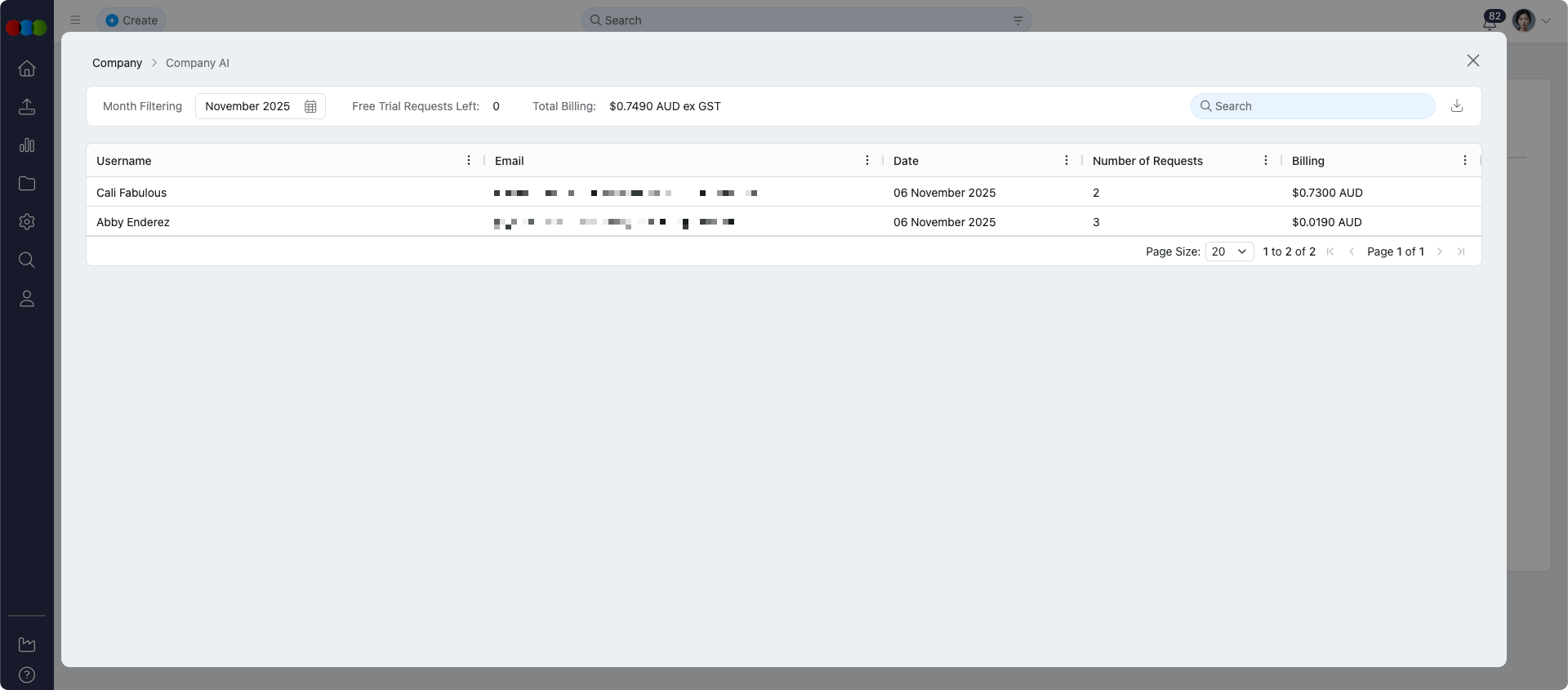
Site Settings > Company > Company AI
Administrators monitor AI adoption, per-user usage, and company-level billing from Site Settings > Company > Company AI. That area complements day-to-day use of the AI Assistant: it shows who has used AI, costs where applicable, and aligns with Roles and Permissions so only authorised roles can open the assistant.
See Site Settings › Company › Company AI for the full setup and billing.
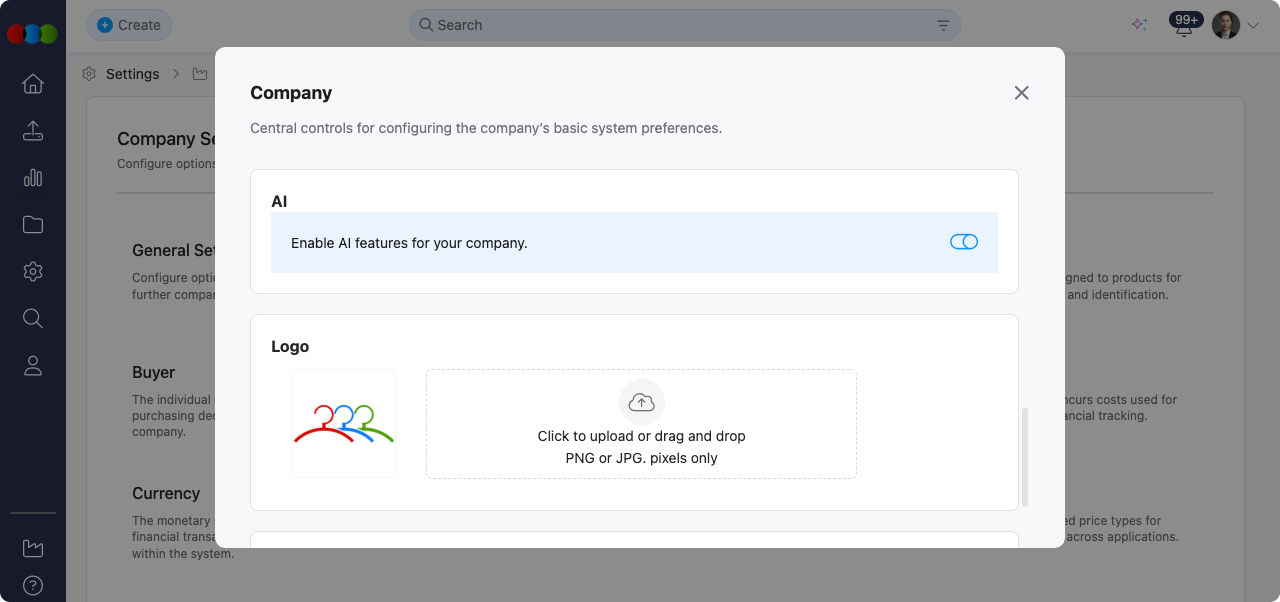
Site Settings > Company > General Settings > AI
Company-wide AI features—including the AI Assistant— is being turned on under Site Settings > Company > General Settings > AI. The Company AI toggle enables AI for the organisation; when it is off, users cannot rely on AI tools regardless of other settings. Trial and renewal for AI is also tied to this screen.
See Site Settings › Company › General Settings › AI for more information on AI features.
Troubleshooting
The assistant returned no rows—how do I fix my prompt?
The model queries live data; empty results usually mean filters, spelling, or missing records.
Steps to resolve:
- Re-read the No Data Displayed guidance: verify filters, spelling, and that the dataset exists.
- Ask again with broader dates or fewer constraints, then narrow down from the summary.
I only see a summary table—how do I download everything?
Large results default to summaries with a footer note until you expand them.
Steps to resolve:
- Type display all in the chat to request the full result set.
- Use the table’s download control and confirm the file saved locally.
Helpful Tips
- Be specific — Include timeframes, names, and statuses in your prompt (for example, "styles created in the last 5 months by Maria") for faster, cleaner results.
- Reuse context — Ask follow-up questions in the active chat; use Chat History to return to an older thread or Open New Chat to start clean.
- Keep prompts focused on data that exists in your instance; the assistant queries live platform data rather than general knowledge.
- Use the display all command when you need the complete result set for large queries.
- Provide feedback with Like/Dislike to help improve response quality over time.