AI Assistant
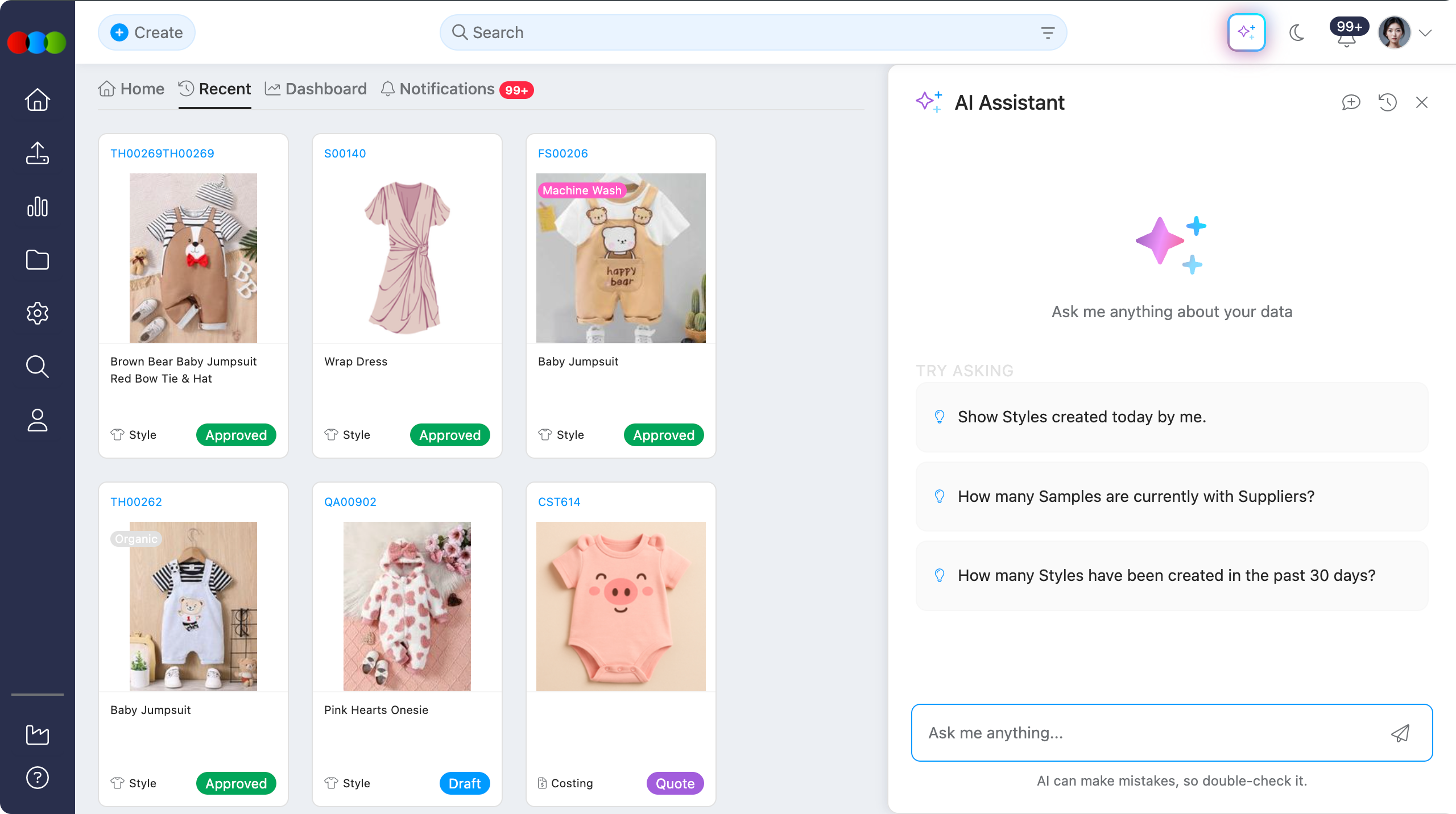
The AI Assistant is a core assistive feature that keeps users in flow by answering questions, surfacing data, and guiding next steps directly inside the 3 Clicks Cloud instance. It reduces manual querying and shortens feedback loops. Suggestions can reflect the application page you open from, you can save frequent queries, and you can click a row in a result and ask for more detail—all without leaving the chat. The assistant focuses on one conversation at a time; follow-up questions in that thread keep context.
Overview
The AI Assistant is where users interact with live platform data. It provides the fastest way to query information, validate work, and explore trends without leaving the current page. Responses stream in real time, and the assistant can return tabular data, charts, or summarised results depending on the query. Ask pricing-related questions in plain language when you need to analyse price data, and use any data-quality hints on results to catch issues early.
By keeping the chat panel inline with your workflow, you can inspect responses, ask follow-up questions in the active conversation, and continue your task without losing place. The assistant supports actions such as copying responses or providing feedback to improve future results.
Quick Check - Before You Start
- Confirm you are signed in to the correct 3 Clicks Cloud instance where the data should exist
- Decide whether you need a summary or the full grid so you know when to type display all
Access and Launch
| Feature | Description |
|---|---|
| Open Chat | In the top bar of the 3 Clicks Cloud page, click the AI button next to notifications and profile icons. |
| Suggestions | One-click prompts (for example: "Show Styles created today by me.") send immediately to the server. When you open the assistant from a specific application page (for example Style or Order), suggested queries reflect that context so you can reach relevant answers faster. 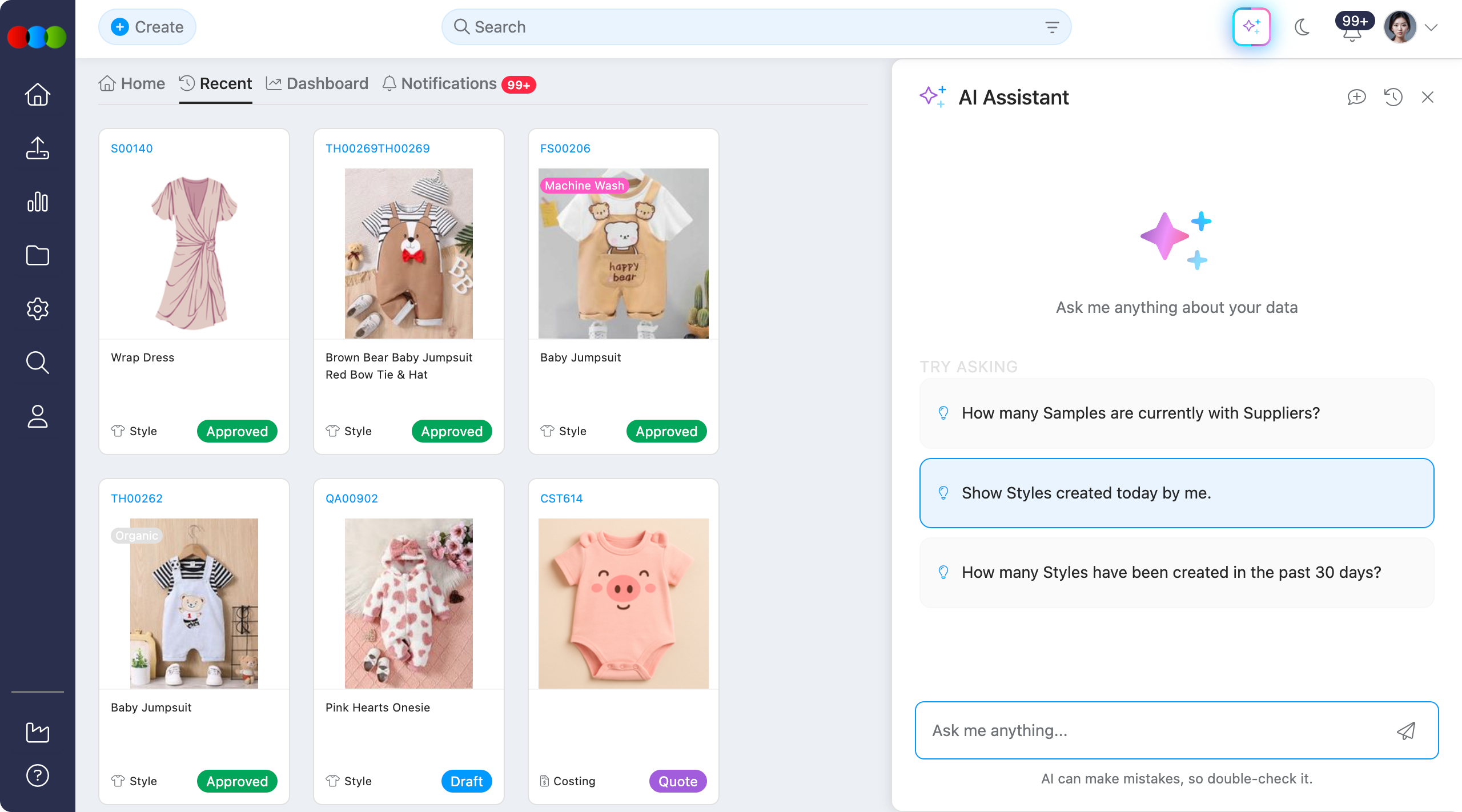 |
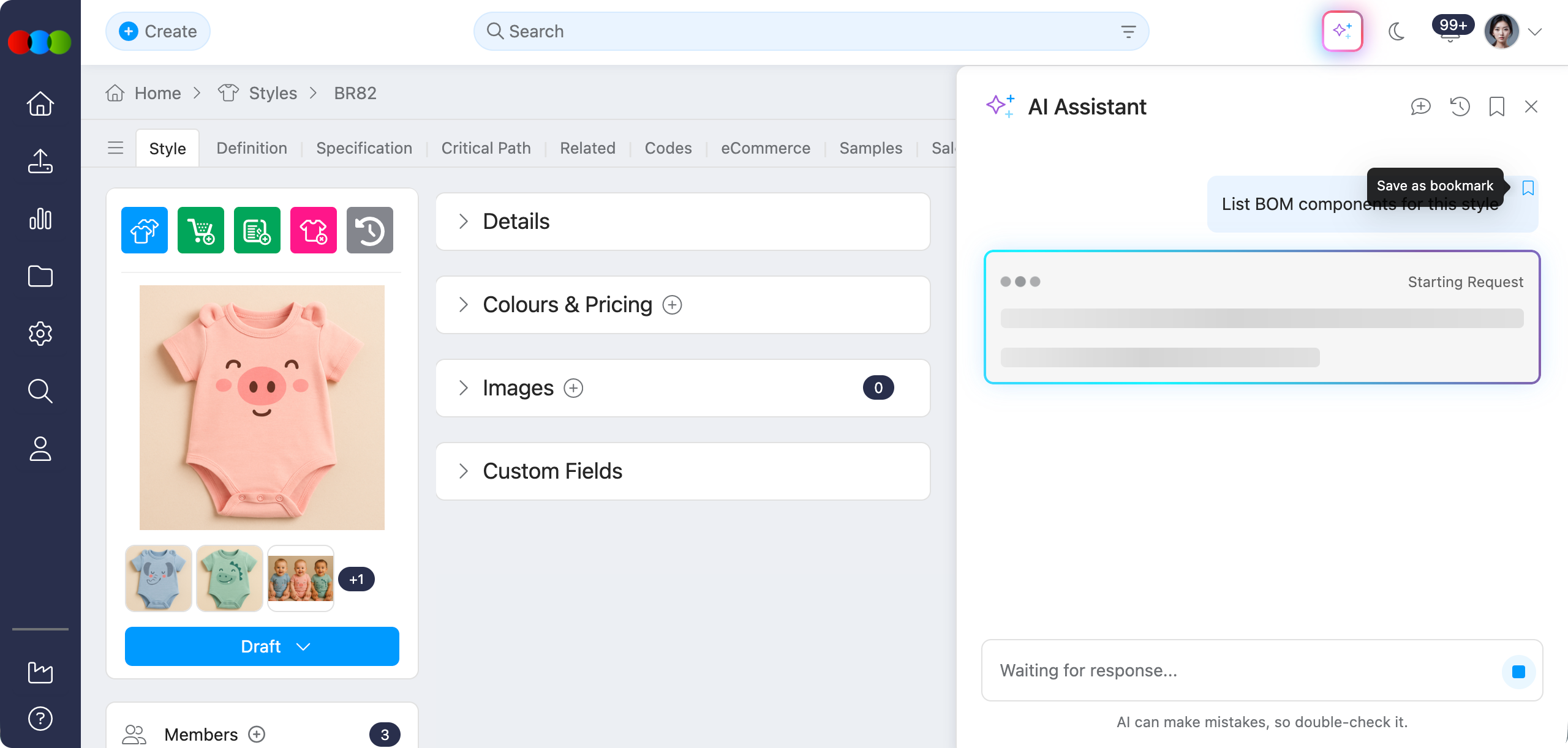
| Bookmarks | Save frequently used queries as bookmarks and open them again whenever you need them. Only your messages can be saved as a bookmark; chatbot responses cannot. |
| Open New Chat | Start a fresh conversation. Only one conversation is active at a time; older threads are listed under Chat History. 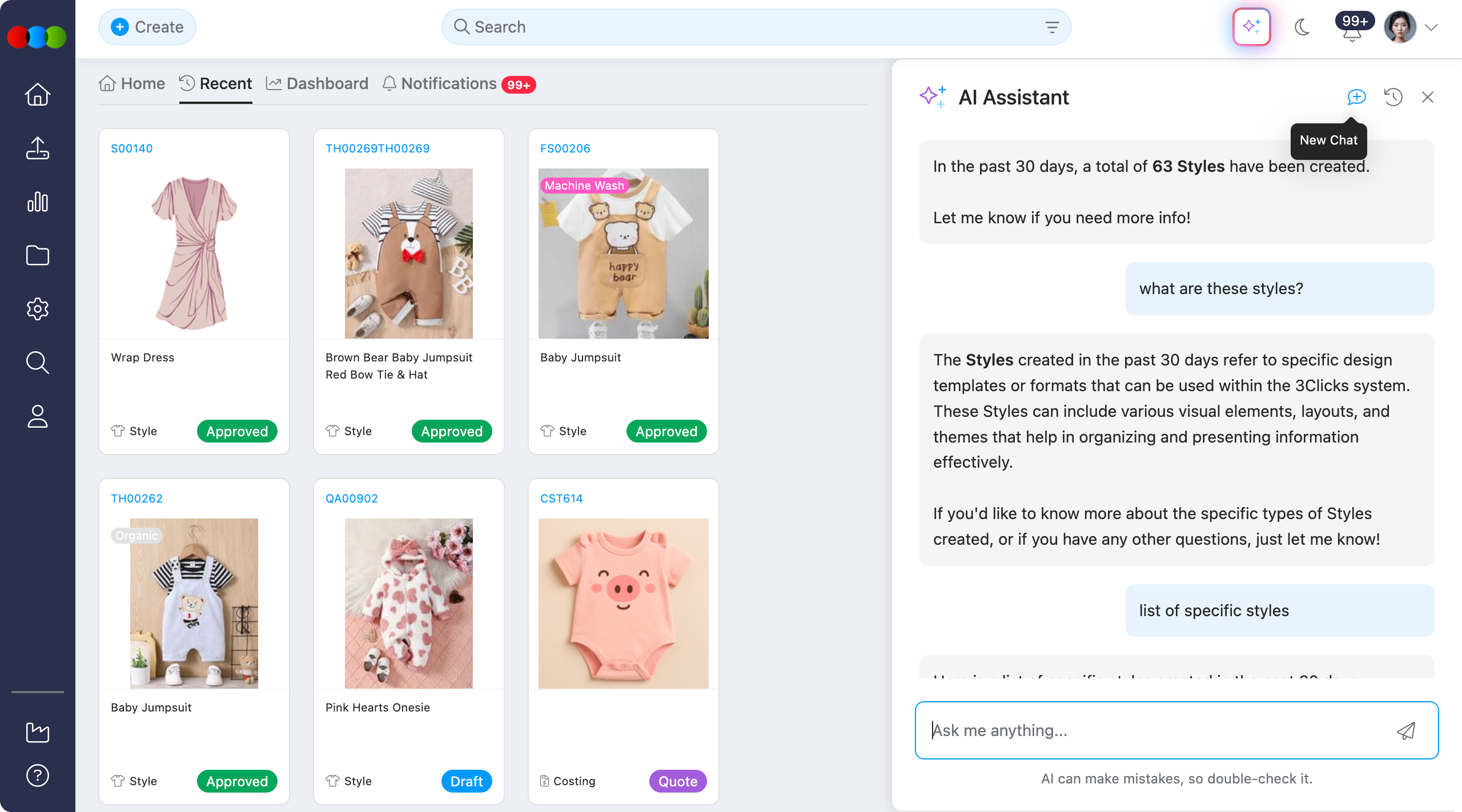 |
| Voice Input | Voice-to-text input for the AI Assistant, enabling hands-free querying for users who may not be able to type easily. 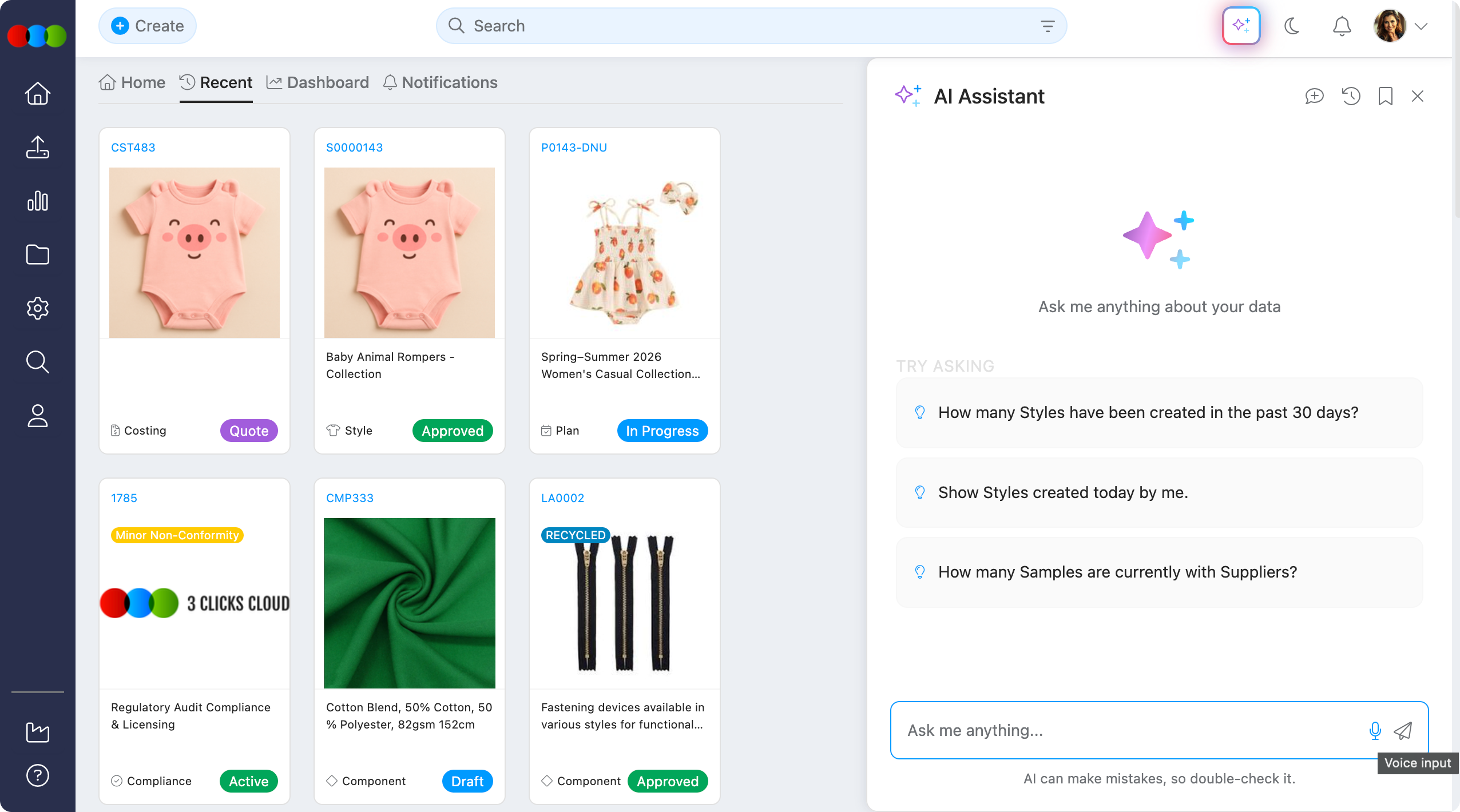 |
| Chat History | To retrieve or resume a previous conversation, open Chat History in the chat panel (see Chat History). |
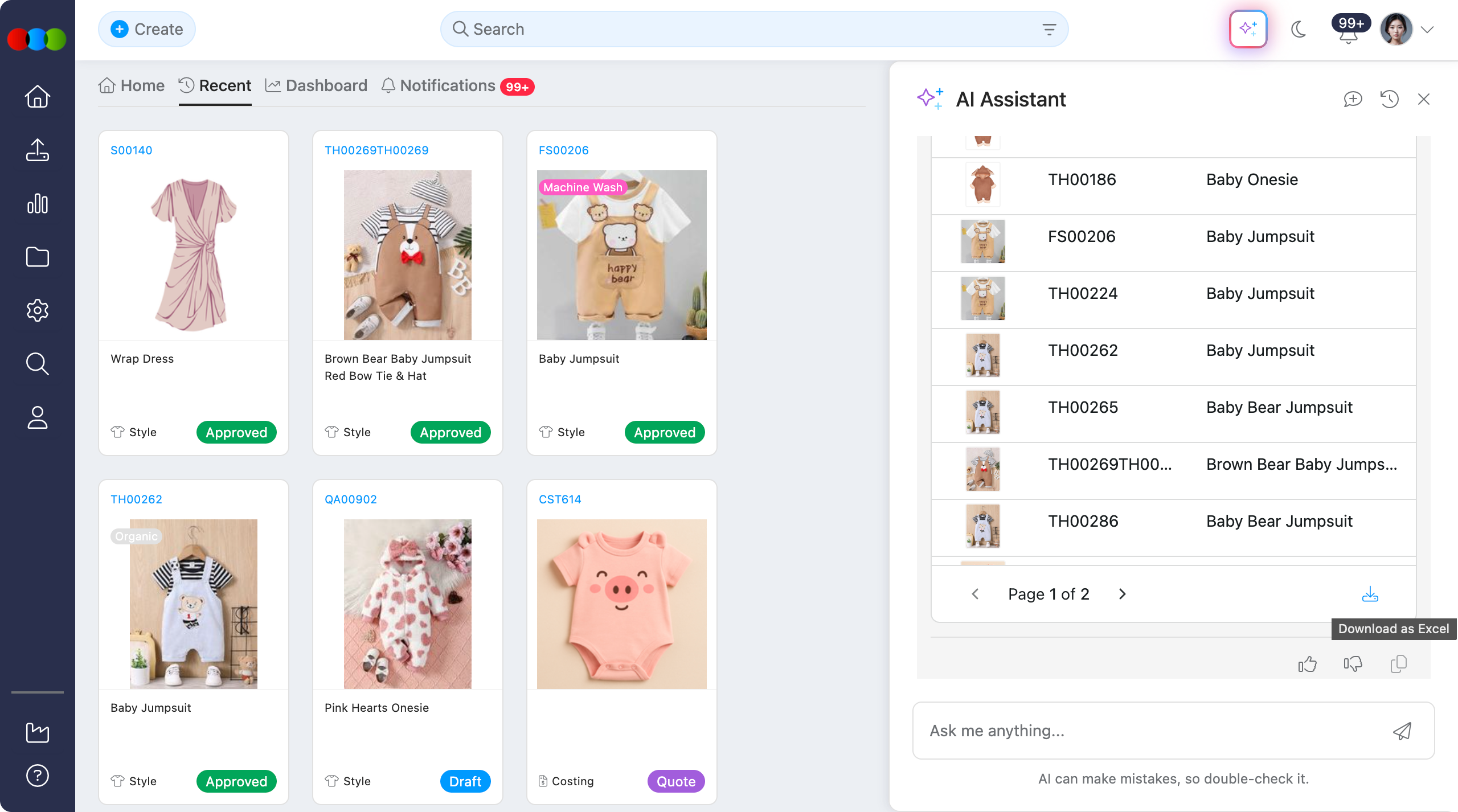
| Results | Responses stream live; large results show a summary with a footer note, and full tables can be expanded with download options to excel file. By default, results focus on active data. Cancelled and Completed records are excluded unless you ask for them. The assistant may automatically flag potential data quality issues in returned results. In the result, click the row Tell me more about this one to show detailed information in the chat. 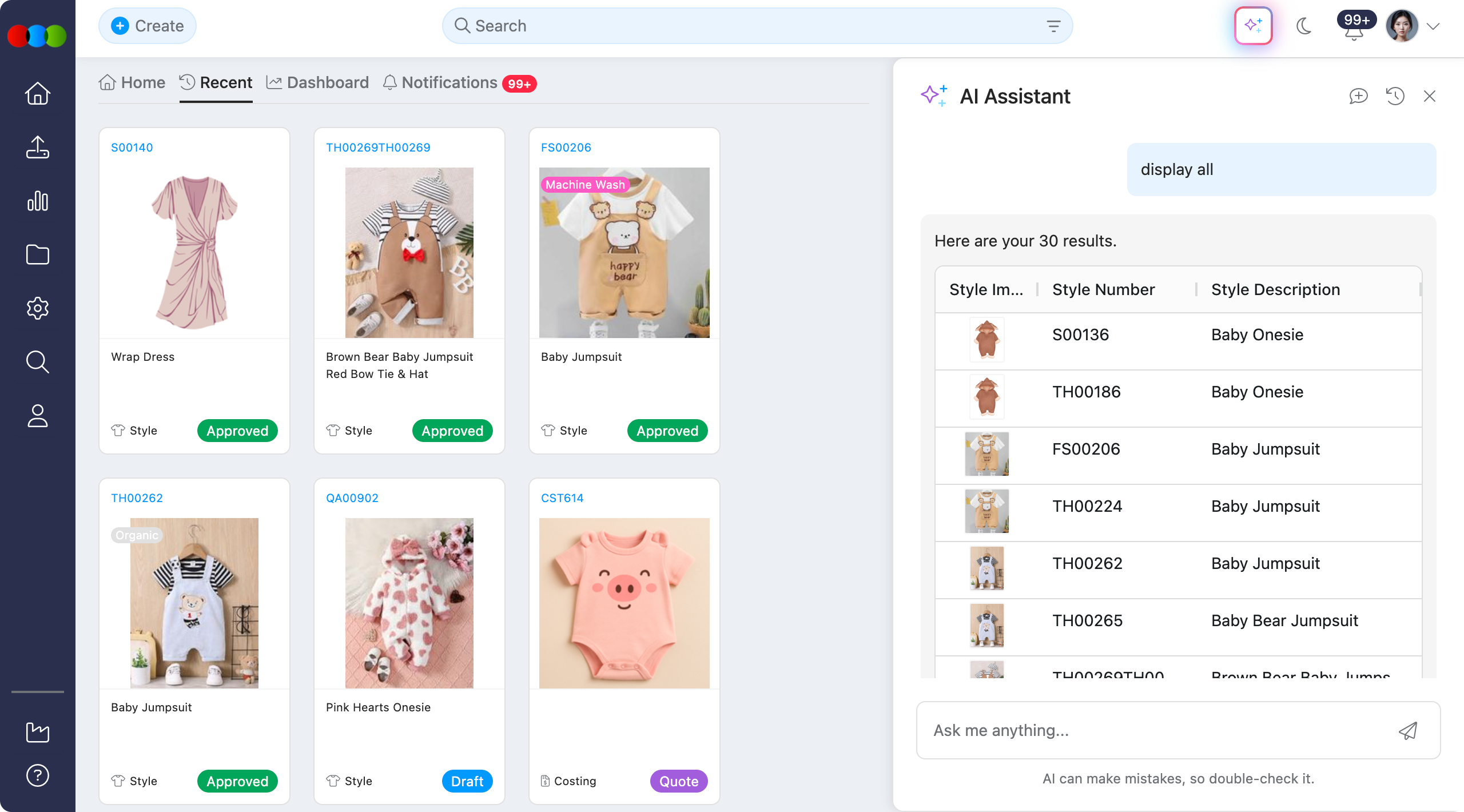 |
Stay in context
Opening the chatbot does not move you away from your current page, so you can inspect the response and continue your task without losing place.
Voice Input
Voice Input turns speech into text in the chat field so you can ask the AI Assistant without typing.
| Step | Action |
|---|---|
| 1 | Open the AI Assistant, then click the microphone control in the chat box to start dictation. |
| 2 | Transcribed text appears in the input so you can edit or send it like a typed prompt. Note: The first time you use voice on a browser or device, you may need to allow microphone access when prompted. |
| 3 | Voice queries use the same live data and behaviour as typed messages; speak clearly and review the text before sending if the transcript needs a correction. |
What the AI Assistant can do
Recent Style
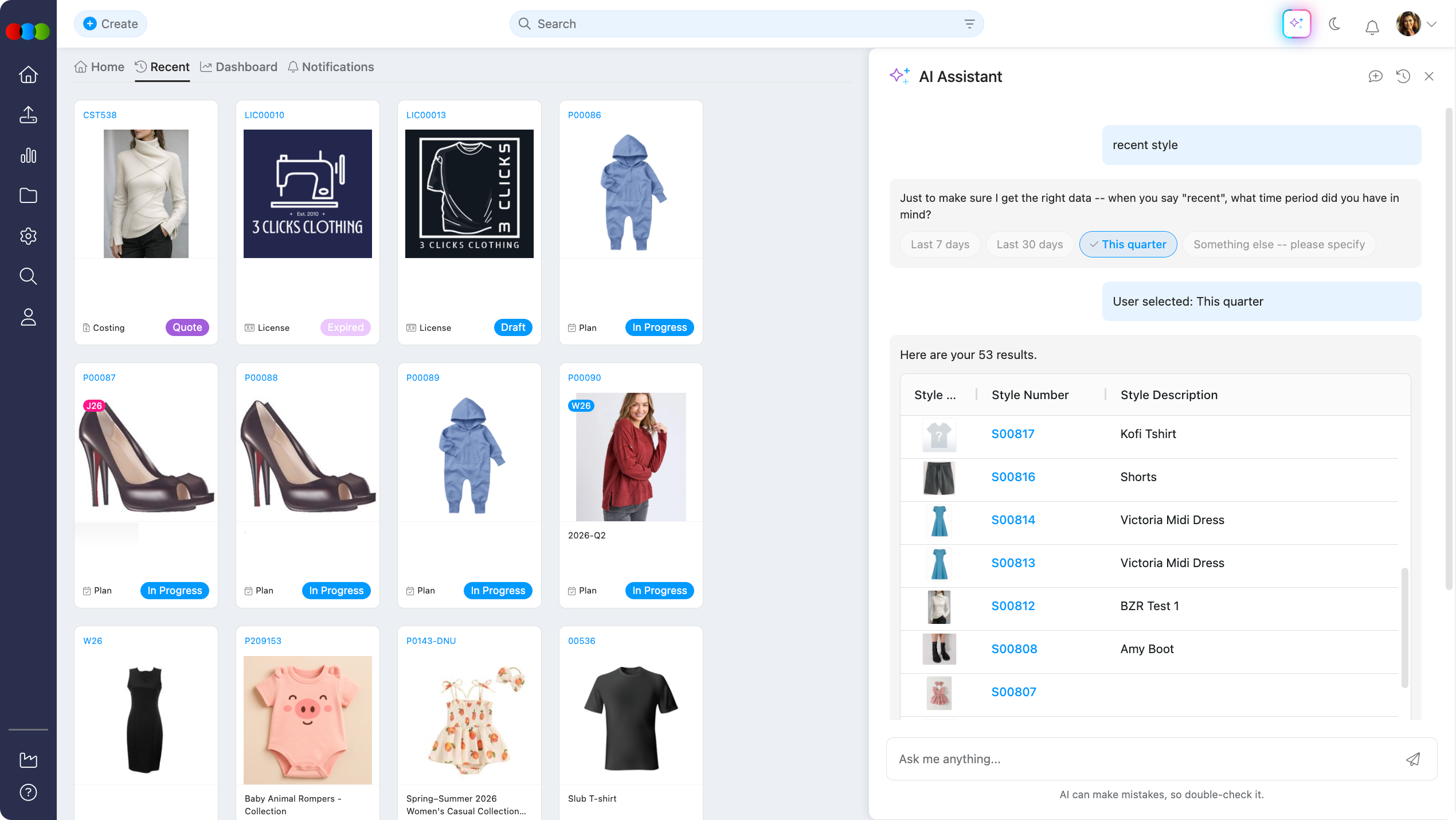
If your question is unclear or underspecified, the assistant may ask for clarification instead of guessing. For example, a prompt like “recent styles” can surface date range options (e.g., last 7 days, last 30 days, this quarter) so the answer matches what you meant.
Suggested Follow-ups
You can also click Suggested Follow-ups when the assistant offers them. Those options keep the thread on track with clearer scope, so you usually get a more accurate answer for what you are trying to find than a single vague prompt alone.
Context-aware suggestions
When you open the AI Assistant from a specific application page (for example Style or Order), it detects where you are and suggests relevant queries based on that page.
AI Assistant > About this style 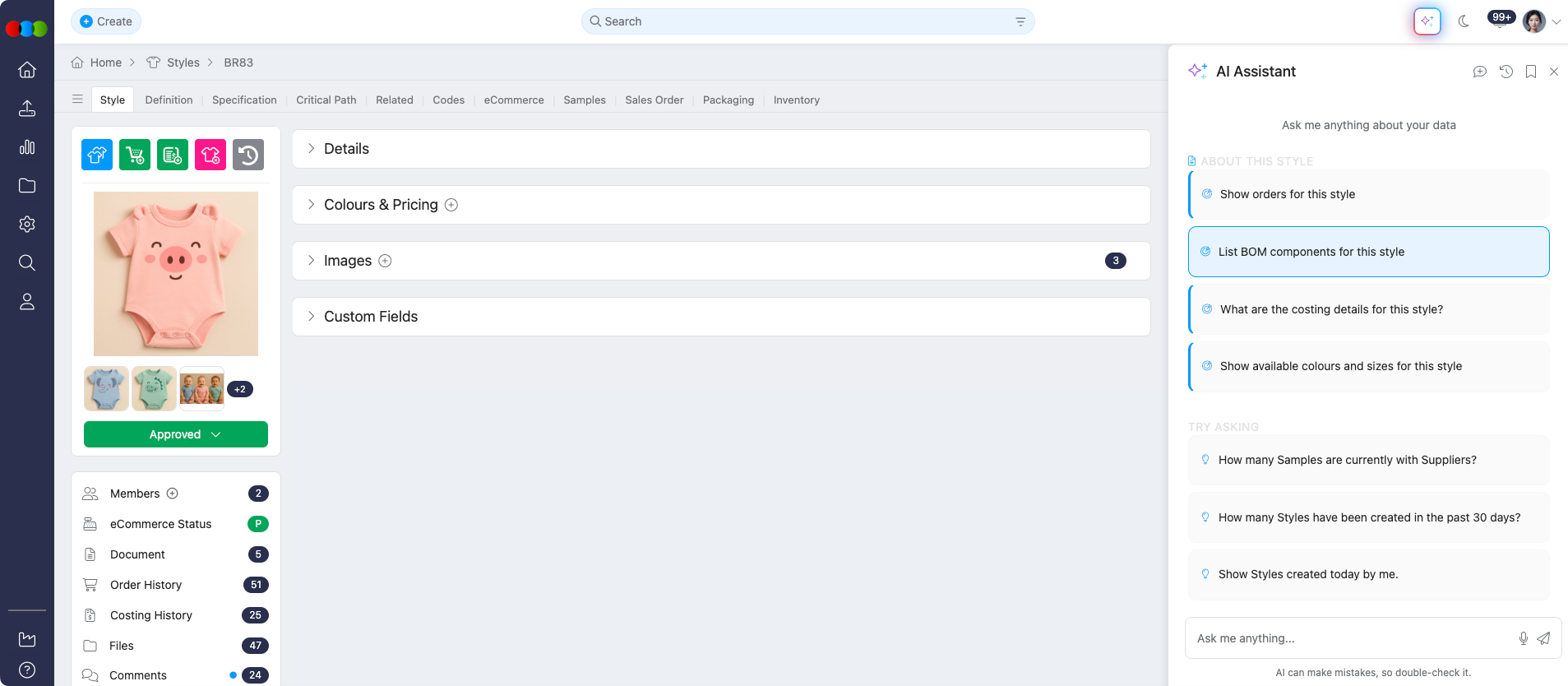
Bookmarks
Save prompts you use often as bookmarks and return to them whenever you need them. Only your messages in the chat can be saved as a bookmark; responses from the chatbot cannot be bookmarked.
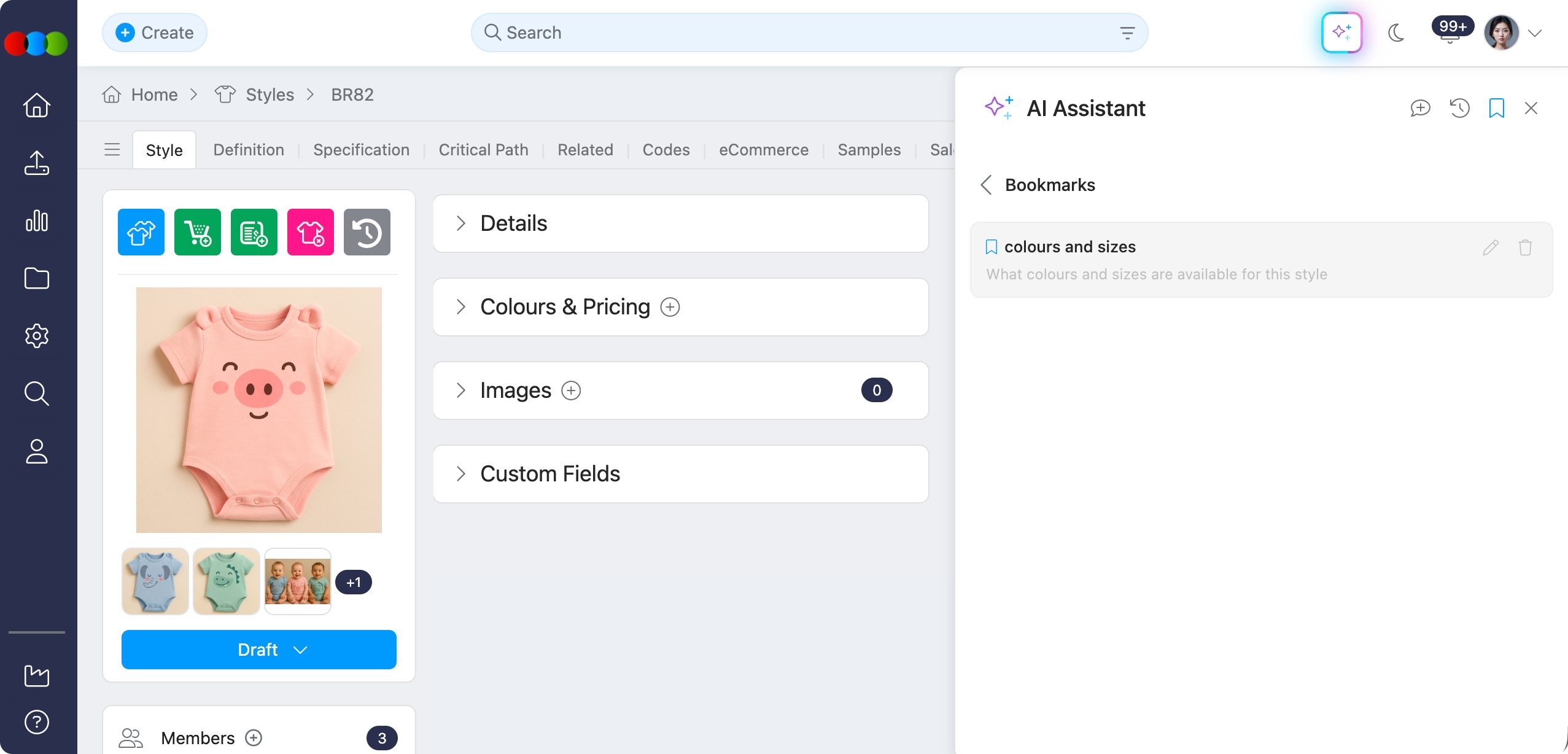
What you can bookmark
Bookmark your own messages or queries only. Chatbot replies cannot be marked as a bookmark.
Pricing
You can ask the AI Assistant questions regarding pricing to analyse pricing-related queries, without leaving the chat.
Style Sales Data
The Style Sales Data area in Planner ties merchandise planning to live performance: sell-through, demand, commercial value, inventory, and regional and size distribution. The AI Assistant can help you query and reason about the same sales reporting data in conversation when your role allows it, so you do not have to open Planner or export grids for every check.
| Sales data | What you can use it for in chat |
|---|---|
| Sell-through rate % (STR %) | Understand how much of available inventory has sold; strong vs weak style/colour performance. In Planner, STR uses progress bars and colour bands (e.g. green over 80%, orange 50–80%, red under 50%). |
| Sales trend | See whether demand over recent weeks (e.g. last 6 weeks) is rising, stable, or declining. |
| Total sales | Aggregated revenue for a style's colourway by currency, not only unit movement. |
| Stock on hand (SOH) | Current inventory after receipts, adjustments, and sales—useful for overstock, sell-out risk, and replenishment. |
| Weeks on stock (WOS) | Rough cover from current SOH and recent selling (e.g. average over the last 8 weeks in Planner). |
| Regional and size view | Where demand sits by region, and how sales compare to stock by size (e.g. broken size analysis). |
These concepts align with the Sales Data experience in Planner; the assistant answers from live platform data subject to the same business rules and calendars.
Permission: Enable Sales Data
| Aspect | Description |
|---|---|
| Configuration | Site Settings > Company > Roles & Permissions > Planner > Advanced > Total Sales on the user's Production Portal role |
| If enabled | Authorised users can work with Total Sales and related sales reporting in Planner, Search, and the AI Assistant as designed for that role. |
| If disabled | The Total Sales column is hidden in Planner, and users cannot access that data in Planner, Search, or the Chatbot—ask your administrator if you need this. |
Sales calendar and no data
Sales that roll up to weekly reporting (including data behind Style Sales Data) use the company’s Sales Reporting calendar from Site Settings > Style > General Settings > Sales Reporting (for example Standard vs 454). If no sales data exists for a style or period, dependent answers may show No Data or the assistant may not have figures to return—check filters, dates, and that reporting has been populated.
For field-level behaviour, breakdowns, and Planner UI (Sales Breakdown pop-up, Regional Heatmap, Size Curve Overlay, screenshots, and step-by-step calculations), see Planner > Style > Style Sales Data.
Data quality in results
The assistant can automatically detect and flag potential data quality issues within returned results. This helps you spot and address problems, improve accuracy, and make more confident decisions with less manual checking.
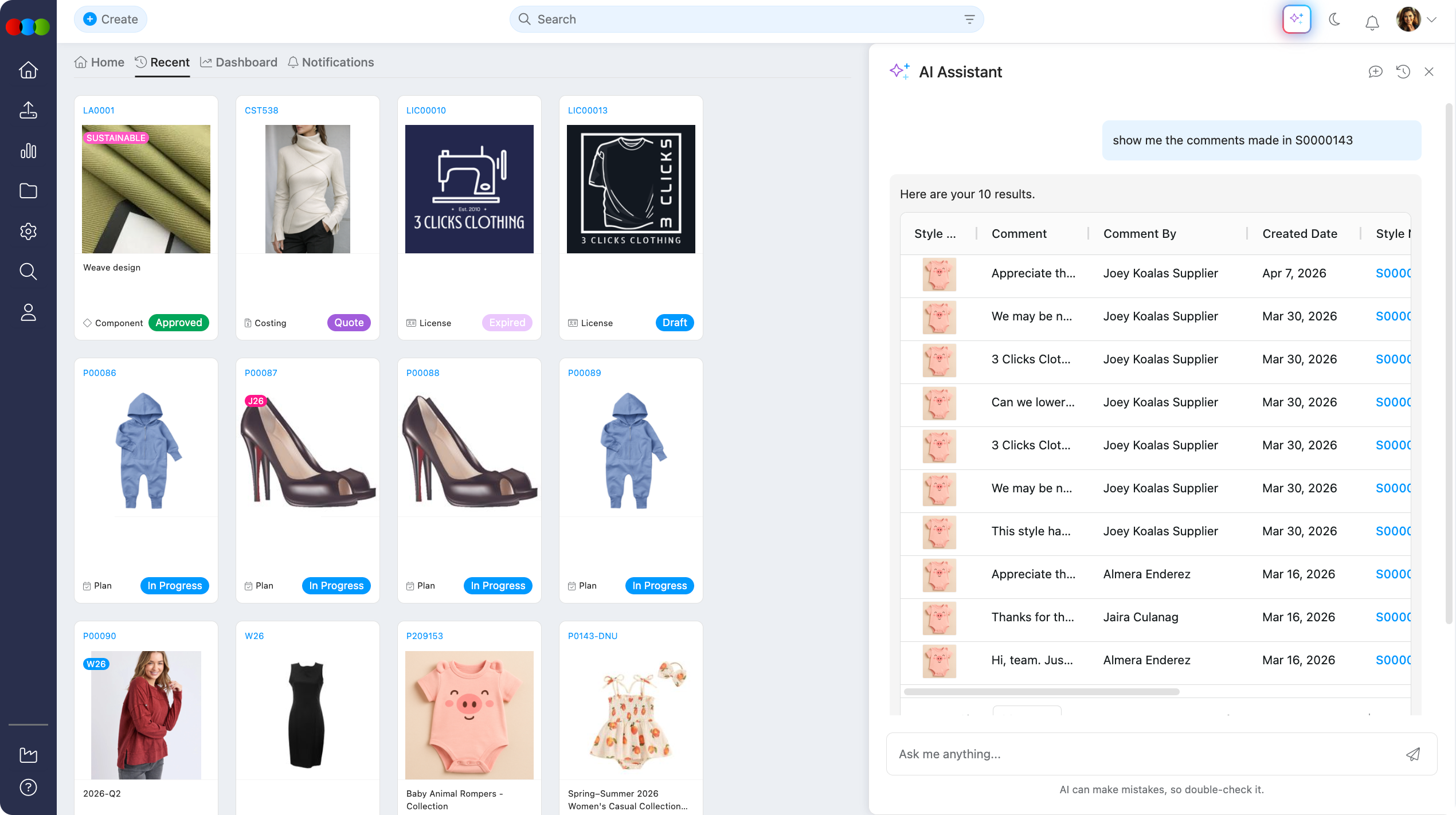
Comments
You can query comments that sit on Styles, Orders, and other applications. Responses include full detail of: Item Image, Comment By, Created Date, and Application Number.
Result size
Each answer can include up to 2,000 rows, which helps broader searches stay complete in a single reply. Very large answers may still show a summary first. See Display All Responses to expand or download the full response.
Display All Responses
- For large responses, a footer note indicates the query returned many rows and only a summary is shown.
- When prompted for the full list, type display all.
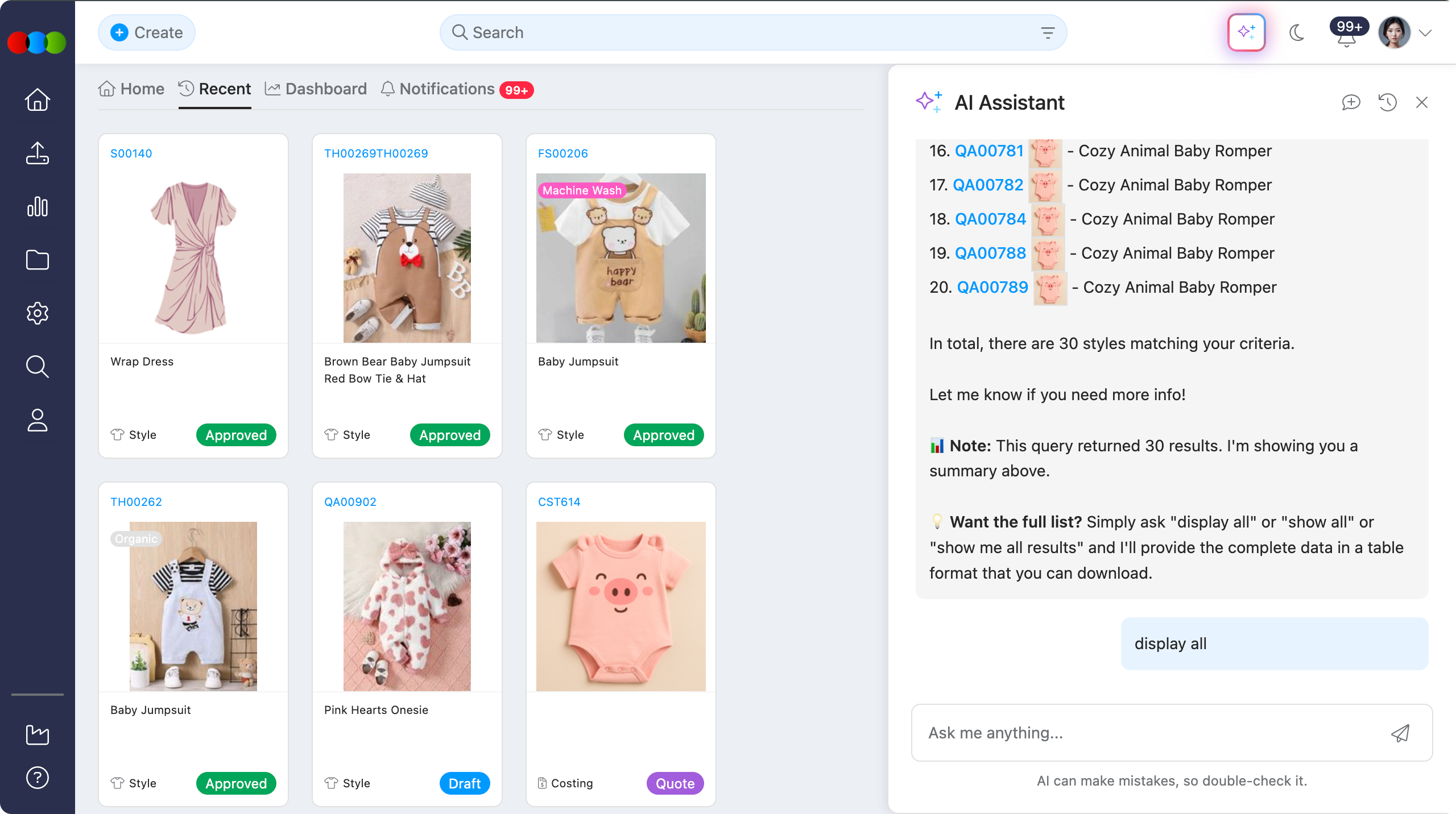
- Use the download button in the bottom-right of the table and confirm the file downloads.
No Data Displayed
If no data is returned, double-check filters, spelling, and that the data actually exists before retrying.
Charts and Graphs
You can ask the AI Assistant to create charts and graphs from the data it returns for your questions. You can also describe the chart you want in your first message if you already know you need a visual.
| Chart | When to use it |
|---|---|
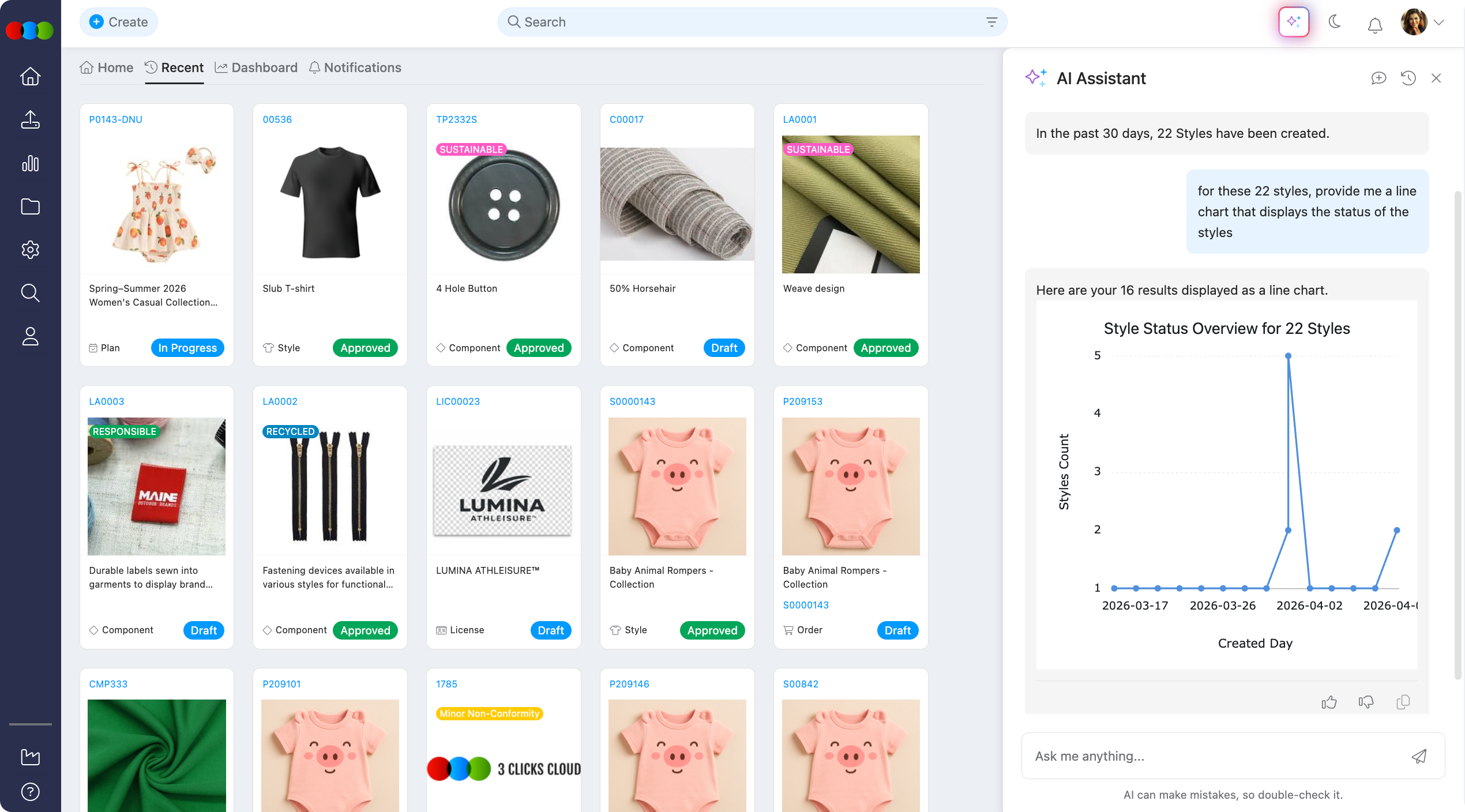
| Line chart | Values over time (trends, sequences, date ranges). |
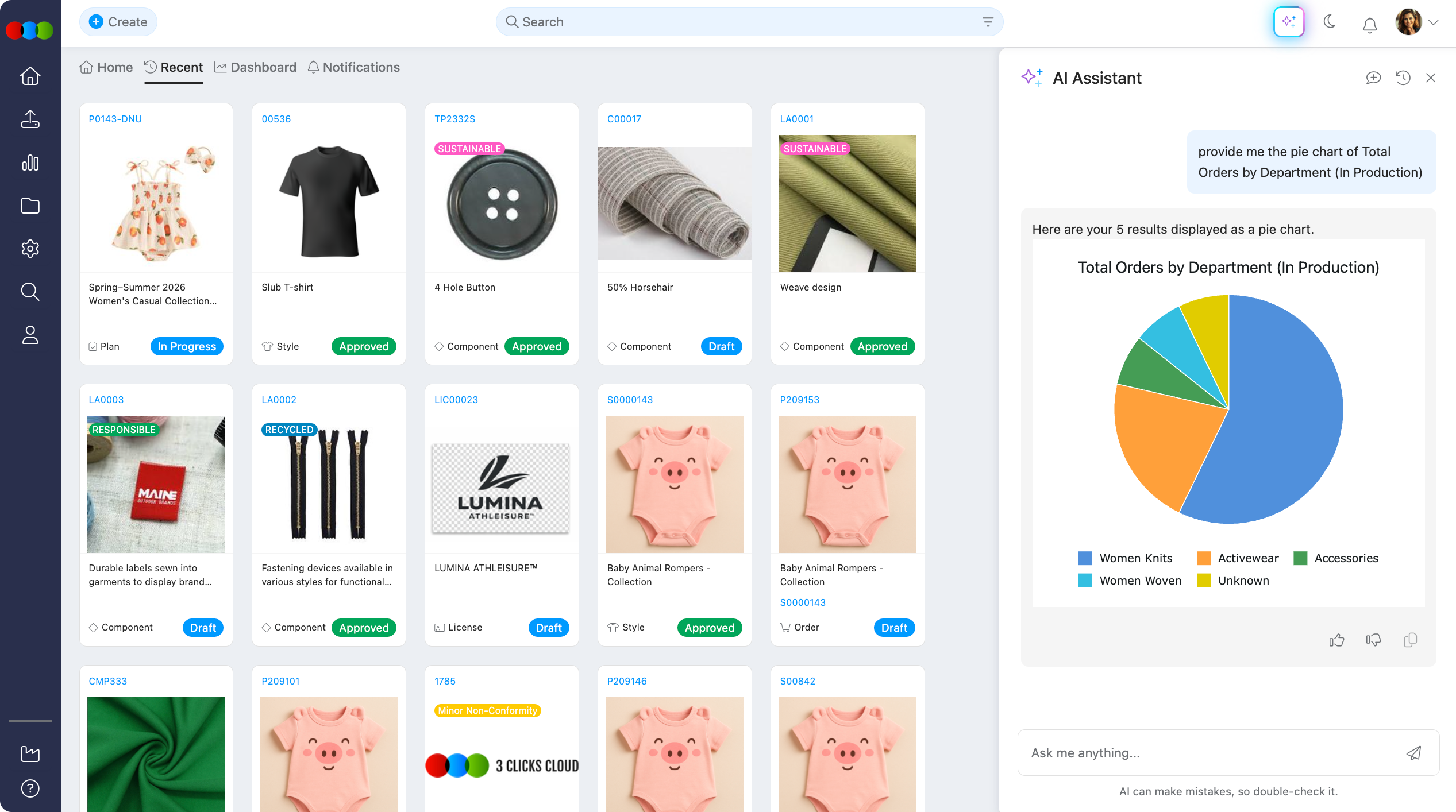
| Pie chart | Parts of a whole (percentages or shares of a total). |
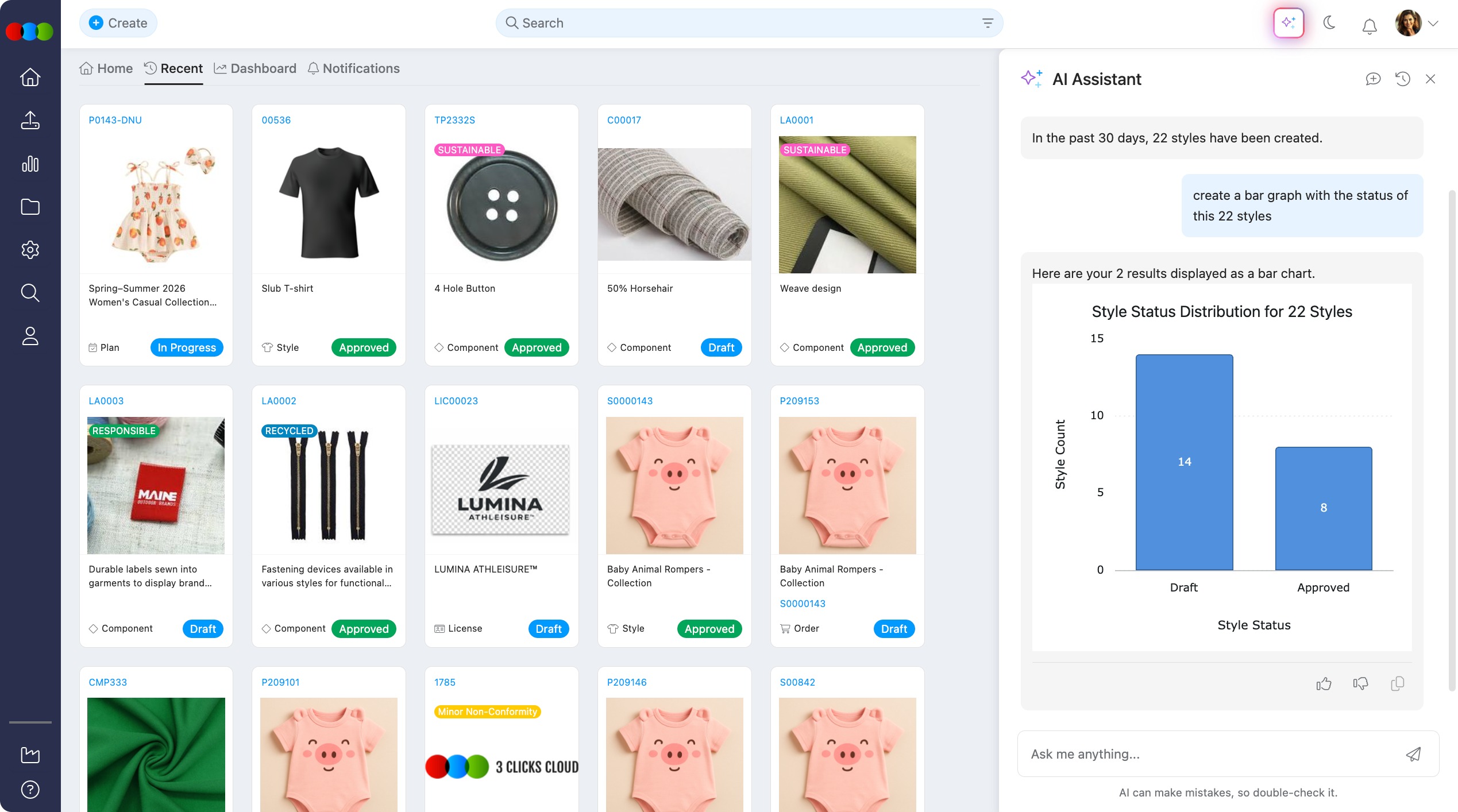
| Bar graph | Comparing categories side by side (counts or totals by group). |
Charts use the data in your 3 Clicks Cloud as answers, so you can compare categories, see proportions, and read trends without leaving the chat or exporting to Excel.
Line chart
Use a line chart when you want to see how values change over time.
When to use a line chart?
To check monthly counts, weekly totals, or activity across a date range you specified in your prompt.
Pie chart
Use a pie chart when you want to see parts of a whole.
When to use a pie chart?
To see how records split by status, category, team, or supplier as a share of the total.
Bar graph
Use a bar graph when you want to compare values across categories.
When to use a bar graph?
To check totals per supplier, counts by status, or any breakdown where bars make differences between groups easier to see than a grid of numbers.
Getting useful charts
- Say what to measure (for example, styles, orders, shipments) and how to group it (by month, by status, by user).
- If you already have a table in the thread, ask the assistant to show the same result as a line chart, as a pie chart, or as a bar graph so it reuses that context.
- Charts follow the same live data as tables; if filters or dates are wrong, adjust the prompt and ask again.
Chat History
The AI Assistant works with one conversation at a time in the panel. To retrieve previous conversations, open the assistant and click Chat History.
- Open the chat, then use Chat History in the upper-right of the side panel.
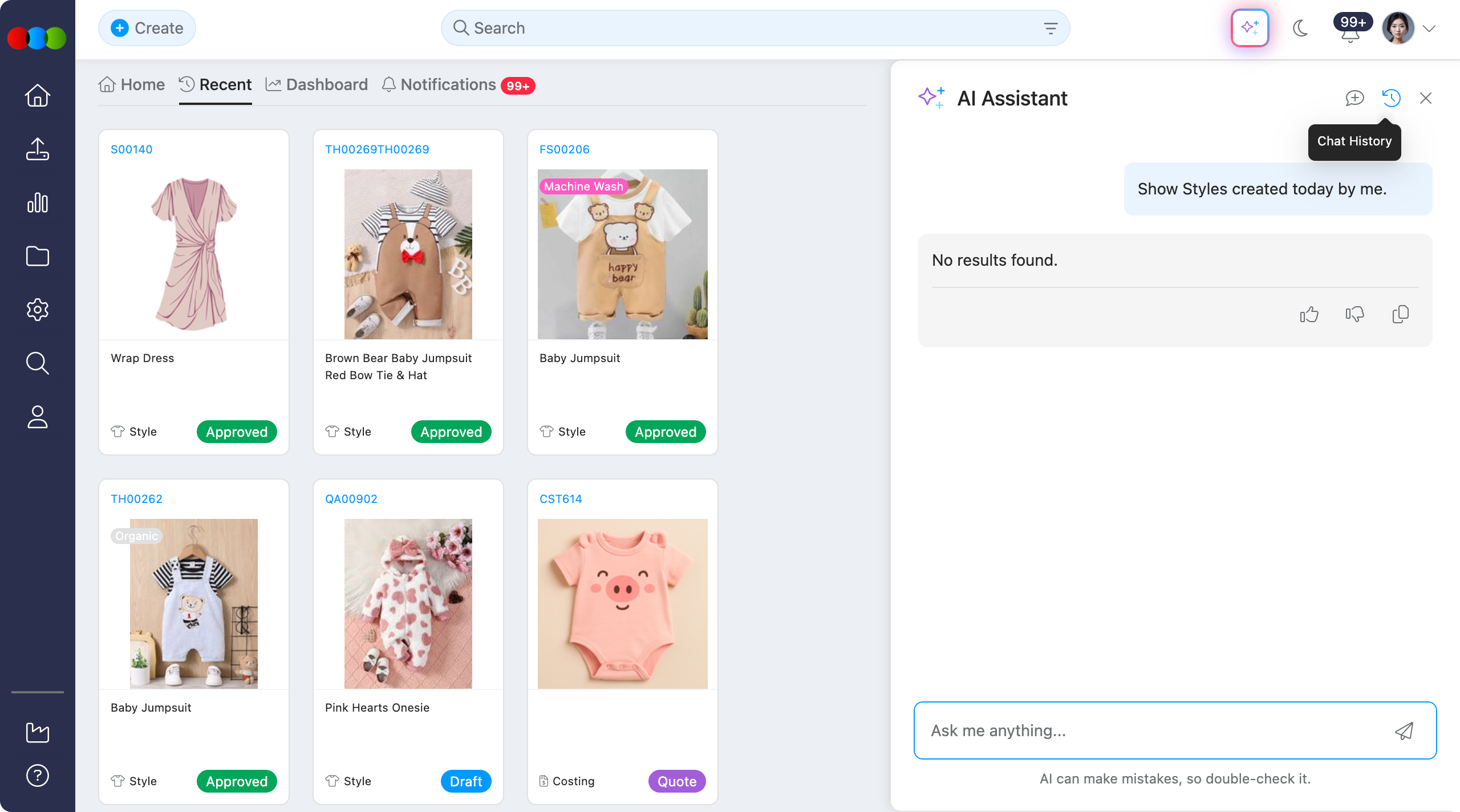
- Click a previous conversation, and it will immediately load.
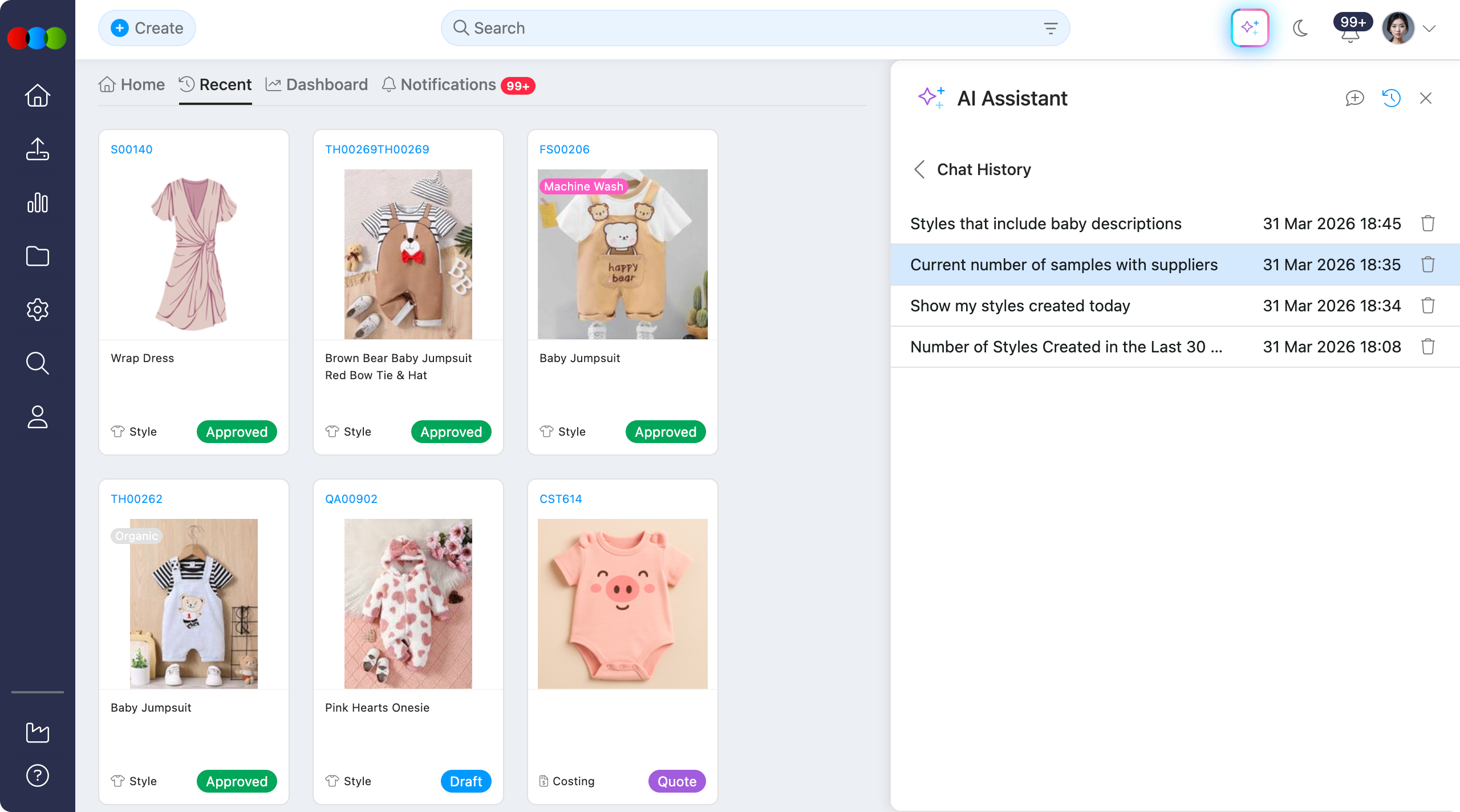
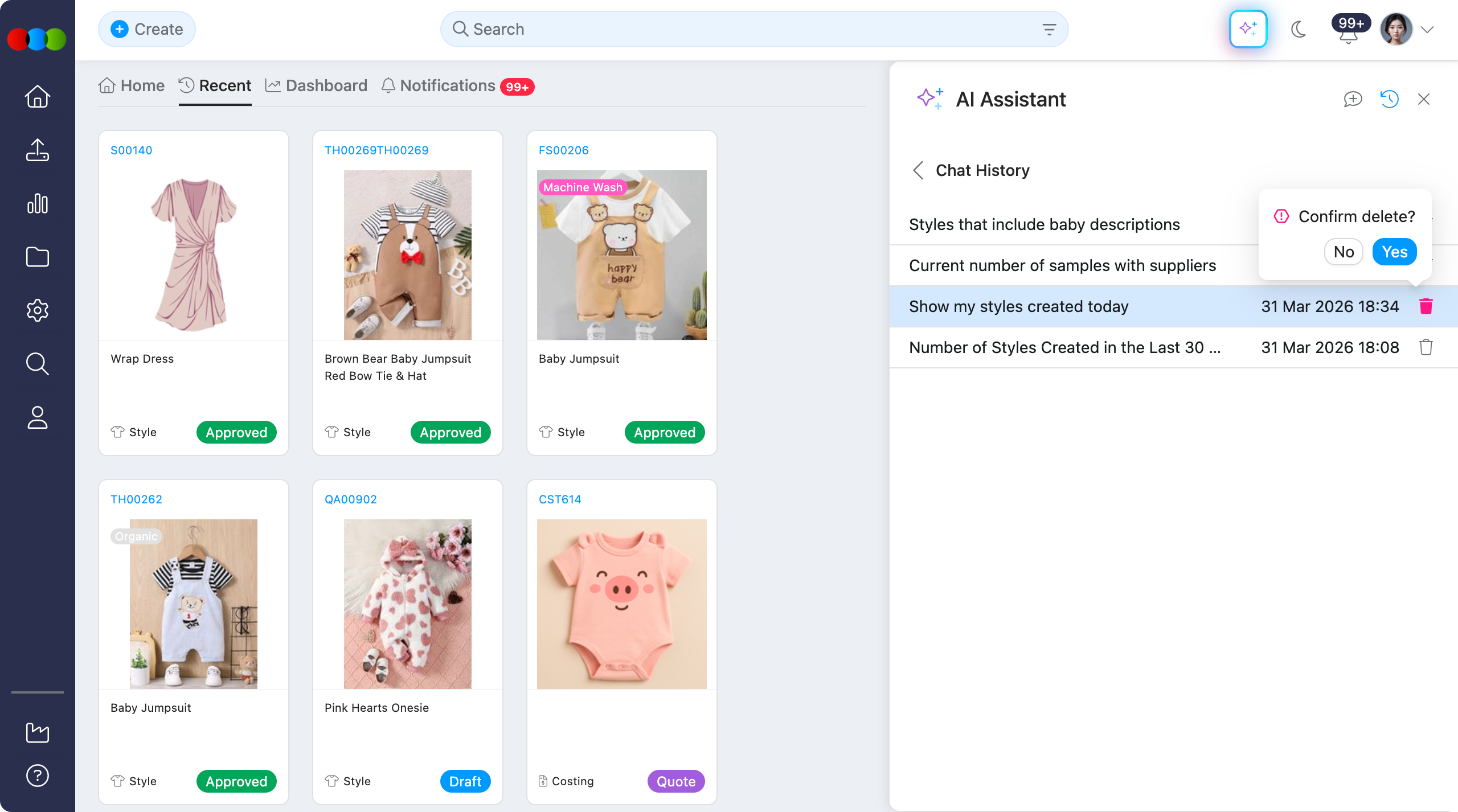
- To delete the chat history, click the trash icon and confirm deletion.
Actions
| Action | Description |
|---|---|
| Like / Dislike | Provide feedback on a response; a confirmation toast appears when recorded. 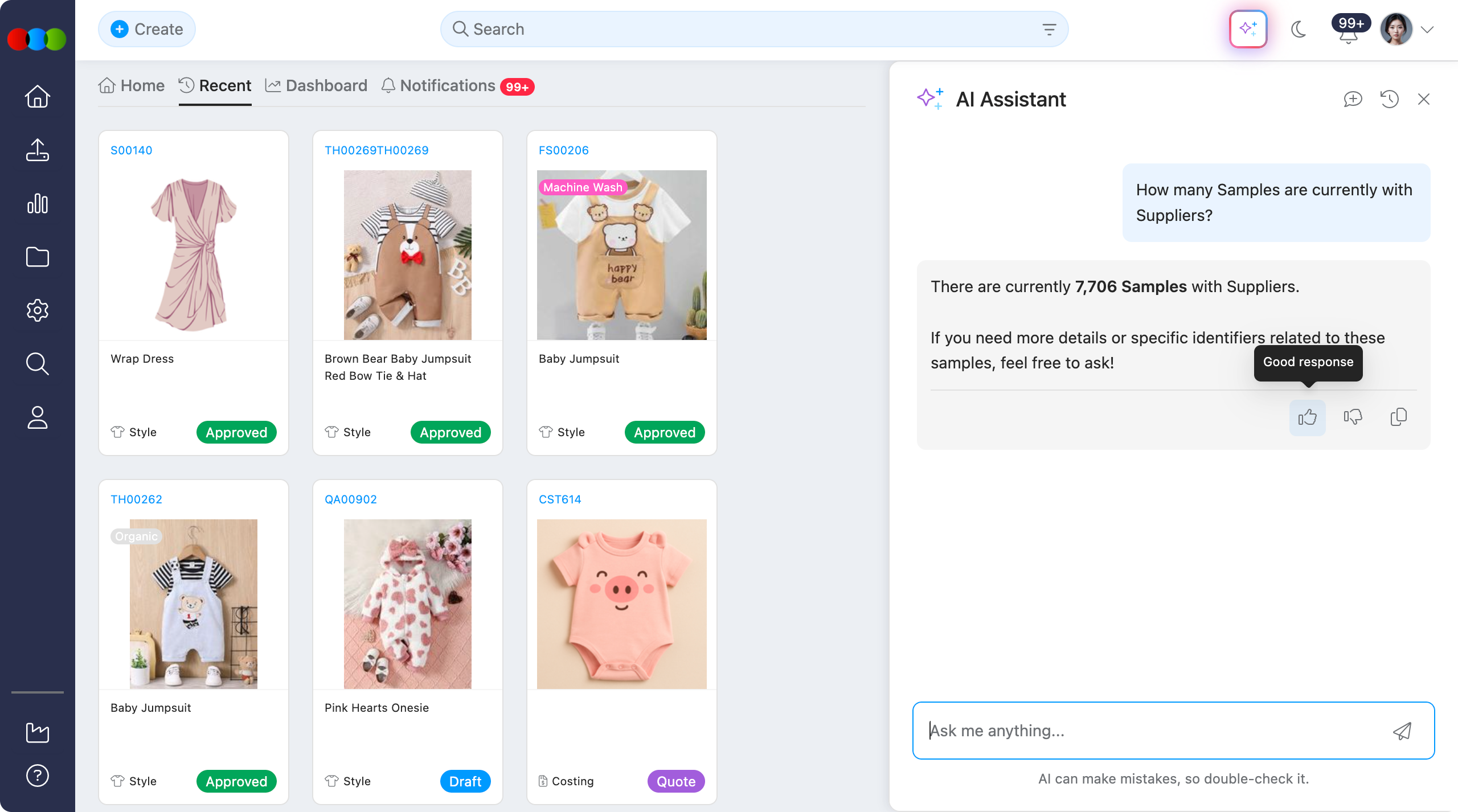 |
| Copy Message | Copy any reply to your clipboard for reuse or sharing. 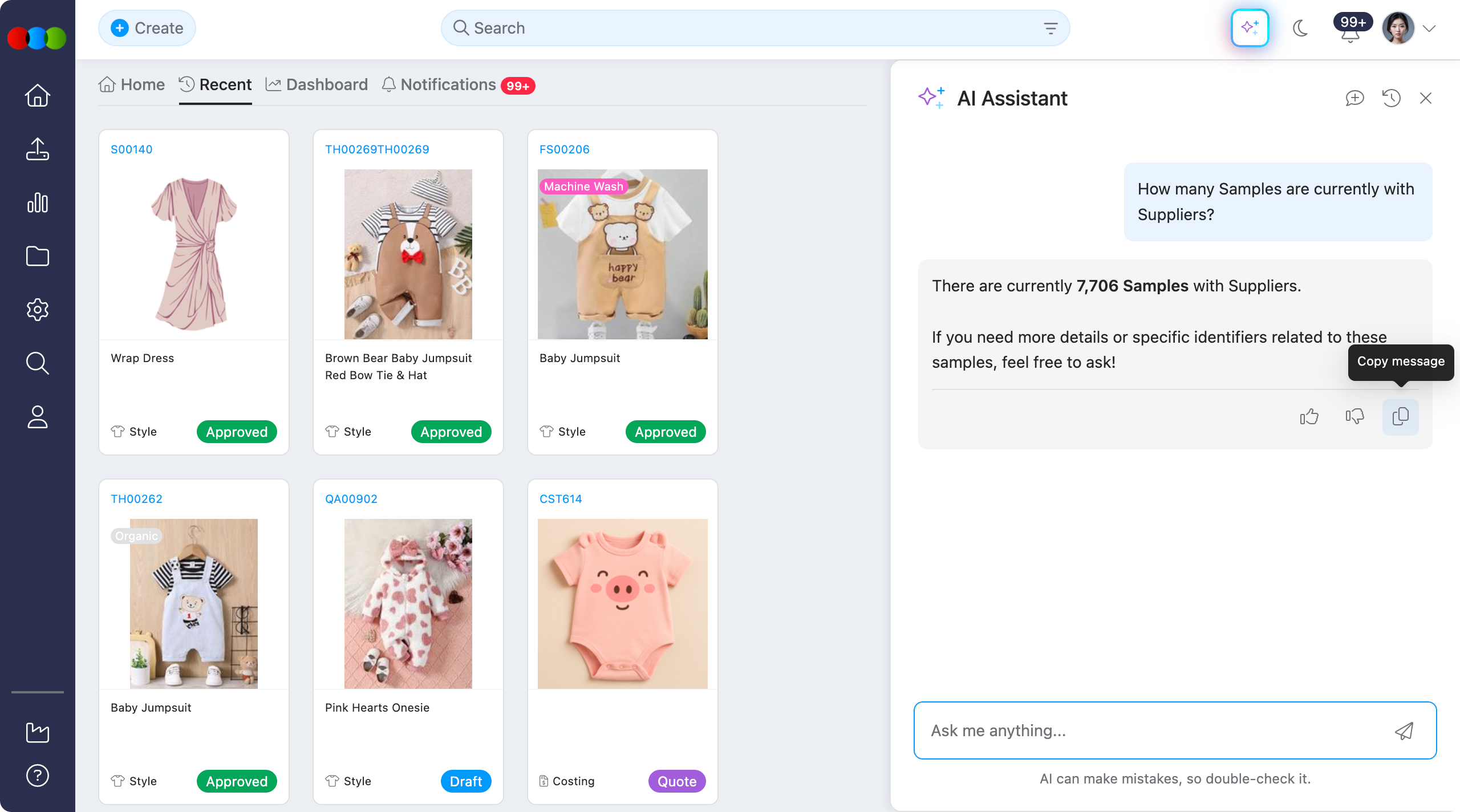 |
Managing the Use of AI Assistant
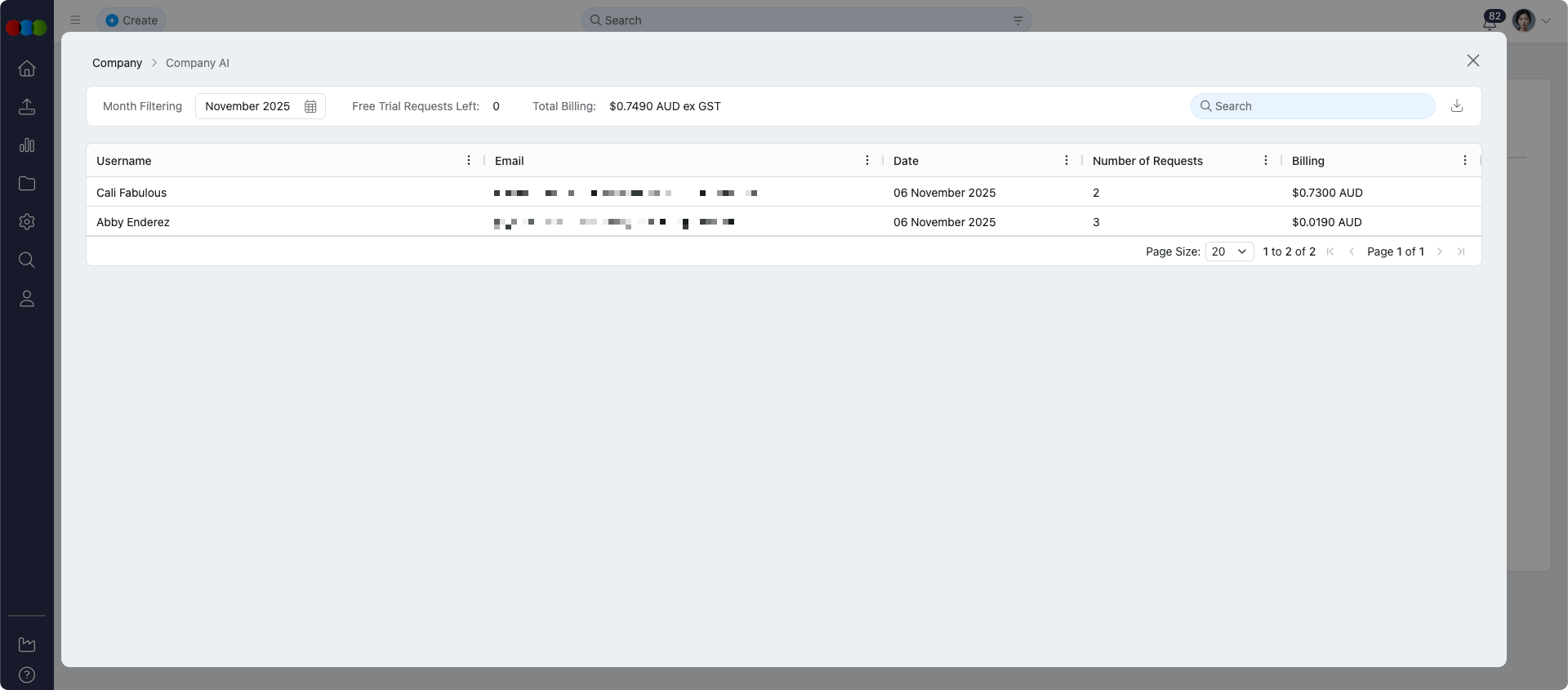
Site Settings > Company > Company AI
Administrators monitor AI adoption, per-user usage, and company-level billing from Site Settings > Company > Company AI. That area complements day-to-day use of the AI Assistant: it shows who has used AI, costs where applicable, and aligns with Roles & Permissions so only users with the correct Production Portal role permissions can open the assistant.
See Site Settings › Company › Company AI for the full setup and billing.
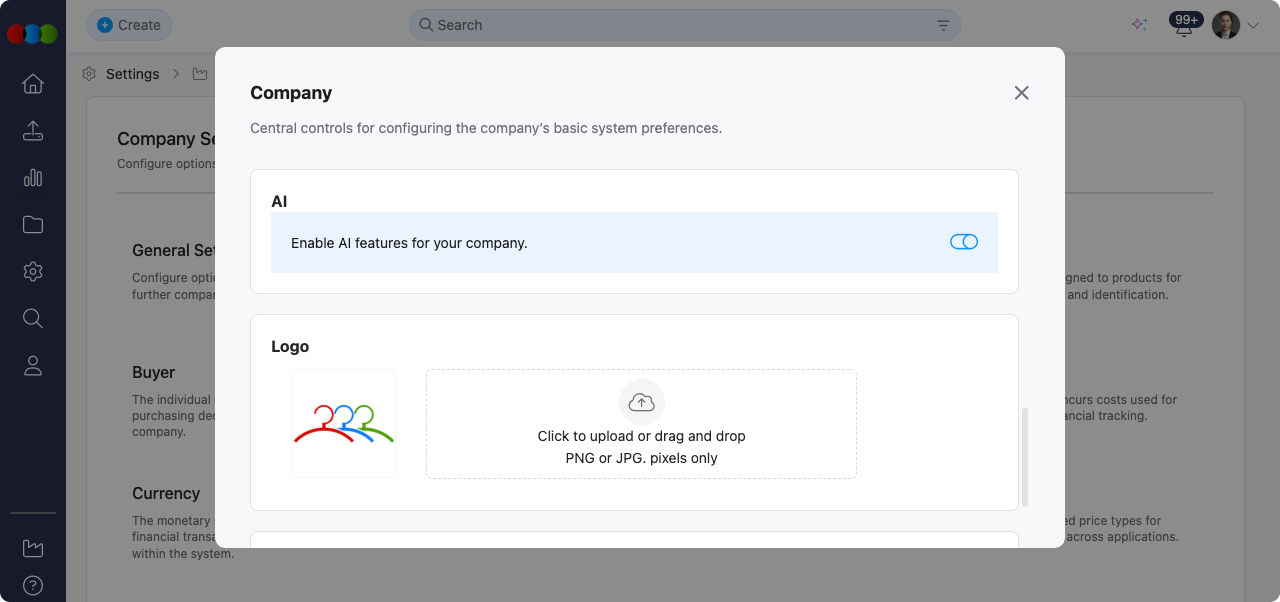
Site Settings > Company > General Settings > AI
Company-wide AI features—including the AI Assistant— is being turned on under Site Settings > Company > General Settings > AI. The Company AI toggle enables AI for the organisation; when it is off, users cannot rely on AI tools regardless of other settings. Trial and renewal for AI is also tied to this screen.
See Site Settings › Company › General Settings › AI for more information on AI features.
Troubleshooting
The assistant returned no rows—how do I fix my prompt?
The model queries live data; empty results usually mean filters, spelling, or missing records.
Steps to resolve:
- Re-read the No Data Displayed guidance: verify filters, spelling, and that the dataset exists.
- Ask again with broader dates or fewer constraints, then narrow down from the summary.
I only see a summary table—how do I download everything?
Large results default to summaries with a footer note until you expand them.
Steps to resolve:
- Type display all in the chat to request the full result set.
- Use the table’s download control and confirm the file saved locally.
Why are completed or cancelled records missing from my answer?
By default, the assistant prioritises active data and often excludes cancelled and completed items unless you ask for them.
Steps to resolve:
- Rephrase your prompt to include the states you need (for example, completed orders, cancelled shipments).
- If results still look wrong, check spelling, dates, and that those records exist in your instance.
Why can the AI Assistant not show Total Sales or other sales data I expect?
Total Sales and some sales reporting results depend on company configuration and the Enable Sales Data (Advanced) permission. If the permission is off for your role, Total Sales is not available in the AI Assistant (or Planner / Search).
Steps to resolve:
- Ask an administrator to confirm your Production Portal role has Total Sales enabled under Planner > Advanced in Site Settings > Company > Roles & Permissions if your organisation intends you to use this.
- Confirm the Sales Reporting calendar and data for your styles exist in the instance. If there is no source data, answers may be empty or show No Data—broaden dates or check that reporting has been loaded for those styles.
- See Planner > Style Sales Data for how metrics are defined in the product.
Voice input is not working—how do I fix it?
Dictation needs microphone permission and a working input device. The browser or operating system may block access until you allow it.
Steps to resolve:
- Check that a microphone is connected or built in, and that it is not muted in your system or browser settings.
- When the site asks for microphone permission, choose Allow for this 3 Clicks Cloud instance.
- Retry Voice Input from the chat panel; if nothing appears, refresh the page and allow permissions again.
Helpful Tips
- Be specific — Include timeframes, names, and statuses in your prompt (for example, "styles created in the last 5 months by Maria") for faster, cleaner results.
- Open from the right page — Launch the assistant from the application you care about (for example Style or Order) so Suggestions match your current task.
- Use suggested follow-ups — Click suggested follow-ups when they appear so the assistant can return a more accurate result aligned with what you are looking for.
- Bookmark frequent queries — Save prompts you run often as Bookmarks so you do not have to retype them. Only your messages can be bookmarked, not chatbot responses.
- Drill into a row — After a table result, click a row and ask Tell me more about this one for detail in the chat.
- Pricing questions — Ask about pricing when you need to explore or analyse price-related data in your instance.
- Style sales data — Ask about sell-through, totals by currency, stock on hand, weeks on stock, and related metrics when you have the right access; see Planner > Style Sales Data for how those metrics are defined in the product.
- Data quality flags — When the assistant highlights possible data quality issues on a result, review the flags and follow up in the thread or correct source data as needed.
- Reuse context — Ask follow-up questions in the active chat; use Chat History to return to an older thread or Open New Chat to start clean.
- Use Voice Input when typing is difficult or impractical; you can still edit the transcribed text before sending.
- Keep prompts focused on data that exists in your instance; the assistant queries live platform data rather than general knowledge.
- Use the display all command when you need the complete result set for large queries.
- Ask for charts (line, bar, or pie) when a graph will make trends, comparisons, or proportions easier to read than a grid alone.
- Provide feedback with Like/Dislike to help improve response quality over time.