Comments
The Comments widget keeps threaded discussions, mentions, and rich-text notes on the compliance record instead of in email. Pin critical decisions, edit your own posts, or delete noise so reviewers see an authoritative trail. Everything stays tied to the record for audits and handovers. Teams use it to capture audit finding discussions, corrective action notes, and inspector feedback next to the formal record, so reviewers can see how issues were addressed without searching email. That context supports handovers between compliance officers and factory contacts when audits span several weeks.
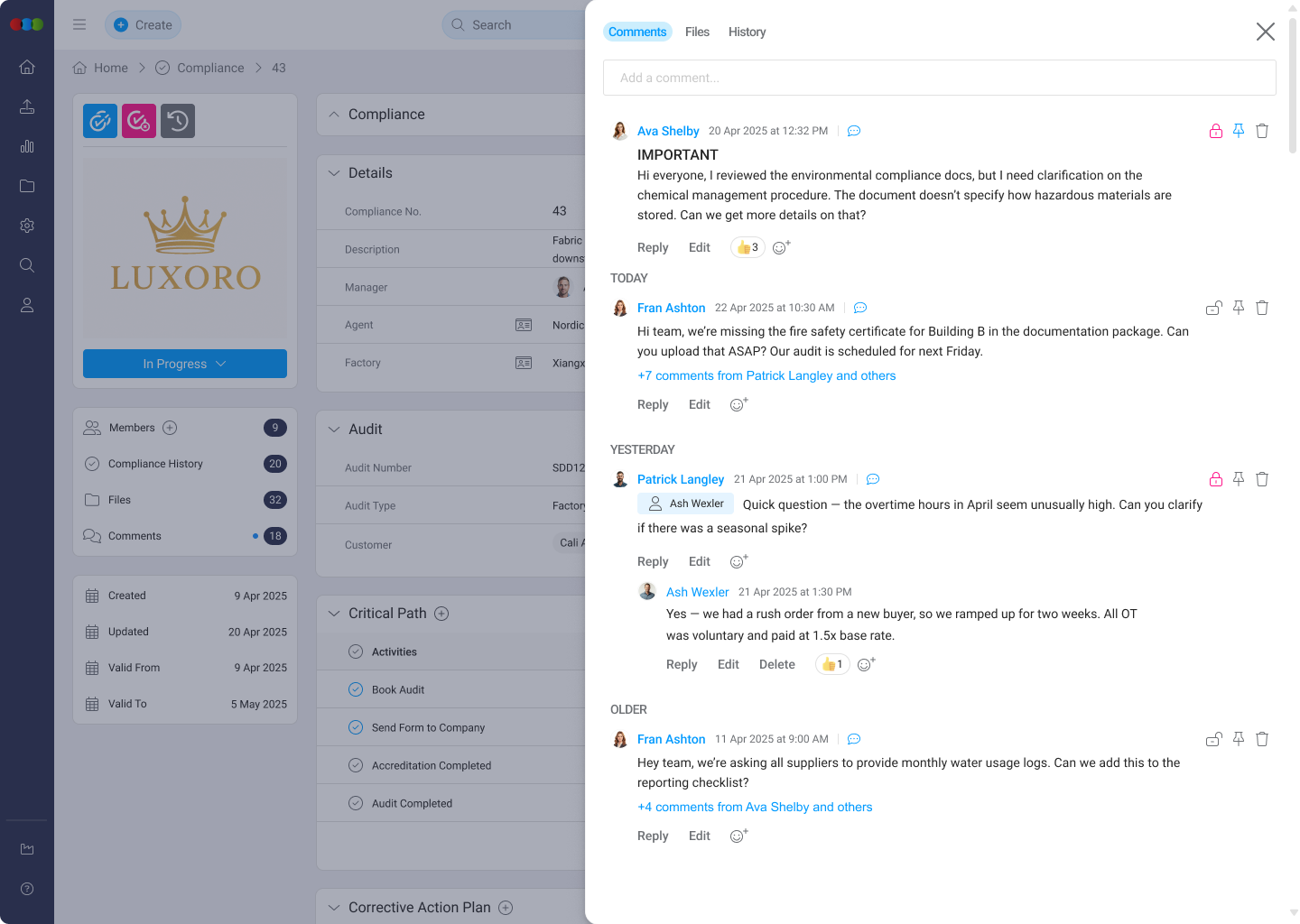
Core Comment Actions
These actions are available to all users with access to the compliance record and allow for basic comment management.
| Feature | Description |
|---|---|
| Add Comment | Use the input field at the bottom of the thread to add a new comment. Comments support rich text formatting and can include links, emojis, and user mentions. (Available to all users) |
| Edit Comment | Modify your own comments after posting to correct errors or add additional information. Edited comments display an indicator showing the last edit time. (Available to comment author only) |
| Delete Comment | Remove obsolete or incorrect comments to keep the discussion thread tidy and relevant. Deleted comments are permanently removed from the thread. (Available to comment author and administrators) |
| Reply to Comment | Create threaded conversations by replying directly to specific comments. Replies are indented and linked to the parent comment, making it easy to follow discussion threads. (Available to all users) |
Comment Management Features
These features help organise and control comment visibility and importance within the discussion thread.
| Feature | Description |
|---|---|
| Pin Comment | Pin a key message to ensure it always appears at the top of the comment thread for high visibility. Pinned comments remain visible even as new comments are added below. Useful for important announcements, key decisions, or critical information. (Available to administrators and compliance record owners) |
| Lock Comment | Restrict a comment's visibility to internal users only, which is ideal for sensitive or administrative notes. Locked comments are hidden from external users (e.g., suppliers or auditors) but remain visible to internal team members. (Available to administrators and compliance record owners) |
| User Attribution | Every comment is automatically tagged with the author's name and a timestamp for clear accountability. The timestamp shows both the date and time the comment was posted, providing a complete audit trail. (System-generated) |
| Unread Indicator | A blue dot appears next to new comments, indicating they have not yet been read by the current user. This helps users quickly identify new activity in the discussion thread. (System-generated) |
Collaboration Features
These features enhance team collaboration and notification capabilities.
| Feature | Description |
|---|---|
| User Mentions | Use the @ icon in the textbox tool panel or press @ while typing to mention multiple colleagues at once. The dropdown list shows up to 10 results, making it easier to find and mention colleagues in larger teams. This multiselect feature allows you to notify several team members simultaneously in a single action, sending notifications to all mentioned users. Each mentioned user displays an X button next to their name, making it easy to remove them if needed. Mentioned users receive alerts about the comment. (Available to all users) |
| Rich Text Formatting | Format comments with bold, italic, lists, and other formatting options to improve readability and emphasise important points. (Available to all users) |
| Link Embedding | Copy and paste links to other sections of the system (like a specific order, factory profile, or audit record) directly into comments. Links are automatically formatted and provide valuable context for team members. (Available to all users) |
| Emoji Support | Use emojis to give quick, visual feedback. A simple thumbs-up (👍) can signify approval, whilst other emojis can convey emotions or reactions without requiring additional text. (Available to all users) |

Important Notes When Using Comments
Access Control: Comment visibility and management capabilities depend on your user role and permissions. External users (e.g., suppliers or auditors) cannot see locked comments, and only administrators and compliance record owners can pin or lock comments.
Comment Deletion: Deleted comments are permanently removed and cannot be recovered. Exercise caution when deleting comments, especially those that may be referenced in other parts of the system or contain important historical context.
User Mentions: When you mention users in a comment, they receive notifications based on their notification preferences. Ensure mentions are relevant to avoid unnecessary notifications.
Thread Organisation: Use replies to maintain organised discussion threads. Avoid creating top-level comments when replying to existing discussions, as this can fragment the conversation and make it difficult to follow.
Audit Trail: All comments, including edits and deletions, are logged in the compliance history. This provides a complete audit trail of all discussions and decisions related to the compliance record.
Sensitive Information: Use locked comments for sensitive or administrative information that should not be visible to external users. However, remember that all internal users with compliance record access can view locked comments.
Pinned Comments: Pinned comments remain at the top of the thread regardless of when new comments are added. Avoid pinning too many comments, as this can clutter the top of the thread and reduce the visibility of new discussions.
Best Practices
Pin Key Decisions: Use the Pin Comment feature to highlight key approvals, decisions, or summary notes so they are easy for everyone to find.
Lock Sensitive Information: Use Lock Comment for internal notes or discussions that should not be visible to external collaborators or other teams.