Dates
Use these fields to manage audit schedules, certificate expiries, re-audit deadlines, and any contractual milestones. Accurate dates support renewal planning, audit readiness, and clear reporting on upcoming or overdue certifications.
Date Types
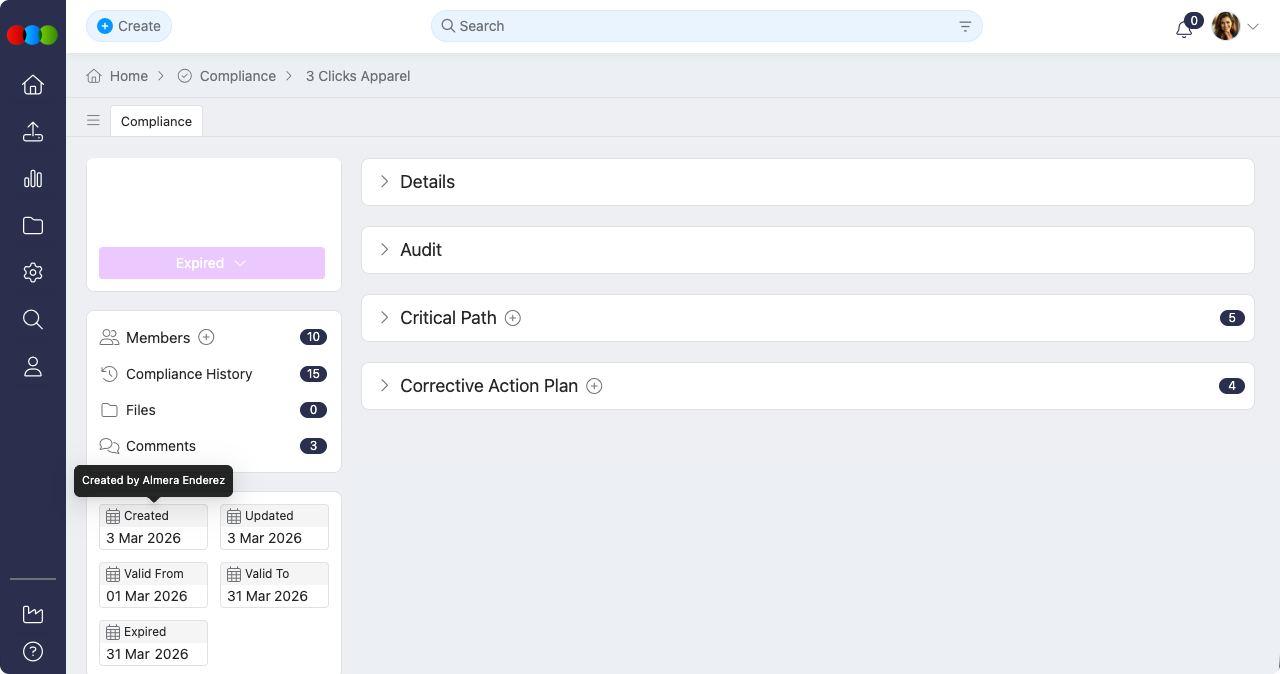
The Dates section displays both system-generated dates and user-configurable milestone dates. The available date fields are determined by your configuration in Site Settings > Compliance > General Settings.
System-Generated Dates
These dates are automatically managed by the system and cannot be edited, ensuring accurate audit trails and traceability.
| Field | Description |
|---|---|
| Created | Date and time when the compliance record was first created. This timestamp is set automatically upon compliance creation and cannot be modified. (Read-only) |
| Updated | Date and time of the most recent system update to the compliance record. This field refreshes automatically whenever any changes are saved to the compliance record. (Read-only) |
| Completed | Date and time when the compliance record is moved to Completed. This field updates automatically as soon as the status changes; no need to save or refresh. It is system-generated and cannot be edited manually. (Read-only) |
User-Configurable Dates
These date fields can be enabled or disabled in Site Settings and allow manual entry to track key milestones throughout the compliance lifecycle. When enabled, they appear with a calendar picker for easy date selection.
| Field | Description |
|---|---|
| Valid From | The date when the compliance certification or license becomes effective. This date marks the start of the compliance validity period and is used to determine if a compliance record is currently active. Use this to track when certifications begin. (Editable) |
| Valid To | The expiration date for the compliance certification or license. This date marks the end of the compliance validity period and is critical for renewal planning. When this date passes, the compliance may need to be renewed or updated. Use this to track expiry deadlines and set up renewal reminders. (Editable) |
Using Date Fields
- Set a date: Click on any editable date field to open the calendar picker and select a date.
- Clear a date: Click the ✕ icon next to a selected date to remove it.
- Date relationships: When planning dates, ensure logical sequencing (e.g., Valid From < Valid To, and Renewal Date should typically be set before Valid To expires).
Important Notes When Adding Dates
Configuration Required: Date fields must be enabled in Site Settings > Compliance > General Settings before they appear in the Compliance Dates section. Only enabled dates will be visible and available for entry.
Date Sequencing: Maintain logical date relationships to ensure accurate planning:
- Valid From should precede Valid To (compliance cannot expire before it begins)
- Renewal Date should typically be set before Valid To expires to allow time for processing
- Completed date is automatically set when status changes to completed, and the field updates in the side widget immediately to show the date
Reporting Impact: Date fields are used extensively in reporting and dashboard widgets. Keeping dates accurate and up-to-date ensures reliable visibility into compliance status, upcoming renewals, and expiry tracking.
Audit Trail: System-generated dates (Created, Updated, Completed) provide an immutable audit trail for compliance records and cannot be modified.
Best Practices
- Set dates early: Establish key milestone dates at the start of compliance tracking to help teams monitor expiry dates and plan renewals proactively.
- Review dates regularly: Schedule periodic reviews of date fields to ensure they remain accurate as compliance records are updated. Update dates promptly to maintain accurate visibility in reports and dashboards.
- Use dates for filtering: Leverage date fields in compliance views and reports to filter by upcoming expiry dates, identify overdue renewals, or group compliance records by validity periods for better management.
- Track completion times: Use system-generated dates to analyse the average time it takes to complete compliance activities, helping identify bottlenecks and improve processes.
Dates across applications
Valid From and Valid To define the certification window for this compliance record. After Valid To passes, the record may no longer satisfy validation rules elsewhere. For example Component Compliance compares compliance validity to Order Created Date (and related rules), which can block supplier sharing or purchase order generation without changing any date on Order › Dates.
Editing validity dates here does not push milestones into orders or styles; teams reconcile timelines separately.
Full cross-application guidance is on Dates across applications.