Component Costing Type
The Component Costing Type suits products where one primary component drives cost, so you avoid spreading logic across many parts unnecessarily. It locks to a single component and supplier relationship to keep negotiations and calculations focused. The template simplifies structures that would be noisy if modelled as multi-component retail or import costings.
- Simplify Complex Cost Structures: By focusing on the primary component that drives product cost, businesses can streamline their costing process and reduce complexity in scenarios where multiple components would add unnecessary overhead.
- Support Supplier Negotiation: With only one supplier allowed per costing (matching the single-component structure), businesses can engage in focused, direct negotiations without the complexity of managing multiple supplier relationships simultaneously.
Quick Check - Before You Start
- Ensure a suitable component template, base currency, and terms exist in Site Settings > Costing > Template before creating the record.
- Plan which component to attach first—deletion is allowed, but re-selection should follow your approval workflow.
Single Component Limitation
Unlike Retail or Import costing types, Component Costing Types only allow one component to be added. Once selected, component details cannot be edited. This design ensures focus on the primary cost driver and maintains calculation integrity.
Details
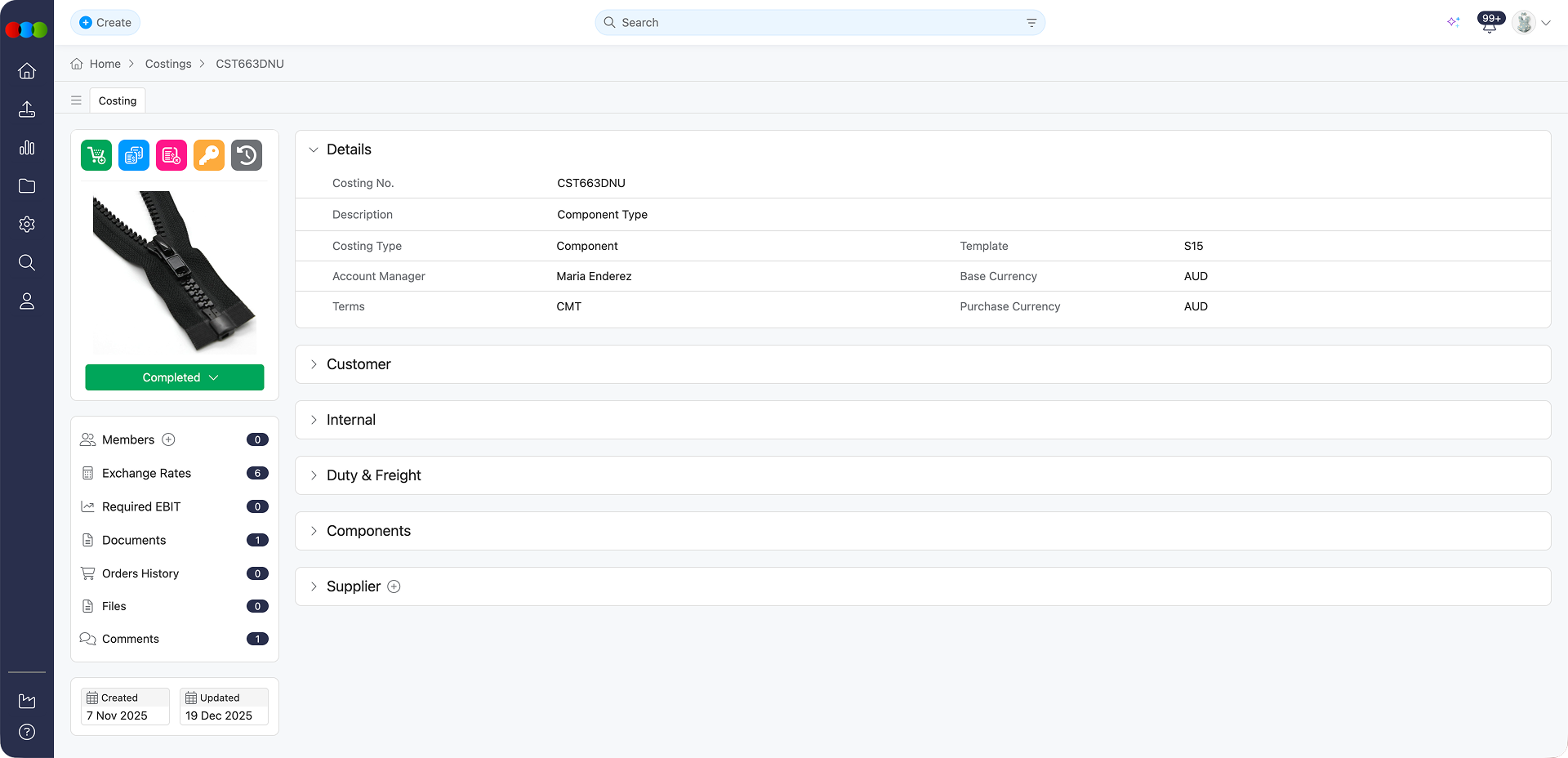
The Details section establishes the foundational information for your component costing. This section is crucial as it defines the costing's unique identifier, description, and key financial parameters that drive all subsequent calculations.
For component costings, the Details section includes:
| Fields | Description |
|---|---|
| Costing No. | A unique identifier for tracking and reference. This can be edited. |
| Description | A clear name that identifies the purpose of the costing. This can be edited. |
| Costing Type | Set to "Component" to enable component-specific calculations. This cannot be edited once selected from the Create New Costing pop-up. |
| Template | The pre-configured component costing template that determines calculation structure. Users cannot change the template once selected. To configure the templates, go to: Site Settings > Costing > Template. |
| Account Manager | The team member responsible for managing this costing. This can be edited. To configure the names in this list, go to: Site Settings > Company > Staff. |
| Base Currency | Your primary business currency (typically AUD for Australian businesses). This is dependent on the template being used. To configure the base currency for the template, go to: Site Settings > Costing > Template and edit the Base Currency field. |
| Terms | The trade terms (e.g., FOB, CIF) that govern the purchase. This cannot be edited once selected from the Create New Costing pop-up. |
| Purchase Currency | The currency used to pay suppliers. This cannot be edited once selected from the Create New Costing pop-up. |
Template Selection
Selecting the correct Template is essential for component costings, as it determines the structure of calculations. Ensure your administrator has configured appropriate component templates in Site Settings > Costing > Template.
Customer
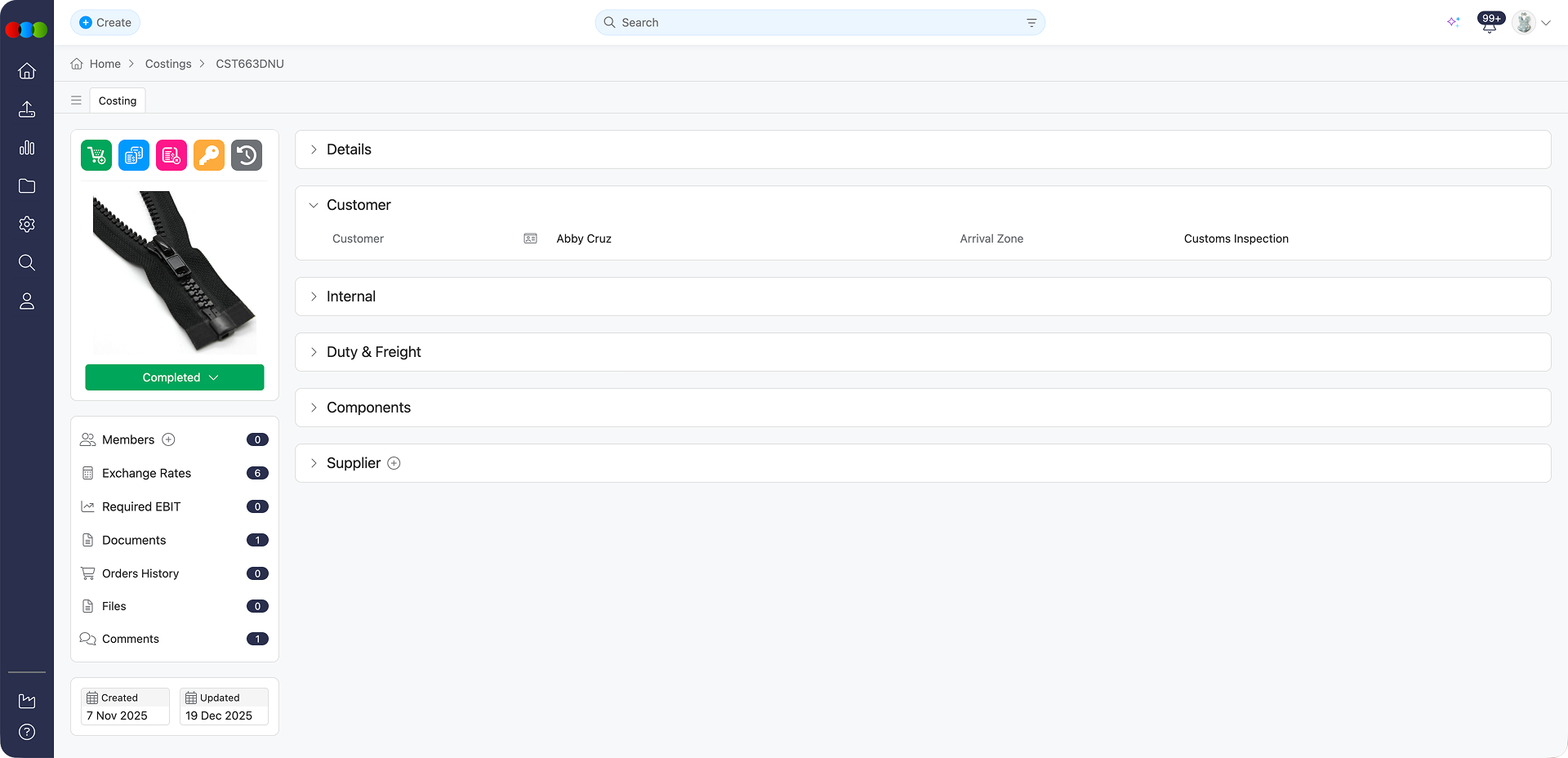
The Customer section in a Component Costing Type is configured based on the pricing model defined in your costing template. Component costings can support both retail and wholesale pricing structures, depending on your business needs.
The Customer section includes:
| Field | Description |
|---|---|
| Customer | The client or business entity for whom the costing is being prepared. This can be edited. To configure the list of the names of customers, go to: Site Settings > Company > Customer. |
| Arrival Zone | The delivery zone for the customer, which may influence freight costs and logistics planning. This can be edited. To configure the arrival zones, go to: Site Settings > Company > Arrival Zone. |
Internal
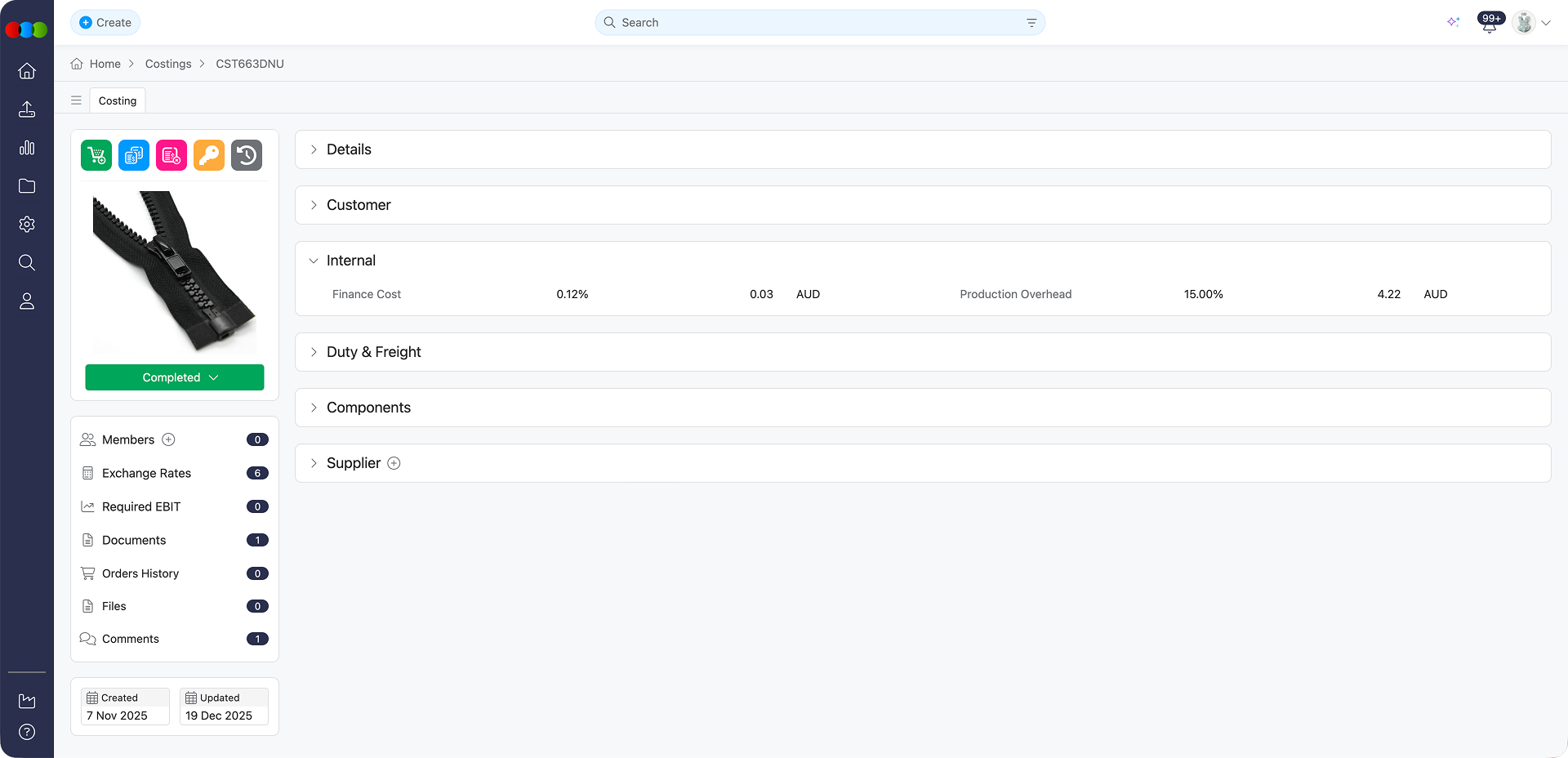
The Internal section captures the financial parameters that drive your internal profitability analysis and pricing strategy. The fields displayed here are determined by your selected costing template configuration and are essential for calculating accurate landed costs and ensuring your pricing aligns with business objectives.
The Internal section includes:
| Field | Description |
|---|---|
| Finance Cost | The cost of capital or interest allocated to financing the production of goods. This value is automatically populated from the costing template and cannot be edited here. To configure this value, go to: Site Settings > Costing > Template and edit the template's Finance Cost field. |
| Production Overhead | Fixed or variable costs associated with production, excluding direct materials and labour. This value is automatically populated from the costing template and cannot be edited here. To configure this value, go to: Site Settings > Costing > Template and edit the template's Production Overhead field. |
Template Dependency
The specific fields available in the Internal section depend on your costing template configuration. Component templates may be configured with different internal financial fields depending on whether they use retail, wholesale, or hybrid pricing models. Consult your administrator to understand which fields are included in your component template.
Duty and Freight
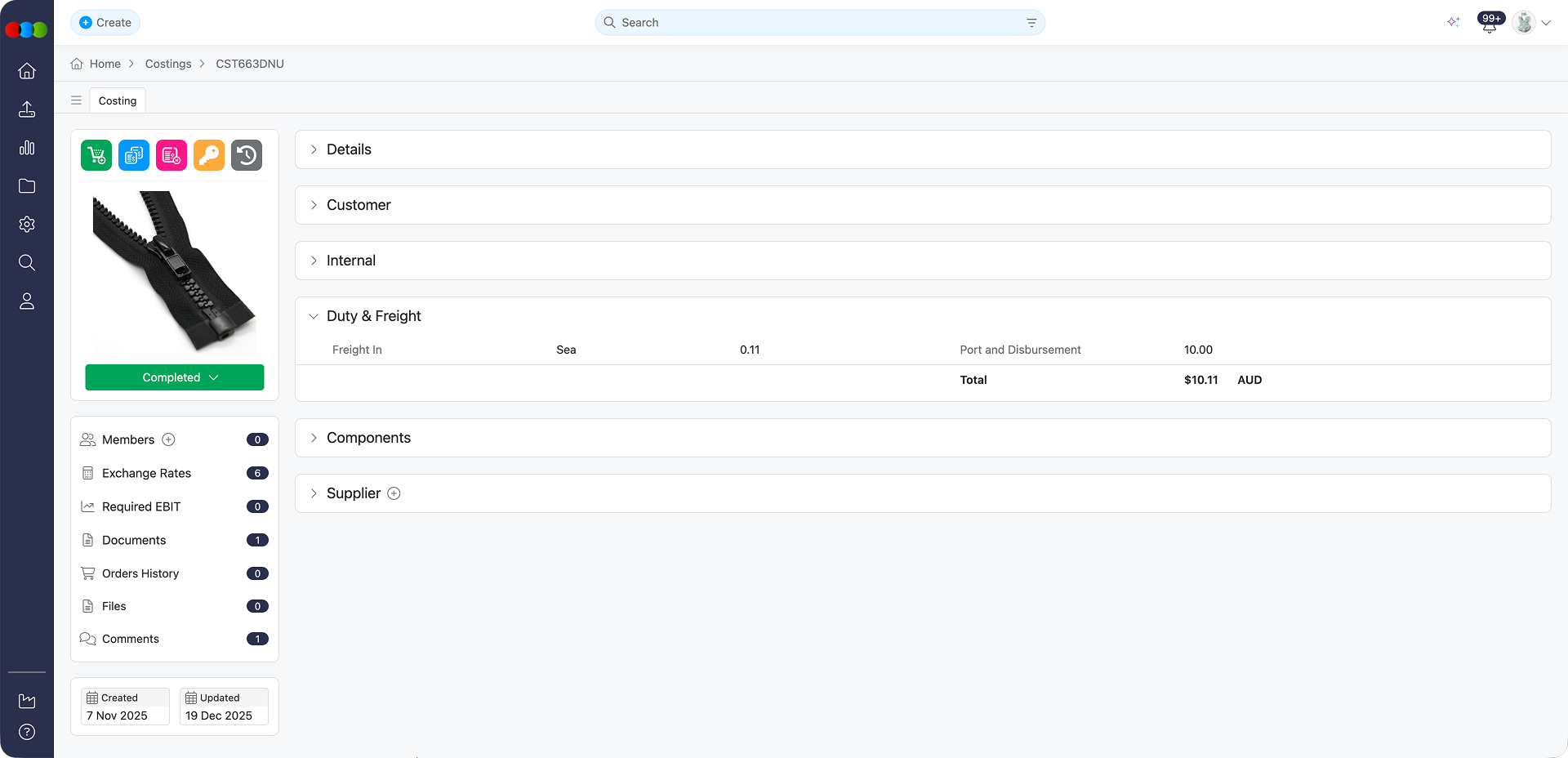
The Duty and Freight section captures all logistics-related expenses required to transport products from the supplier to your warehouse. For component costings, accurate freight and duty calculations are essential for determining the true landed cost of goods, which directly impacts pricing decisions.
The Duty & Freight section includes:
| Field | Description |
|---|---|
| Freight In | The cost of freight for the goods. This can be edited. To configure the available freight options, go to: Site Settings > Costing > Freight. |
| Port and Disbursement | Additional port fees and disbursement charges. This value is automatically populated based on the selected Costing Template and is not editable here. To configure this value, go to: Site Settings > Costing > Template and edit the template's Port and Disbursement field. |
Template Dependency
The Port and Disbursement costs are automatically applied from your selected costing template. Ensure your templates are kept current to maintain calculation accuracy.
Components
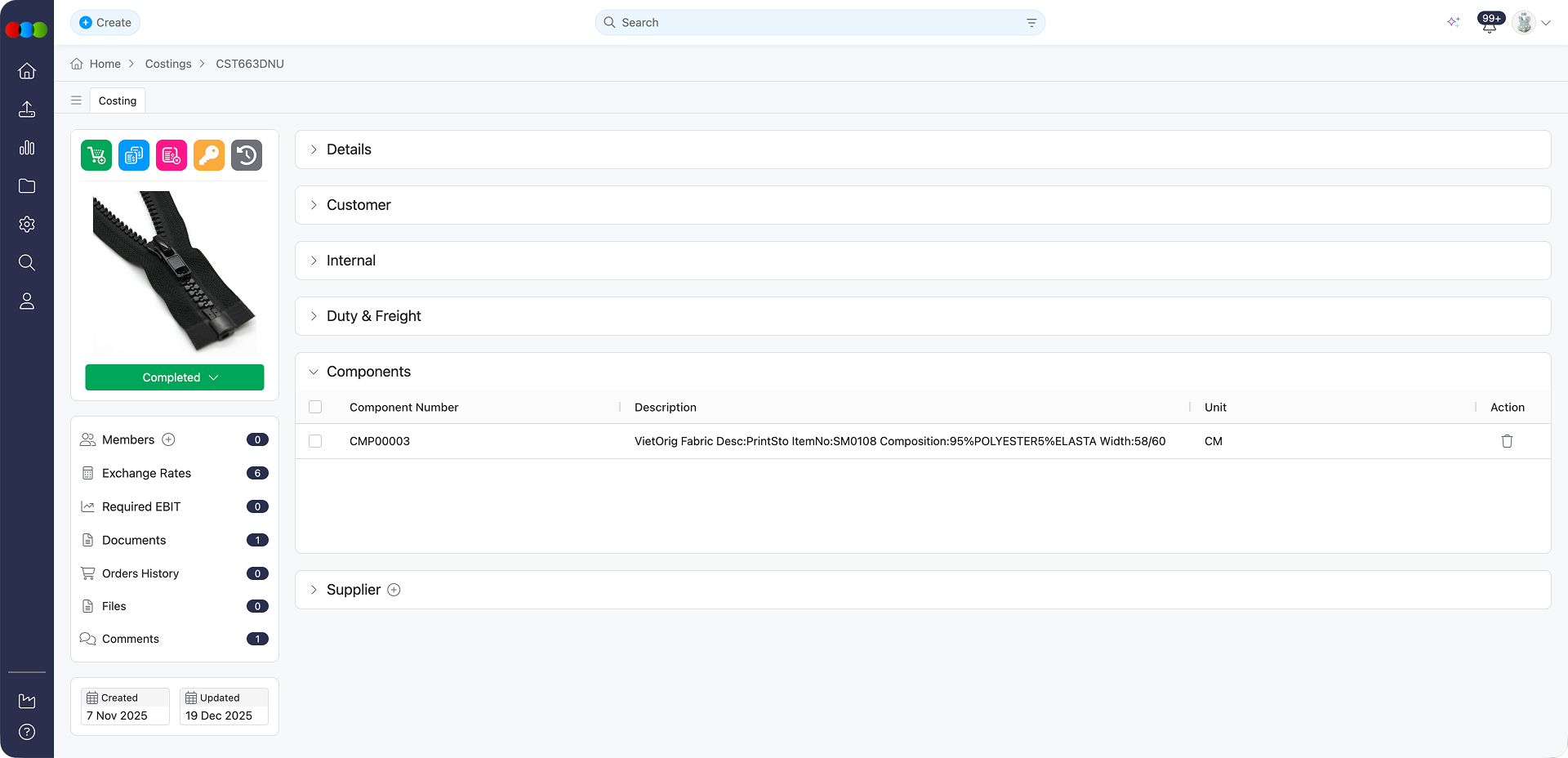
The Components section is the core of the Component Costing Type, as it defines the single primary component that drives the product's cost structure.
Key features include:
- Single Component Only: Unlike Retail or Import costing types, Component Costing only allow one component to be added.
- No Editing After Selection: Component details cannot be edited once added, ensuring calculation integrity and preventing accidental changes.
- Deletion Allowed: The component can be deleted if needed, allowing you to select a different component by clicking the (+) plus icon next to Components.
Choosing the Right Component
Since only one component is allowed, carefully consider which component is the primary cost driver for your product.
Supplier
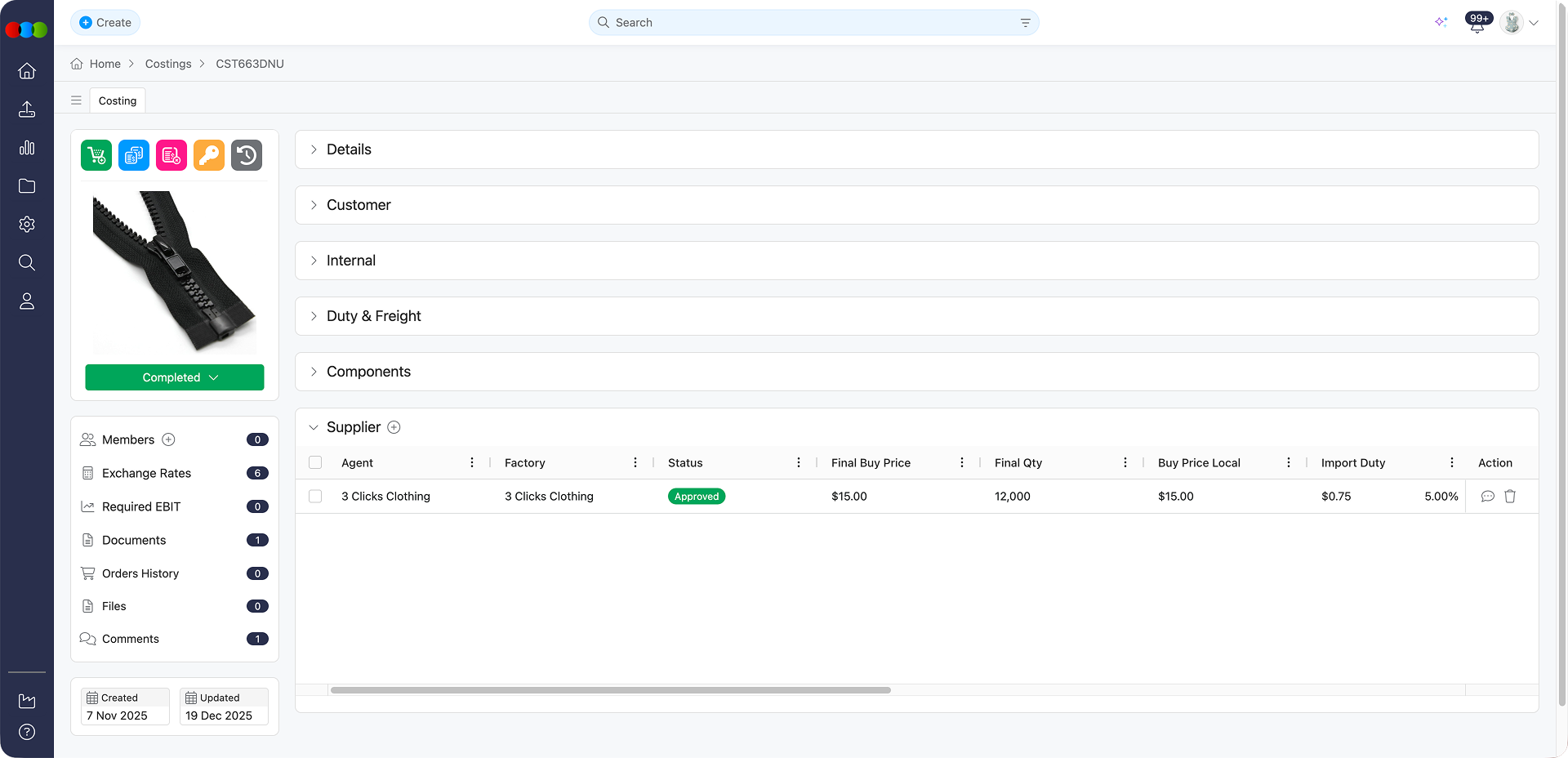
The Supplier section enables collaboration with external suppliers for component costings. This feature is essential for obtaining quotes and managing supplier relationships throughout the costing process.
Template defaults, freight codes, import duty lists (where used), and other costing data is in Site Settings > Costing. For a component-type summary of how each area applies, see Costing Site Settings on this page.
Available features
- Multiple Suppliers: Component costings support selection of multiple suppliers so you can compare figures such as Supplier Quote and Quantity and choose the best fit.
- Individual Comments Thread: Communicate with each supplier through a private comments thread.
- Quote Management: Suppliers can submit multiple quotes per colourway.
- Approval Workflow: The supplier quote must be approved before the costing can be marked as complete.
- Choose Columns: Customise the table view by selecting which columns to display. The Factory column is required and cannot be removed. Even if you hide all other columns, the Choose Columns toolbar stays available so you can add columns back. If you un-select every optional column, the pop-up stays open until you close it, so you can review the selection before confirming.
Supplier Columns
| Column | On this costing | Supplier Portal | Source/Calculation |
|---|---|---|---|
| Agent | Editable. Select from dropdown. | — | Options are supplier records with an agent role. Maintain agents in Site Settings > Company > Suppliers (Type includes Agent). |
| Factory | Editable. Select from dropdown. | — | Options are supplier records with a factory role. Maintain factories in Site Settings > Company > Suppliers (Type includes Factory). |
| Supplier Quote | Not editable here. | Suppliers enter and update quotes. | Drives comparison before you set Final Buy Price or approve a quote. |
| Quantity | Not editable here. | Suppliers enter quantity. | Used with quoted and final figures for totals (see Calculations below). |
| Colourway | Not editable here. | Shown for supplier's submitted colourway. | Aligns supplier lines to style colourways. |
| Final Buy Price | Editable. | — | Stays blank until you type a value or approve a supplier quote; it does not auto-fill when a quote arrives. Feeds Buy Price Local and downstream margin and landed-cost figures. |
| Final Quantity | Editable. | — | Working quantity for the selected supplier line; used in quantity-scaled report and search totals. |
| Status | Editable. Leave blank or set to Approved. | — | Approval is required before the costing can be completed. |
| Buy Price Local | Not editable in this section (calculated). | — | Derived from Final Buy Price and exchange logic for the costing. Manage conversion context via Costing › Exchange Rates and template currency settings in Site Settings > Costing > Template. |
| Agent Commission | Not editable in this section (calculated). | — | Automatically populated when an Agent is selected in the costing and included in the costing calculation. The percentage comes from the agent supplier record in Site Settings > Company > Suppliers and is based on Cost Inc. Components. |
| QC Cost | Not editable in this section (calculated). | — | Automatically populated when a Factory is selected in the costing and included in the costing calculation. The percentage comes from the factory supplier record in Site Settings > Company > Suppliers and is based on Cost Inc. Components. |
| Landed Cost | Not editable in this section (calculated). | — | Buy-side cost including freight, duty, and port-style charges as modelled for the line. See Calculations below. |
| Total Cost | Not editable in this section (calculated). | — | Core total cost before some overhead presentations; pairs with Total Cost (including Overheads) in reports (see Calculations). |
| Style | Not editable in this section (display). | — | Pulled from the linked style on the costing. |
| Import Duty | Editable. Select from dropdown. | — | Duty codes and rates are maintained in Site Settings > Costing > Import Duty. Component costings focus on a single-component structure; full per-market duty workflows are described under Import Costing Type › Supplier. |
| Markets | Not editable in this section (display). | — | Reflects market context from the style / costing (read-only in the grid). |
| Tariff | Not editable in this section (display). | — | Shows tariff classification where applicable to the market line. |
| Factory Country | Not editable in this section (display). | — | Comes from the selected Factory supplier record in Site Settings > Company > Suppliers. |
| Cost Inc. Components | Not editable in this section (calculated). | — | Component layer from Components rolled into buy and margin paths. |
| Gross Margin | Not editable in this section (calculated). | — | Margin % on sell/retail vs cost stack; for retail-style margin behaviour see Retail Costing Type › Supplier. |
| Gross Profit | Not editable in this section (calculated). | — | Dollar margin aligned to Gross Margin logic. |
| Actual EBIT | Not editable in this section (calculated). | — | EBIT after required and actual paths vs template Required EBIT % in Site Settings > Costing > Template. |
| Sell Price | Not editable in this section (display/calculated). | — | Wholesale sell line—fed from Style and template pricing, not typed in the Supplier grid. |
| Retail Price | Not editable in this section (display/calculated). | — | Retail reference from Style / markets where applicable. |
| Freight | Editable. Select from dropdown. | — | Freight codes live in Site Settings > Costing > Freight. For percentage freight on component costings, the base is Local Buy Price (not Cost inc. Components). |
| Port & Disbursement | Not editable in this section (fixed from template). | — | Copied from the costing Template. Configure in Site Settings > Costing > Template (Port and Disbursement). |
| Note | Not editable in this section (display). | — | Reserved for system/context notes on the line where shown. |
Calculations
Supplier figures roll into reports and search the same way as other costing types wherever those columns are exposed. Useful mappings:
- Buy Price Local (Qty) = Buy Price Local × Quantity
- Landed Cost (Qty) = Landed Cost × Quantity
- Total Cost (Qty) = Total Cost × Quantity
- Total Cost (including Overheads) (report view) = Total Cost + overhead and direct selling components as defined for the template
- Component-specific percentage Freight uses Local Buy Price as its base (see Costing Site Settings on this page).
Costing Site Settings
This section explains how settings in Site Settings > Costing affect Component Costings. That hub links General Settings, Freight, Import Duty, and Template—the same areas referenced throughout this page.
How it is integrated
| Site Settings | Role in Component Costings |
|---|---|
| General Settings | • Components (when enabled) allows suppliers to change component unit measure, price, or quantity in the supplier portal for costings shared with them. This is relevant where component lines are supplier-maintained. • Default customer and department pre-fill new costings. • Files, Members, and Style Specification functions the same as for other types when those toggles are either on or off. • Style Components can copy components from the style at costing creation. • Order Pricing and Style Pricing apply only to retail template costings, not component. |
| Freight | • Freight entries are shared with other costing types. On the costing, Freight is managed under Costing > Supplier. For percentage freight, the base is Local Buy Price (not Cost inc. Components, which applies to Retail and Import). • Port & Disbursement in the Supplier section is fixed from the template and read-only. |
| Import Duty | Import duty entries are not part of the component costing workflow; use Import costings when you need per-market duties. |
| Template | • The costing’s Template Type must be Component. • It sets Base Currency, Exchange Rate rows, fixed fees (Distribution and Handling, Pick & Pack, Port and Disbursement), default Freight In, Direct Sell Cost %, Overhead Cost %, Required EBIT %, and Components mode (Components are the buy price vs Components added to buy price). |
Info
Component costings do not use the Import Duty list or the License Royalty/Pricing that appear only on Import templates.
How it affects the costing
- General Settings › Components determines whether suppliers can edit component line values in the portal for shared costings—when off, those fields stay internal-only.
- The Component template fixes currency, fee defaults, and how the single primary component rolls into buy price—errors in the template propagate to every new costing that uses it.
- Freight updates Final Buy Price and supplier quotes; % freight tracks Local Buy Price, so buy-price changes move the freight dollar amount.
- Import-only template features (duties, licence royalty calculation methods, automated Style Price rows) do not apply; keep duty and import-style royalty work on Import records.
Troubleshooting
Why is the component locked and I cannot change it?
Once a component is selected and costing data has been entered, changing the component may be restricted to protect existing cost calculations and supplier quotes.
Steps to resolve:
- Check whether the costing has been submitted for approval or marked as complete
- If the costing is in draft, you should be able to delete the component and add a new one using the (+) icon
- For completed costings, consider duplicating the costing and selecting the correct component on the new version
Why are supplier quotes not appearing in the costing?
Supplier quotes must be submitted by the supplier through their portal or entered manually. If no quotes appear, the supplier may not have been invited or may not have submitted yet.
Steps to resolve:
- Verify the supplier has been added to the Supplier section of the costing
- Check that the supplier has portal access and has been notified
- Use the Comments thread to follow up with the supplier directly
Why is the costing template not applying the expected currency or terms?
The costing template defines the base currency and purchase terms. If these appear incorrect, the template configuration in Site Settings may need to be reviewed.
Steps to resolve:
- Navigate to Site Settings > Costing > Template and verify the base currency
- Check that purchase terms match what you expect for this costing type
- If the template was recently changed, existing costings may retain the old values -- only new costings pick up template changes