Import Costing Type
The Import Costing Type is a template for international sourcing: it rolls up materials, freight, duties, and port charges into landed cost and supports multiple currencies for purchase and sell pricing. It targets wholesale Sell Price margins rather than retail shelf models and lets you compare up to ten supplier quotes while keeping duty and compliance figures explicit.
- Calculate True Landed Costs: By tracking all costs from materials to international freight, import duties, and port charges, businesses can determine the accurate total cost of imported goods before they reach the warehouse.
- Manage Currency Risk: The system handles multiple currencies (purchase currency and sell price currency), enabling businesses to understand profitability across different currency environments and make informed hedging decisions.
- Support Wholesale Pricing Strategy: Unlike retail costings, import costings focus on Sell Price (wholesale pricing), enabling accurate margin calculations for B2B transactions.
- Enable Multi-Supplier Comparison: The system allows comparison of quotes from up to 10 suppliers, ensuring competitive pricing for imported products and helping businesses select the most cost-effective international suppliers.
- Maintain Regulatory Compliance: Accurate import costings ensure all duties, taxes, and freight charges are properly accounted for, supporting compliance with customs and trade regulations.
Quick Check - Before You Start
- An Import costing type and template are set at creation; confirm the correct import template exists in Site Settings > Costing > Template with the intended Base Currency and port/disbursement defaults.
- Purchase Currency and Terms are chosen in the Create New Costing pop-up and cannot be changed later—pick the supplier currency and incoterm you will actually use.
- Related master data (Customer, Arrival Zone, Tax, Staff for account manager) is configured in Site Settings so dropdowns and margin or commission calculations work as expected.
Details
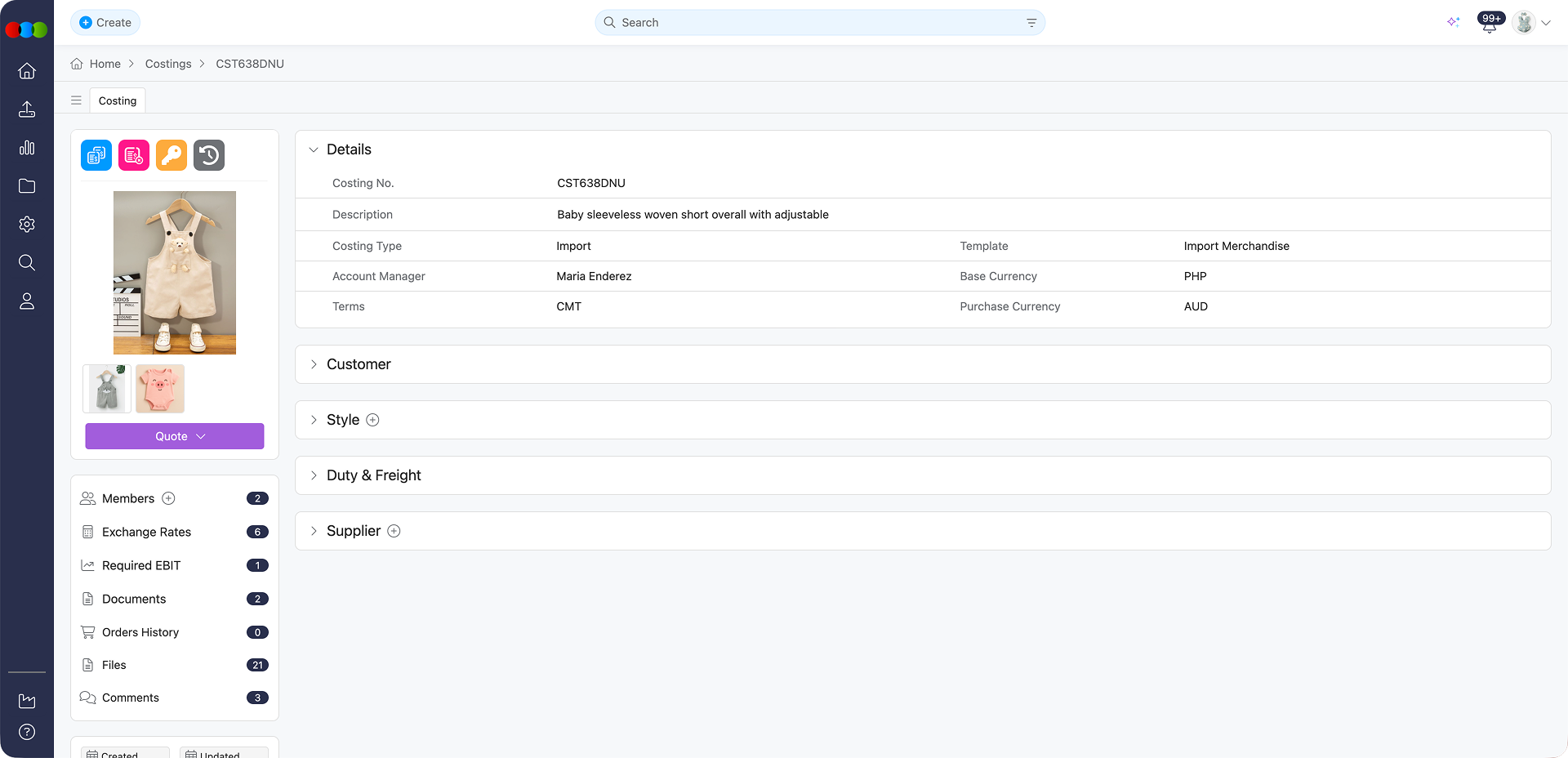
The Details section establishes the foundational information for your import costing. This section is crucial as it defines the costing's unique identifier, description, and key financial parameters that drive all subsequent calculations.
For import costings, the Details section includes:
| Fields | Description |
|---|---|
| Costing No. | A unique identifier for tracking and reference. This can be edited. |
| Description | A clear name that identifies the purpose of the costing. This can be edited. |
| Costing Type | Set to "Import" to enable import-specific calculations. This cannot be edited once selected from the Create New Costing pop-up. |
| Template | The pre-configured import costing template that determines calculation structure. Users cannot change the template once selected. To configure the templates, go to: Site Settings > Costing > Template. |
| Account Manager | The team member responsible for managing this costing. This can be edited. To configure the names in this list, go to: Site Settings > Company > Staff. |
| Base Currency | Your primary business currency (typically AUD for Australian businesses). This is dependent on the template being used. To configure the base currency for the template, go to: Site Settings > Costing > Template and edit the Base Currency field. |
| Terms | The trade terms (e.g., FOB, CIF, EXW) that govern the international purchase. This cannot be edited once selected from the Create New Costing pop-up. |
| Purchase Currency | The currency used to pay international suppliers (e.g., USD, CNY, EUR). This cannot be edited once selected from the Create New Costing pop-up. |
Template Selection
Selecting the correct Template is essential for import costings, as it determines the structure of calculations, including how margins, duties, freight, and currency conversions are computed. Ensure your administrator has configured appropriate import templates in Site Settings > Costing > Template.
Customer
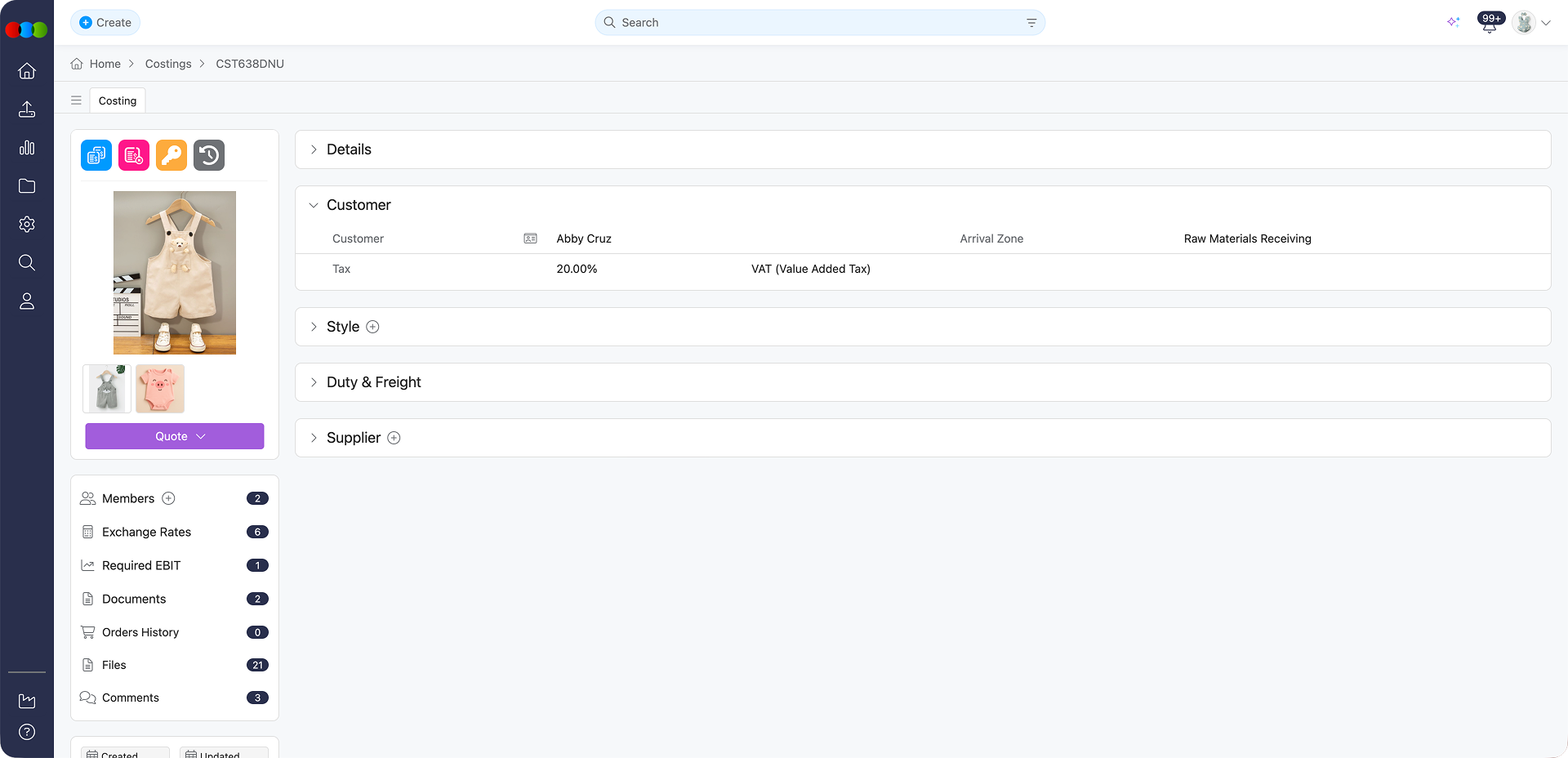
The Customer section in an Import Costing Type is specifically configured for wholesale pricing models. Import costings focus on B2B transactions and wholesale pricing rather than end-consumer pricing.
The Customer section includes:
| Field | Description |
|---|---|
| Customer | The client or business entity for whom the costing is being prepared. This can be edited. To configure the list of the names of customers, go to: Site Settings > Company > Customer. |
| Arrival Zone | The delivery zone for the customer, which may influence freight costs and logistics planning. This can be edited. To configure the arrival zones, go to: Site Settings > Company > Arrival Zone. |
| Tax | The applicable tax rate or amount for costing is based on the tax settings defined for each customer. To configure the tax per customer, go to: Site Settings > Company > Tax. |
Style
The Style section links your import costing to the product information and supports multiple styles, enabling efficient planning across colourways and deliveries while keeping royalties, seasons, and story details in sync.
View Options (Column / Row)
You can switch between two layout views in the Style section to suit your workflow:
| View | Description |
|---|---|
| Column view | Displays style data in a horizontal, column-based layout. 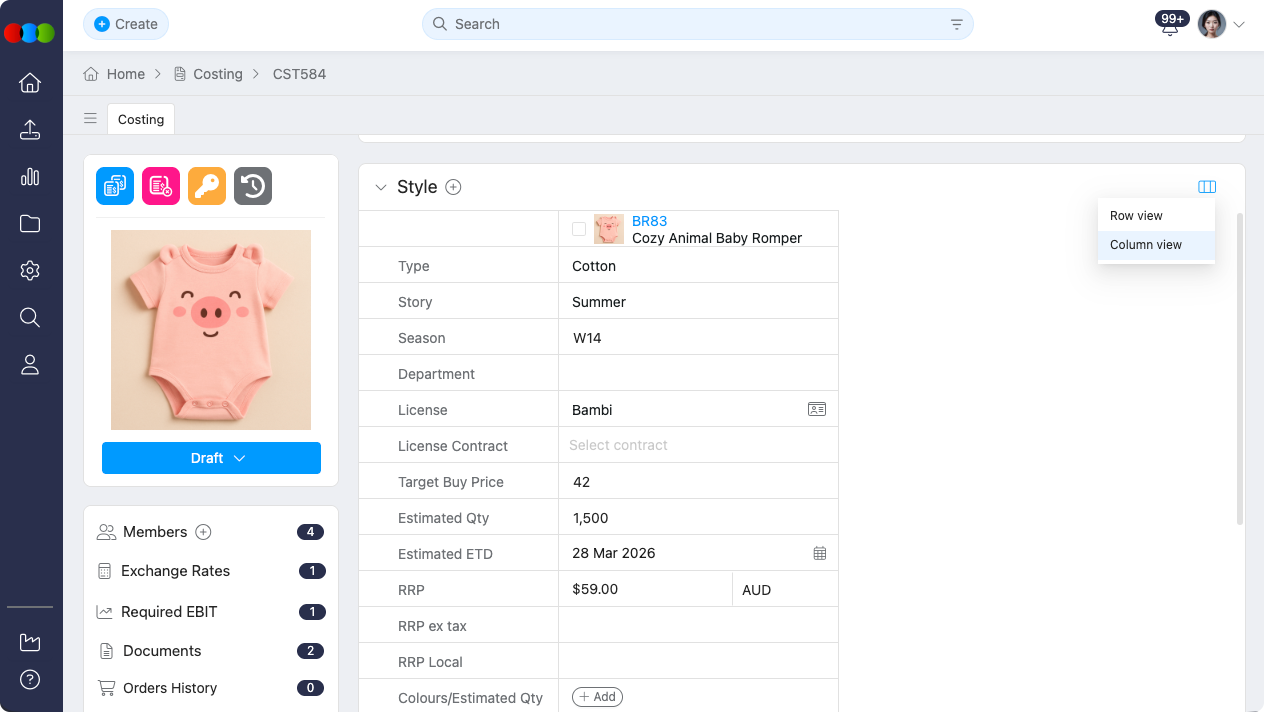 |
| Row view | Spreads style data across rows for a more detailed view. 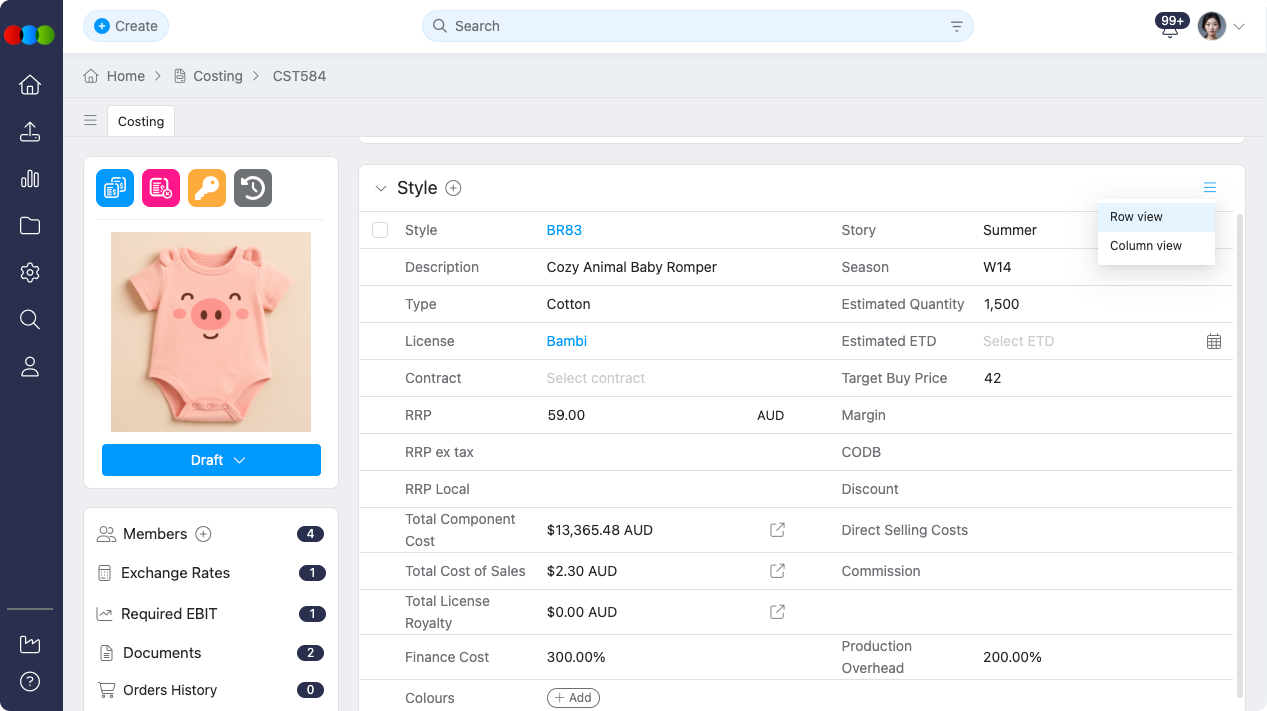 |
Use the View Options control to switch between these views at any time. Your preference is remembered for your next costings.
Available Fields
The Style section includes:
| Field | Description |
|---|---|
| Style No. | Automatically populated from the style used to create the costing. |
| Description | The description of the style. |
| Preview Image | Displays the preview image associated with the style. |
| Type | The type of style for this costing. This is not editable. |
| Story | The name of the story for which this costing was created. This is not editable. |
| Season | The selling season (e.g., SS25, AW24) of the style. This can be edited. To configure the seasons, go to: Site Settings > Style > Season. |
| Department | The internal department for reporting and budgeting purposes. This is not editable. |
| License | The applicable license for the product. Users can view the license details by clicking the card icon. To configure the license contracts, go to: Site Settings > Style > License. |
| License Contract | A contract linked to the chosen license, which automatically calculates royalties. If the contract terms do not align with the costing, the contract may not appear in this dropdown. |
| Target Buy Price | The target purchase price for the product. This can be edited. |
| Estimated Qty | The projected order quantity for planning purposes. This can be edited. |
| Estimated ETD | The Estimated Time of Departure for logistics planning, particularly important for international shipments. This can be edited. |
| RRP | The Recommended Retail Price for the end consumer. The price can be edited, but currency depends on the selected Base Currency. When Market Pricing Layout is enabled (see Site Settings > Style > General Settings > Default > Configure the default market pricing > Use market pricing layout), and the style uses Style Price Type = One Price, this field is automatically copied from the Style Primary Market Retail Price when creating a costing. |
| RRP ex tax | The Recommended Retail Price excluding any applicable taxes. This is auto-calculated once the RRP has value in it. |
| RRP Local | The Recommended Retail Price converted to the local currency. This is auto-calculated once the RRP has value in it. |
| Sell Price | The wholesale price offered to the customer. This is the primary pricing field for import costings. The pricing and currency can be edited. When Market Pricing Layout is enabled and the style uses Style Price Type = One Price, this field is automatically copied from the Style Primary Market Sell Price when creating a costing. |
| Sell Local Price | The sell price converted to the local currency. This is auto-calculated once the Sell Price has value in it. |
| Colours/Estimated Qty | Add colours depending on available colours of the style. Input quantity for every colourway. |
| Total Component Cost | Displays the total amount of all component costs. Clicking this field opens a pop-up with detailed breakdown. |
| Total Cost of Sales | Displays the total cost of sales amount. Clicking this field opens a pop-up with detailed breakdown. |
| Total License Royalty | Displays the total license royalty amount. Clicking this field opens a pop-up with detailed breakdown. |
| Margin | The profit margin displayed as a percentage. This is auto-calculated depending on the configured Customer's Trading Terms. To configure the margin percentage, go to: Site Settings > Company > Customer and edit the Customer's Trading Terms > Margin %. |
| CODB | Cost of Doing Business. The currency is based on Base Currency. This is auto-calculated depending on the configured Customer's Trading Terms. To configure the CODB percentage go to: Site Settings > Company > Customer and edit the Customer's Trading Terms > CODB %. |
| Discount | The standard customer discount. The currency is based on Base Currency. This is auto-calculated depending on the configured Customer's Trading Terms. To configure the discount percentage, go to: Site Settings > Company > Customer and edit the Customer's Trading Terms > Discount %. |
| Rebate | Any applicable rebate offered to the customer. The currency is based on Base Currency. This is auto-calculated depending on the configured Customer's Trading Terms. To configure the rebate percentage, go to: Site Settings > Company > Customer and edit the Customer's Trading Terms > Rebate %. |
| Overhead Costs | Fixed or variable overhead costs associated with the product. The currency is based on Base Currency. This is auto-calculated depending on the configured template. To configure the overhead costs, go to: Site Settings > Costing > Template and edit the template's Overhead Cost %. |
| Direct Selling Costs | Direct costs associated with selling the product. The currency is based on Base Currency. This is auto-calculated depending on the configured template. To configure the direct selling costs, go to: Site Settings > Costing > Template and edit the template's Direct Sell Cost %. |
| Commission | Sales commission percentage or amount. This depends on the selected Account Manager in your Costing Details. The currency is based on Base Currency. To configure the commission percentage, go to: Site Settings > Company > Staff and edit the Account Management Commission % field under the Costing section. |
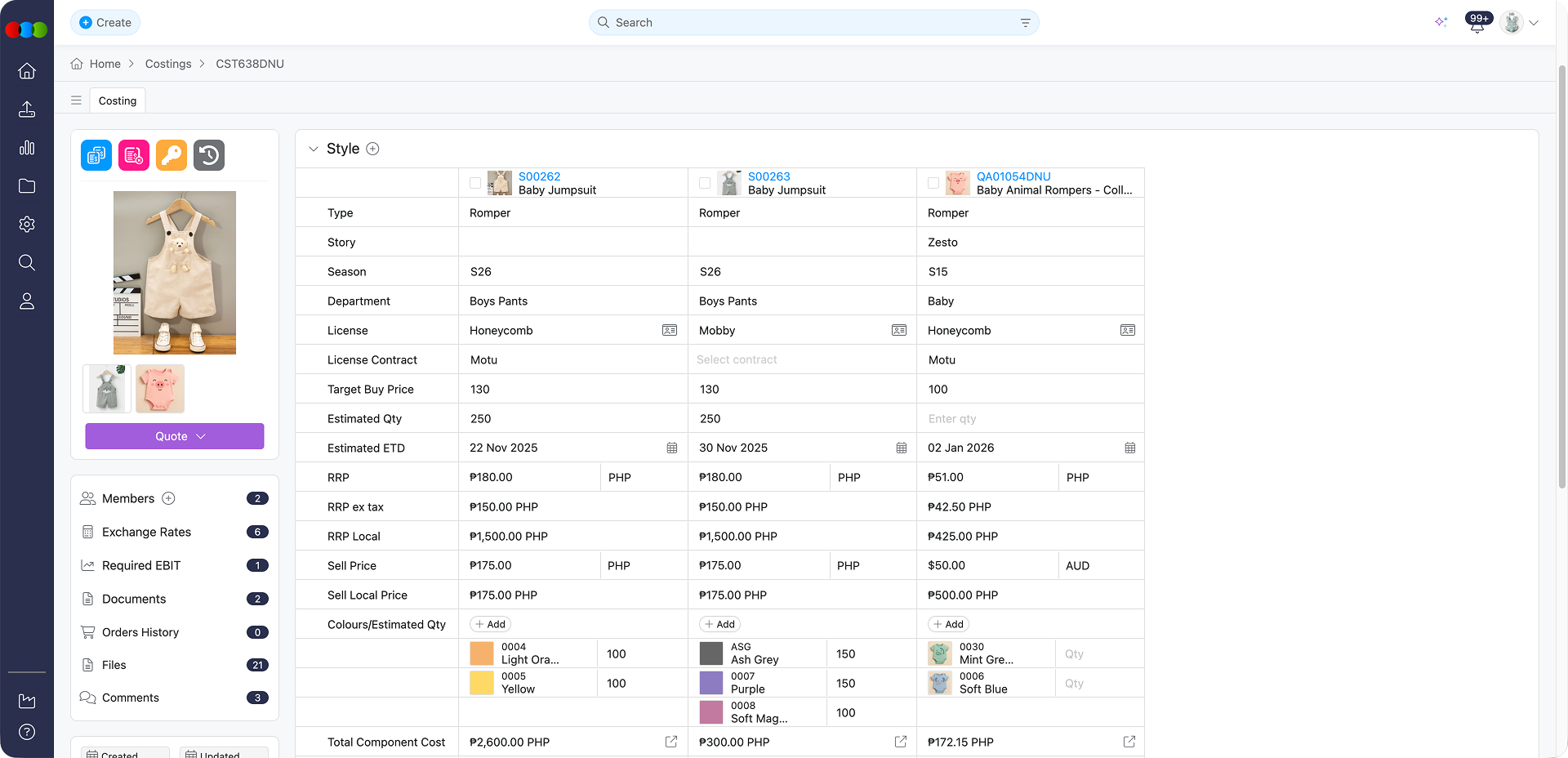
License contract and costing terms
The terms in the license contract and the terms applied for the costing should coincide. Otherwise, the license contract will not appear in the License Contract dropdown.
Total Component Cost
The Total Component Cost field displays the total amount of all component costs. Clicking this field opens a pop-up with a detailed breakdown of all components added to the costing.
The pop-up allows you to add components and displays the following columns:
| Column | Description |
|---|---|
| Image | Visual representation of the component. |
| Component Number | The unique identifier for the component. |
| Description | The description or name of the component. |
| Unit | The unit of measurement for the component (e.g., meters, pieces). |
| Unit Price | The price per unit of the component. |
| Qty | The quantity of the component used. |
| Price | The total price calculated from unit price and quantity. |
| Currency | The currency in which the component is priced. |
| Action | Delete button to remove the component from the costing. |
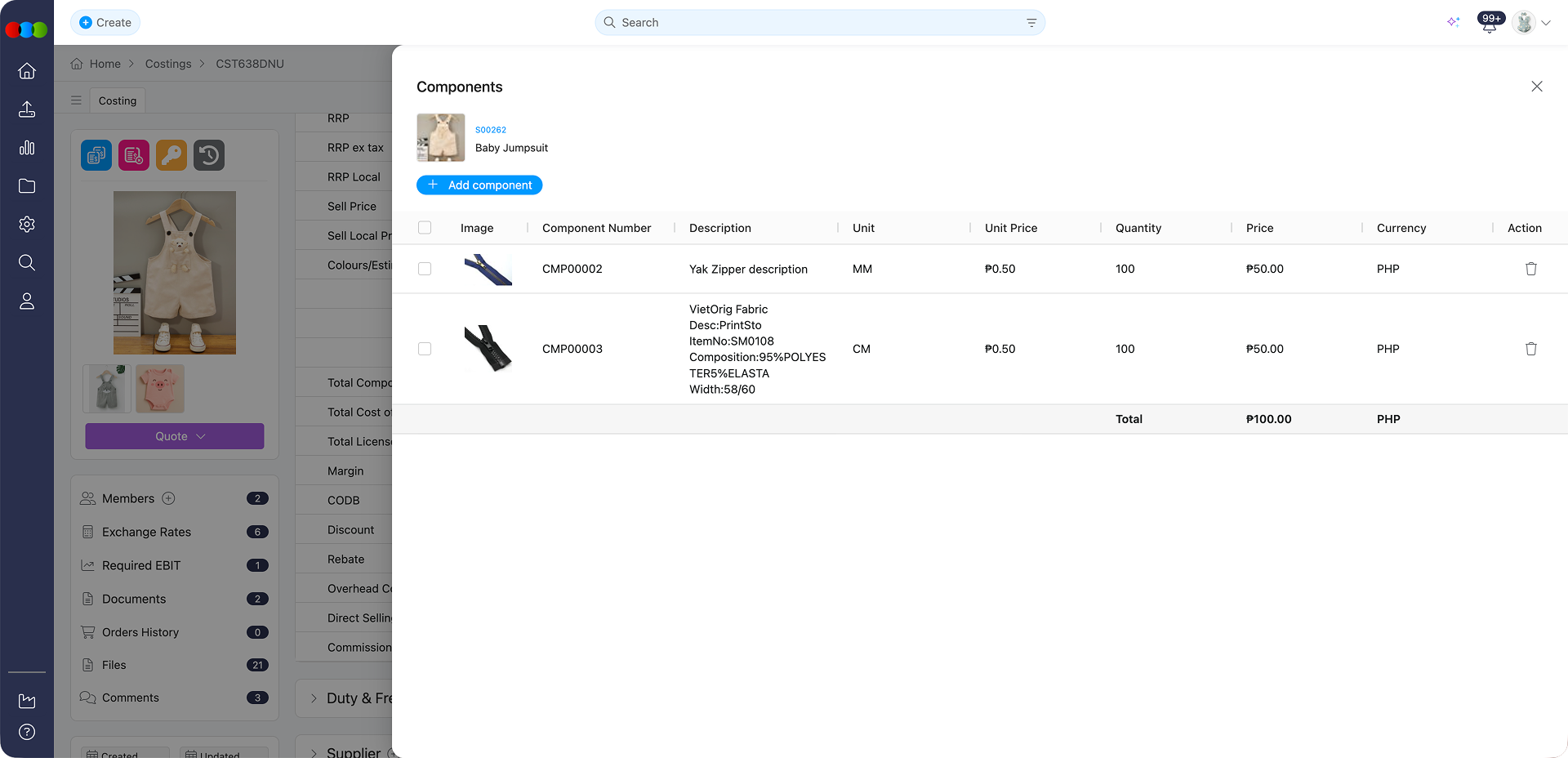
Pre-defined Components per Customer
Certain components may be pre-defined per customer and will automatically appear in the pop-up when a customer is selected. These include: Brand Label, Price Ticket, and Swing Tag. This can be configured in Site Settings > Company > Customer and edit the Components section.
The total value is displayed based on Base Currency and automatically converts values if they are not in the base currency.
Total Cost of Sales
The Total Cost of Sales field displays the total cost of sales amount. Clicking this field opens a pop-up where you can view and edit various cost of sales fields.
The following fields are available in the pop-up:
| Field | Description |
|---|---|
| Local Rework | Costs associated with local rework or modifications. This can be edited. This is auto-filled depending on the cost set for the selected Customer. To configure the local rework amount, go to: Site Settings > Company > Customer and edit the Customer's Cost of Sales > Local Rework. |
| Distribution and Handling | Costs related to distribution and handling of products. This can be edited. This is auto-filled depending on the cost set for the template used. To configure the costs, go to: Site Settings > Costing > Template and edit the template's Distribution and Handling ($). |
| License CMF | License Cost of Manufacture Fee. This value is not editable and is automatically calculated. This can be configured from the License > CMF % field. |
| License Royalty | License royalty costs. This value is not editable and is automatically calculated based on the selected license contract. This can be configured from the License > Royalties field. |
| Other Costs | Additional miscellaneous costs. This can be edited. |
| Outgoing Freight | Costs associated with outgoing freight shipments. This can be edited. This is auto-filled depending on the cost set for the selected Customer. To configure the cost, go to: Site Settings > Company > Customer and edit the Customer's Cost of Sales > Outgoing Freight. |
| License Marketing | License marketing fees. This value is not editable and is automatically calculated. This can be configured from the License > Marketing % field. |
| Pick and Pack | Costs for picking and packing operations. This can be edited. This is auto-filled depending on the cost set for the template used. To configure the costs, go to: Site Settings > Costing > Template and edit the template's Pick & Pack ($). |
License royalty calculation
The calculated license royalty depends on the selected License Contract.
The total value is displayed based on Base Currency.
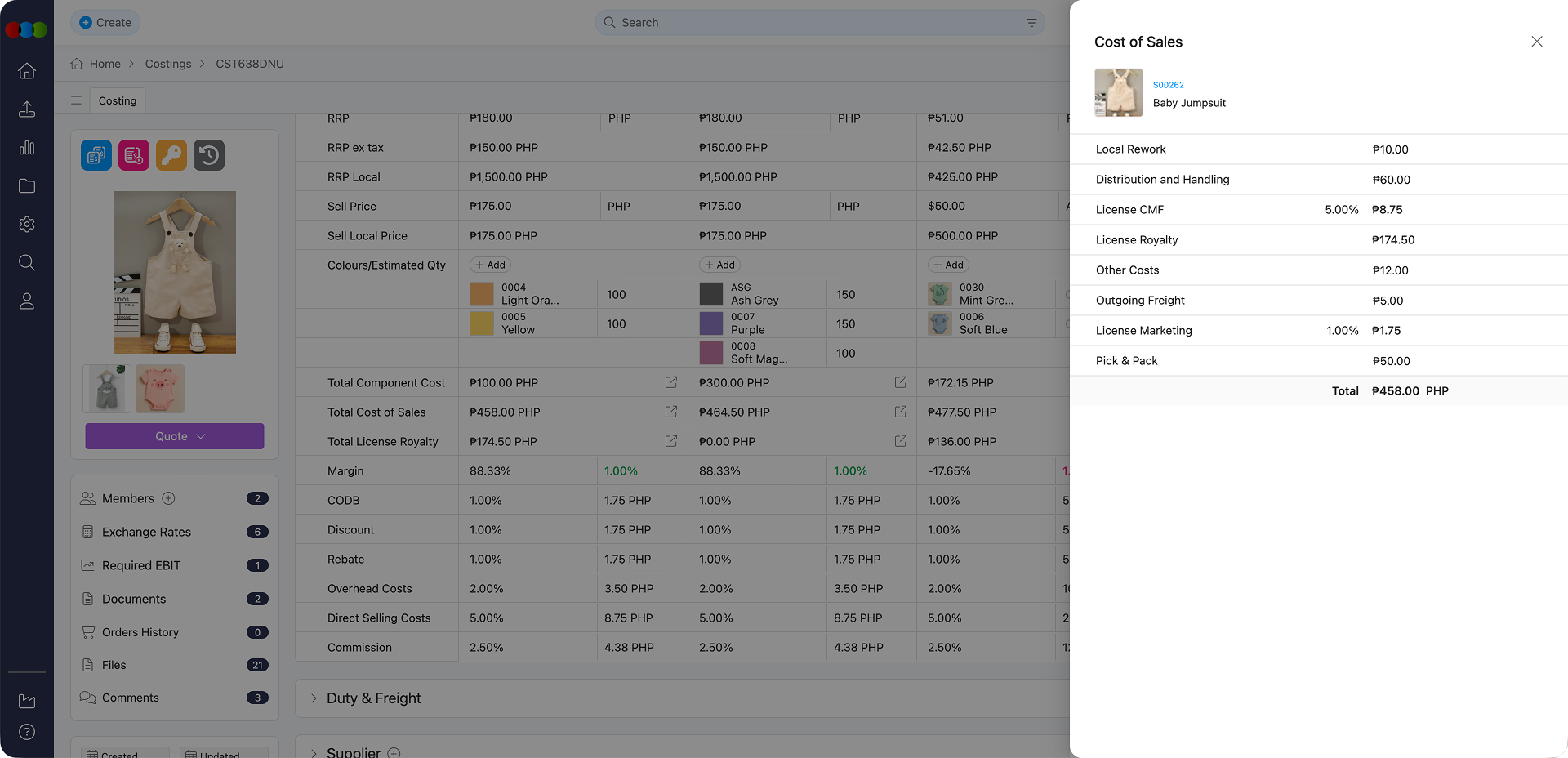
Total License Royalty
The Total License Royalty field displays the total license royalty amount for this costing, as selected in Style > License Contract. Clicking this field opens a pop-up with detailed breakdown of all license royalty calculations.
The pop-up displays the following columns:
| Column | Description |
|---|---|
| Description | The name or description of the royalty item as defined in the license agreement. |
| Terms | Specific contractual terms that outline the conditions for the royalty. |
| Category | The classification of the royalty (e.g., Brand Fee, Territory Fee). |
| Sell Local | The royalty amount and percentage applied to the local selling price. |
| Buy Local | The royalty amount and percentage applied to the local buying price. |
| RRP Local | The royalty amount and percentage applied to the local Recommended Retail Price (RRP). |
| Rate | The calculated rate of the royalty. |
The total value is displayed based on Base Currency.
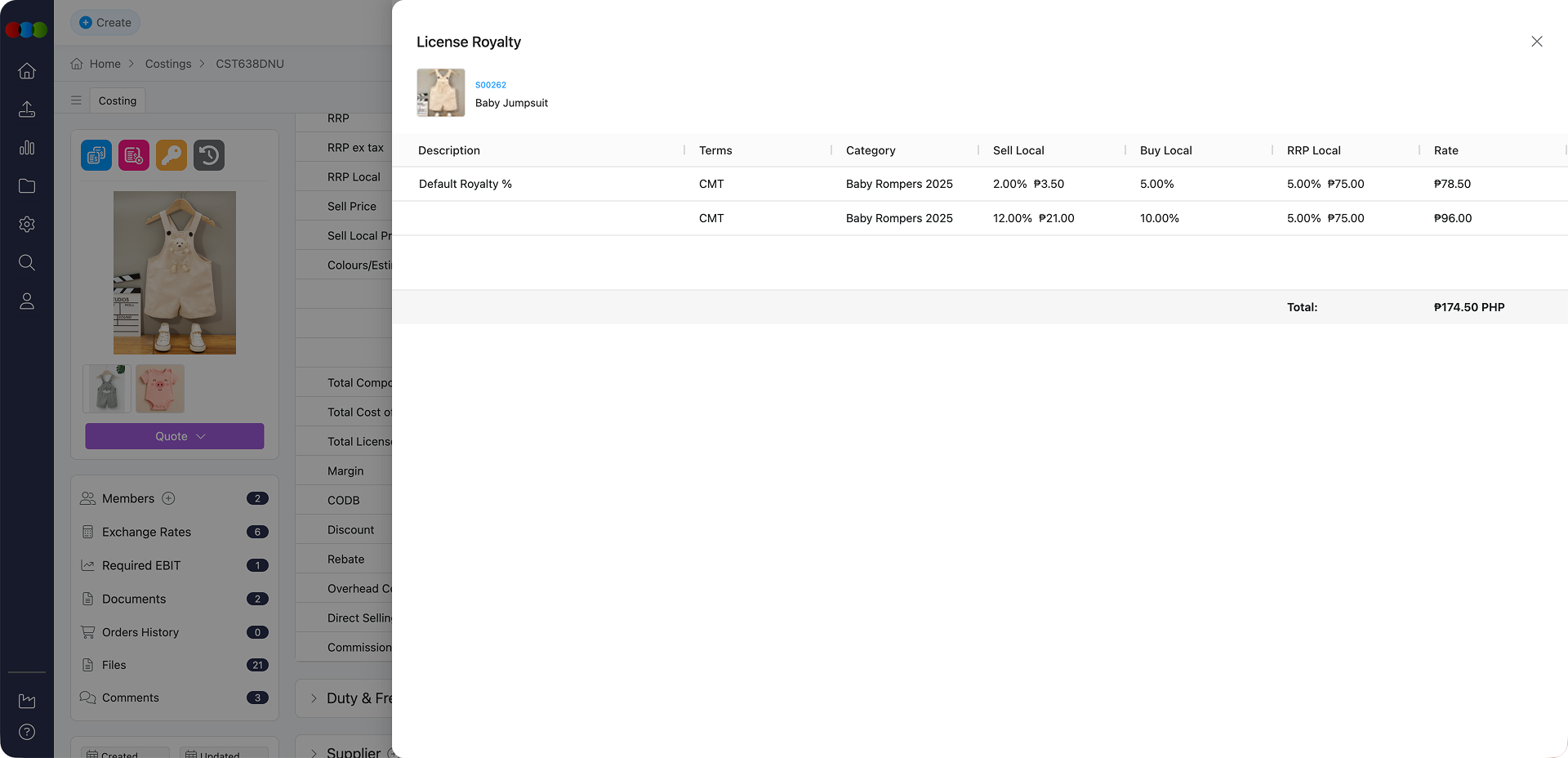
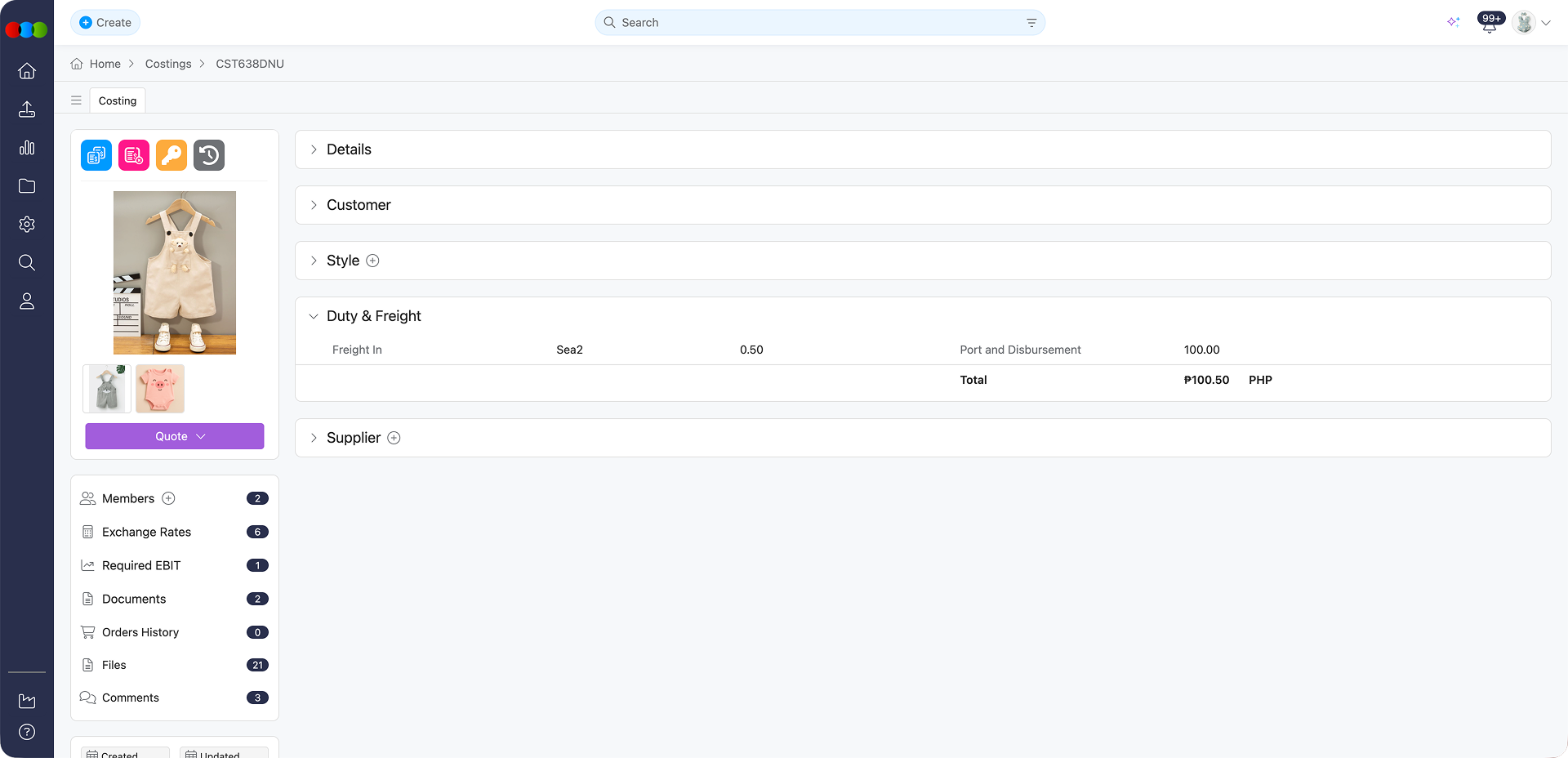
Duty and Freight
The Duty and Freight section captures all logistics-related expenses required to transport products from international suppliers to your warehouse. For import costings, accurate freight and duty calculations are essential for determining the true landed cost of goods, which directly impacts pricing decisions.
The Duty & Freight section includes:
| Field | Description |
|---|---|
| Freight In | The cost of freight for the goods. This can be edited. To configure the available freight options, go to: Site Settings > Costing > Freight. |
| Port and Disbursement | Additional port fees and disbursement charges. This value is automatically populated based on the selected Costing Template and is not editable here. To configure this value, go to: Site Settings > Costing > Template and edit the template's Port and Disbursement field. |
Template Dependency
The Port and Disbursement costs are automatically applied from your selected costing template. Ensure your templates are kept current to maintain calculation accuracy.
Market Pricing Layout - Import Type Costing
Pre-requisites
This behaviour applies only when Style Price Type = One Price and Use market pricing layout is enabled in Site Settings > Style > General Settings > Default > Configure the default market pricing. If Market Pricing Layout is disabled, the system reverts to the previous behaviour.
| Location | What happens? |
|---|---|
| Costing > Style > Retail Price & Sell Price | When creating a costing, Sell Price and Retail Price are automatically copied from the Style's Primary Market Sell Price and Retail Price. |
| Costing > Supplier > Retail Price & Sell Price | When adding Supplier/s, Retail Price and Sell Price amounts are automatically copied from the Style's Primary Market and Additional Markets. |
Supplier
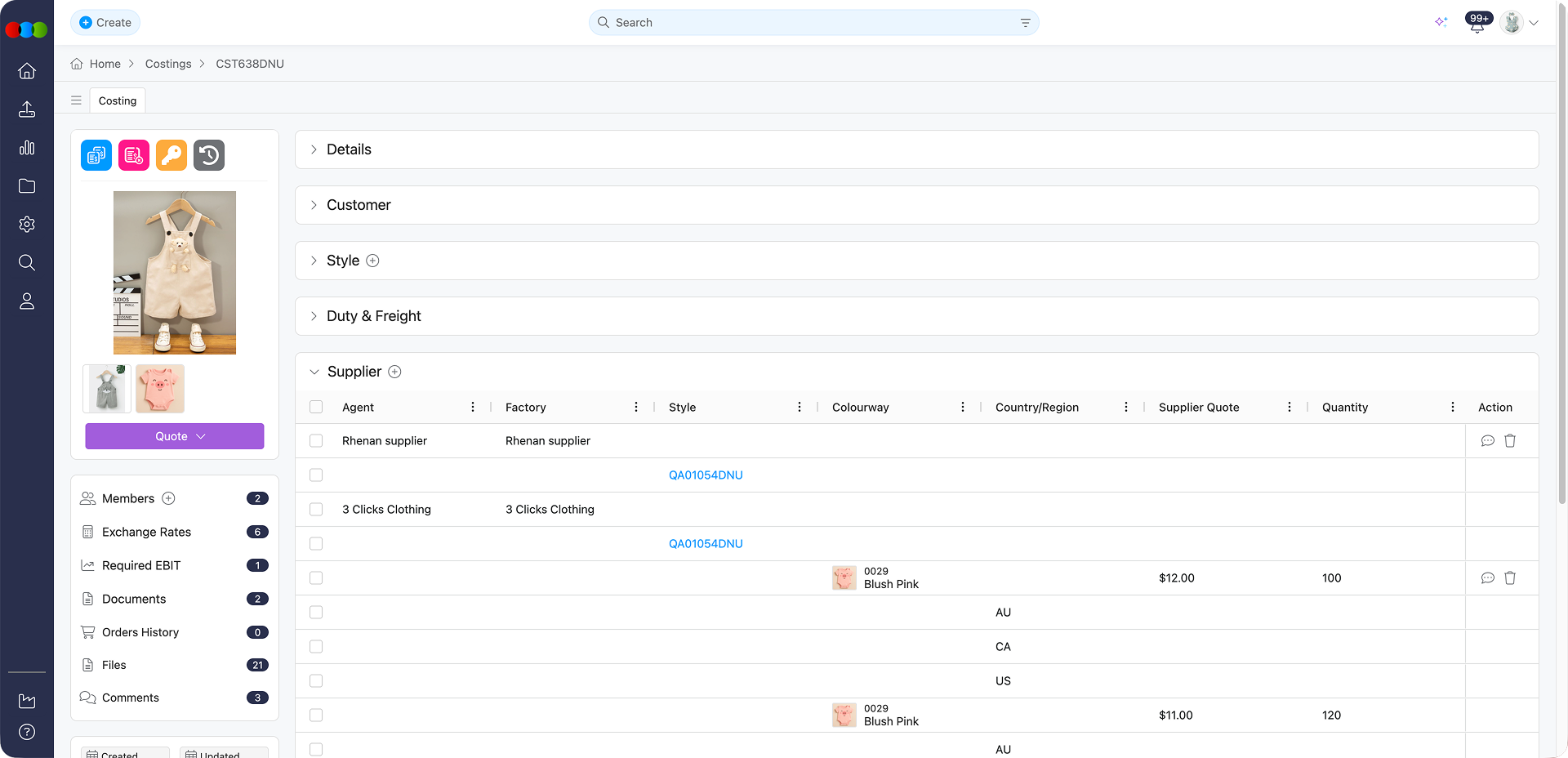
The Supplier section enables collaboration with international suppliers for import costings. This feature is essential for obtaining competitive quotes and managing supplier relationships throughout the international sourcing process.
Supplier Section Features
- Multiple Suppliers: Import costings can support up to 10 suppliers by default, enabling side-by-side comparison of quotes from different suppliers.
- Individual Comments Thread: Communicate with suppliers through private comments thread.
- Quote Management: Suppliers can submit multiple quotes per costing, allowing for comparison of different pricing structures.
- Approval Workflow: Only one supplier quote can be approved per costing, and the costing can only be marked as complete once a quote is approved.
- Choose Columns: Customise the table view by selecting which columns to display. The Factory column is required and cannot be deleted. Even if you remove all other columns, the Choose Columns toolbar remains accessible, allowing you to add columns back at any time. When un-selecting all columns, the pop-up will remain open until you manually close it, giving you the opportunity to review your selection before confirming.
Supplier Columns
| Column | On this costing | Supplier Portal | Source/Calculation |
|---|---|---|---|
| Agent | Editable. Select from dropdown. | — | Options are supplier records with an agent role. Maintain agents in Site Settings > Company > Suppliers (Type includes Agent). |
| Factory | Editable. Select from dropdown. | — | Options are supplier records with a factory role. Maintain factories in Site Settings > Company > Suppliers (Type includes Factory). |
| Supplier Quote | Not editable here. | Suppliers enter and update quotes. | Drives comparison before you set Final Buy Price or approve a quote. |
| Quantity | Not editable here. | Suppliers enter quantity. | Used with quoted and final figures for totals (see Calculations below). |
| Colourway | Not editable here. | Shown for supplier's submitted colourway. | Aligns supplier lines to style colourways. |
| Final Buy Price | Editable. | — | Stays blank until you type a value or approve a supplier quote; it does not auto-fill when a quote arrives. Feeds Buy Price Local and downstream margin and landed-cost figures. |
| Final Quantity | Editable. | — | Working quantity for the selected supplier line; used in quantity-scaled report and search totals. |
| Status | Editable. Leave blank or set to Approved. | — | Approval is required before the costing can be completed. |
| Buy Price Local | Not editable in this section (calculated). | — | Derived from Final Buy Price and exchange logic for the costing. Manage conversion context via Costing › Exchange Rates and template currency settings in Site Settings > Costing > Template. |
| Agent Commission | Not editable in this section (calculated). | — | Automatically populated when an Agent is selected in the costing and included in the costing calculation. The percentage comes from the agent supplier record in Site Settings > Company > Suppliers and is based on Cost Inc. Components. |
| QC Cost | Not editable in this section (calculated). | — | Automatically populated when a Factory is selected in the costing and included in the costing calculation. The percentage comes from the factory supplier record in Site Settings > Company > Suppliers and is based on Cost Inc. Components. |
| Landed Cost | Not editable in this section (calculated). | — | Buy-side cost including freight, duty, and port-style charges as modelled for the line. See Calculations below. |
| Total Cost | Not editable in this section (calculated). | — | Core total cost before some overhead presentations; pairs with Total Cost (including Overheads) in reports (see Calculations). |
| Style | Not editable in this section (display). | — | Pulled from the linked style on the costing. |
| Import Duty | Editable. Select from dropdown. | — | Duty codes and rates are maintained in Site Settings > Costing > Import Duty. Per-market duty behaviour is described under Import Duty per Market below. |
| Markets | Not editable in this section (display). | — | Reflects market context from the style / costing (read-only in the grid). |
| Tariff | Not editable in this section (display). | — | Shows tariff classification where applicable to the market line. |
| Factory Country | Not editable in this section (display). | — | Comes from the selected Factory supplier record in Site Settings > Company > Suppliers. |
| Cost Inc. Components | Not editable in this section (calculated). | — | Component layer from Components rolled into buy and margin paths per template Components behaviour (see Site Settings > Costing integration at the top of this page). |
| Gross Margin | Not editable in this section (calculated). | — | Margin % on sell/retail vs cost stack; for retail-style margin behaviour see Retail Costing Type › Supplier. |
| Gross Profit | Not editable in this section (calculated). | — | Dollar margin aligned to Gross Margin logic. |
| Actual EBIT | Not editable in this section (calculated). | — | EBIT after required and actual paths vs template Required EBIT % in Site Settings > Costing > Template. |
| Sell Price | Not editable in this section (display/calculated). | — | Wholesale sell line—fed from Style and template pricing, not typed in the Supplier grid. |
| Retail Price | Not editable in this section (display/calculated). | — | Retail reference from Style / markets where applicable. |
| Freight | Editable. Select from dropdown. | — | Freight codes live in Site Settings > Costing > Freight. Percentage freight uses Cost inc. Components as the base (style level, or quote level when supplier quotes exist). |
| Port & Disbursement | Not editable in this section (fixed from template). | — | Copied from the costing Template. Configure in Site Settings > Costing > Template (Port and Disbursement). |
| Note | Not editable in this section (display). | — | Reserved for system/context notes on the line where shown. |
Calculations
Supplier figures roll into reports and search the same way as other costing types wherever those columns are exposed. Useful mappings:
- Buy Price Local (Qty) = Buy Price Local × Quantity
- Landed Cost (Qty) = Landed Cost × Quantity
- Total Cost (Qty) = Total Cost × Quantity
- Total Cost (including Overheads) (report view) = Total Cost + overhead and direct selling components as defined for the template
- Freight % uses Cost inc. Components as its base (see the Freight row under Site Settings > Costing at the top of this page).
Completing the Costing
When you set status to Completed, the Completed Status pop-up lets you review Style Pricing (Previous vs Next) and optionally apply Buy Price, Sell Price, and Retail Price to the style. How sell and retail values are applied depends on whether market pricing is on and on your completion choices. For full detail and the template summary table, see Costing › Side Widgets › Status.
Import Duty per Market
The Supplier section includes market-specific Import Duty support. You can apply different Import Duty rates per market so your landed costs reflect the correct duties for each destination.
| Field | Description |
|---|---|
| Import Duty | Select an Import Duty percentage for each market. Set the rate per market so landed costs are calculated correctly for each destination. Import Duty values are saved properly, even after sharing the costing with suppliers and receiving their quotes. The Import Duty dollar amount is displayed automatically when the costing loads—you do not need to re-select from the dropdown to view the value. To configure Import Duty entries, go to: Site Settings > Costing > Import Duty. |
| Country/Region | The destination country or region for the market. |
| Tariff | The tariff classification for the product in that market. |
New Market Behaviour
When you add a new market to an existing costing, the system automatically applies the Import Duty percentage selected at the Supplier level. The new market is set up correctly by default, with no extra steps required.
Gross Margin for Import Costing Type
The Gross Margin for Import Costing Type is calculated as follows:
- If no Sell Price is entered in the Supplier section, the system uses the Style Local Sell Price.
- If a Sell Price is entered in the Supplier section, that value is used instead.
Final Buy Price
The Final Buy Price field remains empty until you either enter a value manually or approve a supplier quote. It will not auto-fill when suppliers submit their quotes.
Costing Site Settings
Site Settings > Costing supplies the master data and defaults that shape every import costing. Together they define structure, currency, landed-cost components, and (for import templates) optional royalty and style-price automation.
How it is integrated
| Area | Role in Import costings |
|---|---|
| General Settings | • Default customer and department pre-fill new costings. • Files and Members automate folders and team access. • Style Components can copy components from the style when a costing is created. • Order Pricing and Style Pricing do not apply to import costings—they apply only when the costing uses a retail template. • Style Specification can create version-controlled specification documents when new costings are created (if enabled). |
| Template | • The costing’s Template Type (locked after creation) must be Import. • It drives Base Currency, Exchange Rate rows, fixed amounts (Distribution and Handling, Pick & Pack, Port and Disbursement), default Freight In, percentages (Direct Sell Cost, Overhead Cost, Required EBIT), Components behaviour (components as buy price vs added to buy price), and Price Type where relevant. • License Royalty (Default vs Custom 1) and Pricing (Style Price calculations per currency) are only available for Import templates—configure them here, then they run inside the costing. |
| Freight | • Freight codes are maintained centrally. On the costing you assign Freight in Costing > Supplier (and related style-level Freight In flows from template defaults). • Percentage freight uses Cost inc. Components as the base (style level, or quote level when supplier quotes exist). • Port & Disbursement in the Supplier grid is a fixed value copied from the template (read-only); hiding the column does not remove it from Landed Cost. |
| Import Duty | • Duty codes and rates are maintained here. • In Costing > Supplier, you assign Import Duty per market; amounts display when the costing loads. New markets inherit the duty selection from the supplier section. |
How it affects the costing
- General Settings mainly speeds up creation (defaults, style component copy, folders, members) and compliance (Style Specification); pricing sync to orders or styles on Completed is a retail-template behaviour, not import.
- Freight (fixed or %) changes Final Buy Price and quote lines; % freight recalculates when Cost inc. Components changes.
- Import Duty changes per-market landed cost and must match the destination you model.
- Template choices fix Base Currency, conversion behaviour, and which percentage and fixed fees feed Style, Cost of Sales, and margin paths; Port and Disbursement from the template flows straight into landed cost without per-costing editing.
Troubleshooting
Why is my import template or base currency wrong and I cannot change it?
Template, Base Currency (via template), Purchase Currency, and Terms are fixed after the costing is created from the Create New Costing pop-up. That design keeps historical costings consistent with the calculation structure they were built on.
Steps to resolve:
- In Site Settings > Costing > Template, confirm the import template’s Base Currency, Port and Disbursement, Overhead Cost %, Direct Sell Cost %, and other defaults before users create new costings.
- If the wrong template or currency was chosen, create a new import costing with the correct selections rather than expecting locked fields to unlock.
- Ask your administrator to adjust template defaults for future costings if the business standard currency or duty structure has changed.
Why is Port and Disbursement zero or unexpected on my costing?
Port and Disbursement is driven by the selected Costing Template, not typed manually on the costing. Stale or generic template values will flow straight into every import costing that uses that template.
Steps to resolve:
- Open Site Settings > Costing > Template and edit the template’s Port and Disbursement field to match current business assumptions.
- Confirm the costing’s Template in Details is the template you intended; users cannot swap templates after selection.
- Re-open the costing after template changes propagate so refreshed values display.
Why are RRP or Sell Price not auto-filling from the style?
Automatic copy from the style happens only when Market Pricing Layout is enabled and the style uses Style Price Type = One Price, as described in Market Pricing Layout - Import Type Costing.
Steps to resolve:
- In Site Settings > Style > General Settings, confirm Use market pricing layout and default pricing behaviour match how your styles are set up.
- On the style, check Style Price Type and primary market retail/sell values when One Price applies.
- If Market Pricing Layout is off, enter RRP and Sell Price manually on the costing as before.