Members
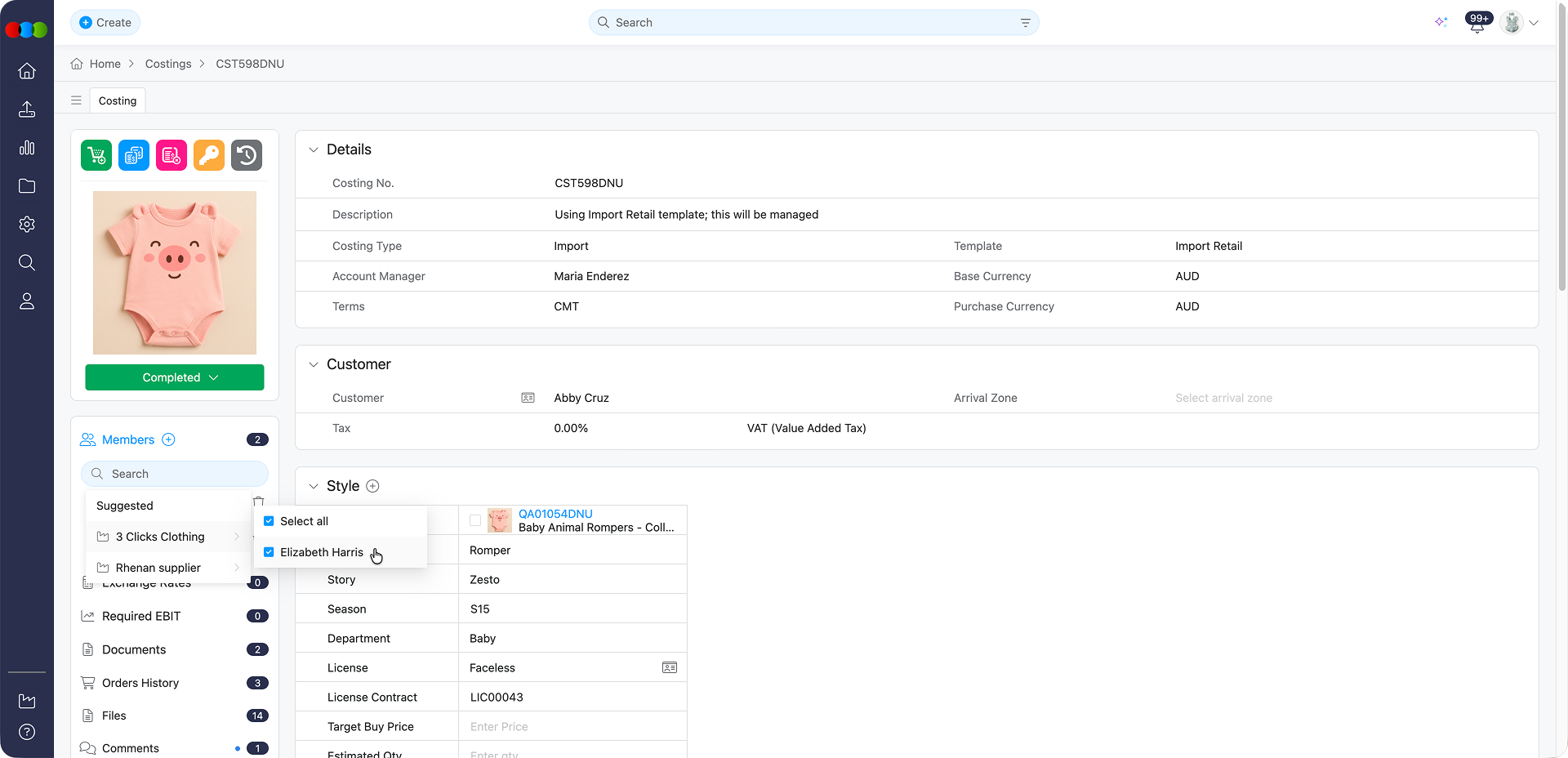
The Members section assigns colleagues to a costing so ownership and collaboration stay explicit through creation, review, and approval. Search by name or pick from suggested groups, then add or remove people with the plus and trash controls. When a costing is linked to two or more portal-connected suppliers, use Share to add every staff member from those suppliers in one step. Assignments feed notifications and give managers a quick view of who is active on each record. Costing analysts and merchandisers typically own the sheet end-to-end, whilst suggested supplier-linked groups extend visibility to external partners under your access rules. Keeping the list current ensures margin queries and approval reminders reach accountable owners.
Core Actions
These actions are available to all users with access to the costing record and allow for basic member management.
| Feature | Description |
|---|---|
| Add a Member | Click the plus (+) icon to open the member selection menu. Search for users by name or choose from suggested groups. Tick the checkbox next to a name to assign the member to the costing. |
| Share with All Suppliers | When a costing is linked to two or more portal-connected suppliers, click the Share icon beside Members (next to the plus (+) icon) to add every staff member from those suppliers to the Members list in one step. |
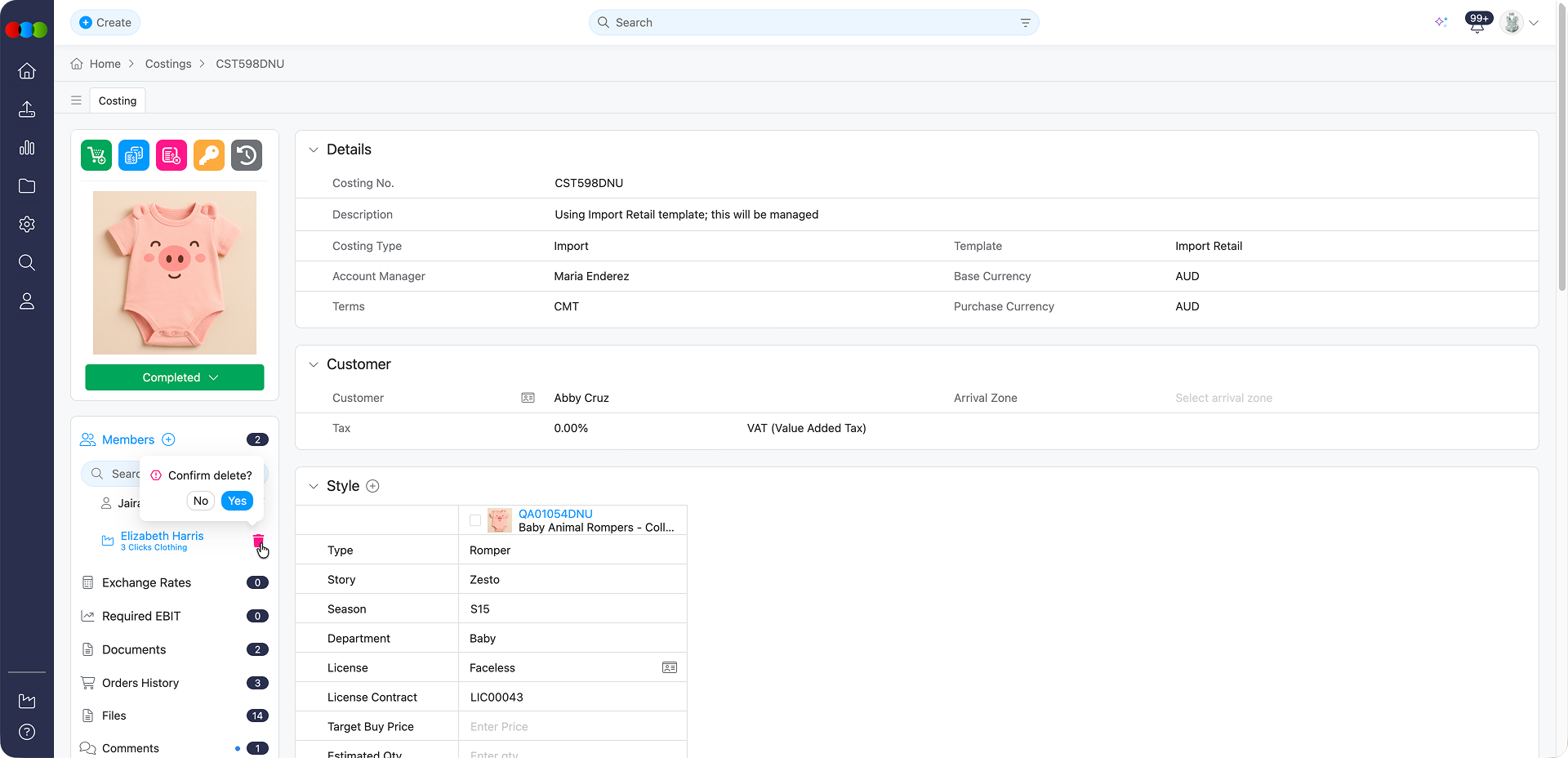
| Remove a Member | Click the trash icon next to a member's name. A confirmation prompt will appear before the removal is finalised. |
Share with All Suppliers
When a costing is linked to two or more portal-connected suppliers, a Share icon appears beside Members, next to the plus (+) icon.
Costing > Members > Share with All Suppliers 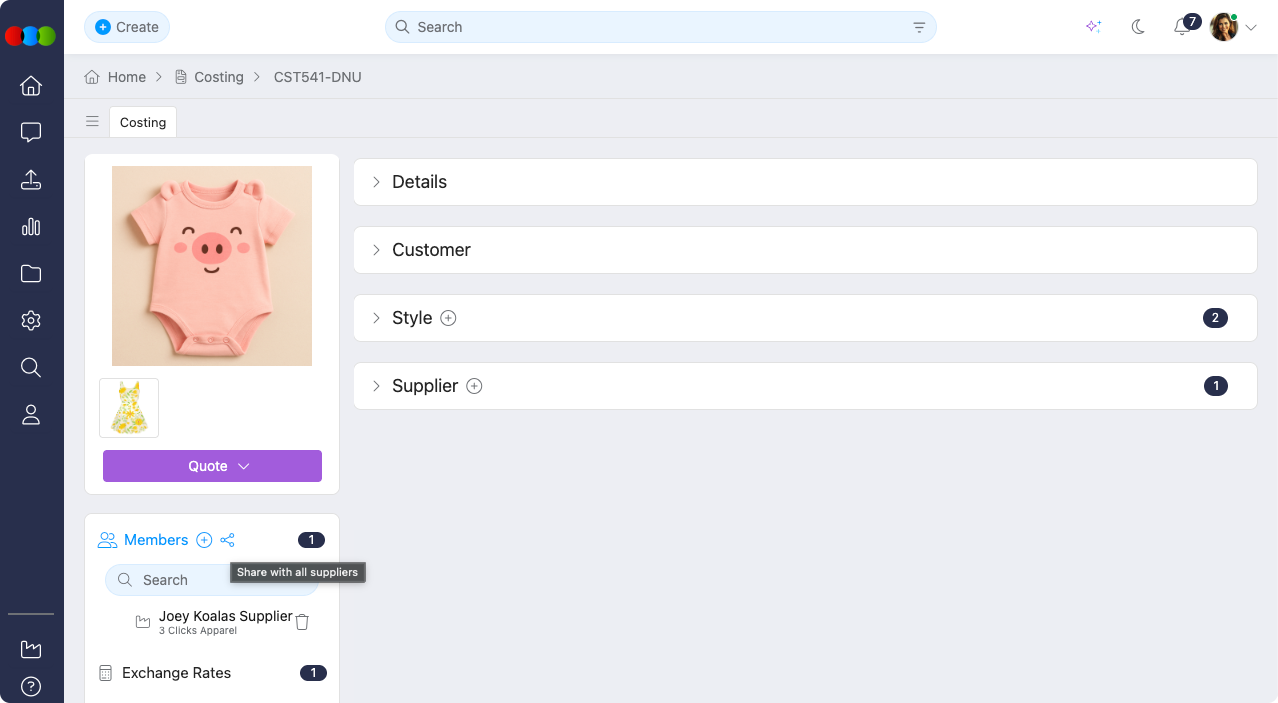
Click Share once and every staff member from those suppliers is added to the costing Members list, no need to add supplier contacts individually.
When you use Share:
- All staff from each portal-connected supplier on the costing are added to Members at once
- Supplier contacts receive costing notifications according to their role and permissions
- You can still add or remove individual members afterwards using the plus (+) and trash icons
Note
The Share icon only appears when the costing is linked to two or more portal-connected suppliers. Suppliers must be onboarded through the Supplier Portal and have staff configured in Site Settings > Company > Suppliers.
Member Management
These features help you leverage member assignments and manage team participation effectively.
| Feature | Description |
|---|---|
| Suggested Groups | When a supplier has been added in the Supplier section of the costing, suggested groups appear in the member selection menu. Without a supplier, only internal members are available for selection. |
| Notification Integration | Member assignments can be linked to system notifications. Assigned members receive relevant alerts, keeping communication focused and reducing unnecessary noise for the rest of the team. |
| Workload Overview | Use member assignments to get a quick overview of who is working on what. This can help managers balance workloads, identify potential bottlenecks, and reassign tasks as needed to keep projects on track. |
Important Notes When Using Members
Supplier Requirement: The suggested group option only appears if a supplier has been added in the Supplier section of the costing. Without a supplier, only internal members are available for selection.
Share Icon Visibility: The Share icon beside Members only appears when the costing is linked to two or more portal-connected suppliers. If you do not see the icon, confirm that the suppliers are portal-connected and that at least two are assigned in the Supplier section.
Removal Confirmation: Removing a member triggers a confirmation prompt. Once confirmed, the removal is final and the member will no longer receive costing-related notifications.
Permission Scope: The ability to add or remove members may depend on your user role and permissions. Ensure you have the appropriate access before making changes.
Best Practices
Use Group Suggestions: Use the suggested groups to quickly assign relevant internal or external stakeholders when a supplier is linked to the costing.
Share with Multiple Suppliers: When a costing involves two or more portal-connected suppliers, use Share to add all supplier staff in one action rather than selecting contacts individually.
Assign Key Stakeholders Early: Add relevant team members at the start of the costing process so they receive relevant notifications and stay informed throughout the lifecycle.
Keep the Member List Updated: Maintain the member list throughout the costing process. Confirm with your team before removing members to ensure no loss of responsibility tracking.
Related Actions
- Create New Costing
- Manage Advanced Costing Details
- Add Costing Comments
- Add Costing Dates
- Delete Costing
- View Costing Documents
- Duplicate Costing
- View Costing Exchange Rates
- Add Costing Files
- View Costing History Log
- View Costing Order History
- View Costing Preview Image
- Update Costing Status
- Manage Access Permissions