Overview
The Customer Portal is the documentation area for customer account access, administration, and buyer-facing ordering tools. Within the product interface, the customer-facing buying experience is the B2B Online Store, where wholesale buyers browse, favourite, and order products online. Orders are automatically routed into the Sales Order application for internal processing and fulfilment.
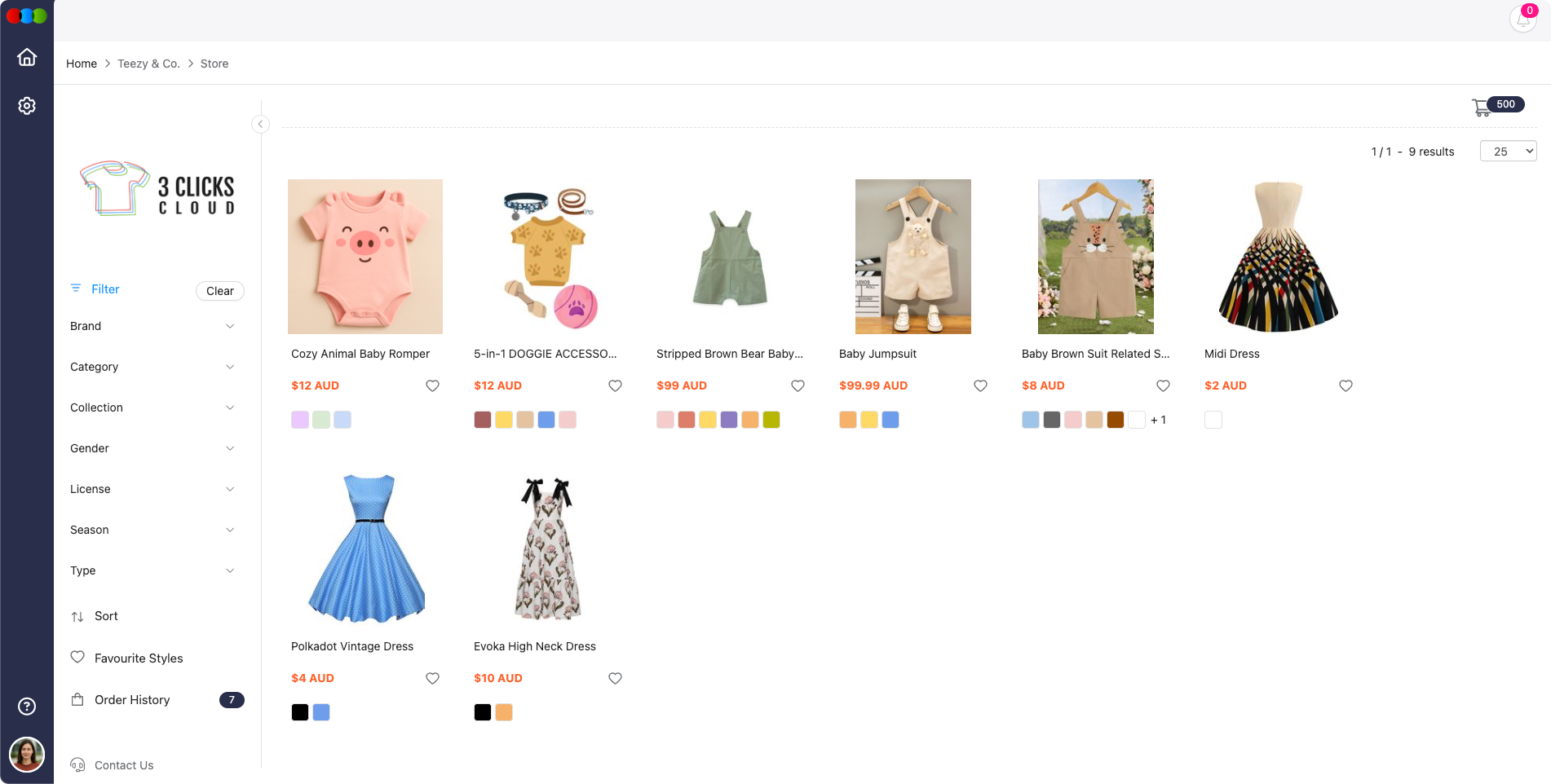
Customers log in with their Customer Portal account to access the B2B Online Store. The store provides a complete product catalogue tailored to the customer, showcasing product details such as pricing, size, and colour availability. Ordering is supported by user-friendly filters, cart management, and a checkout process that includes sales terms and payment guidance.
Key Features and Functionality
| Feature | Description |
|---|---|
| Customer Portal Access | Only available to customers with configured and linked Customer Portal accounts |
| Product Browsing | Customers can view products by category, apply filters (e.g., colour, size), and sort results (e.g., by price or name) |
| Favourites | Products can be marked as favourites for easy access |
| Product Detail View | Displays images, colourways, available sizes, price, and description |
| Price by Size | Pricing is shown per size to accommodate size-tiered pricing models |
| Add to Cart | Products can be added individually or in quantity sets (including ratio packs) |
| Checkout | A streamlined checkout with an order summary, sales terms, and payment instructions |
| File Uploads & Comments | Customers can attach supporting documents or leave notes during order submission |
| Order History | Customers can view and track previously placed orders. |
Admin Configuration Required
Ensure that Customer Portal accounts are linked and configured in the admin settings before granting access to the B2B Online Store. Create Sales Order / DAM Portal role templates in Site Settings › Company › Roles & Permissions and assign the role on each customer record in Site Settings › Company › Customer so users have the correct Sales Order, Style, Component, and Drive permissions.
Product Ordering Options
Customers can place orders in two modes:
- By Quantity: Add specific quantities per item and size
- By Ratio Pack: Order using predefined size distribution packs
Best Practices
- Regularly review and update the product catalogue, including pricing, stock, and availability.
- Monitor order comments and attachments to ensure no critical instructions are missed.
- Review Customer Portal linkages and Sales Order / DAM Portal role assignments to ensure customers only access their assigned product ranges and price tiers.
Example
Related Settings
- Site Settings › Company › Roles & Permissions to configure Sales Order / DAM Portal role scopes and application permissions.
- Site Settings › Company › Customer to link customer records and enable Portal Search for B2B browsing.
Related Actions
Avoid Spaces in Identifier Fields
Key identifier fields such as order numbers and product codes should not contain spaces. Spaces in these fields can cause inconsistent search results and make filtering less reliable. Use a hyphen (-) or underscore (_) as a separator instead (e.g., ORD-001 rather than ORD 001).
Troubleshooting
Why can a customer not log in to the B2B Online Store?
The customer must have a configured and linked Customer Portal account before they can access the B2B Online Store.
Steps to resolve:
- Confirm the customer completed registration from the invitation email.
- Check that the customer account is linked to the correct portal and company.
- Ask the customer to retry log-in after the account is confirmed active.
Why are products or prices different from expected?
B2B Online Store content depends on the customer’s assigned catalogue, Sales Order / DAM Portal role (including Style and Sales Order advanced filters for Brand, Collection, License, and Type), price tier, product availability, active filters, and whether the style has complete eCommerce publishing details.
Steps to resolve:
- Clear B2B Online Store filters and search for the product again.
- Review the customer’s Sales Order / DAM Portal role assignment on the customer record in Site Settings › Company › Customer, then edit the role template in Site Settings › Company › Roles & Permissions if Style or Sales Order advanced access must include different Brand, Collection, License, or Type values.
- For missing products, confirm the style is Published and has Available Until and Sell Prices configured in Style > eCommerce.
- Update catalogue, pricing, or portal linkage settings before asking the customer to refresh.
Why did an order not appear after checkout?
Orders appear only after checkout is fully submitted and routed into the Sales Order application.
Steps to resolve:
- Confirm the customer reached the checkout confirmation page.
- Ask the customer to open Sales Order and refresh the page.
- Search internal Sales Order records using the customer name or order reference.