Asset Library
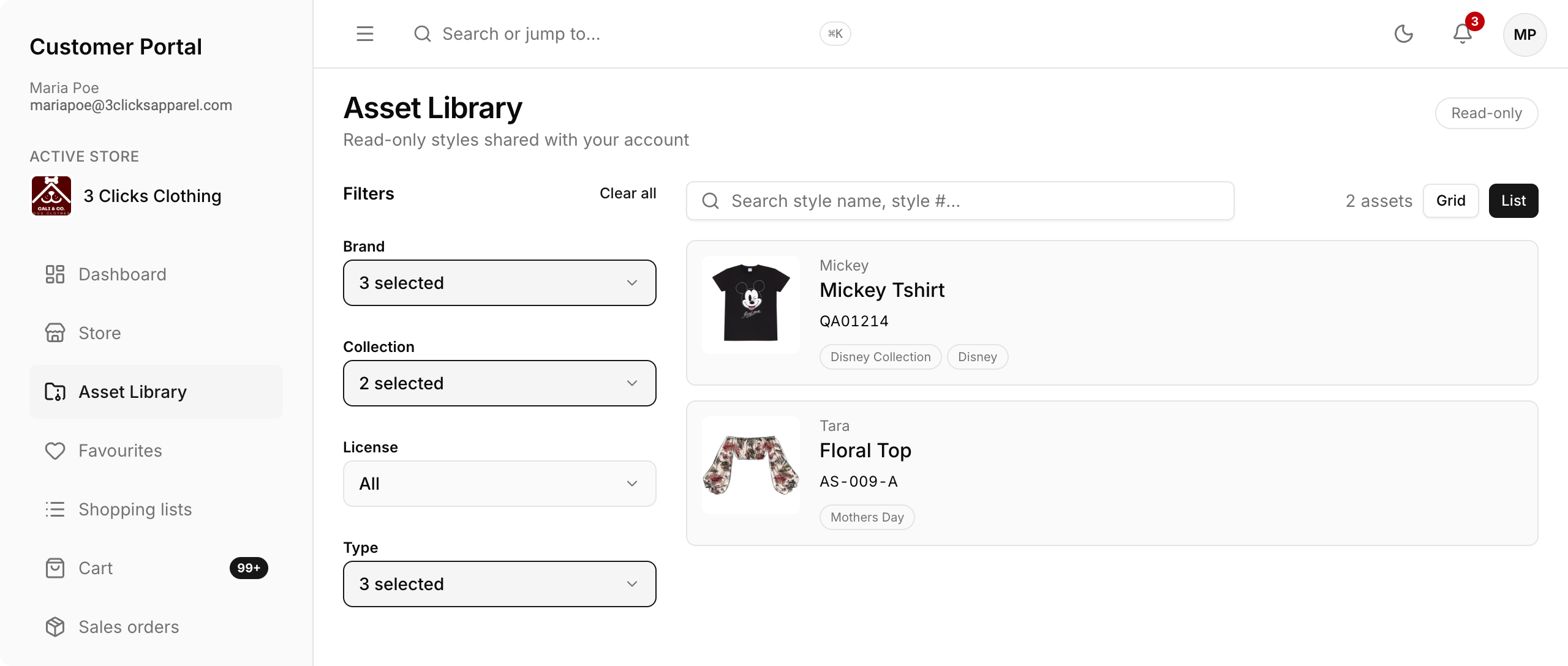
The Asset Library displays read-only styles shared with your Customer Portal account by your supplier. Use this area to review shared product information without changing the underlying style records.
When your supplier shares styles with your account, they appear here for viewing only.
Quick Check - Before You Start
- Confirm your supplier has shared the styles you expect to see.
- Check that your Sales Order / DAM Portal role includes Style > View permission.
- Understand that Asset Library is read-only — you cannot create or edit styles from this page.
View Shared Styles
Open Asset Library from the Customer Portal navigation to review styles your supplier has shared with your account.
The page shows a read-only list of shared styles. Use the filters, search bar, and display options to find the styles you need, then open a style to review the details your supplier has made available, such as images, specifications, and related files, depending on what was shared and your role permissions.
In the Asset Library, you can:
- Filter by Brand, Collection, License, and Type
- Search by style name or style number using the search bar
- Switch between Grid or List display
- Review shared style details in read-only mode
Filters
Use the filter dropdowns to narrow the list of shared styles.
| Filter | Description |
|---|---|
| Brand | Filter shared styles by brand. |
| Collection | Filter shared styles by collection. |
| License | Filter shared styles by licence. |
| Type | Filter shared styles by type. |
The options available in these dropdowns depend on your Sales Order / DAM Portal role in Site Settings › Company › Roles & Permissions. If a filter option is missing, your administrator may need to review your role's advanced access settings for Brand, Collection, License, and Type.
Search
Use the search bar to find shared styles by Style Name or Style Number.
Display Options
Switch between Grid and List view to change how shared styles are displayed on the page.
Style Details Shown
Each shared style displays the following information:
| Field | Description |
|---|---|
| License Name | The licence associated with the style. |
| Style Name | The name of the shared style. |
| Style Number | The style number assigned to the style. |
| Collection Name | The collection the style belongs to. |
Read-only Access
Asset Library is read-only. You can view shared styles but cannot create, edit, or delete them. Contact your supplier if you need changes to shared style information.
Role Permissions
Access to Asset Library in the Customer Portal depends on your Sales Order / DAM Portal role. Administrators configure View permissions for Style in Site Settings › Company › Roles & Permissions. Advanced filters for Brand, Collection, License, and Type can further limit which shared styles appear.
Asset Library vs Store
| Area | Purpose |
|---|---|
| Asset Library | View read-only styles shared with your account by your supplier. |
| Store | Browse and order products published to the B2B Online Store catalogue. |
A style may appear in Asset Library when your supplier shares it for reference, even if it is not published for ordering in the Store.
Related Actions
Troubleshooting
Why is Asset Library empty?
Asset Library only shows styles that your supplier has explicitly shared with your Customer Portal account.
Steps to resolve:
- Confirm you are logged in to the correct Customer Portal account.
- Ask your supplier to verify the styles have been shared with your company or portal user.
- Check that your Sales Order / DAM Portal role includes Style View permission in Site Settings › Company › Roles & Permissions.
- Review Style advanced access for Brand, Collection, License, and Type if some shared styles are missing.
- Refresh Asset Library or log out and back in after sharing changes are made.
Why can I not edit a style in Asset Library?
Asset Library is read-only by design. Shared styles are maintained by your supplier in the main application.
Steps to resolve:
- Review the style details available in Asset Library.
- Contact your supplier if corrections or updates are required.
- If you need to place an order, check whether the product is published in the B2B Online Store and open Store instead.
Why can I not see Asset Library in the Customer Portal?
The Asset Library menu may be hidden when your role does not include the required Style access.
Steps to resolve:
- Confirm you are logged in with the correct Customer Portal user account.
- Ask your administrator to review your Sales Order / DAM Portal role in Site Settings › Company › Roles & Permissions.
- Ensure Style View is enabled for your role.
- Log out and back in after permission changes are saved.