Browse the B2B Online Store
The B2B Online Store allows customers to explore a curated catalogue of products tailored to their Customer Portal access. This guide outlines how to browse, filter, review product details, and initiate orders effectively.
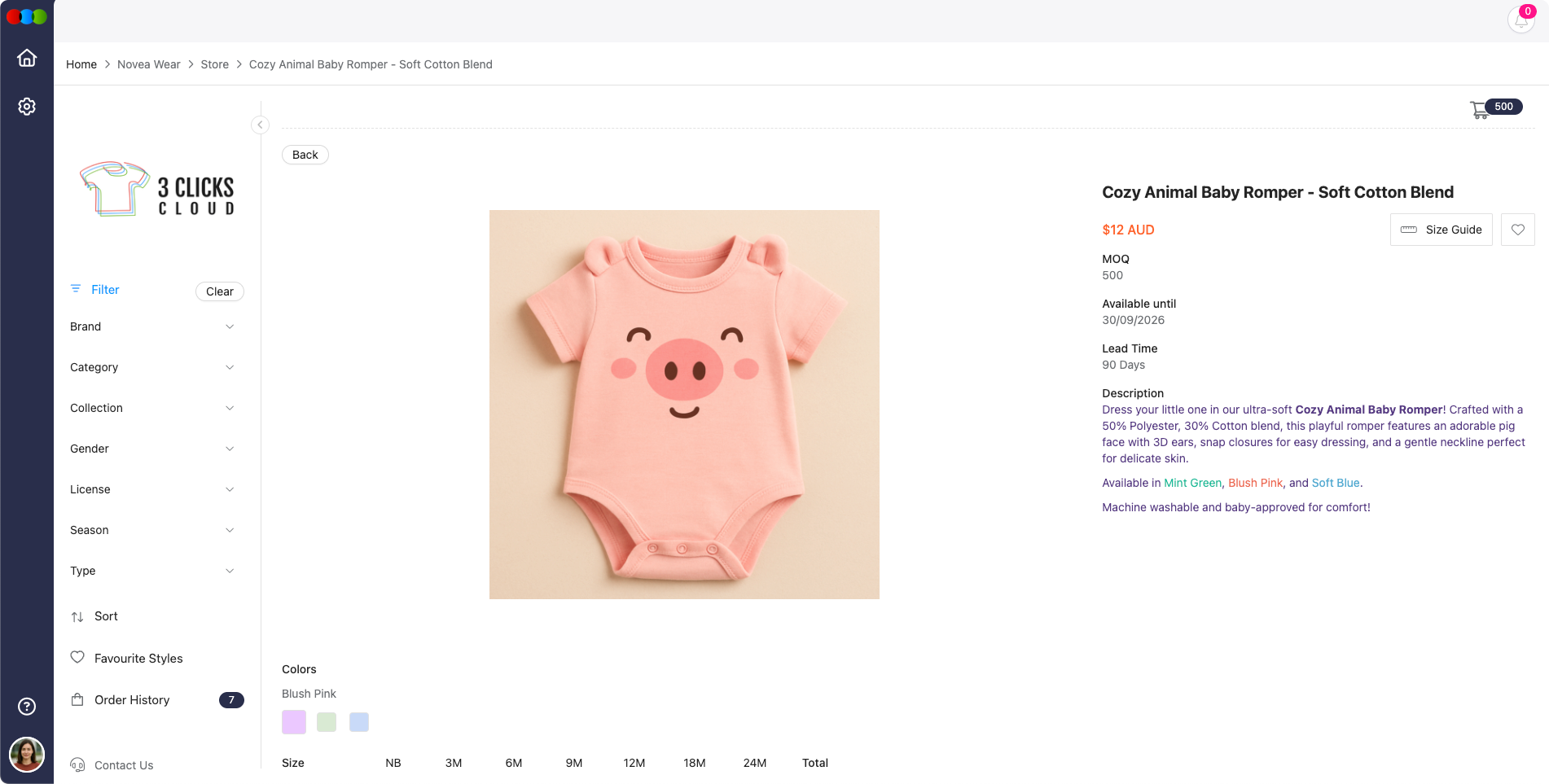
Product Details
Click on a product to open its detailed view. This includes:
- Available colours and sizes
- Pricing information (including price by size)
- Style imagery and technical information (if available)
Product MOQ
Each product style may include a Minimum Order Quantity (MOQ). Ensure the MOQ is met when ordering to support production efficiency and cost-effectiveness.
Add to Cart
Customers can:
- Select colours and input quantities
- Add items to the cart
- Update colours and quantities later within the cart before placing the order
File Uploads & Comments
From the cart, customers can leave comments and upload files to communicate specific requests to the manufacturer.
Similar Styles
While viewing the detailed page of a style, customers can explore similar styles displayed in the interface. This allows for easy discovery of related products in the B2B Online Store.
Checkout
The checkout process includes the following steps:
- Order Summary: Review selected items and total cost
- Terms of Sale: Confirm terms before submission
- Payment Instructions: View instructions for making payment
Order History
Track the progress and status of submitted orders via the Order History tab. Orders are listed with statuses for transparency and follow-up.
View Options
Filter & Sort Products
- Apply filters such as category, colour, size, or availability
- Use sorting options (e.g., newest first, price low-to-high)
Favourites
- Browse products and click the star icon to add items to Favourites
- Use the Favourites view to quickly access saved styles
Important Notes
- All submitted orders appear in the Sales Order application in the main production system.
- Only customers with a linked Customer Portal account can access the B2B Online Store and place orders.
Related Actions
Troubleshooting
Why can I not access the B2B Online Store?
B2B Online Store access is only available to customers with an active, linked Customer Portal account.
Steps to resolve:
- Confirm you are logged in with the Customer Portal account linked to your company.
- Ask your administrator to verify the portal link and account status.
- Log out and back in after access is updated.
Why are products missing from the store?
The catalogue may be limited by your Sales Order / DAM Portal role (including Style advanced filters for Brand, Collection, License, and Type), active filters, product availability, or incomplete eCommerce publishing details.
Steps to resolve:
- Clear any active filters or sorting options.
- Search by style number or product name to check whether the item is available to your account.
- Contact the seller if a product should be visible but does not appear; ask them to confirm your portal role includes the correct advanced access and that the style is Published with Available Until and Sell Prices configured in Style > eCommerce.
Why can I not complete checkout?
Checkout can be blocked when required quantities, terms, or payment instructions have not been completed.
Steps to resolve:
- Review the Order Summary and check all product quantities.
- Confirm any Minimum Order Quantity requirements are met.
- Accept the Terms of Sale and review payment instructions before submitting.