Cart
The Cart is where customers review products selected in the B2B Online Store before submitting an order. Use it to confirm quantities, check pricing, add comments or files, and complete checkout.
Quick Check - Before You Start
- Review all colours, sizes, and quantities before checkout.
- Confirm minimum order quantities have been met.
- Add comments or supporting files before submitting if the seller needs extra instructions.
Empty Cart
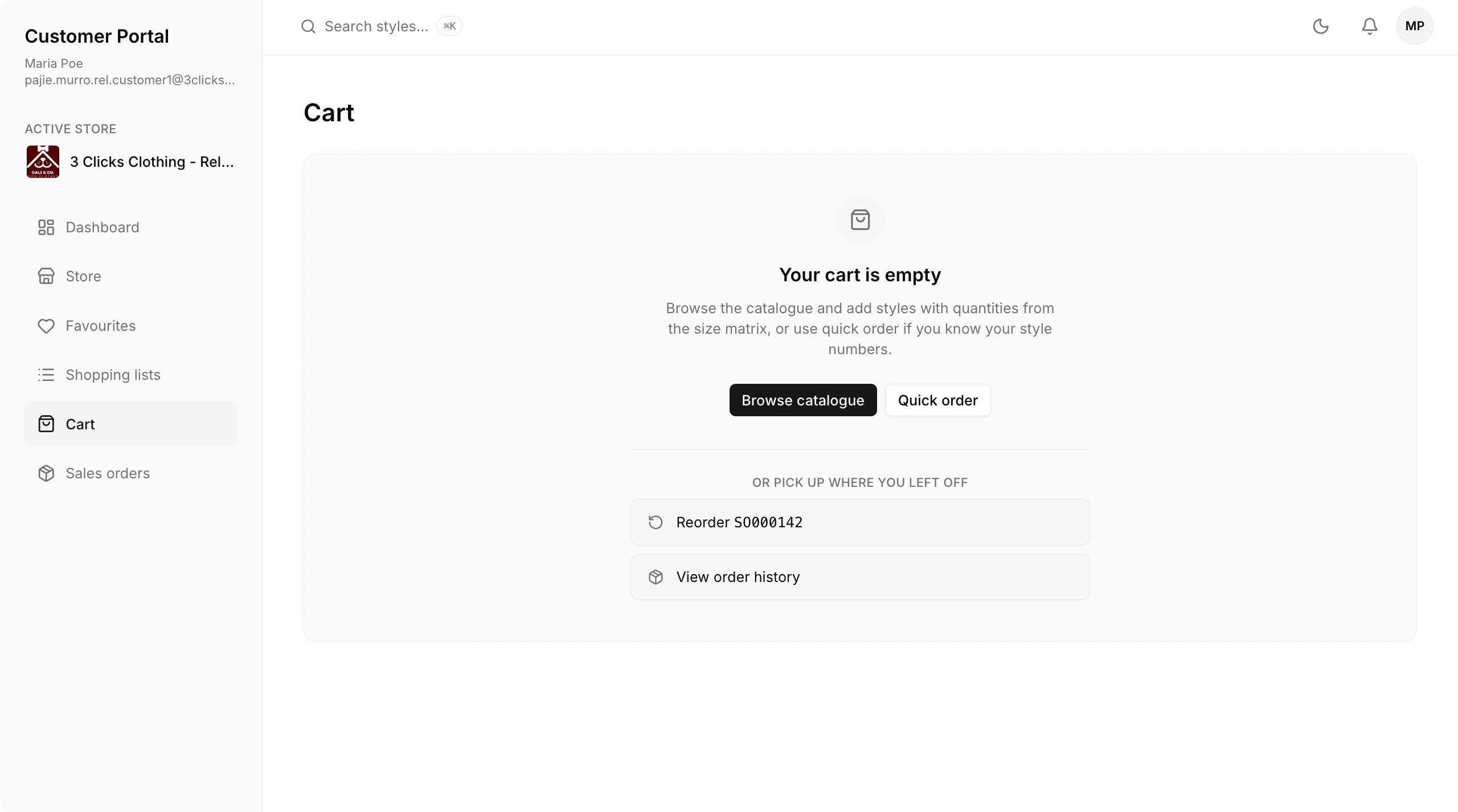
When the cart is empty, use Browse catalogue to return to the B2B Online Store, Quick order to enter known style numbers, or reorder from recent order history where available.
Review Cart Items
The cart shows products added from the B2B Online Store. Review each line carefully before checkout.
Customer Portal Cart With Orders 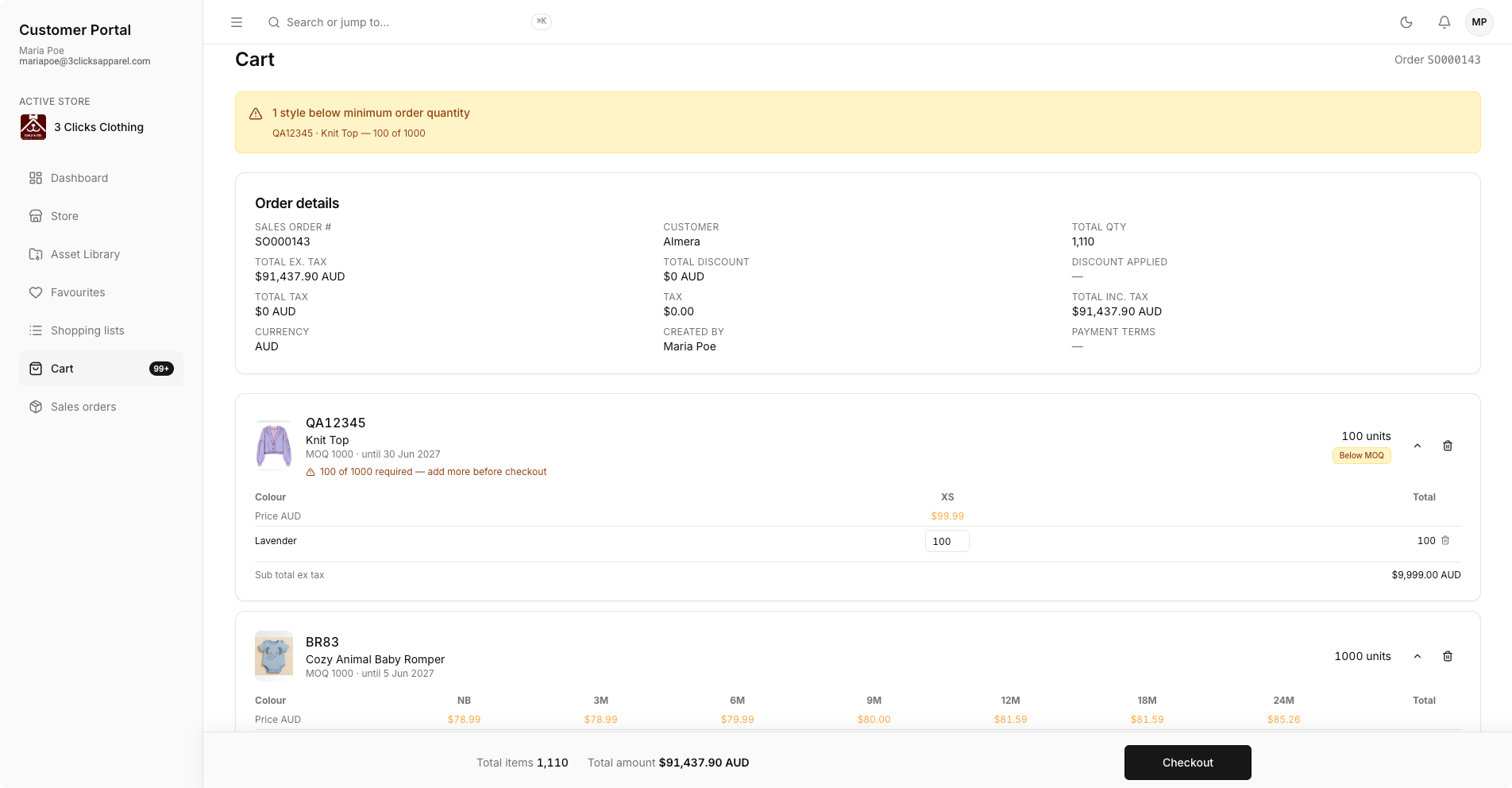
| Detail | Description |
|---|---|
| Product | The selected product or style being ordered. |
| Colour | The colourway selected for the order line. |
| Size | The size breakdown or size-specific quantities. |
| Quantity | The order quantity entered by the customer. |
| Price | The applicable price shown for the selected item, size, or quantity. |
Minimum Order Quantity
If a cart line is below the minimum order quantity, the cart shows a warning and checkout should not be completed until the required quantity is met.
Update Quantities
- Open Cart.
- Locate the product line you want to change.
- Update the quantity fields for the required colours and sizes.
- Review the order summary after each change.
Add Comments and Files
Use comments and file uploads to communicate special instructions, artwork, order references, or supporting documents.
Order Communication
Comments and uploaded files are submitted with the order so the internal team can review them during sales order processing.
Checkout
- Confirm all cart items are correct.
- Review the Order Summary.
- Read and accept any Terms of Sale shown during checkout.
- Review payment instructions where provided.
- Submit the order.
After checkout, the order is created in the Sales Order area for tracking and internal processing.
Checkout Completed
The completed checkout page confirms the order was submitted successfully. It shows the order date, order number, reference, item summary, and order totals. Use View order to open the submitted sales order or Keep shopping to return to the B2B Online Store catalogue.
Customer Portal Checkout Completed 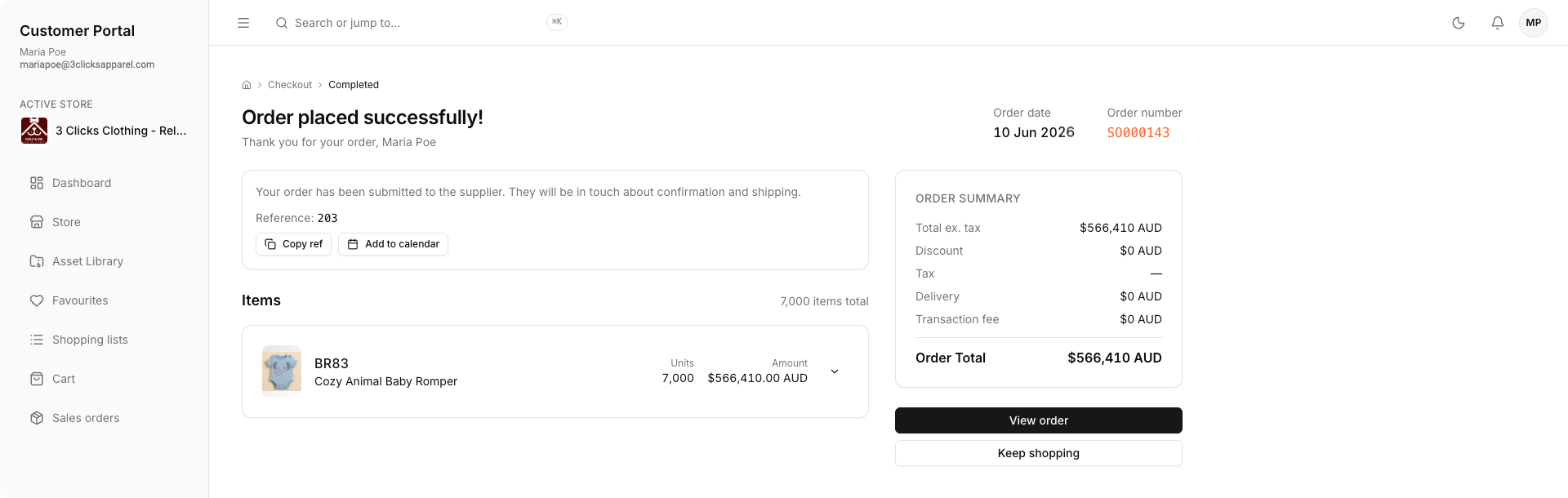
Related Actions
Troubleshooting
Why can I not proceed to checkout?
Checkout may be blocked when cart lines are missing valid quantities or do not meet minimum order requirements.
Steps to resolve:
- Review each cart line for warnings.
- Update quantities so each product meets the Minimum Order Quantity.
- Confirm the Order Summary and continue checkout again.
Why did my cart look empty after adding products?
Cart contents are tied to the current Customer Portal account and B2B Online Store session.
Steps to resolve:
- Confirm you are logged in with the same account used to add the products.
- Refresh the cart page or reopen Cart from the sidebar.
- Return to the B2B Online Store and add the product again if the cart is still empty.
Why are my comments or files missing after checkout?
Comments and uploaded files must be added before the order is submitted.
Steps to resolve:
- Add comments and supporting files while still on the Cart page.
- Review the checkout summary before submitting the order.
- Open the submitted Sales Order to confirm the comments and files were included.