Dashboard
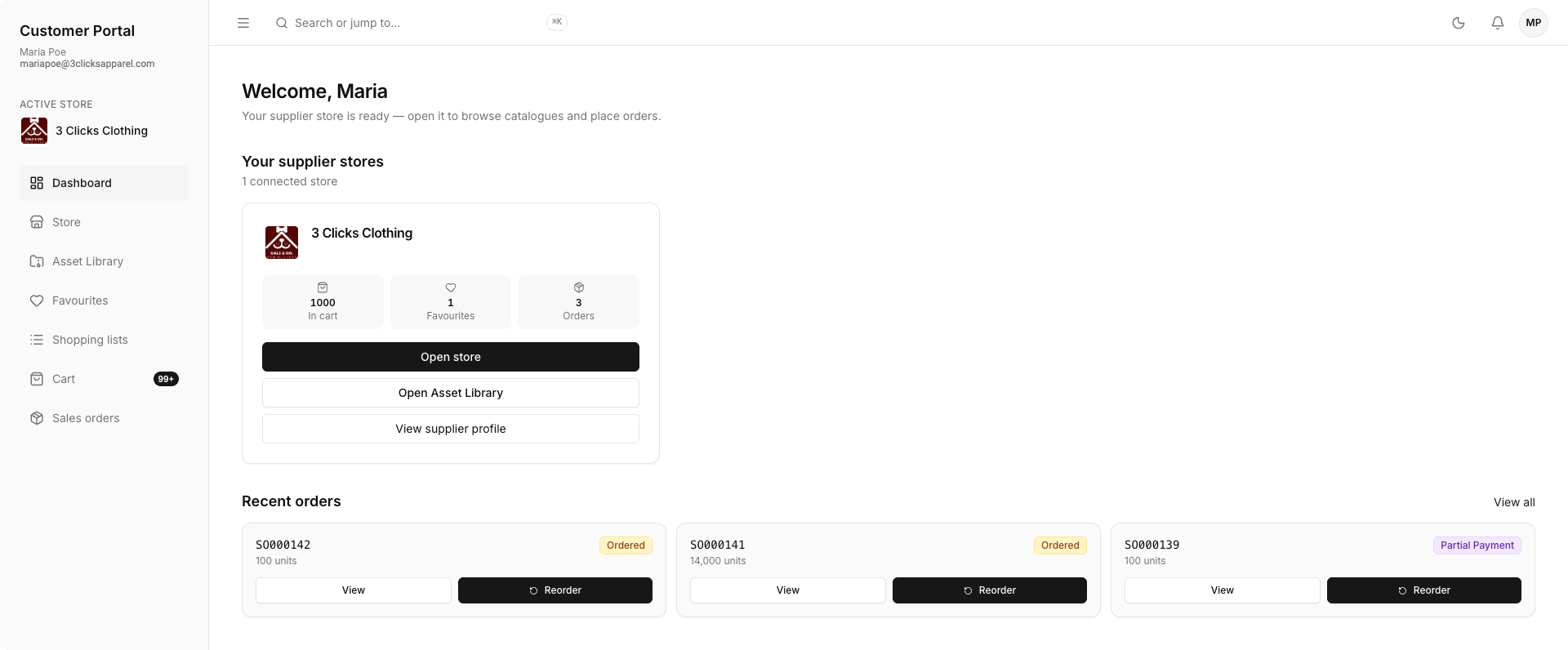
The Dashboard is the starting point for customers using the B2B Online Store. It gives users quick access to the store catalogue, favourites, shopping lists, cart, sales orders, and profile settings from one place.
What You Can Access
| Area | Description |
|---|---|
| Store | Opens the B2B Online Store catalogue so you can browse products available to your customer account and add items to cart. |
| Favourites | Review products you have saved for quick access. |
| Shopping Lists | Create and reuse grouped product selections for repeat ordering. |
| Cart | Review quantities, comments, files, and checkout details before submitting an order. |
| Sales Order | Track submitted orders and review order details after checkout. |
| Profile Settings | Maintain your personal details, password, and preferences. |
Using the Dashboard
- Log in to the Customer Portal.
- Use the left-hand navigation to choose the area you want to open.
- Review dashboard shortcuts or counters, where available, to identify pending cart items or recent order activity.
- Open the relevant section to continue browsing, ordering, or managing your account.
Search or Jump
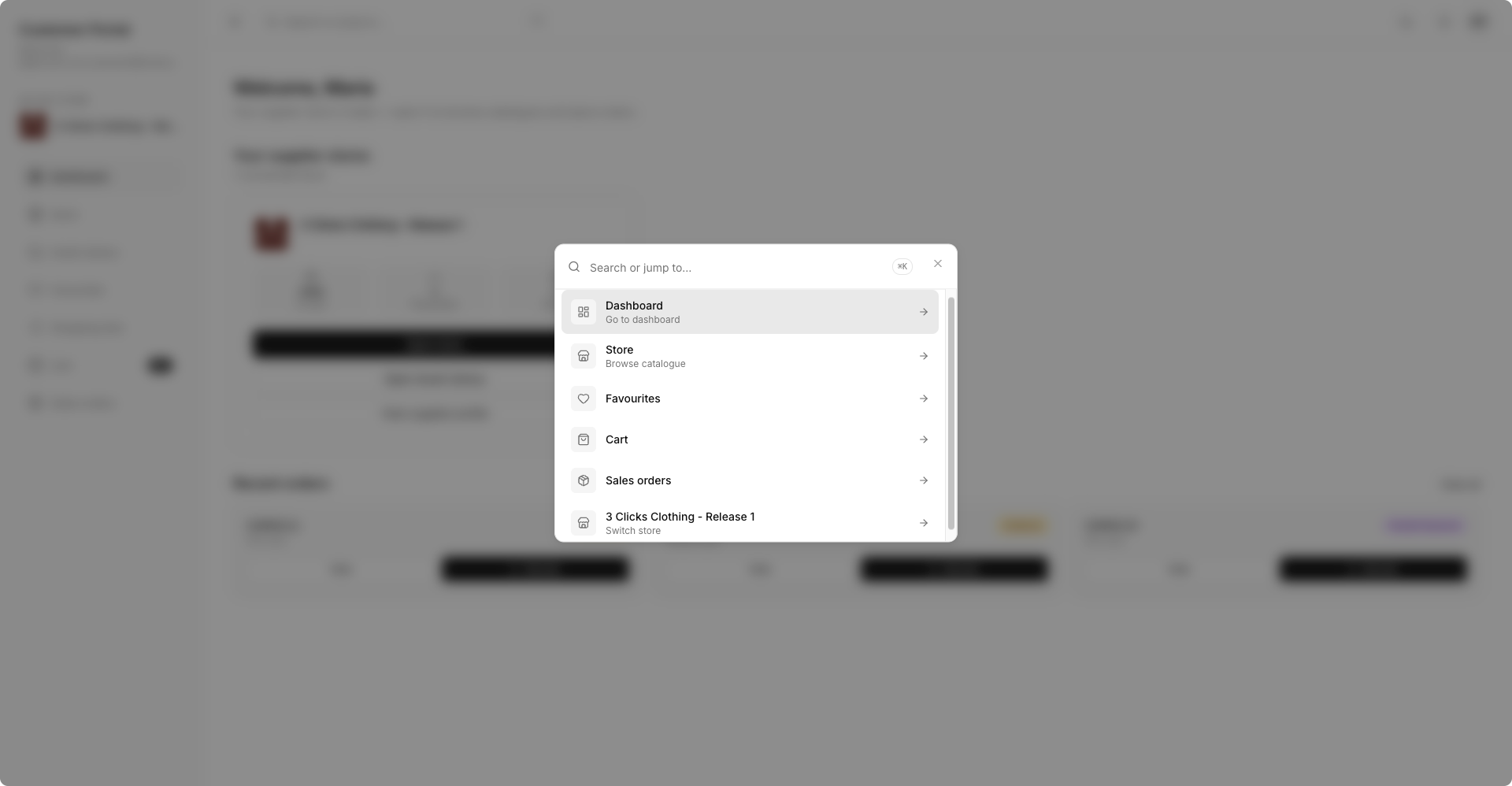
Use the Search or jump to... field in the top bar to quickly move between Customer Portal areas. The search overlay can open Dashboard, Store, Favourites, Cart, Sales orders, or switch to another supplier's B2B Online Store where your account has access.
Related Actions
Troubleshooting
Why can I not see the store or order areas from the Dashboard?
Your Customer Portal account may not be linked to the correct company or B2B Online Store access may not be enabled for your user.
Steps to resolve:
- Confirm you are logged in with the correct Customer Portal account.
- Ask your administrator to check that your account is active and linked to the correct company.
- Log out and back in after access changes are made.
Why are my cart or order counters not updating?
Dashboard shortcuts and counters may not refresh immediately after cart or checkout activity.
Steps to resolve:
- Refresh the Dashboard page.
- Open Cart or Sales Order directly from the sidebar to confirm the latest activity.
- If the information is still missing, confirm you are using the same account that added the items or submitted the order.
How do I quickly find another Customer Portal area?
Use the Search or jump to... field when you cannot find a page in the sidebar.
Steps to resolve:
- Click Search or jump to... in the top bar.
- Search for Store, Favourites, Cart, Sales orders, or Profile Settings.
- Select the result to open the page directly.