Manage Staff
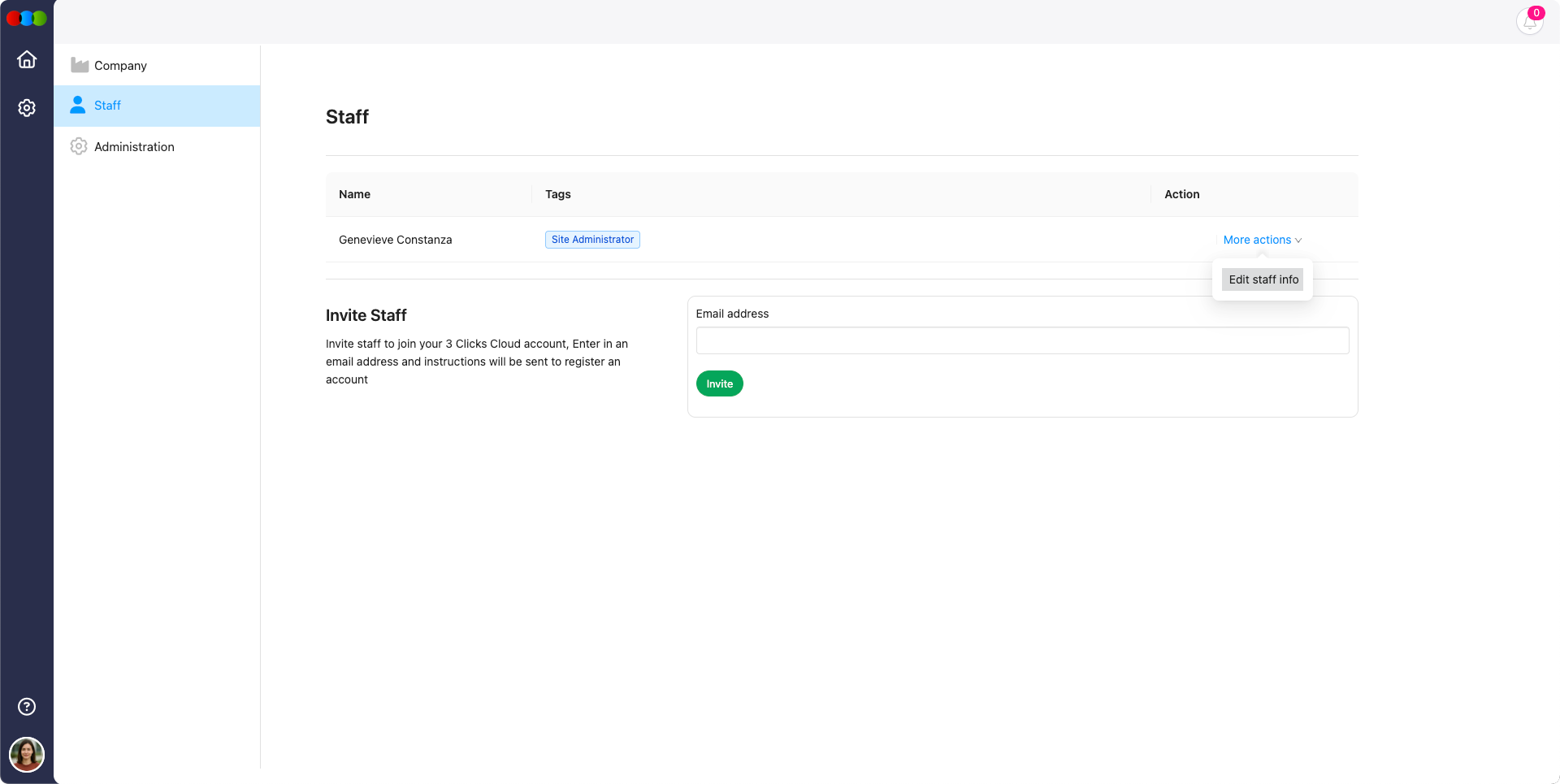
Administrators can manage user access and staff profiles through the Staff section in the settings. This includes inviting new team members, assigning Sales Order / DAM Portal roles (shown as tags), and editing user details. Role templates are created in Site Settings › Company › Roles & Permissions with Role Scope set to Sales Order / DAM Portal; the customer's portal access is governed by the role assigned on the customer record in Site Settings › Company › Customer.
Administrator Access Required
Only users with administrator rights can access the Settings area and manage staff. Non-administrators will not see this section in the menu.
Accessing the Staff Section
- Click the Settings icon in the left-hand navigation menu.
- Select the Staff tab.
Staff Overview
The staff list displays the following:
| Column | Description |
|---|---|
| Name | The first and last name of the user |
| Tags | The user's assigned Sales Order / DAM Portal role (e.g., Retail Buyer, DAM Viewer) |
| Actions | Includes a More actions menu for editing user details |
Edit Staff Information
To update a staff member's information:
- Click More actions next to the staff entry.
- Select Edit to open the Edit User Info.
This allows you to update:
| Field | Description |
|---|---|
| First Name | Update the user’s first name |
| Second Name | Update the user’s last name or surname |
| Displays the user’s email address (non-editable) |
Click Save to apply changes or Cancel to discard.
Inviting New Staff
To invite a new staff member:
- Enter the staff member’s email address in the input field below the staff list.
- Click the Invite button.
An email invitation will be sent to the provided address. The user must confirm the invitation via the link in their email to activate their account in the system.
Related Actions
- Site Settings › Company › Roles & Permissions
- Manage Personal Details
- Administration
- Manage Company Details
Troubleshooting
Why can I not see the Staff section?
The Staff section is only available to users with administrator access.
Steps to resolve:
- Confirm you are logged in with an administrator account.
- Ask an existing administrator to review your role or tags.
- Log out and back in after any permission changes.
Why did the staff member not receive the invitation email?
Invitation emails can be blocked by incorrect addresses, spam filtering, or corporate mail rules.
Steps to resolve:
- Check the email address entered in the invite field.
- Ask the staff member to check Spam or Junk folders.
- Send a new invitation if the original email expired or was not received.
Why can I not edit a staff member's email address?
The staff email address is used as the log-in identity and is shown as non-editable in the staff edit form.
Steps to resolve:
- Update editable fields such as First Name and Second Name if only the displayed name is wrong.
- Invite the correct email address as a new staff account if the log-in email is incorrect.
- Deactivate or remove the old staff record according to your organisation's process.