Sales Order
The Sales Order section lets customers review orders submitted through the B2B Online Store. It provides visibility over order history, order details, and current progress after checkout.
Quick Check - Before You Start
- Submit the cart checkout before expecting an order to appear in Sales Order.
- Refresh the page if you have just placed an order and it is not visible yet.
- Check that you are logged in to the same customer account used to submit the order.
View Sales Orders
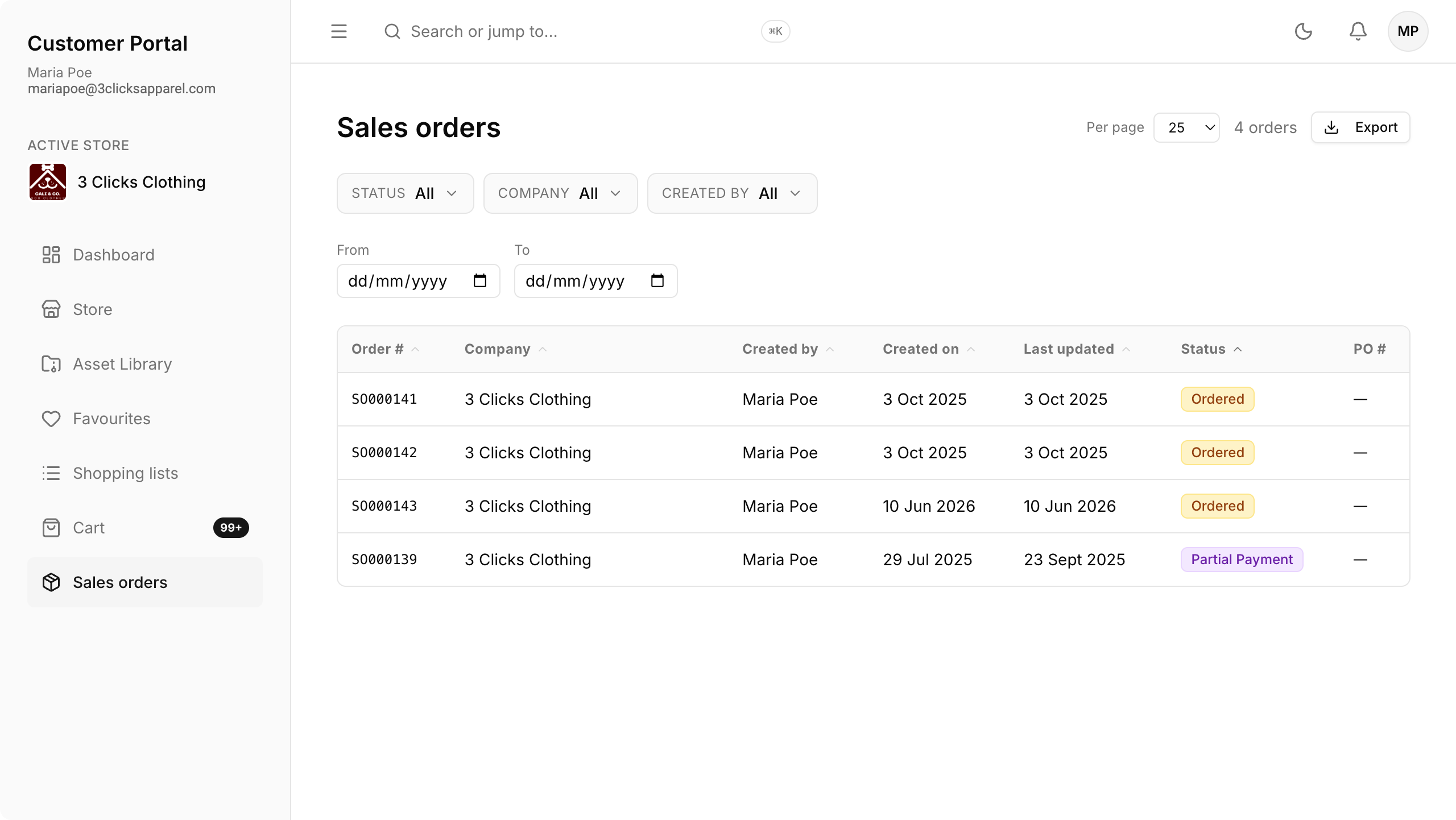
Open Sales Order from the Customer Portal page to view submitted orders. The list helps customers confirm that B2B Online Store orders have been received and provides a reference for follow-up communication.
Use the available filters to narrow the list, then open an order to review full details.
Role Permissions
Access to Sales Order in the Customer Portal depends on the user’s Sales Order / DAM Portal role (assigned on the customer record in Site Settings › Company › Customer). Administrators configure View, Edit, and Create permissions on the role template in Site Settings › Company › Roles & Permissions.
Filters
The following filters are available to narrow the sales order list:
| Filter | Description |
|---|---|
| Status | Filter by order status. |
| Company | Filter by company. |
| Created by | Filter by the user who created the order. |
| From and To | Filter by creation date range. |
Columns
The Sales Order table displays the following columns:
| Column | Description |
|---|---|
| Order # | The sales order number created after checkout. |
| Company | The company associated with the order. |
| Created by | The user who submitted the order. |
| Created on | The date and time the order was created. |
| Last updated | The date and time the order was last updated. |
| Status | The current order status. |
| PO # | The purchase order number submitted with the order. |
Export
You can export sales orders to download a copy of the list. The export reflects the sales order data shown in the table and is non-editable.
Follow Up on an Order
Use the sales order reference when contacting the seller about an existing order. If the order includes comments or attachments, review them first to confirm the information was submitted correctly.
Internal Processing
Submitted B2B Online Store orders are routed into the main Sales Order application for internal review and fulfilment.
Related Actions
Troubleshooting
Why is my submitted order not showing in Sales Order?
Orders appear in Sales Order only after checkout is submitted successfully.
Steps to resolve:
- Confirm you reached the checkout completion page.
- Refresh Sales Order or log out and back in.
- Check that you are logged in with the same customer account that submitted the order.
Why are order details different from my cart?
The order details reflect the cart values at the time checkout was submitted.
Steps to resolve:
- Open the sales order and review products, colours, sizes, and quantities.
- Check the order comments and files for any instructions submitted at checkout.
- Contact the seller with the order reference if a correction is required.
How do I follow up on an existing order?
Use the sales order reference so the seller can identify the submitted order quickly.
Steps to resolve:
- Open Sales Order and select the order.
- Copy the Order #.
- Include the order number when contacting the seller about status, changes, or supporting files.