Shopping Lists
Shopping Lists help customers group B2B Online Store products for future ordering. Use them to prepare seasonal ranges, repeat common orders, or organise products before moving selected items into the cart.
Quick Check - Before You Start
- Decide whether the list is for planning, repeat ordering, or a specific buying event.
- Review product availability before using an older list to create a new cart.
- Keep list names clear so other users in your organisation can understand their purpose where lists are shared.
Create a Shopping List
- Open Shopping Lists from the Customer Portal page.
- Enter a clear list name in the New list name... field.
- Click Create.
Customer Portal Shopping Lists Add 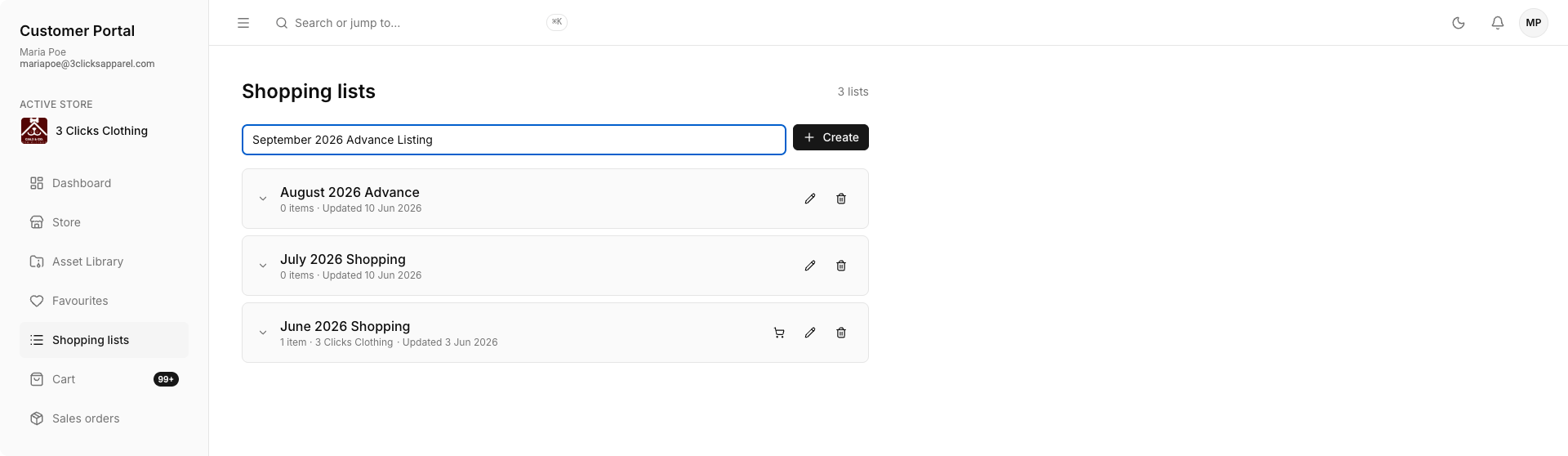
Add Products to a Shopping List
Products can be added from the B2B Online Store or product detail page where the shopping list action is available.
- Find the product in the B2B Online Store.
- Open the product or use the product card action.
- Select Add to Shopping List.
- Choose an existing list or create a new one.
Use a Shopping List for Ordering
Open a shopping list to review saved products, update quantities where supported, and move items to the Cart when you are ready to order. Check colours, sizes, and minimum order quantities before checkout.
Customer Portal Shopping Lists List 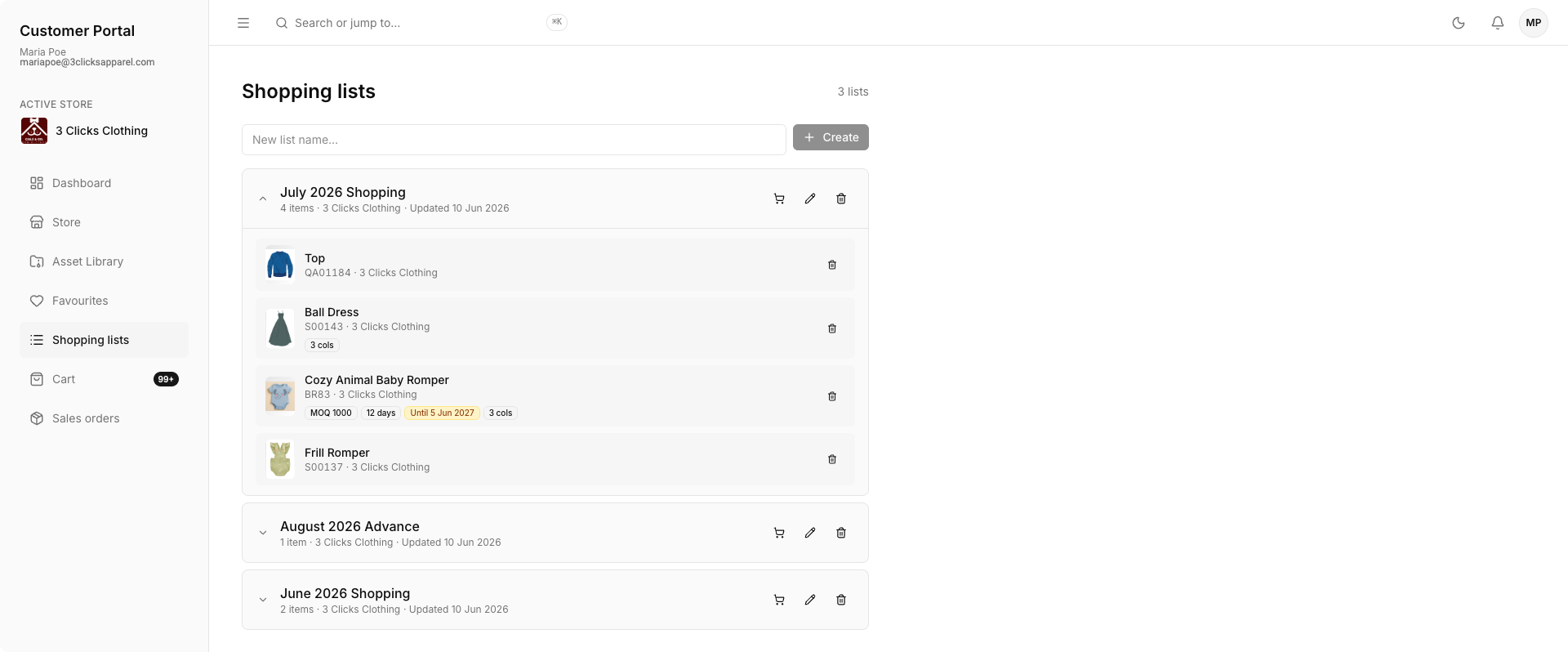
Manage Shopping Lists
| Action | Description |
|---|---|
| Expand/Collapse | Show or hide the products saved inside a list. |
| Rename | Update the list name when its purpose changes. |
| Remove Products | Delete products that are no longer required. |
| Add to Cart | Move selected products into the cart for checkout. |
| Delete List | Remove lists that are no longer needed. |
Related Actions
Troubleshooting
Why can I not find a product in my shopping list?
Products can be removed from lists, become unavailable in the current B2B Online Store catalogue, or disappear when required eCommerce publishing details are incomplete.
Steps to resolve:
- Expand the shopping list to confirm all saved products are visible.
- Search for the product in the B2B Online Store to check whether it is still available.
- If the product should still be available, ask the seller to confirm it is Published and has Available Until and Sell Prices configured in Style > eCommerce.
- Add the product to the list again if it is available but no longer saved.
Why can I not add shopping list products to cart?
Products from a shopping list still need valid buying details before checkout.
Steps to resolve:
- Open the shopping list and review the products you want to order.
- Check colours, sizes, quantities, pricing, and Minimum Order Quantity requirements.
- Update any missing selections before using Add to Cart.
Why did I lose a shopping list after deleting it?
Delete List removes the saved list and its grouped product selections.
Steps to resolve:
- Confirm whether the list was intentionally deleted.
- Recreate the list with a clear name if it is still needed.
- Add products back from the B2B Online Store or product detail pages.