Store
The Store (B2B Online Store) is where customers browse the product catalogue made available to their Customer Portal account. Customers can search and filter styles, review product details, save favourites, use shopping lists, and add selected colours and sizes to the cart.
Quick Check - Before You Start
- Confirm you are viewing the correct Customer Portal account if your organisation has access to more than one.
- Use filters and sorting to narrow the catalogue before opening product details.
- Review minimum order quantities before adding items to cart.
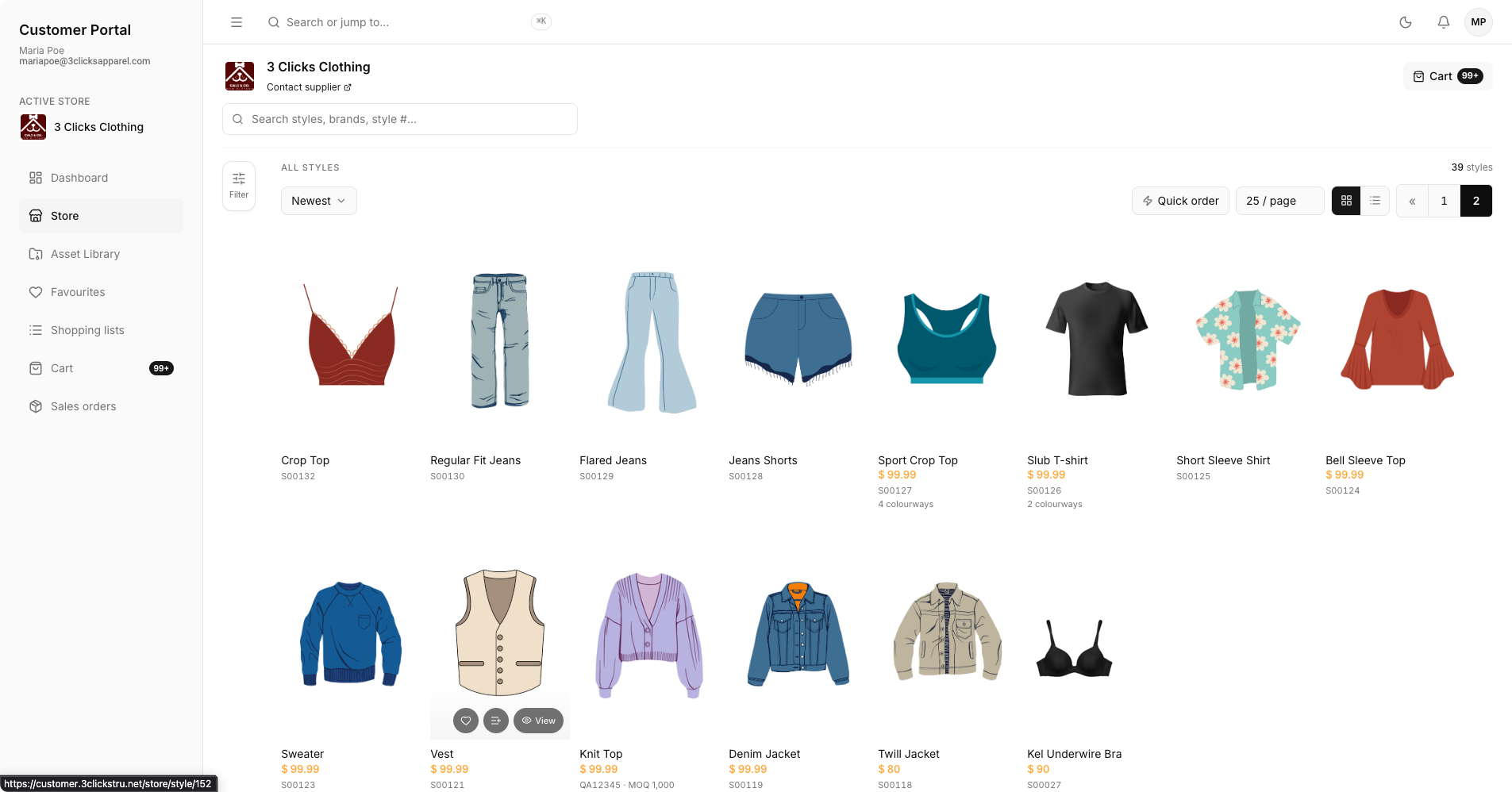
Browse Products
Use the catalogue to view available B2B styles and product information. Depending on the product setup, each item may show images, colour options, size availability, pricing, descriptions, and minimum order quantity requirements.
| Area | Description |
|---|---|
| Search styles, brands, style #... | Search within the current B2B Online Store catalogue by style, brand, or style number. |
| Filter | Opens the catalogue filter panel. |
| All Styles sort | Sorts the visible catalogue results. |
| Quick Order | Opens the bulk entry page for repeat buyers. |
| Grid/List View | Switches how catalogue results are displayed. |
| Cart | Opens the cart drawer or cart page, depending on where you are in the store. |
Filter Pop-Up
Use the filter pop-up to reduce the catalogue to styles that match your buying requirements. Customers can use saved searches, apply catalogue filters, and review recent order activity from one place.
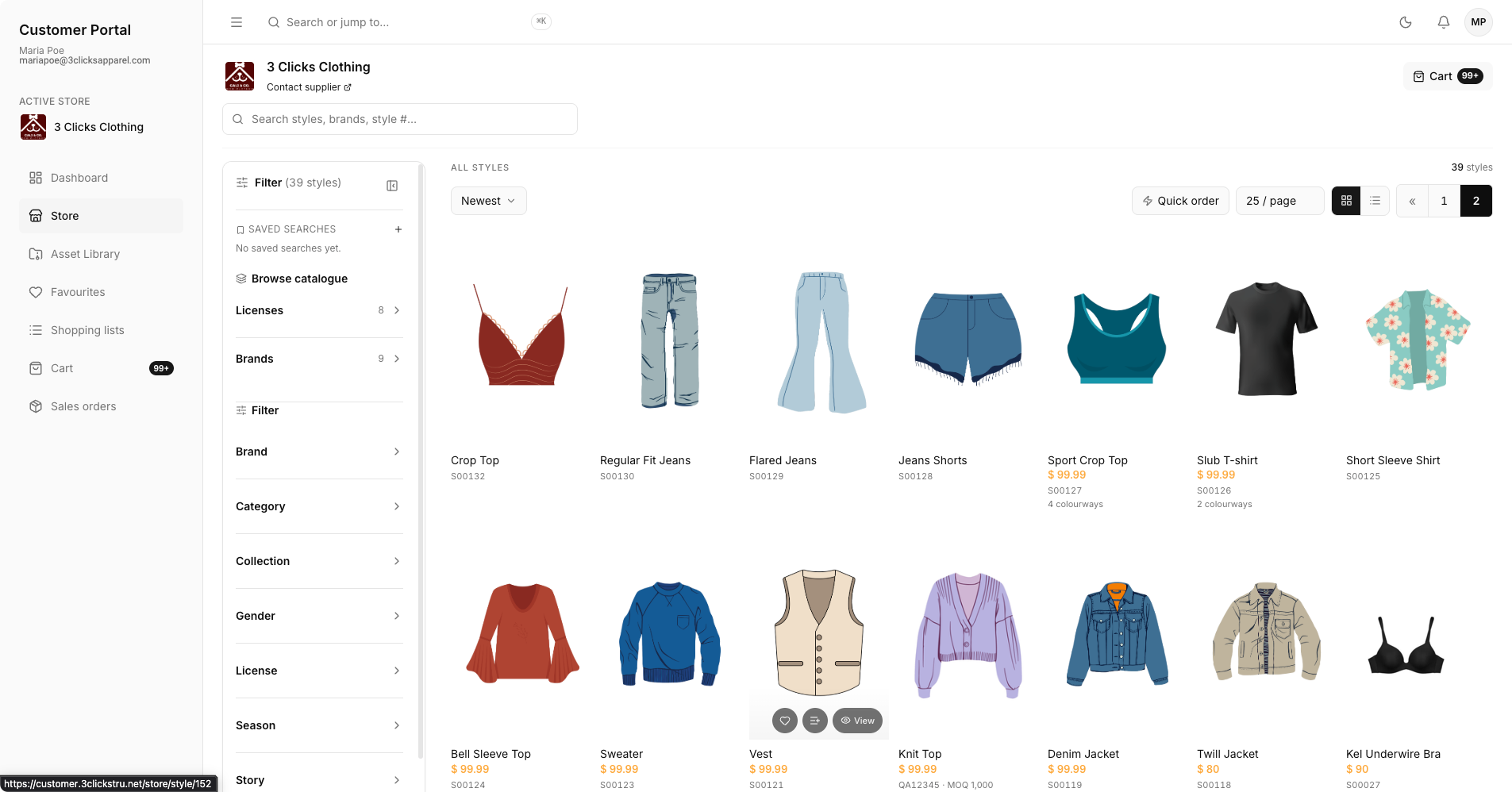
Available Filters
| Filter | Description |
|---|---|
| Saved Searches | View saved searches or add a new saved search for filters you use often. |
| Licenses and Brands | Filter the catalogue by selected licence and brand options. |
| Style Filters | Filter styles by Brand, Category, Collection, Gender, License, Season, Story, and Type. |
| Recent Orders | View recently ordered styles, including the Style #, ordered quantity, View Order button, and Reorder button. |
All Styles
Use sorting to reorder all available styles in the catalogue.
Customer Portal All Styles Sort 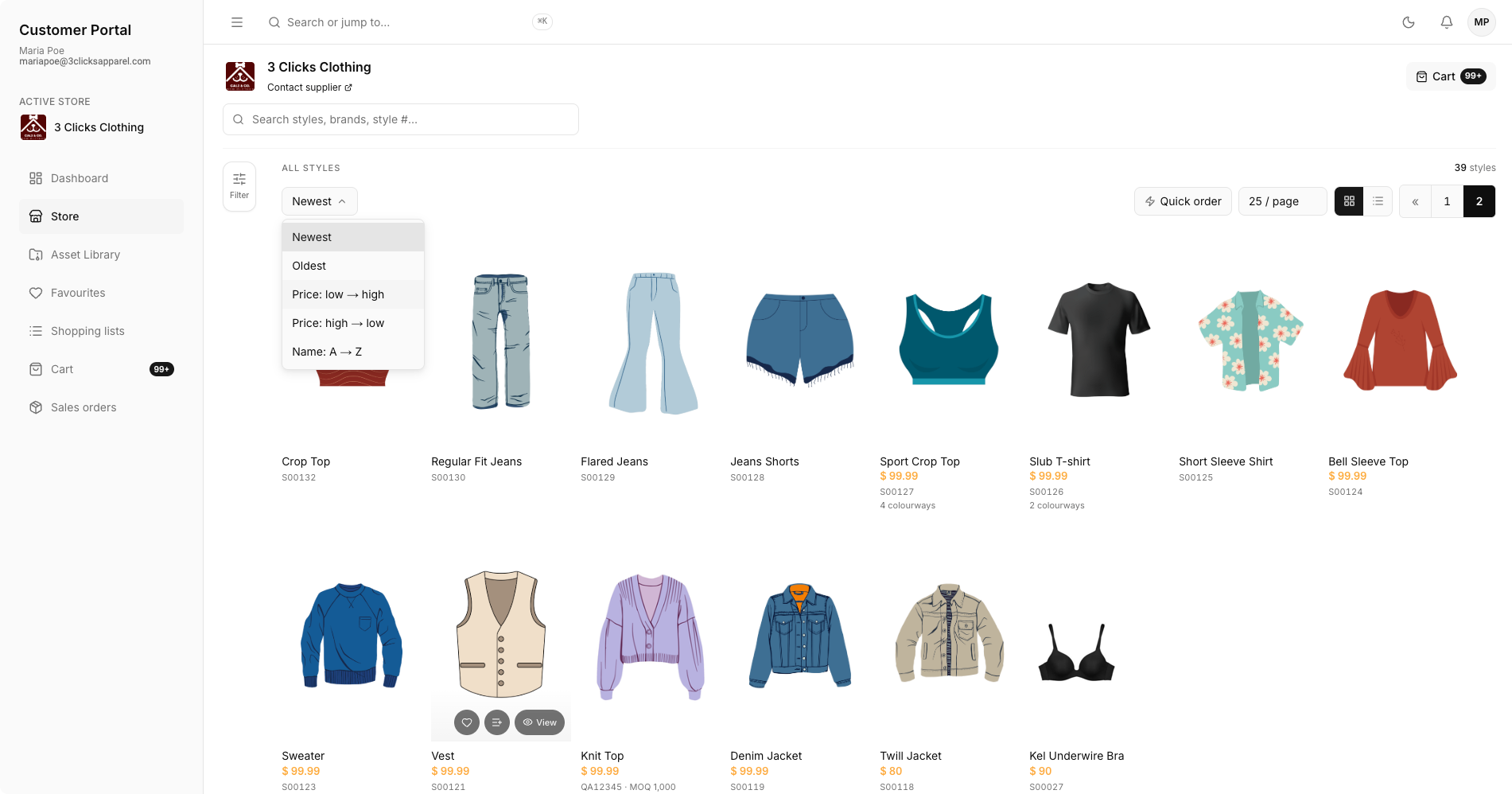
| Sort Option | Description |
|---|---|
| Newest | Shows the newest styles first. |
| Oldest | Shows the oldest styles first. |
| Price: low - high | Sorts styles from lowest price to highest price. |
| Price: high - low | Sorts styles from highest price to lowest price. |
| Name: A - Z | Sorts styles alphabetically by name. |
Quick Order
Click Quick Order to open the Quick Order page. Quick Order is designed for repeat buyers who already know the styles they need and want to add quantities without opening each product detail page.
Enter the Style #, then choose the available colour and size options before entering the quantity. Colour and size options load after a style number is entered.
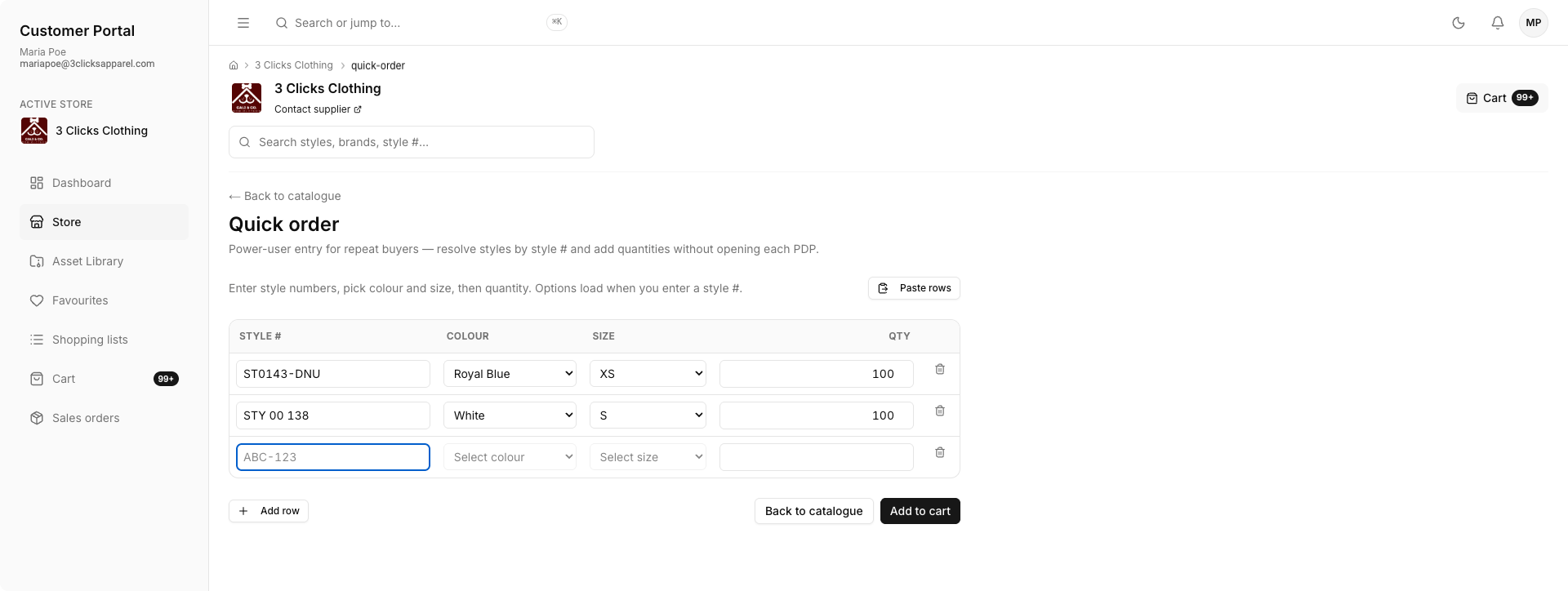
| Column or Action | Description |
|---|---|
| Style # | Enter the style number to load available options. |
| Colour | Select the required colour from the dropdown. |
| Size | Select the required size from the dropdown. |
| Qty | Enter the quantity to order. |
| Delete | Remove the row from the Quick Order table. |
| Add Row | Add another row for an additional style, colour, size, or quantity. |
| Back to Catalogue | Return to the Store catalogue without continuing in Quick Order. |
| Add to Cart | Add the entered Quick Order items to the cart. |
Paste Rows
Use Paste rows to add multiple quick order lines at once. Enter rows in comma-separated format: Style #, Colour, Size, Qty. Tab-separated spreadsheet paste is also supported.
- Click Paste rows.
- Paste one line per product, including style number, colour, size, and quantity.
- Click Load rows to populate the quick order table.
- Review each row, correct any missing values, then click Add to cart.
Customer Portal Quick Order Paste Rows 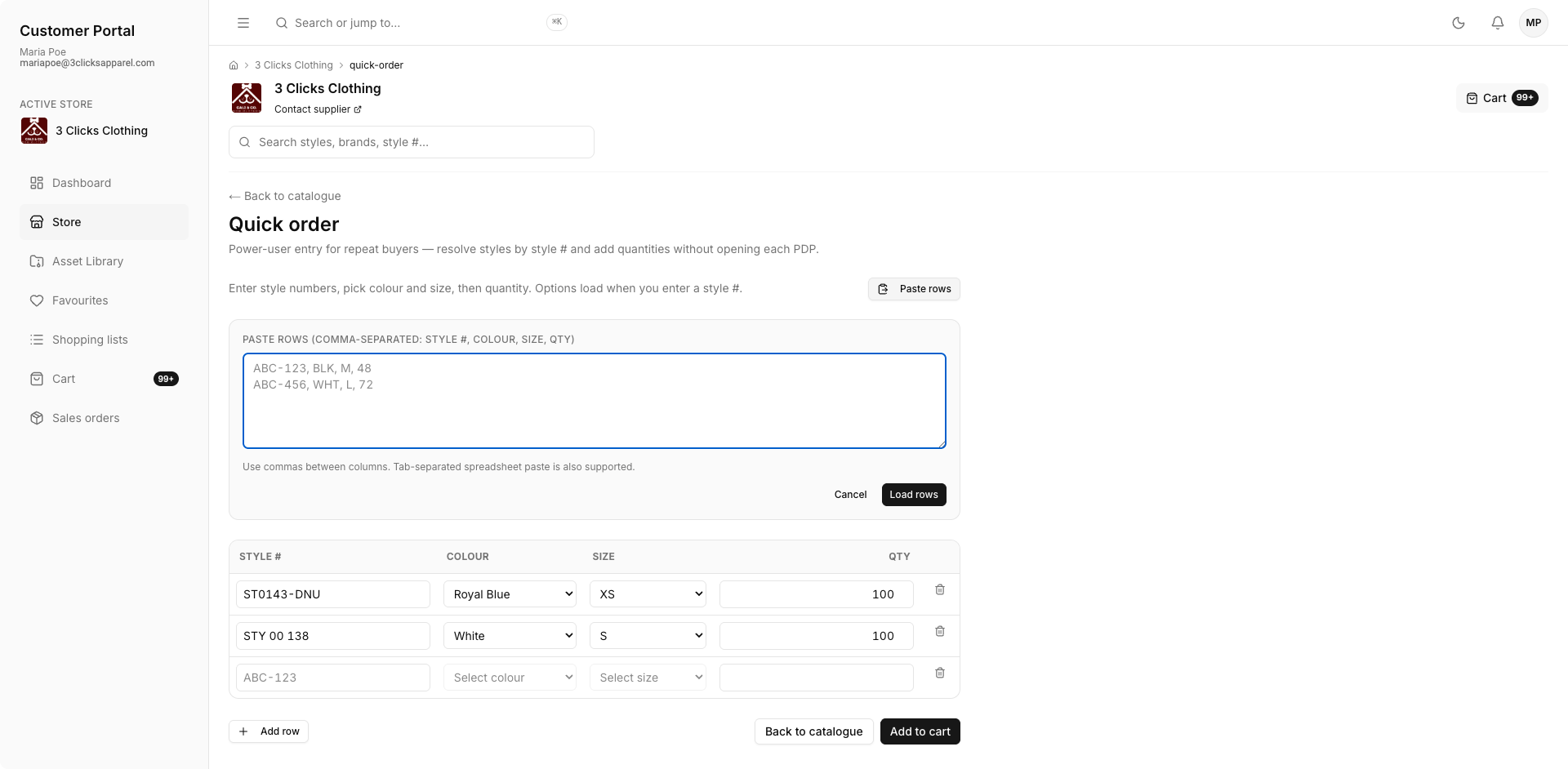
Product Details
Open a product to review the detailed buying information before adding it to cart.
Customer Portal Store Style Detail 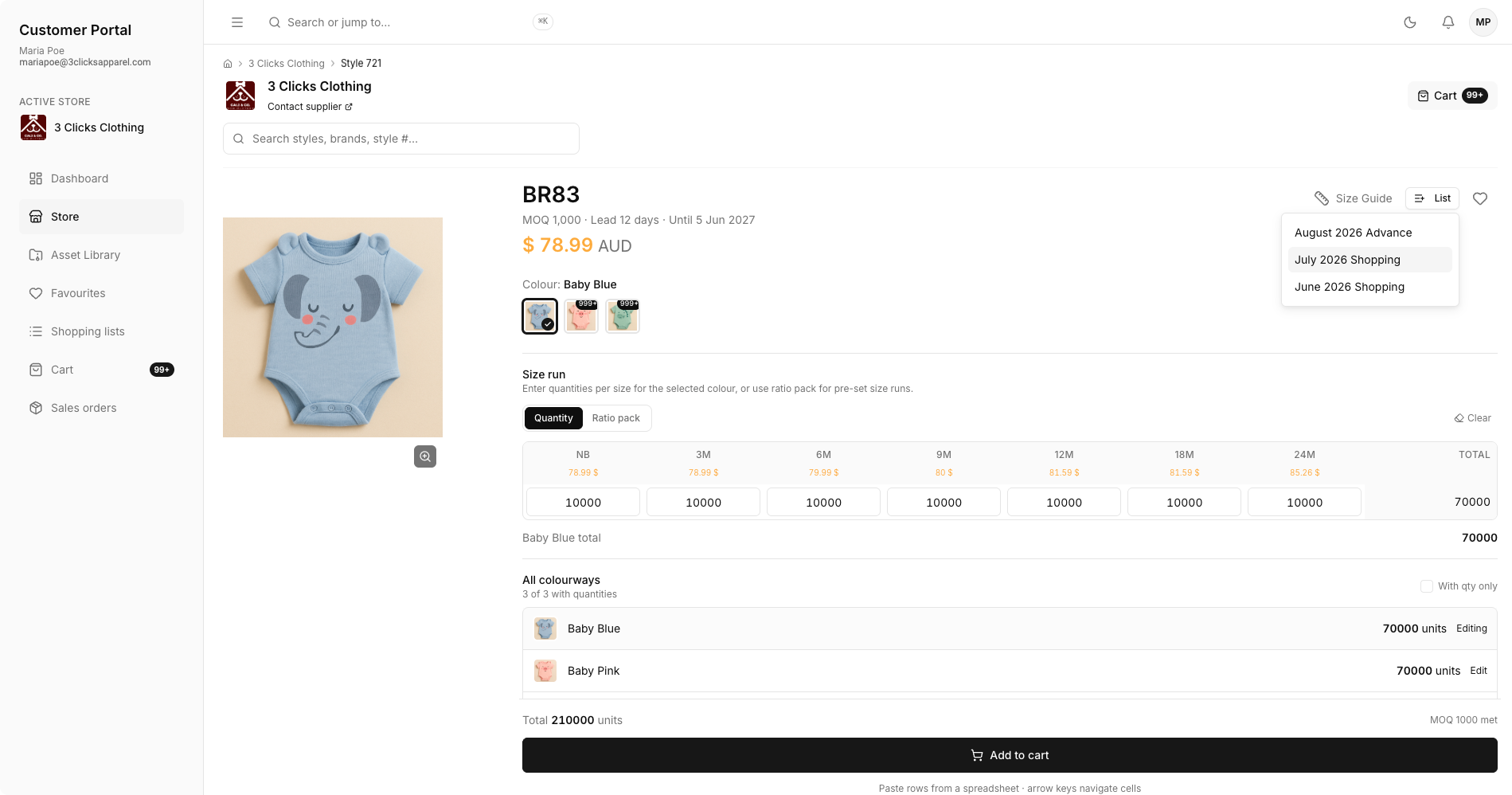
| Detail | Description |
|---|---|
| Images | Shows available product and colour imagery. |
| Colours | Lists colourways available for purchase through the portal. |
| Sizes | Shows available sizes and may include size-specific pricing. |
| Minimum Order Quantity | Indicates the minimum quantity required before checkout. |
| Description | Provides product notes, specifications, or selling details where supplied. |
Quick View
Use Quick view from the catalogue to preview a product without leaving the store list. The quick view drawer shows the product image, style number, available colours, price, and description, with actions to return to the list or open the full details page.
Customer Portal Store Style Quick View 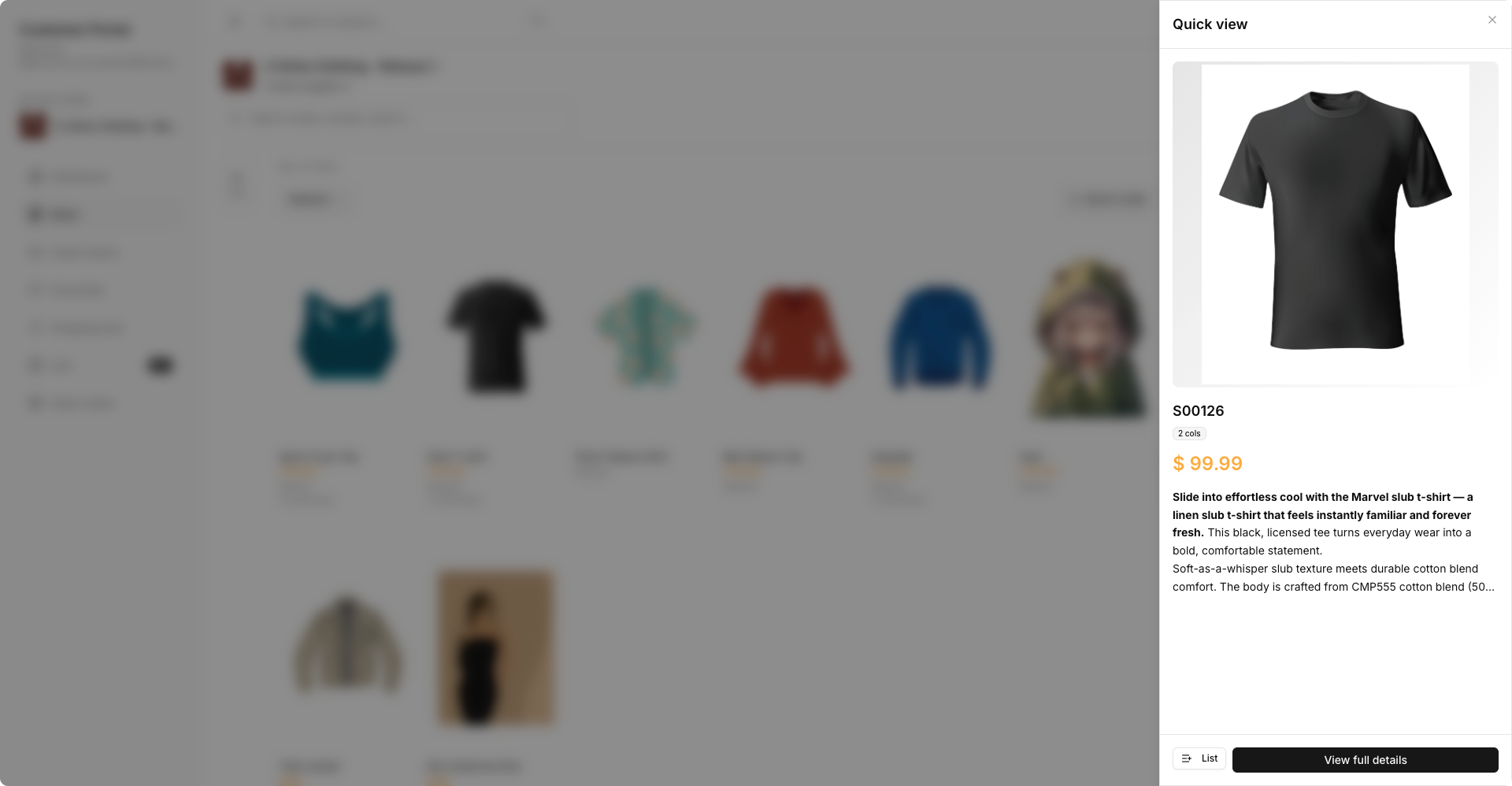
Size Guide
Click Size Guide on the style detail page to review the size chart supplied for the product. Use this before entering quantities when the product has detailed measurements or sizing notes.
Customer Portal Store Style Size Guide 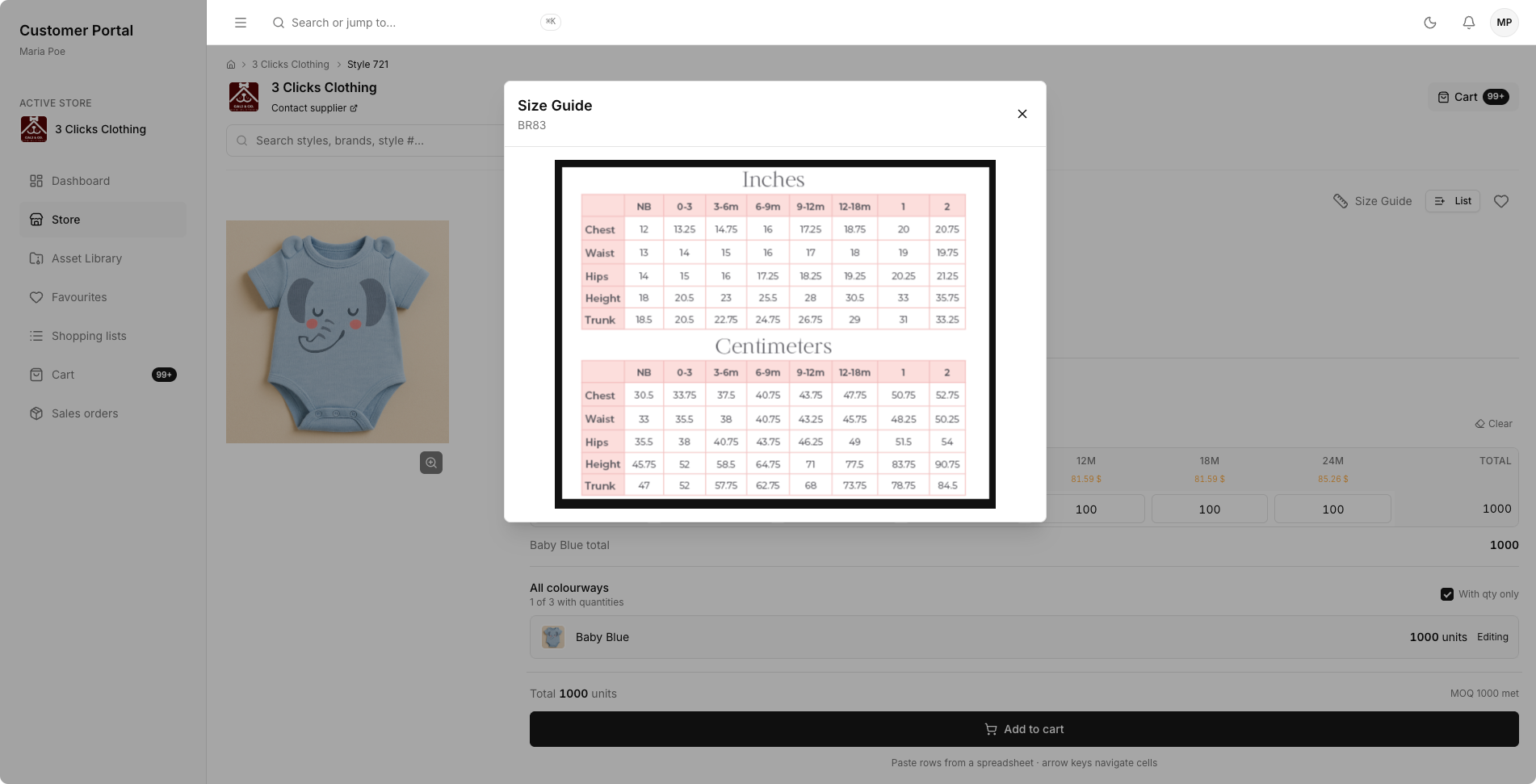
Add Products to Cart
- Open the product from the Store.
- Select the required colour and size options.
- Enter quantities, ensuring any minimum order quantity is met.
- Click Add to Cart.
Quantity Ordering
Use the Quantity tab when you want to enter explicit units by size. The page totals the selected colour, all colourways, and overall product units before the item is added to cart.
Customer Portal Store Style Quantity 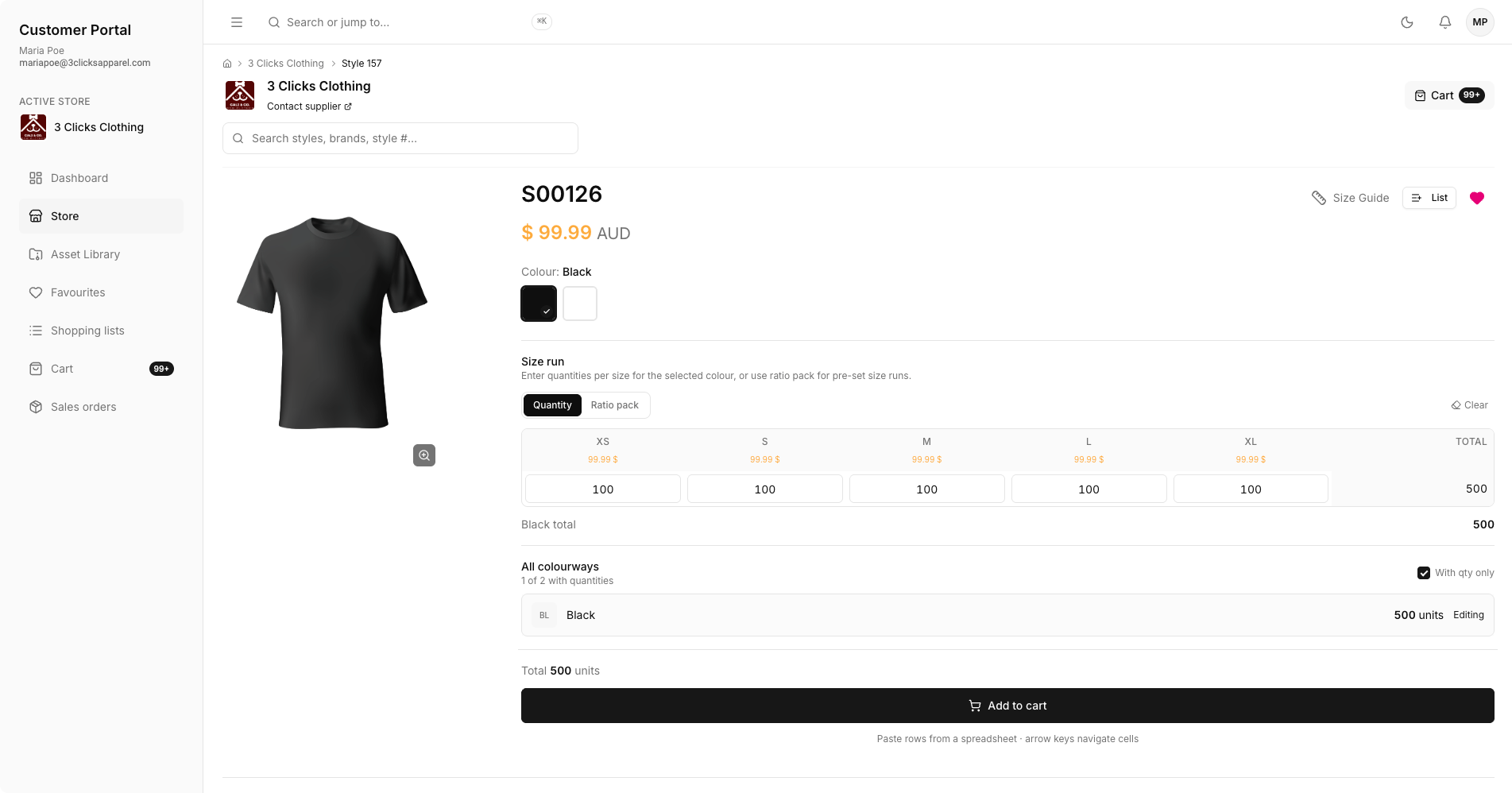
Ratio Pack Ordering
Use the Ratio pack tab when ordering pre-set size runs. Enter the ratio by size, confirm the total quantity, then apply the ratio to the selected colour or to all colourways.
Customer Portal Store Style Ratio Pack 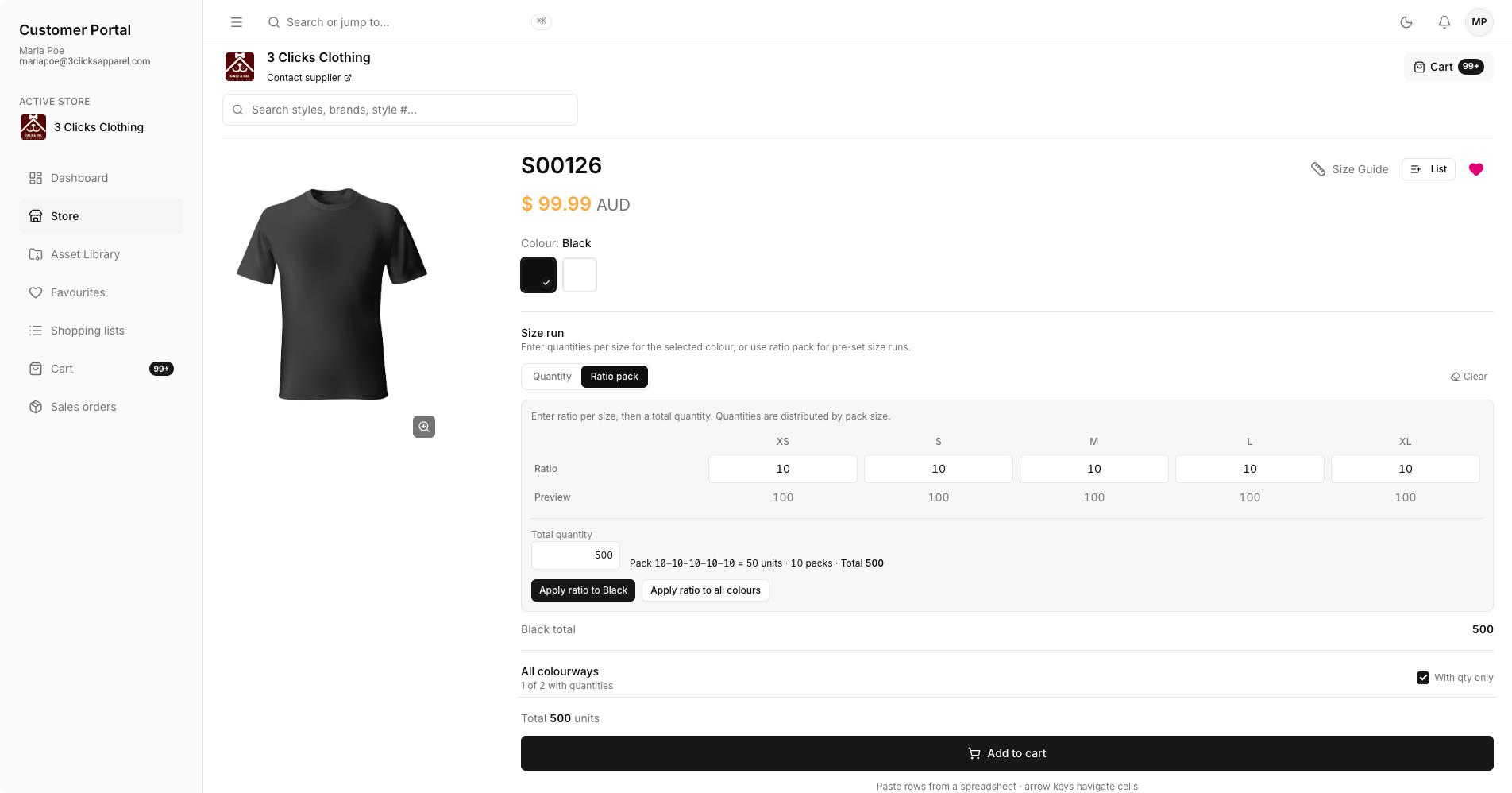
Cart Drawer
After products are added, open the cart drawer to quickly review current cart lines before checkout. Use View cart for the full cart page or Checkout to continue with submission.
Customer Portal Store Style Cart 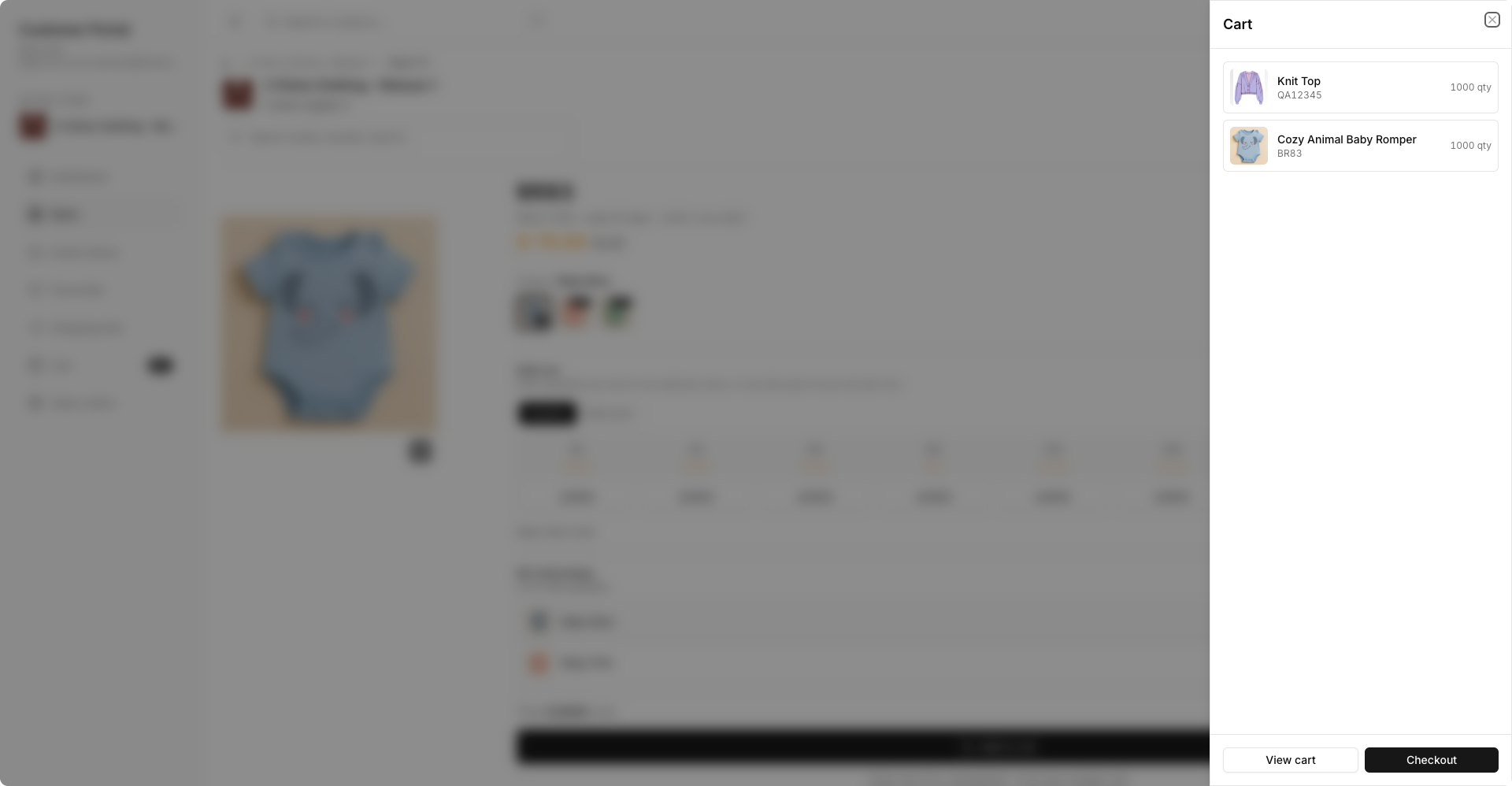
Related Actions
Troubleshooting
Why can I not find a style in the Store?
The style may be hidden by filters, restricted by your Sales Order / DAM Portal role (including Style advanced access for Brand, Collection, License, and Type), unavailable to your customer account, or missing required eCommerce publishing details such as Available Until or Sell Prices.
Steps to resolve:
- Clear the active Filter options and reset All Styles sorting if needed.
- Search by Style #, brand, or style name.
- Contact the seller if the style should be available to your account but still does not appear; ask them to confirm your portal role includes the correct advanced access and that the style is Published with Available Until and Sell Prices configured in Style > eCommerce.
Why is Quick Order not loading colour or size options?
Quick Order loads colour and size options after a valid Style # is entered.
Steps to resolve:
- Check the Style # for spelling, spaces, or outdated product references.
- Confirm the style is available in the current store catalogue. If it is missing, ask the seller to check Style > eCommerce publishing, Available Until, and Sell Prices.
- Open the product from the Store to verify available colours and sizes before retrying Quick Order.
Why can I not add a product to cart?
The product may need valid colour, size, and quantity selections before it can be added.
Steps to resolve:
- Confirm all required colour and size fields are selected.
- Enter quantities that meet the Minimum Order Quantity.
- Review whether you are using Quantity or Ratio pack ordering and complete the required fields for that tab.