Channel Readiness
The Channel Readiness area on the Dashboard gives merchandising and operations teams a single place to monitor how complete your style library is for each sales route. It lists every channel profile configured in Site Settings > Style > Channels and shows an overall readiness percentage for that channel across your styles.
Use this view to spot which channels need attention before a launch, then drill into Style Search to review and update individual styles. Clicking a channel opens Style Search with the Channel Readiness view selected and that channel applied as the default filter.
Quick Check - Before You Start
- Confirm channel profiles and Readiness Fields are configured in Site Settings > Style > Channels.
- Align your team on what counts as ready (for example eCommerce copy, images, pricing, or barcodes) before interpreting percentages.
How Channel Readiness Works
Each card or row on Dashboard > Channel Readiness represents one channel profile from Site Settings > Style > Channels. The percentage reflects how many of the selected Readiness Fields are satisfied across your style data for that channel.
| Element | Description |
|---|---|
| Channel name | The profile label defined in Site Settings > Style > Channels (for example Retail, Wholesale, or Online). |
| Readiness percentage | An aggregate completion score for that channel, typically from 0% (requirements not met) to 100% (all configured readiness rules satisfied). |
| Channel action | Click the channel to open Style Search with the Channel Readiness view and that channel pre-selected so you can work through outstanding styles. |
Readiness rules themselves are defined per channel profile under Readiness Fields in Site Settings. Those fields can include style details, eCommerce content, codes, packaging, specification, DPP & compliance, and custom fields. See Site Settings > Style > Channels for the full checklist options.
Open Style Search from a Channel
When you click a channel on the dashboard:
- Style Search opens in a new context focused on that channel.
- The Channel Readiness view (pill) is selected by default so columns and layout suit readiness review.
- The chosen channel is applied as the default filter so results relate to that sales route.
From Style Search, you can customise columns, save the view as a favourite, export results, or open individual styles to complete missing Readiness Fields on Style > eCommerce > Channels and related style sections.
Style Search > Channel Readiness 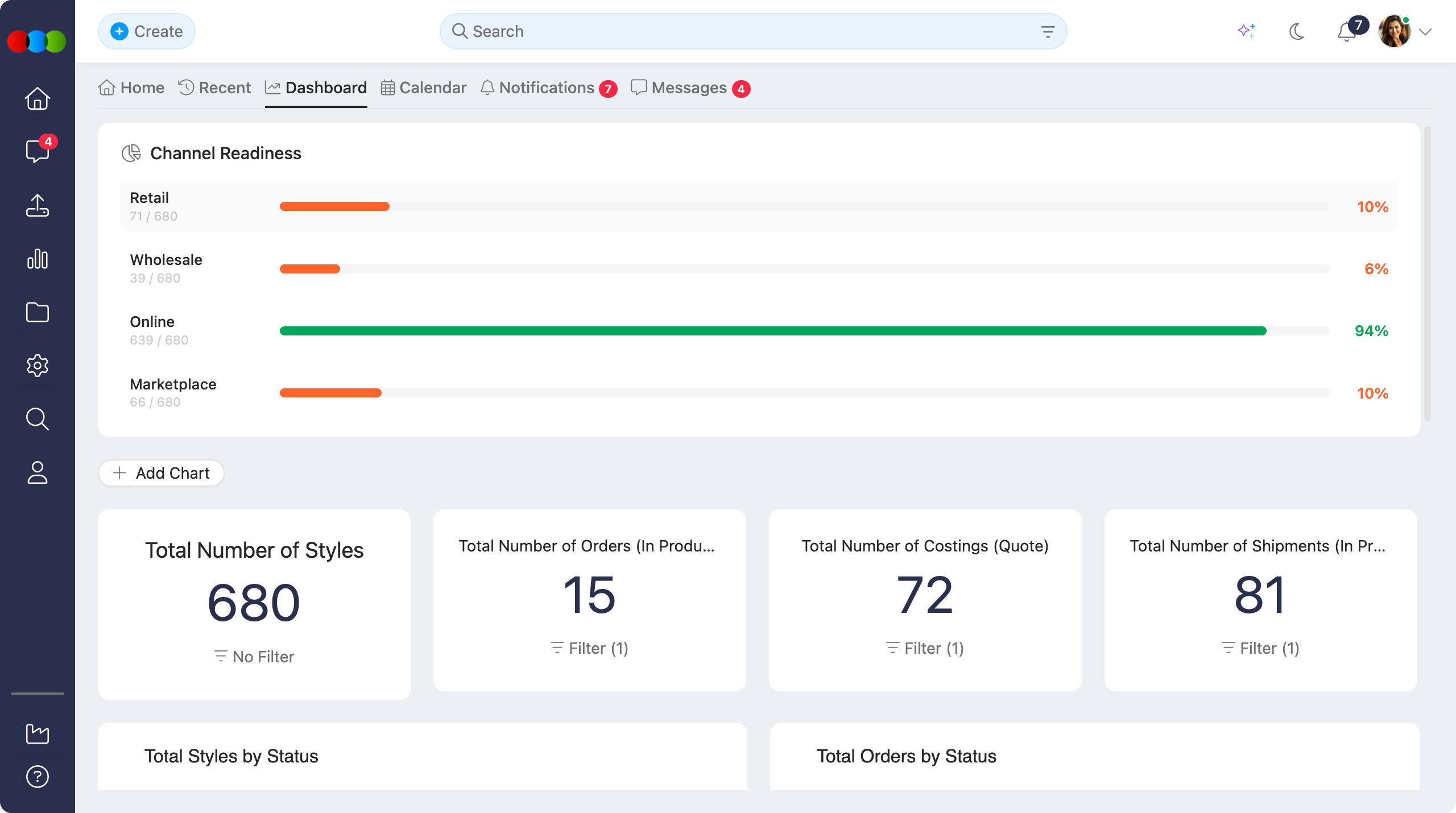
Note
Percentages on the dashboard summarise readiness across your library. To see which requirements are still open on a specific style, open the style and review Style > eCommerce > Channels for that channel’s checklist and per-field status.
Relationship to Style Records
Channel readiness is calculated at the style level from the same Readiness Fields configured in Site Settings. The dashboard aggregates those results; individual style records show the detailed breakdown.
| Area | What it shows | Documentation |
|---|---|---|
| Dashboard > Channel Readiness | Per-channel aggregate readiness percentage across styles; click-through to Style Search. | This page |
| Style Search > Channel Readiness | Style-level readiness for the selected channel; filter, export, and bulk-review from search. | Search › Style Search |
| Style > eCommerce > Channels | Per-style readiness percentage, enabled colours, pricing status, and field-level checklist for each channel. | Style > eCommerce › Channels Section |
| Site Settings > Style > Channels | Channel profile names, descriptions, and which Readiness Fields apply to each route. | Site Settings > Style > Channels |
Sample Scenarios
Refer to these scenarios to understand how Dashboard > Channel Readiness supports different teams. Each scenario links to related documentation in this portal.
Scenario 1: Merchandising manager preparing a seasonal launch
A merchandising manager uses Channel Readiness on the dashboard to see which sales routes are least complete before a range goes live.
| Step | What to do | Related documentation |
|---|---|---|
| 1 | Review aggregate percentages on Dashboard > Channel Readiness and note channels below your target (for example below 80%). | How Channel Readiness Works |
| 2 | Click the priority channel to open Style Search > Channel Readiness filtered to that route. | Open Style Search from a Channel, Search › Style Search |
| 3 | Sort or filter search results to focus on styles with the lowest readiness or upcoming launch dates. | Search › Manage Data |
| 4 | Open individual styles and complete missing fields under Style > eCommerce > Channels and linked style sections. | Style > eCommerce, Site Settings > Style > Channels |
| 5 | Return to the dashboard after updates to confirm the channel percentage has improved. | Relationship to Style Records |
Scenario 2: eCommerce coordinator closing gaps before Shopify sync
An eCommerce coordinator monitors online-channel readiness before publishing or syncing connected stores.
| Step | What to do | Related documentation |
|---|---|---|
| 1 | Confirm the online or Shopify-linked channel profile exists and lists the correct Readiness Fields (images, sell price, active colours, barcodes, and so on). | Site Settings > Style > Channels |
| 2 | Check the channel percentage on Dashboard > Channel Readiness to gauge overall library completeness. | How Channel Readiness Works |
| 3 | Click the channel and work through Style Search results, prioritising styles connected to Shopify. | Style > eCommerce › Channels Section, Site Settings > Integrations > Shopify |
| 4 | Complete Colours & Pricing, pricing, and enabled colour/size rules per channel before Publish or Sync Now. | Style > Colours & Pricing, Style > Side Widgets > eCommerce Status |
Scenario 3: Operations lead auditing readiness rules
An operations lead verifies that dashboard percentages reflect the organisation’s current publishing standards.
| Step | What to do | Related documentation |
|---|---|---|
| 1 | Review channel profiles and Readiness Fields in Site Settings > Style > Channels with merchandising and compliance stakeholders. | Site Settings > Style > Channels |
| 2 | Compare Dashboard > Channel Readiness percentages with sample checks on Style > eCommerce > Channels for a few styles. | Relationship to Style Records |
| 3 | Use Style Search > Channel Readiness to export or favourite a view for recurring audits. | Search › Manage Data |
| 4 | Adjust Readiness Fields if the checklist no longer matches how teams prepare styles for each route. | Site Settings > Style > Channels |
Next Steps
Related Settings
- Site Settings > Style > Channels
- Site Settings > Integrations > Shopify
- Site Settings > Style > General Settings > eCommerce
Troubleshooting
Why do I not see any channels on Dashboard > Channel Readiness?
The dashboard lists only channel profiles defined in Site Settings > Style > Channels. If no profiles exist, the readiness area has nothing to display.
Steps to resolve:
- Ask an administrator to add channel profiles under Site Settings > Style > Channels and select the required Readiness Fields.
- Refresh the Dashboard and reopen Channel Readiness.
- Confirm your user role can access Dashboard and Site Settings > Style configuration.
Why is a channel readiness percentage lower than I expect?
Aggregate percentages reflect how many styles still have open Readiness Fields for that channel. A few incomplete styles—or stricter rules recently added to the channel profile—can pull the overall score down.
Steps to resolve:
- Click the channel on the dashboard to open Style Search > Channel Readiness for that route.
- Identify styles with low readiness and open Style > eCommerce > Channels to see which fields are still outstanding.
- Complete the required data on Style (for example Details, eCommerce, Codes, or Specification) and save.
- If the checklist does not match your process, ask an administrator to review Readiness Fields for that profile in Site Settings > Style > Channels.
Clicking a channel did not open Style Search with Channel Readiness selected
Pop-up blockers, session expiry, or missing Search permissions can interrupt navigation from the dashboard.
Steps to resolve:
- Refresh the page and sign in again if your session timed out.
- Disable pop-up blocking for your 3 Clicks domain if Style Search fails to open.
- Open Search > Style Search manually, select the Channel Readiness view, and apply the channel filter you intended.
- Ask an administrator to confirm your role includes access to Search and the Style application.
Dashboard percentages do not match what I see on an individual style
The dashboard shows an aggregate score across styles. A single style’s percentage on Style > eCommerce > Channels is calculated only for that record’s data.
Steps to resolve:
- Open the style and review Style > eCommerce > Channels for field-level completion on the channel in question.
- Use Style Search > Channel Readiness to compare multiple styles for the same channel.
- Confirm you are viewing the same channel profile name on both the dashboard and the style record.