Calendar
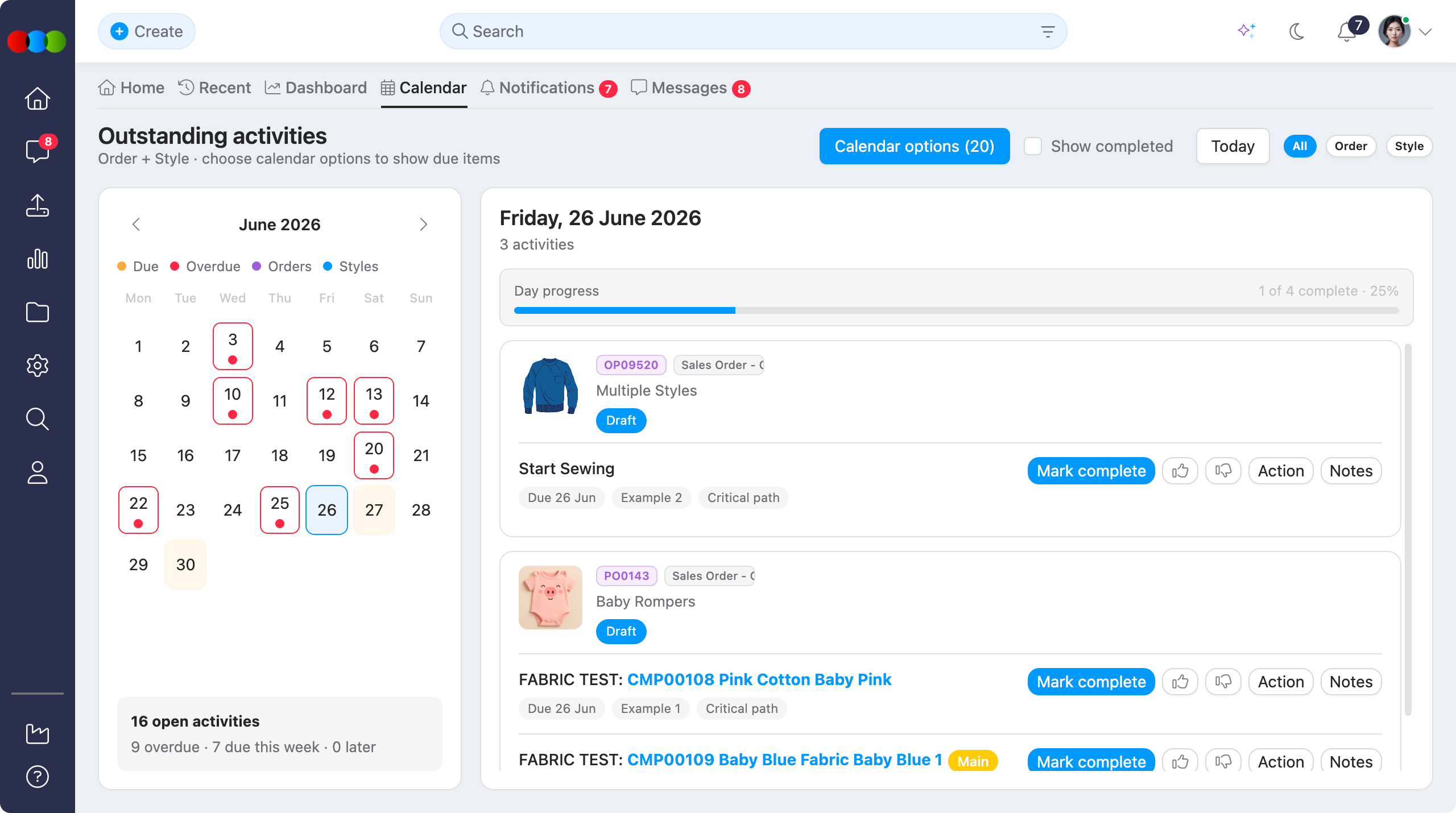
The Calendar is where you see outstanding Order and Style activities that have a due date, grouped by day in a split view. Use it to check what is due today, what is overdue, and to complete critical path work without opening each record first.
The Calendar workspace shows tenant-scoped activities for the logged-in user. You can filter by module, record, item kind, and activity type, then act on due work from the day progress. This document provides step-by-step guidance on opening the calendar, configuring Calendar options, reading the month picker, and completing activities from the day list. Compliance activities are not included in this release.
Quick Check - Before You Start
- Your role must include Home > Calendar view permission in Roles & Permissions.
- To see Order or Style, you also need view permission for these applications, respectively.
- To mark critical path activities complete from the calendar, you need the relevant Critical Path view permission on the order or style.
- Open Calendar options and select at least one item kind (and activity types for critical path rows) before activities load.
How to Open Calendar
| Step | Action |
|---|---|
| 1 | Sign in to your 3 Clicks Cloud account. |
| 2 | Open Home from the main navigation. |
| 3 | Select the Calendar tab between Dashboard and Notifications. |
If you do not see the tab, ask an administrator to enable Home > Calendar on your role.
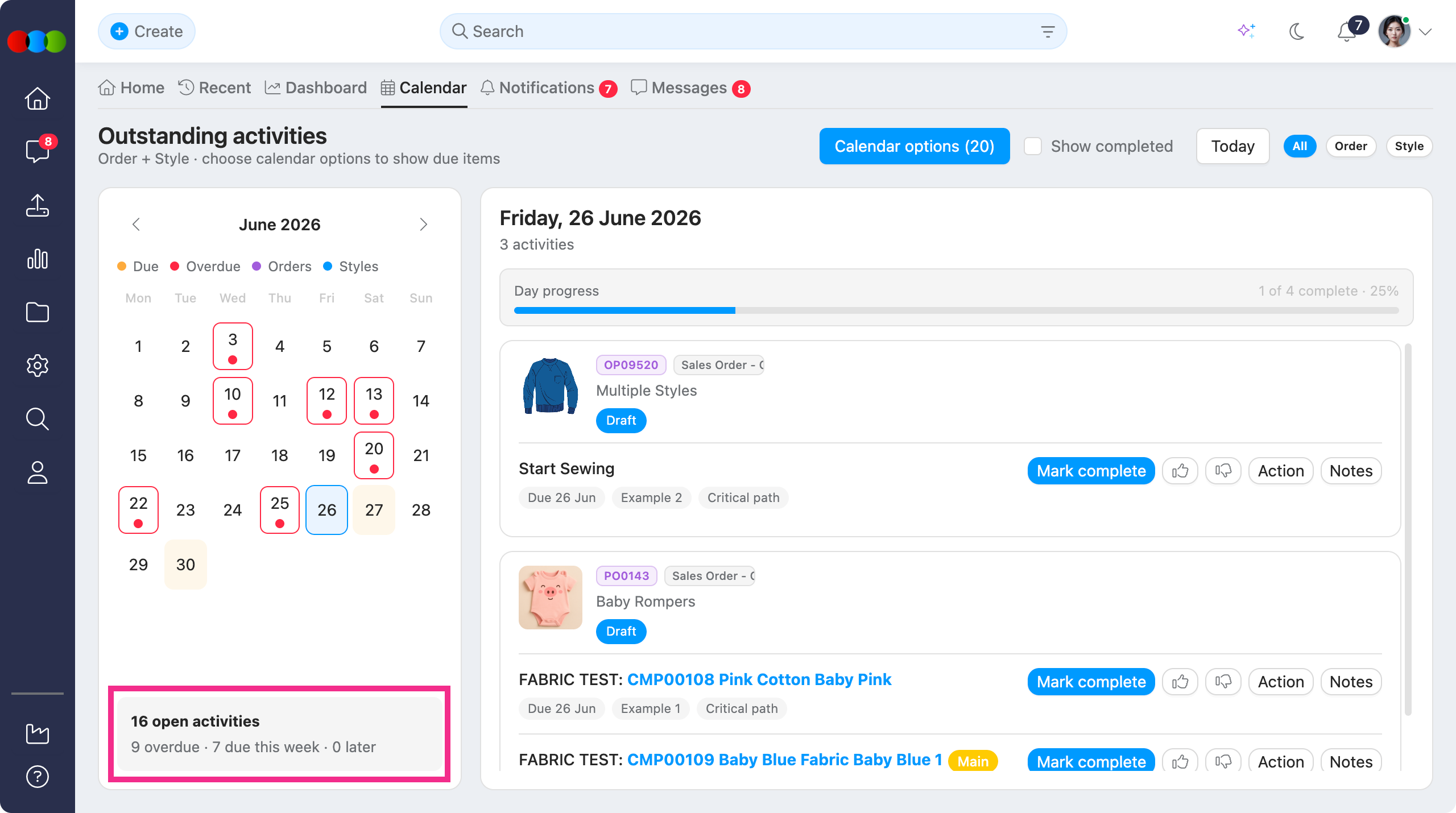
Month picker legend
| Indicator | Description |
|---|---|
| Due (orange) | The day has open activities with due dates. |
| Overdue (red) | The day has at least one overdue open activity. |
| Orders (purple) / Styles (blue) | The colours will appear as dots in the calendar. |
Month summary
Below the month grid, a summary counts open activities in the visible month and how they break down by urgency — for example, 16 open activities · 9 overdue · 7 due this week · 2 later. The summary updates when you change Calendar options, search, or View by Order / View by Style filters.
Toolbar
Use the toolbar above the day progress to filter what you see and jump back to today.
| Action | Description |
|---|---|
| Calendar options | Opens the options drawer for scope, search, record filters, item kinds, and activity types (see Calendar Options). |
| Show completed | When ticked, includes completed activities in the day list. When cleared, only open items appear. |
| Today | Jumps the month picker and day progress to today's date. |
| All / Order / Style | Module chips filter the day list without changing which dates are highlighted. Chips you cannot use (no module view permission) are disabled. |
Calendar Options
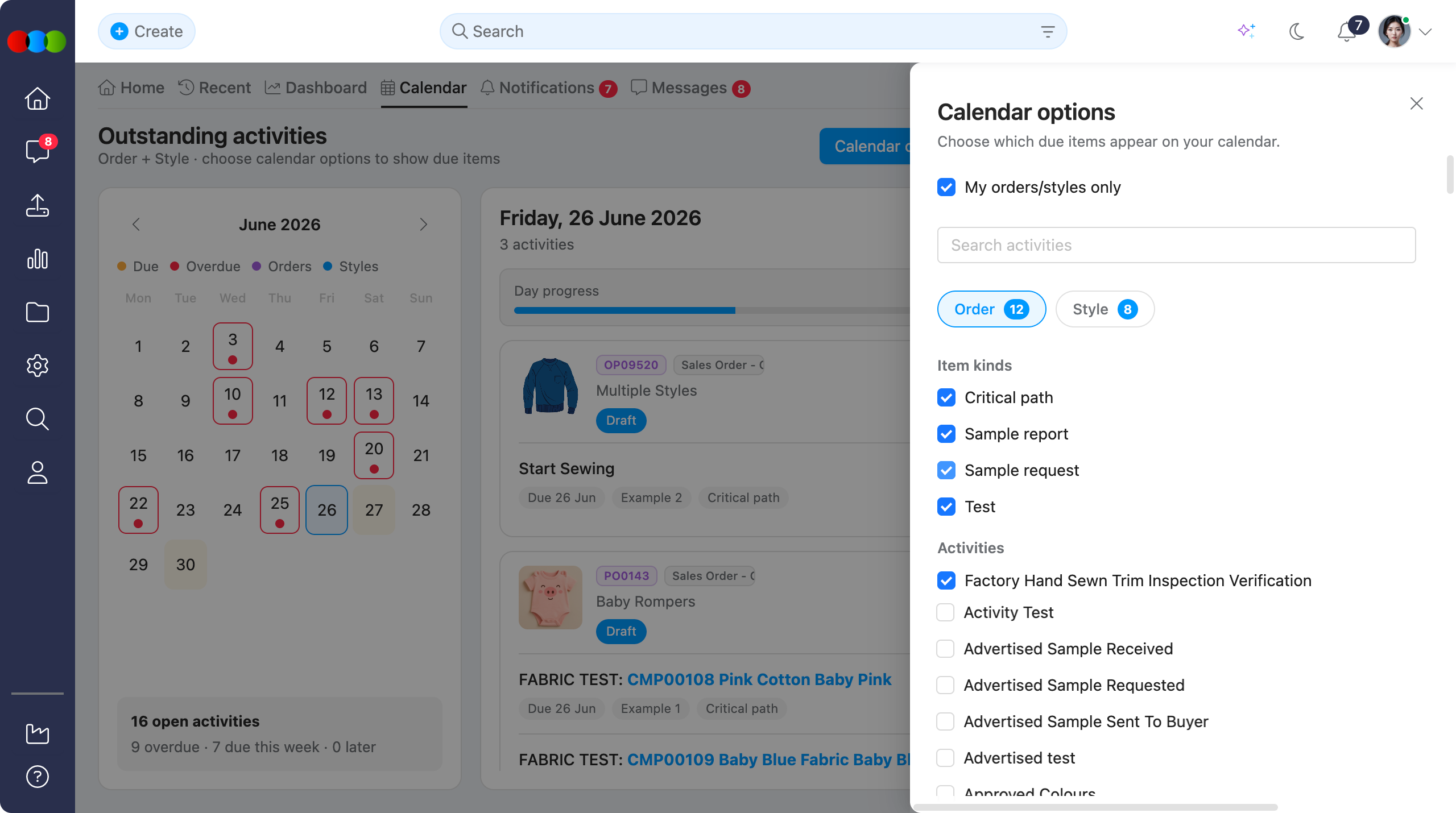
Open Calendar options from the toolbar to choose which due items appear on your calendar. A right-hand drawer lists your choices. Filters apply immediately as you tick or clear items. Your selections are saved per user in the browser.
Important Note About Calendar Options
The Calendar will only be filled with activities once Calendar options is configured. Otherwise, it will only display as an empty calendar by default.
| Field | Description |
|---|---|
| My orders/styles only | When ticked (default), shows activities only for orders and styles where you are a member. Clear this to include all orders and styles you are allowed to view. |
| Search | Narrows the calendar and day list by typing an order or style number or name. |
| View by Order | Limits the calendar options to activities that are only in Site Settings > Order > Activities. |
| View by Style | Limits the calendar to activities that are only in Site Settings > Style > Activities. |
Item kinds
Tick one or more item kinds to control which due row types load on the calendar:
| Item kind | Description |
|---|---|
| Critical path | Critical path milestone due dates on orders and styles. |
| Sample report | Sample report due dates from Order > Samples > Samples Report or Style > Samples > Samples Report. |
| Sample request | Sample requirement due dates on Orders > Samples > Samples Requirements and Style > Samples > Sample Requirements. |
| Test | Component test due dates from Order > Testing > Components. |
Activities
For Critical path rows, also select which activity types appear. Order and Style each have an Activities checkbox list of enabled activities from Site Settings > Order > Activities and Site Settings > Style > Activities respectively. The Order section is visible when you have Order view permission; the Style section when you have Style view permission.
No activities showing?
When you first open Calendar, or after clearing Calendar options, an info banner explains that you must select calendar options before due items appear. Item kind and activity type checkboxes start with none selected so you choose exactly what to display.
Day Progress
Click a day on the month picker to open the day progress for that date. Each activity row shows:
- Module (order or style), entity image or label, and activity title
- Due status (Due or Overdue)
- Links to open the parent record or the relevant tab (for example Samples or Testing)
Actions
| Activity type | What you can do |
|---|---|
| Critical path | Mark complete, approval or rejection, and notes — same behaviour as on the order or style critical path screen (requires critical path view permission). |
| Sample report, sample request, test | View and open links; completion is not toggled from the calendar. |
If you lack critical path view permission, an info banner explains that sample and test due dates still appear but critical path actions are not available.
Permissions
| Permission | Effect |
|---|---|
| Home > Calendar (View) | Shows the Calendar tab and allows access. |
| Order / Style (View) | Required to see that module's rows, filters, and module chip. |
| Critical path (View) | Required to complete or approve critical path activities from the calendar. |
Configure Home > Calendar permission under the Home application in Site Settings > Company > Roles & Permissions. Unticking it and saving keeps the permission off when you reopen the role.
Sample Scenarios
Refer to these scenarios to understand how Calendar supports different teams.
Scenario 1: Production coordinator reviewing today's due work
A production coordinator uses Calendar to see what is due or overdue across orders and styles without opening each record.
| Step | What to do | Related documentation |
|---|---|---|
| 1 | Open Calendar and click Today to focus on the current day. | How to Open Calendar |
| 2 | Open Calendar options, tick the item kinds you need (for example Critical path and Sample request), and select the relevant Activities. | Calendar Options |
| 3 | Use All / Order / Style chips and Show completed to narrow the day list. | Toolbar |
| 4 | Mark critical path activities complete from the day progress when you have permission. | Day Progress, Order > Critical Path, Style > Critical Path |
Scenario 2: Merchandiser tracking sample and test due dates
A merchandiser uses Calendar to follow sample report, sample request, and test due dates across styles they are a member of.
| Step | What to do | Related documentation |
|---|---|---|
| 1 | In Calendar options, keep My orders/styles only ticked and select Sample report, Sample request, and Test. | Calendar Options |
| 2 | Use Search or View by Style to focus on one style when needed. | Calendar Options |
| 3 | Select a highlighted day on the month picker and open the linked Samples or Testing tab from the day progress. | Day Progress |
Next Steps
- Home > Overview
- Order > Critical Path
- Style > Critical Path
- Site Settings > Company > Roles & Permissions
Troubleshooting
Why is my calendar empty when I first open it?
The Calendar only loads activities after you configure Calendar options. Item kind and activity type checkboxes start with none selected, so the month grid appears empty until you choose what to display.
Steps to resolve:
- Open Calendar options from the toolbar.
- Tick at least one item kind (for example Critical path).
- For critical path rows, also select Activities under Order and/or Style.
- Clear Search or View by Order / View by Style if the list is too narrow.
Why does the month show highlighted days but the day progress is empty?
Highlighted days reflect activities that match your Calendar options, but the day progress can still look empty if module chips, search, or record filters exclude those rows.
Steps to resolve:
- Check All / Order / Style chips — switch to All if one module is filtered out.
- Clear Search and View by Order / View by Style in Calendar options.
- Tick Show completed if you are only looking for completed work.
- Confirm you have Order or Style view permission for the module you expect to see.
Why can't I mark an activity complete from the calendar?
Sample and test rows are read-only on the calendar. Only critical path activities can be completed from the day progress.
Steps to resolve:
- Confirm the row is a Critical path activity, not Sample report, Sample request, or Test.
- Check that you have critical path view permission on the parent order or style.
- Open the order or style critical path screen if your role does not allow completion from Calendar.
I saved Calendar as unticked on a role but it was ticked again when I reopened the role
On older releases, roles with Admin Access could show Calendar as ticked again even after you saved it as unticked.
Steps to resolve:
- Confirm you are on a current release where Calendar follows the saved checkbox only.
- Untick Calendar, save the role, and reopen it — Calendar should stay unticked.
- Users on that role should not see the Calendar tab.