Messages
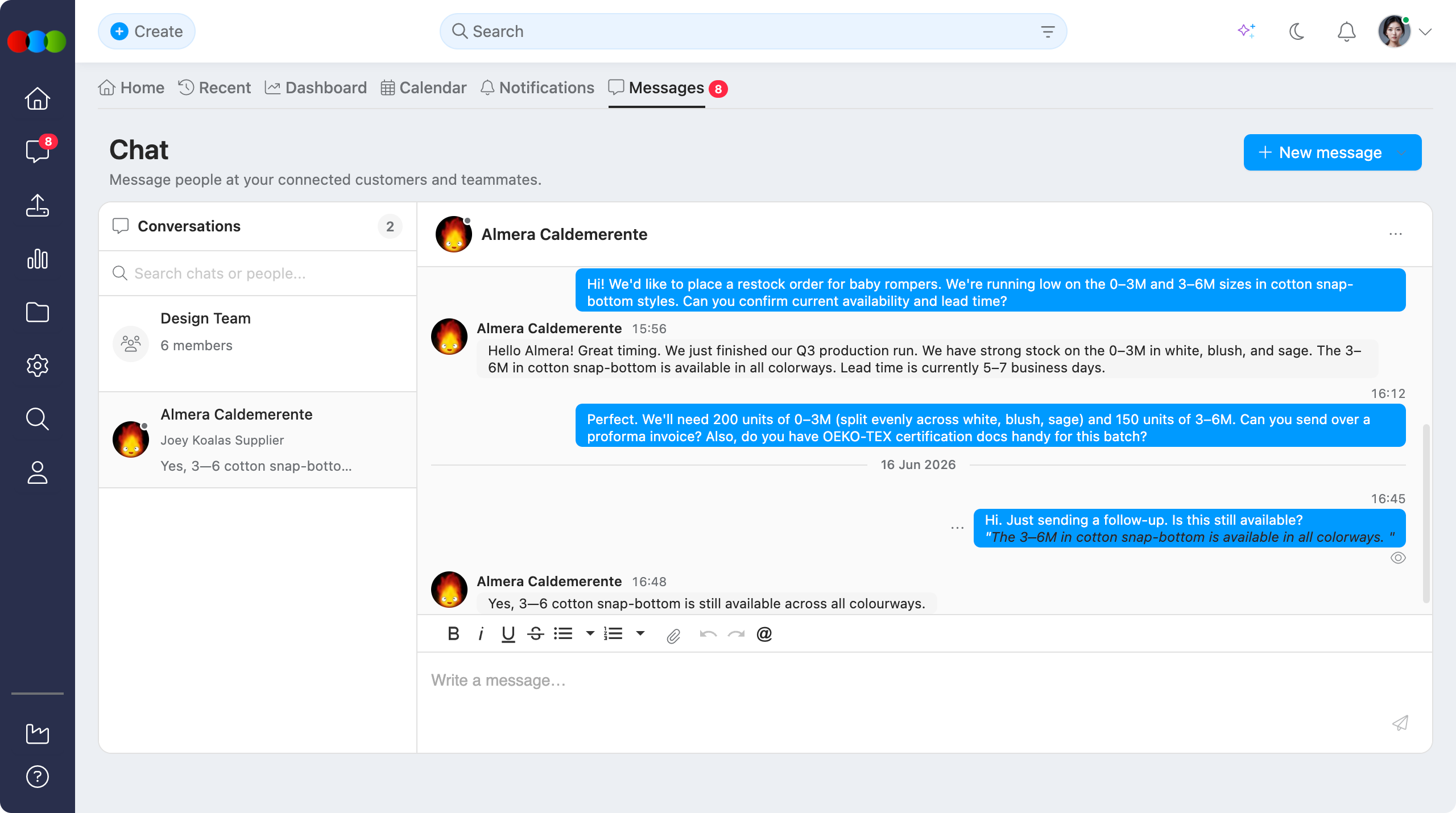
Messages lets instance users, Supplier Portal users, and teammates communicate through direct messages and group conversations. Use Messages to contact people at connected customer or supplier accounts, keep conversation history in one place, and manage replies, reactions, pins, and read status from the same message thread.
Quick Check - Before You Start
- Confirm the user has access to the relevant portal or instance account.
- Confirm the person you want to message is connected to your customer, supplier, or internal team relationship.
- Use group conversations when the discussion needs more than two participants.
Accessing Messages
Instance Users
Instance users can open Messages in two ways:
| Location | How to open |
|---|---|
| Main menu | Click the Messages icon in the left side panel, between Home and Import. |
| Main page | Open the Messages tab next to Notifications. |
Supplier Portal Users
Supplier Portal users can open Messages by clicking Chat in the left side panel, between Activity and Favourite Searches.
Conversations
The conversation list shows your active direct messages and group conversations. Select a conversation to open the message thread.
| Action | Description |
|---|---|
| Expand | Expands the chat box into a full screen display. |
| New Message | Opens a dropdown where you can select Direct message or Create group chat. |
| Conversation list | Shows the conversations available to you. |
| Delete conversation | Click the trash can icon to delete a single conversation. |
| Bulk delete | In the Supplier Portal, select the checkbox beside conversations, then delete the selected conversations together. |
Deleting conversations
Deleting a conversation removes it from your conversation list. Other participants may still have access to the conversation from their own list unless they also remove it.
Sending Messages
Open a conversation and type your message in the message field. In the Supplier Portal, you can use Undo and Redo while typing your message.
Messages display the time stamp for when they were sent. After the recipient has seen the message, an eye icon displays below the message to indicate it has been read.
Use mentions to notify another member of the conversation directly. Type the mention and select the correct person from the available conversation members.
Message Actions
Each message includes quick actions for managing the conversation:
| Action | Description |
|---|---|
| Reply | Responds to a specific message. The reply shows the original sender and message in an indented format, followed by your response below it. |
| Pin | Pins the message so it is easier to find again. |
| Like | Reacts to the message with a like. |
| Love | Reacts to the message with a love reaction. |
| Laugh | Reacts to the message with a laugh reaction. |
| Party Pop | Reacts to the message with a celebration reaction. |
More Options
For instance users, the message or conversation More Options menu can include:
| Option | Description |
|---|---|
| Ask AI | Uses AI to help with the selected message or conversation context. |
| Remove from list | Removes the conversation from your conversation list. |
Group Conversations
Group conversations let multiple participants communicate in the same thread.
In group conversations, you can:
- Set the group conversation photo by clicking the icon next to the group name.
- View the other members of the conversation by clicking the people icon.
- Use Ask AI from the group conversation options.
- Select Remove from list to remove the group conversation from your conversation list.