Xero
The Xero page in Site Settings > Integrations is the hub for the Xero accounting integration. Administrators use it to enable the feature, open configuration sections for connection and bill defaults, map account codes, tax types, and payment terms, and review synchronisation history.
Configure these settings before pushing purchase orders or enabling automation so finance teams review consistent bill behaviour from the first sync.
Quick Check - Before You Start
- Confirm you have Site Settings access and permission to manage integrations.
- Sign in to a Xero account that can authorise the correct Xero organisation.
- Review Company > Suppliers, Company > Terms, and Company > Tax before enabling production sync.
- Decide with finance whether bills should auto-submit on shipment completion or remain in DRAFT for review.
Open Xero Settings
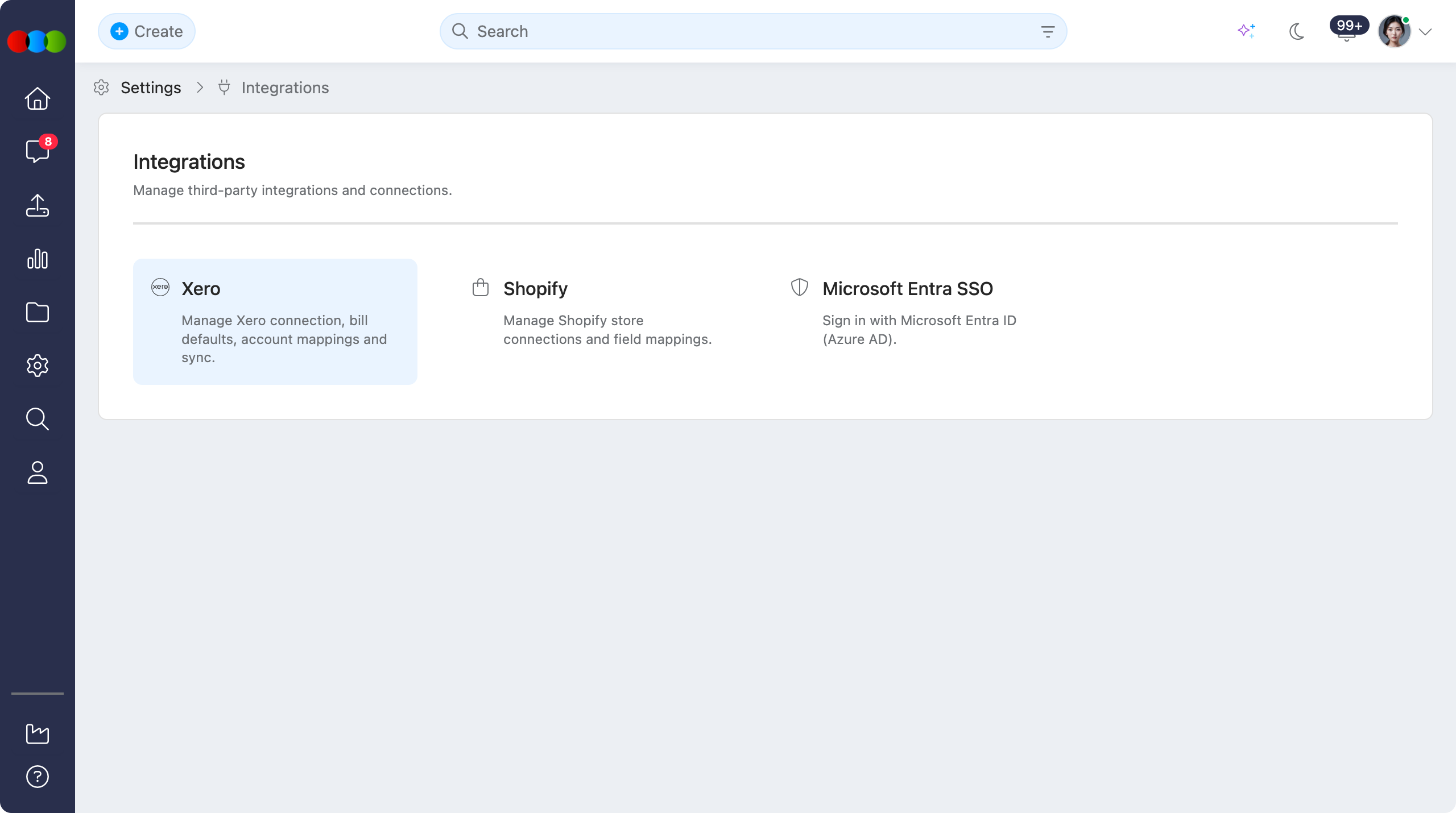
- Go to Site Settings > Integrations.
- Select Xero.
The Xero hub shows the feature toggle and the configuration sections for the integration:
Site Settings > Integrations > Xero 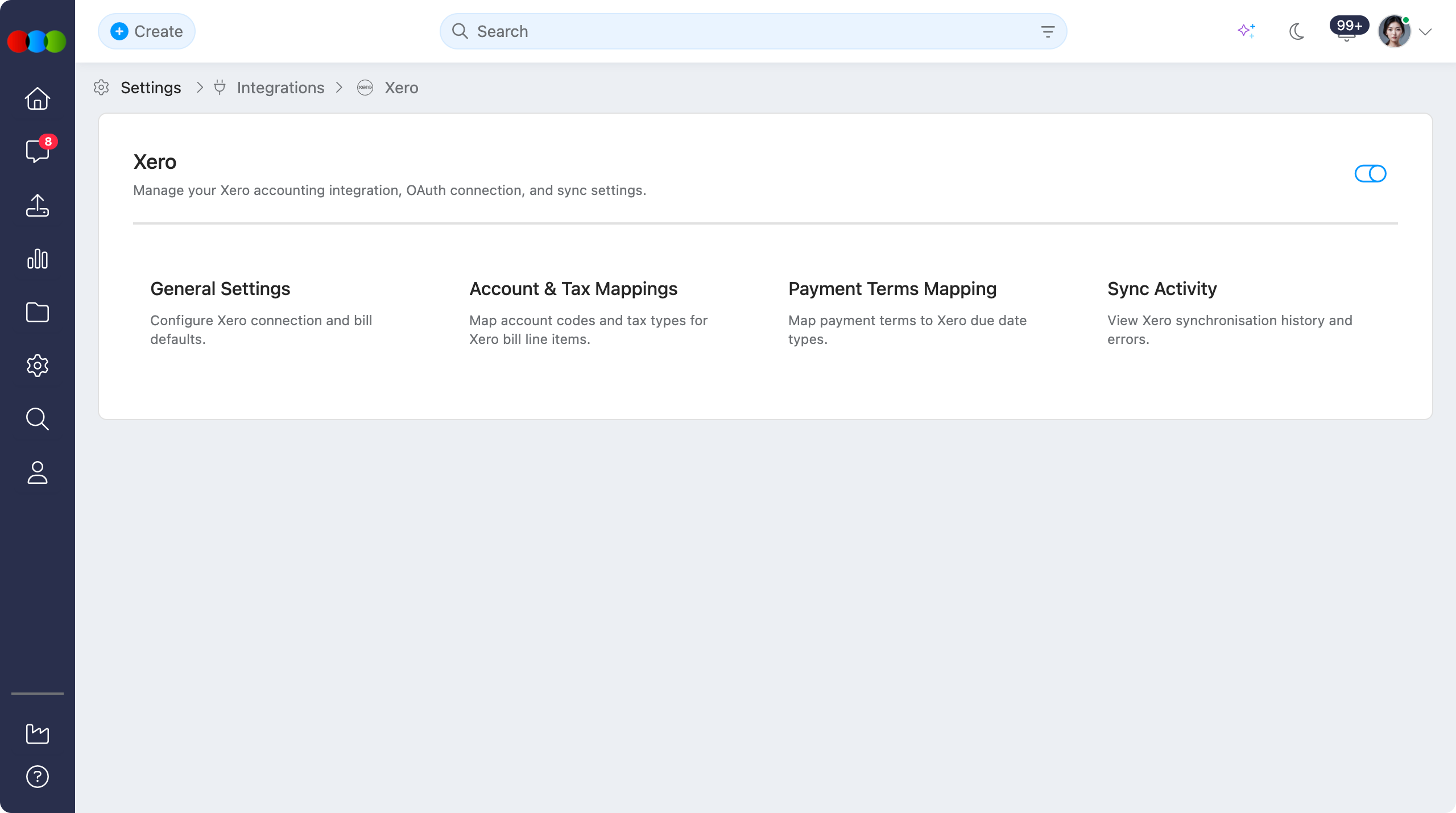
Enable Xero Integration
The Xero integration is disabled by default. Turn the toggle on only when your team is ready to expose Xero actions and sync across 3 Clicks Cloud.
| Setting | Description |
|---|---|
| Enable Xero Integration | Turns the integration on or off for the tenant. When off, Xero UI, background jobs, and event triggers are hidden or skipped. |
Existing Xero links are preserved
Disabling the feature does not remove stored Xero contact or bill links. Those identifiers remain available if the integration is enabled again.
Configuration Sections
Each card on the Xero page opens a dedicated settings area. Complete them in order for a controlled go-live.
| Section | Description | Documentation |
|---|---|---|
| General Settings | Connect or disconnect Xero, set bill defaults, control automation, and run Supplier Sync. | General Settings |
| Account & Tax Mappings | Map account codes and tax types for Xero bill line items. | Account & Tax Mappings |
| Payment Terms Mapping | Map payment terms to Xero due date types and offset days. | Payment Terms Mapping |
| Sync Activity | View synchronisation history, errors, and skipped events. | Sync Activity |
Validate mappings before bulk sync
Incomplete account, tax, or payment terms mappings can block bill creation across many records. Run a small pilot set first, resolve mapping errors in Sync Activity, then continue with larger batches. See How Push to Xero Works for bulk and single-order push steps.
Recommended Go-Live Checklist
- Enable Xero Integration on the Xero hub page.
- In General Settings, connect the correct Xero organisation and set bill defaults.
- Configure Account & Tax Mappings and Payment Terms Mapping.
- Run Supplier Sync and resolve unmatched suppliers.
- Push a small set of test orders (see How Push to Xero Works) and review the resulting Xero bills.
- Complete a shipment and confirm linked bill behaviour (draft vs auto-submit).
- Review Sync Activity for errors or skipped events.
- Enable automation (such as auto-submit) only after finance signs off.
Related Settings
- Xero › How Push to Xero Works
- Xero › General Settings
- Xero › Account & Tax Mappings
- Xero › Payment Terms Mapping
- Xero › Sync Activity
- Site Settings > Company > Suppliers
- Site Settings > Company > Terms
- Site Settings > Company > Tax
Troubleshooting
Why is Xero connected but sync actions are still hidden?
The OAuth2 connection and tenant feature toggle are separate controls. Xero actions remain hidden when Enable Xero Integration is off, even if a previous connection exists.
Steps to resolve:
- Open Site Settings > Integrations > Xero.
- Turn on Enable Xero Integration.
- Confirm the connection in General Settings.
- Refresh the relevant order or supplier page and check your permissions.
Where do I reconnect Xero or change bill defaults?
Connection status, disconnect, bill defaults, automation, and Supplier Sync live under General Settings, not on the hub cards alone.
Steps to resolve:
- Open Site Settings > Integrations > Xero.
- Select General Settings.
- Use Connect to Xero or Disconnect under Connection Status, or update bill defaults and automation as needed.
Why are many order syncs failing with the same error?
Repeated failures usually point to a shared mapping issue such as a missing account code, invalid tax type, or unmatched payment term.
Steps to resolve:
- Open Sync Activity and filter by Status = Error.
- Compare the error messages across the affected records.
- Update Account & Tax Mappings or Payment Terms Mapping as required.
- Retry one record first, then resume bulk sync once the test succeeds.