How Push to Xero Works
The Xero integration connects 3 Clicks Cloud purchase orders to Xero as bills under Purchases. Once administrators have enabled the integration, connected your organisation, mapped accounts and payment terms, and linked suppliers, you can push orders so finance teams review bills in Xero without re-entering purchase order data.
This page explains how the integration behaves end to end, and how to push orders from Order Search (bulk) or from Order > Documents > Purchase Order (single order). Use it after Xero settings are configured so every push creates or updates bills consistently.
Quick Check - Before You Start
- Confirm Enable Xero Integration is on and Xero is connected under General Settings.
- Confirm suppliers are linked to Xero Contacts via Supplier Sync.
- Confirm Account & Tax Mappings and Payment Terms Mapping are in place for production sync.
- Select orders that have a supplier. Orders with no supplier, or with already-approved bills in Xero, are skipped automatically.
- Prefer a small pilot set before bulk pushing many orders.
How the Integration Maps to Xero
For finance and operations teams, the relationship between 3 Clicks Cloud and Xero is:
| In 3 Clicks Cloud | In Xero |
|---|---|
| Supplier (linked via Supplier Sync) | Contact |
| Purchase order pushed to Xero | Bill under Purchases > Bills |
| Account codes and tax types | Bill line coding from Account & Tax Mappings (or bill defaults) |
| Payment terms | Due date rules from Payment Terms Mapping (or default payment days) |
Orders are pushed as bills. Successful creates and updates appear in Xero under Purchases > Bills. Sync outcomes are also recorded in Sync Activity.
Configuration first
Connection, bill defaults, mappings, and Supplier Sync are configured in Site Settings > Integrations > Xero. See the Xero › Overview go-live checklist before the first production push.
Push Orders from Order Search
Use Order Search > Actions > Push to Xero when you need to push one or more orders in a single action.
| Step | Action |
|---|---|
| 1 | Open Order Search and select the order(s) you want to push. |
| 2 | Open Actions and select Push to Xero. |
| 3 | Review the Push to Xero confirmation pop-up. It shows how many orders will be pushed as bills, and notes that orders with no supplier or already-approved bills are skipped automatically. |
| 4 | Confirm the push. |
| 5 | Review Push to Xero - Results for counts of Created, Updated, Skipped, and Failed. |
Common Pitfall
A Skipped result is not always a failure. Orders without a supplier, different Buy Price currency, or with bills already approved in Xero, are skipped by design. Check the results summary and Sync Activity before retrying.
Push to Xero Results
After a bulk push, the results summary reports:
| Result | Meaning |
|---|---|
| Created | A new Xero bill was created for the order. |
| Updated | An existing linked Xero bill was updated from the order. |
| Skipped | The order was not pushed (for example, no supplier, or the related bill is already approved). |
| Failed | The push did not complete. Check mappings, supplier links, and Sync Activity for the error detail. |
Pilot before bulk
Push a small set first, confirm the bills in Xero > Purchases > Bills, resolve any Failed or unexpected Skipped outcomes, then continue with larger batches.
Push from Order Documents
Use the purchase order document when you are already on an order and want to push that order alone.
| Step | Action |
|---|---|
| 1 | Open the order record. |
| 2 | Go to Order > Documents > Purchase Order. The Document - Purchase Order pop-up opens. |
| 3 | Click Push to Xero. |
| 4 | Confirm the result in 3 Clicks, then open Xero > Purchases > Bills to review the bill. |
For general purchase order document behaviour (download, supplier vs internal copy, and related warnings), see Order › Side Widgets › Documents.
Same destination as bulk push
Whether you push from Order Search or from Documents > Purchase Order, successful bills appear in Xero > Purchases > Bills. Use Sync Activity if a push fails or is skipped unexpectedly.
After You Push
Once a bill is created or updated in Xero:
- Finance can review the bill in Xero > Purchases > Bills.
- Bill status and automation depend on General Settings — for example, bills may remain in DRAFT, or move to SUBMITTED when Auto-submit on Shipment Completion is enabled and a shipment completes.
- If an order is cancelled and Void Bill on Order Cancellation is enabled, linked bills in DRAFT or SUBMITTED can be voided automatically.
Approved bills are not overwritten by push
Orders with already-approved bills are skipped on push. Approve bills in Xero only after finance has confirmed coding, amounts, and contacts.
Sample Workflow Guide
This walkthrough shows a typical pilot push: confirm order pricing, push from Order Search (bulk) or from Documents > Purchase Order (single order), then verify the bill in Xero. Use it as a visual companion to the steps above.
1. Confirm quantities, buy prices, and currency
Open the order and go to Order > Colour Quantity & Pricing. Check that ordered quantities and buy prices are correct before you push — these values drive the bill lines in Xero.
In particular, confirm the Buy Price currency matches the base currency of the connected Xero organisation. A different buy-price currency can cause the order to be Skipped on push.
Order > Colour Quantity & Pricing 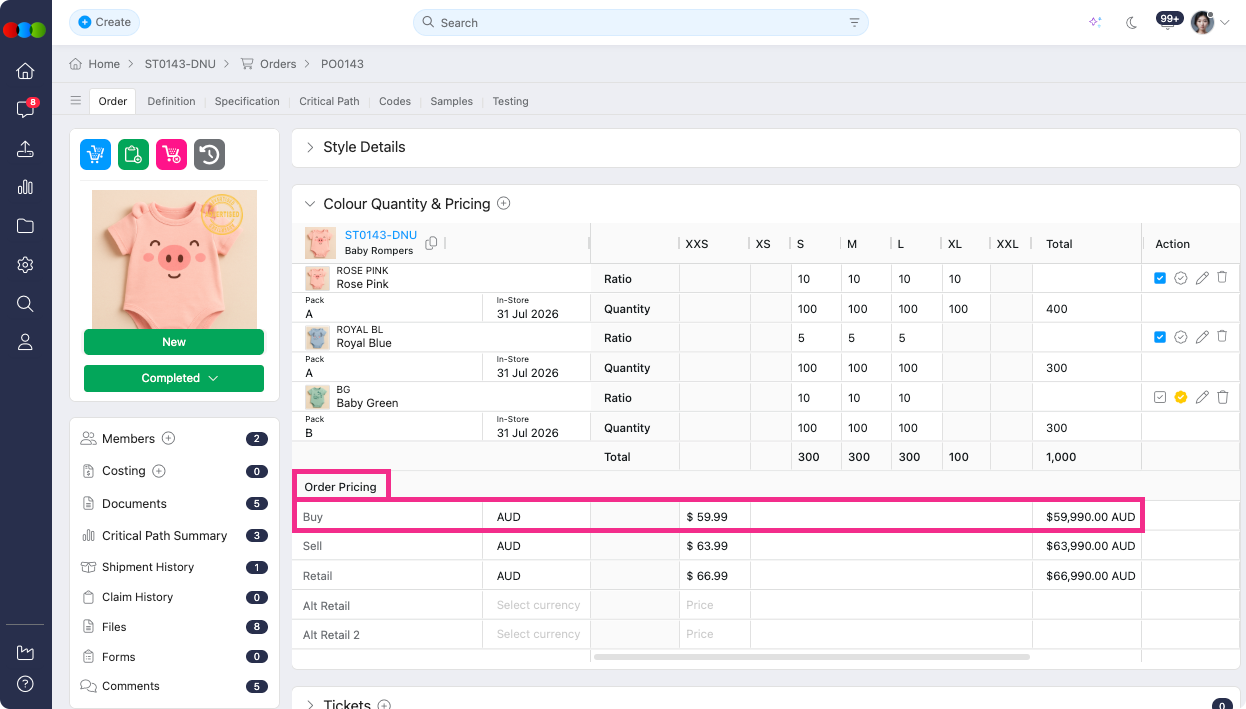
2. Push from Order Search (bulk)
When you are ready to push one or more orders, open Order Search, select the order(s), then choose Actions > Push to Xero. This path suits a pilot set or an end-of-day batch for finance.
Order Search > Actions > Push to Xero 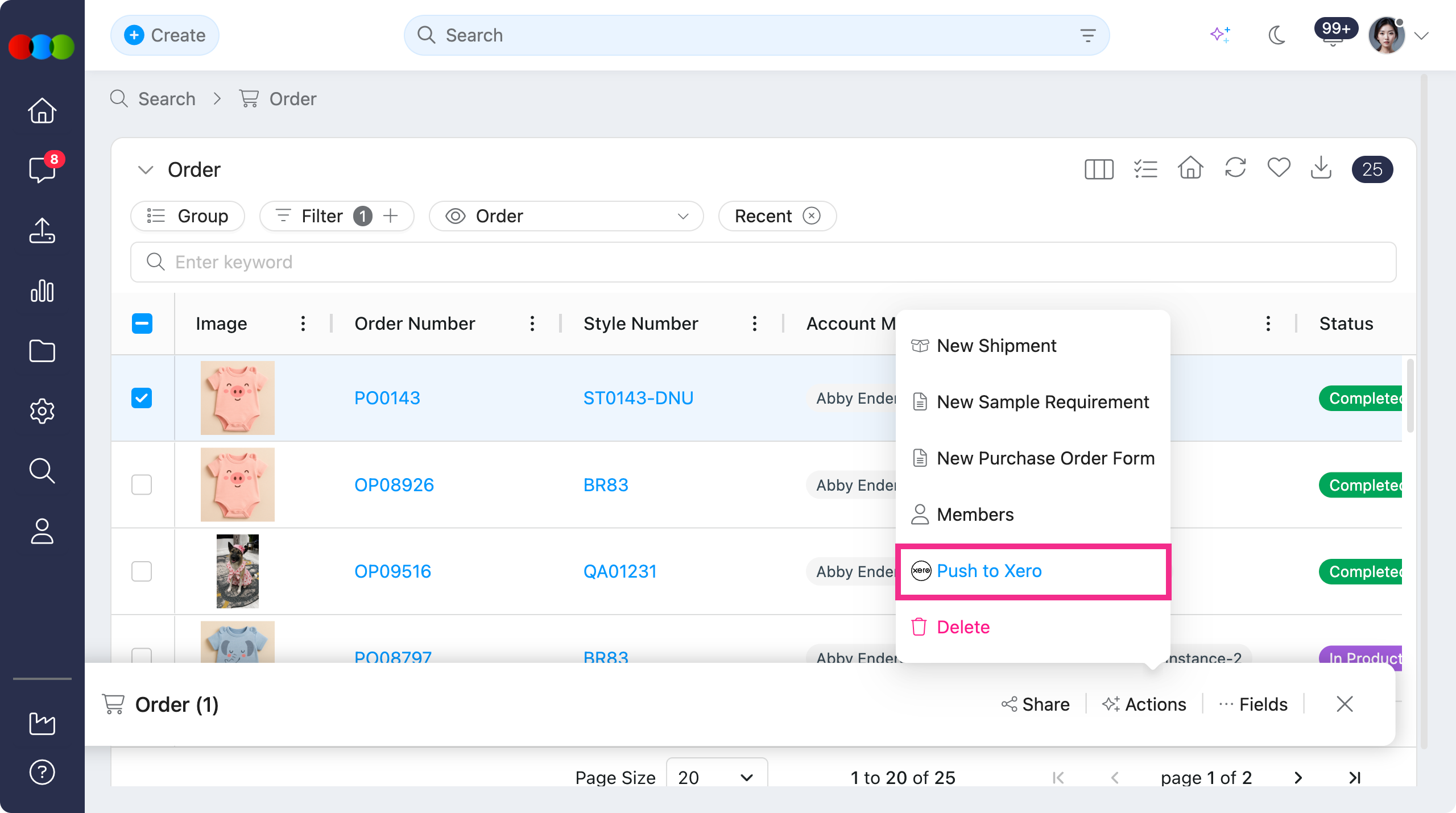
Review the confirmation pop-up. It shows how many selected orders will be pushed as bills, and reminds you that orders with no supplier — or with bills already approved in Xero — are skipped automatically.
Order Search > Actions > Push to Xero pop-up 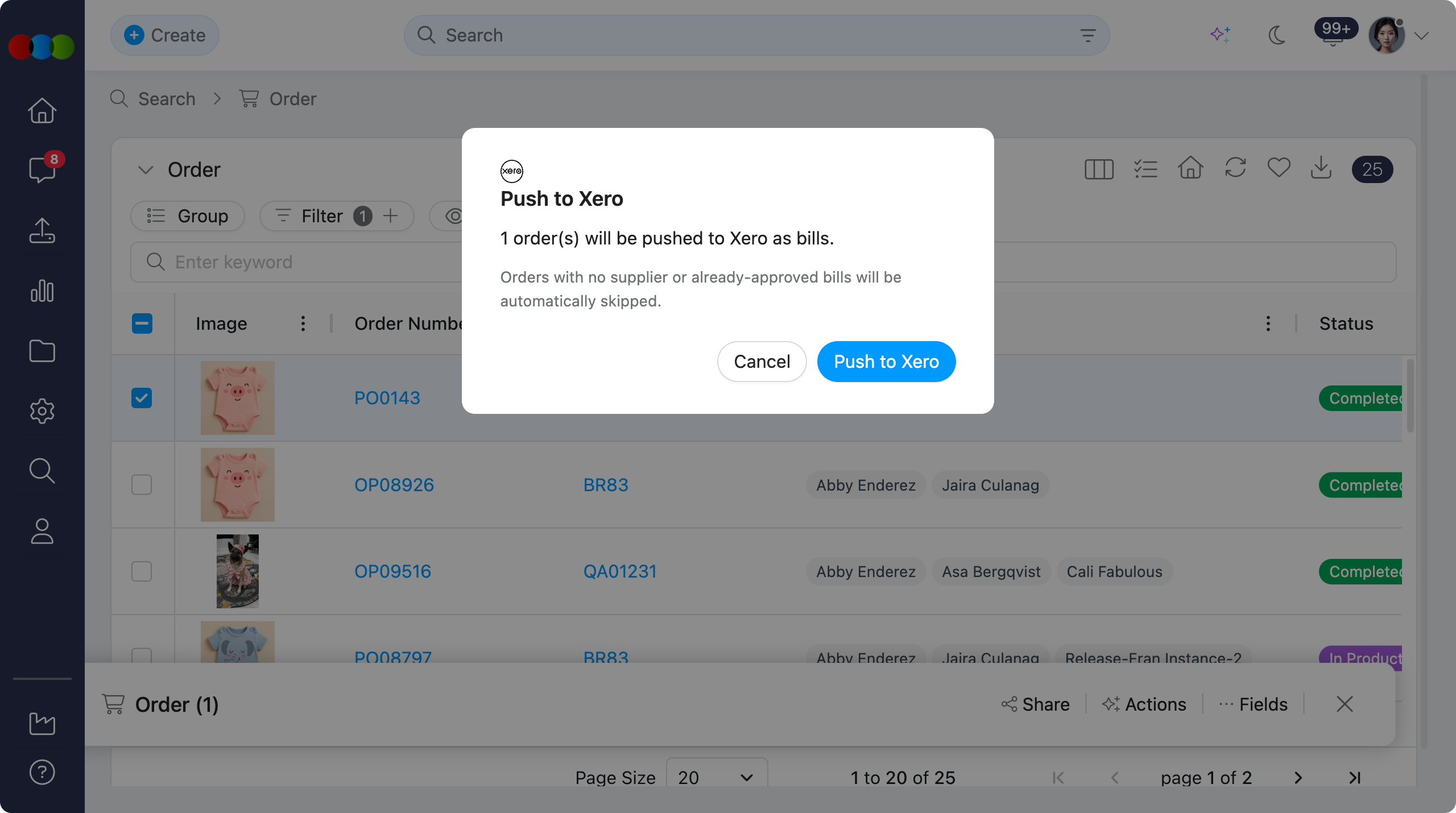
After you confirm, Push to Xero - Results summarises Created, Updated, Skipped, and Failed. Use these counts to decide whether to investigate Sync Activity before pushing a larger batch. See Push to Xero Results for what each outcome means.
Order Search > Actions > Push to Xero Results 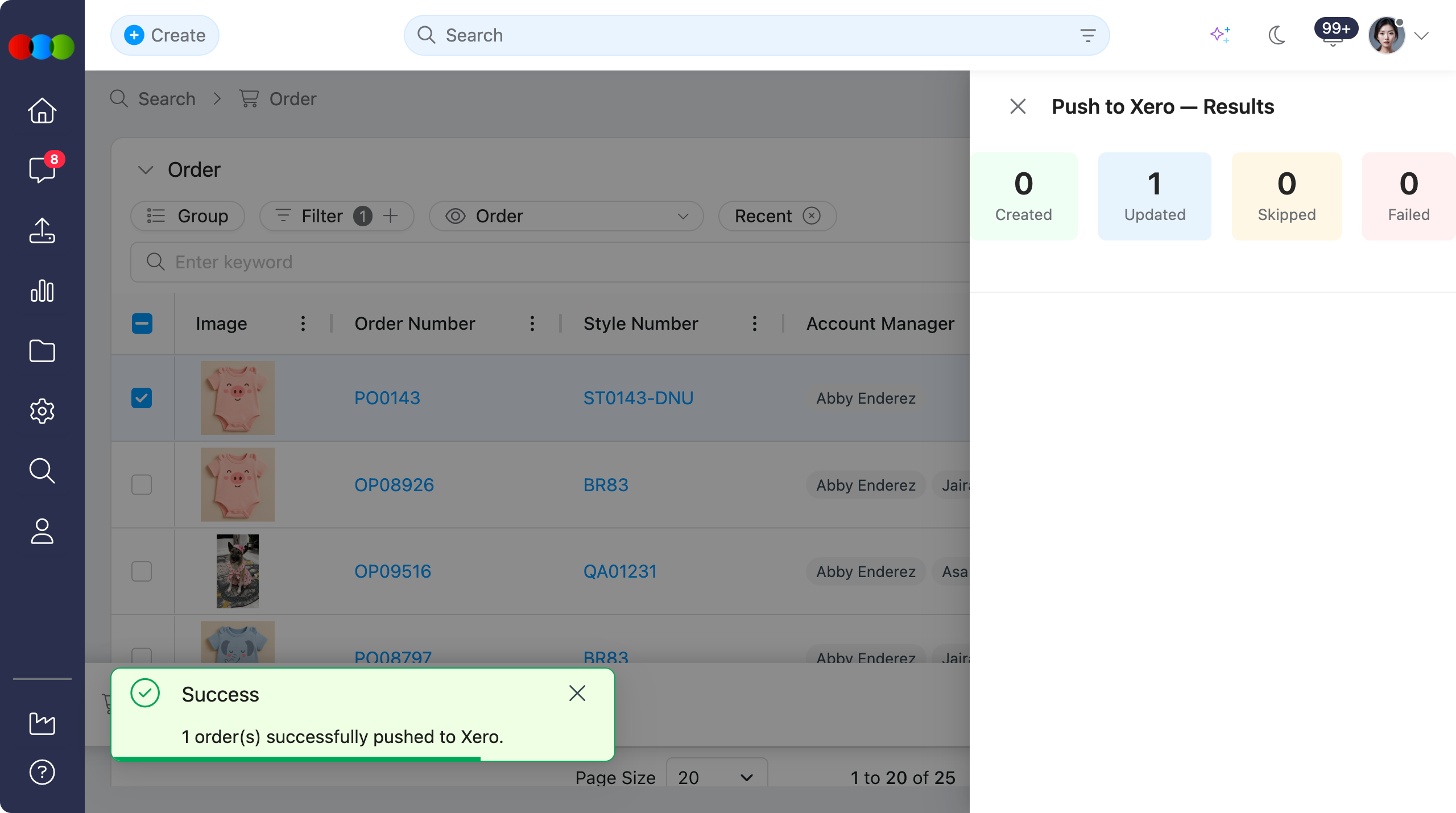
3. Or push a single order from Documents
If you are already on an order and only need that purchase order in Xero, use the document path instead of Order Search. Open Order > Documents > Purchase Order to display the Document - Purchase Order pop-up.
Order > Documents > Purchase Order 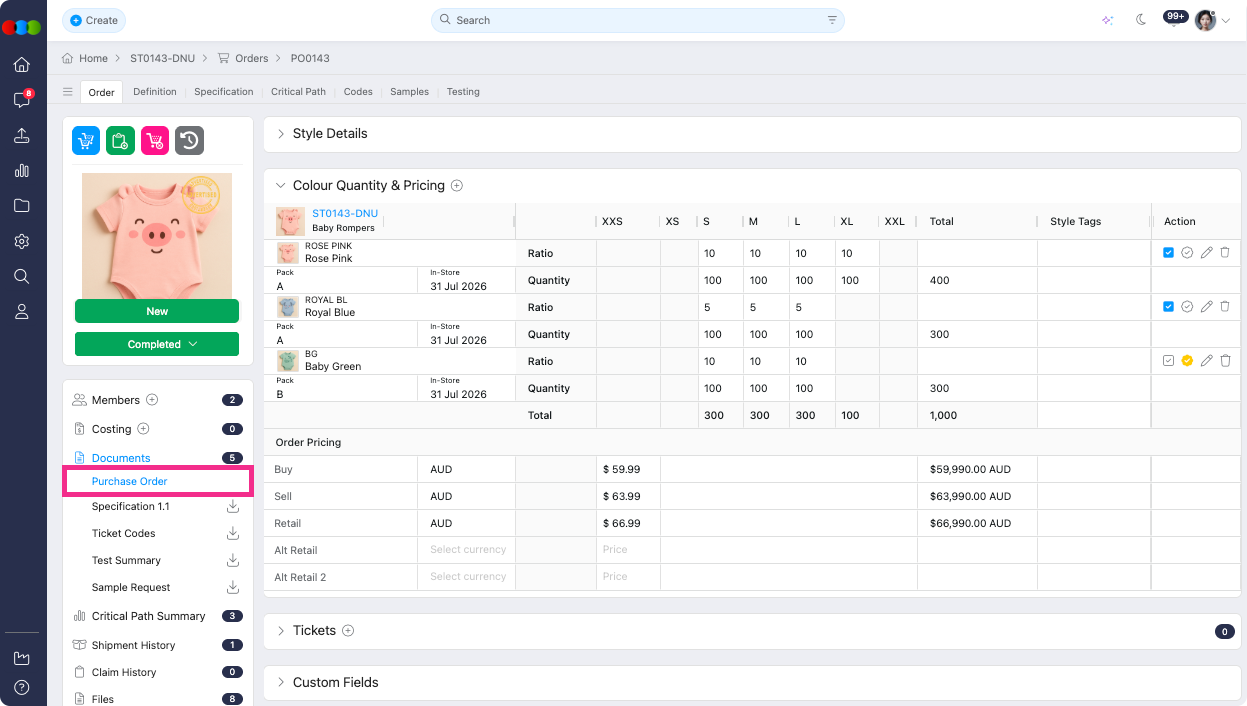
Click Push to Xero on the purchase order document. The destination is the same as a bulk push: a bill under Purchases > Bills in the connected Xero organisation.
Order > Documents > Purchase Order > Push to Xero 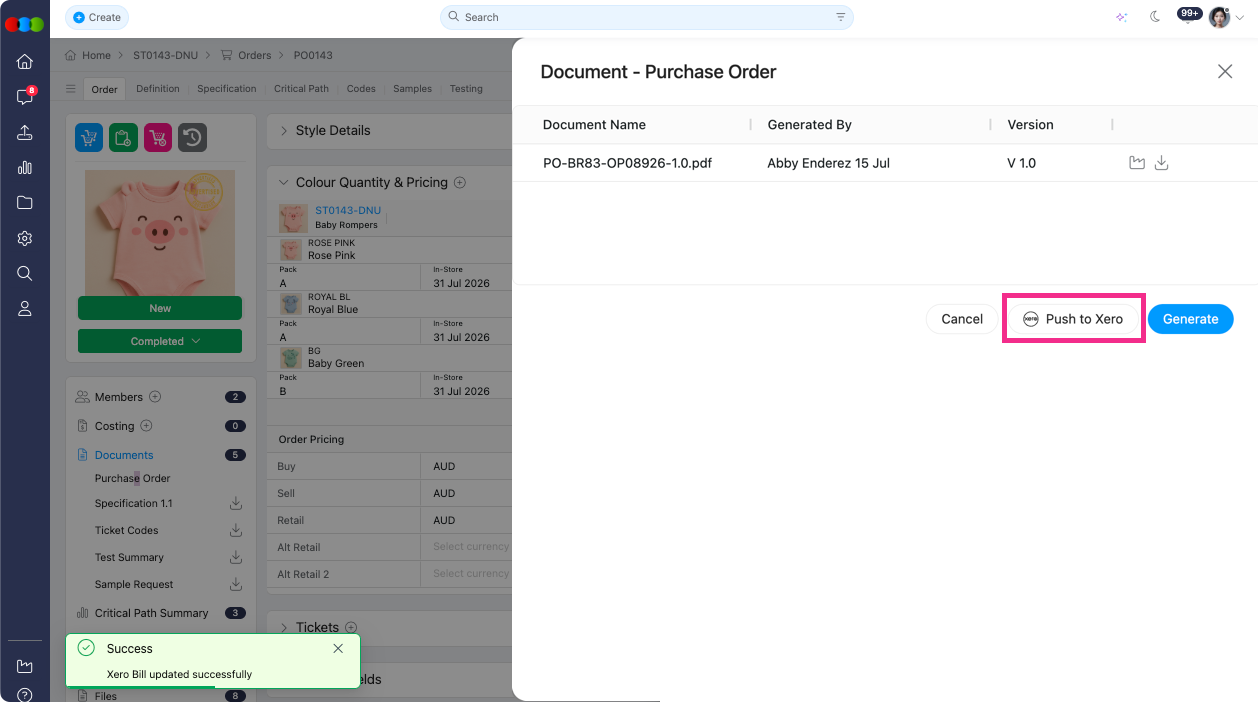
4. Confirm the bill in Xero
Sign in to the connected Xero organisation and open Purchases > Bills. Successful creates and updates appear here as bills linked to the supplier contact. Status (for example DRAFT or SUBMITTED) follows your General Settings and automation rules.
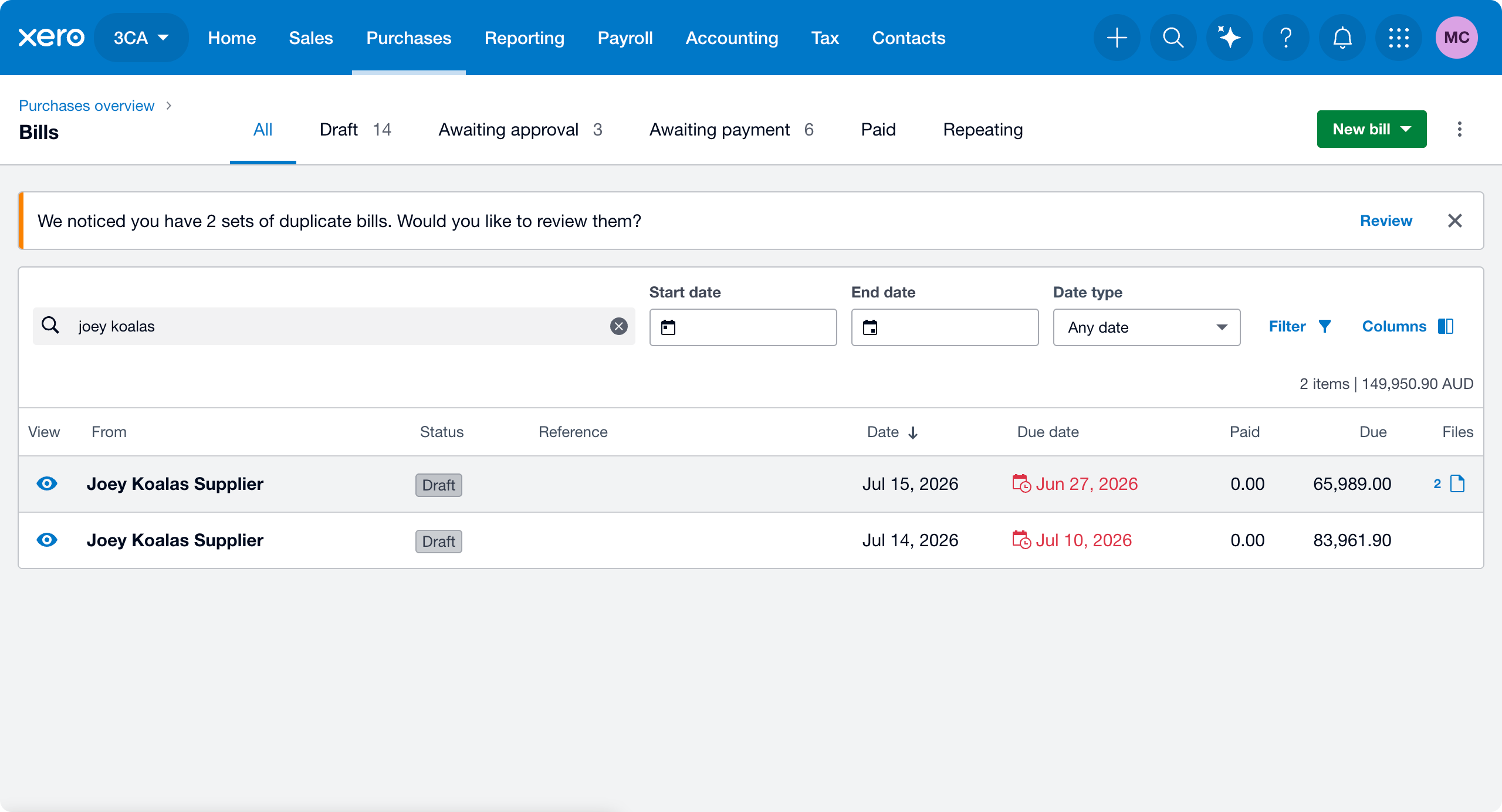
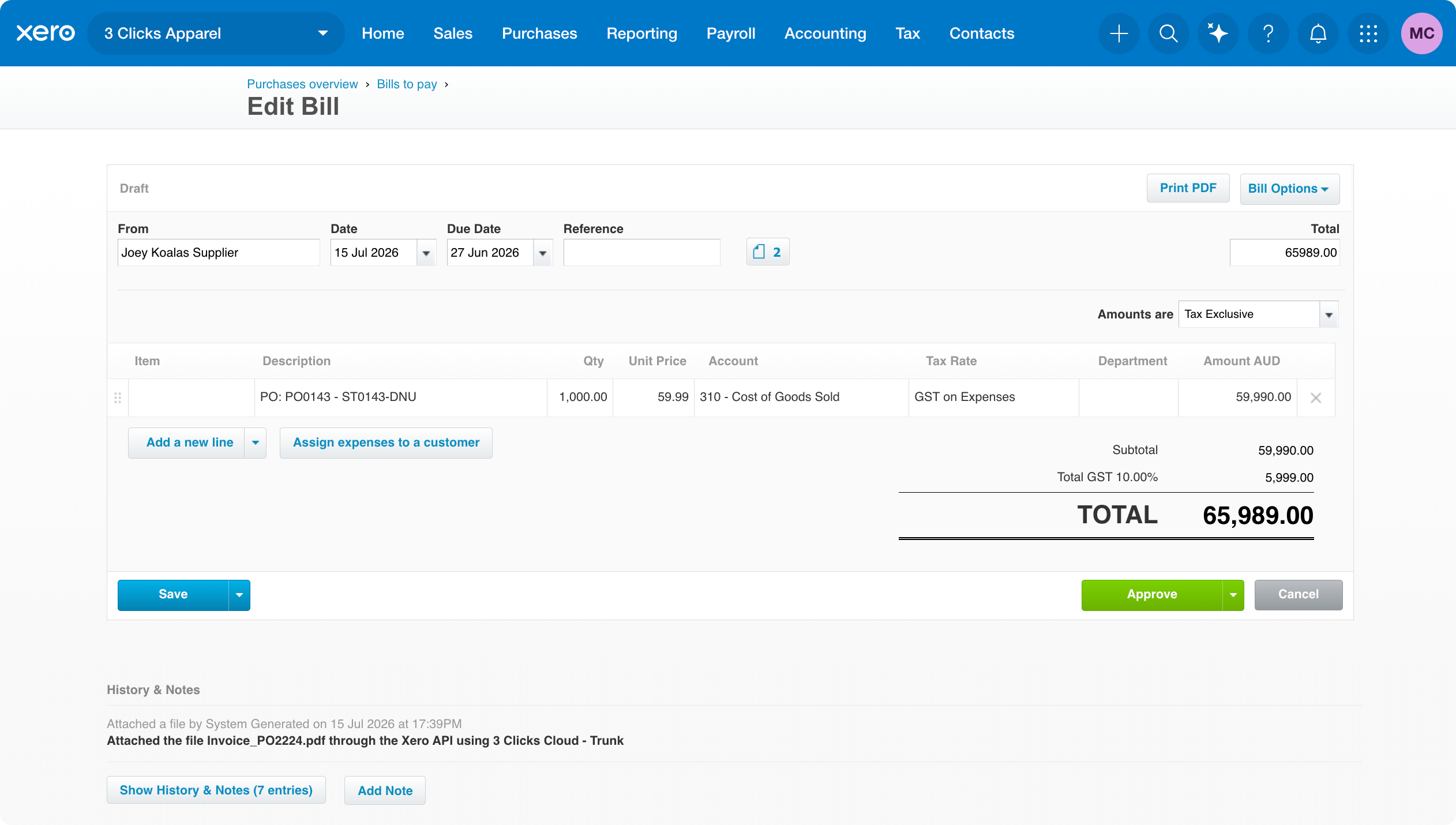
Open a bill to review contact, line amounts, and coding before finance approves it. Approve only after those details are confirmed — approved bills are not overwritten by a later push.
Sample Scenarios
Refer to these scenarios to understand how Push to Xero supports different teams. Each scenario links to related documentation in this portal.
Scenario 1: Finance preparing for the first live push
Finance confirms Xero is ready before operations push production orders.
| Step | What to do | Related documentation |
|---|---|---|
| 1 | Enable the integration, connect the correct Xero organisation, and set bill defaults. | Xero › Overview, General Settings |
| 2 | Map account codes, tax types, and payment terms. | Account & Tax Mappings, Payment Terms Mapping |
| 3 | Run Supplier Sync so active suppliers link to Xero Contacts. | Supplier Sync |
| 4 | Push a small pilot set from Order Search, then confirm bills under Xero > Purchases > Bills. | Push Orders from Order Search |
| 5 | Review Sync Activity for errors or skips before enabling automation. | Sync Activity |
Scenario 2: Buyer pushing a batch from Order Search
A buyer selects ready orders and pushes them as Xero bills in one action.
| Step | What to do | Related documentation |
|---|---|---|
| 1 | In Search > Order Search, select orders that have a supplier and are ready for finance. | Search › Order Search |
| 2 | Use Actions > Push to Xero and confirm how many orders will be pushed as bills. | Push Orders from Order Search |
| 3 | Review Created, Updated, Skipped, and Failed counts. | Push to Xero Results |
| 4 | For failures, check Sync Activity and confirm supplier links or mappings, then retry one order first. | Sync Activity |
Scenario 3: User pushing a single order from Documents
A user opens one order, generates or opens the purchase order document, and pushes that order to Xero.
| Step | What to do | Related documentation |
|---|---|---|
| 1 | Open the order and confirm the supplier and pricing are correct. | Order › Documents |
| 2 | Select Order > Documents > Purchase Order to open Document - Purchase Order. | Push from Order Documents |
| 3 | Click Push to Xero, then confirm the bill in Xero > Purchases > Bills. | After You Push |
Next Steps
- Configure Xero General Settings
- Set up Account & Tax Mappings
- Set up Payment Terms Mapping
- Review Sync Activity
- Order › Side Widgets › Documents
Related Settings
- Xero › Overview
- Xero › General Settings
- Xero › Account & Tax Mappings
- Xero › Payment Terms Mapping
- Xero › Sync Activity
- Site Settings > Company > Suppliers
- Site Settings > Company > Terms
- Site Settings > Company > Tax
Troubleshooting
Why was my order Skipped when I pushed to Xero?
Orders with no supplier, or with bills that are already approved in Xero, are skipped automatically during Push to Xero.
Steps to resolve:
- Confirm the order has a supplier assigned.
- Confirm the supplier is linked to a Xero Contact via Supplier Sync.
- Check whether a linked bill is already approved in Xero > Purchases > Bills.
- Review the row for that order in Sync Activity.
Why did Push to Xero fail?
Failures usually relate to missing mappings, an unlinked supplier, or an invalid default account code.
Steps to resolve:
- Open Sync Activity and filter by Status = Error for the order.
- Check Account & Tax Mappings and Payment Terms Mapping.
- Confirm Default Account Code for PO Bills in General Settings.
- Retry a single order, then resume bulk push once the test succeeds.
I pushed successfully—where is the bill in Xero?
Successful creates and updates appear as bills in Xero.
Steps to resolve:
- Sign in to the connected Xero organisation.
- Open Purchases > Bills.
- Search by supplier contact or recent draft/submitted bills.
- If the bill is missing, check Sync Activity for Skipped or Error on that order.
Why can’t I see Push to Xero in Actions or on the Purchase Order document?
Xero actions remain hidden when the integration is disabled, disconnected, or unavailable for your role.
Steps to resolve:
- Open Site Settings > Integrations > Xero and confirm Enable Xero Integration is on.
- Confirm the organisation is connected in General Settings.
- Refresh Order Search or the order record and check your permissions with an administrator.