Payment Terms Mapping
The Payment Terms Mapping section lets you map 3 Clicks payment Terms to Xero due date types and offset days. Accurate mappings ensure purchase order bills sync with the correct payment due date rules in Xero.
Site Settings > Integrations > Xero > Payment Terms Mapping 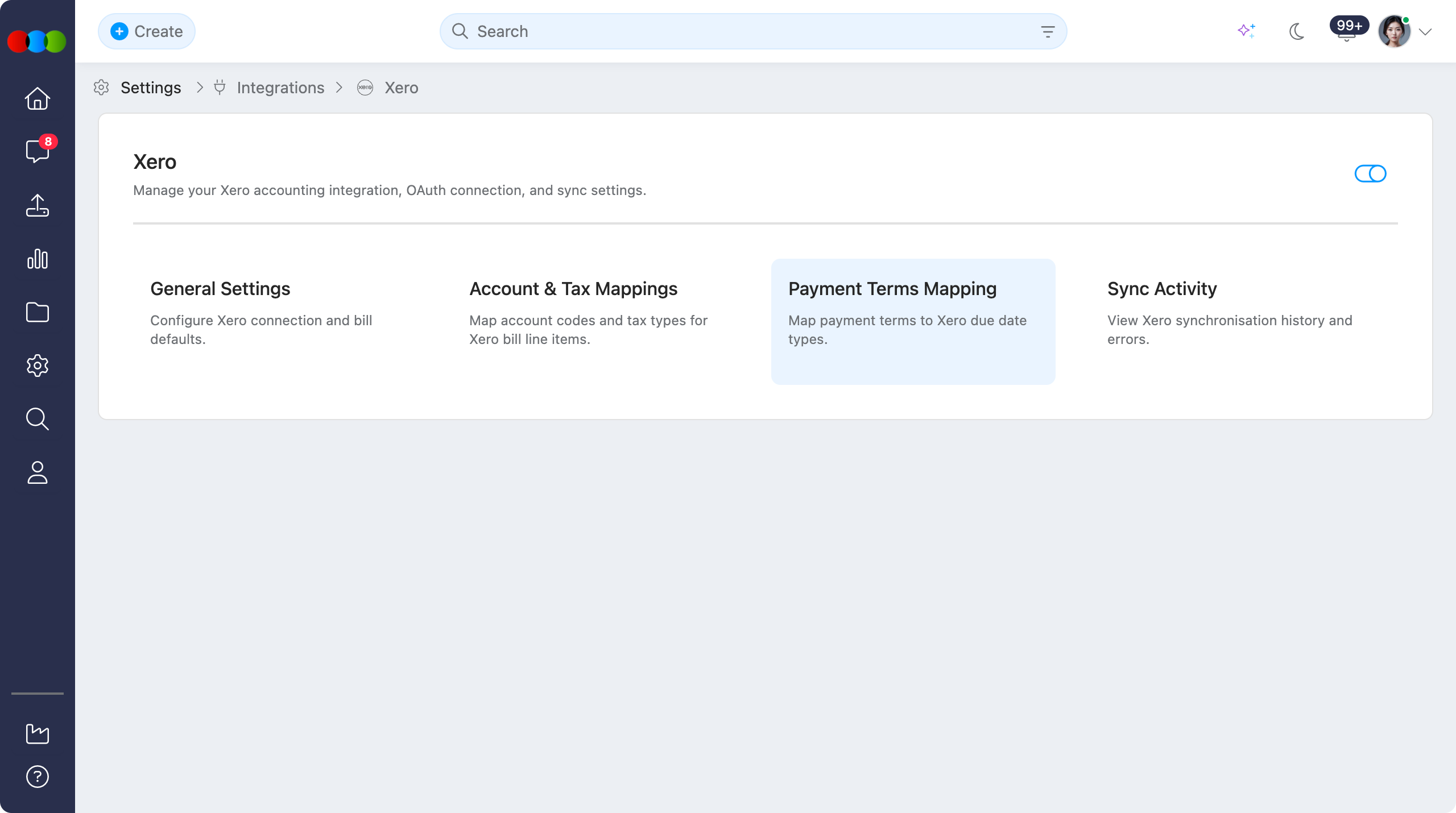
Each mapping links a Terms Label to a Xero Due Date Type and an Offset Days value. Use these records so supplier and order payment terms translate correctly when bills are created or updated in Xero. Configure mappings before production sync so finance teams review consistent due dates from the first bill push.
Payment Terms Mapping Overview 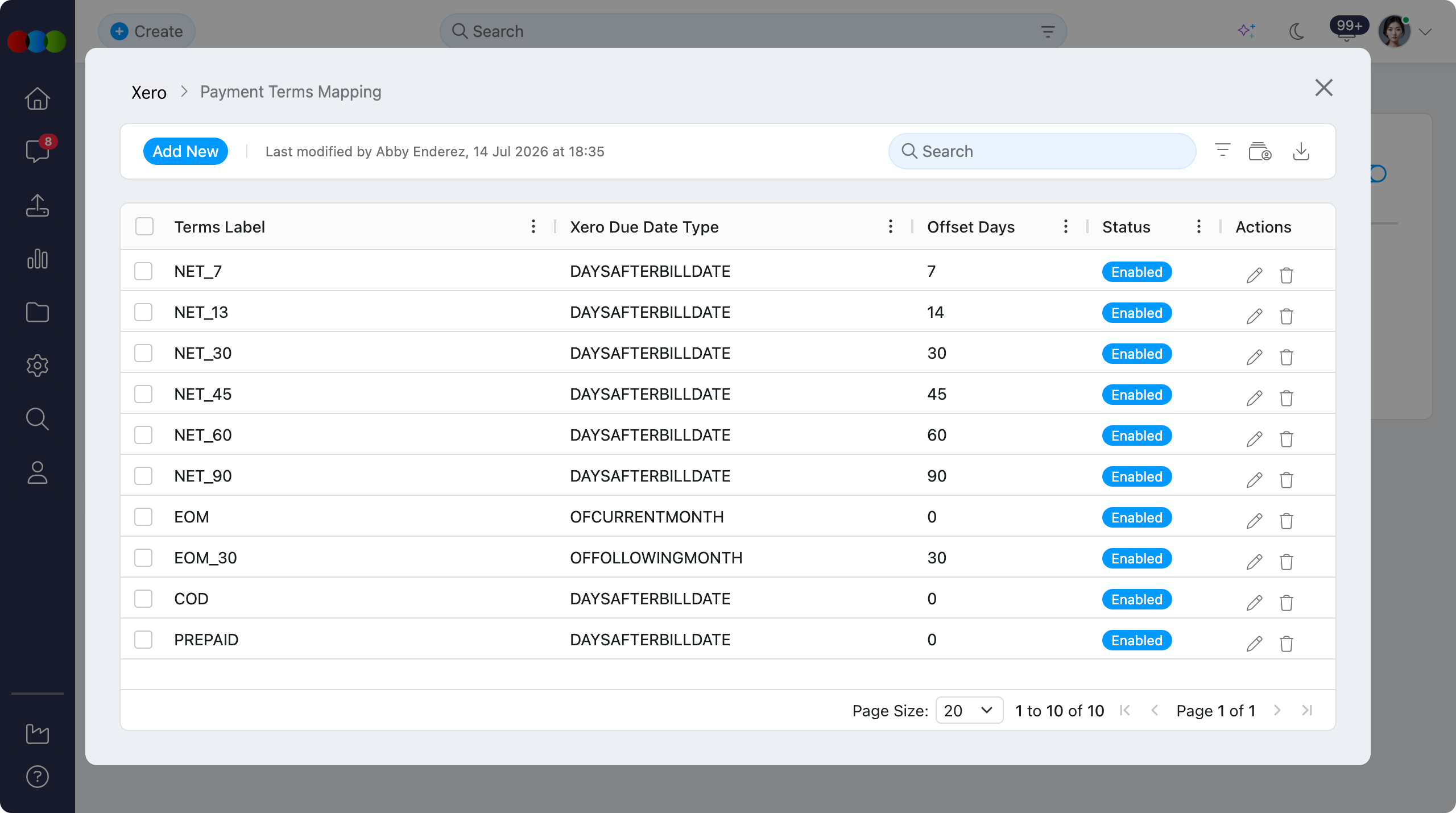
Quick Check - Before You Start
- Confirm Site Settings > Integration > Xero is enabled and connected in General Settings
- Ensure payment terms exist in Site Settings › Company › Terms before mapping them
- Note Default Payment Days in General Settings — mappings override it when a matching terms label applies
- Prefer Disable for retired mappings so historical bills and sync history stay consistent
Managing Payment Terms Mappings
You can easily add, edit, and delete payment terms mappings to keep due date rules current and organised.
Add a Mapping
- Click the Add New button in the top left corner.
- Enter the required fields in the Payment Terms Mapping pop-up.
- Click Save to add the mapping, or Save and add to save and open a blank form for another mapping.
| Field | Description |
|---|---|
| Terms Label | The payment term label to map (for example, NET_30, EOM, or COD). Align labels with values used in Site Settings › Company › Terms. |
| Xero Due Date Type | How Xero calculates the bill due date. Options: Days After Bill Date, Days After Bill Month, Of Current Month, and Of Following Month. |
| Offset Days | Number of days applied with the selected due date type (for example, 30 for net 30 days after the bill date). |
After entering the fields, use Cancel to discard, Save and add to save and create another, or Save to save and close the pop-up.
Edit a Mapping
- Click the pencil icon next to the mapping you wish to modify.
- Update the terms label, Xero due date type, offset days, or any other details.
- Click Save to apply your changes.
Delete Mappings
Common Pitfall
Deleting a mapping can cause bill sync to fall back to Default Payment Days in General Settings, or to use an incorrect due date if no default is set. Disable the mapping when you need to retire it but keep history intact.
- Single Delete: Click the trash can icon next to a mapping and confirm the action to remove it.
- Bulk Delete: Select the checkboxes for multiple mappings, then click the delete button that appears at the top of the table to remove them all at once.
Toolbar Actions
The toolbar provides several options for managing your payment terms mapping list:
- Filter: Toggle the view between Enabled and Disabled mappings.
- Export: Download the full list of payment terms mappings in
.xlsxformat. - History: Export a complete change log for auditing and review purposes.
Customising the Table View
The payment terms mapping table can be customised to suit your preferences using the following controls:
| Feature | Description |
|---|---|
| Sort by | Organise the mapping list alphabetically or by the date it was last modified. |
| Pin Column | Lock important columns in place for consistent visibility while scrolling. |
| Autosize Column | Automatically adjust column widths to fit the content. |
| Show/Hide Columns | Choose which columns to display to create a tailored view. |
| Reset Columns | Restore the table to its default layout. |
Pro tips
- Match Terms Labels Exactly: Use the same labels as Site Settings › Company › Terms (for example,
NET_30orEOM) so sync can resolve the correct mapping. - Choose the Right Due Date Type: Use Days After Bill Date for net terms, Of Current Month for end-of-month style terms, and Of Following Month when due dates fall in the next calendar month.
- Archive, Don't Delete: Disable unused mappings instead of deleting them. This preserves sync history and audit trails.
- Set a Safety Net: Keep Default Payment Days configured in General Settings for cases where no specific mapping applies.
Related Actions
- Xero › Overview
- Xero › How Push to Xero Works
- Xero › General Settings
- Xero › Account & Tax Mappings
- Xero › Sync Activity
- Site Settings › Company › Terms
Troubleshooting
Why are bills using the wrong payment due date in Xero?
The terms label on the order or supplier may not match a mapping, or the due date type and offset may be incorrect.
Steps to resolve:
- Open Site Settings › Integration › Xero › Payment Terms Mapping
- Confirm a mapping exists for the Terms Label used on the order or supplier
- Check Xero Due Date Type and Offset Days against your expected payment rule
- Review Default Payment Days in General Settings if no mapping applies
Why is a payment terms mapping missing from the list?
It is likely Disabled.
Steps to resolve:
- Open Site Settings › Integration › Xero › Payment Terms Mapping
- Use Filter to show Disabled records and enable if it should be selectable again
Why did a bill sync fail or warn about payment terms?
Unmatched or incomplete payment terms mappings can block or distort due date calculation during bill sync.
Steps to resolve:
- Add or correct the mapping for the terms label in use
- Confirm the label aligns with Site Settings › Company › Terms
- Retry the sync and review the outcome in Sync Activity