Sync Activity
The Sync Activity section lets you view Xero synchronisation history and errors. Use this audit trail to confirm that suppliers, orders, attachments, and connection tokens synced successfully, and to investigate failures before retrying.
Site Settings > Integrations > Xero > Sync Activity 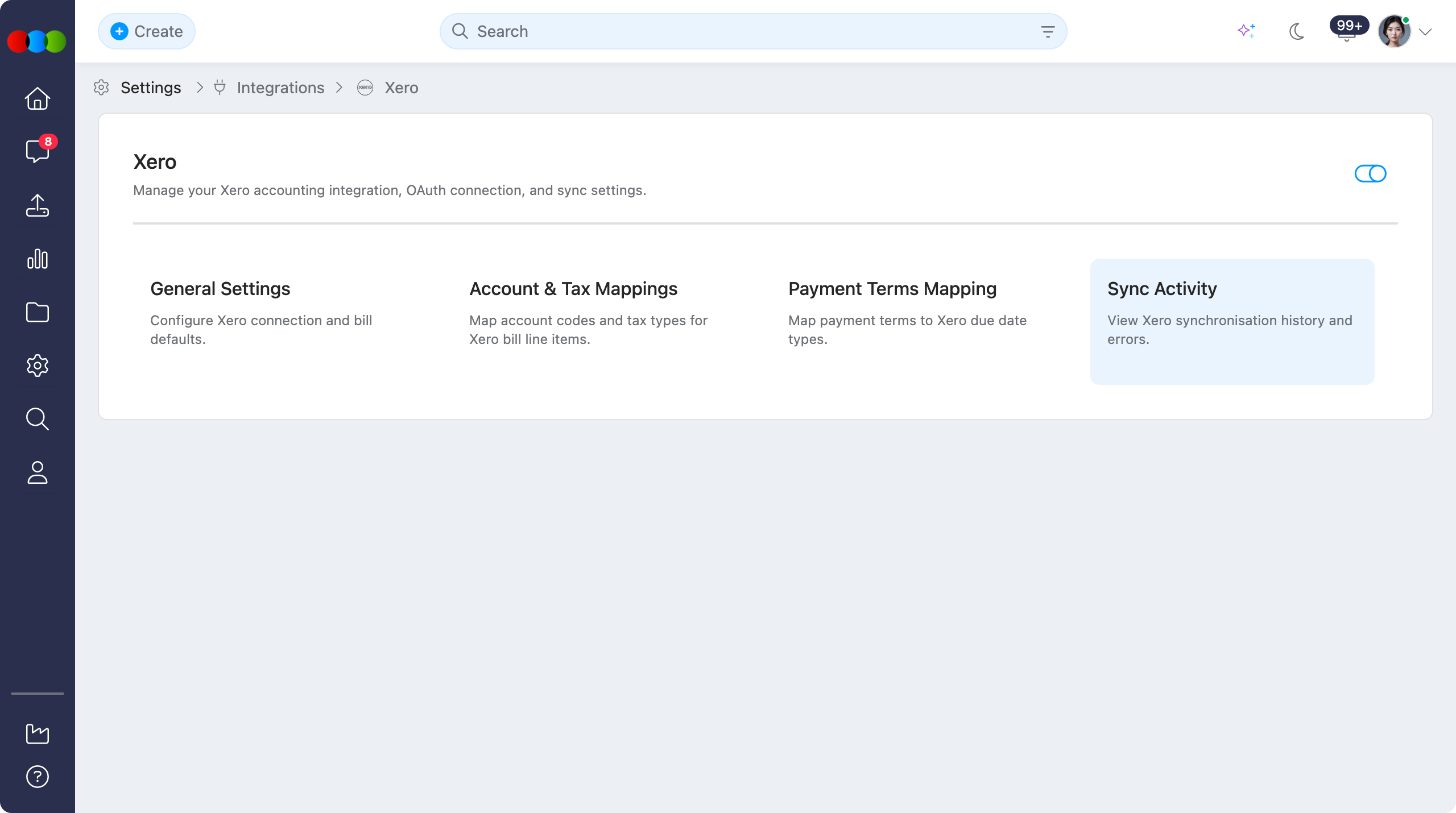
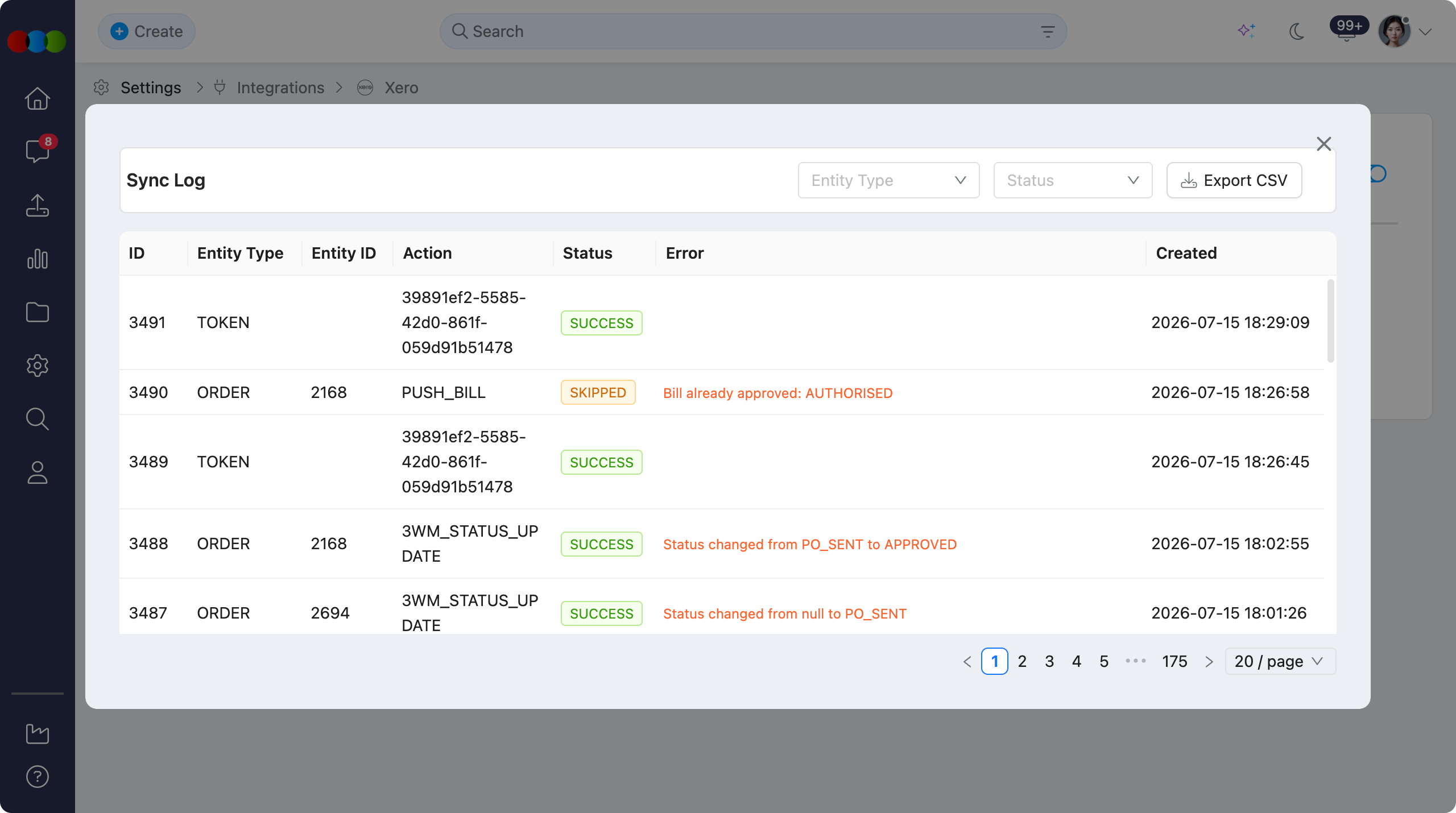
Each row records a sync event with the entity involved, the action attempted, the outcome, and any error message returned. Review Sync Activity after supplier sync, bill push, or mapping changes so finance and admin teams can resolve issues quickly and keep the Xero connection healthy.
Quick Check - Before You Start
- Confirm Site Settings > Integration > Xero is enabled and connected in General Settings
- Have the order, supplier, or attachment ID ready when filtering for a specific failure
- Prefer Export CSV when sharing sync history with support or finance for review
- Resolve mapping issues in Account & Tax Mappings or Payment Terms Mapping before retrying failed syncs
Viewing Sync Activity
- Open Site Settings > Integration > Xero.
- Select Sync Activity.
- Review the sync history table. Use filters to narrow by entity type or status, then open any Error message for the failure detail.
You can easily filter and export sync records to keep investigation and audit workflows organised.
Sync Activity Columns
The sync activity table includes the following columns:
| Column | Description |
|---|---|
| ID | Unique identifier for the sync activity record. |
| Entity Type | The type of record synchronised. Values: Order, Supplier, Attachment, or Token. |
| Entity ID | The 3 Clicks identifier for the related order, supplier, attachment, or token event. |
| Action | The synchronisation action that was attempted (for example, create, update, or refresh). |
| Status | Outcome of the sync. Values: Success, Error, or Skipped. |
| Error | Error detail when status is Error. Empty for successful or skipped events where no message applies. |
| Created | Date and time the sync activity record was created. |
Toolbar Actions
The toolbar provides several options for reviewing your sync history:
- Filter: Narrow the list by Entity Type (Order, Supplier, Attachment, Token) and Status (Success, Error, Skipped).
- Export CSV: Download the sync activity list in
.csvformat for auditing, support, or finance review.
Common Pitfall
A Skipped status is not always a failure. It often means the sync was intentionally bypassed (for example, the integration was disabled, the record was already linked, or prerequisites were not met). Check the row details and related settings before treating every non-success as an error.
Pro tips
- Start with Errors: Filter by Status = Error first when diagnosing a broken sync, then widen to Skipped if expected events are missing.
- Use Entity Type: Filter by Order, Supplier, Attachment, or Token to isolate bill push failures from contact sync or connection refresh issues.
- Export for Support: Use Export CSV after reproducing an issue so support receives the exact ID, entity, action, status, and error text.
- Fix Mappings, Then Retry: Repeated order or bill errors often point to missing account, tax, or payment terms mappings — correct the mapping, then retry one record and confirm Success here.
Related Actions
- Xero › Overview
- Xero › How Push to Xero Works
- Xero › General Settings
- Xero › Account & Tax Mappings
- Xero › Payment Terms Mapping
- Site Settings › Company › Suppliers
Troubleshooting
Why are there no sync activity records?
Sync Activity only lists events after the Xero integration has run a synchronisation. If the connection is new or sync has never been triggered, the table may be empty.
Steps to resolve:
- Open General Settings and confirm Xero is connected
- Run Supplier Sync or push a test order to Xero (see How Push to Xero Works)
- Return to Sync Activity and refresh the list
Why did a sync show Error?
The Error column usually points to a validation, mapping, permission, or Xero API issue for that entity.
Steps to resolve:
- Open Site Settings › Integration › Xero › Sync Activity
- Filter by Status = Error and note the Entity Type, Entity ID, and Error message
- Correct the related mapping or record (for example, account code, tax type, or payment terms)
- Retry the sync for that record and confirm the new row shows Success
Why was a sync Skipped?
Skipped means the platform did not complete the action, often by design rather than because of an API failure. For bill push, orders with no supplier or already-approved bills are skipped — see How Push to Xero Works.
Steps to resolve:
- Confirm Enable Xero Integration is on and the organisation is connected in General Settings
- Check whether the supplier or order already has a linked Xero record
- Review automation and sync settings that may exclude the record
- Retry after prerequisites are met, then filter Sync Activity by the Entity ID
How do I share sync history for an audit or support ticket?
Steps to resolve:
- Open Site Settings › Integration › Xero › Sync Activity
- Apply Entity Type and Status filters for the period you need
- Click Export CSV and attach the file to your audit pack or support request