Notifications
The Notifications is your in-app history of alerts for activity on applications you are a member of. Each row summarises an event (for example an order date change, a new file, or a mention). Use it to see what changed, who changed it, and to jump to the related application context. Which new events appear here is controlled by your personal toggles in Settings > Notifications; global options there also affect real-time alerts and email copies.
Quick Check - Before You Start
- You only see notifications for applications where you are a member. You will not get rows for applications you cannot access.
- To change what creates new notifications (or email), open Settings > Notifications—the centre is for viewing and clearing items, not for editing subscription rules.
- If Do not disturb is on, every channel is paused: in-app prompts and email copies are both held until you turn it off. Existing rows in the centre remain visible.
- Ensure your Settings > Profile email address is correct if you rely on notification email.
Open the Notifications
- Sign in to 3 Clicks Cloud.
- Open the Notifications from the top page, alongside Recent, Dashboard, and Calendar (when your role includes calendar access).
- New or unread items are visually distinct from items you have already read.
Note
If the list is empty, either no activities have occurred yet, or your Settings > Notifications toggles are turned off for the activity you expect. Past rows still appear after you turn off the notifications in settings.
Read and Unread Rows
| State | What you see |
|---|---|
| Unread | Rows are highlighted (for example with a blue row background) so you can spot items you have not reviewed. |
| Read | Rows appear with a plain (white) background after you have opened or acknowledged them. |
Exact colours and styling may differ slightly by theme, but the pattern is the same: emphasis is on unread items.
Columns
Columns are listed below. Labels can vary slightly by event type.
| Column | Description |
|---|---|
| Image | Thumbnail or icon associated with the application or record (for example style or order imagery when available). |
| Application | The application context—for example Order, Style, Costing, so you know which record the event belongs to. |
| Updated By | The user or staff member who triggered the change. You can click the name to open that person’s profile. |
| Description | A short summary of the change or actions (for example status move, date change, or mention). Application item numbers or identifiers appear here so you can match the row to a specific line or record. |
| Comments / Files | Controls for this kind of notification opens a drawer (or side panel) showing the application’s comments and files sections so you can respond without navigating away from notifications page. 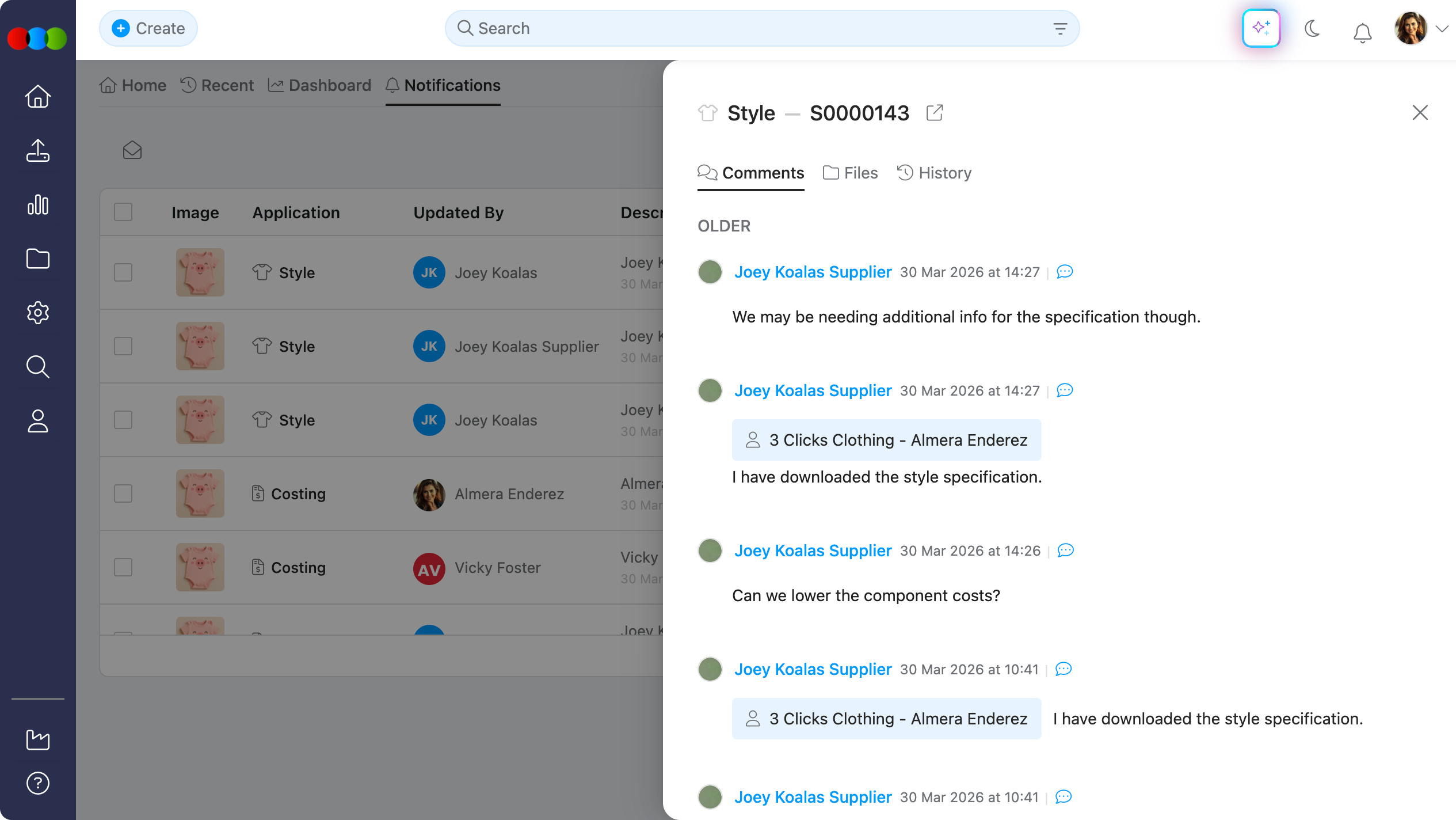 |
Actions you can take
- Open an item — Use the row or any link provided to go to the related application or record where the change applies.
- Review mentions and discussion — When the event relates to comments or files, use the row to open the drawer for quick access.
- Delete a notification — You can remove a notification when you no longer need it in the list. Deleting does not undo the underlying business change on the application, and it does not change your Settings > Notifications toggles.
- Distinguish users — Click Updated By where supported to see who made the change.
Common Pitfall
Turning off a notification type in Settings > Notifications stops new alerts of that kind (and usually related email, depending on Email all notifications). It does not always clear rows that are already in your centre. Delete individual rows if you want a clean list, or leave them as historical context.
Settings > Notifications
Personal preferences in Settings > Notifications decide which events generate notifications for your account and how they are delivered.
| Preference | Effect on the notification centre |
|---|---|
| Per-event In-App checkbox (Comments, Files, Order, etc.) | When In-App is ticked for an event, matching activity on applications you belong to can create new rows here. When it is cleared, you should not receive new in-app rows for that event. |
| Per-event Email checkbox | Controls only whether an email copy is sent for that event. It does not change what the centre shows; in-app rows are governed by the In-App checkbox on the same row. |
| Do not disturb | Pauses every channel—both In-App prompts and Email copies—while it is on. Existing items in the centre remain visible, and you can still open history. |
| Select All (per column on the master row) | Quickly tick or clear all In-App or Email boxes at once. The two columns are independent, so clearing Email does not affect what you see in the centre. |
For the full catalogue of notification names (what each toggle means), use the tables under Application Notifications on Settings > Notifications. The categories there are:
- Comments — Mention; Application comments
- Files — Files and attachments
- Members — Status updates; Assigned as member
- Style — Sample report completed
- Claim — Claim created
- Compliance — New items, breaches, expiring items
- Costing — Costing completed; Supplier costing quote
- Order — Dates, prices, status transitions, quantities, supplier uploads, compliance warnings, etc.
- Sales order — New sales order; Customer comment; Customer file upload
When in doubt whether an event should appear, find the matching row in that page’s tables, confirm In-App is ticked, confirm you are a member of the application, then check Do not disturb. If you also expected email, confirm the Email checkbox is ticked on the same row.
Related Settings
- Settings > Notifications — subscribe or unsubscribe per event with independent In-App and Email checkboxes; Do not disturb; per-column Select All
- Settings > Profile — email address and identity used for some deliveries and mentions
Related actions
- Supplier-facing preferences (portal UI may differ): Supplier Portal > Manage Notifications
Troubleshooting
Why is my notification centre empty?
There may be no recent qualifying events, you may not be a member of the relevant applications, or the relevant types may be off in Settings > Notifications.
Steps to resolve:
- Confirm you are a member of the application where you expect activity.
- Open Settings > Notifications and enable the categories you care about (for example Order or Comments).
- Ask a colleague to trigger a known test (for example a mention) if appropriate for your organisation.
I disabled a toggle but I still see old notifications.
The centre keeps history for items that were already raised. Disabling a type prevents new rows of that type; it may not remove existing ones.
Steps to resolve:
- Delete rows you no longer need from the centre.
- Confirm the toggle stays off if you do not want further events of that type.
I get email but nothing appears in the centre (or the opposite).
The In-App and Email checkboxes are independent for each event, so it is possible to have one ticked and the other cleared. Do not disturb affects both channels at the same time.
Steps to resolve:
- Open Settings > Notifications and check both checkboxes on the relevant event row.
- Confirm your Settings > Profile email if mail is wrong or missing.
- See also the email and “real-time” items in Settings > Notifications — Troubleshooting.
Comments or files drawer does not open from a row.
The drawer is available only for event types that relate to comments or files, and your permissions on the application must allow that view.
Steps to resolve:
- Open the application from the row and use the main Comments or Files areas if the shortcut fails.
- Confirm your role includes access to that application’s side widgets or sections.
- Refresh the session or try another browser if the panel appears stuck.