Codes
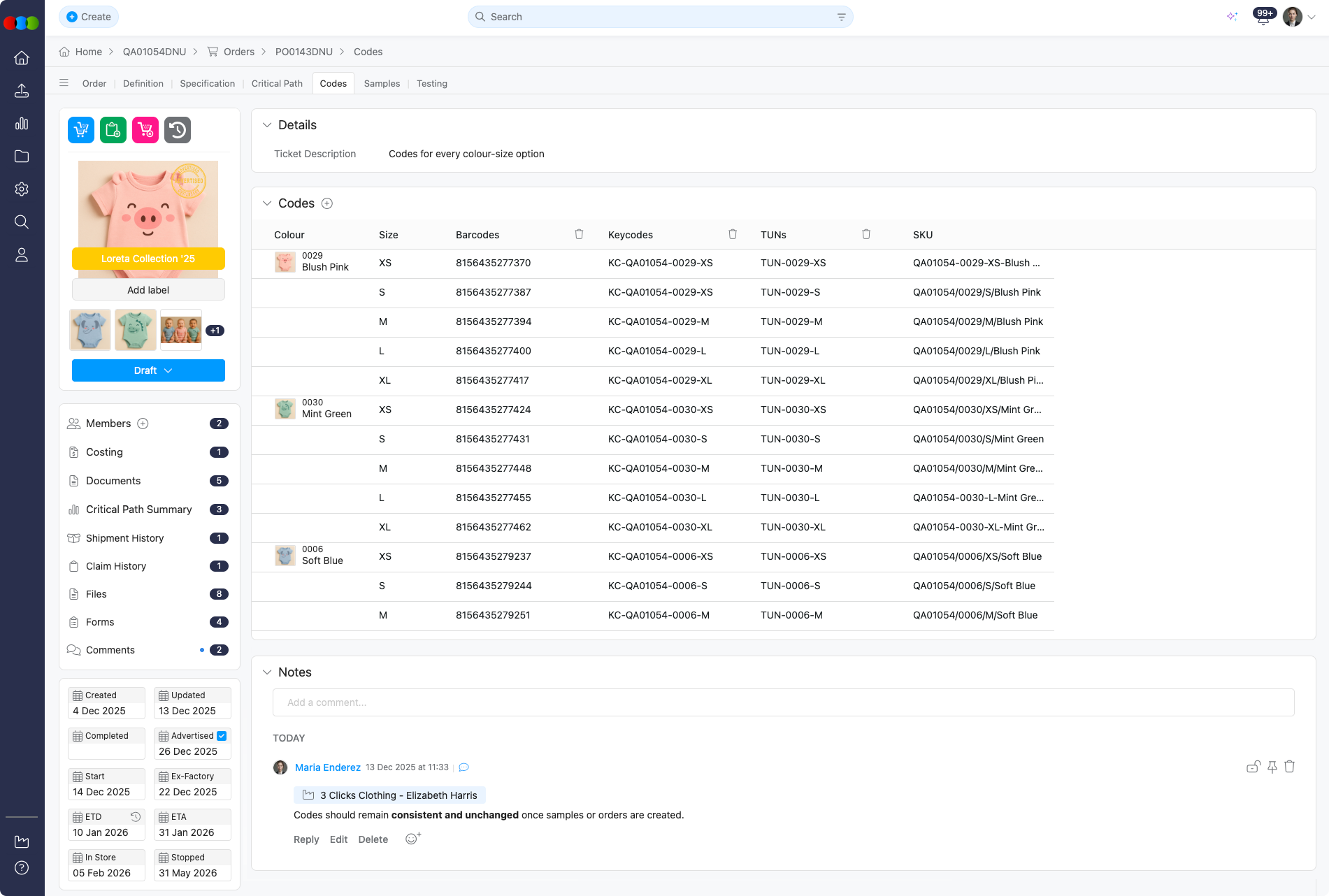
The Codes section in the Order module enhances traceability and integration with external systems, such as retail or logistics platforms. It displays critical identification codes: Barcode, Keycode, TUN, and SKU for each selected style and colourway in an order.
Orders must reference colour packs where pack barcodes are in use on the style. There is a separate column per colour pack on Order > Codes alongside existing unit code columns, so each pack’s barcode and quantities can be tracked independently at order level.
This section automatically populates from the associated style’s Codes tab data (Unit Codes and Pack Barcodes). When a new order is created, the system copies preset codes defined on the linked style. Unit codes appear only if a colourway has been selected in Order > Colours & Pricing and the style defines those codes; pack barcode columns follow the style’s pack configuration and size scale.
Quick Check - Before You Start
- Add and select colourways in Order > Colours & Pricing so code rows can appear.
- Confirm the linked style has Style > Codes populated under Unit Codes (and Pack Barcodes if you use pack-level barcodes); empty definitions will not show here.
- Ensure the style’s Size Scale and packs match what you expect for pack barcode columns; see Site Settings > Style > Size Scales.
Fields and Behaviour
These codes help uniquely identify and track products across design, production, logistics, and retail systems. Each code serves a distinct purpose and may be used by different teams or external partners.
| Code Type | Description |
|---|---|
| Barcode | A machine-readable, scannable identifier (e.g., EAN/UPC) used for inventory management, warehousing, shipping, and point-of-sale systems. Barcodes are typically required for logistics and retail operations. |
| Keycode | An internal or retailer-specific reference code used to identify a product variant across design, costing, sampling, and retailer systems. Keycodes help ensure the correct style, colour, and size are referenced throughout the product lifecycle. |
| TUN | A Trade Unit Number (TUN) used within supply chain and operational workflows to track product units for production planning, packing, and distribution. TUNs support internal coordination and traceability. |
| SKU | A Stock Keeping Unit (SKU) that uniquely identifies a sellable product variant. The SKU is always visible and cannot be hidden, as it is the primary reference used across the platform and downstream systems. |
Conditions for Displaying Codes
- A colourway must be selected in Order > Colours & Pricing.
- The style must include predefined codes.
If either of these conditions is not met, the codes will not appear in the order.
Customising Displayed Codes
You can customise which code columns are visible in the order view:
| Step | Action |
|---|---|
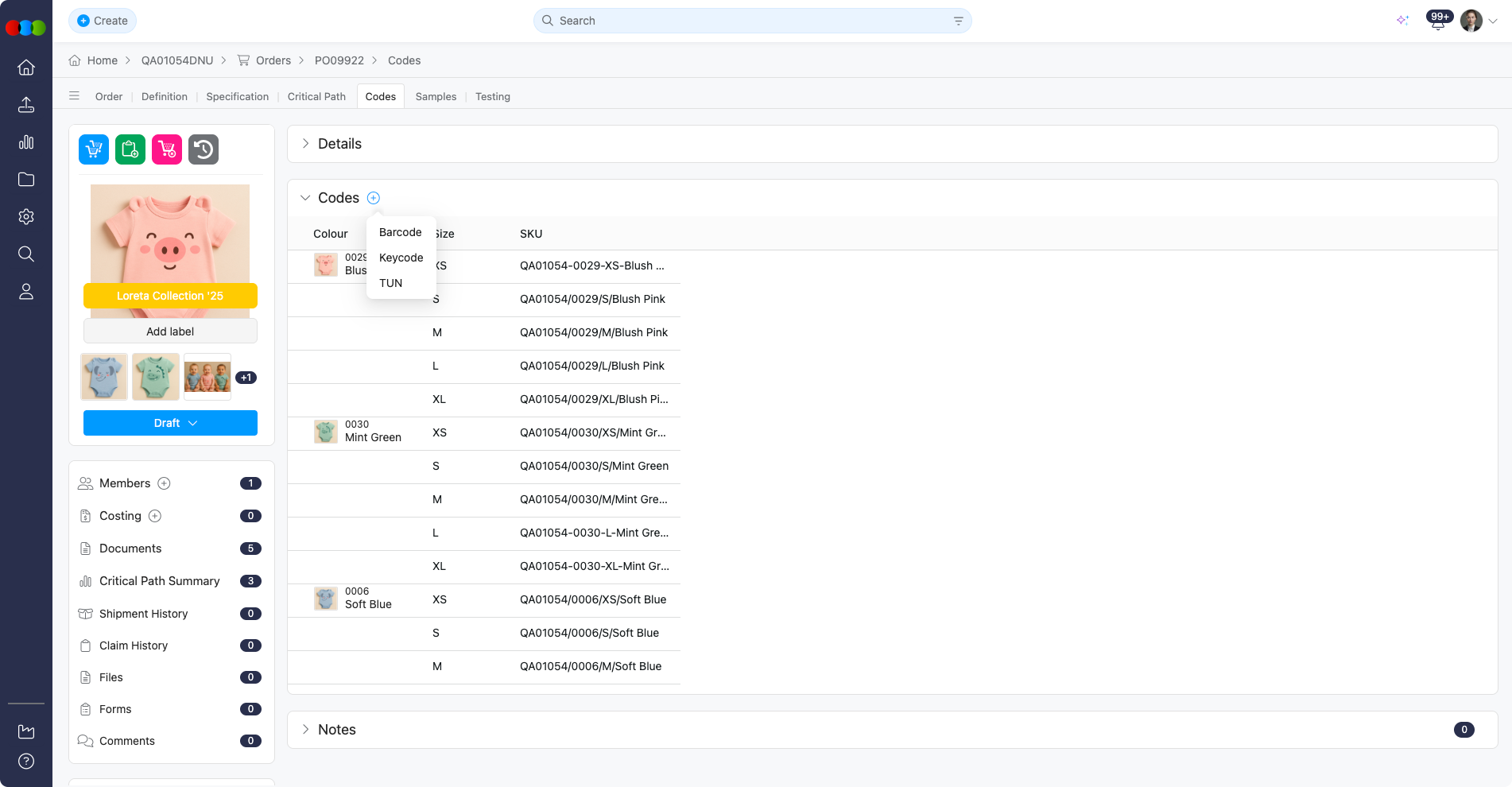
| 1 | Click the plus icon (+). |
| 2 | Select which codes to display: • Barcode • Keycode • TUN Note: The SKU code column is always visible and cannot be hidden. |
Colour packs and pack barcode columns
When the linked style defines Pack Barcodes, Order > Codes displays one column per colour pack (aligned to the style’s packs and size scale). Use those columns to associate the order with the correct pack barcode rows, consistent with Style > Codes.
Adding Multiple Keycode
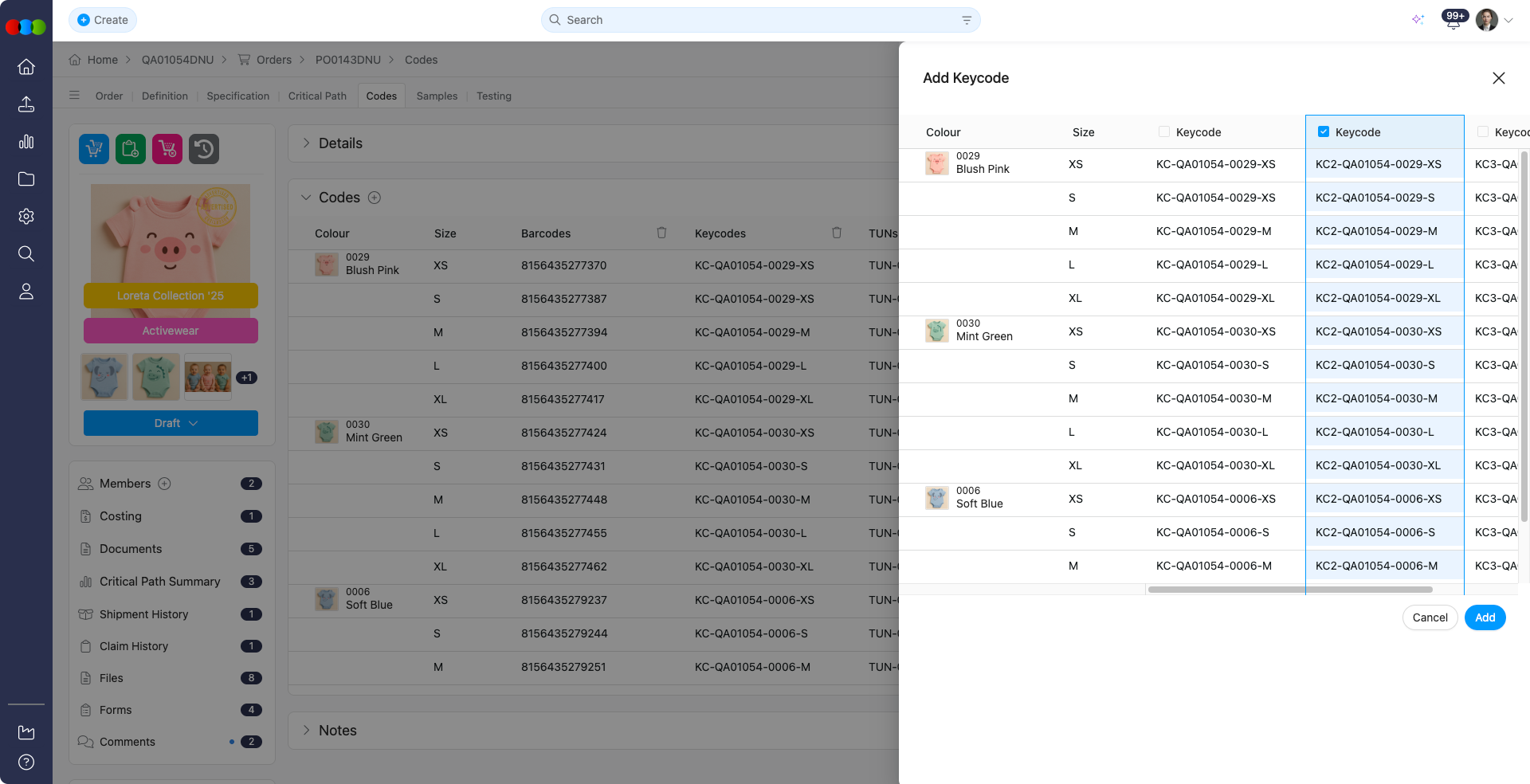
You can select multiple Keycodes to display in the order view, depending on how they are configured in Style > Codes (Unit Codes).
| Step | Action |
|---|---|
| 1 | Click the plus icon (+). |
| 2 | Select Keycode from the options. |
| 3 | Choose which column to add from the pop-up window. These are sourced from the codes set in Style > Unit Codes. |
Removing Code Columns
You can simplify your view by removing unwanted code columns:
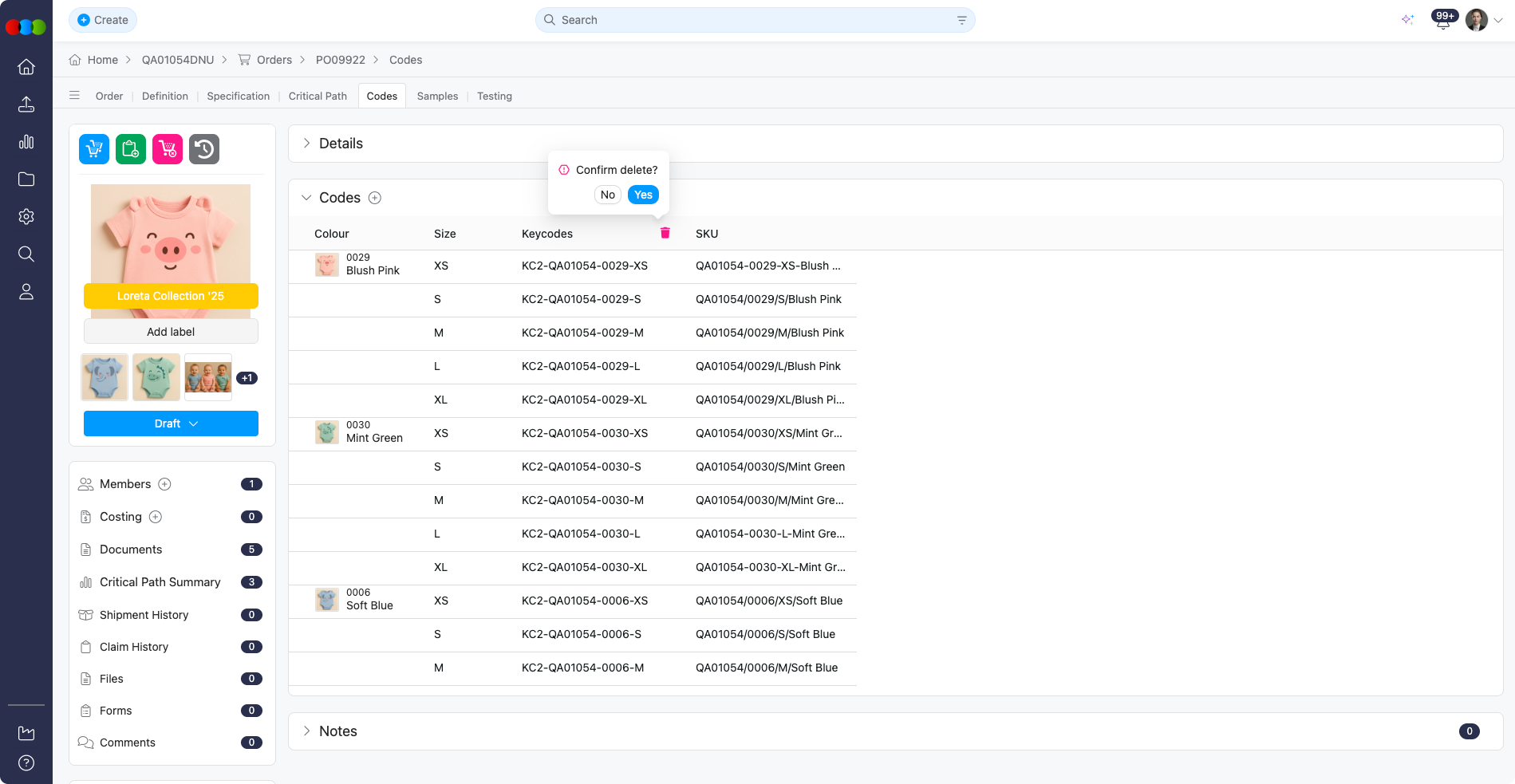
- Click the trash icon on a column to hide it.
- This action does not delete the code from the style; it only hides it from the current order.
- Columns can be re-added if needed.
Tip
- Ensure style codes are maintained consistently for reuse across multiple orders.
- Use code customisation to tailor views for different departments or workflows (e.g., logistics vs. merchandising).
Related Actions
- Style Codes (Unit Codes and Pack Barcodes)
- Configure Order Colour & Pricing
- Order › Documents › Ticket Codes (includes Pack Barcodes tab)
- Size Scales
Troubleshooting
Why are no codes showing for my order?
Codes only display when a colourway is selected and the style already defines those codes under Unit Codes (and pack columns only when Pack Barcodes exist on the style).
Steps to resolve:
- Open Order > Colours & Pricing and ensure a colourway is selected.
- In Style > Codes, expand Unit Codes and add or verify Barcode, Keycode, TUN, or other codes as needed.
- For pack barcode columns, confirm Pack Barcodes on the style includes rows for your colours and that Size Scales packs are configured.
Why do I not see a column for every colour pack?
Pack-related columns follow the linked style’s Pack Barcodes grid and Size Scale. If packs were not added on the style, or the order view hides certain columns, not every pack may appear.
Steps to resolve:
- Open Style > Codes > Pack Barcodes and verify packs exist per colour.
- On the order, use plus (+) to show hidden code columns if your workflow supports it.
Why can I not hide the SKU column?
SKU is always visible by design because it is the primary product reference across the platform.
I removed a column with the trash icon—did I delete the code?
No. Hiding a column only changes this order’s view. Re-add columns with the plus (+) icon; underlying style codes are unchanged.