Order Definition
The Definition tab in the Order application provides a comprehensive, read-only view of style-specific components as defined in Style > Definition. It gives you access to key construction and design information for the selected style.
Read-Only Tab
This tab is read-only. Component rows are automatically synchronised from Style > Definition. Once the order status is Completed, further component updates no longer flow through to this order’s definition or documents.
This section is only available for single-style orders. It serves as a quick reference for production, development, and QA teams by consolidating all critical style attributes in one place.
The Definition tab mirrors the configurable Definition tab from the linked style:
| Definition | Description |
|---|---|
| Fabric | The primary textile materials used for the main body of the style. |
| Trim | Supplementary items such as zips, buttons, threads, and drawcords. |
| Branding | Logos, patches, and other elements that identify the brand. |
| Labels | Includes main labels, care labels, and size labels. |
| Details | Special design features or embellishments that are part of the style. |
| Make | Specific instructions or components related to the garment's construction and assembly. |
| Production | Components and instructions for the manufacturing process, including packaging and finishing. |
| Material | A broad category for any raw materials used in the style. |
| Packaging | All materials used for packing the finished garment, such as hangers, polybags, tissue paper, and shipping cartons. |
Admin Configuration Required
Which sections appear for a style are configured in Site Settings > Style > General Settings > Definition. The order shows the same sections as Style > Definition for the linked style.
Quick Check - Before You Start
- Open a single-style order; the Definition tab is not available for bulk orders.
- Confirm the Definition sections you need are enabled for the style in Site Settings > Style > General Settings > Definition.
- Remember the tab is read-only for style data—edit the style’s Definition or, for library-linked components, Component > Details; both paths keep this view up to date until the order is Completed.
- For Add Inventory, confirm Components > Inventory is set up and you understand that changes sync with Components > Inventory.
Available Fields
Alongside each section’s rows, the same column layout as Style > Definition applies where configured. Component Colour Tags is read-only: it shows tags linked to the Component Colour for library-sourced components, as set on the style (and ultimately from the Component Library). Edit component colours and their tags in Style > Definition or Component > Details as per your workflow.
| Column | Description |
|---|---|
| Colourway | Specifies which product colour variant the component applies to. |
| Code | The unique identifier for the component, which links to the Component Library if it exists. |
| Image | A visual reference for the component. |
| Description | Detailed information about the component. |
| Label | A short, descriptive name for the component. |
| Placement | Instructions on where the component is located on the garment. |
| Colour | The specific colour of the component. |
| Tags | Keywords used for searching and filtering components. |
| Component Colour Tags | Tags linked to the Component Colour on the library record. For library-sourced rows, values match Style > Definition and are maintained from the component library, not edited on the order. |
| Quantity (Qty) | The number of units required per garment. Decimal values are supported and preserved (e.g., 1.5, 2.75). Values are not automatically rounded up. |
| Source | Indicates where the component is sourced from (e.g., Factory, Internal, Component Supplier). |
How Definition Is Updated
You do not add or remove definition rows on the order. Content is copied from Style > Definition and, for linked library components, by Component > Details. To change fabrics, trims, quantities, or other definition data, update the style (or the component record) and return to this tab after save.
Note
This tab is not available for bulk orders.
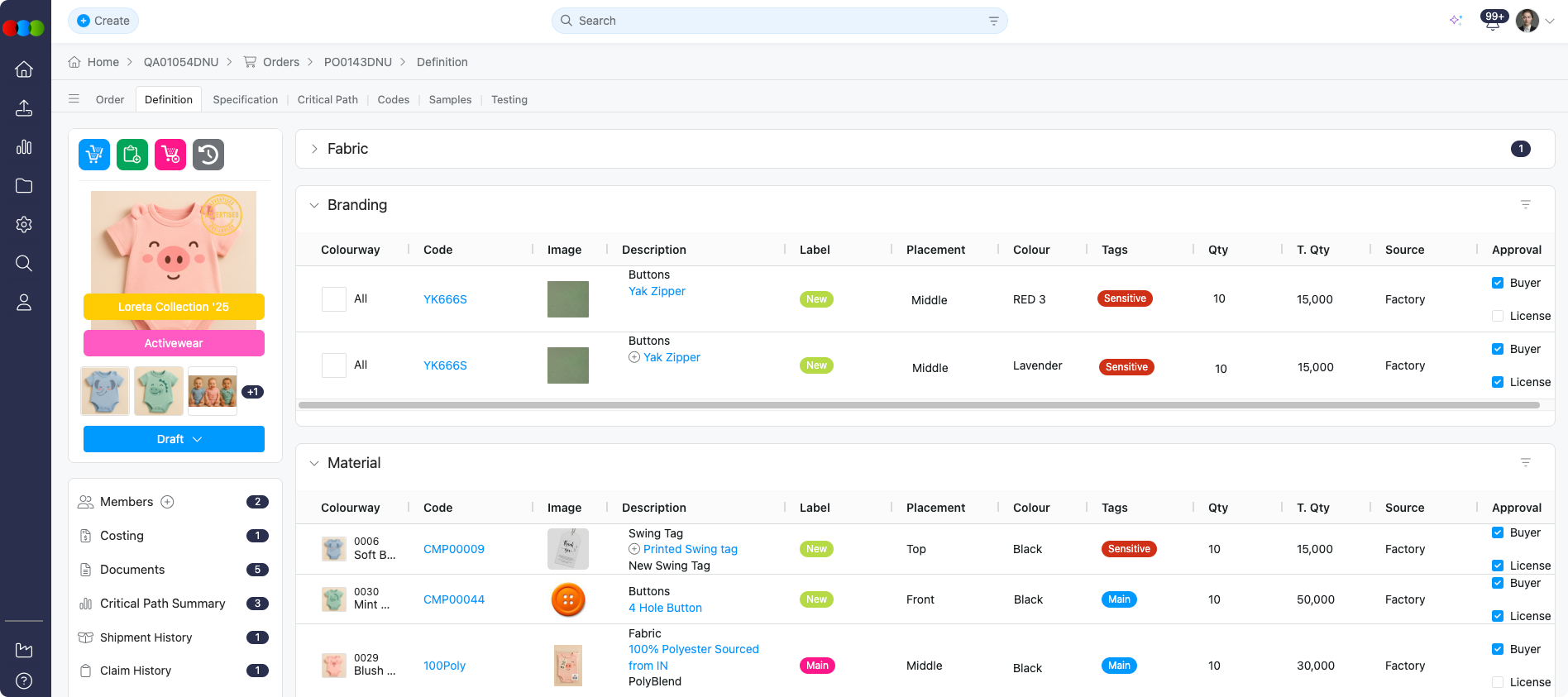
Table Flexibility
The same viewing and layout options as Style > Definition apply where configured (for example, sort, columns, and colourway filters). Component content and row order are maintained on the style, not on the order.
| Action | Description |
|---|---|
| Drag & Drop | Reorder components within the section. |
| Sort by | Reorder entries in ascending or descending order. |
| Adjust Columns | Adjust the column width to your preference. |
| Filter | Select which Colourway to display in the section. |
Add Inventory
The Add Inventory function is essential for managing component stock levels and warehouse allocations directly within the order workflow. This feature enables you to assign inventory to specific components, ensuring accurate tracking of available stock, order quantities, and expected delivery dates. Changes made here are automatically synchronised with the Components > Inventory tab, maintaining data consistency across the system.
Essential Function
This function is critical for production planning and inventory management. It allows you to link warehouse stock to order components in real time, ensuring accurate availability tracking and preventing stock allocation conflicts.
How to Add Inventory
- Click the plus icon under the Description column of a component.
- The Add Inventory pop-up will appear.
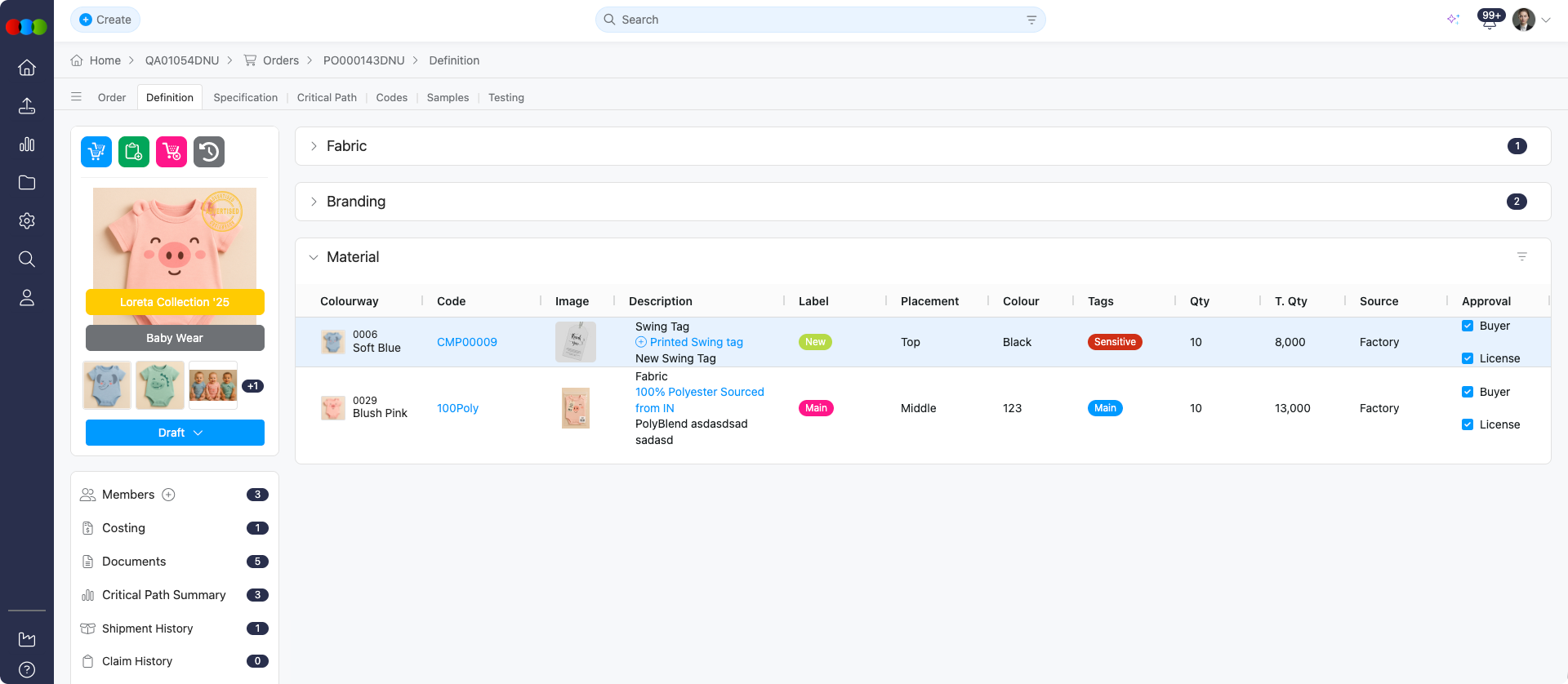
Add Inventory Pop-up
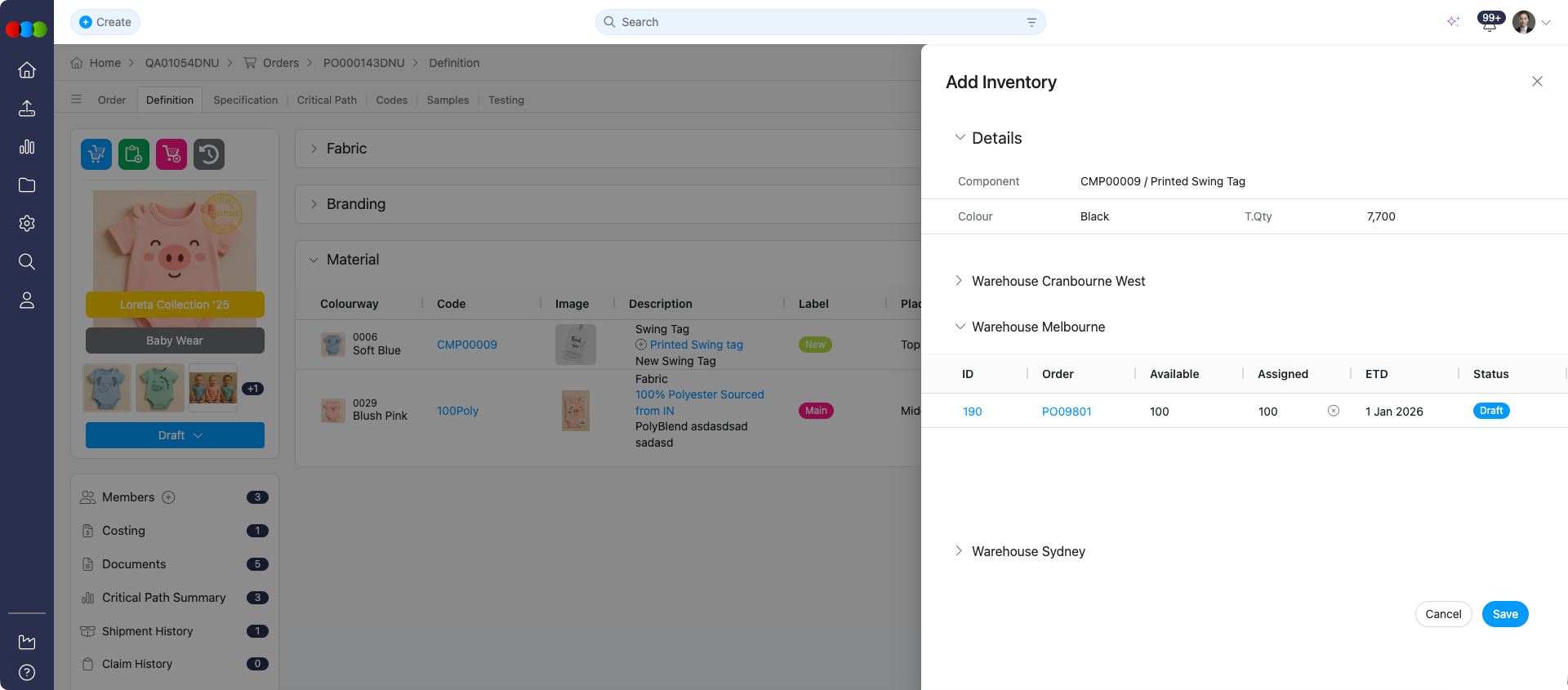
Details Section
| Field | Description |
|---|---|
| Component | Displays the component number and description (non-editable). Additional descriptions can be added from Style > Definition > Edit Description. |
| Colour | Shows the component colour (non-editable), configured in Style > Definition > Components' Colour. |
| T.Qty | Displays the total quantity (non-editable), calculated as the product of Style > Definition > Components' Qty and Order > Definition > Colours & Pricing > Colourway Total. Displays decimal values when applicable (e.g., 132.3). You can use the + icon to quickly populate the Assigned field with this Total Quantity value. |
Warehouse Section
The warehouse section displays the following information for each inventory record:
| Column | Description |
|---|---|
| ID | Unique identifier for the inventory record. |
| Order | Order number where the inventory is added. |
| Available | Current available stock quantity. Displays decimal values when applicable (e.g., 132.3). |
| Assigned | Quantity already assigned to this order. Displays decimal values when applicable. You can use the + icon to quickly populate this field with the Total Quantity value, or manually overwrite it as needed. |
| ETD | Expected delivery date for the inventory. |
| Status | Current status of the inventory record. |
| T.Qty | Total quantity for the component. You can use the + icon next to this field to automatically populate the Assigned field with the Total Quantity value. |
Synchronisation
- Warehouse details are configured in Components > Inventory.
- Changes made in this pop-up directly reflect in Components > Inventory, ensuring real-time data consistency across both modules.
Actions
- Save: Confirms and saves the inventory assignment.
- Cancel: Closes the pop-up without saving changes.
Helpful Tips
- Use this tab to verify technical and design accuracy before proceeding with production.
- Always review the Fabric and Trim sections to ensure they align with the bill of materials.
- Reference the Production notes for any lead time or batch-related considerations.
- For components used across multiple styles, updates in Component > Details flow through to this view when the row is library-linked.
Related Actions
Troubleshooting
Why is the Definition tab missing on my order?
The tab is only shown for single-style orders. Bulk orders do not expose this view.
Steps to resolve:
- Confirm the order type; open an individual style order if you need Definition.
- For bulk workflows, use the per-style records your process defines.
I changed fabric or trim on the order—why didn’t Definition update?
Definition data is not edited on the order. It follows Style > Definition, and for library-linked components, updates you make in Component > Details also sync through.
Steps to resolve:
- Open Style > Definition for the linked style, or open the component in Component > Details and save your changes there.
- Return to Order > Definition and refresh if the view does not update immediately.
- If the order is Completed, further component changes will not appear on this order by design.
A Fabric (or other) section I expect is missing from the Definition tab—where is it?
Visible sections are controlled in Site Settings for the style’s definition, not per order.
Steps to resolve:
- Open Site Settings > Style > General Settings > Definition.
- Enable the section you need and save.
- Confirm Style > Definition shows the section, then refresh Order > Definition.
Add Inventory won’t save or totals look wrong—what should I check?
T.Qty is derived from Style > Definition component quantities and Colours & Pricing colourway totals; warehouse rows come from Components > Inventory.
Steps to resolve:
- Verify component quantities and colourway totals on the style and order.
- Confirm inventory exists in Components > Inventory for the component and colour.
- Use the + beside T.Qty or Assigned to align assigned quantity with the calculated total when appropriate.