Specification
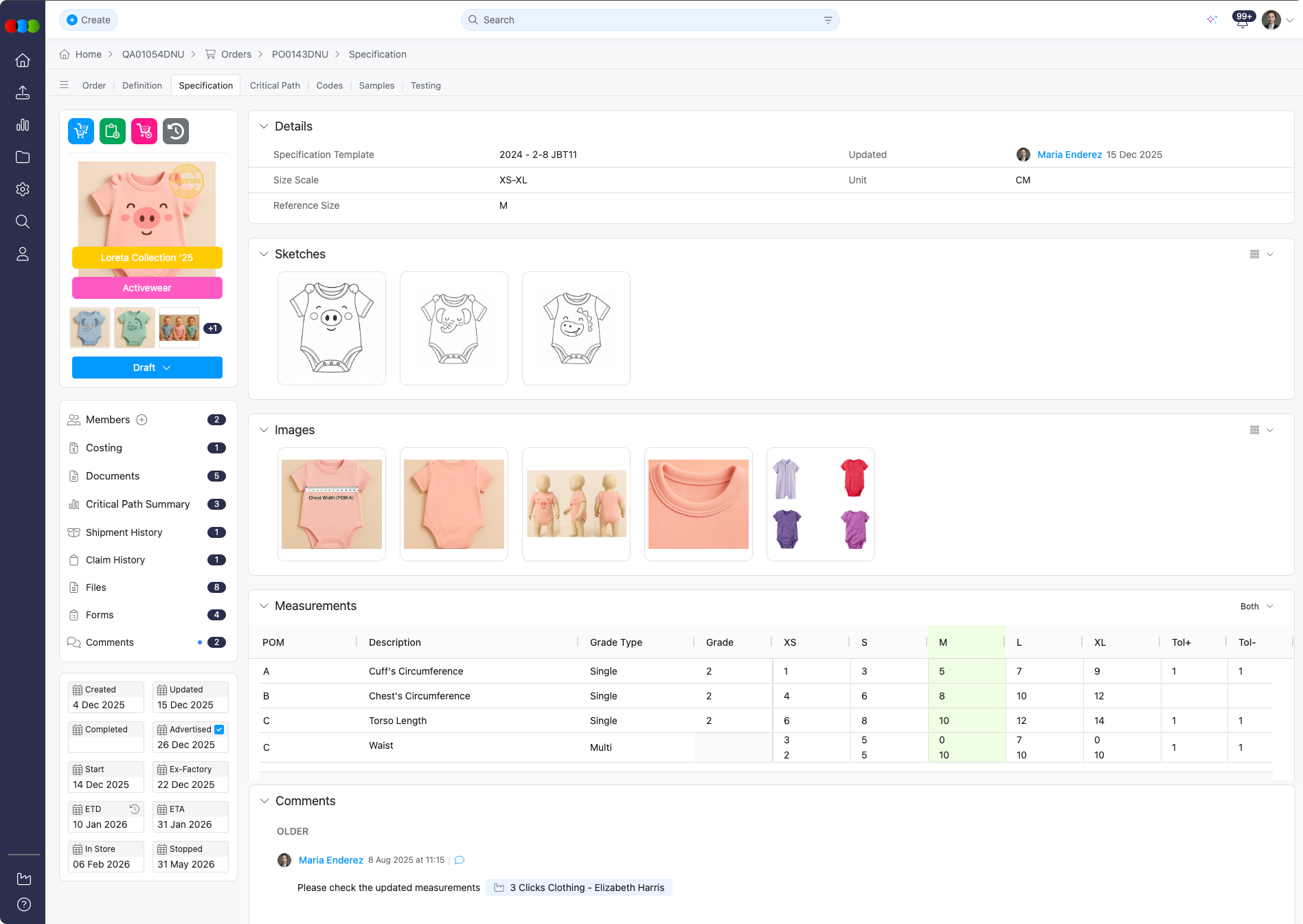
The Specification section of the Order application displays style-specific data sourced directly from the Style Specification module. This information provides a reliable, read-only reference for production and planning.
This tab is automatically populated and reflects the current data from the corresponding style record. It offers a snapshot of key technical and visual details—such as Sketches, Images, and Measurements—to support accurate and efficient order processing.
Quick Check - Before You Start
- Use a single-style order; this tab is not available for bulk orders.
- Edits happen only in Style > Specification; refresh or reopen the order after style updates.
- Add colour and quantity under Colours & Pricing first if you need the Measurements section to appear.
Read-Only Tab
This tab cannot be edited directly. All updates must be made in the Style > Specification tab and will be reflected here automatically.
Displayed Sections
| Section | Description |
|---|---|
| Sketches | Displays technical or fashion sketches associated with the style. |
| Images | Shows reference or product images uploaded in the style specification. |
| Measurements | Lists measurement specifications for each size and colour, which are displayed after a quantity has been defined. |
| Comments | Includes construction notes, fit comments, and other relevant instructions. |
Tab Visibility
- This tab is only available for single-style orders.
- The Measurements section will only become visible after a colour and quantity have been added in the Colours & Pricing section of the order.
Tip
- Keep style data accurate and up-to-date in the Style Specification module to ensure the information here is reliable.
- Use the Comments section to communicate critical notes that support manufacturing or QA processes.
- For bulk orders, specification data is not displayed in this view and must be accessed through the individual styles.
Sample Scenarios
Refer to these scenarios to understand how Order > Specification supports different teams. Each scenario links to the related documentation found in this portal.
Scenario 1: Designer checking order-ready specifications
A designer uses Order > Specification to confirm that the approved style details are visible on the order before production, sampling, or supplier review begins.
| Step | What to do | Related documentation |
|---|---|---|
| 1 | Confirm the order is a single-style order and that the Style No. shown in Order > Details is the correct style. | Order > Details |
| 2 | Maintain sketches, images, measurements, and comments in Style > Specification, because Order > Specification is read-only and displays the current style data. | Style > Specification |
| 3 | Review the Sketches and Images sections on the order to confirm construction details, artwork placement, and visual references are available for production. | Style > Specification > Sketches, Style > Specification > Images |
| 4 | Add order colours and quantities first if the Measurements section is not showing. Measurements appear after at least one colourway quantity has been added. | Order > Colour Quantity & Pricing |
| 5 | Use the order documents area when the approved order specification needs to be reviewed alongside purchase order documents. | Order > Side Widgets > Documents |
Scenario 2: Supplier reviewing production requirements
A supplier uses Order > Specification as the production reference for the ordered style, with measurements, visual references, and comments pulled from the approved style specification.
| Step | What to do | Related documentation |
|---|---|---|
| 1 | Open the Specification tab on a single-style order to review the technical information supplied by the brand. | Displayed Sections |
| 2 | Check Sketches and Images for construction details, artwork positions, trims, labels, or measurement reference points. | Style > Specification > Sketches, Style > Specification > Images |
| 3 | Review Measurements against the ordered colours and quantities so the correct size and colour requirements are clear before cutting or sampling. | Order > Colour Quantity & Pricing, Style > Specification > Measurements |
| 4 | Use Comments to understand construction notes, fit comments, or clarification added by the design and production teams. | Style > Specification > Comments |
| 5 | If actual sample measurements need to be recorded or approved changes need to be pushed back to the style spec, update the sample report workflow. | Order > Samples > Edit Sample Report |
Scenario 3: Apparel business standardising order specifications
An apparel business uses Order > Specification to keep production orders aligned with the master style specification, site settings, sample feedback, and order quantity workflows.
| Step | What to do | Related documentation |
|---|---|---|
| 1 | Configure spec templates, POMs, size scales, and optional How to Measure settings before teams create style specifications. | Site Settings > Style > Spec Template, Site Settings > Style > Specification POM, Site Settings > Style > Size Scales |
| 2 | Build and approve the style specification first so orders inherit consistent sketches, images, measurements, and comments. | Style > Specification |
| 3 | Enter order colours and quantities so measurement information appears in the order specification and matches what is being produced. | Order > Colour Quantity & Pricing |
| 4 | Review supplier, factory, terms, and critical path information in Order > Details so technical requirements are tied to the correct production context. | Order > Details, Order > Critical Path |
| 5 | Use sample reports to track fit changes and push approved revised measurements back to the style specification for future orders. | Order > Samples > Edit Sample Report, Style > Specification > Measurements |
Related Actions
Troubleshooting
Why is the Specification tab missing?
The tab is limited to single-style orders. Bulk orders do not show this consolidated specification view.
Steps to resolve:
- Open an order that contains a single style, or access specifications per style using your team’s bulk-order process.
Why don’t I see measurements on the order?
Measurements only display after colour and quantity are entered in Order > Colours & Pricing.
Steps to resolve:
- Add at least one colourway with quantities.
- Return to Specification; measurements populate from Style > Specification for the linked style.
I updated the style spec—why doesn’t the order show it?
The order view is read-only and reflects the style record at load time or after refresh.
Steps to resolve:
- Save changes in Style > Specification.
- Reload the order or navigate away and back to Specification to pull the latest data.