Costing
The Costing feature is a financial control that provides clear visibility in the costing associated with each order. It links orders to existing costing records, ensuring accurate cost tracking, reconciliation, and informed decision-making across production and operations.
Selecting Costing displays all costing records currently associated with the selected order. This allows users to quickly review how costs are allocated and verify that the order is correctly costed. At order level, costing ties each transaction to margin analysis, pricing adjustments, and financial reconciliation for that specific order. Use it when you need to confirm how landed costs or selling margins apply before approving shipment or invoicing.
Quick Check - Before You Start
- Remember only one costing can be linked to an order at a time; remove the existing link before choosing another.
- Open Costing from the sidebar on the order you intend to update.
Adding Costing
To link a costing record to the order:
| Step | Description |
|---|---|
| 1 | Click Costing on the sidebar to open the Select Costing pop-up. |
| 2 | Review the list of available costings that match the order. |
| 3 | Select the required costing item by ticking the checkbox next to the costing number. |
| 4 | Click Add to save. |
Once saved, the selected costing will appear against the order and will be included in any downstream costing, reporting, and reconciliation processes.
One Costing per Order
Only one costing can be associated with an order at a time.
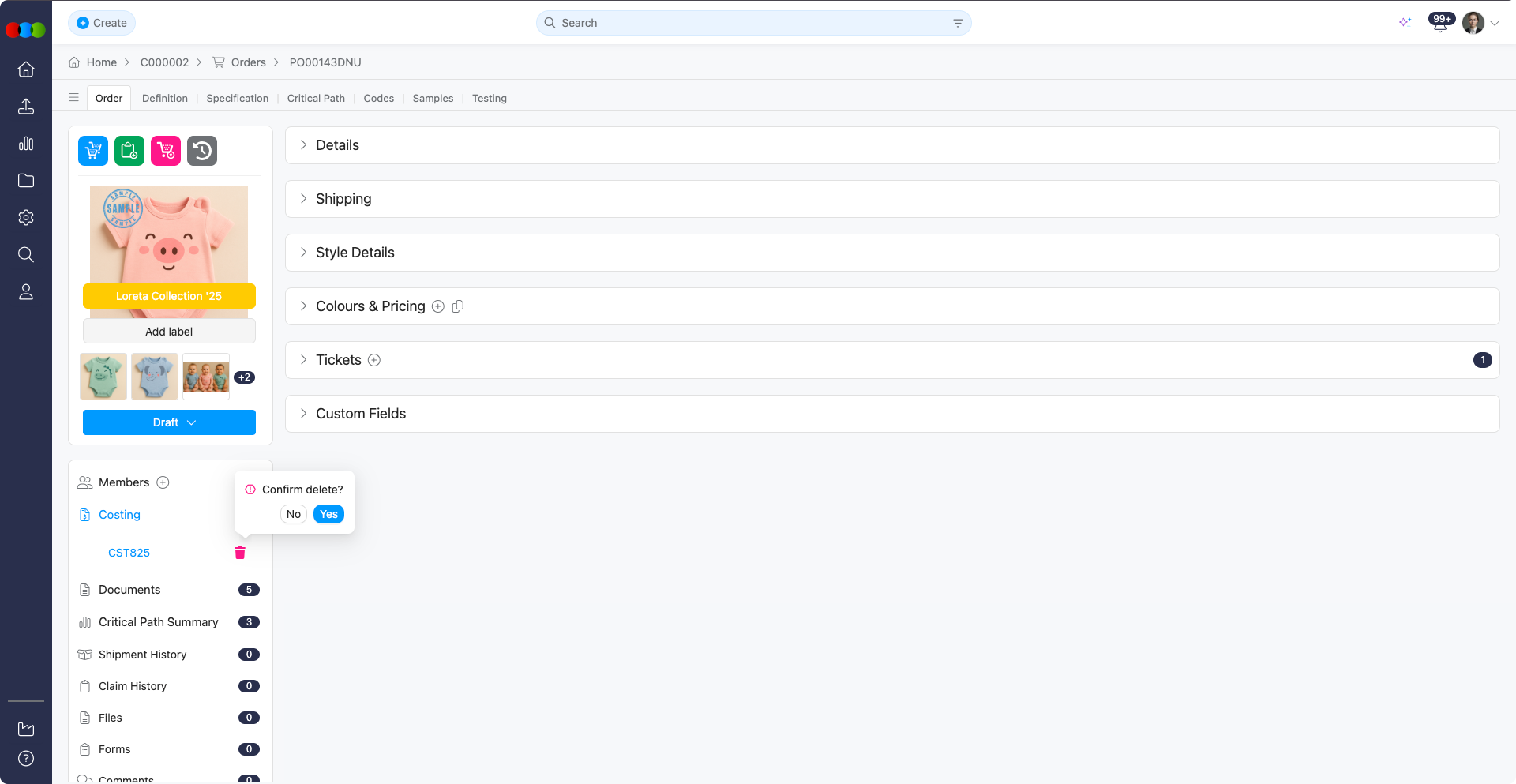
If you need to change the costing, first click the Delete icon to remove the existing association.
The costing will then be available again in the Select Costing pop-up so that a different costing can be selected.
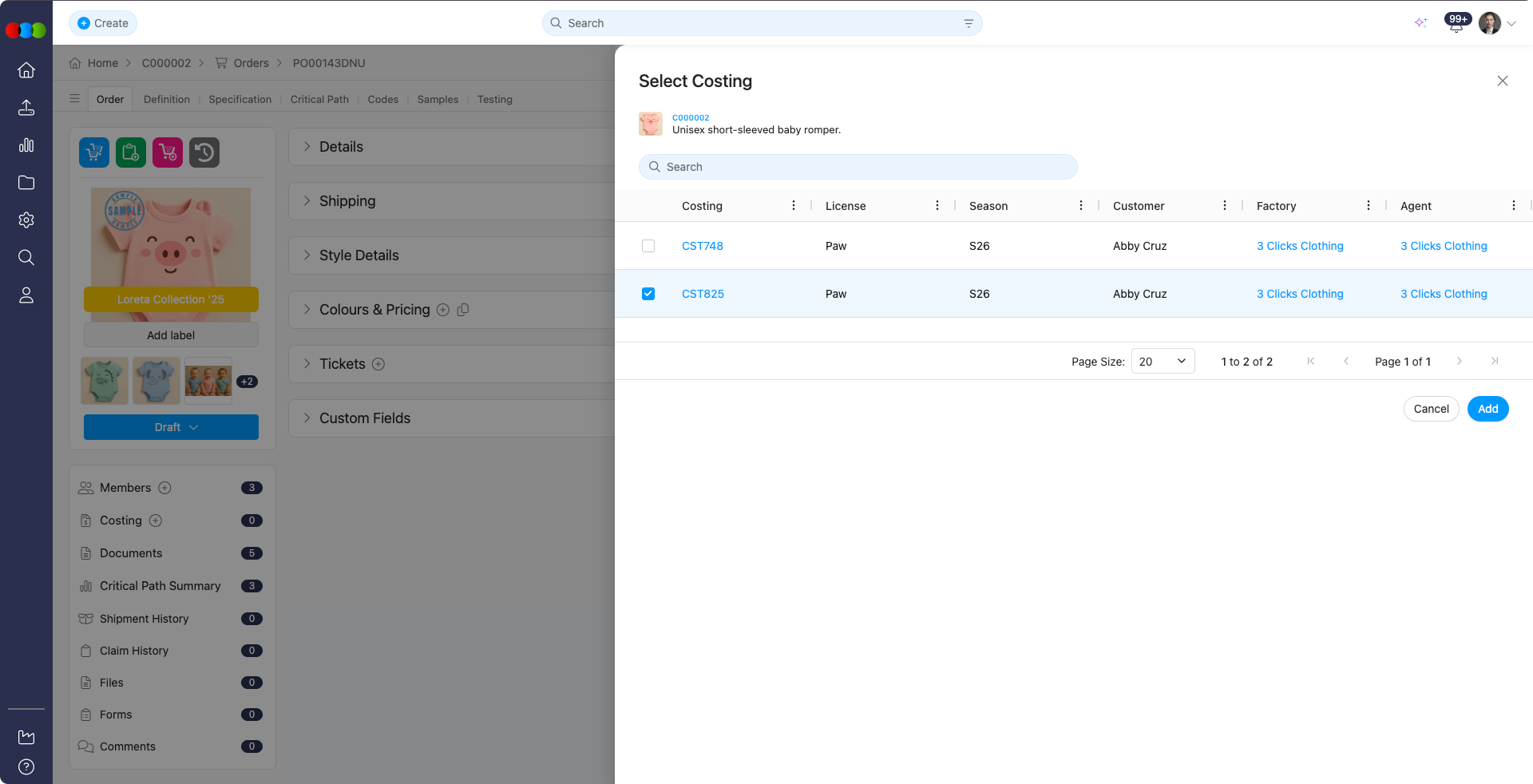
Costing Search View
Clicking Costing also redirects the user to the Costing Search view, where the full costing details can be reviewed and managed.
Market Price Layout and the Costing widget
When an order uses Market Price Layout, the Costing side widget supports that layout so pricing stays consistent between Costing and the order. You can transfer Buy, Sell, and Retail (RRP) prices across markets while staying aligned with approved costing data.
This matters for data integrity, pricing accuracy, and market-specific consistency, especially when you manage orders across regions or different pricing structures.
Market Price Layout support
When a costing is associated with an order, the widget supports Market Price Layout. Prices are shown per market, which gives clearer visibility and control of regional pricing.
Costing source rules
The widget follows the same rules as before:
- Only Approved and Completed costings are used.
- The widget can display Buy Price, Sell Price, and Retail Price (RRP).
Retail price update from costing
You can update Retail Price on the order directly from the costing so the order reflects the latest approved costing values without manual re-entry.
Market-level price visibility
The widget shows Sell Price and Retail Price per market, which improves transparency on multi-market orders.
Selective price copying
You can choose which prices to copy from costing into the order. That helps when only certain markets or price types should update, or when you want to avoid unintended overwrites.
Costing template behaviour
Import Costing template
- If Sell Price and RRP are entered in Costing > Supplier, those values are copied directly into the order.
- If Sell Price and RRP are blank in Supplier, the system falls back to Costing > Style Sell Price and Costing > Style RRP, applied as Primary Market Sell Price and Primary Market Retail Price.
Retail Costing template
- If RRP is entered in Costing > Supplier, it is copied directly into the order.
- If RRP is blank in Supplier, the system falls back to Costing > RRP, applied as Primary Market Retail Price.
Sell Price from Total Cost (conditional)
If the relevant costing setting is enabled, Costing > Supplier Total Cost is copied to Order Sell Price for the primary market only.
How to Delete a Costing
| Step | Description |
|---|---|
| 1 | Open Order > Sidebar Widgets > Costing. |
| 2 | Click Costing to display the currently linked costing. A trash (delete) icon will appear. |
| 3 | Click the Delete icon to remove the costing from the order. |
| 4 | Confirm the deletion if prompted. The costing will be detached from the order but will remain available in the Select Costing pop-up and in the main Costing Search view. |
Deleting a Costing
Removing a costing from the order does not delete the costing record from the system; it only detaches it from the current order.
Helpful Tips
- Ensure costing templates and currencies are properly configured in site settings.
- Link costings early in the order process to align financial tracking.
- Audit costing records periodically to validate input accuracy and completeness.
Related Actions
- Add Order Comments
- Create an Order
- Edit Order Dates
- Delete an Order
- View Order Documents
- View Order Files
- Add Order Forms
- View Order History Log
- Add Order Members
- Change Order Status
Troubleshooting
Why can I not add a second costing to the order?
The product allows one costing per order. Delete the current association first, then pick a different costing from Select Costing.
I deleted costing from the order—did I delete the costing record?
No. Detaching removes the link only; the costing remains in Costing Search and can be selected again later.
Why is the costing I need missing from Select Costing?
The list shows costings that match the order context. Confirm the costing exists, is in a valid status, and matches the order’s style or business rules your administrator configured.