Order Status
The Status feature lets you set the current stage of an order’s lifecycle. Only the following five statuses exist in the platform: Draft, Cancelled, Completed, In Production, and On Hold. They are fixed; you cannot rename them, change their meaning, remove any of them, or add new statuses. This visual indicator makes it easier to organise and filter order records based on progress and workflow readiness across dashboards and reports.
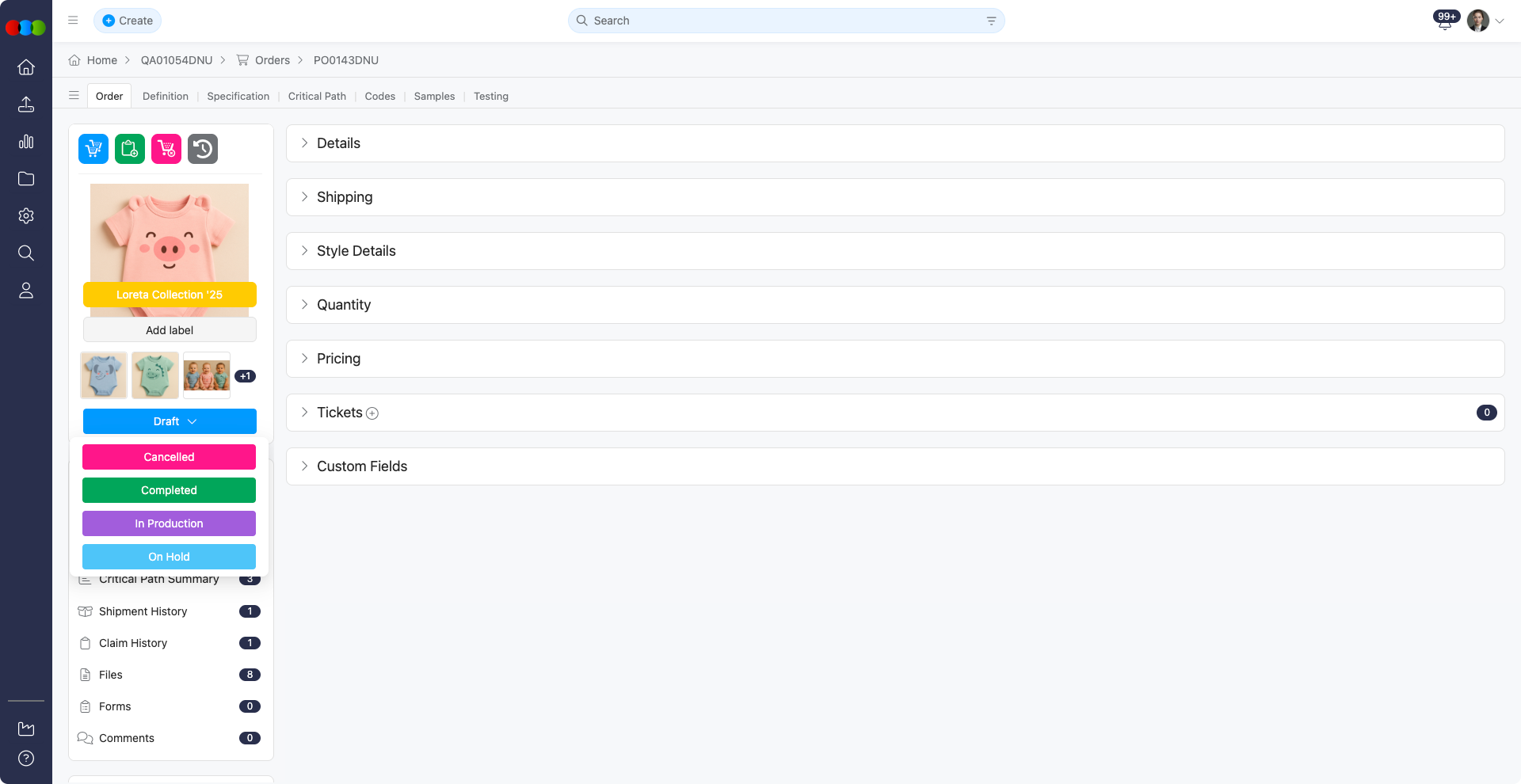
Updating the status of an order helps teams track where it sits—from preparation and manufacturing through holds, completion, or cancellation. The status appears on the order card and can be used for filtering across dashboards, reports, and search views. Status changes take effect immediately and give suppliers and internal functions a clear view of whether the order is active, paused, or closed. Keeping status aligned with Order Dates milestones (for example Start, Ex‑Factory, ETD, ETA, and In Store) avoids downstream work on stale timelines and supports consistent reporting.
Core Action
These actions are available to all users with access to the order record and allow for basic status management.
| Feature | Description |
|---|---|
| Update Order Status | Locate the Status button at the bottom of the order preview image area. Click the button to open the dropdown, then choose one of the five fixed options: Draft, Cancelled, Completed, In Production, or On Hold. The selected status will immediately update and appear on the card. |
Key Features
These features define how status values are used and displayed across the system.
| Feature | Description |
|---|---|
| Status Options | The only available options are Draft, Cancelled, Completed, In Production, and On Hold. They are not customisable: administrators cannot edit the list, alter labels, or create additional statuses. • Use Draft while the order is still being prepared. • In Production once manufacturing or processing is underway. • On Hold to pause work until issues or approvals are resolved. • Completed when fulfilment is finished and no further order actions are required. • Cancelled when the order will not proceed. Note: Other order behaviour such as Lock Order Number when status reaches In Production is configured separately in Site Settings > Order > General Settings; that does not change which statuses appear in the dropdown. |
| Immediate Update | Status changes take effect immediately. The new status is reflected on the card and across the system without requiring a page refresh. |
| Filtering and Reporting | Status values are used as filters in dashboards and reporting views, enabling teams to focus on orders at specific stages of the lifecycle. |
Status reference
| Status | Description |
|---|---|
| Draft | The order is being prepared and is not yet final. Changes can still be made before submission or approval. |
| Cancelled | The order has been officially cancelled and will not proceed. This status prevents additional processing or updates. |
| Completed | All activities related to the order are finished. The order has been delivered or fulfilled, and no further actions are required. The Completed date in Dates updates as soon as you set this status, so the completion date appears immediately. |
| In Production | The order has been confirmed and is currently being manufactured or processed by the supplier or factory. |
| On Hold | The order has been temporarily paused due to pending information, approvals, issues, or external factors. No further action occurs until the hold is resolved. If the order has been shared with the supplier, they will receive a notification and can access the order via their portal account. |
Site Settings — Order Dates
In Site Settings > Order > General Settings > Order Dates, administrators can turn each option on or off:
- Display Ex-Factory Date — When enabled, Ex-Factory is shown as an optional date field on orders. When disabled, Ex-Factory does not appear on the main order page.
- Allow Supplier Edits — When enabled, suppliers can edit Ex-Factory and ETD on orders shared with them. When disabled, suppliers cannot edit those dates.
Automatic Completion and Order Dates
Orders is set to Completed automatically based on Order Dates: once the order has passed the In Store date by 180 days, the system will mark the order Completed. If the In Store date is wrong, correct it on the Dates widget before changing status back to In Production; otherwise the order can revert to Completed when the threshold applies again. See Order › Side Widgets › Dates for ETD auto-update rules, date sequencing, and best practices.
Style Data Protection
If an order is marked as Completed or Cancelled, updates made in the associated Style will no longer be pushed to the Order's Style Details section. The following fields are protected from automatic updates for Completed or Cancelled orders:
- Style Number
- Description
- Brand
- Collection
- License
- Gender
- Type
If you need to update these fields on a Completed or Cancelled order, you can temporarily change the order status to Draft or In Production, update the Style, and then switch the order status back to Completed when you're done.
Note: This protection does not apply to Bulk Orders, as Bulk Orders do not support the Style Data synchronisation function.
Important Notes When Using Status
Lock Order Number: When enabled in Site Settings > Order > General Settings > Lock Order Number, the Order Number locks once status reaches In Production. Plan status changes accordingly if numbers must remain editable.
Fixed status list: The five order statuses cannot be changed or edited in Site Settings > Order > General Settings or elsewhere. If you need different lifecycle labels, use reporting categories, custom fields, or your internal process definitions alongside these fixed values.
Permissions: Order status changes may be restricted by Order permissions on the user's Production Portal role as configured in Site Settings > Company > Roles & Permissions. Contact your administrator for access if needed.
Workflow Impact: Status changes may affect how orders appear in dashboards, reports, sharing with suppliers, and Lock Order Number behaviour. Ensure the correct status is set before handovers or approvals.
Immediate Effect: Status updates are applied immediately and cannot be undone through the status dropdown alone. Revert by selecting the previous status if needed.
Best Practices
Confirm status after major events: Update status after creation, approval, shipment, or hold resolution so other teams see the latest position.
Keep dates and status in sync: Update Order Dates (including Stopped when relevant) as well as status so reports and automations (such as the Completed date and 180‑day In Store rule) stay accurate.
Before Completed: Double‑check required data—Dates, documents, members, and critical path milestones—so closing the order does not leave gaps for downstream teams.
Leverage filtering: Use status filters in dashboards and reporting views to focus on orders at specific stages and improve workflow visibility.