Release Notes - 10th of April 2026
Site Settings > Style > General Settings > eCommerce > Configure the eCommerce Colours Section
We’ve enhanced Configure the eCommerce Colours section to give you more control over colour-level fields and how AI is applied per column.
What’s new?
- Rich Text option: This option allows you to format colourway based description using AI.
- AI Enable/Disable: Enable or disable using a checkbox. This applies to Style > eCommerce Colours only.
- History Logs: Updates using the Rich Text are also included in Style > History Logs for better tracking.
Site Settings > Company > AI Prompts
To better support this new AI related feature, we've also added a new AI prompt for Style application.
Generate AI eCommerce colourway description allows you to modify the prompt being used, giving you better control on how AI will suggest descriptions.
Site Settings > Company > AI Prompts 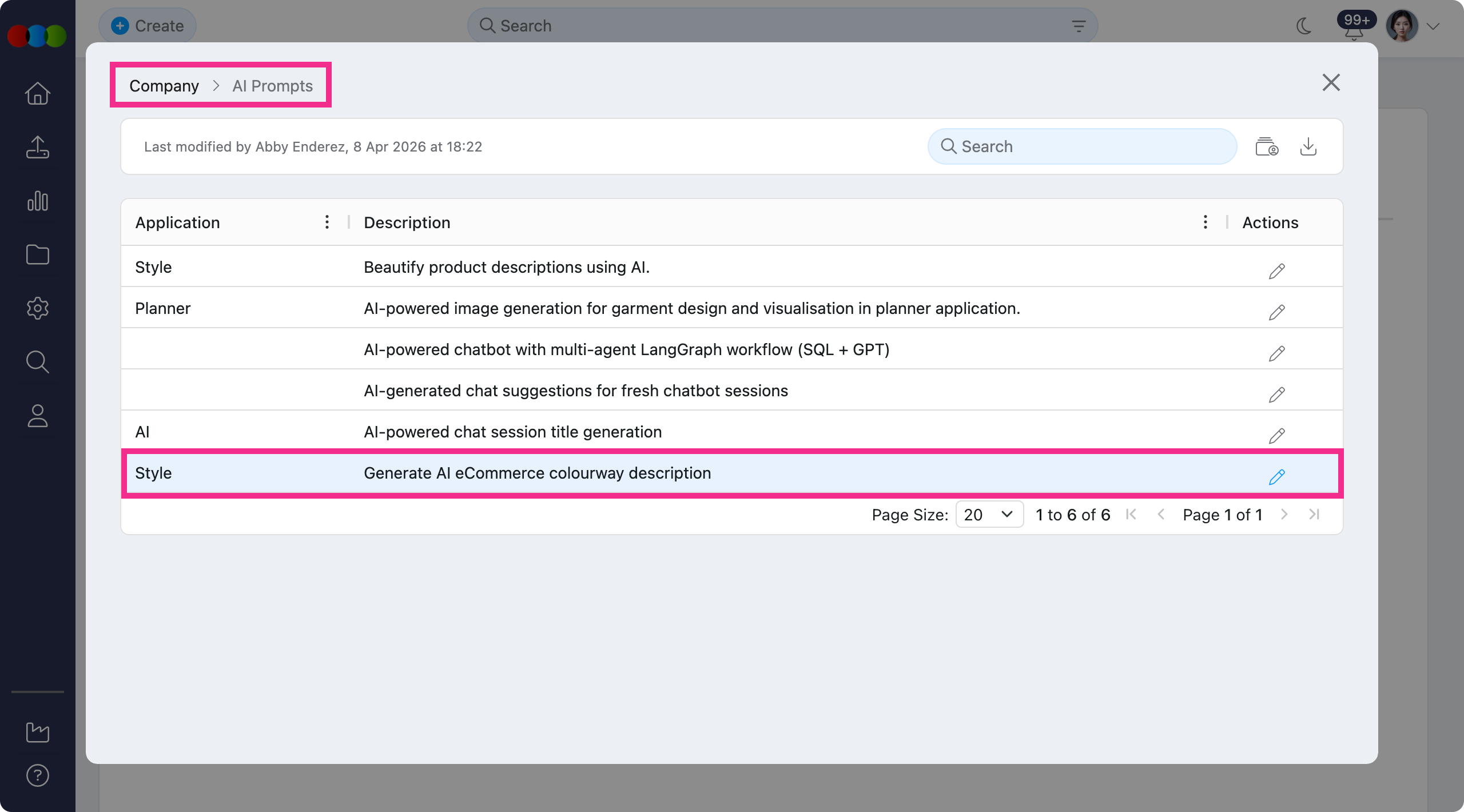
Site Settings > Company > AI Prompt Sample 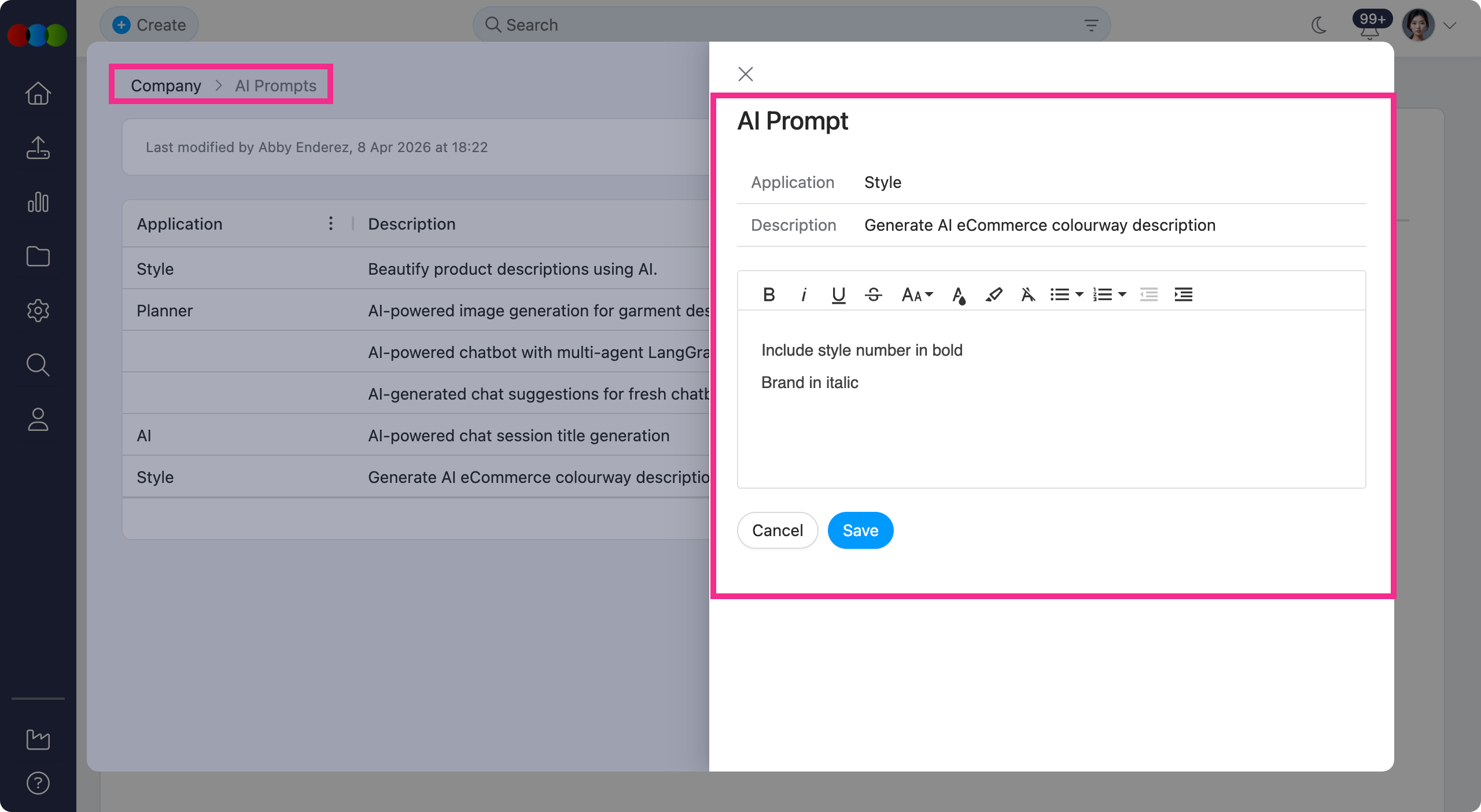
Example
In this example, the AI Description was enabled in Site Settings > Style > General Settings > eCommerce.
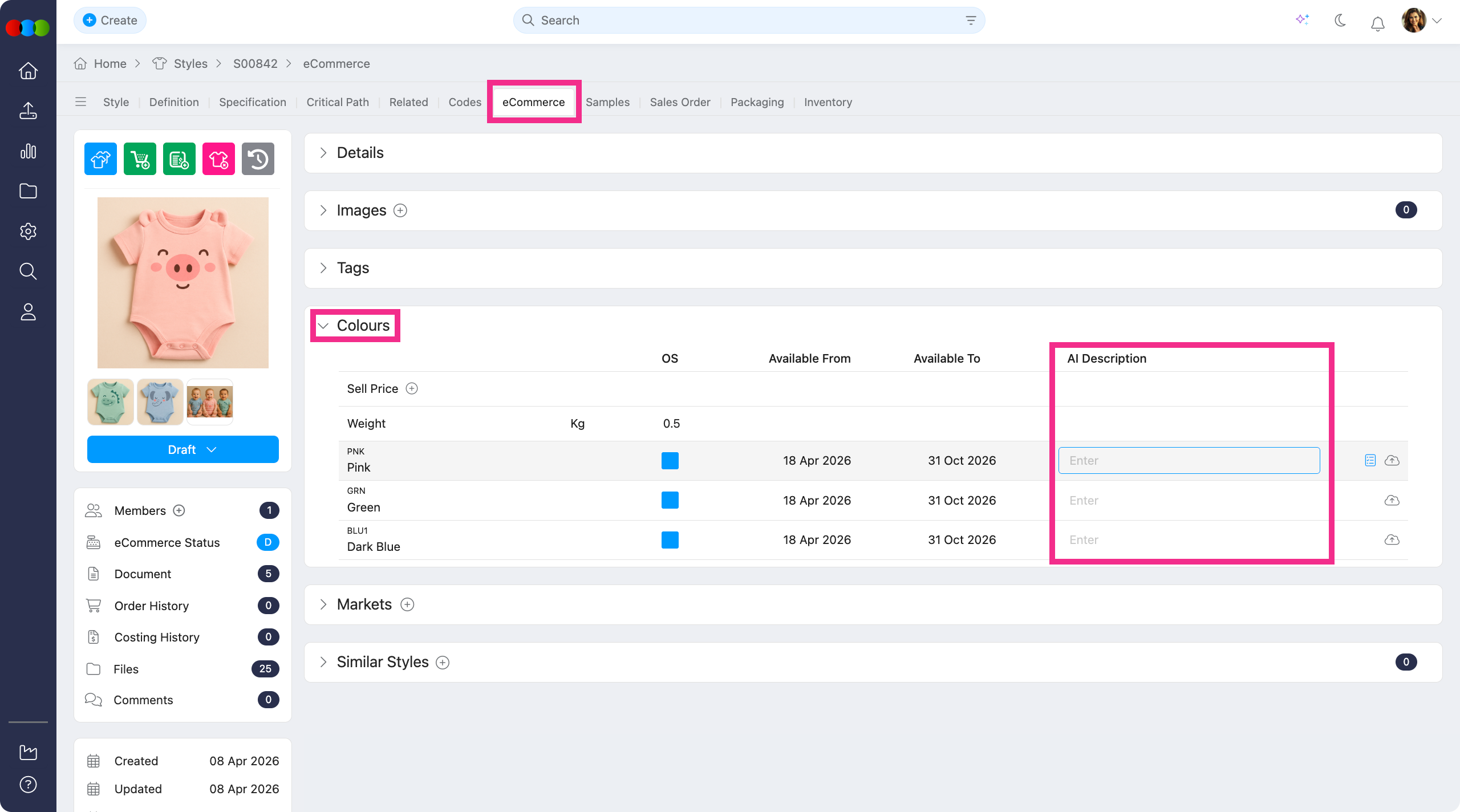
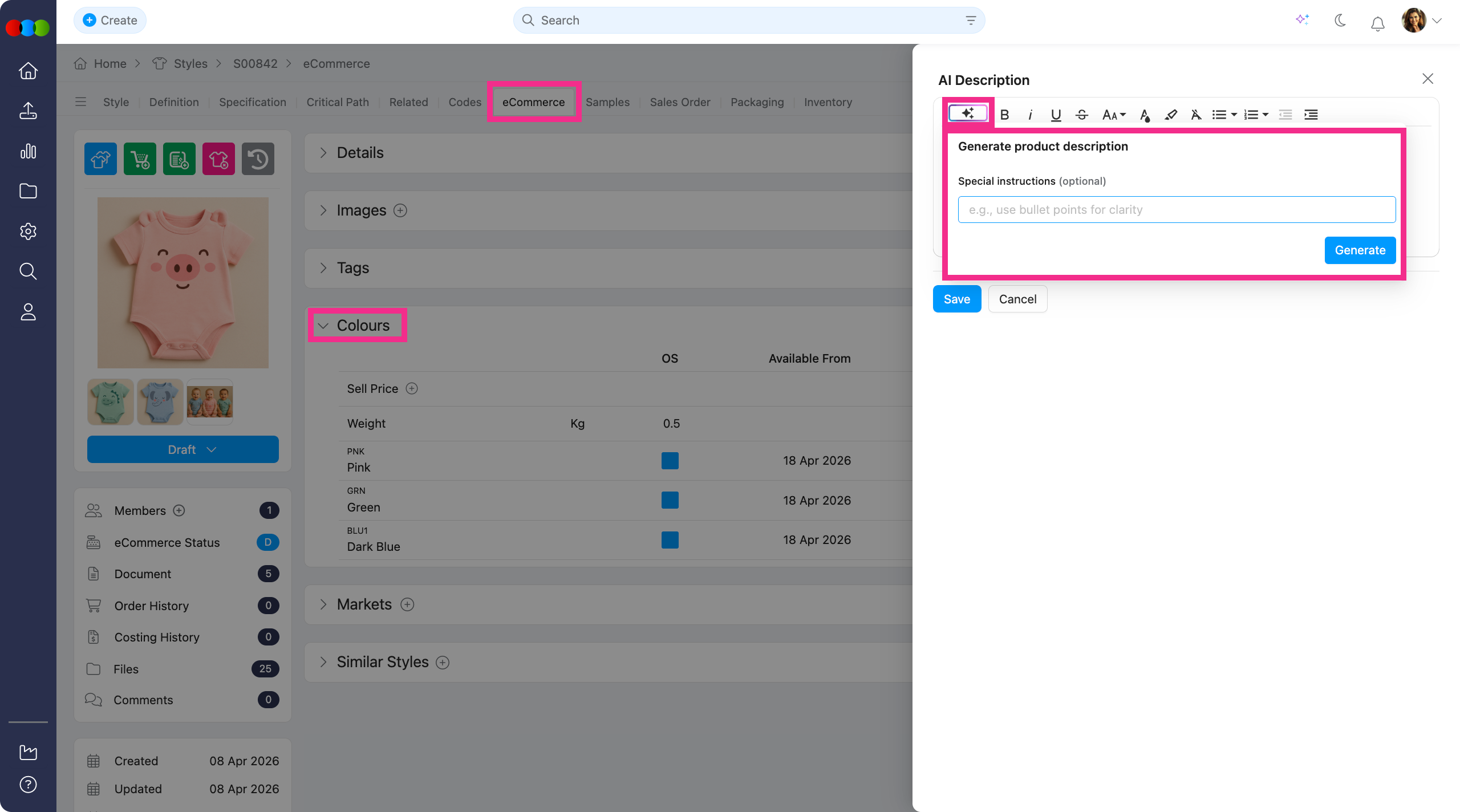
Clicking the Enter field will then open the AI Description pop-up. You can then see the rich text button that allows you to generate AI descriptions per colourway. You can also enter additional context so that the generated descriptions best fits your desired outcome.
Learn more
For step-by-step configuration and how these fields appear in the Style > eCommerce tab, visit the Site Settings > Style > General Settings > eCommerce, Site Settings > Company > AI Prompts, and Style > eCommerce > Colours & Pricing.
Order Search > Account Manager Column
We’ve added a new Account Manager column to Order Search, helping you quickly identify ownership and streamline coordination.
If a staff is part of an order and marked as an Account Manager, they will appear in this column. This allows you to instantly see who manages each order, alongside with improved efficiency tracking down the right contact person.
Order Search > Account Manager 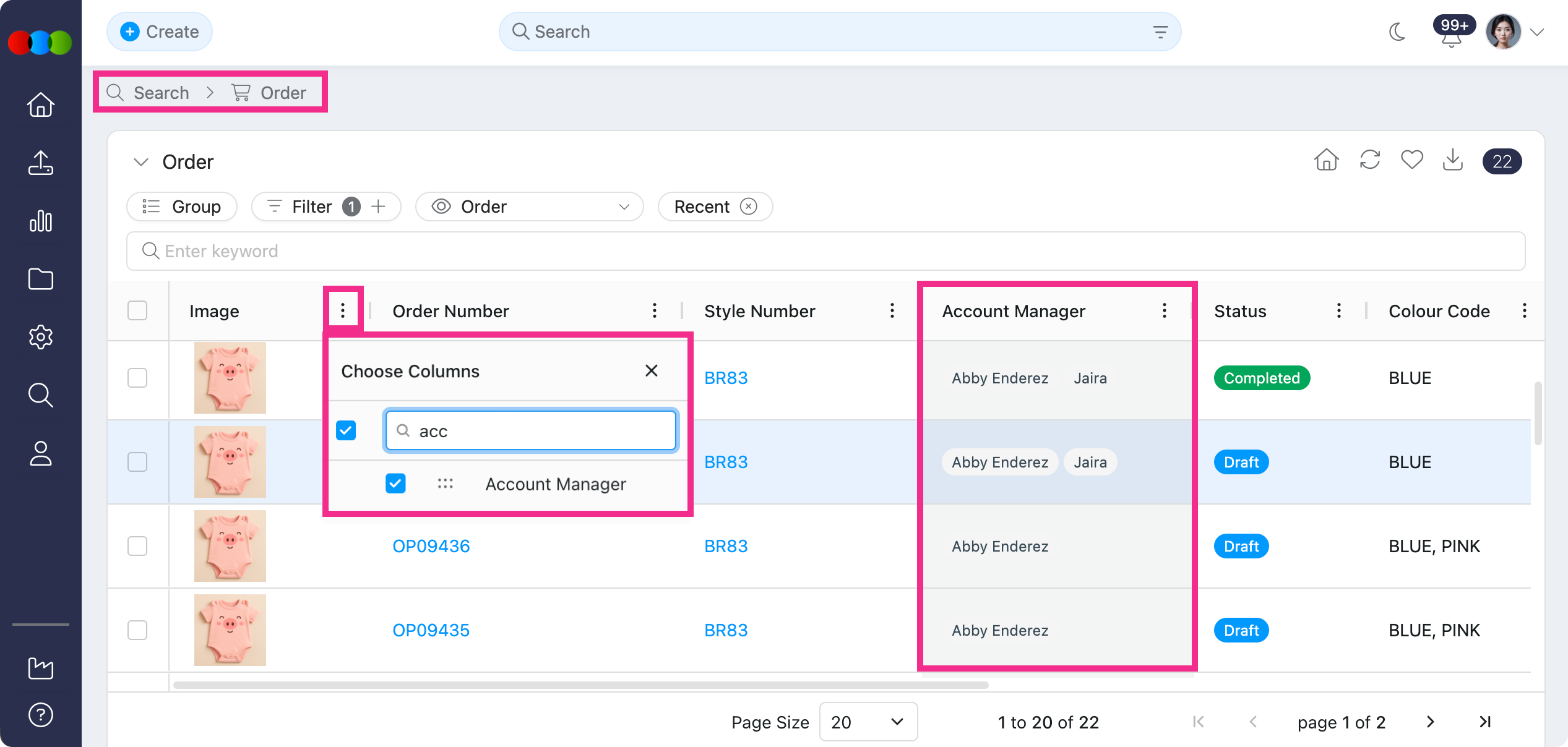
Learn more
Column details and how Order Search fits with filters and bulk actions are in Search › Order Search.
Style/Order > Definition > Component Colour Tags
We’ve added Component Colour Tags to Style and Order definitions.
When adding a component from the Component Library into Style > Definition, any tags linked to the selected Component Colour are now displayed in the Component Colour Tags column. These tags appear as read-only in Order > Definition.
Style > Definition > Component Colourway Tags 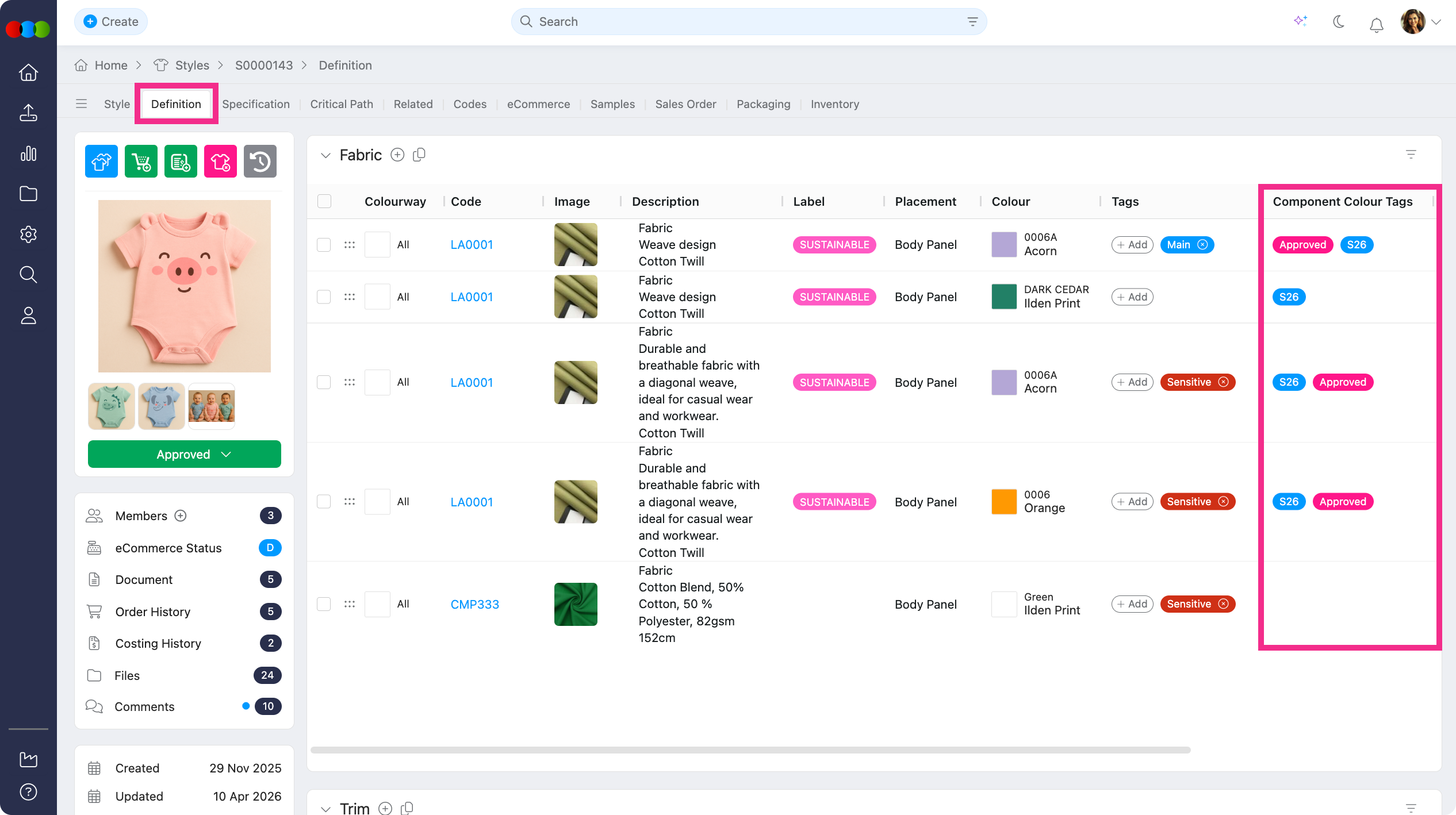
Order > Definition > Component Colourway Tags 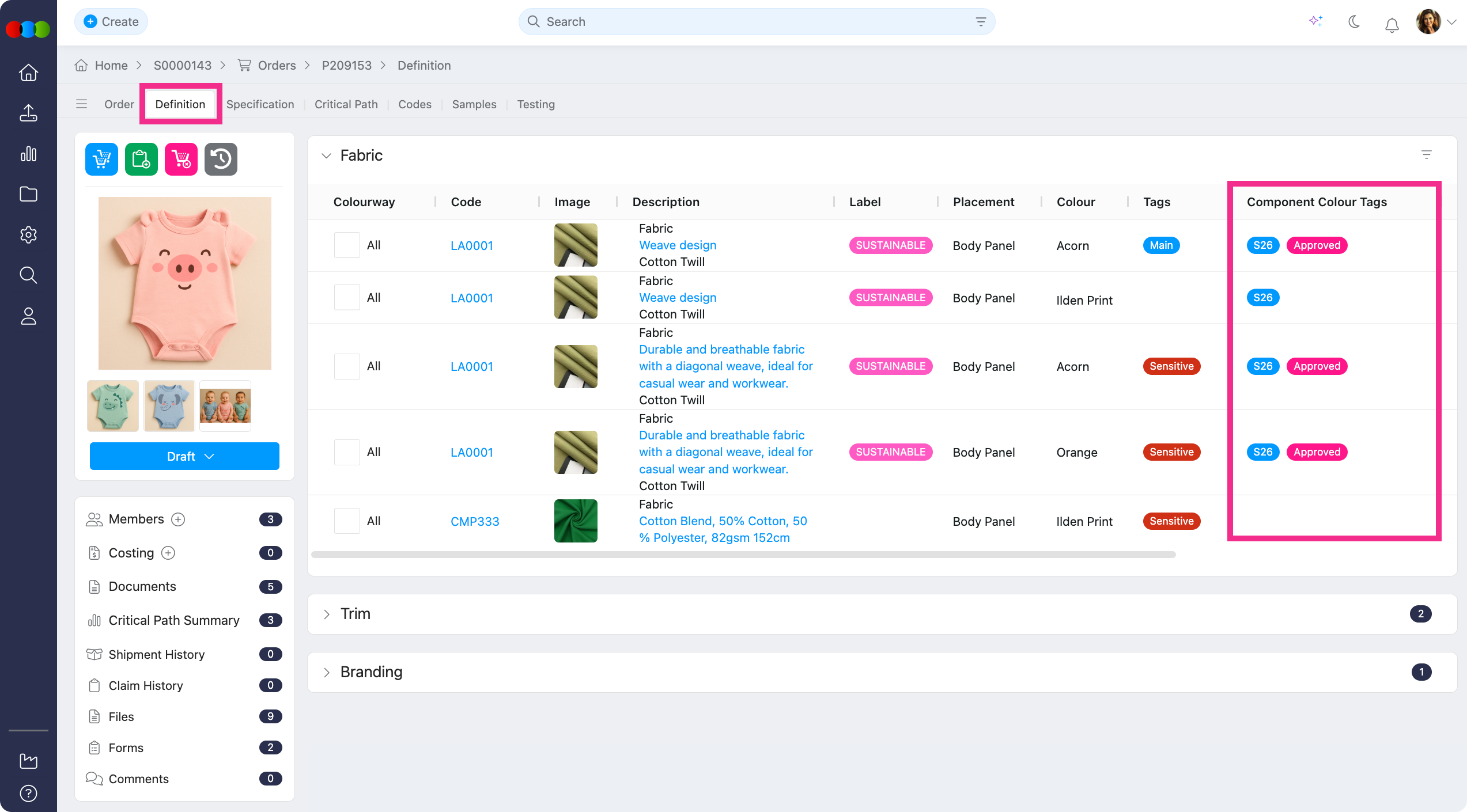
Learn more
Component Colour Tags on the style grid and read-only on the order are described in Style › Definition and Order › Definition.
Costing > Price by Colour Template > Style & Supplier Sections
We’ve introduced several enhancements across Costing to give you more precise control and visibility when working with suppliers and colour-level pricing.
Costing > Style
In Costing > Style, key calculations such as Finance Cost and Production Overhead are now displayed by colour.
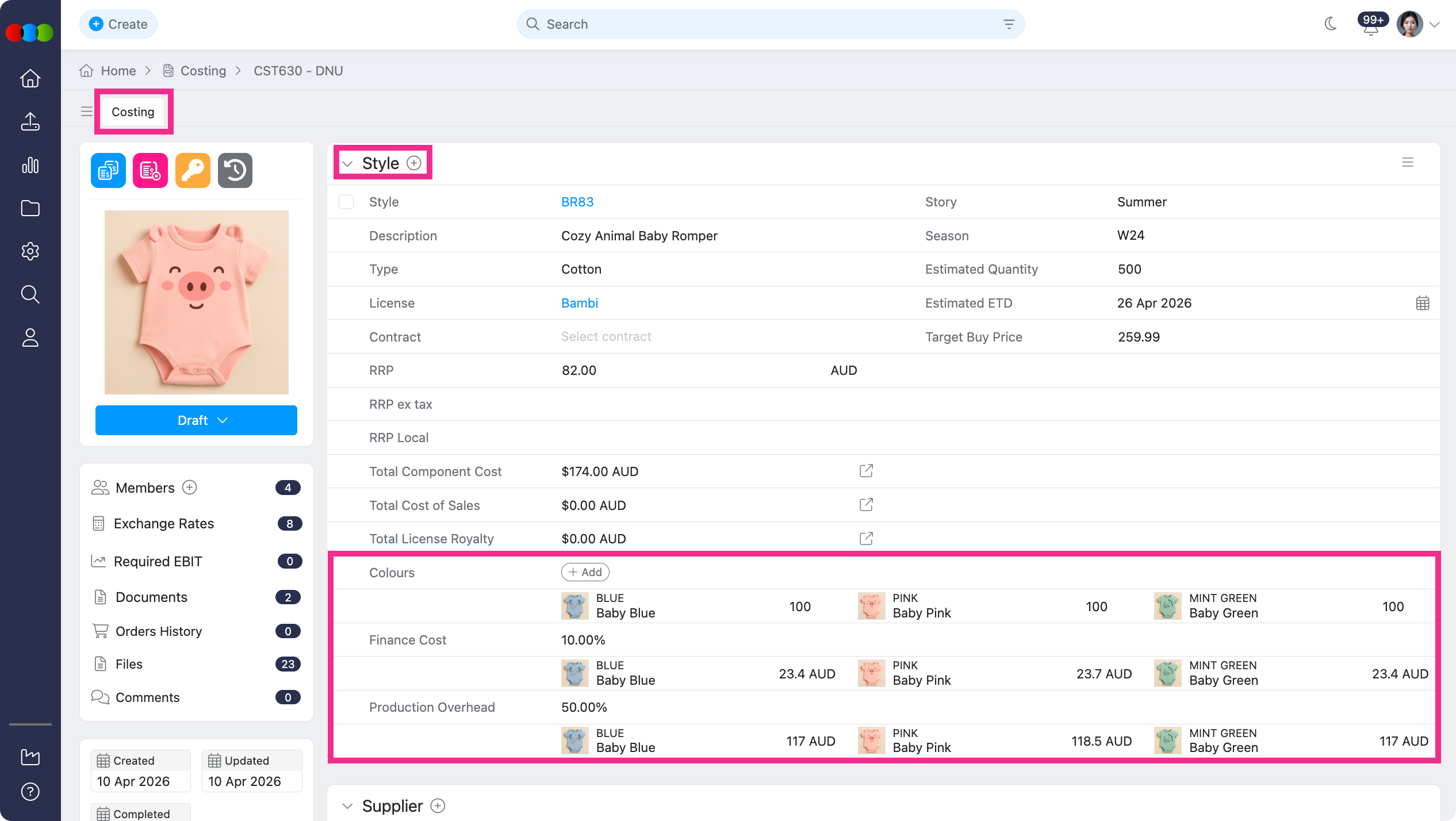
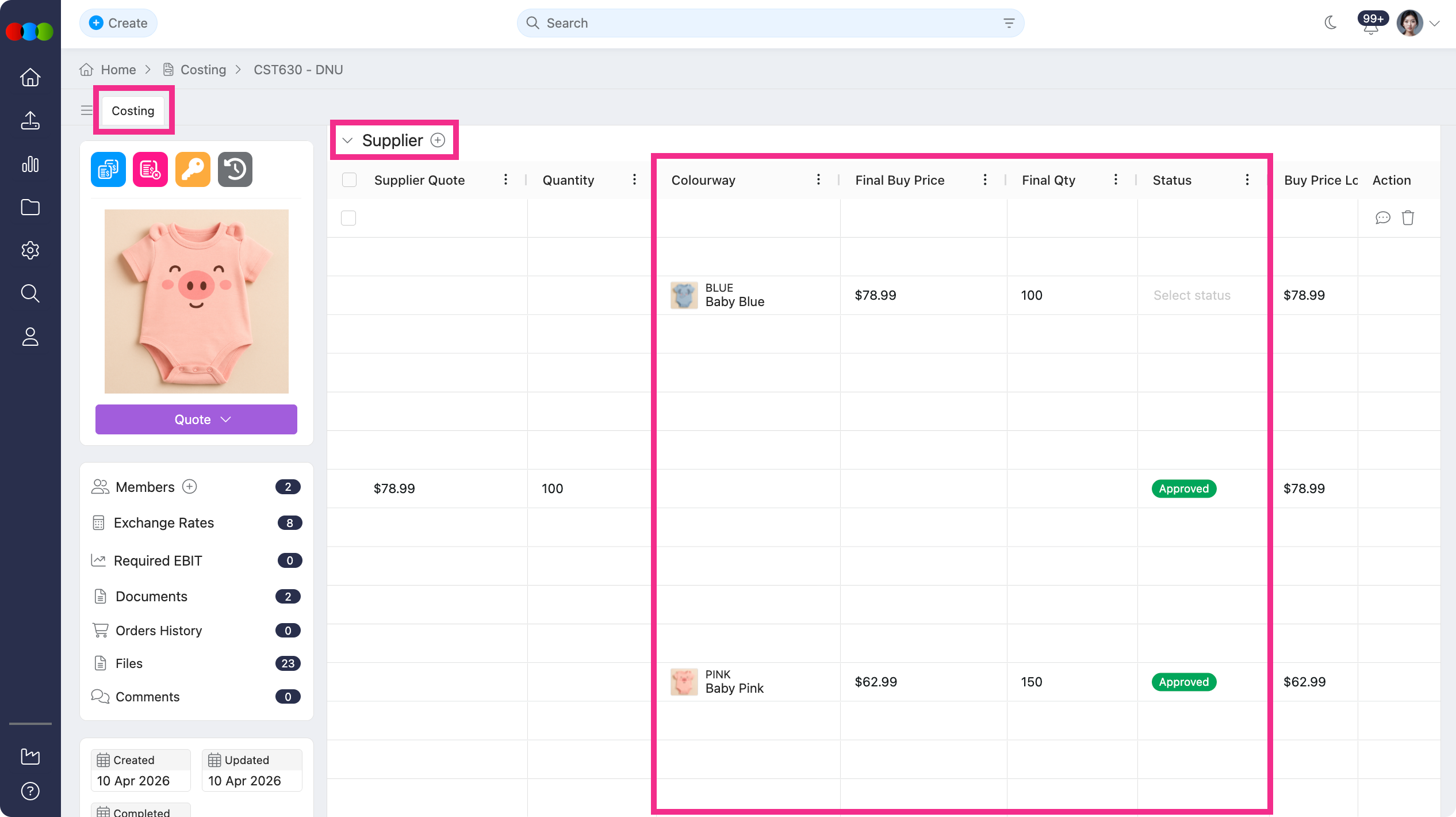
Costing > Supplier
When using costing templates configured for Price by Colour, adding a supplier now defaults to a clearer layout showing the Supplier, Style, and Colour.
Each colour line includes dedicated fields for Final Buy Price, Quantity, and Status, with all calculations performed at the colour level. Supplier quotes are also organised directly under each Style > Colour, making it easier to compare and manage pricing.
Moreover, you can now approve a final buy price per colour within the same style, improving flexibility when costs vary by colourway.
Learn more
For more details, please refer to the Costing > Style and Costing > Supplier.
Planner > Styles
We've made several improvements in managing the style items in your Planner.
Style cards in Planner > Styles are easier to read in compact layout, and Fixed Group plans are simpler to reorganise.
Image Only Layout
In this layout view, aside from the style's Number and Status, you can now also see the Description, Colour Description, and the Colour Swatch.
Planner > Styles > Image Only Layout 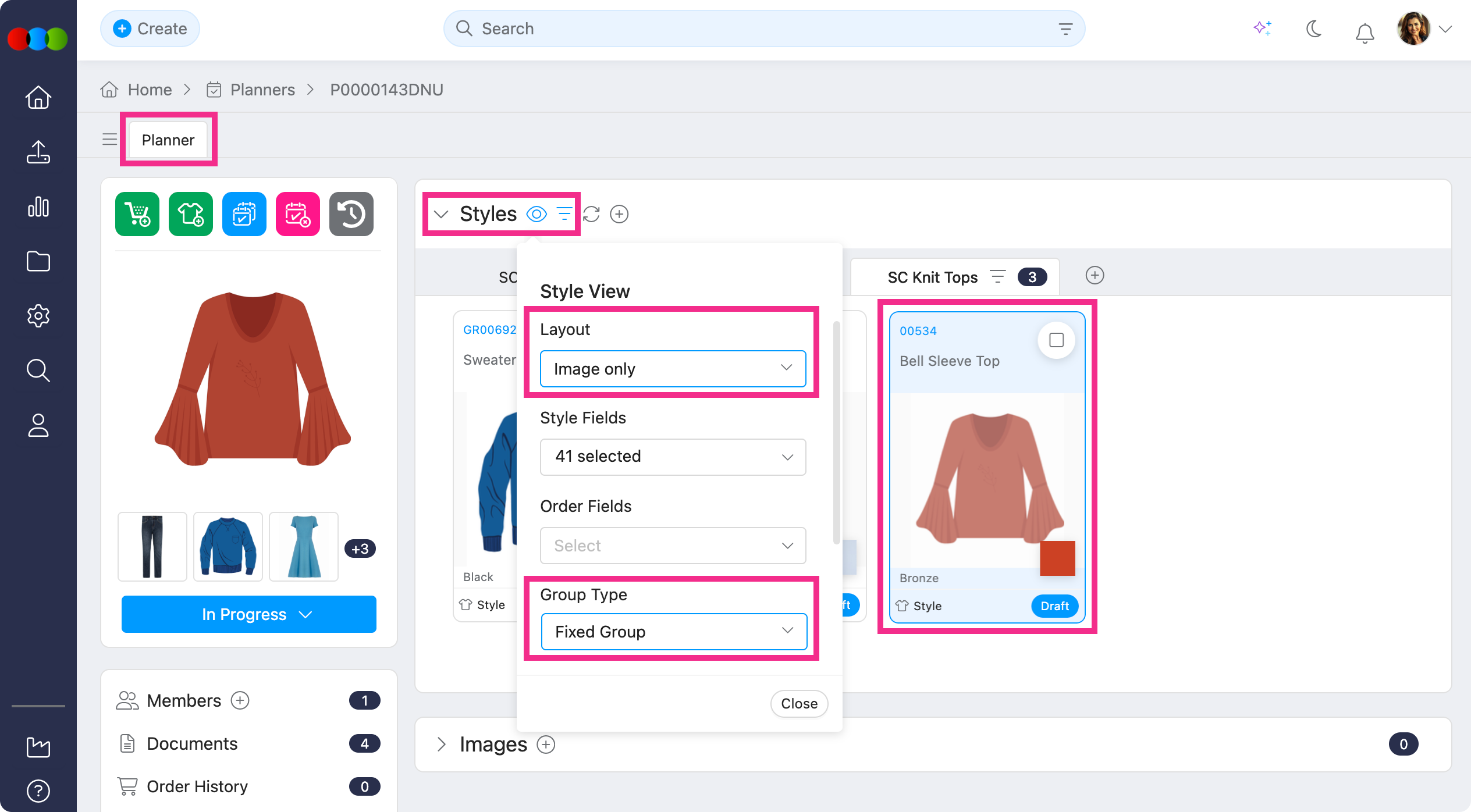
Fixed Group > Rearrange Groups
When Group type is Fixed Group, you can drag group tabs to reorder them. This is handy when you want tabs to follow your review sequence rather than the default order.
Planner > Styles > Fixed Group > Rearrange groups 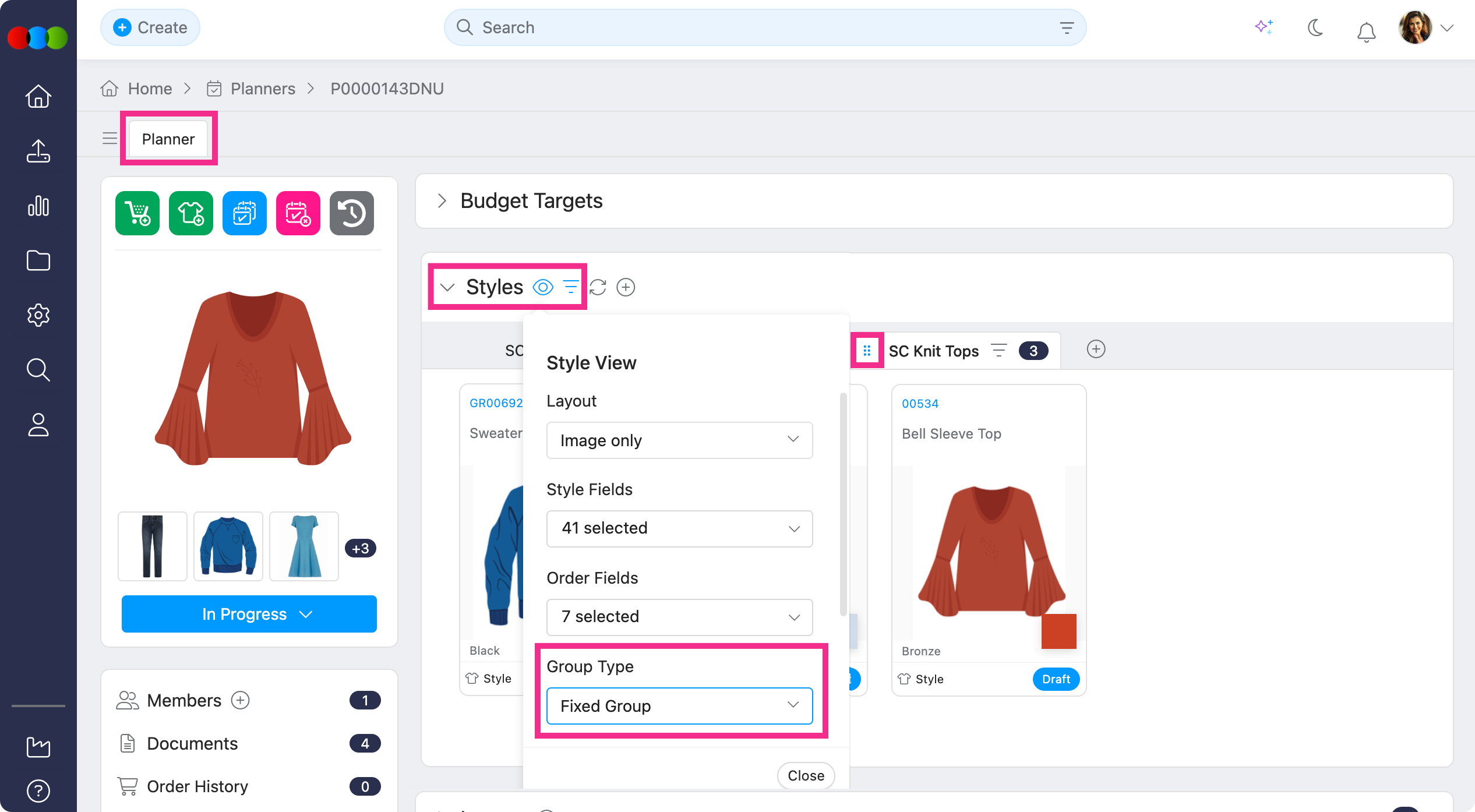
Learn more
Full view options, style fields, and grouping behaviour are described in Planner > Styles.
Style > Definition > Colour
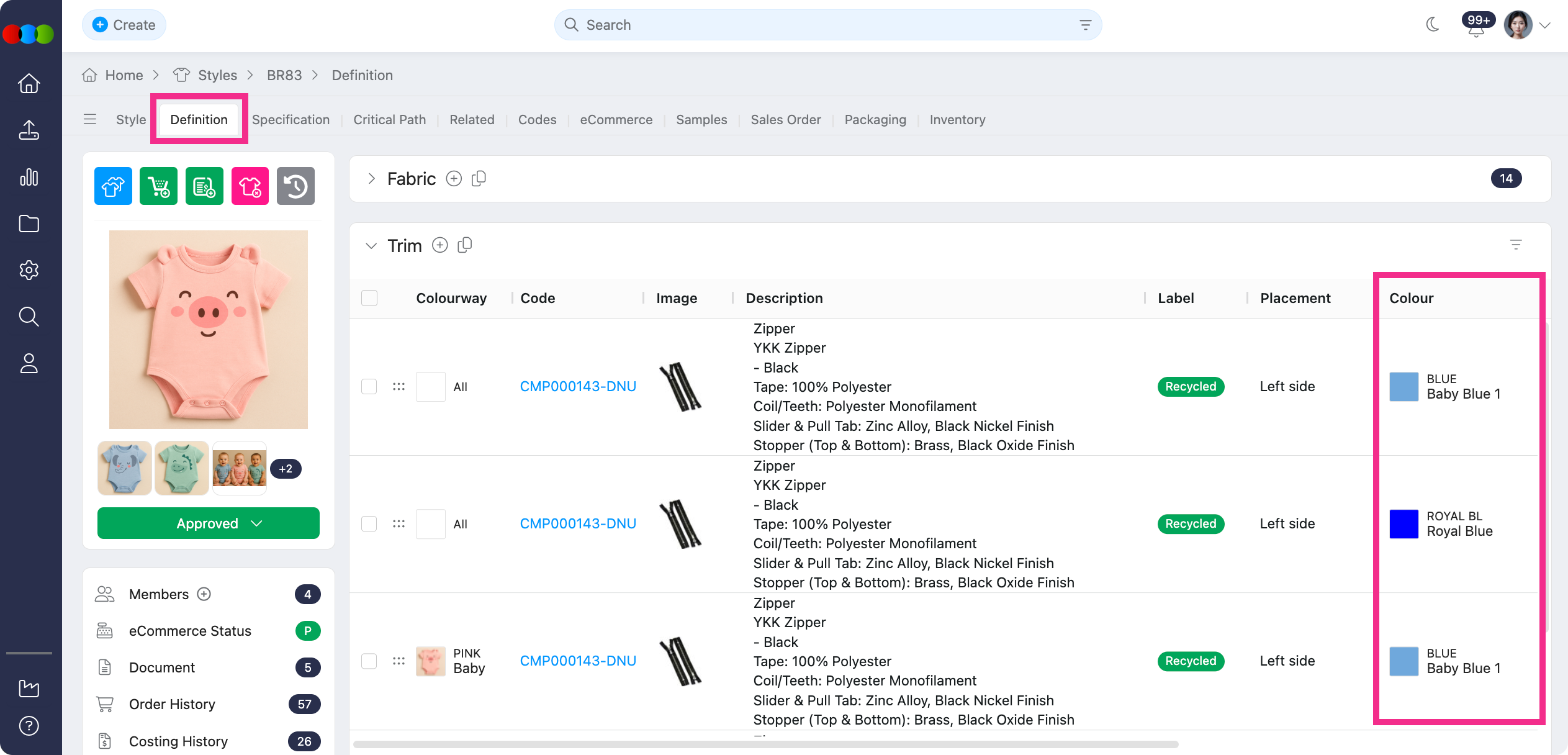
We’ve enhanced the Colour column in the Style > Definition.
Now, the column also displays the selected Component's Colour Swatch and Colour Code, matching what you set up in Component > Colours & Pricing.
Order > Samples > Sample Report
Previously, when Site Settings > Order > General Settings > Specifications were set to show only selected style sizes, the Sample Report still displayed all sizes.
Now, only sizes enabled in Style > Colours & Pricing appear in the Sample Report. This correctly matches configuration made in Site Settings > Order > General Settings > Specifications.
AI Assistant
We’ve fixed an error that occurred when using the AI Assistant, improving overall stability and reliability.
Thank you for helping us make things better! If you spot anything else, let us know — we're always here to help.
Happy clicking!
Previous Release Notes