Release Notes - 20th of April 2026
Style > Colours & Pricing > Colour Swatch > Hex Code
When you edit a Colour Swatch on Style > Colours & Pricing, this now includes a Hex code input box.
You can choose a colour as you usually would; then, the Hex code field updates automatically to show the hex value for the colour you have selected, so you can confirm the exact shade at a glance.
Style > Colours & Pricing > Colour swatch > Hex code 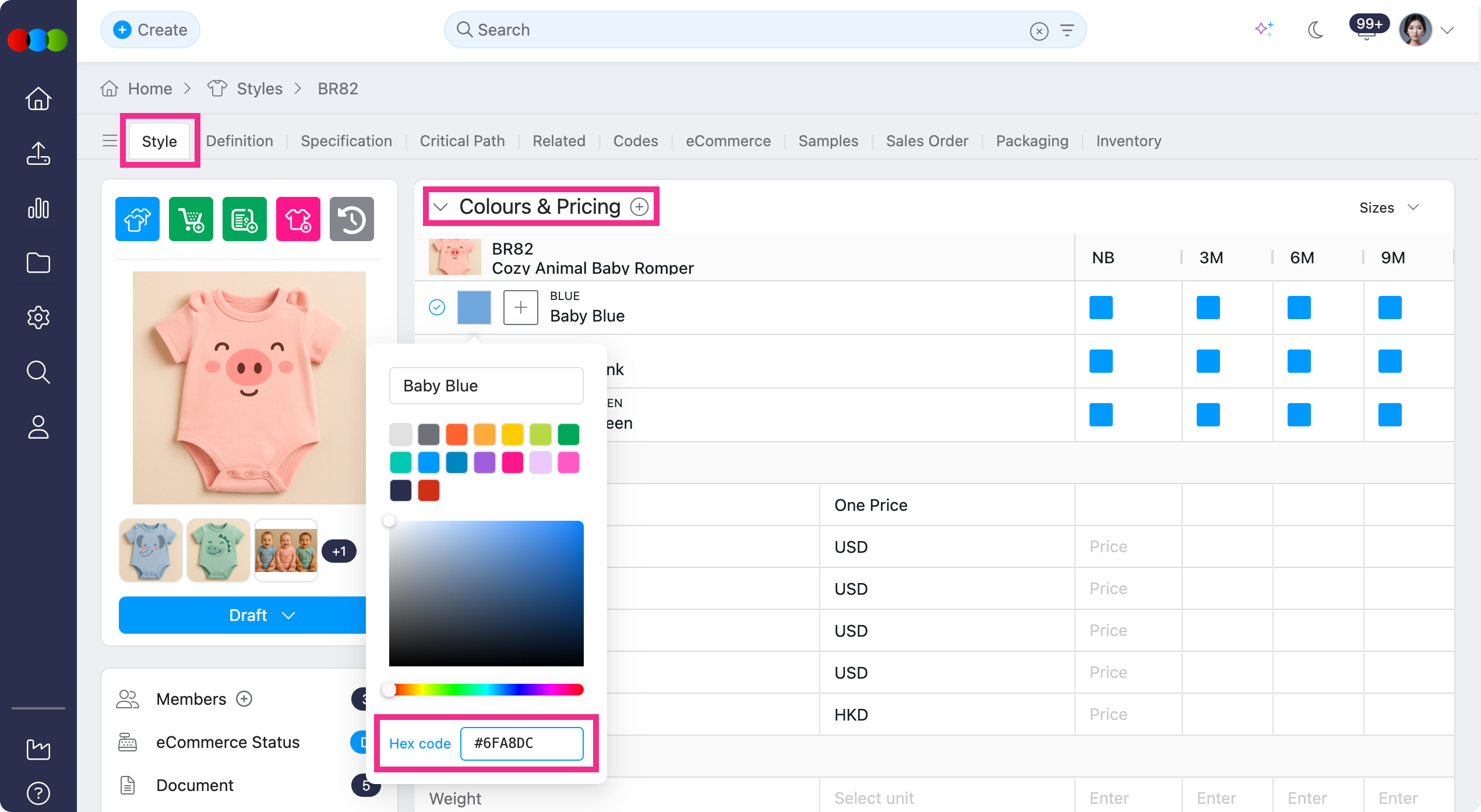
Learn more
For step-by-step guidance on colour swatches, head to Style › Colours & Pricing in the documentation portal.
Browser Extension Detection
We’ve added safeguards to protect the application interface from unintended changes caused by browser extensions.
The system now detects when field labels or UI texts are modified externally by browser extensions after the page has fully loaded. If any labels are altered, they are automatically changed back.
This safeguard help maintain a consistent UI experience, making it easier to use the system and ensuring support guidance matches what you see on screen.
Import Orders > Template > Advertised & Story Columns
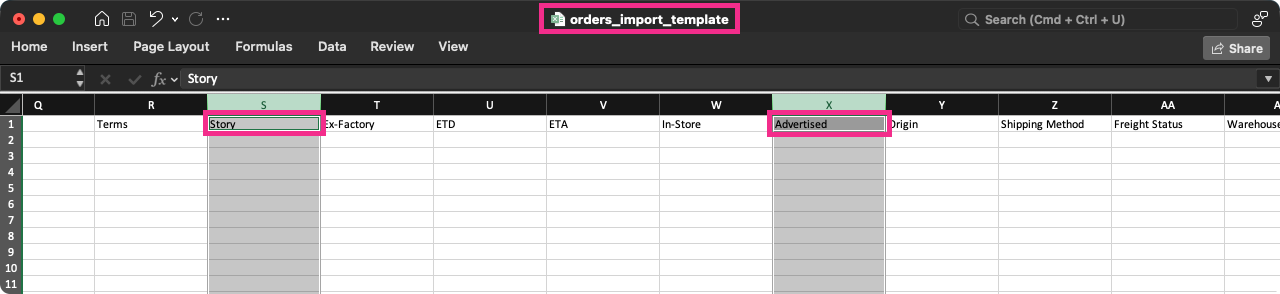
We’ve added new columns to the Order Import Template to support more data during import.
- Advertised - supports DD/MM/YYYY format; date inputted here will appear in Order > Dates > Advertised
- Story - this only applies for Order > Style Details > Story, and will not affect the Style > Details > Story
Learn more
To see other columns available in Orders Import Template, head to Order Import in the documentation portal.
Application > Files > Edit Folder Name
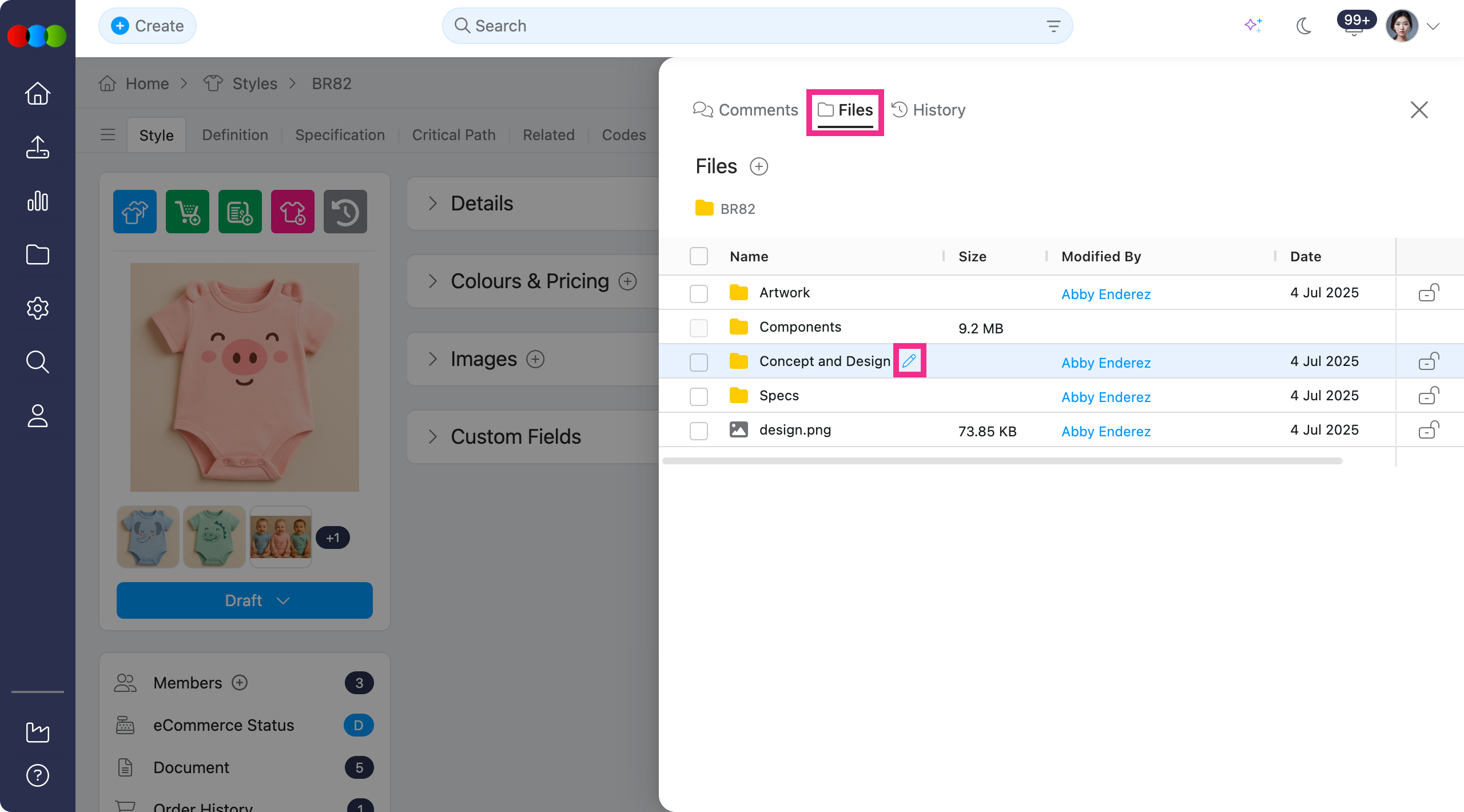
You can now rename folders directly within any application's Files section.
This improvement allows you to quickly correct naming mistakes, or align folders with your workflow.
Site Settings > Style > General Settings > Menu Hierarchy
This update focuses on improving how data is imported and applied in your Style > Details.
What’s improved?
-
You can now upload CSV files using either reference codes or field descriptions, or a mix of both across hierarchy fields. The system will automatically resolve them correctly during import.
-
Field dropdowns will follow the configured hierarchy when the uploaded Menu Hierarchy values match the valid setup. If no match is found, dropdowns will automatically fall back to showing all available options for that field.
-
Style Menu Hierarchy imports are now faster and more efficient, even when processing multiple hierarchy combinations.
Learn more
To further review how Style Menu Hierarchy is being used across your Styles, head to Site Settings > Style > General Settings > Menu Hierarchy.
Site Settings > Company > Roles & Permissions > Import Permissions
Bulk Import entry points across the platform now follow the same Roles & Permissions rules as create and edit access. Previously, users without the right permissions for an application could still see and open Import from the upload icon, which bypassed the access controls your organisation sets in Site Settings > Company > Roles & Permissions.
What’s improved and how it works now
- Each Import option checks the permissions that match the records it affects. You only see and open an Import flow when your role grants the required access.
- If you have none of the permissions needed for any Import available on that screen, the upload icon is hidden entirely.
| Import option | Site Settings > Company > Roles & Permissions |
|---|---|
| Import Components | Component: Create or Edit |
| Import Orders | Order: Create or Edit |
| Import Shipment | Shipping: Create or Edit. View-only access does not show this option (even if you can see shipments). |
| Import Spec Template | Controlled separately from main Style Create/Edit - it can appear when Spec Template is enabled under Site Settings > Style > Style but Style Create/Edit is disabled; it is hidden when Spec Template is disabled, even if Style Create/Edit is enabled. |
| Import Style Files | Style: Edit |
Learn more
- Set and review access in Site Settings › Company › Roles & Permissions.
- Import columns, rules, and workflows: Component Import, Order Import, Shipping Import, Style Import, Spec Template Import, and Style Files Import.
AI Assistant
We’ve introduced additional features to make the AI Assistant more intuitive, reusable, and easier to explore without leaving the chat.
What's improved?
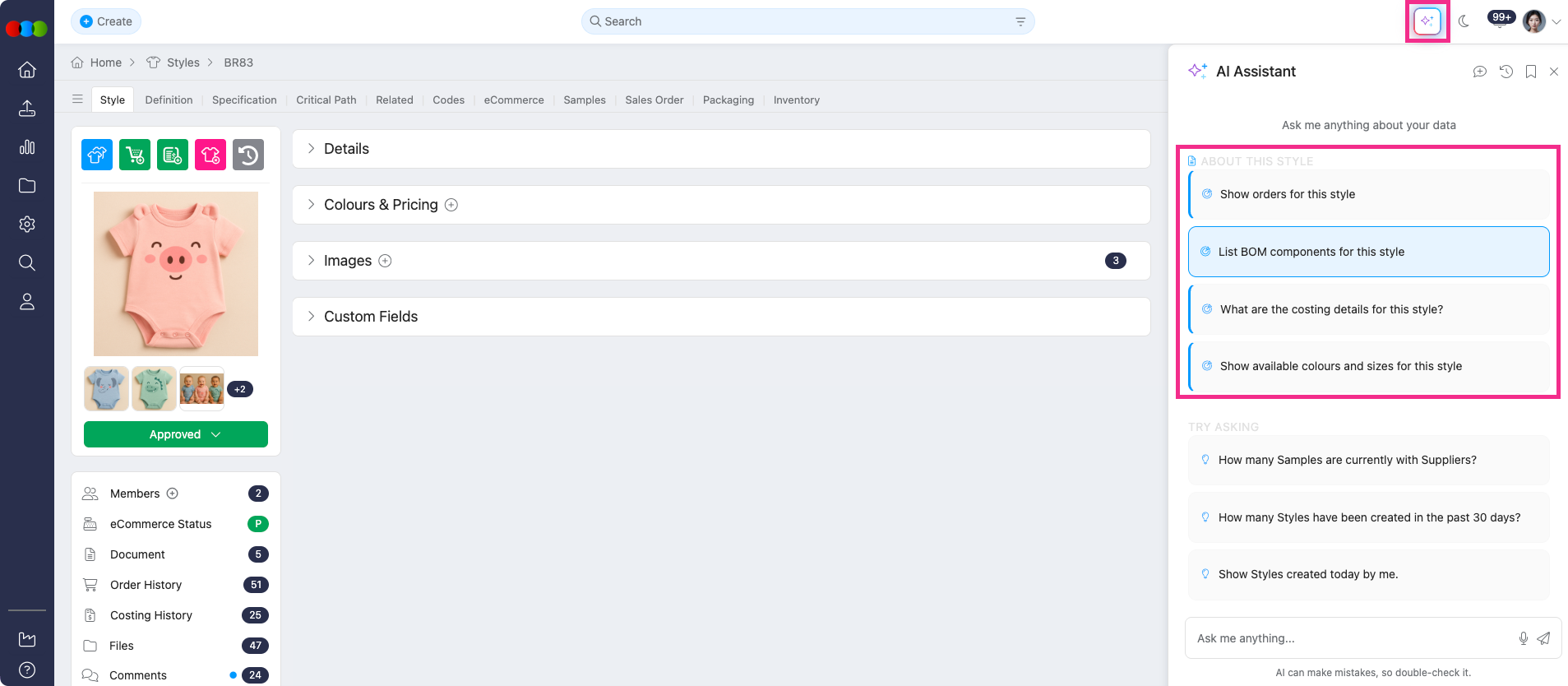
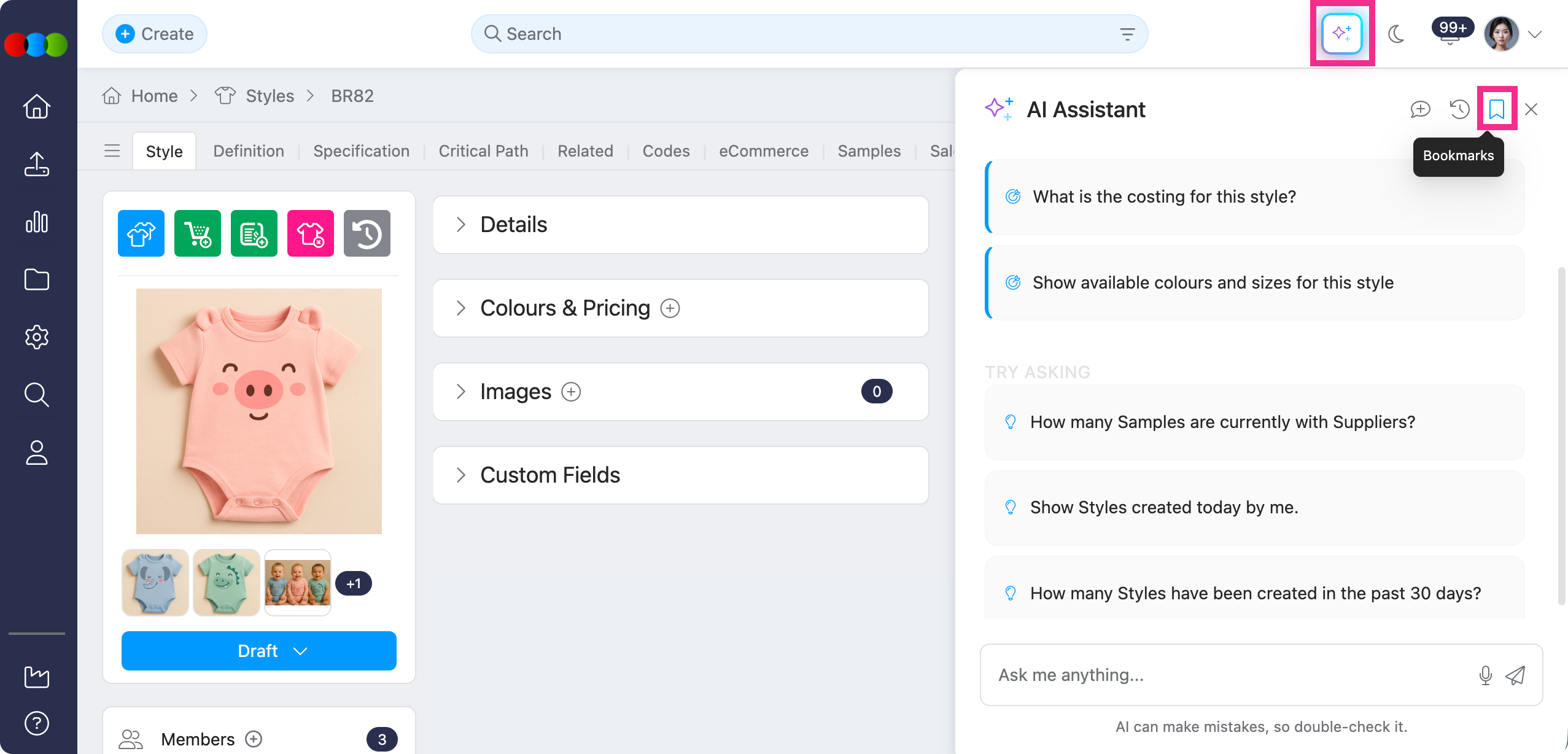
- Context-Aware Suggestions - When you open the AI Assistant from a specific application page (e.g. Style or Order), it now detects where you are and suggests relevant queries based on that page. This helps you get to the right answers faster.
- Bookmarks - You can now save frequently used queries as bookmarks and check them anytime with ease.
AI Assistant > Save as bookmark 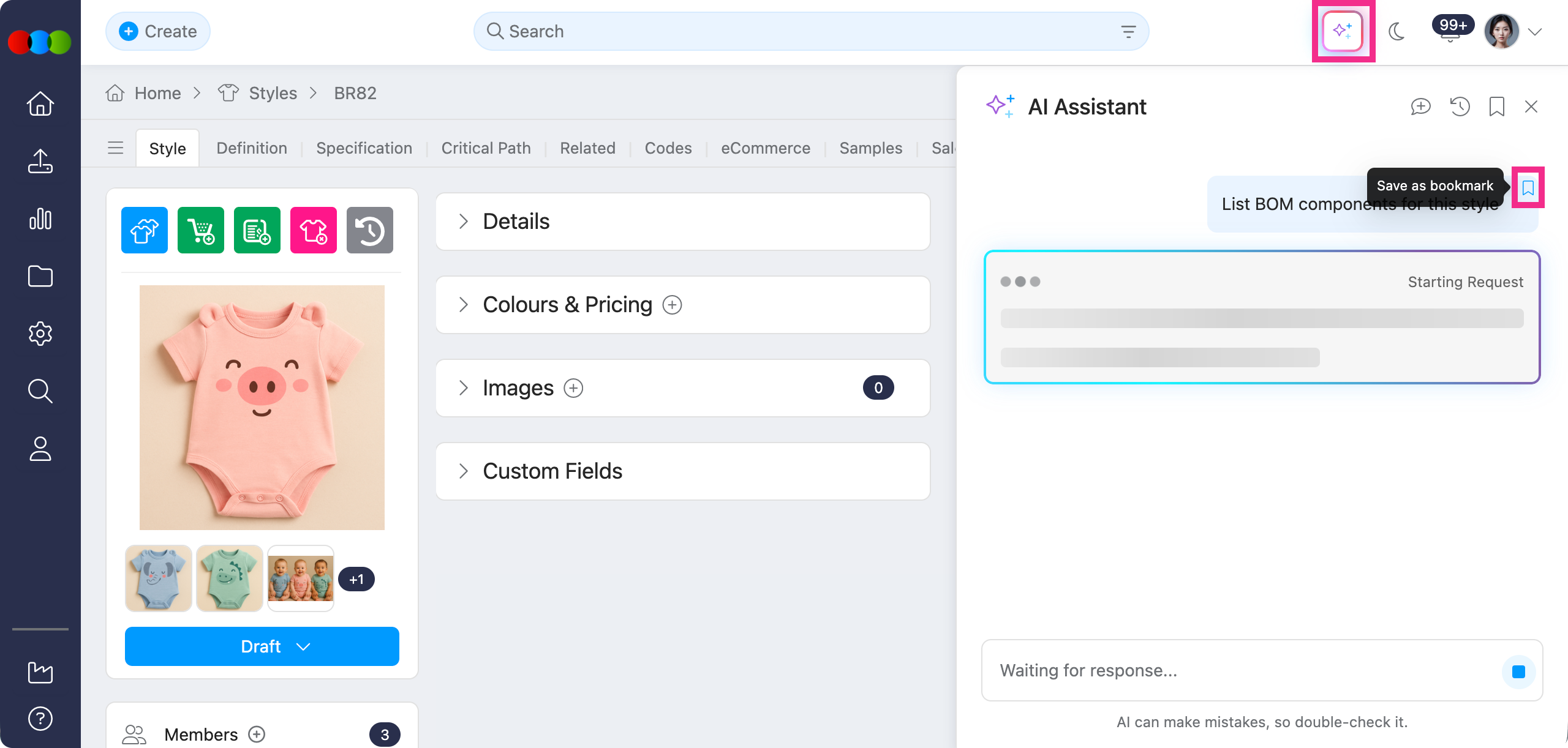
-
You can now click a row in a chatbot result and ask “Tell me more about this one”. The AI Assistant will display detailed information directly in the chat.
-
You can also ask questions to the AI Assistant in regard pricing, making it easier to analyse pricing-related queries.
-
The chatbot now automatically detects and flags potential data quality issues within returned results. This helps you quickly spot and address issues, improve data accuracy, and make more confident decisions without manual checks.
Learn more
Visit the the documentation portal to learn more on what the AI Assistant can do for you.
Drive > Email
Previously, when you sent an email from Drive, the link included in the message could be broken and return a 404 error for the recipient.
This is now corrected, and the link in Drive emails opens as expected.
Component Search > Number of Rows
Previously, Component Search only returned up to 1,000 rows, while searches in other applications could return up to 10,000 rows.
This has been fixed to align with other application search view.
Component > Styles & Orders
Previously, if you were already viewing a component and used search to open a different component, the Styles and Orders areas could still show records for the component you had open before, not the one you had just searched for and selected.
This is now corrected. After you search for and go to another component, both Styles and Orders will always reflect the currently selected component.
Style Import > Size Scales > Description
Previously, when multiple Size Scales shared the same Description, the import process could select a disabled size scale instead of the enabled one. This resulted in styles being linked to the wrong size scale.
What’s fixed now?
- Size Scale Code is now required during import to ensure the correct Size Scale is selected.
- Style import will now only recognise and apply enabled size scales.
Costing > Supplier > Comment
Previously, when you used mentions in Comment on Costing > Supplier, supplier contacts did not appear as options in the list.
What’s fixed and how it works now:
- Supplier contacts are now included, so you can select the correct contact without leaving the costing workflow.
- When a mentioned supplier contact is included, they receive an email and a notification alert on the portal.
Costing > Create New Costing > Freight
Previously, when you create a new Costing, selected a Freight in the pop-up, then added a supplier in the Supplier section, the Freight you had chosen was not shown.
This is now corrected. The Freight you select when creating the costing is populated in the Supplier section, so the selected freight stays visible and consistent as you add suppliers.
Advanced Search > Add Filters
Previously, when you opened Advanced Search and clicked Add filters, the full list of filter options appeared the first time. If you ran a search, went back to Advanced Search, and clicked Add filters again, only two options were shown instead of the complete list.
This is now corrected. Add filters shows the full set of options every time you use it from Advanced Search, including after you have already run a search.
Style Search > Style by Colour Size view > eCommerce > Export
Previously, eCommerce prices appeared correctly on screen in Style search results, but those values were not included when you exported the results to Excel.
This is now corrected. eCommerce prices are exported to Excel so they align with what you see in the search view.
Thank you for helping us make things better! If you spot anything else, let us know — we're always here to help.
Happy clicking!
Previous Release Notes