Release Notes - 27th of April 2026
Order Import > AI Import (Beta Version)
A new AI Import option is now available within the Order Import for your files, giving you more flexibility when importing files beyond the current standard spreadsheet template.
This feature is currently in beta version, which means it is still being improved and may continue to receive updates, enhancements, and workflow adjustments based on your feedback.
Order > Order Import > AI Import 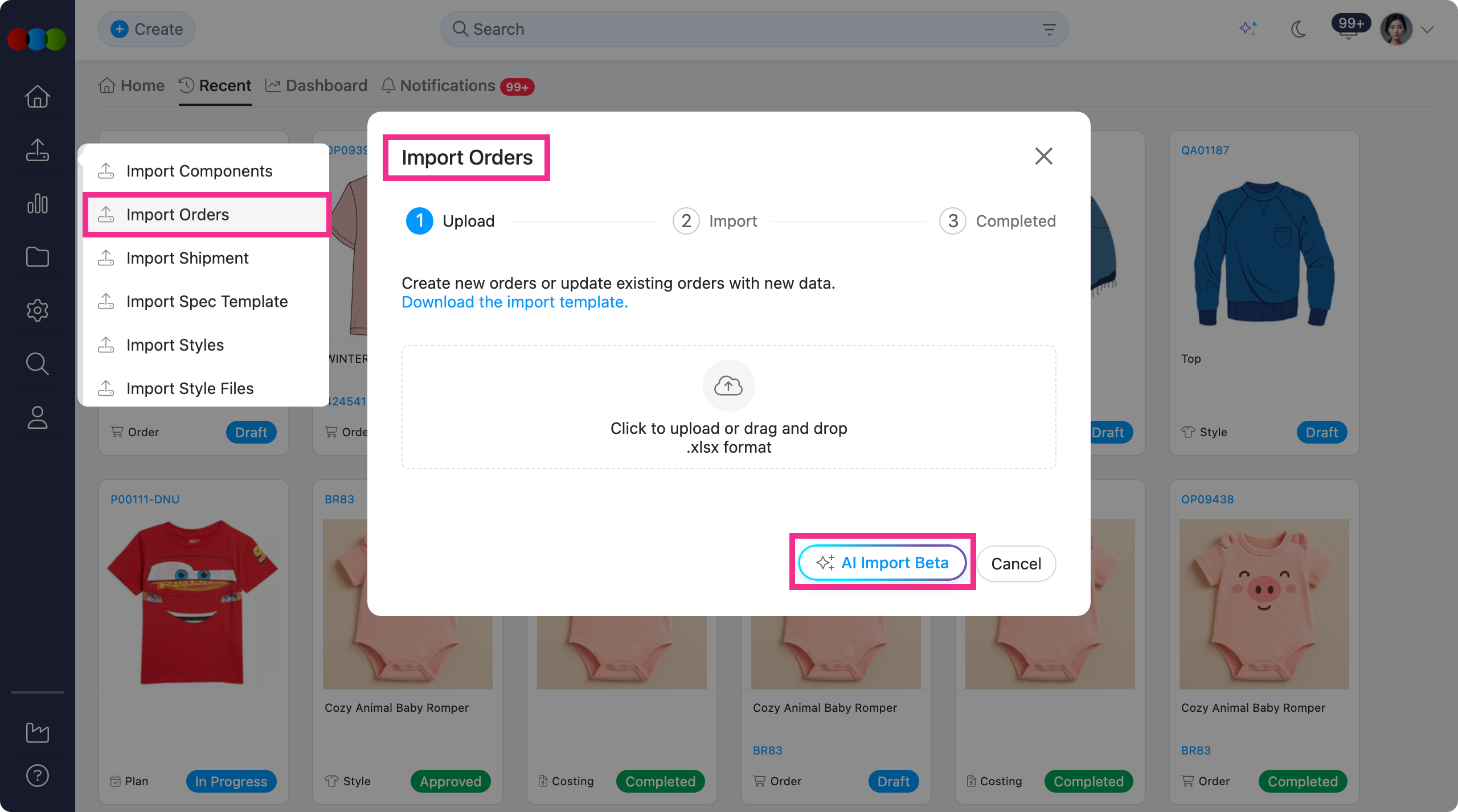
With this feature, it will make it easier to import files such as:
- Excel files (.xlsx)
- PDF documents
- Pivoted size-matrix layouts
- Customer-specific order formats
The original .xlsx template import remains unchanged and is still the default option when your file already matches the standard template.
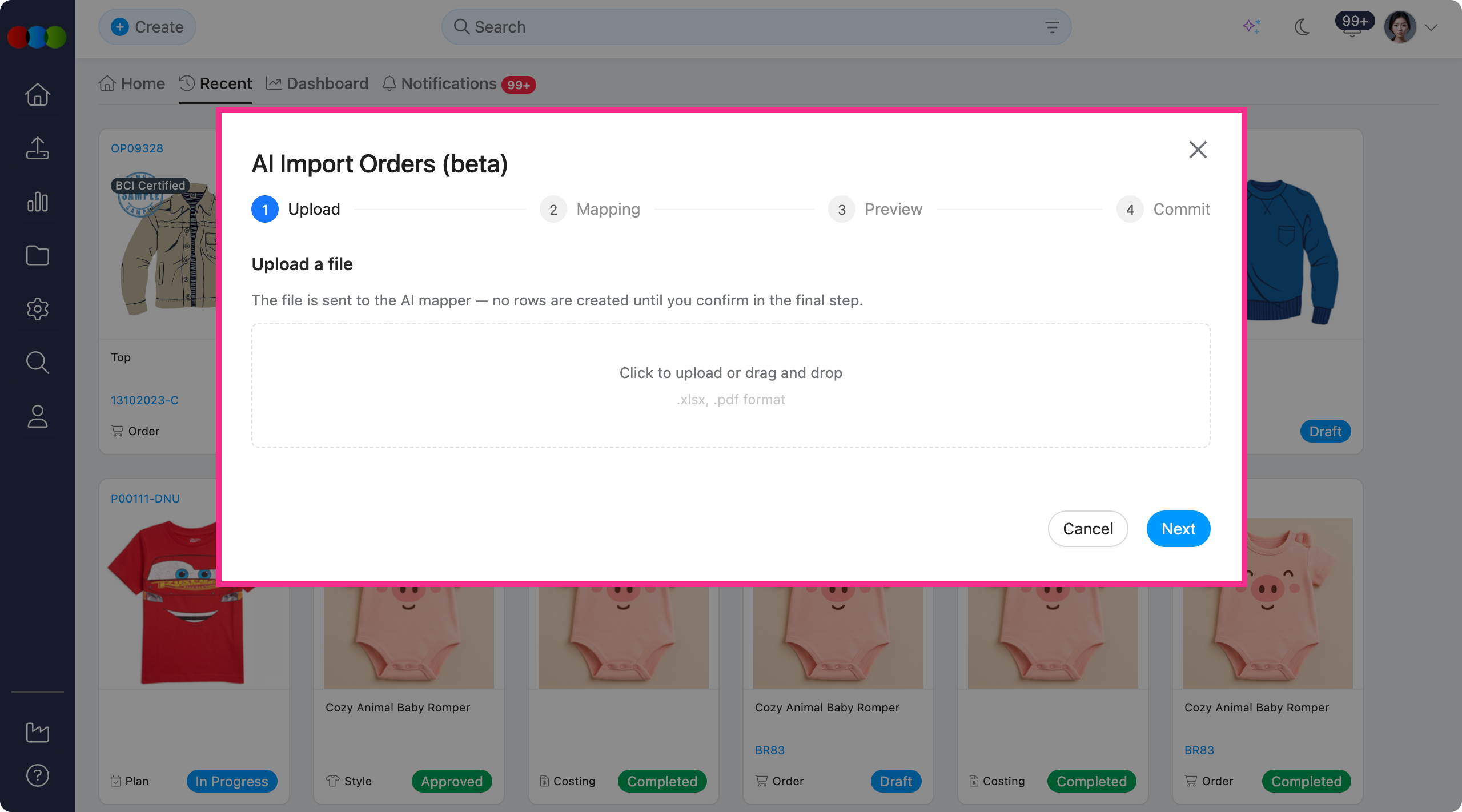
How it works?
The AI Import helps map customer file data into 3 Clicks order fields using a step-by-step process:
- Applies your saved import templates first
- Uses matching to identify likely field matches
- Uses AI assistance when the file structure is unclear or more complex
- Allows you to review and validate all mapped data before import
Once confirmed, new orders are then created in the Orders list as normal.
Why this matters?
This reduces the need for manual reformatting, copy-pasting, and re-keying when you send order or bulk orders on your own file format.
Also, it helps teams work faster while still using the same familiar import process.
Important note
The AI-assisted mapping steps are treated as a separate billable feature. Unlike the standard template import, AI Import usage is metered and may incur additional charges depending on your subscription.
Learn more
To learn how to run an import and review the mapping, head to the Order › Order Import › AI Import page in the documentation portal.
Recent > Planner > Preview image
On Recent > Planner, the Preview Image sometimes did not appear for certain planner items, even when a preview image was available.
Now, the image shows for those items whenever a preview exists, allowing you to scan your recent planners and recognise styles at a glance.
Note
This issue was not universal: it could appear for some user accounts and specific planner items, not for every planner or every user. If a preview was missing for you in this list, open the same planner again — the thumbnail should load as expected.
Planner > Styles > Status Filter
Previously, Planner filters did not always stay as you had saved them.
Now, your saved Planner filter configuration is retained when you return to the planner, so the same rows you expect stay visible.
Thank you for helping us make things better! If you spot anything else, let us know — we're always here to help.
Happy clicking!
Previous Release Notes