Release Notes - 12th of June 2026
Customer Portal
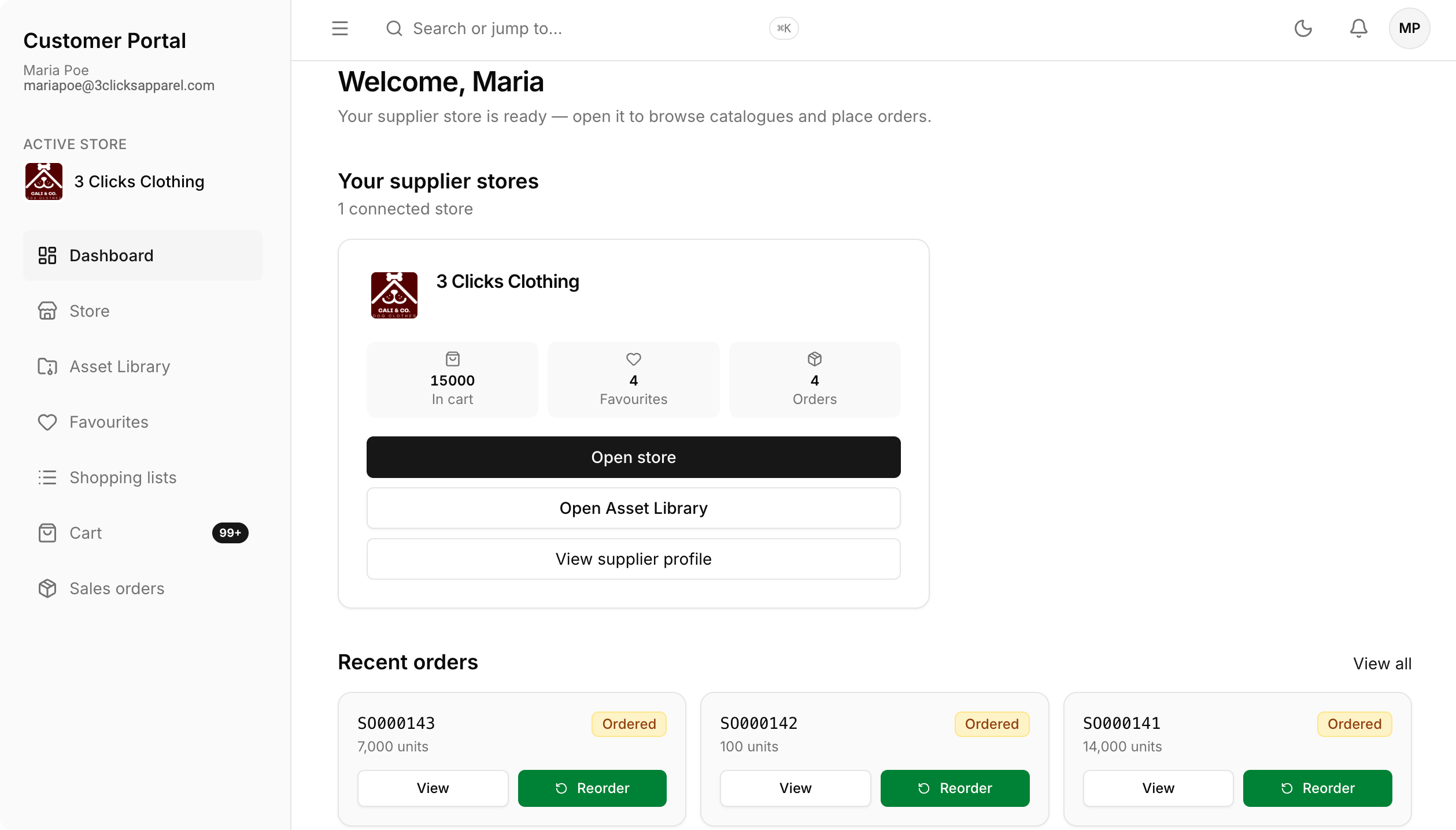
The Customer Portal has been redesigned to give your customers a clearer, faster way to browse your catalogue, build orders, and track purchases in one place.
When your customers log in, they will see:
-
Dashboard - A central view of your store, including items in their Cart, saved favourites, and orders in progress. They can review recent orders and reorder with ease.
-
Store - Browse your full catalogue, search and filter by brand, licence, and more, or place a quick order by entering the style number, sizes, colourway, and quantity. Items added here go straight to their Cart.
-
Cart - Review order details such as purchase order number, customer, and total including tax, before checking out.
-
Asset Library - View read-only styles you have shared with their account, so they can review product information without placing an order.
-
Shopping Lists - Create and update lists to plan future purchases. They can see item counts, the relevant supplier, and when each list was last updated.
-
Sales Order - Track orders submitted through checkout, filter by status, and open any order to review its details and progress.
Learn more
For step-by-step guidance on what your customers will experience in each section, visit Customer Portal › Overview in the documentation portal.
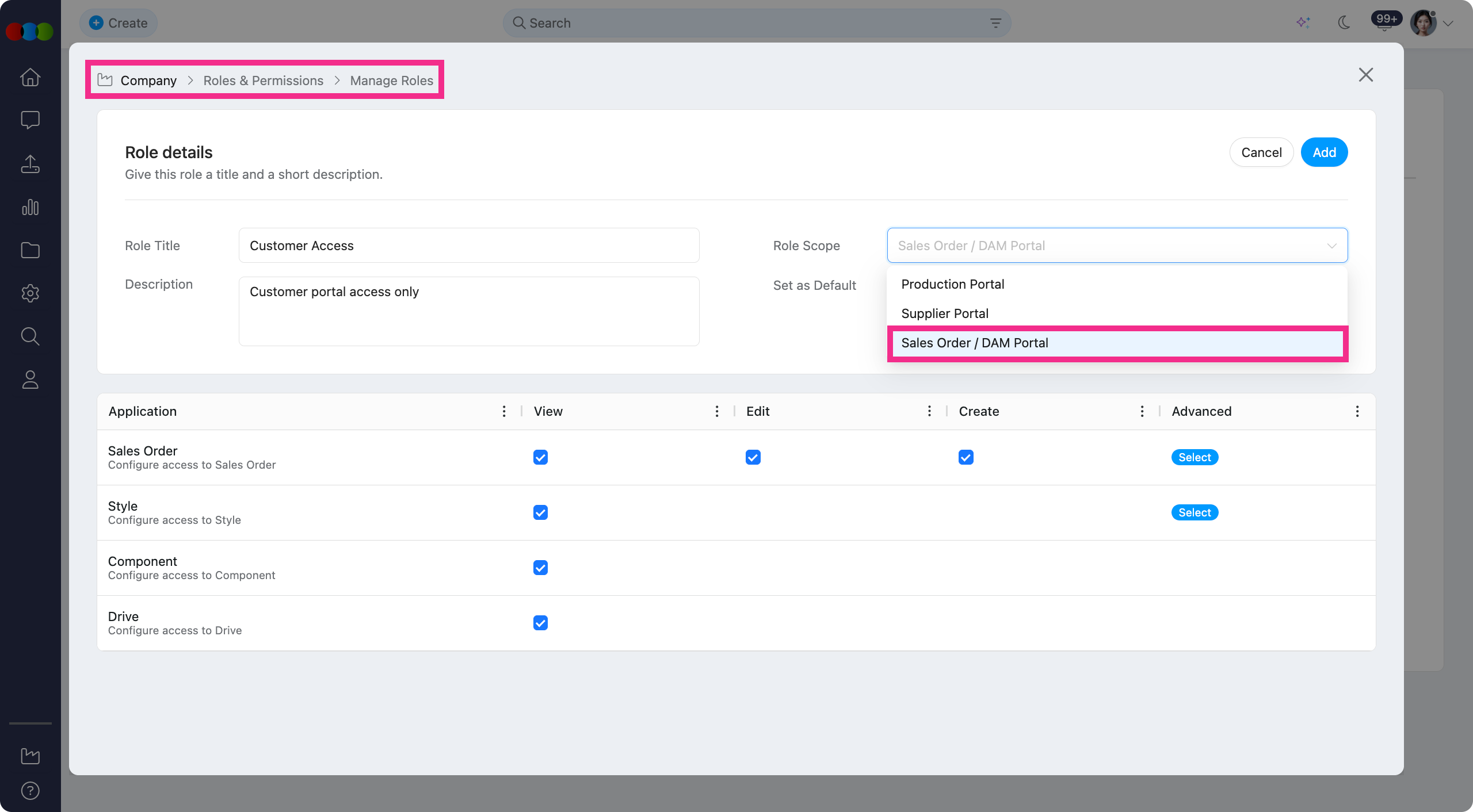
Site Settings > Company > Roles & Permissions > Sales Order / DAM Portal
You can now create and manage dedicated permission templates for Sales Order / DAM Portal users from Site Settings > Company > Roles & Permissions allowing you to configure customer access separately from your internal team.
What's new for administrators?
- Dedicated role scope: Select Sales Order / DAM Portal when adding a role to build permission templates for portal users only.
- Permissions matrix: Control View, Edit, and Create access for Sales Order, Style, Component, and Drive.
- Advanced filters: For Sales Order and Style, open Advanced to restrict access by Brand, Collection, License, and Type.
- Default role: Set one role as the default for this new role. A confirmation appears if you replace the existing default.
What your customers experience:
- Portal users only see the areas their role allows. For example, the Store and checkout when Sales Order permissions are enabled, or read-only product information when Style View is granted.
- Drive View lets customers access shared files where permitted, without broader edit rights across the platform.
Sales Order advanced permissions 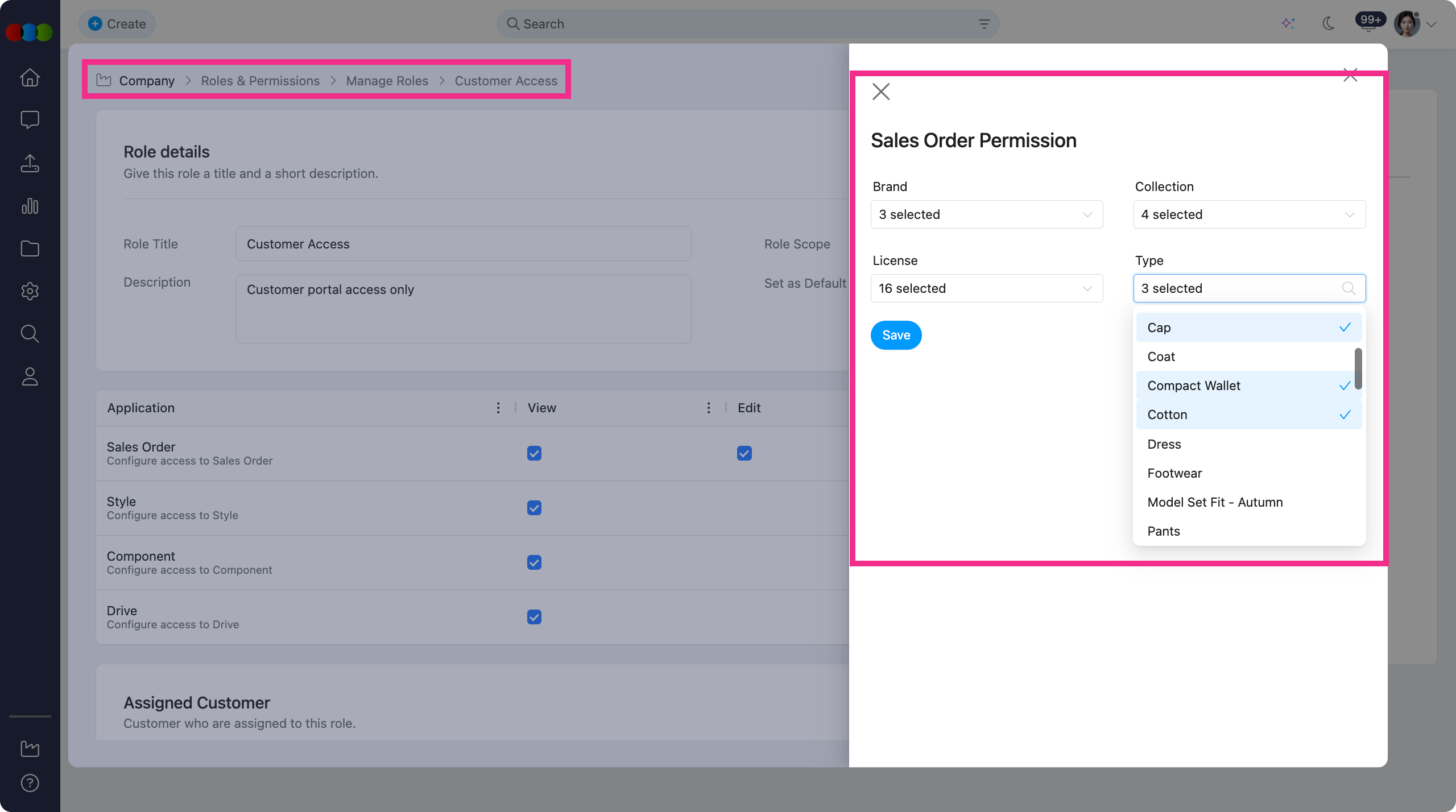
Learn more
For step-by-step guidance on creating roles, configuring the permissions matrix, and advanced Sales Order and Style options, visit Site Settings › Company › Roles & Permissions in the documentation portal.
Thank you for helping us make things better! If you spot anything else, let us know — we're always here to help.
Happy clicking!
Previous Release Notes