Release Notes - 25th of June 2026
Order Search > Colourway Quantity
You can now add Colourway Quantity as a column in Order Search.
Colourway Quantity displays the total quantity for each colourway on the order. If the same colourway is added more than once, the column shows the combined subtotal rather than separate values per line.
How it works:
- Add Colourway Quantity from Choose Columns in Order Search.
- In Order by Colour view, see total quantity per colourway at a glance.
- Duplicate colourway entries on the same order are automatically summed.
Order Search > Order by Colour view > Colourway Quantity column 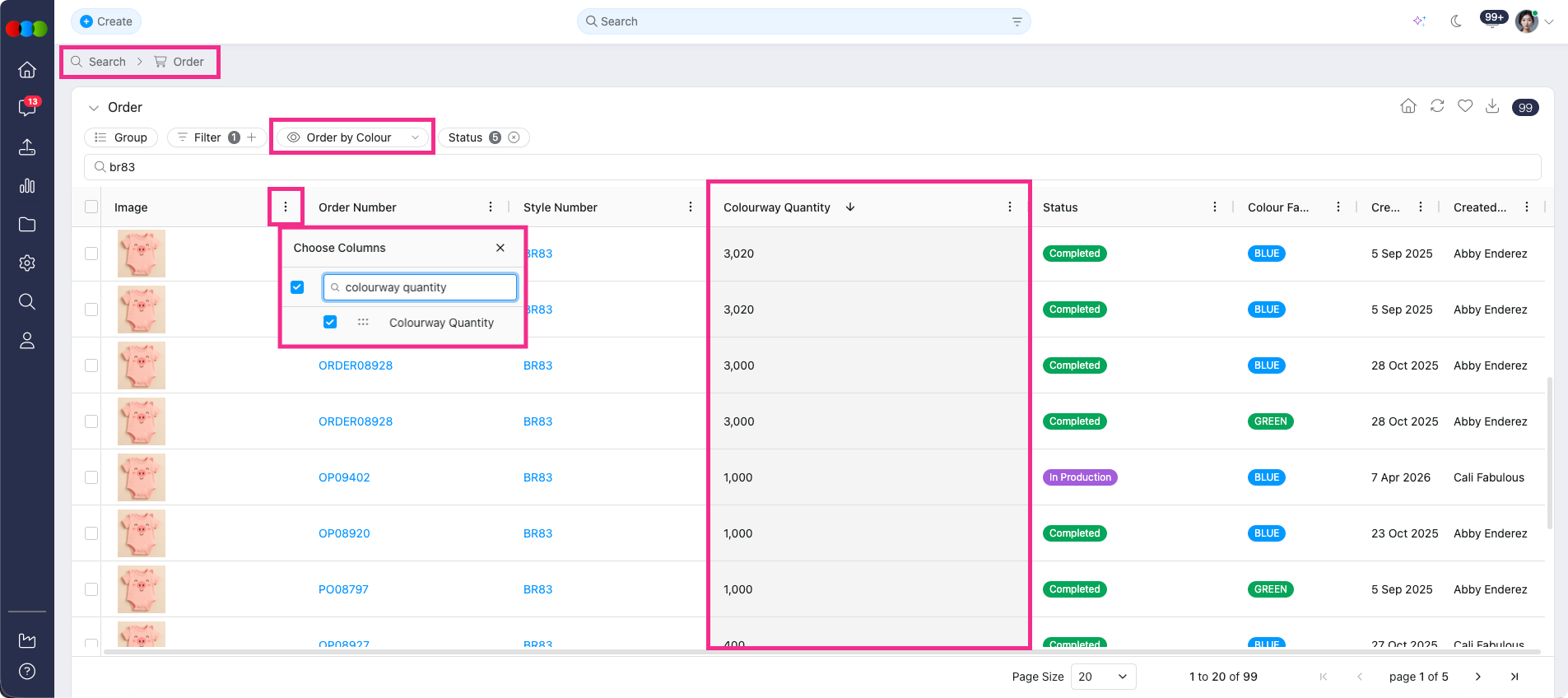
Learn more
For available columns and how to customise your search view, see Search › Order Search in the documentation portal.
Order Search > Order by Colour by Market View & Market Column and Filter
Order Search now supports market-level pricing with a new Order by Colour by Market view.
This gives you a clear picture of retail and sell prices across the regions you are ordering for, without opening each order individually.
-
Order by Colour by Market view — Each row lists the order, colour, and selected market (one row per style/colour and market combination).
-
Price Type = One Price — When viewing orders in Order by Colour by Market, Buy Price and the related market RRP and Sell Price display as configured on the order. This matches how market pricing appears in Style Search > Style by Colour by Market.
-
Market column — Add Markets from Choose Columns to show which market each row represents.
-
Market filter — Use the new Markets filter in Search and Advanced Search to narrow results to specific regions.
Order Search > Order by Colour by Market view 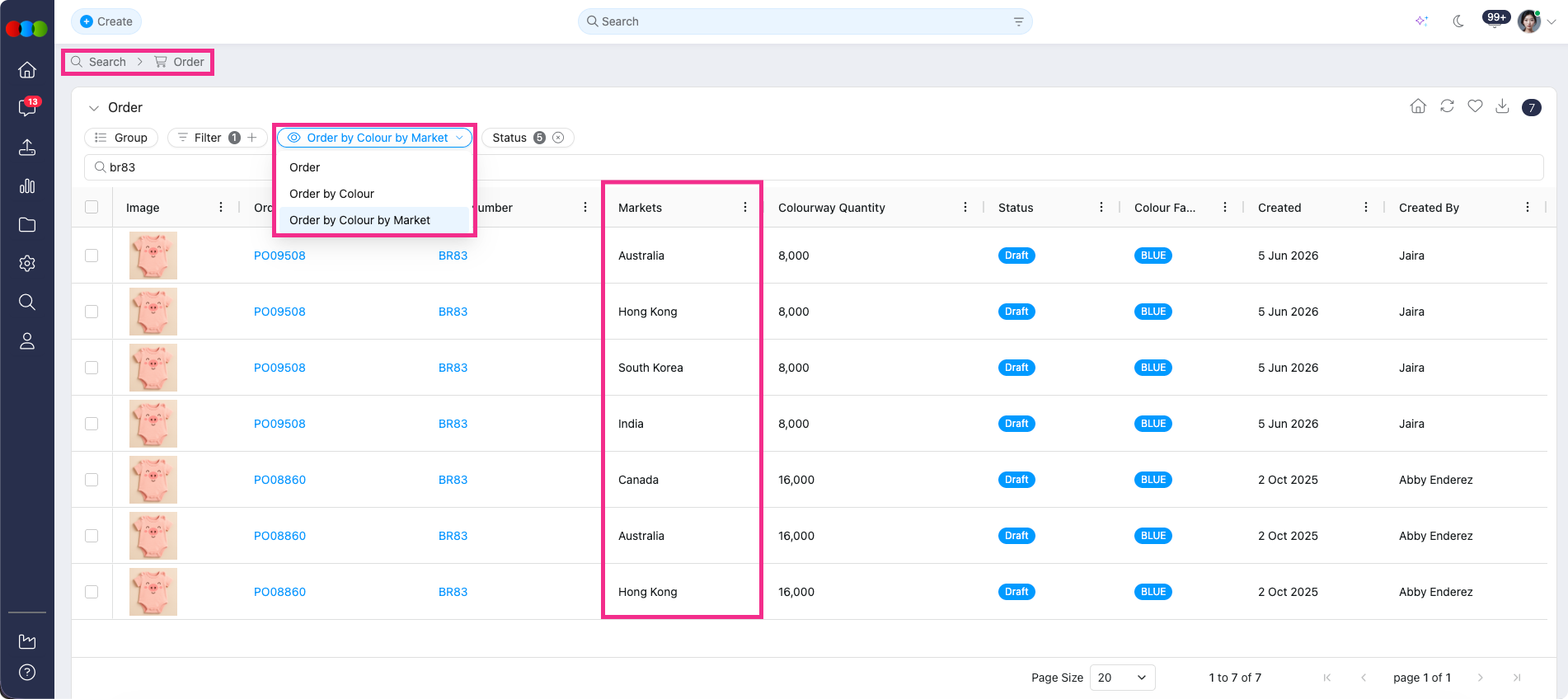
Learn more
For view options, columns, filters, and market pricing in Order Search, see Search › Order Search in the documentation portal.
Import Style/Order > Additional Markets Column
Style and Order Import now support full market pricing through the Additional Markets column, allowing you to input regional Sell and RRP values in bulk on each style or order.
-
Style Import (all pricing layouts): Import market pricing using the same layouts as Style > Colours & Pricing: One Price, Price by Size, and Price by Colour.
-
Order Import (all pricing layouts): Order import supports One Price, Price by Size, and Price by Colour where applicable for single orders, bulk-style orders, and bulk-component orders. This matches how pricing appears in Order > Colour Quantity & Pricing.
-
Multiple markets per row: List several markets on Sell and RRP rows for both Styles and Orders.
-
Import order sequencing: Markets display in the same sequence as your imported file (for example, Australia, New Zealand shows Australia first, then New Zealand). The first listed market becomes the primary market.
Import Style > Additional Markets Column 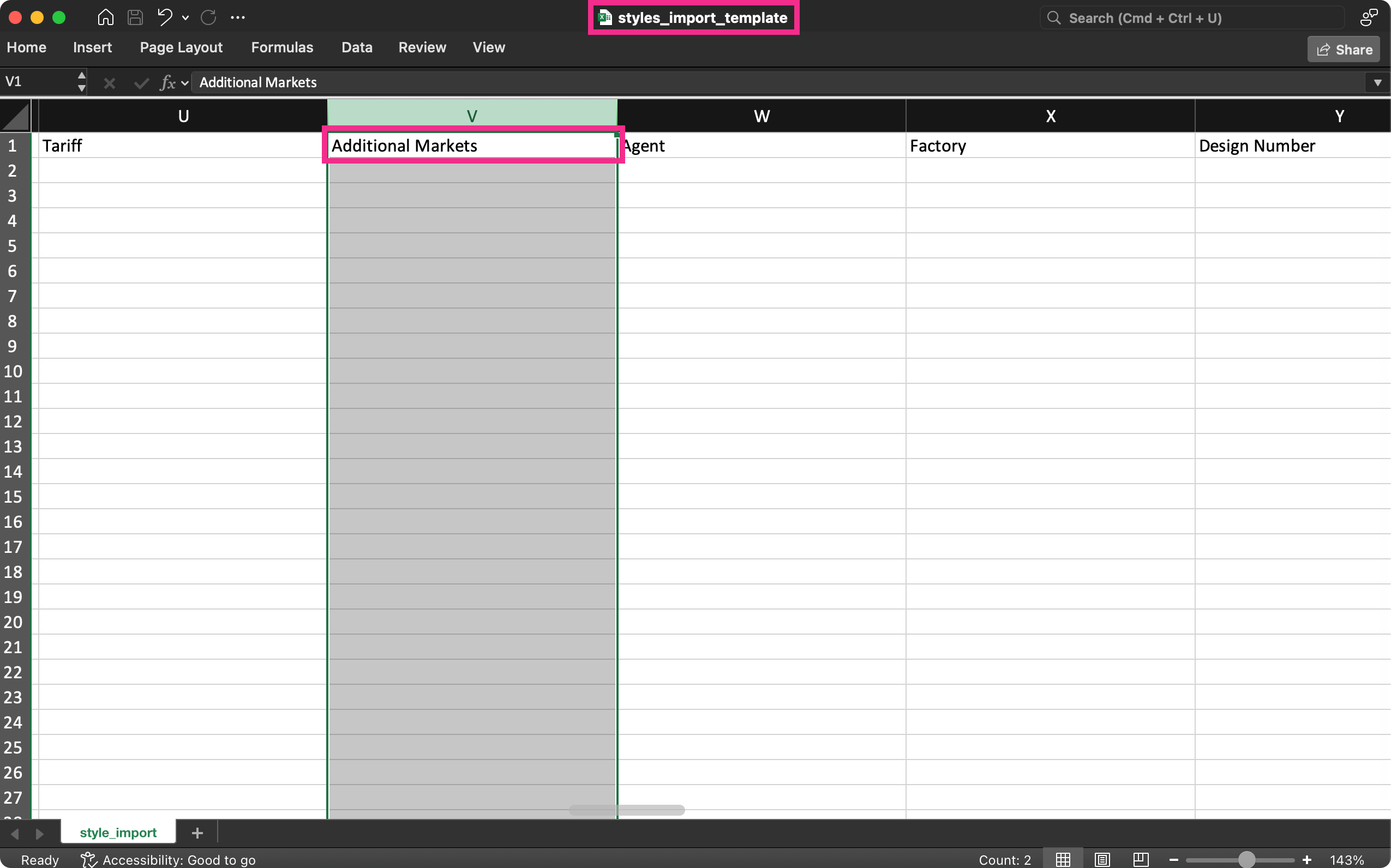
Learn more
- For Style Import fields including Additional Markets, see Style › Import › Fields and Rules in the documentation portal.
- For Order Import market pricing columns and rules, see Order › Order Import › Import Fields and Rules in the documentation portal.
- For setting up market pricing on styles, see Style › Colours & Pricing › Markets.
- For market pricing on orders, see Order › Colour Quantity & Pricing › Market Pricing.
Report > Milestone Orders > Save
You can now keep refining a favourite without having to recreate it from scratch each time.
When you open a favourite Milestone Orders report and make changes, clicking Save now displays a pop-up asking whether to Update existing favourite or Save as new favourite.
Report > Milestone Orders > Save 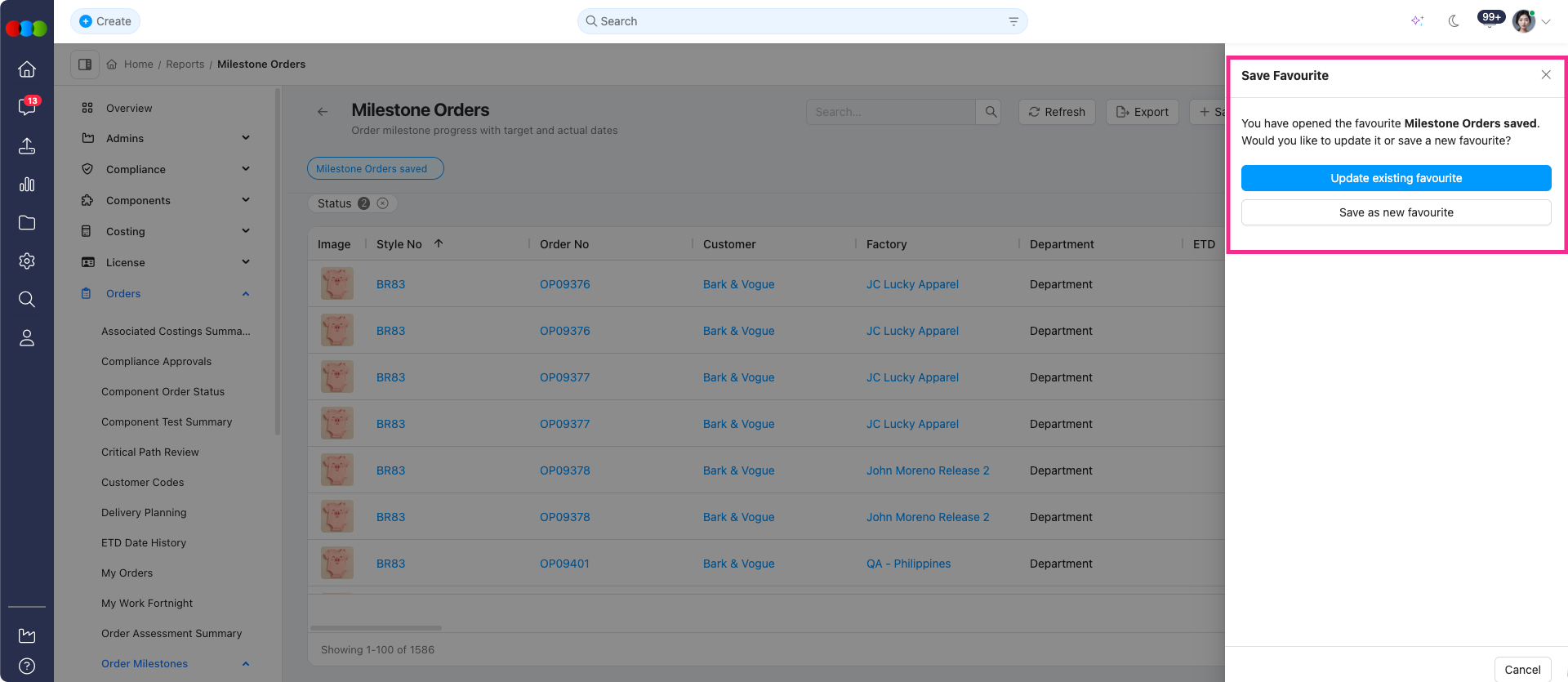
Learn more
For report configuration options including filters, columns, save, and export, see Reports > Orders > Milestone Orders in the documentation portal.
Report > Milestone Orders
We've resolved several issues in Report > Milestone Orders that affected filters, columns, favourites, and how report data is displayed.
-
Filters: Opening a saved or favourite report could automatically apply date range filters you had not selected. Saved reports now only apply filters when you have selected them.
-
Group Colourway fields: Group Colourway and Group Colourway Quantity returned no data when added to the report. These columns now display correctly in your report view.
-
Choose Columns: The Choose Columns pop-up listed only the columns already selected in the report, making it difficult to add columns back. The pop-up now shows all available columns.
-
Column layout: Removing columns by dragging a column header upwards was not saved correctly. After refreshing the screen or adding an activity or column, previously removed columns could reappear. Column changes made in the report view are now retained, so your customised layout stays as you left it.
Thank you for helping us make things better! If you spot anything else, let us know — we're always here to help.
Happy clicking!
Previous Release Notes