Release Notes - 30th of June 2026
Site Settings > Company > External Connections
External Connections is your new central hub in Site Settings > Company for managing suppliers, customers, licensors, licensees, and their portal access from one place.
Site Settings > Company > External Connections 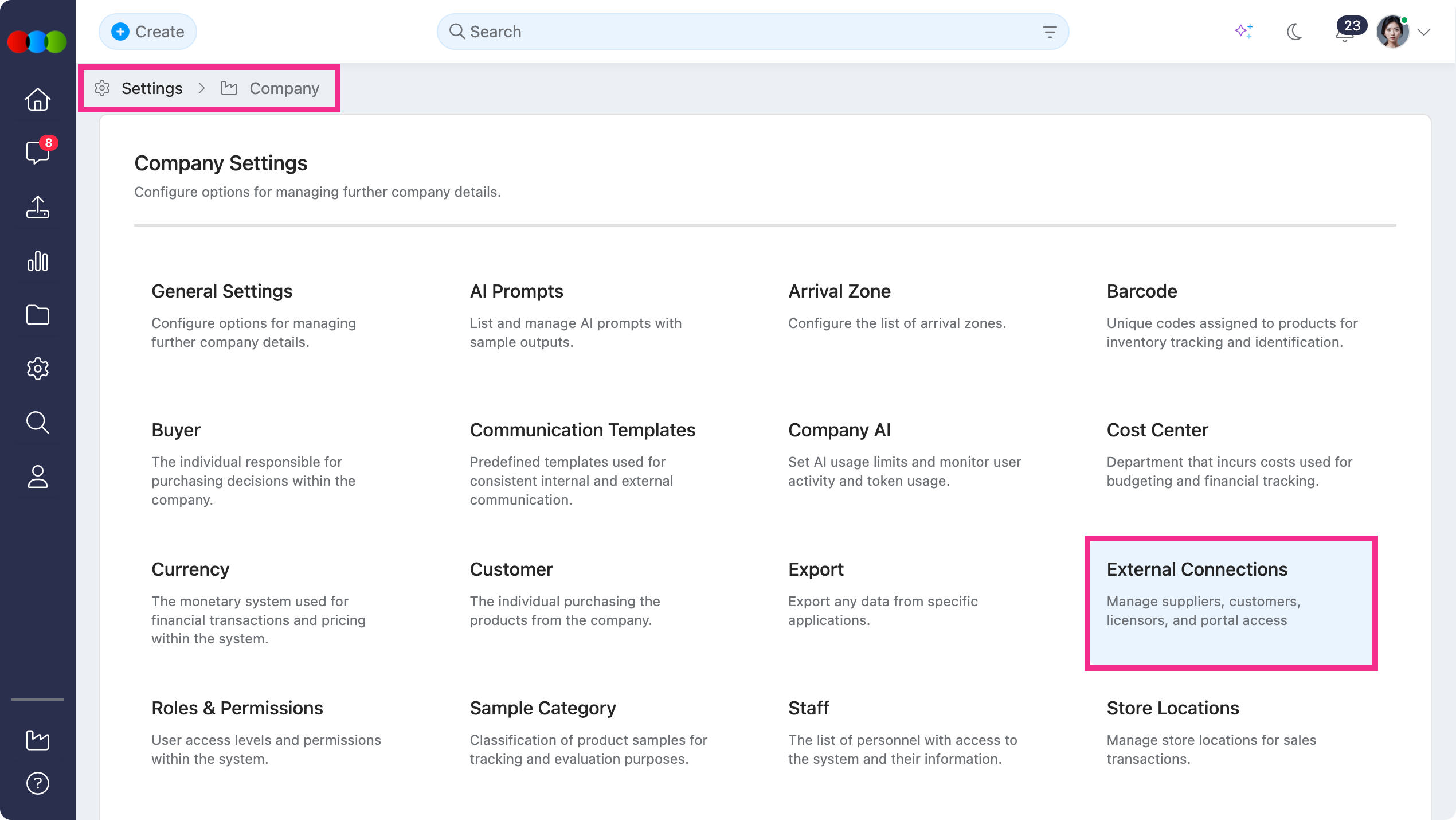
What's new:
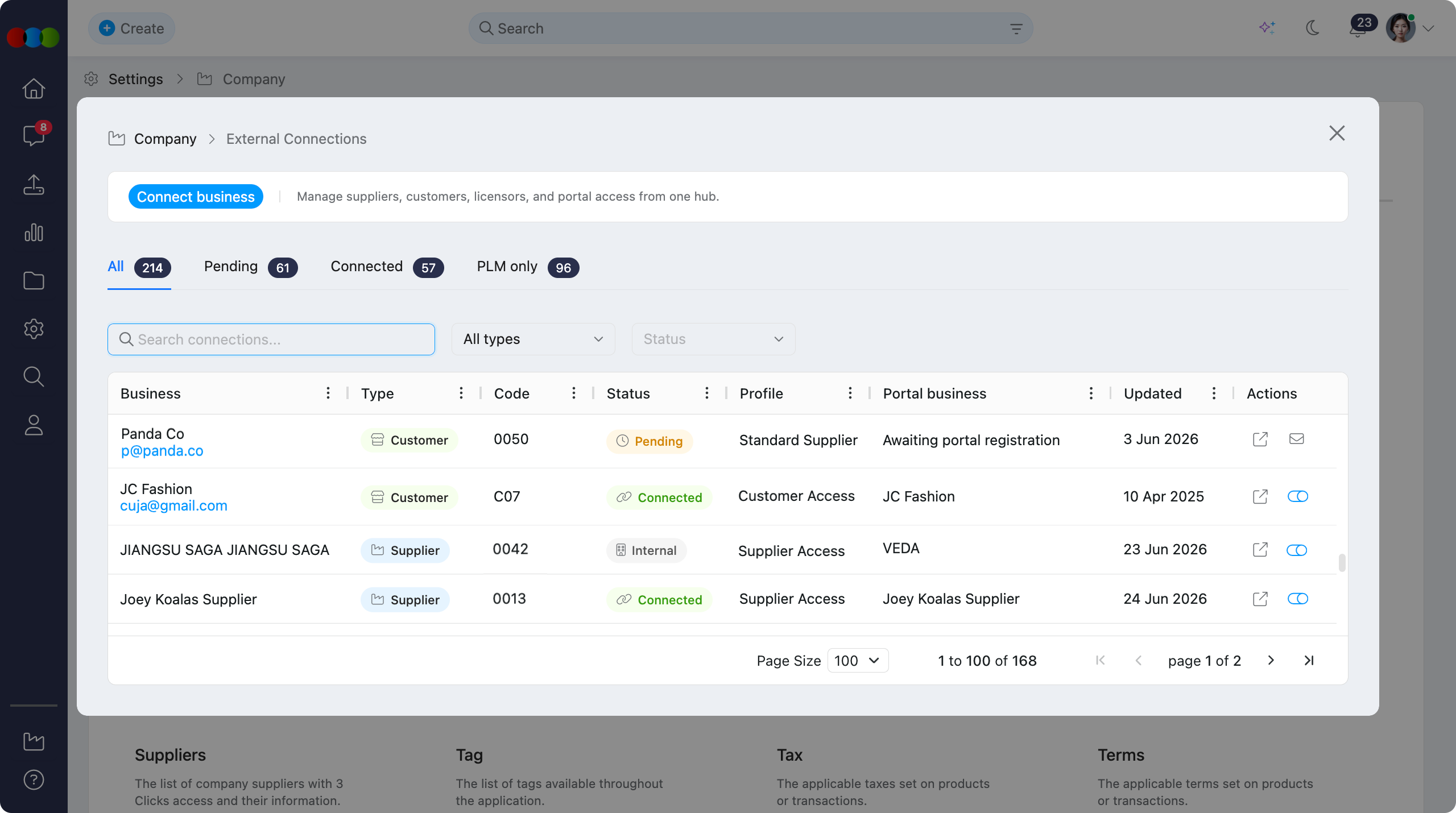
- Connect external businesses through a guided Connect business workflow: choose the connection type, portal access method, and profile template in a single flow.
- Bring PLM-only records and live portal relationships together in one list so you can see who is connected, who is pending registration, and who has been disabled.
- Invite partners by email, link an existing portal business, or keep a connection internal to your production instance with PLM only access.
- Filter by Pending, Connected, or PLM only, and search the list to find a business quickly.
- Assign portal profile templates or use customised roles.
- Manage invitations and connections from the list with View details, toggle on/off, and Resend invite without opening each record.
What you can do:
- Open it to see every external business connection with its type, status, profile, and linked portal business in one view.
- Use Connect business to onboard a new supplier with Supplier Portal access, give a wholesale customer B2B Buyer ordering permissions, or maintain a PLM only licensee record until portal access is needed.
- Track pending invitations where Portal business shows Awaiting portal registration, and resend the invite when a partner has not completed setup.
- For connected partners, open View details to review the active profile, Disable access temporarily, or Disconnect the portal link when your process requires it.
Learn more
For step-by-step guidance on connection types, portal access, profile templates, and common administrator workflows, see Site Settings > Company > External Connections in the documentation portal.
Documents
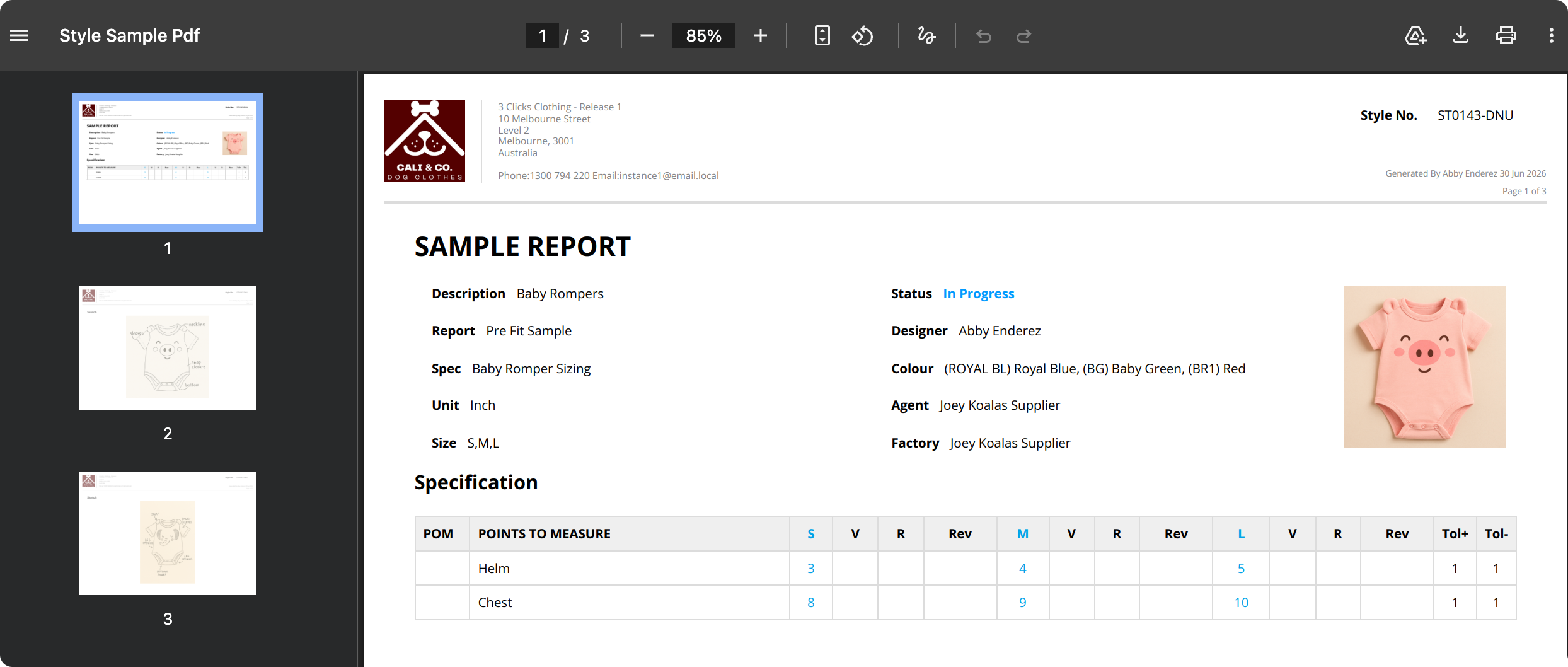
We've significantly improved how downloadable PDF documents are generated and displayed in Documents across the 3 Clicks Cloud portal.
Note
This improvement applies to downloadable PDF documents only. Other document types, such as Excel exports, are unchanged.
What's improved:
- Faster download: PDF documents now download more quickly, reducing your wait time.
- Clearer layout and display: Images, text, and tables in PDF documents are presented for much easier read for you, your members, and suppliers.
Learn more
For guidance on some of the downloadable PDF document types and where to find them, see the following in the documentation portal:
- Style > Documents for Style Specification, Style Summary, Sample Request, and License Approval PDF
- Order > Documents for Purchase Order, Specification, Test Summary, and Sample Request PDFs
- Planner > Documents for Storyboard A3, Storyboard A4, and Range Planner A4 PDFs
Planner > Styles > Image Only Layout > Quick View
In Planner > Styles > Image only layout, you can now open Quick View from any style card to review key style information without leaving your plan.
What's improved:
- Click the Quick View eye icon on a style card to open a pop-up with that style's details at a glance.
- Review Details, Colours & Pricing, Images, and Custom Fields from expandable sections on the Details tab.
- Switch to the Files and Media Library tabs to browse style assets from the same pop-up.
Planner > Styles > Image Only View > Quick View 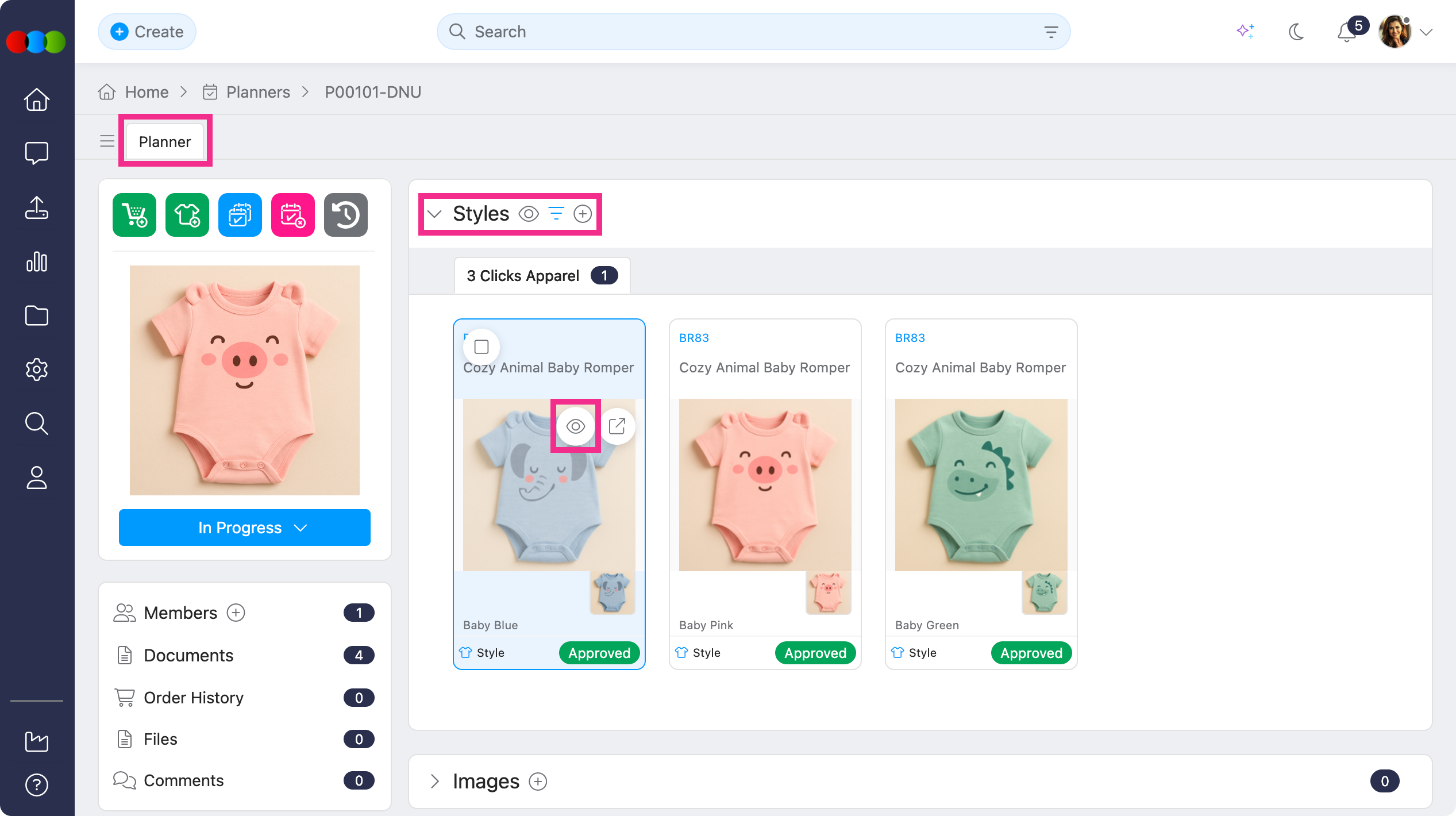
Planner > Styles > Image Only View > Quick View pop-up 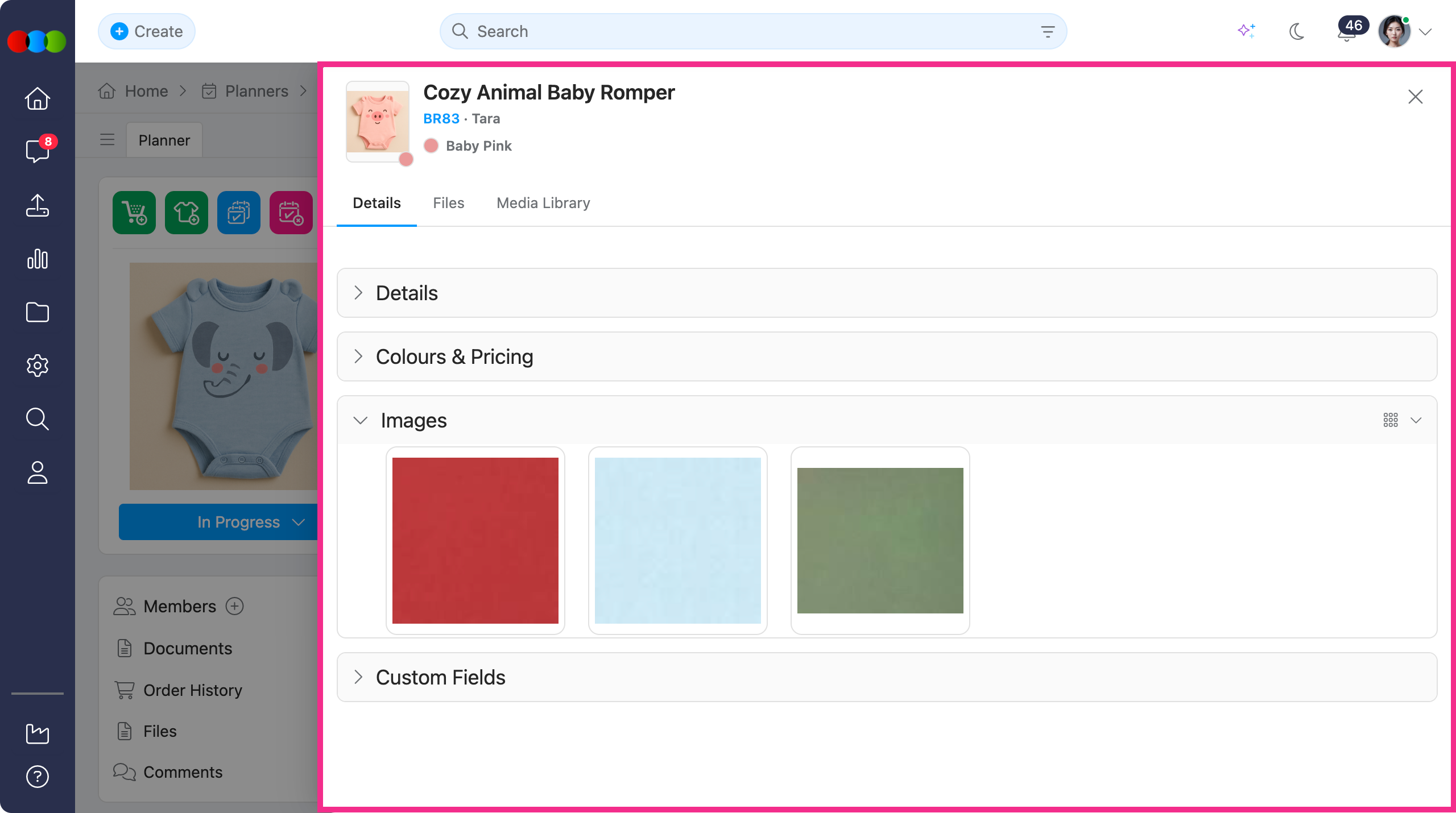
Learn more
For layout options, style fields, and grouping in Planner > Styles, see Planner > Styles in the documentation portal.
Order Search
We've fixed an issue where the Order section did not display correctly when you searched for a style number from the top search bar.
This now works as expected.
Style > Side Widgets > Document > Style Specification
We've fixed an issue where blank pages were generated after exporting the Style Specification document from Style > Side Widgets > Document.
Now, each image, including sketches and images uploaded in the Specification tab, fits to a single page with no blank pages.
Thank you for helping us make things better! If you spot anything else, let us know — we're always here to help.
Happy clicking!
Previous Release Notes