Release Notes - 8th of May 2026
Style > Codes > Unit Codes and Pack Barcodes
A new Pack Barcodes feature has been introduced across Style and Order workflows, allowing barcode generation and management to happen at the Colour Pack level.
What's New
- In Style > Codes, the previous Codes section is now named Unit Codes, and a new Pack Barcodes section has been added.
Style > Codes > Unit Codes & Pack Barcodes 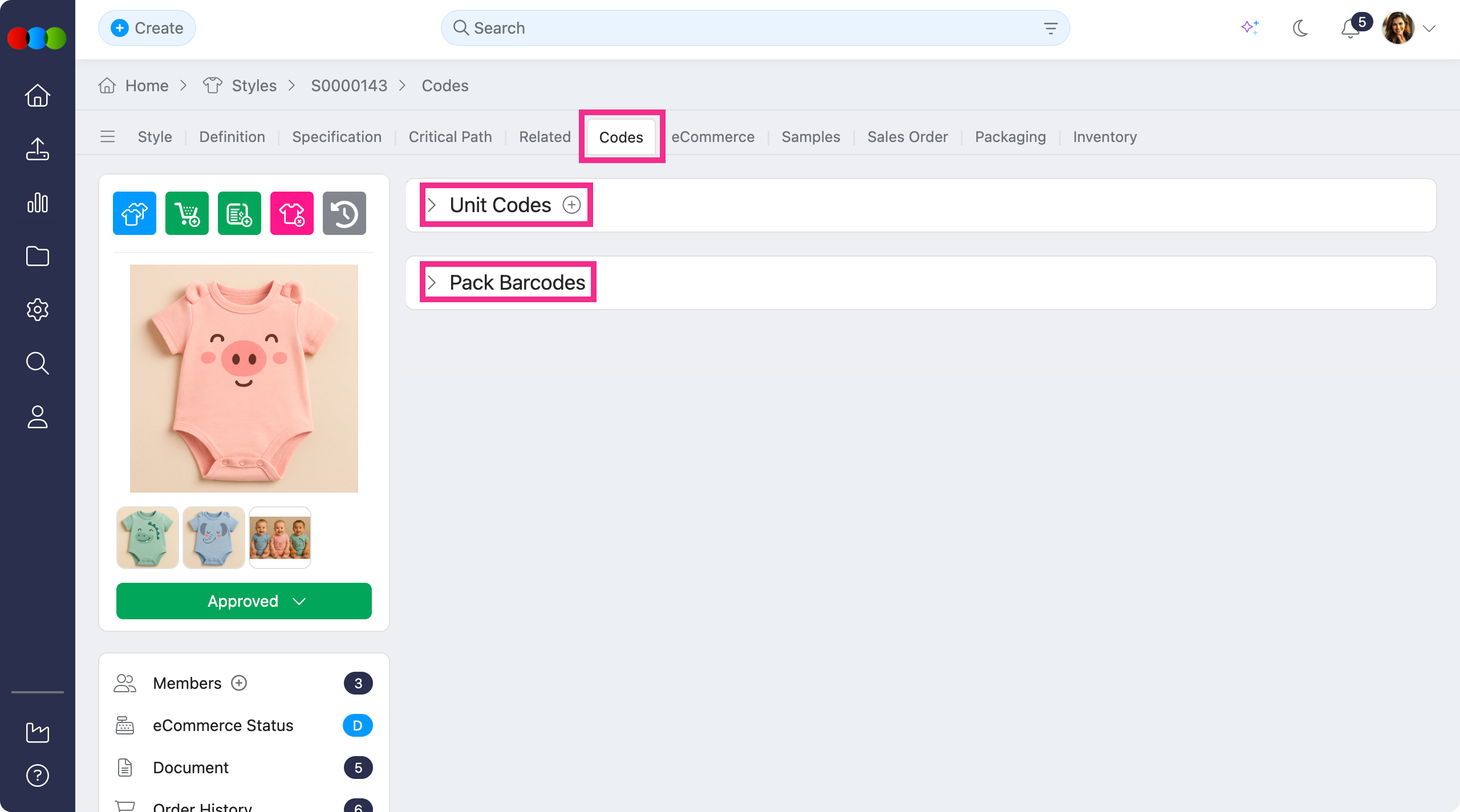
- In Style > Codes > Pack Barcodes section supports adding or editing of pack barcodes, and an Add Packs pop-up to manage pack barcode data more efficiently.
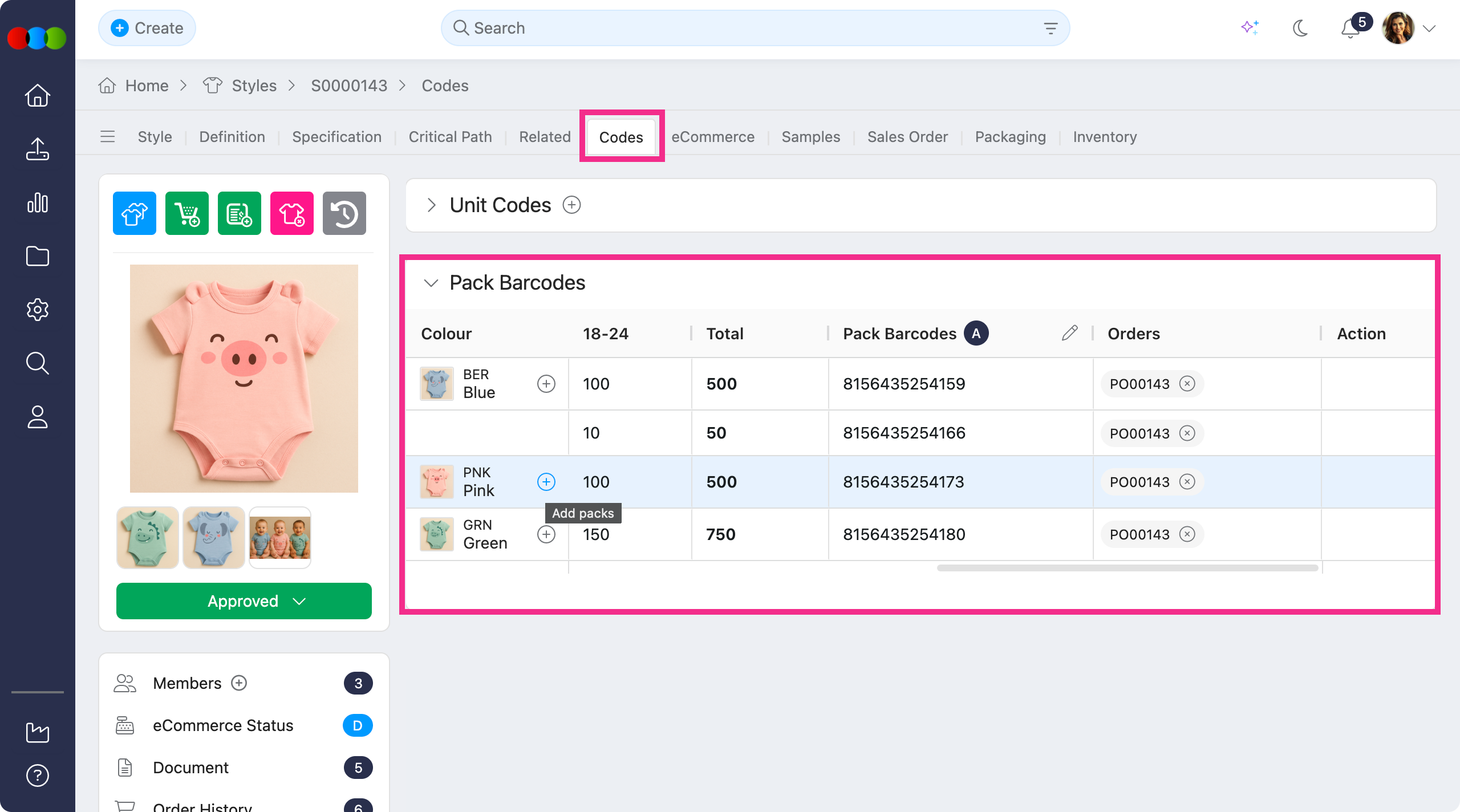
Style > Codes > Pack Barcodes > Add Packs 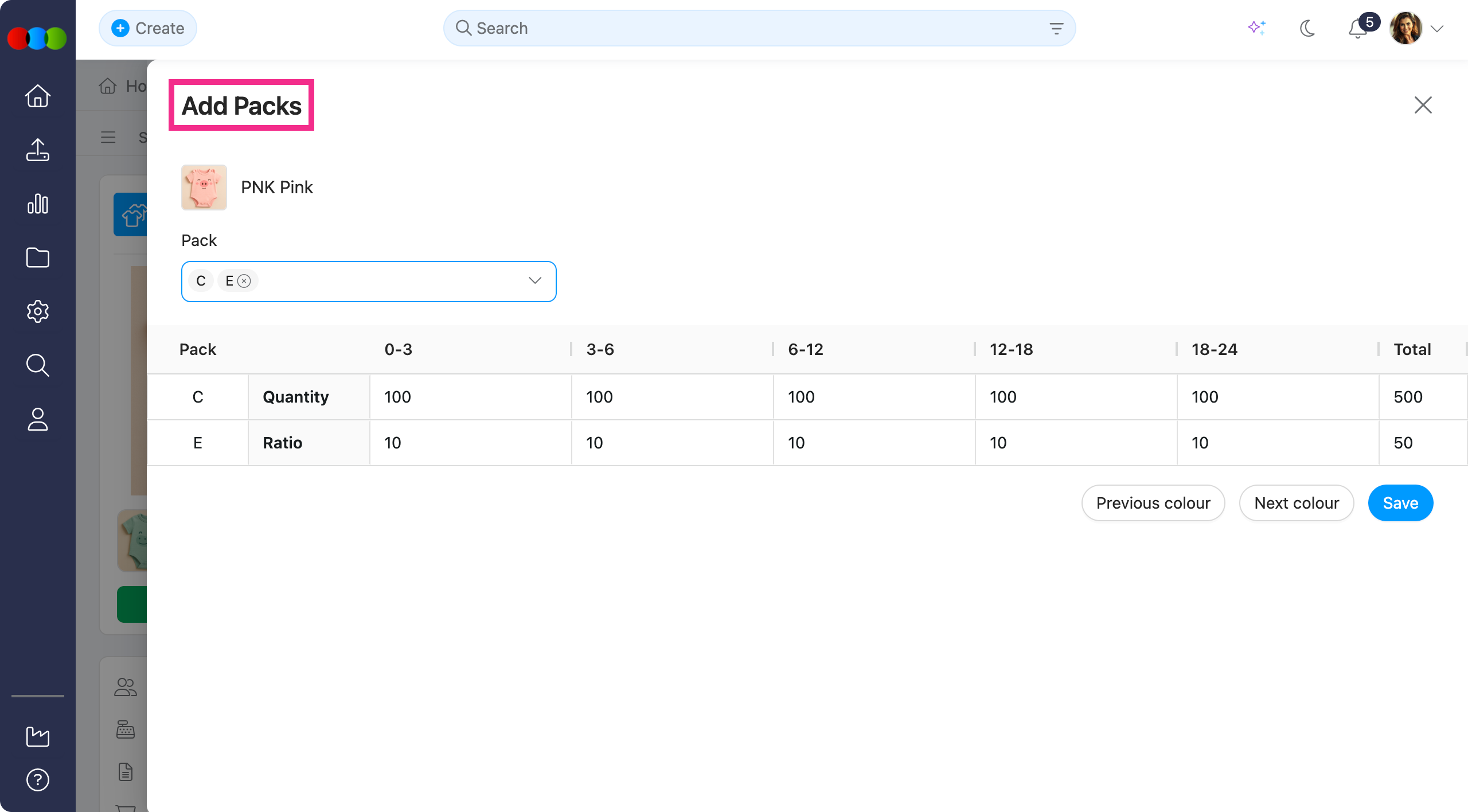
Style > Codes > Pack Barcodes > Edit 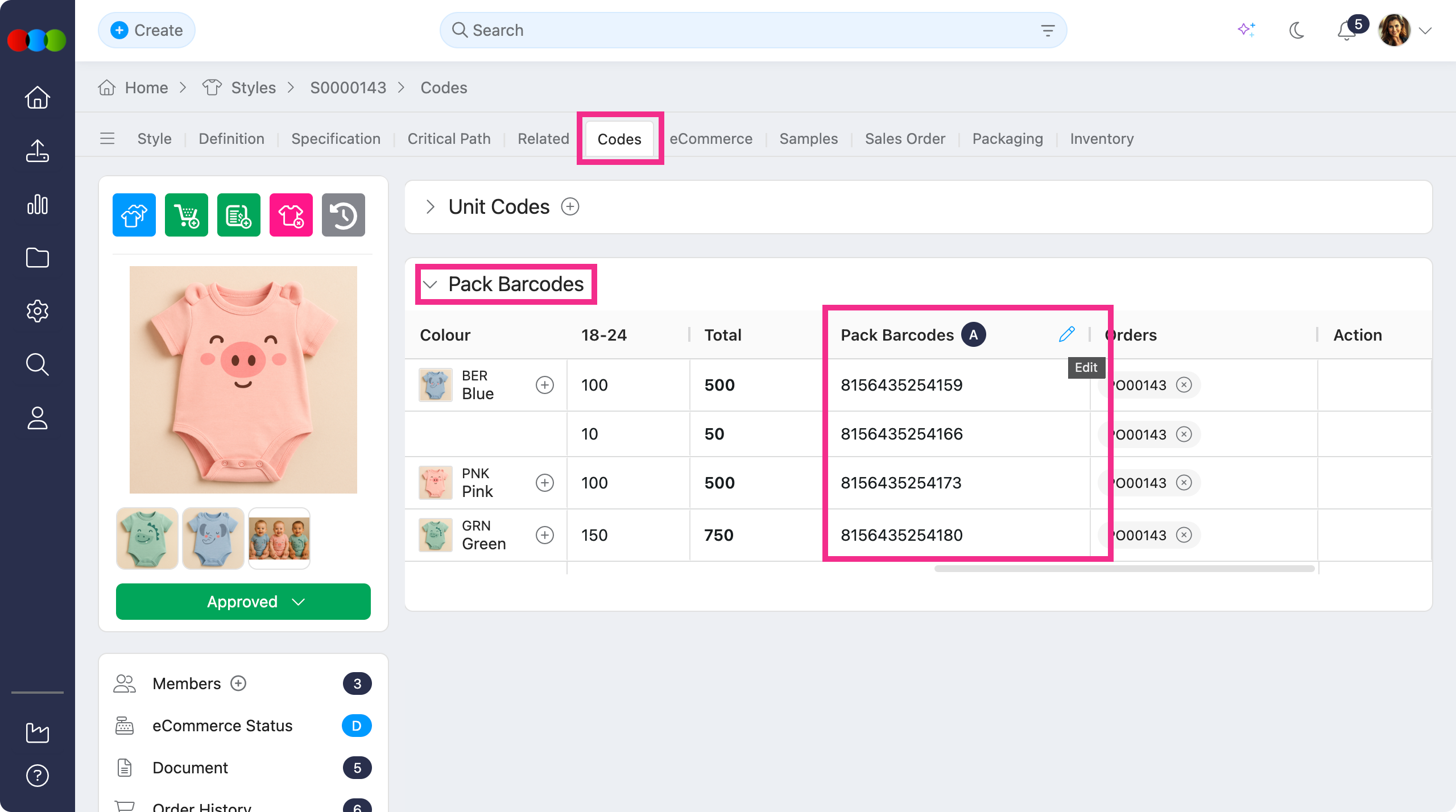
Style > Codes > Pack Barcodes > Edit Pack Barcodes 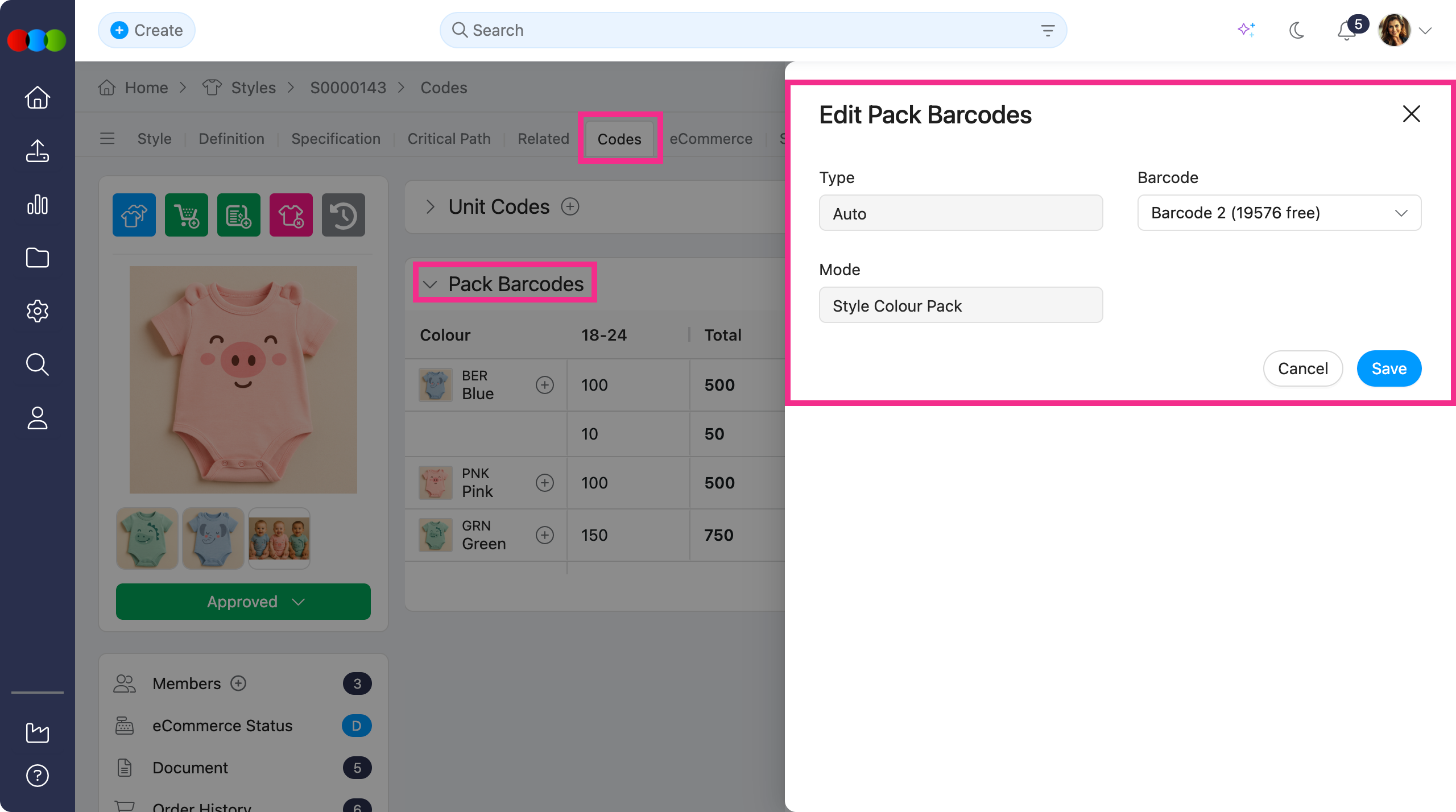
- In Order > Colour Quantity & Pricing, the existing section now displays the associated barcode, helping you review pack-level barcode information while building order pricing.
Order > Colour Quantity & Pricing > Barcode 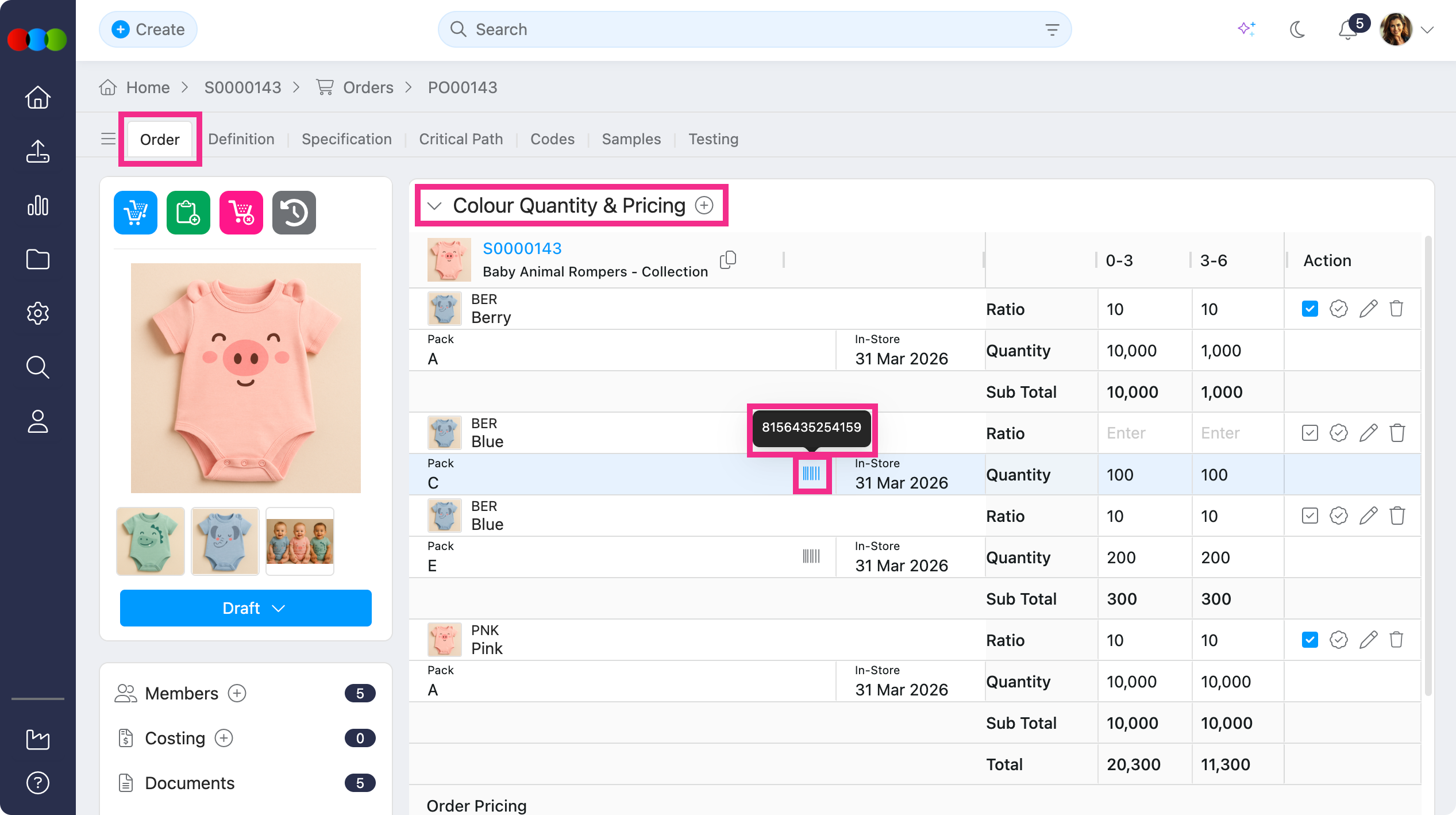
- In Order > Documents > Ticket Codes, a new Pack Barcodes tab now sits alongside the existing Ticket Codes tab, making barcode outputs easier to manage from the same workflow.
Order > Documents > Ticket Codes 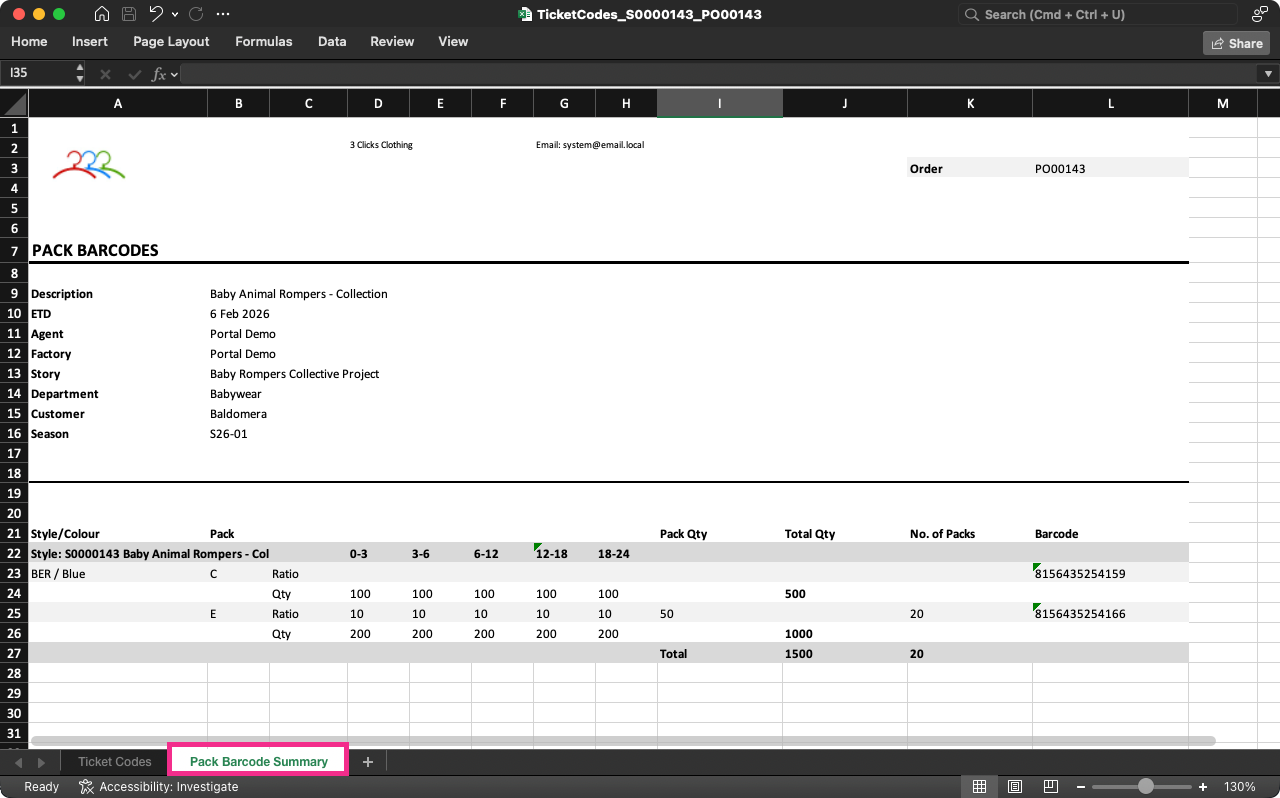
Learn more
To give you better context on how Pack Barcodes are utilised across Styles and Orders, visit the following in the documentation portal:
Planner > Documents
We have improved exports in Planner > Documents to make Storyboard and Range Planner outputs cleaner, easier to read, and better aligned with the fields selected during planning.
What changed and why it matters:
-
In Documents > Images, the grey border around images has been removed from generated documents, creating cleaner, print-ready outputs for reviews. This applies across Storyboard A4, Storyboard A3, and Range Planner.
-
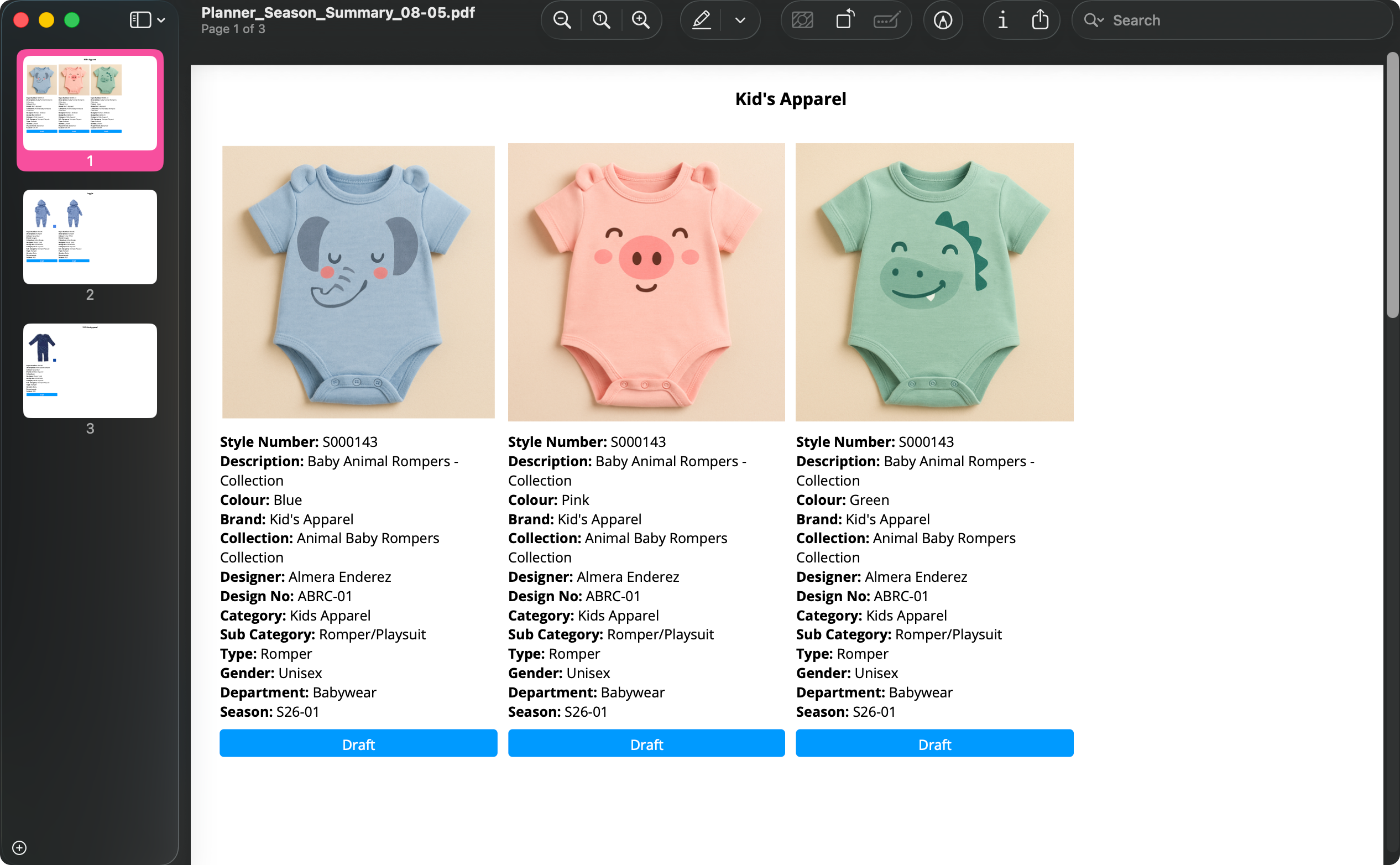
In Range Planner, the display has been improved to prevent text from being cut off:
- Up to 8 style colours display per page.
- Up to 10 rows of text display under each image per page.
- If text exceeds this limit, related text and image stay together by flowing to the next page, rather than splitting content mid-context.
Planner > Documents > Range Planner
Learn more
To dig deeper on these improvements, head to Planner > Documents in the documentation portal.
Style & Order > Critical Path > Activity Pop-up
We have improved the Style & Order > Critical Path workflows by adding clearer portal visibility indicators in the Activity Action pop-up.
In the activity pop-up, you can now see whether the activity is visible on the portal for suppliers or not.
Style > Critical Path > Activity Action 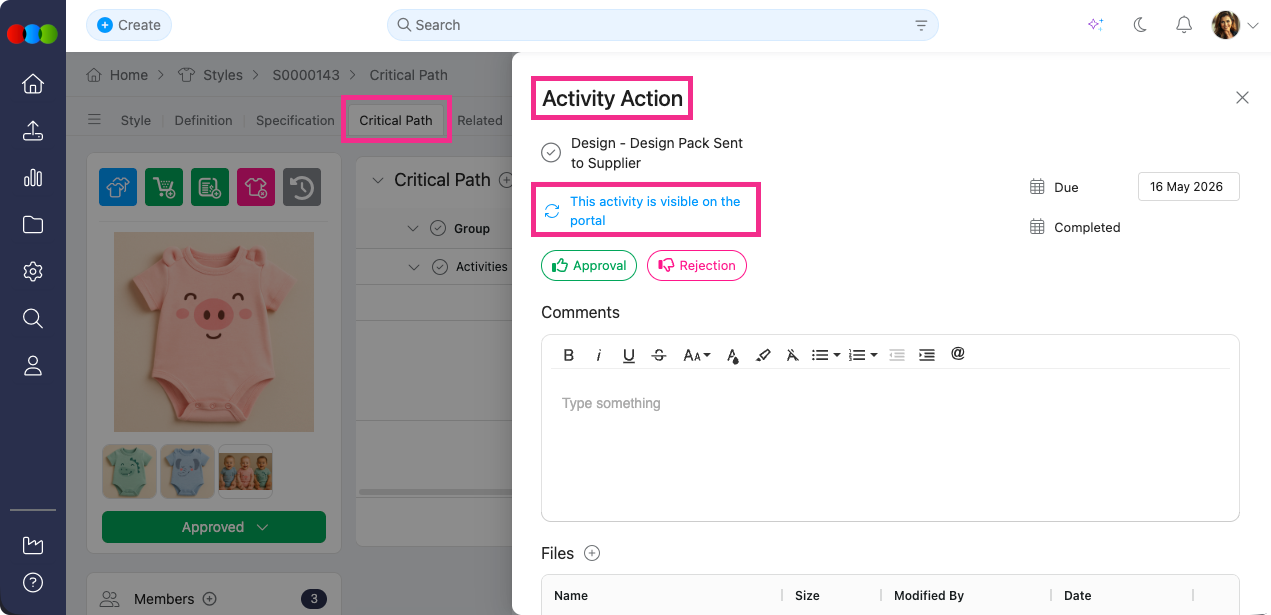
Note
If the Activity Action pop-up shows This activity is not displayed in the supplier portal, make sure your updates in Site Settings > Style > Critical Path were saved before selecting that Critical Path in the style.
If the Critical Path is already in use in a style and you later make changes in Site Settings > Style > Critical Path, you need to manually refresh it in the style:
- Go to Style > Critical Path.
- Select a different Critical Path.
- Re-select your original Critical Path.
This refresh applies the latest Site Settings > Style > Critical Path changes. However, existing comments, approvals, and rejections on the Critical Path will be cleared and restarted from a clean state.
Learn more
To guide you through in this improvement, refer to these sections of documentation portal:
License Search
We have improved License Search so teams can find the right license faster and review key details in one place.
Added Columns:
- License Code
- Royalty %
- Royalty Term
- Royalty Description
- Customer
- Department
- Type
- Collection
- Gender
- Country/Region
- Factory
- Contract Notes
New Filters:
- Customer
- Department
- Type
- Collection
- Gender
- Country/Region
- Factory
Learn more
For more detail on how to use the License Search and its related documentation, refer to:
Thank you for helping us make things better! If you spot anything else, let us know — we're always here to help.
Happy clicking!
Previous Release Notes