Release Notes - 22nd of May 2026
Site Settings > Style > Shopify
The new Site Settings > Style > Shopify page lets administrators configure Shopify as a native sales channel for the 3 Clicks PIM. This replaces customer-specific scheduled scripts with an admin-managed connection that can sync products, variants, images, inventory, and pricing through the Shopify Admin API.
Site Settings > Style > Shopify 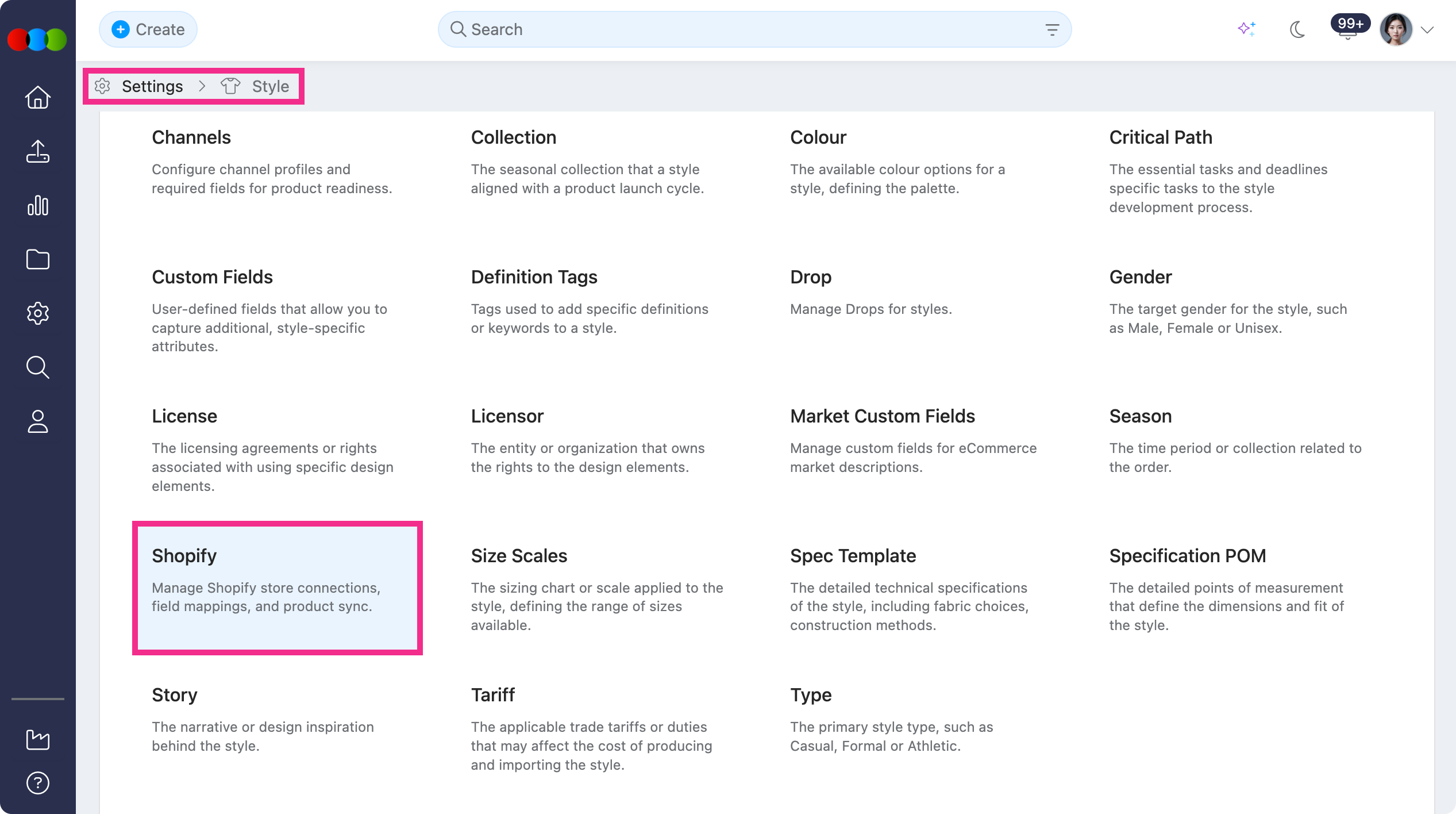
- Store connections: Add or edit Shopify store connections with a name, shop domain, masked Client ID and Client Secret, linked Channel Profile, status, and enabled sync options.
- Sync triggers: Choose Status Change to sync when eCommerce status is published, or Manual Only for administrator-led syncs from Sync All Now or Sync Now.
- Field mappings: Map 3 Clicks product fields to Shopify standard fields or metafields, with optional transforms such as Strip HTML and Truncate.
- Channel-linked variants: Sync only the coloursizes enabled on the linked Shopify channel profile, applying channel-specific eCommerce overrides, pricing, barcodes, and readiness rules before data is sent to Shopify.
Site Settings > Style > Shopify Overview 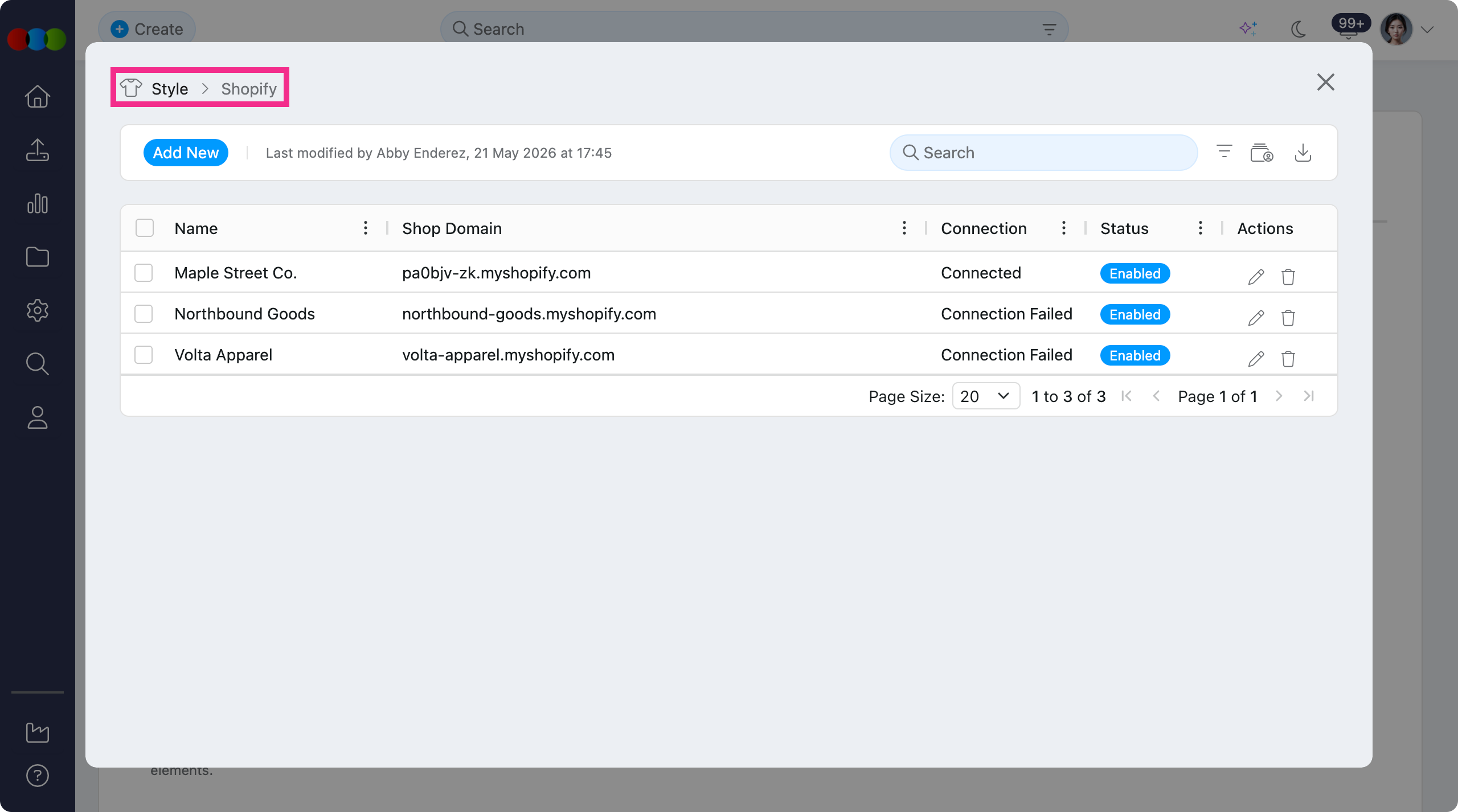
Learn more about Shopify
- Site Settings > Style > Shopify for store setup, sync triggers, mappings, and variant rules.
- Site Settings > Style > Channels for the channel profiles used by Shopify sync.
- Style > eCommerce for channel-level eCommerce data on a style.
Site Settings > Planner > Groups
We've added Department as a filter option in Site Settings > Planner > Groups, giving administrators another way to define fixed Planner groups around team ownership or business responsibility.
Site Settings > Planner > Groups 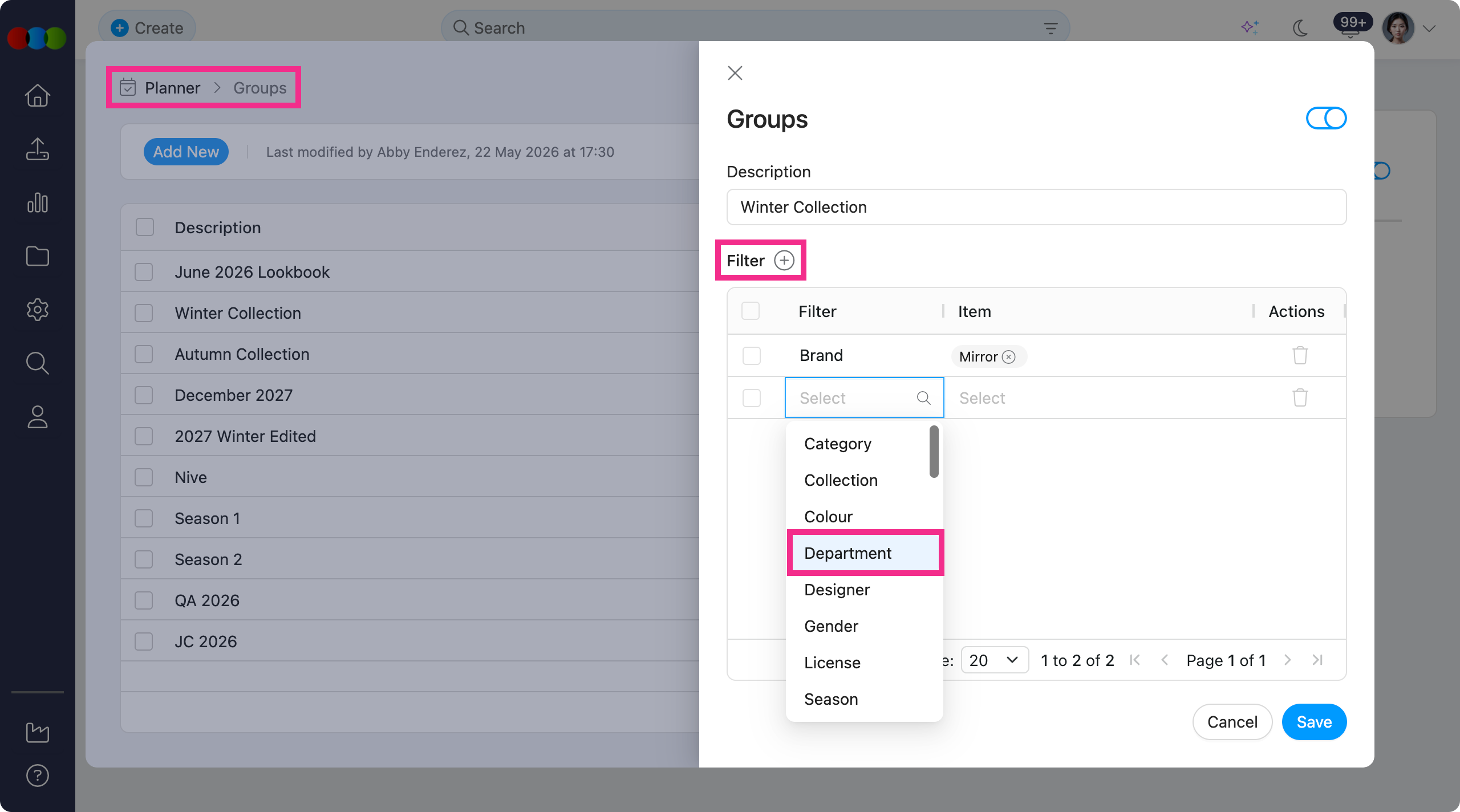
Once selected, the filter is reflected on the main Planner page.
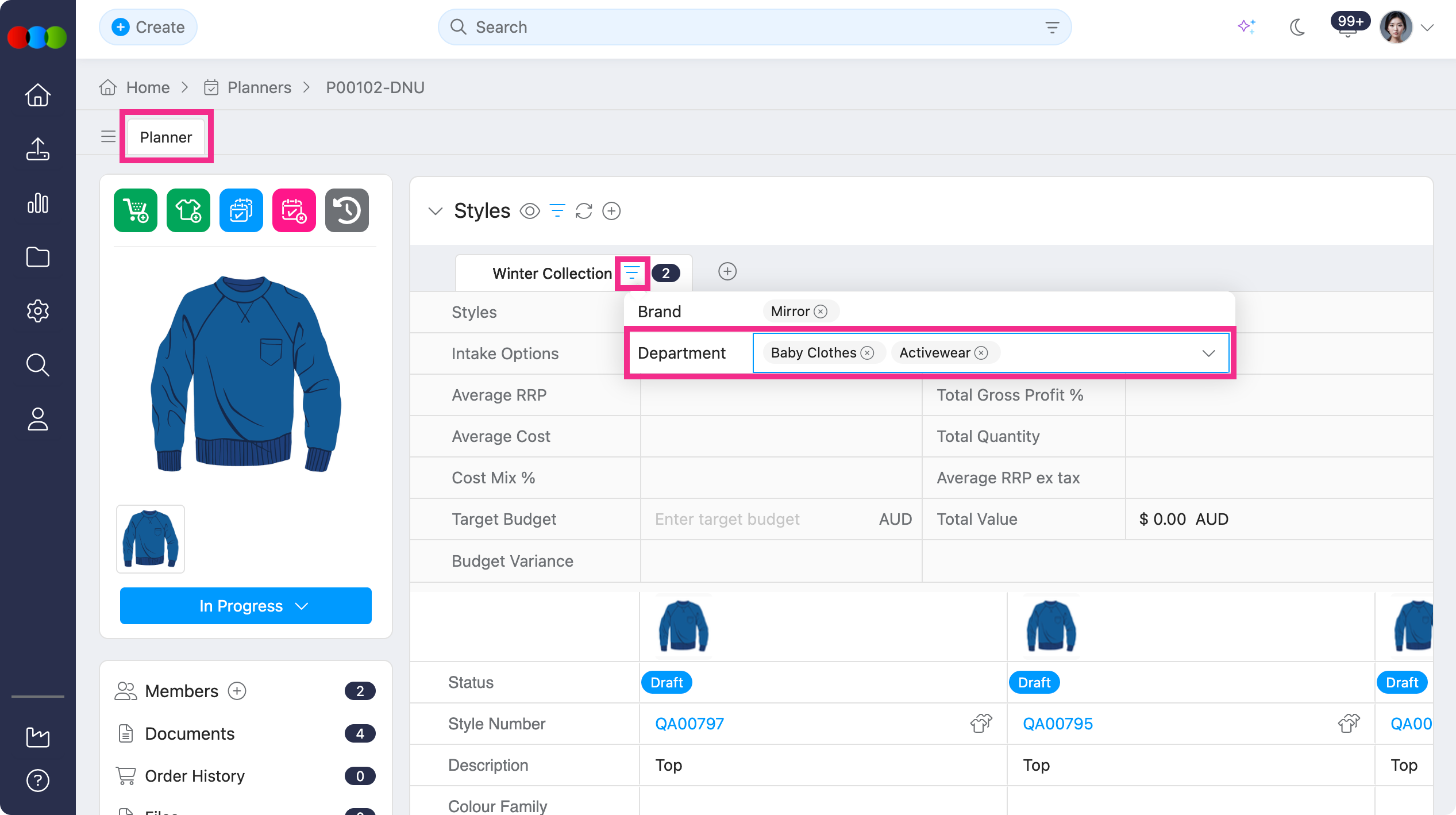
Learn more on how Groups are used across Planner
- Site Settings > Planner > Groups for configuring Planner group filters.
- Planner > Styles for how groups display and filter styles in Planner.
Site Settings > Order > General Settings > Style Details > Sub Type
Sub Type can now be enabled as a field in Site Settings > Order > General Settings > Style Details. Once enabled, Sub Type appears directly in Order > Style Details for single-style orders, and displays per style in the bulk order.
Site Settings > Order > General Settings > Style Details 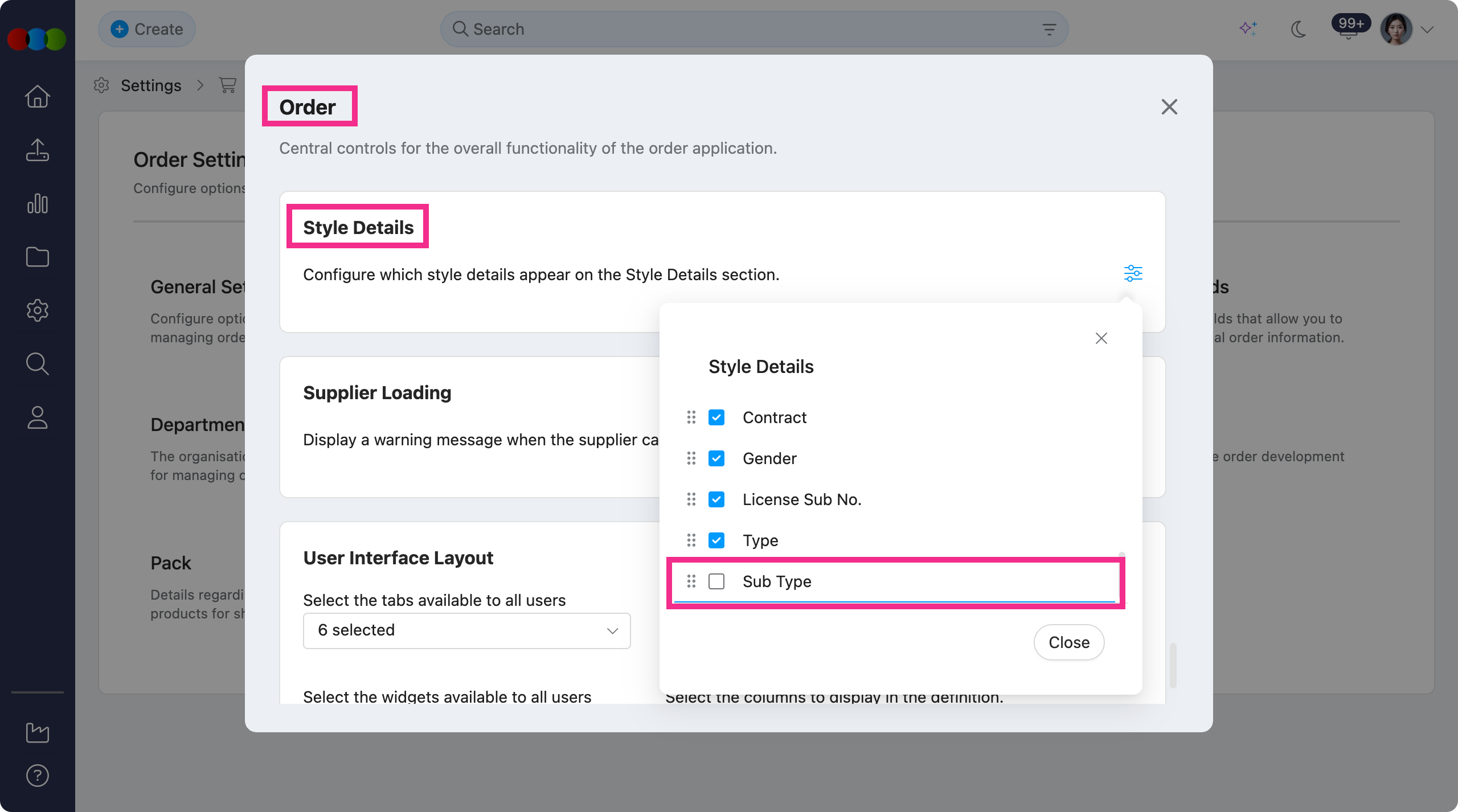
Why this matters
When similar styles need to be distinguished by more detailed product groups, having Sub Type displayed within the order workflow removes ambiguity and keeps teams aligned. All changes to this setting are captured in your History logs for full traceability.
Order Search > Filter and Column > Sub Type
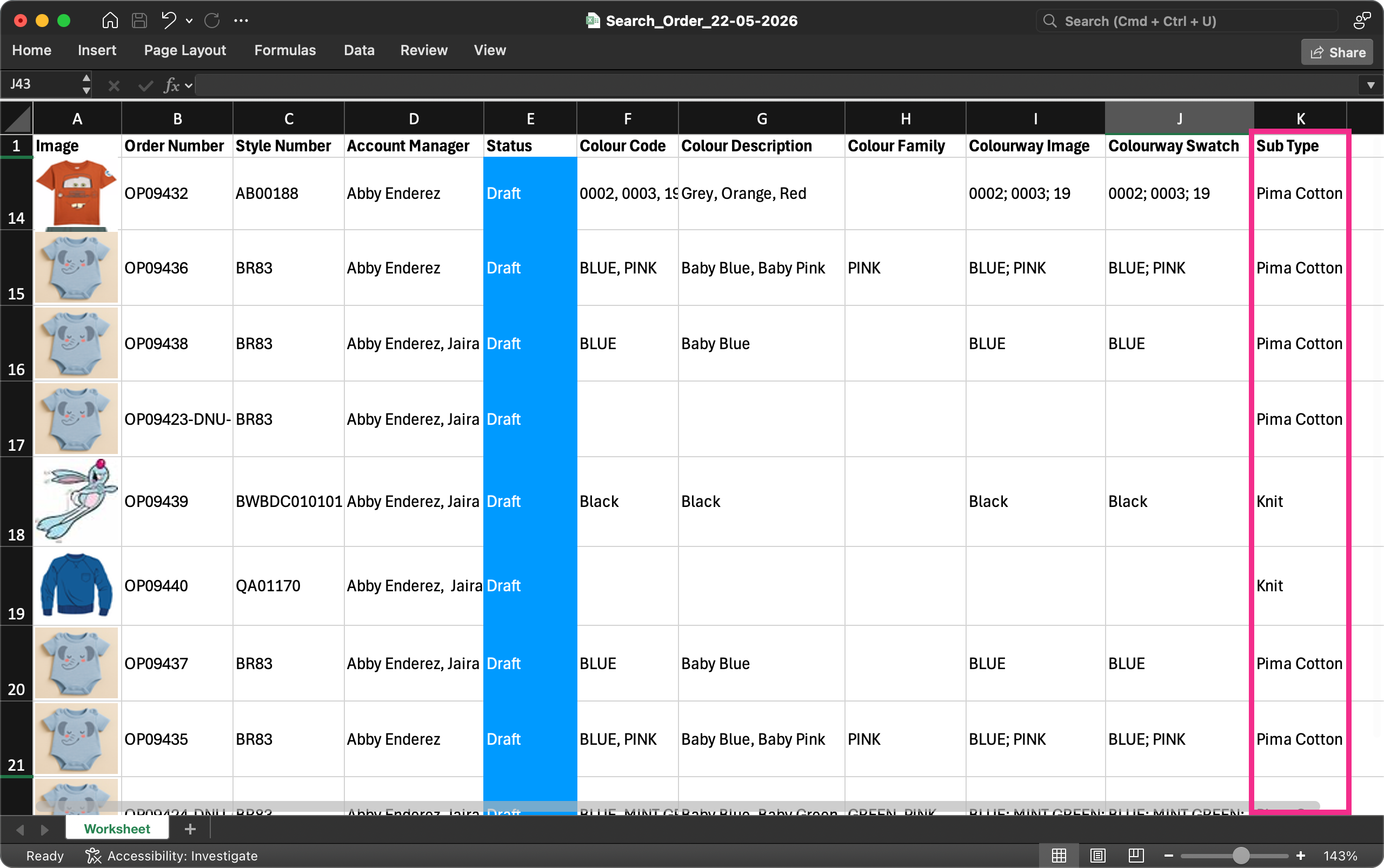
Order Search has also been expanded to support Sub Type across search, filtering, and export:
- Filters: Filter orders by Sub Type in Search and Advanced Search.
- Column: Add Sub Type as a column.
Order Search > Filter and Columns 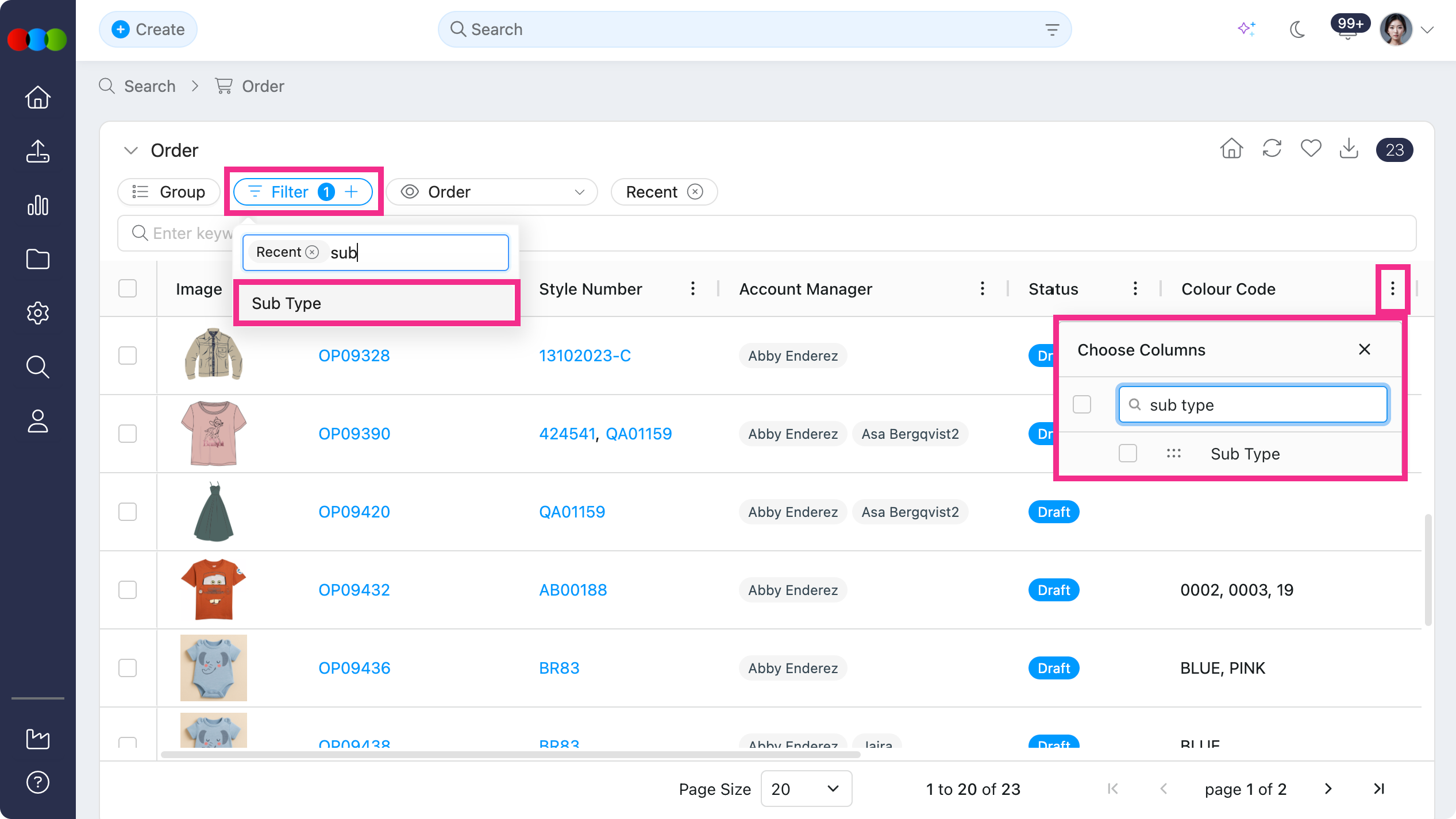
- Export: Include Sub Type in Order Search > Export when the column is selected.
Learn more
- Site Settings > Order > General Settings for configuring which Style Details fields display in orders
- Order > Style Details for reviewing style information on an order
- Search > Order Search for columns, filters, Advanced Search, and export behaviour
Planner > Styles > Sort By > Collection & Retail Price
The Style View pop-up in Planner now includes additional 2 sort options: Collection and Retail Price, giving teams greater control over how styles are organised and reviewed.
- Collection — sort styles by their assigned collection.
- Retail Price — sort styles either from highest to lowest or lowest to highest retail price.
How it works?
Select your preferred options using the Sort By option in the Style view pop-up. Styles are sorted by your 1st and 2nd sort selections in order, allowing for precise two-level sorting to suit your planning workflow.
Planner > Styles > View > Sort By 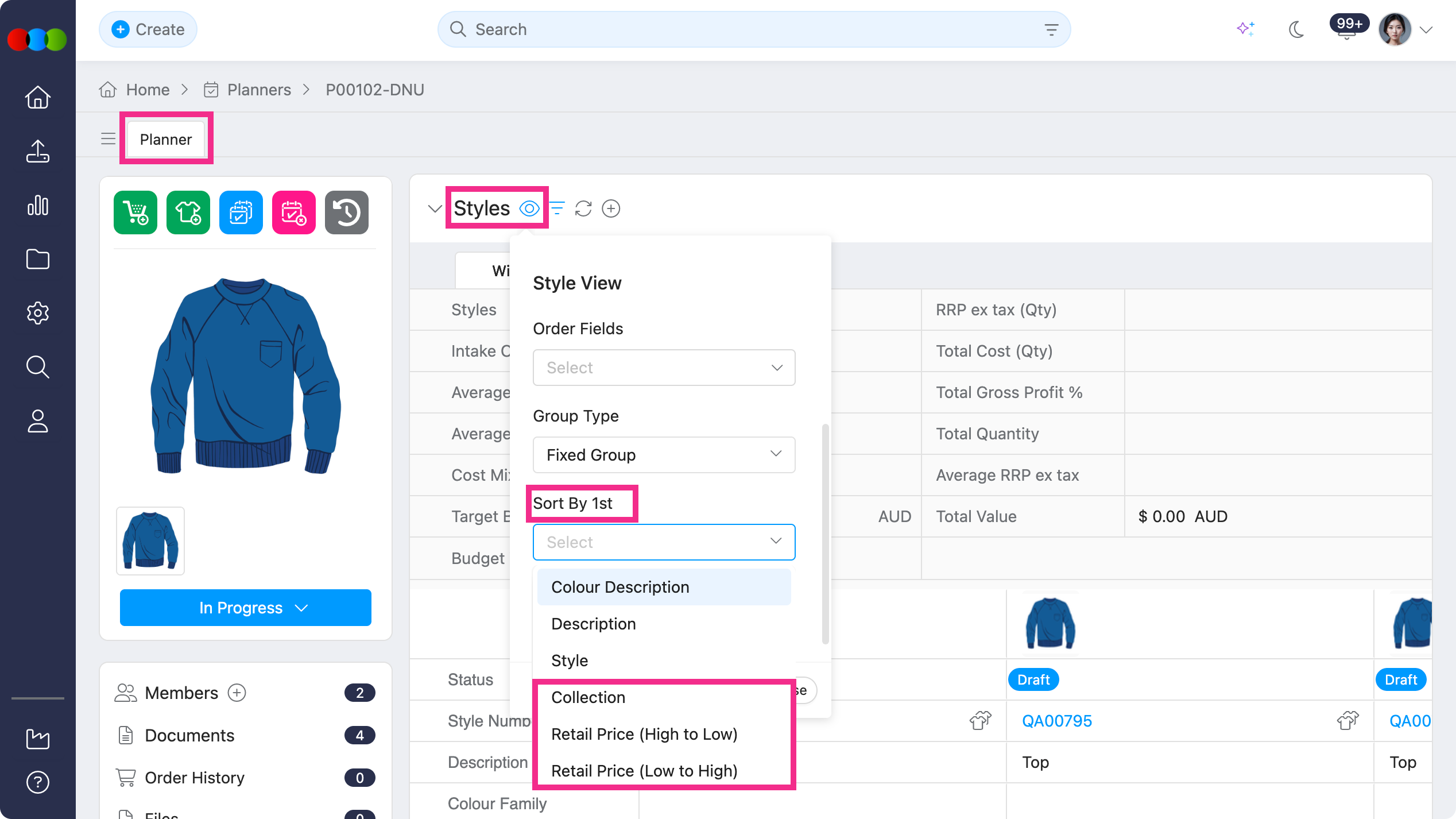
Learn more
Head to Planner > Style to learn more about how this sorting function works.
Thank you for helping us make things better! If you spot anything else, let us know — we're always here to help.
Happy clicking!
Previous Release Notes