Styles
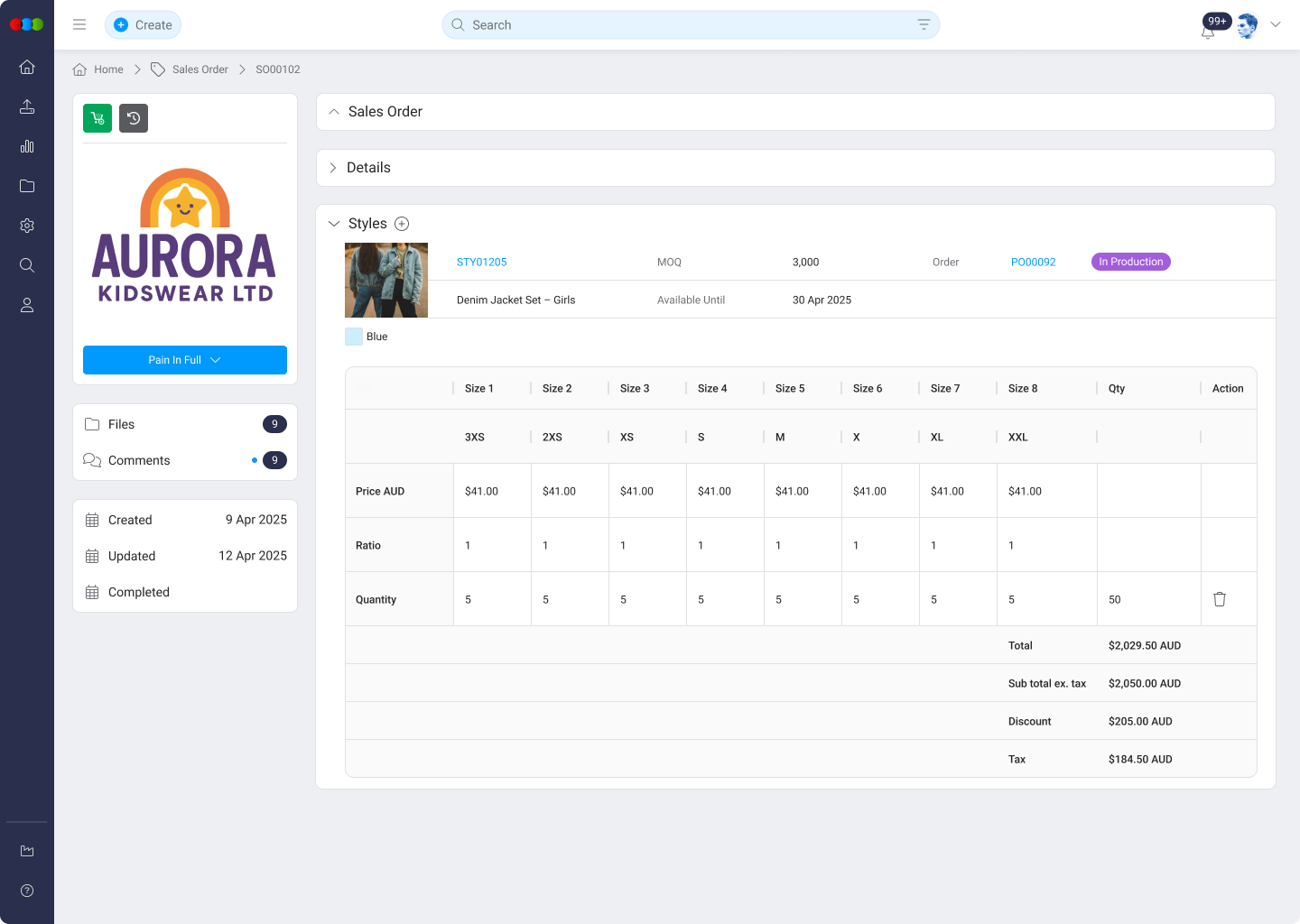
The Styles section within the Sales Order module displays all styles and their associated details as provided by the customer. It serves as a reliable record of the customer-submitted data for each sales order and facilitates internal quantity adjustments where needed.
This section appears within each Sales Order and provides a comprehensive view of all style-related data. While most information is non-editable to preserve customer integrity, internal users with specific permissions can manage quantity values.
Style Information
| Field | Description |
|---|---|
| Style Image | Visual reference of the style item submitted by the customer. |
| Style Code | Clickable code that links to the full style profile (e.g., P112S). |
| Style Name | Name of the style (e.g., Bromilia Jean). |
| Color Option | Available colorways (e.g., Red). |
| MOQ | Displays the Minimum Order Quantity if applicable. |
| Available Until | Shows availability cutoff date or status (currently not populated). |
| Order No. | Order reference number (e.g., PO08735). |
| Order Status | Status of the order that the style is added (e.g., Draft). |
| Size | Style available sizes (e.g., 6, 8, 10, 12, 14, 16). |
| Price USD | Price per unit for each size. |
| Ratio | Field to input size distribution ratio used for auto-calculation. |
| Quantity | Editable field to specify quantity per size. Can be entered manually or calculated from the ratio. |
| Qty (Total) | Combined total quantity across all sizes. |
| Total | Calculated total value of the order for the selected style and quantities. |
| Subtotal ex. tax | Displays combined total quantity and order value, exclusive of tax. |
| Discount | Placeholder for any applicable discount (not shown in example). |
| Tax | Placeholder for tax amount (not shown in example). |
Access Restrictions
Internal users cannot modify any style fields except for quantity values. Quantity edits require Sales Order permissions on the user's Sales Order / DAM Portal role (or the appropriate Production Portal permissions for internal workflows) to ensure audit integrity and change control.
Editing Quantities
Authorized internal users have two options for updating quantities:
Manual Entry Per Size
- Allows users to enter quantities directly for each individual size.
- Values are entered as whole numbers only.
Ratio-Based Entry
- Enables users to define a ratio (e.g.,
2:2:1) and a total quantity. - A calculator icon triggers an automatic distribution based on the input ratio.
- The system evenly distributes the total quantity proportionally according to the ratio across the available sizes.
Validation Rules
- The total quantity must be divisible by the ratio and number of available sizes.
Overwriting Customer Quantities
| Action | Description |
|---|---|
| Delete & Replace | Authorized users can delete existing customer-submitted quantities and replace them with internally approved values. |
Tips
- Use ratio-based entry to streamline bulk quantity updates.
- Ensure that entered values meet system validation checks to prevent submission errors.
- Regularly review permission settings for staff managing sales order entries.