Overview
The Search function in 3 Clicks Cloud is a powerful tool designed to simplify how you find and manage your data. Whether you're performing quick searches across applications or customising your data view for specific needs, the search is built for flexibility and efficiency.
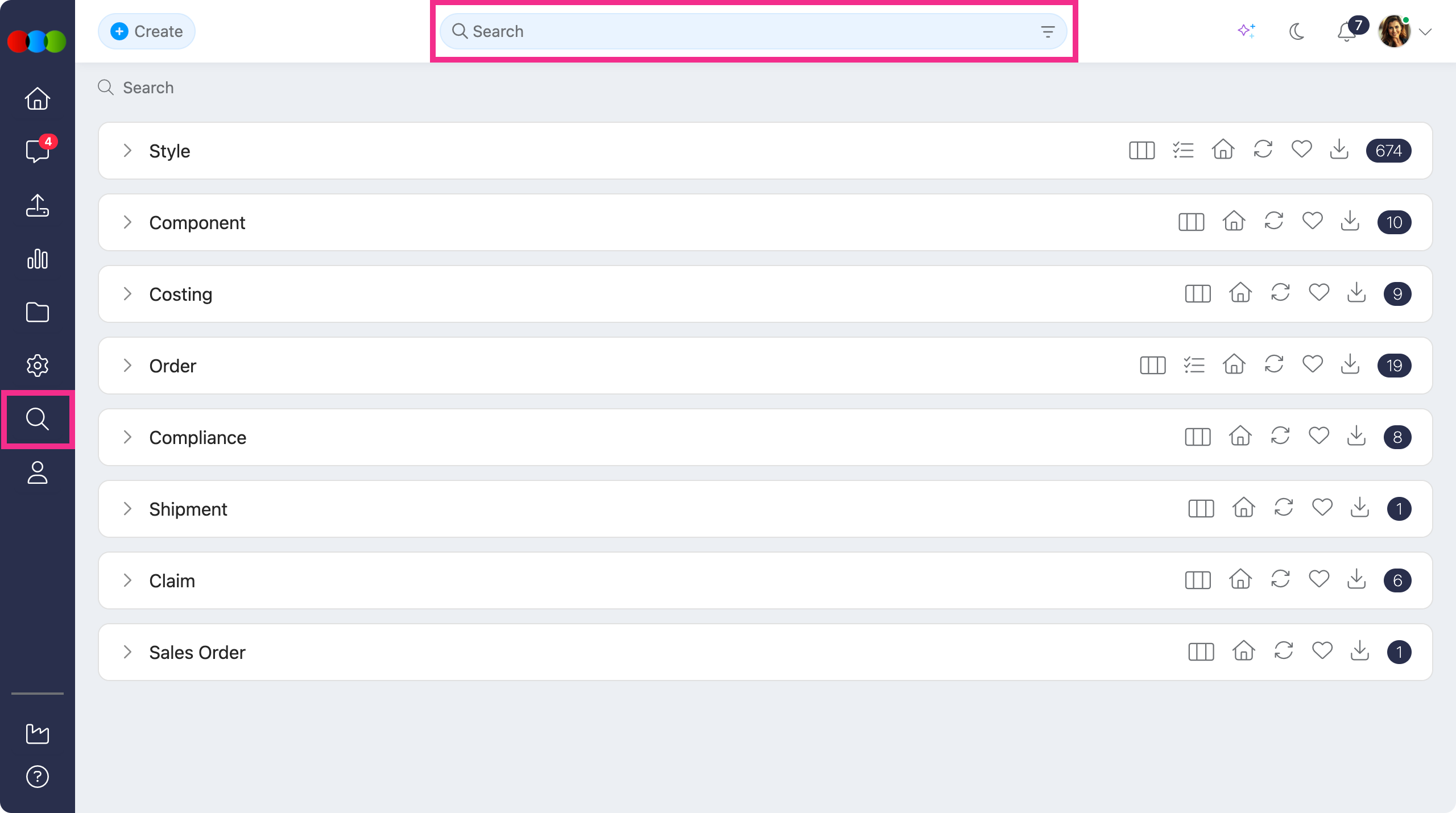
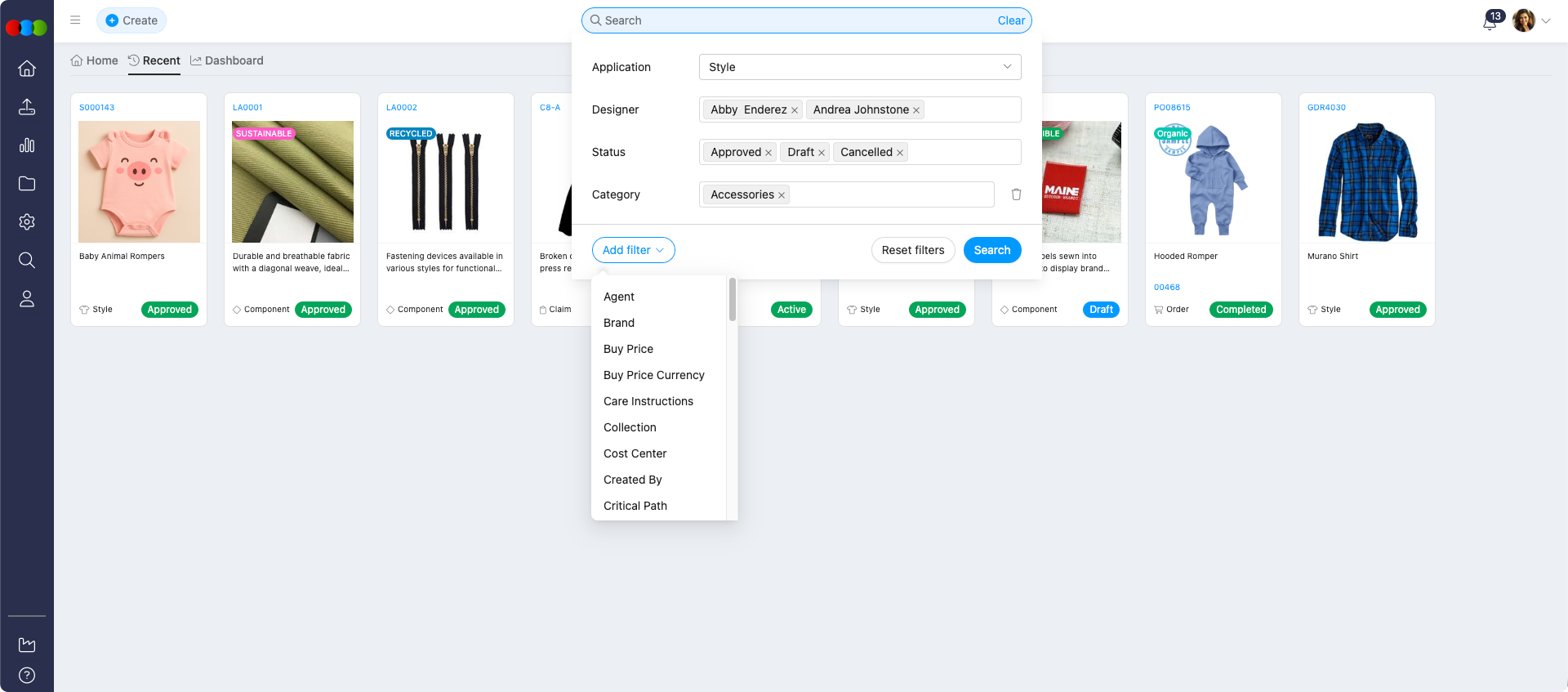
You can access the search in 3 Clicks Cloud in two ways. Advanced Search lets you refine your search by using specific application filters to narrow down the results. Application Search lets you quickly search for any keyword or data across the application—the results display from all relevant areas, showing where that data is being used.
Quick Check - Before You Start
- Know whether you need Advanced Search (application filters) or Application Search (keyword across the app).
- Confirm you have access to the application or area you are searching in.
- For style-level reporting, decide which view you need: Style, Style by Colour, Style by Colour by Size, or Style by Colour by Market.
Fields and Descriptions
| Field | Description |
|---|---|
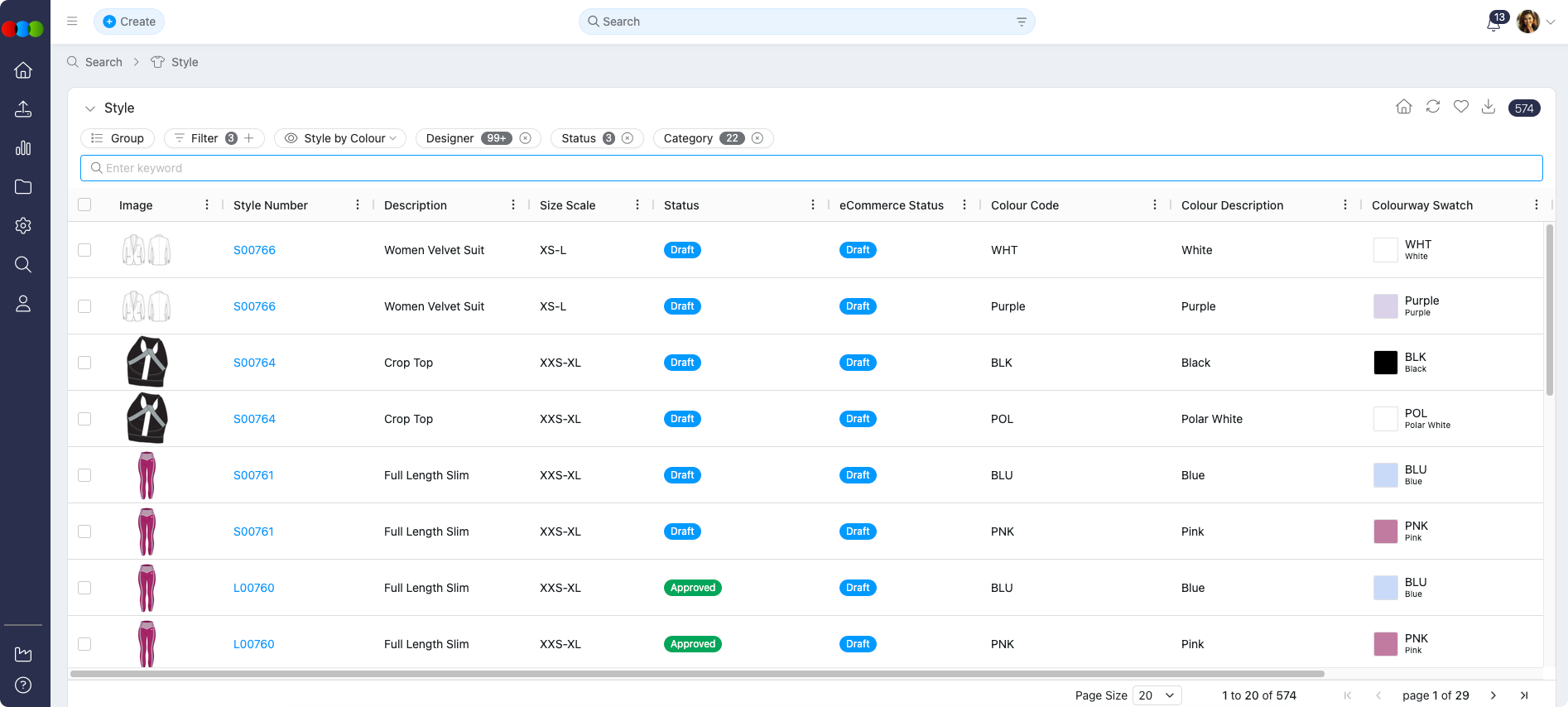
| Keyword Search | Enter keywords in the search bar to find records in the current application. More specific keywords return more accurate results. |
| Group | Organise results by grouping rows on selected columns. Click a group section to ungroup. |
| Filter | Narrow results using application-specific filters. Open Filter or Advanced Search to apply criteria such as status, season, factory, or date ranges. Available filters depend on the application you are searching. |
| View Layout | Switch how results are displayed. Options vary by application—for example, Style Search offers Style, Style by Colour, and Channel Readiness views, while Order Search offers Order, Order by Colour, and Order by Colour by Market. |
| Columns | Select which columns appear in the search grid through Choose Columns. Add, remove, reorder, resize, pin, and group columns to tailor the view to your workflow. In Style Search and Order Search, add up to 40 Critical Path > Activities columns to track milestone status from the grid. |
| Activities | Filter results by Critical Path > Activities, or add activity columns through Choose Columns in Style Search and Order Search to approve, reject, or comment without opening each record. Availability depends on the application and your Site Settings configuration. |
| Home | Save the current search view as your Home page. Once set, clicking Home returns you to this saved configuration. |
| Refresh | Reload the search view to display the latest data. Use this after changes made elsewhere or when results appear out of date. |
| Favourite | Save the current search view as a named favourite for quick access later. Favourites retain filters, columns, and layout settings. Access saved views from the Favourites section. |
| Export | Export the current search view to Excel for reporting and analysis. The export includes the visible columns and filtered result set. |
| Number of Items | Displays the total number of records in the current search view. This field is not editable. |
Related Actions
Tip
- Use Specific Keywords: The more specific your keywords, the more accurate your search results will be. Try using specific terms related to the data you're looking for.
- Leverage Advanced Search Filters: Take advantage of application-specific filters in the Advanced Search to narrow down your results and find exactly what you need.
- Explore Different Access Points: Familiarise yourself with all three search access points (Main Search Bar, Advanced Search, and Sidebar Menu) to find the one that best suits your current task.
Avoid Spaces in Identifier Fields
Key identifier fields such as Style Number, Order Number, Shipping Number, and Component Number should not contain spaces. Spaces in these fields can cause inconsistent search results and make filtering less reliable. Use a hyphen (-) or underscore (_) as a separator instead (e.g., STY-001 rather than STY 001).
Troubleshooting
Why do my search results look wrong after I change a filter?
Changing a filter or clearing keywords re-runs the search. If results look unexpected, your new filters or empty keyword field are now what drives the result set.
Steps to resolve:
- Re-enter keywords if you still need them.
- Re-apply Advanced Search filters for the application you care about.
- Confirm you are in the intended view (Style, Style by Colour, etc.) if you are in Style Search.
Why can I not find a record by style or order number when I know it exists?
Spaces or inconsistent formatting in identifier fields (Style Number, Order Number, Shipping Number, Component Number) can make matches and filters unreliable.
Steps to resolve:
- Search using the exact stored value, or try variants with hyphen or underscore instead of spaces.
- Standardise new identifiers using
-or_rather than spaces. - Use Advanced Search filters for that application to narrow the list instead of relying on partial keyword matches alone.
Why does Application Search show results from areas I did not expect?
Application Search is designed to show where data appears across the application, not only one module.
Steps to resolve:
- Use Advanced Search when you need results scoped to one application and its filters.
- Refine keywords to be more specific to the record type you want.
- Use Manage Data in Search to adjust columns and grouping once you are in the right search view.