Style Search
Style Search lets you find and manage styles across your product library. Use filters, keywords, and column customisation to locate styles quickly and perform bulk updates.
Style Search supports multiple view options and application-specific column organisation to help you work with style data efficiently. All standard search features—bulk actions, column grouping, inline editing, favourites, and export are available.
View Options
Style Search offers multiple view options to organise your results:
| View | Description |
|---|---|
| Style | Displays style-level totals with numbers aggregated at the style level for a high-level overview |
| Style by Colour | Displays styles per colourway with sales data broken down by variant |
| Style by Colour by Size | Displays styles broken down by colourway and size for a granular view of product variants |
| Style by Colour by Market | Displays styles broken down by colourway and market for Forecast, Channel Projections, and market pricing analysis. Forecasts are pulled from Style › Colours & Pricing › Markets. Add Buy Price, Sell Price, and RRP columns to see pricing configured in Style › Colours & Pricing › Order Pricing. |
| Channel Readiness | Displays styles with readiness data for a selected sales channel. Use this view to review which styles still have open Readiness Fields before publishing or syncing. Open it directly from Dashboard › Channel Readiness by clicking a channel. |
Columns Available
You can customise your Style Search view by adding or removing columns. Columns are organised under category headings in Choose Columns. The following columns are available:
Sales Data
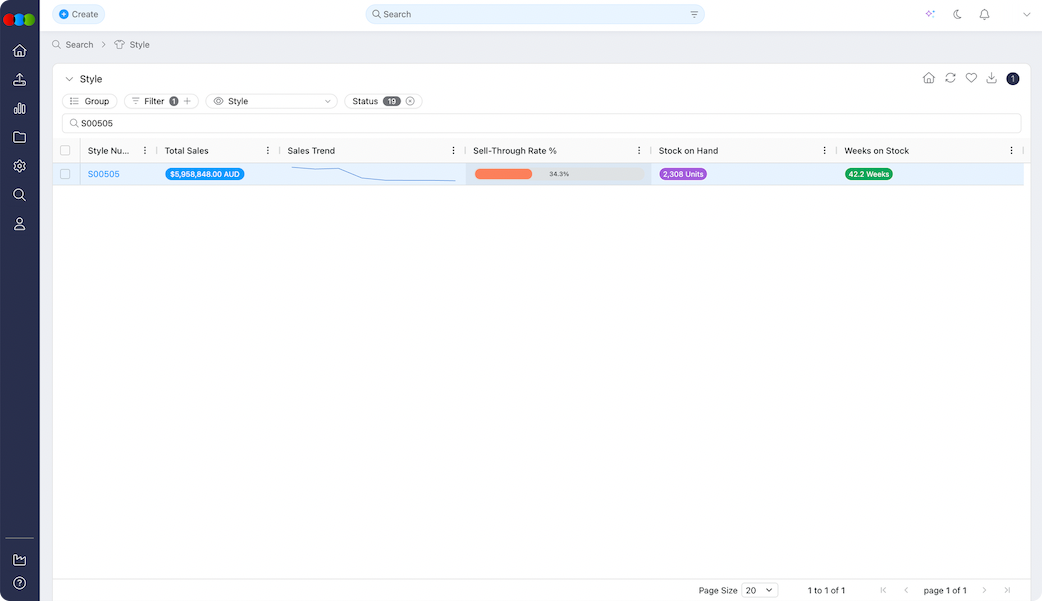
Add columns from Planner › Styles to display key sales metrics. These columns are grouped under Sales Data in Choose Columns:
| Column | Description | Editable |
|---|---|---|
| Sales Trend | Direction and pattern of sales performance. | No |
| Sell-through rate % | Percentage of stock sold within a given period. | No |
| Stock on Hand | Current inventory levels for each style or variant. | No |
| Weeks on Stock | Estimated weeks of inventory remaining at current sell-through. | No |
| Total Sales | Aggregate sales figures for the style. | No |
eCommerce
Add columns grouped under eCommerce in Choose Columns to review eCommerce content and pricing:
| Column | Description | Editable |
|---|---|---|
| eCommerce Description | eCommerce product description. | No |
| eCommerce Status | eCommerce availability status (e.g., Published, Draft). | No |
| Currencies | eCommerce sell price columns—one column per configured currency (e.g., AUD, USD). Most useful in the Style by Colour by Size view for size-level pricing. Currencies are configured in Site Settings › Company › Currency. | No |
Standard Columns
| Column | Description | Editable |
|---|---|---|
| Images | Preview images of the style or colourway. | No |
| Style Number | Unique identifier for the style. | No |
| Factory | Production factory for the style. Clicking the factory will display the Company Details pop-up, showing the: Factory Name Country Manufacturing ID Factory Profile Photo Monthly Capacity Number of Order, Componenent, Claim, License, Costing, and Compliance - Shows the number of assigned/shared items to the company. Capacity Overview - Quick comparison of the Capacity (in percentage) and Quantity (in numbers) for current year and succeeding year per month. Staff - List of staff names for the company and their respective emails. | No |
| Size Scale | Size scale for the style. | No |
| Status | Current style status (defaults include Draft, Approved, Cancelled). See Style Status. | Yes |
| Colourway Tags | Tags associated with colourways. | No |
| Colourway Image | Image of the colourway. | No |
| Colourway Swatch | Visual swatch for the colourway. | No |
| Description | Brief description of the style. | Yes |
| Colour Code | Internal code for the colour. | No |
| Colour Status | Indicates whether each colourway is enabled or disabled on the style. Disabled colours are listed together with enabled colours in colour-based views so you can see every colour option for a style. | No |
| Cost Centre | Cost centre associated with the style. This list can be configured in Site Settings › Company › Cost Centre. | Yes |
| Critical Path | Style-level critical path for tracking milestones. This list can be configured in Site Settings › Style › Critical Path. | Yes |
| Designer | Designer who created the style. This can be configured in Site Settings › Company › Staff. | Yes |
| Type | Style or product type. This can be configured in Site Settings › Style › Type. | Yes |
| Composition | Material composition (e.g., 100% Cotton). | No |
| Agent | Agent managing the style. Clicking the agent will display the Company Details pop-up, showing the: Agent Name Country Manufacturing ID Agent Profile Photo Monthly Capacity Number of Order, Componenent, Claim, License, Costing, and Compliance - Shows the number of assigned/shared items to the company. Capacity Overview - Quick comparison of the Capacity (in percentage) and Quantity (in numbers) for current year and succeeding year per month. Staff - List of staff names for the company and their respective emails. | No |
| Alt RRP | Alternative recommended retail price. | No |
| Lead Time | Expected lead time for the style. | Yes |
| Available Until | Date until the style is available. | Yes |
| Brand | Brand associated with the style. The list can be configured in Site Settings › Style › Brand. | Yes |
| Buy Price | Purchase or buy price for the style. | No |
| Category | Main product category. The list can be configured in Site Settings › Style › Category. | Yes |
| Collection | Collection the style belongs to. The list can be configured in Site Settings › Style › Collection. | Yes |
| Colour Description | Descriptive name for the colour. | No |
| Created | Date and time the style was created. | No |
| Created By | User who created the style. | No |
| Customer | Customer or retail channel. The list can be configured in Site Settings › Company › Customer. | Yes |
| Department | Department for the style. The list can be configured in Site Settings › Order › Department. | Yes |
| Design Number | Internal design reference number. | Yes |
| ETA | Estimated time of arrival. | No |
| Ex Factory | Date when goods leave the factory. | No |
| Gender | Target gender for the style. The list can be configured in Site Settings › Style › Gender. | Yes |
| Forecast | Regional forecasts and projection data for each style and colourway. Forecast data is pulled directly from Style › Colours & Pricing › Markets. | No |
| In Store | Date when goods arrive in store. | No |
| Label | User-defined labels for filtering and organisation. | No |
| License | Licensing agreement for the style. The list can be configured in Site Settings › Style › License. | Yes |
| MOQ | Minimum order quantity. | Yes |
| Related | Related styles linked to this style. | No |
| RRP | Recommended retail price. | No |
| Season | Fashion season for the style. The list can be configured in Site Settings › Style › Season. | Yes |
| Sell Price | Sell price for the style. | No |
| Shared | Whether the style is shared (e.g., with agent or factory). | No |
| Start | Start date for the style. | No |
| Story | Design concept or theme. This can be configured in Site Settings › Style › Story. | Yes |
| Sub Category | More specific product classification. When a Category is selected, the list shows only sub categories linked to that category in Site Settings › Style › Category. | Yes |
| Sub Type | Further refinement of product type. The list can be configured in Site Settings › Style › Type. | Yes |
| Supplier Manufacturing ID | Supplier's manufacturing identifier. | No |
| Tariff | Customs tariff code. The list can be configured in Site Settings › Style › Tariff. | Yes |
| Updated | Date and time of the last update. | No |
| Drop | Product release or drop. | No |
| Colour Family | Broader colour grouping. | No |
| Available Colours | Colour variants available for the style. | Yes |
| Barcodes | Barcode identifiers for stock-keeping and scanning. | No |
| Keycode | Internal or customer-defined product references. | No |
| Main Fabric | Primary fabric used in the style. | No |
| Markets | Markets or regions where the colourway is distributed. | Yes |
| Price Type | Type of price (e.g., Buy, Costing). | No |
| Size | Individual size within the size scale. | No |
| SKU | Stock-keeping unit codes for product identification. | No |
| TUN | Trade Unit Numbers for order traceability. | No |
| Use Case | Intended use or application for the style. | Yes |
Style by Colour › Enabled Sizes Column
When using the Style by Colour view, you can add the Enabled Sizes column to display which sizes are enabled for each colourway. This column shows the sizes that have been ticked in Style › Colours & Pricing for each style and colour combination.
Style by Colour views › Colour Status
You get a fuller picture of style colours in Style Search through the Colour Status column and filter. You can review every colour option for a style from search for both enabled and disabled colours.
Where this applies:
- Style Search › Style by Colour view
- Style Search › Style by Colour by Size view
- Style Search › Style by Colour by Market view
Style Search › Style by Colour › Colour Status 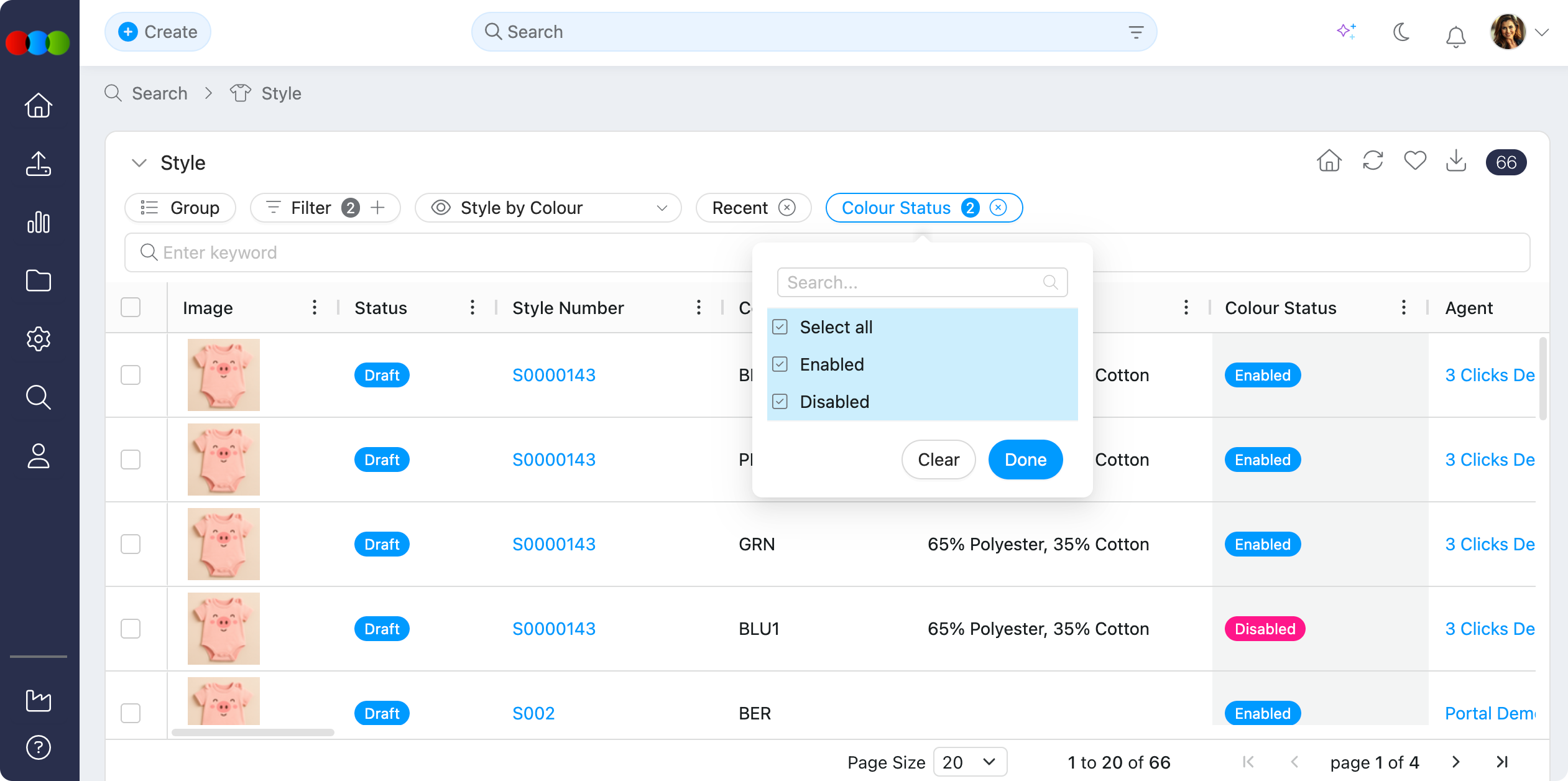
Example
Style › Colours & Pricing › Disable Colour 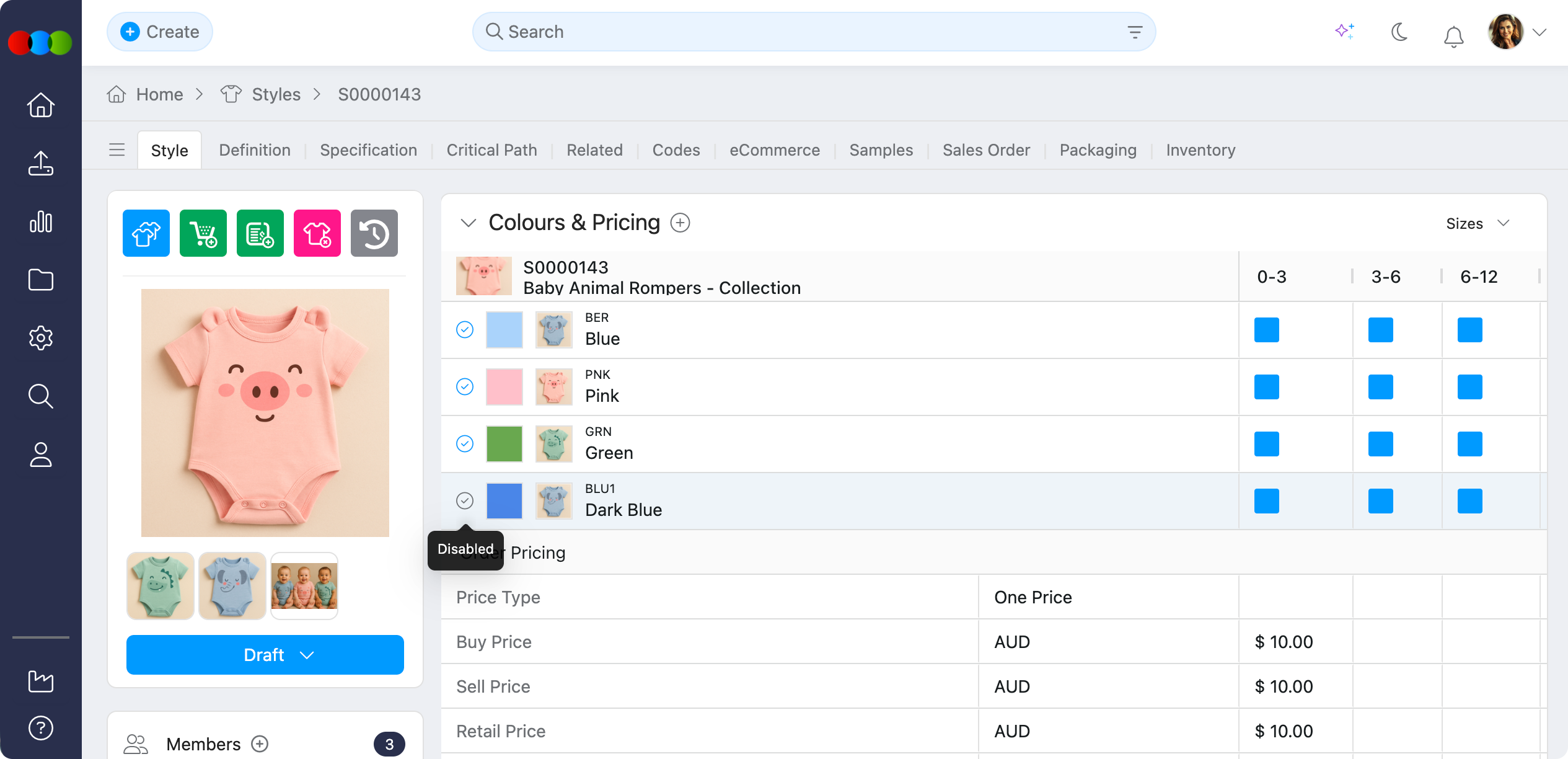
In this example, a colour has been disabled on the style.
Style Search › Style by Colour › Colour Status 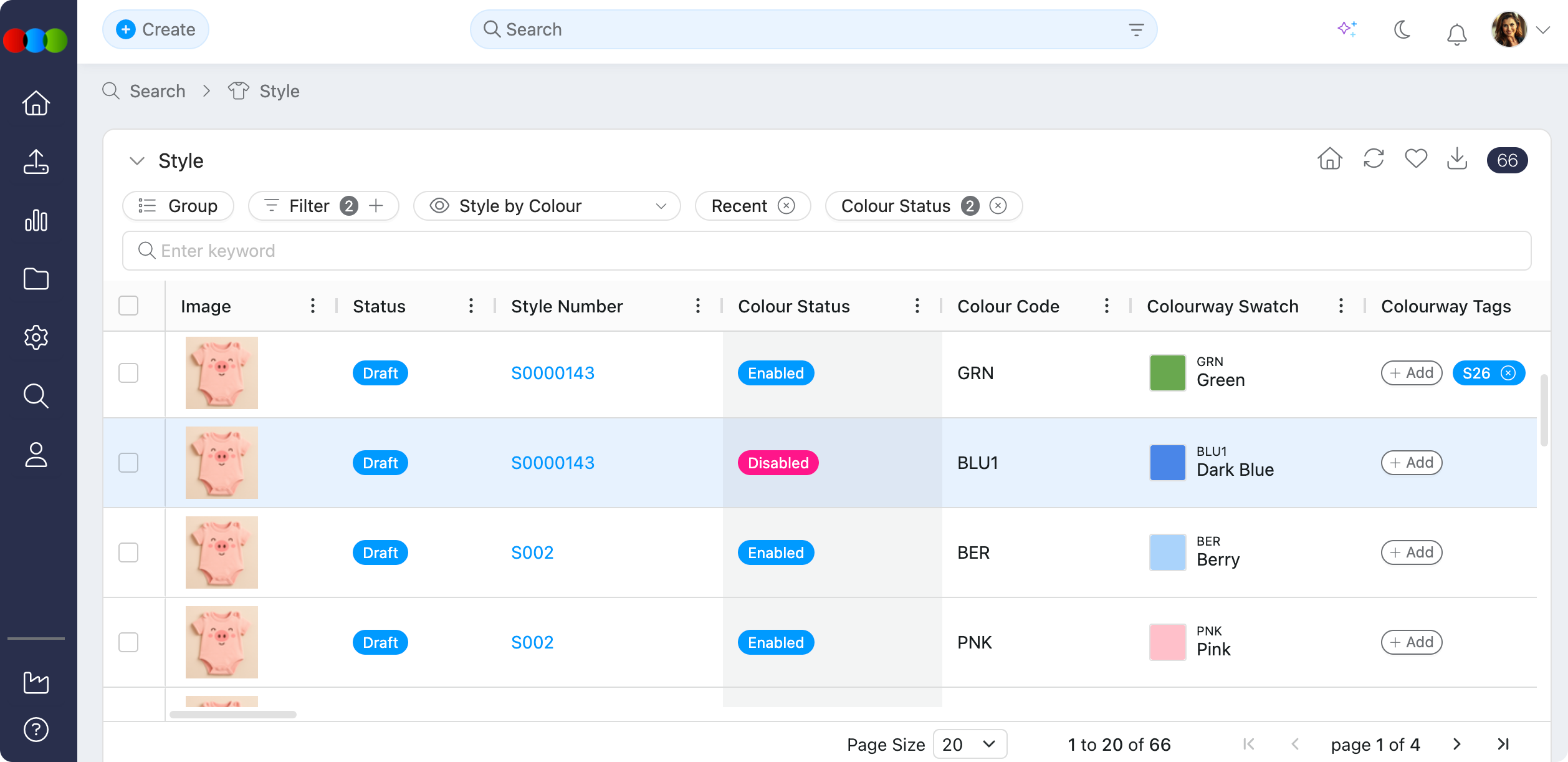
On Style Search, that colour appears with a disabled status in Colour Status.
Disabling colours
This behaviour applies only to colours disabled on the style itself (for example in Style › Colours & Pricing). It does not apply to colours disabled in Site Settings › Style › Colour.
Style by Colour by Market
When using the Style by Colour by Market view, each row represents a colourway and market combination. Use this view to analyse regional forecasts, channel projections, and market-specific pricing side by side.
Forecast column
The Forecast column displays regional forecasts and projection data for each style and colourway. Forecast data is pulled directly from Style › Colours & Pricing › Markets.
Market pricing
Switch to Style by Colour by Market and add pricing columns such as Buy Price, Sell Price, and RRP to review market pricing as configured on each style:
| Order pricing type | What Style Search displays |
|---|---|
| One Price | Each market row shows its own Retail Price (RRP) and Sell Price from Style › Colours & Pricing › Order Pricing, rather than repeating the primary market values. |
| Price by Colour | Buy Price, market RRP, and Sell Price for each colourway and market, matching what is set up on the style. |
This gives you a market-by-market view of style pricing, whether the style uses one price across sizes or different prices per colourway.
For setting up market and colour pricing on styles, see One Price and Price by Colour.
Style › Codes Columns
Add columns sourced from Style > Codes > Unit Codes to display per–colourway identifiers in your search results:
| Column | Description | Editable |
|---|---|---|
| Barcodes | Barcode identifiers linked to styles for stock-keeping and scanning. | No |
| SKU | Stock-keeping unit codes for product identification. | No |
| Keycode | Internal or customer-defined product references. | No |
| TUN | Trade Unit Numbers for order traceability. | No |
Pack-level barcodes are configured under Pack Barcodes on Style › Codes on the style record, not via these search columns.
Column Hierarchy
In Search > Style, columns are organised under category headings in Choose Columns to help you navigate and locate columns more efficiently:
- Usual columns — standard style fields such as Style Number, Description, Status, Brand, and Season
- Sales Data — Sales Trend, Sell-through rate %, Stock on Hand, and Weeks on Stock
- eCommerce — eCommerce Description, Status, and Currencies
- View options — Style, Style by Colour, Style by Colour by Size, Style by Colour by Market, and Channel Readiness
- Application-specific columns — Enabled Sizes, Colour Status, Forecast, market pricing, and codes from Style › Codes
- Critical Path — activity columns from Critical Path > Activities for milestone status, approval, and bulk actions from the grid
Activities
Style Search supports two ways to work with Critical Path > Activities from the search grid.
Filter by activities
Use the Activities toolbar option to filter results by Critical Path > Activities. Select a critical path and one or more activities to show only styles with matching activity data. Activity options depend on what is configured in Site Settings › Style › Activities and Site Settings › Style › Critical Path.
Activity columns
Add activity columns from the Critical Path category in Choose Columns to display milestone status across your search results. Each activity you add appears as its own column. You can select up to 40 activity types in a single view.
- Open Style Search and choose Choose Columns.
- Expand Critical Path and select the activities you want to track.
- Click an activity cell to approve, reject, or add a comment when notes are configured for that activity.
- Tick the column header checkbox to bulk approve or reject the selected activity for every checked style in the view.
- Scan the column totals at the bottom of the grid to see how many records sit in each activity status at a glance.
Style Search › Critical Path Activities 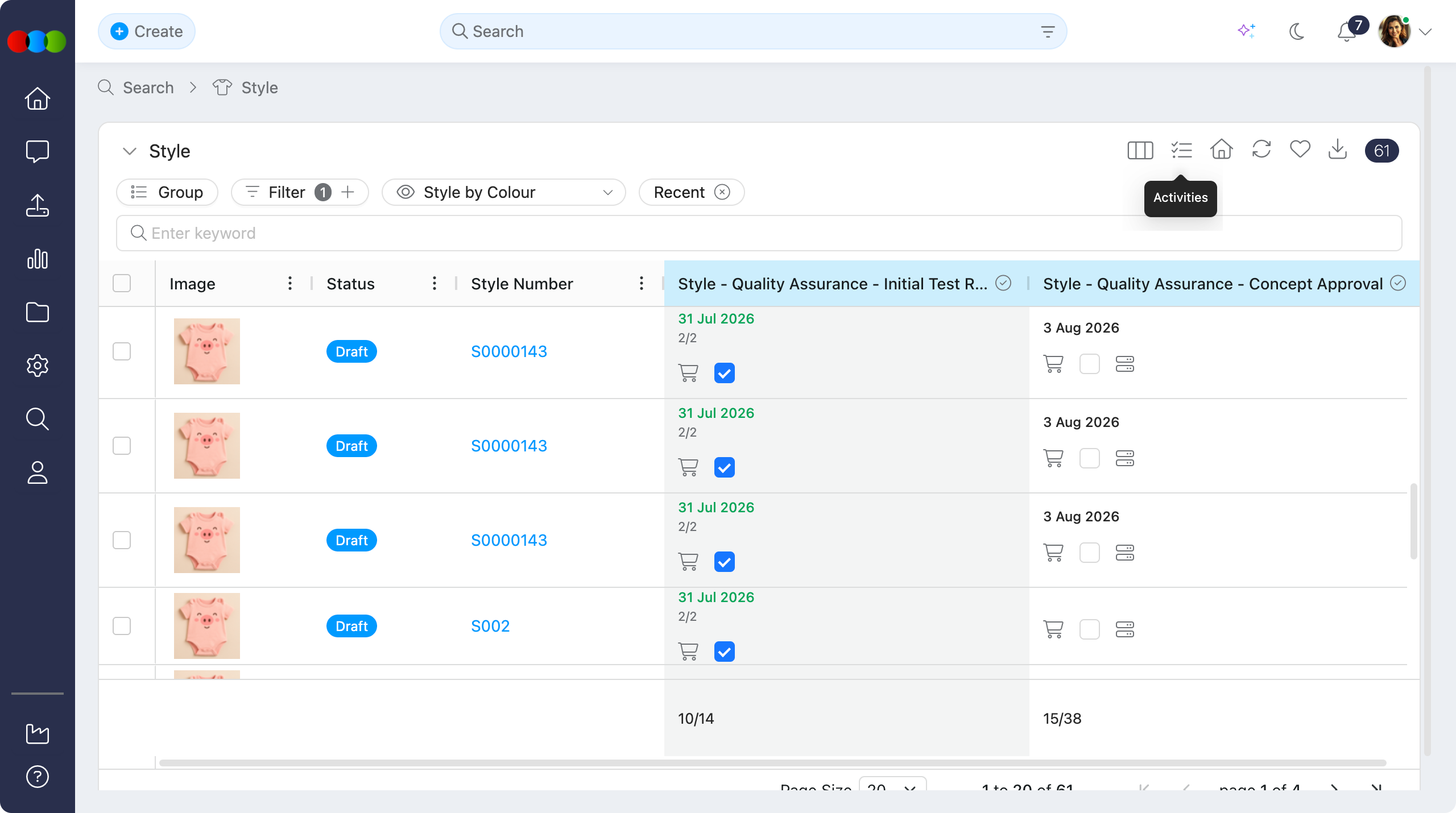
Style Search › Critical Path Activities action 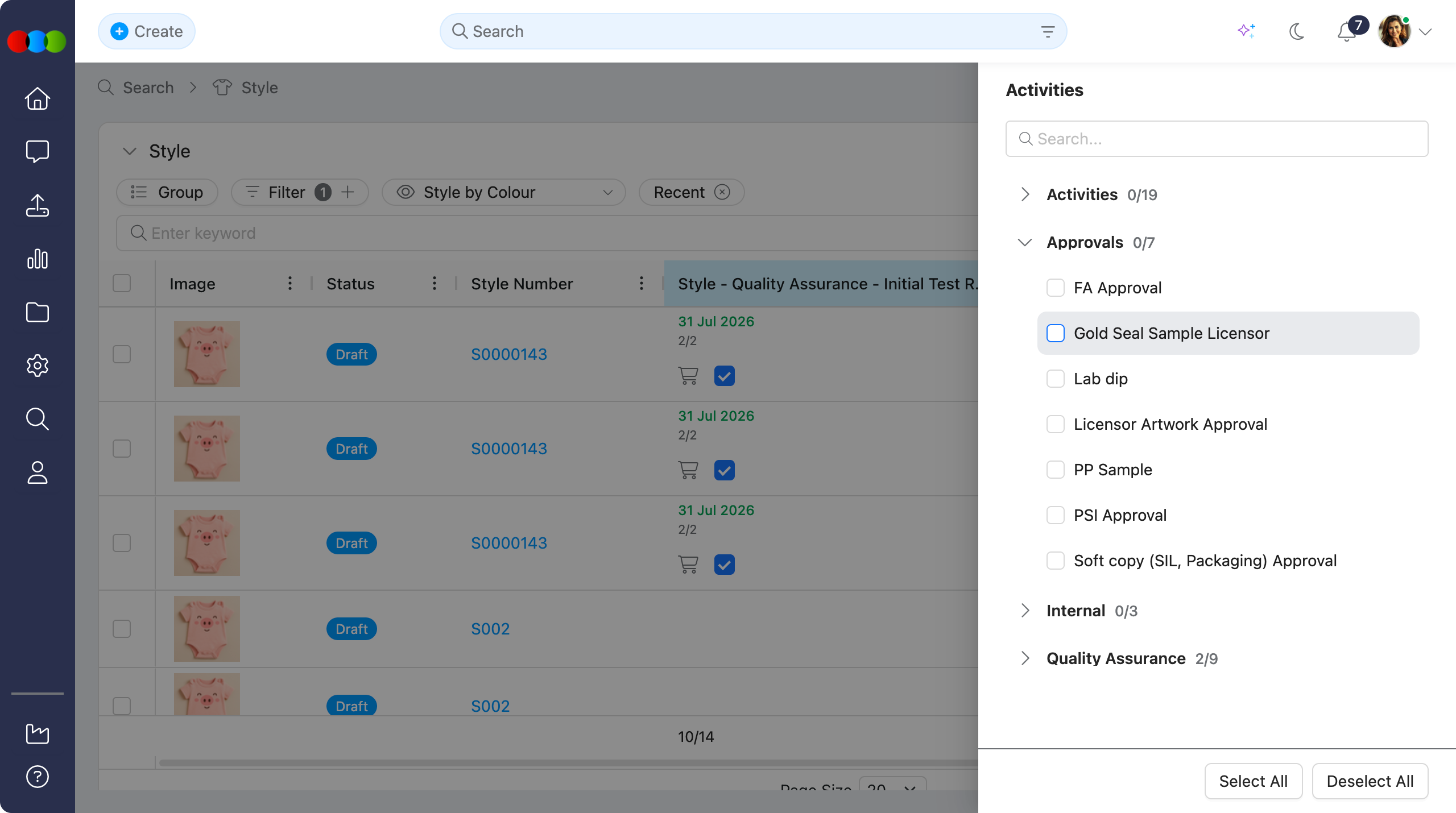
For full activity management on the style record, see Style › Critical Path.
Filter
Use filters to narrow your Style Search results. The following filters are available:
| Filter | Description |
|---|---|
| Agent | Filter by agent managing the style. The list for this filter depends on what was configured in Site Settings › Company › Suppliers. |
| Available Until | Filter by available-until date. |
| Barcode | Filter by barcode identifier. |
| Brand | Filter by brand. The list for this filter depends on what was configured in Site Settings › Style › Brand. |
| Buy Price | Filter by buy price. |
| Buy Price Currency | Filter by buy price currency. |
| Category | Filter by product category. The list for this filter depends on what was configured in Site Settings › Style › Category. |
| Collection | Filter by collection. The list for this filter depends on what was configured in Site Settings › Style › Collection. |
| Cost Centre | Filter by cost centre. The list for this filter depends on what was configured in Site Settings › Company › Cost Centre. |
| Created | Filter by style creation date. |
| Created Between | Filter by creation date range. |
| Created By | Filter by user who created the style. |
| Critical Path | Filter by critical path. The list for this filter depends on what was configured in Site Settings › Style › Critical Path. |
| Customer | Filter by customer or retail channel. The list for this filter depends on what was configured in Site Settings › Company › Customer. |
| Department | Filter by department. The list for this filter depends on what was configured in Site Settings › Order › Department. |
| Design Number | Filter by design reference number. |
| Designer | Filter by designer. The list for this filter depends on what was configured in Site Settings › Company › Staff. |
| Drop | Filter by product release or drop. The list for this filter depends on what was configured in Site Settings › Style › Drop. |
| eCommerce Status | Filter by eCommerce availability status. |
| ETA | Filter by estimated time of arrival. |
| ETA Between | Filter by ETA date range. |
| ETD | Filter by estimated time of departure. |
| ETD Between | Filter by ETD date range. |
| Ex Factory | Filter by ex-factory date. |
| Ex Factory Between | Filter by ex-factory date range. |
| Factory | Filter by production factory. The list for this filter depends on what was configured in Site Settings › Company › Suppliers. |
| Gender | Filter by target gender. The list for this filter depends on what was configured in Site Settings › Style › Gender. |
| GTIN | Filter by Global Trade Item Number. |
| In Store | Filter by in-store date. |
| In Store Between | Filter by in-store date range. |
| Keycode | Filter by keycode. |
| Keywords | Search across style fields by keyword. |
| Label | Filter by user-defined labels. |
| License | Filter by licensing agreement. The list for this filter depends on what was configured in Site Settings › Style › License. |
| Markets | Filter by markets or regions. |
| MOQ | Filter by minimum order quantity. |
| Price Type | Filter by price type (e.g., Buy, Costing). |
| Recent | Filter by recently viewed or updated styles. |
| RRP | Filter by recommended retail price. |
| RRP Currency | Filter by RRP currency. |
| Season | Filter by fashion season. The list for this filter depends on what was configured in Site Settings › Style › Season. |
| Sell Price | Filter by sell price. |
| Sell Price Currency | Filter by sell price currency. |
| Shared | Filter by shared status (e.g., with agent or factory). |
| Size Scale | Filter by size scale. The list for this filter depends on what was configured in Site Settings › Style › Size Scales. |
| SKU | Filter by stock-keeping unit code. |
| Start | Filter by style start date. |
| Start Between | Filter by start date range. |
| Status | Filter by style status (defaults include Draft, Approved, Cancelled). See Style Status. |
| Story | Filter by design concept or theme. The list for this filter depends on what was configured in Site Settings › Style › Story. |
| Sub Category | Filter by sub category. When a Category is selected, only sub categories linked to that category are shown. Sub categories are configured in Site Settings › Style › Category. |
| Sub Type | Filter by sub type. The list for this filter depends on what was configured in Site Settings › Style › Type. |
| Supplier Manufacturing ID | Filter by supplier's manufacturing identifier. |
| Tags | Filter by tags. The list for this filter depends on what was configured in Site Settings › Company › Tags. |
| Tariff | Filter by customs tariff code. The list for this filter depends on what was configured in Site Settings › Style › Tariff. |
| TUN | Filter by Trade Unit Number. |
| Type | Filter by style or product type. The list for this filter depends on what was configured in Site Settings › Style › Type. |
| Updated | Filter by last update date. |
| Updated Between | Filter by update date range. |
| Weight | Filter by style weight. |
Bulk Actions
Style Search supports bulk actions with these functionalities:
| Action Bar | Fields |
|---|---|
| Share | Share with Agent — Share the style with an agent. Share with Factory — Share the style with a factory. |
| Actions | Add Components — Add components to the style. AI - Add eCommerce Description — Generate eCommerce description using AI. New Sample Requirement — Create a new sample requirement. Delete — Remove selected styles. Members — Re-allocate styles from an existing staff member or add a staff member to selected styles. The Members list can be configured in Site Settings › Company › Staff. From — Remove the selected staff member from the styles. To — Add the selected staff member to the styles. |
| Fields | Agent — Agent managing the style. Alt RRP — Alternative recommended retail price. Available Until — Date until the style is available. Brand — Brand associated with the style. Buy Price — Purchase or buy price for the style. Category — Main product category. Collection — Collection the style belongs to. Critical Path — Style-level critical path. Customer — Customer or retail channel. Department — Department for the style. Designer — Designer who created the style. Drop — Product release or drop. ETA — Estimated time of arrival. Ex Factory — Date when goods leave the factory. Factory — Production factory for the style. Gender — Target gender for the style. In Store — Date when goods arrive in store. RRP — Recommended retail price. Season — Fashion season for the style. Sell Price — Sell price for the style. Start — Start date for the style. Status — Current style status. Story — Design concept or theme. Sub Category — More specific product classification. When a Category is selected, only sub categories linked to that category are shown. Sub Type — Further refinement of product type. |
Bulk Update Members
Use Actions > Members when team responsibilities change and you need to update member assignments across multiple styles at once.
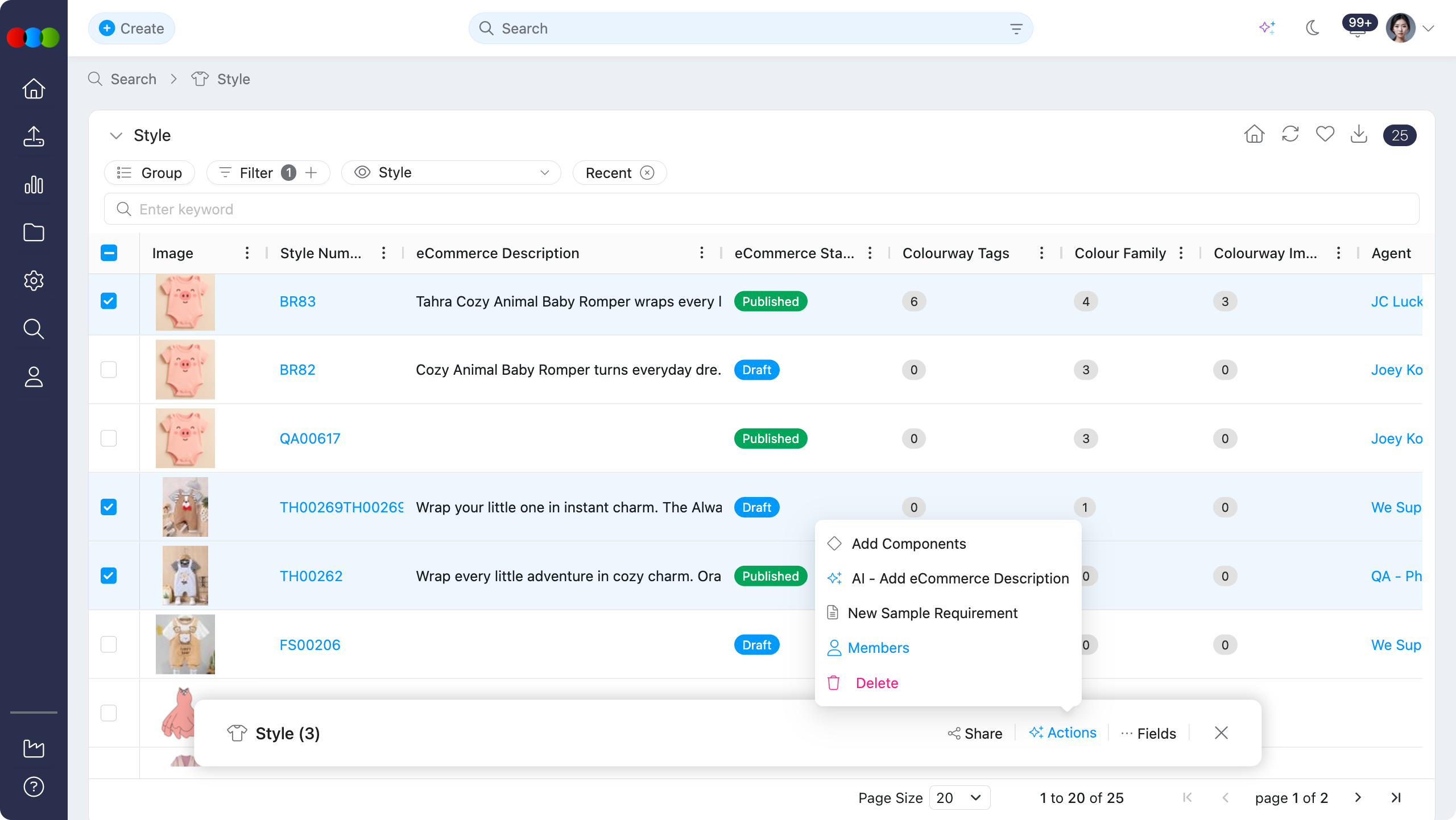
| Field | Description |
|---|---|
| From | Select the existing staff member to remove from the selected styles. Leave this blank if you only want to add a new member. |
| To | Select the staff member to add to the selected styles. Leave this blank if you only want to remove the member selected in From. |
This action can remove one staff member, add one staff member, or re-allocate styles by using both From and To in the same update.
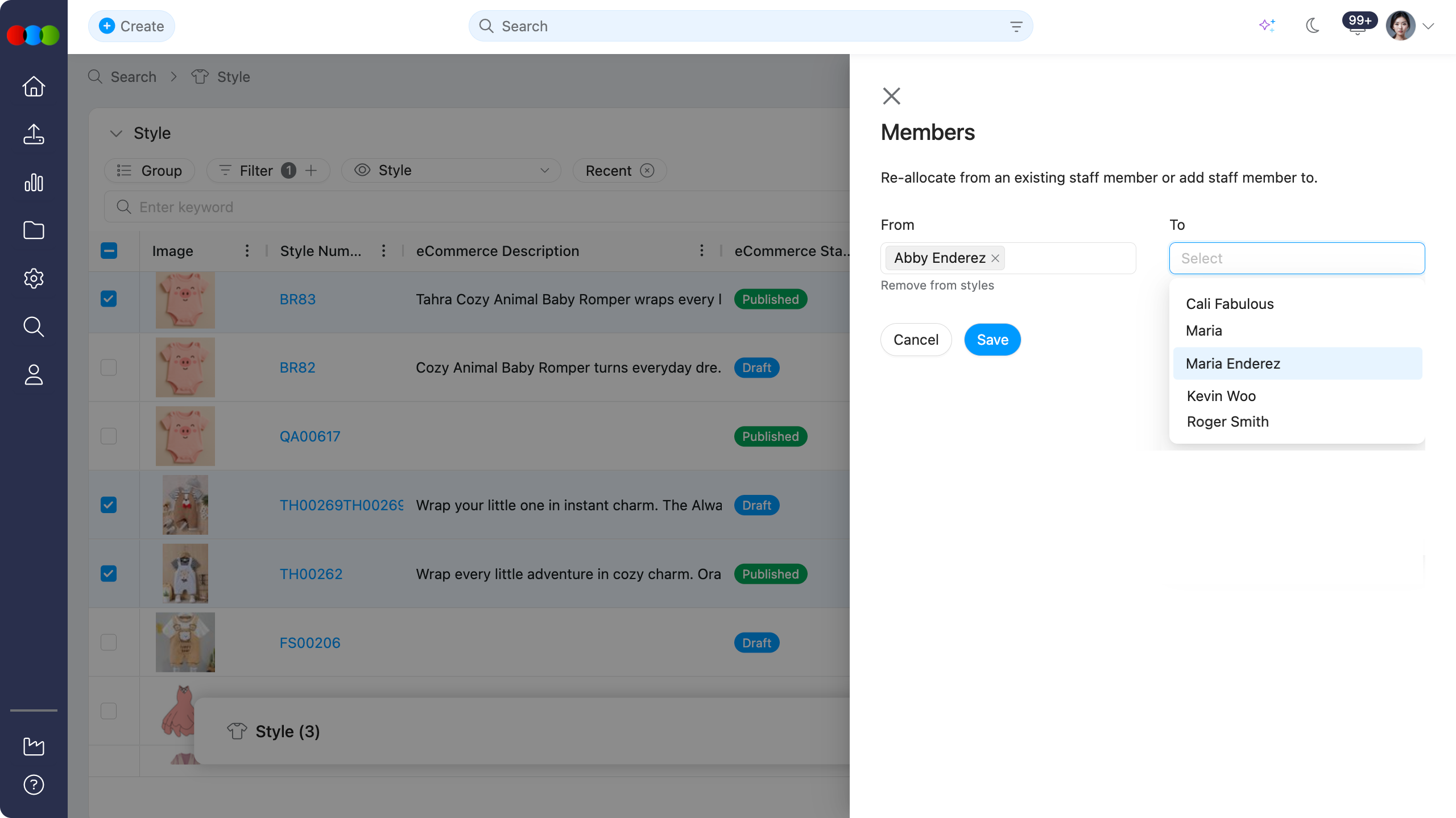
For single-style member management, see Style > Side Widgets > Members.
For full details on bulk actions and how to use them, see Manage Data in Search.