User Settings
User Settings in 3 Clicks Cloud is where you manage your own account: how you appear to teammates, how sign-in is protected, and how you are notified about activity on applications you belong to. These choices apply to your user only; organisation-wide defaults and enforced policies are set in Site Settings (for example MFA enforcement or company data).
Where to Access
Follow these steps to open your user settings:
| Step | Action |
|---|---|
| 1 | From the main home page, locate your profile picture in the top navigation bar. |
| 2 | Click your profile picture to open the dropdown menu. |
| 3 | In the dropdown, select Settings. |
| 4 | The User Settings pop-up will appear on your screen. |
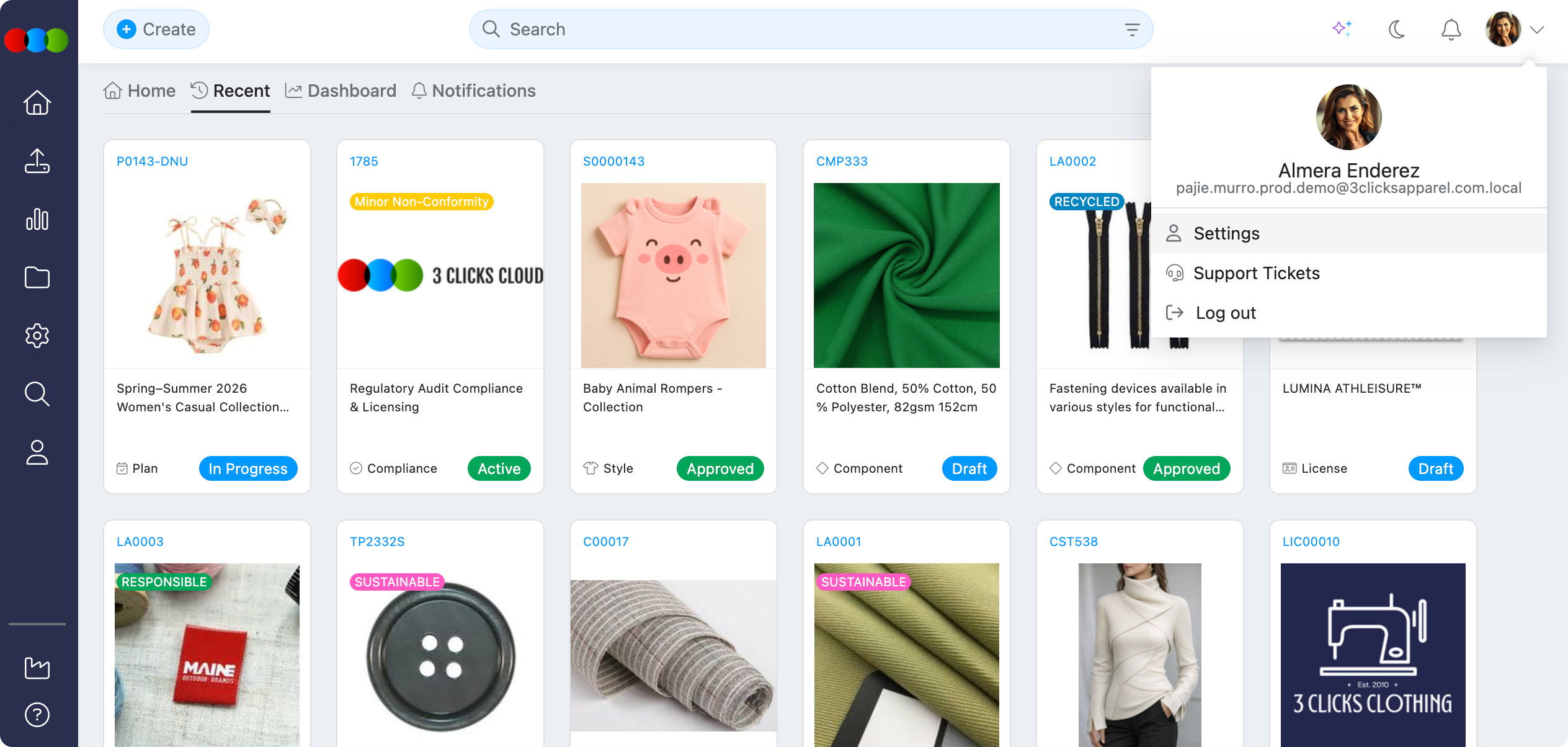
Use the Settings option to manage your personal preferences and account configuration.
Configurable Sections
| Section | Description |
|---|---|
| Profile | Name, profile picture, email, and other personal details shown across the platform. 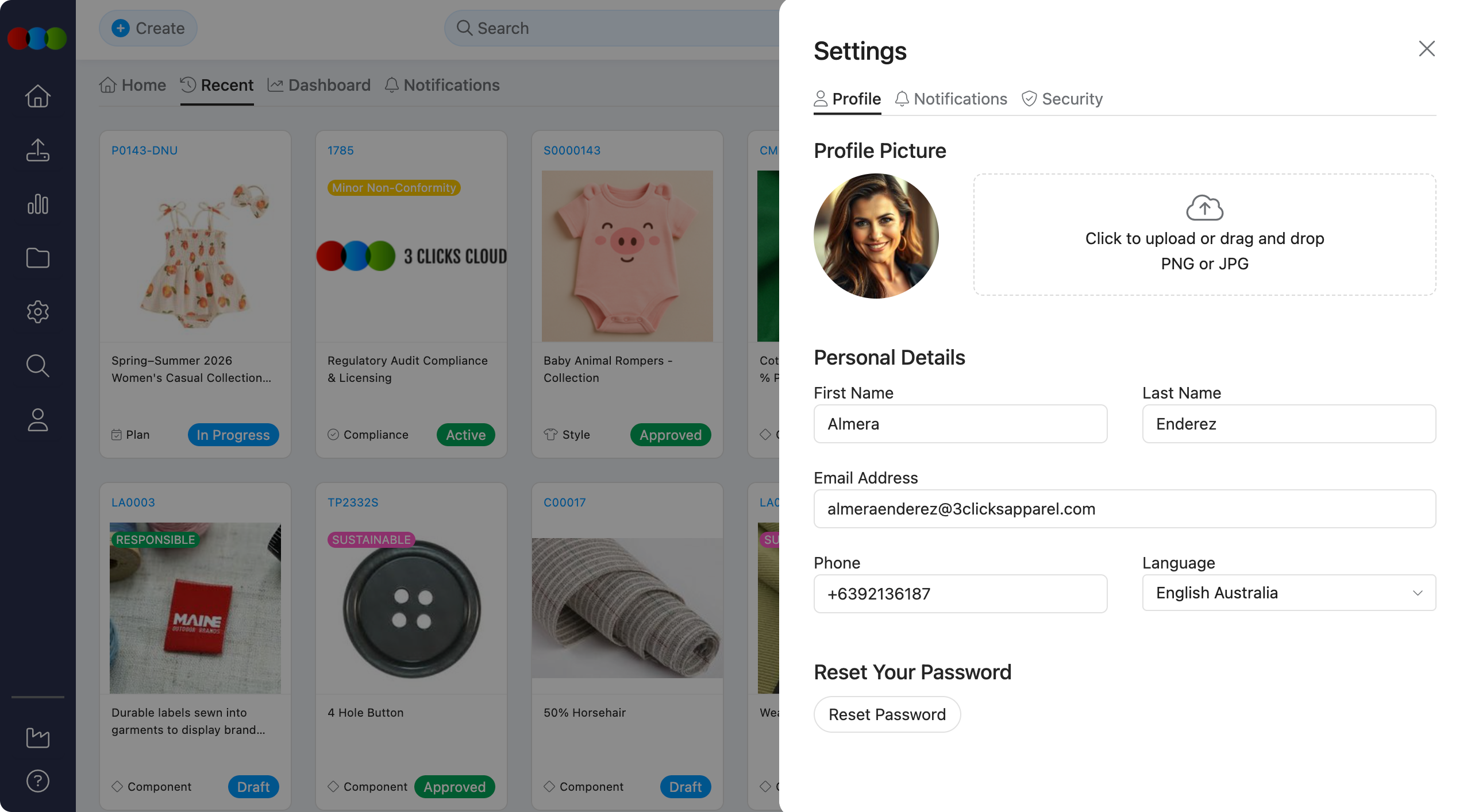 |
| Notifications | Do not disturb, email delivery, and per-application notification types. 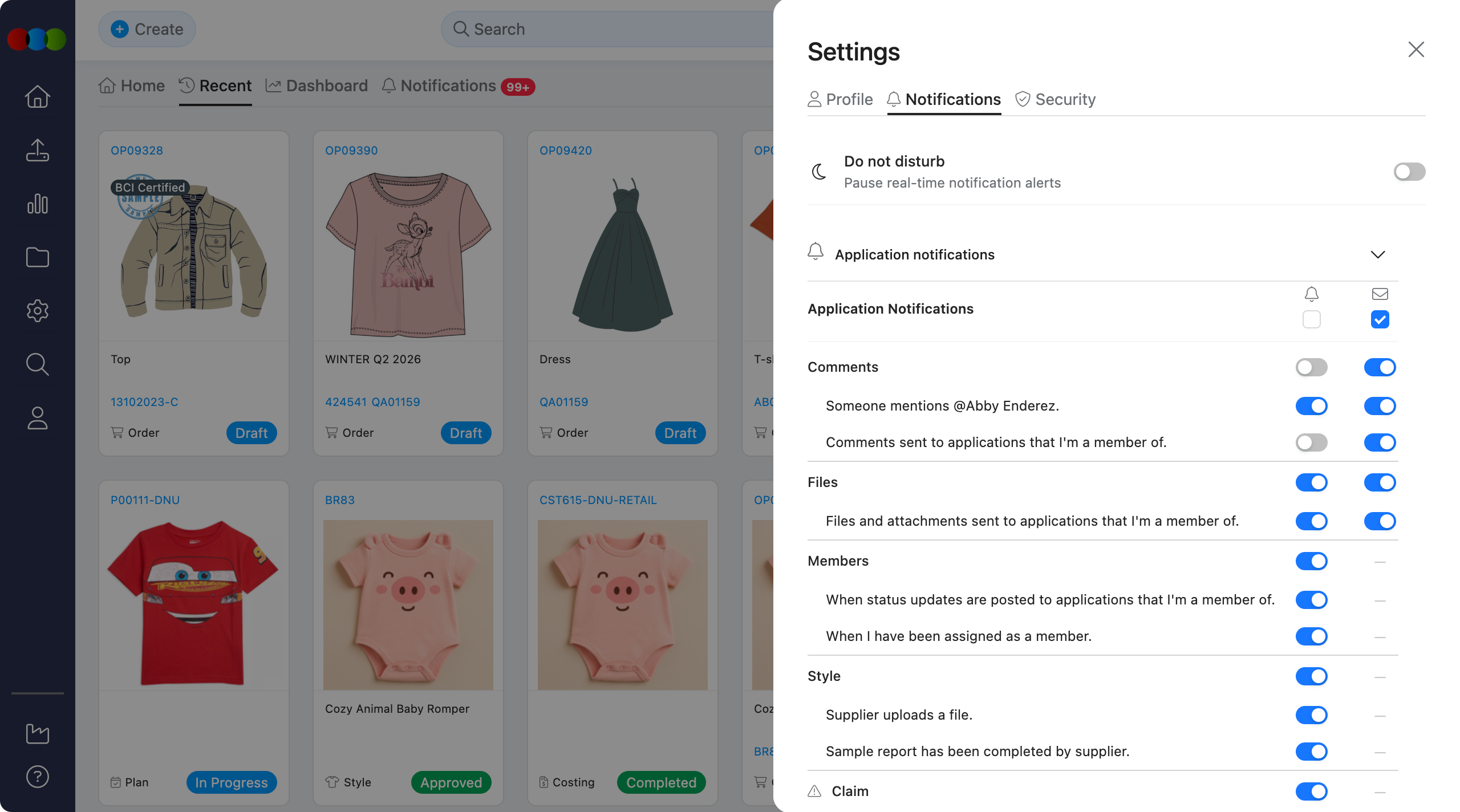 |
| Security | Multifactor authentication (MFA) and recovery codes for your account. 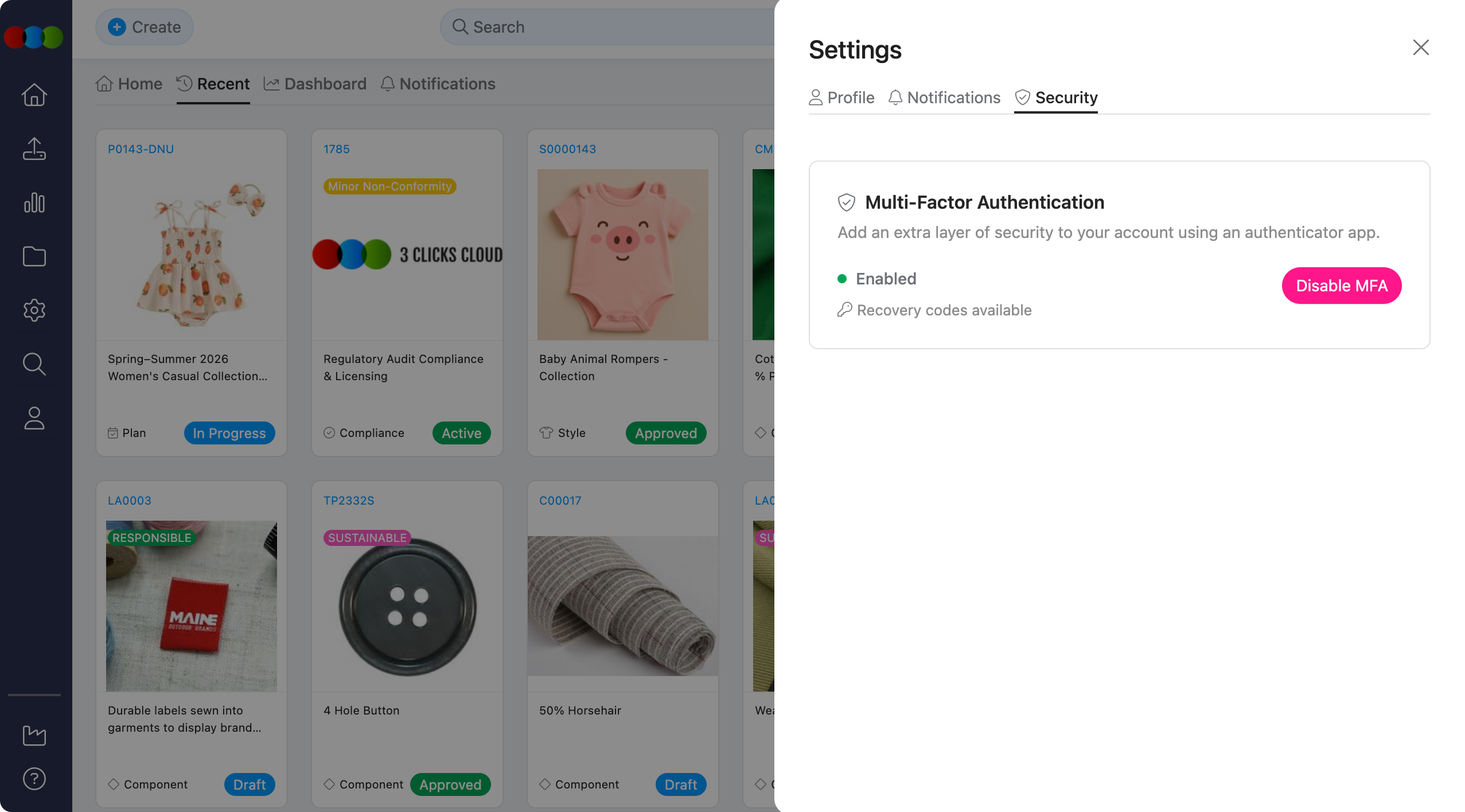 |