Notifications
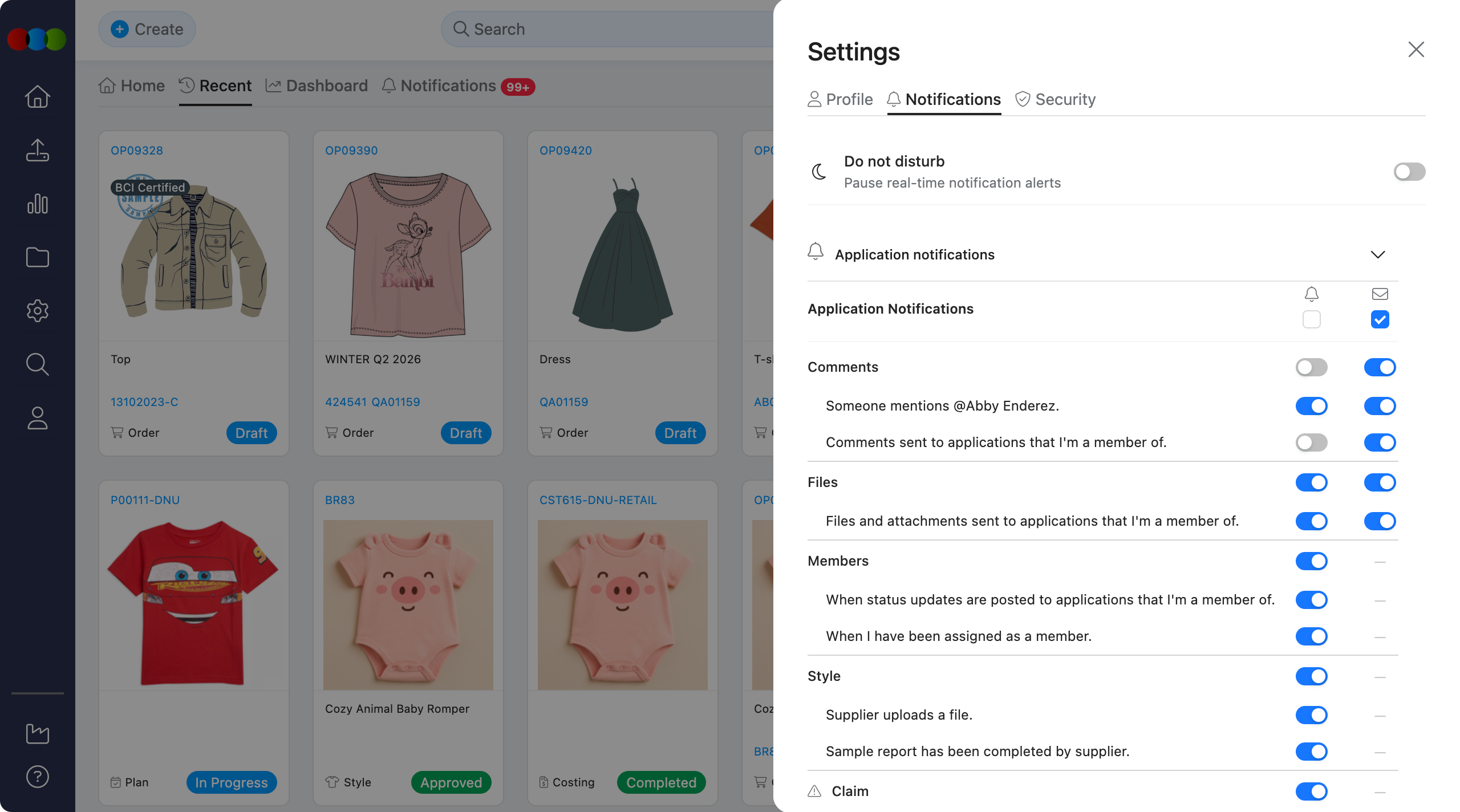
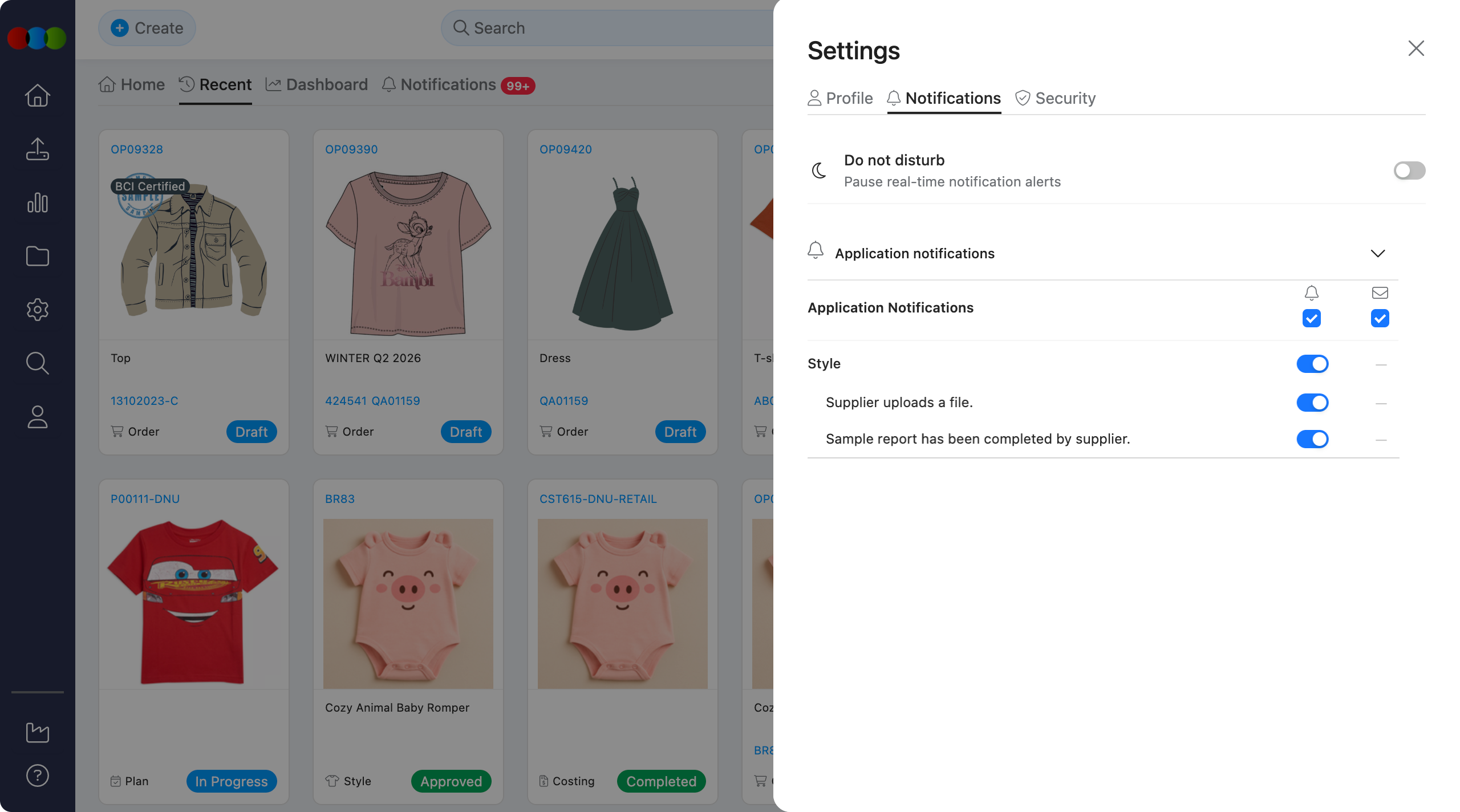
Settings > Notifications lets you control how and when 3 Clicks Cloud alerts you about activity on the records you have access to. For each type of event, you can choose:
- Whether it shows up as an in-app alert (inside 3 Clicks Cloud)
- Whether it's also sent to you by email
- For some event types, whether you're alerted for every record you can see, or only the ones you're personally involved in
These settings only affect your own account — they don't change what notifications other people receive.
Quick Check - Before You Start
- Open Settings from your profile menu, then select Notifications.
- Each event has two toggles — In-App and Email. Turn either, both, or neither on, depending on how you want to be alerted.
- For Claim, Compliance, Costing, and Order events, a Mine / All dropdown lets you choose whether alerts cover everything you can view, or just the records you're a member of.
- If Do Not Disturb is turned on, all notifications are paused — both in-app and email — until you switch it off.
- To see notifications you've already received, visit the Notifications list.
Opening Notification Settings
- Sign in to 3 Clicks Cloud.
- Open Settings from the user menu or profile area.
- Click Notifications.
Understanding the Layout
Each type of event has its own row, with the following columns:
| Column | What it does |
|---|---|
| In-App | Toggle on or off to receive real-time alerts inside 3 Clicks Cloud's notification centre. |
| Toggle on or off to receive email alerts for the same event. | |
| Mine / All | Available only for certain Claim, Compliance, Costing, and Order events. Choose All to be notified about every record you can view, or Mine to only hear about records you're personally involved with. |
Some events don't have an email option. Those rows show a dash (—) instead of a toggle. You can still turn the in-app alert on or off.
Choosing Who Gets Notified
Notifications don't go to everyone automatically. Whether you receive one depends on:
- Your In-App and Email choices for that event
- Your Mine / All setting, if the event supports it
- Who performed the action
You won't be notified about your own changes
If you create or update something yourself, you won't get a notification for it. Alerts only go to other people who have access to that record and have the relevant setting turned on. This keeps your notification feed free of clutter from your own activity.
Mine vs. All: Choosing Your Scope
For supported events in Claim, Compliance, Costing, and Order, you can narrow down which records trigger an alert:
| Option | What you'll be notified about |
|---|---|
| All | Every record you have permission to view; even ones you're not directly involved in. This is the default. |
| Mine | Only records where you're personally involved. What counts as "involved" depends on the event — for example, you'll only hear about a new claim if you're listed as Staff on it, or a new order if you're a member of that order's style. |
To change the scope for an event
- Go to Settings > Notifications.
- Find the relevant section (for example, Order).
- Set the Mine / All dropdown next to the event to your preferred option.
- Your choice saves automatically.
A few things to know
- Each event keeps its own Mine / All setting — changing one doesn't affect others.
- The Select All shortcuts for In-App and Email don't touch your Mine / All choices.
- If you turn off both In-App and Email for an event, its Mine / All setting resets to All. Turning a channel back on won't restore a previous Mine choice — you'll need to set it again.
Do Not Disturb
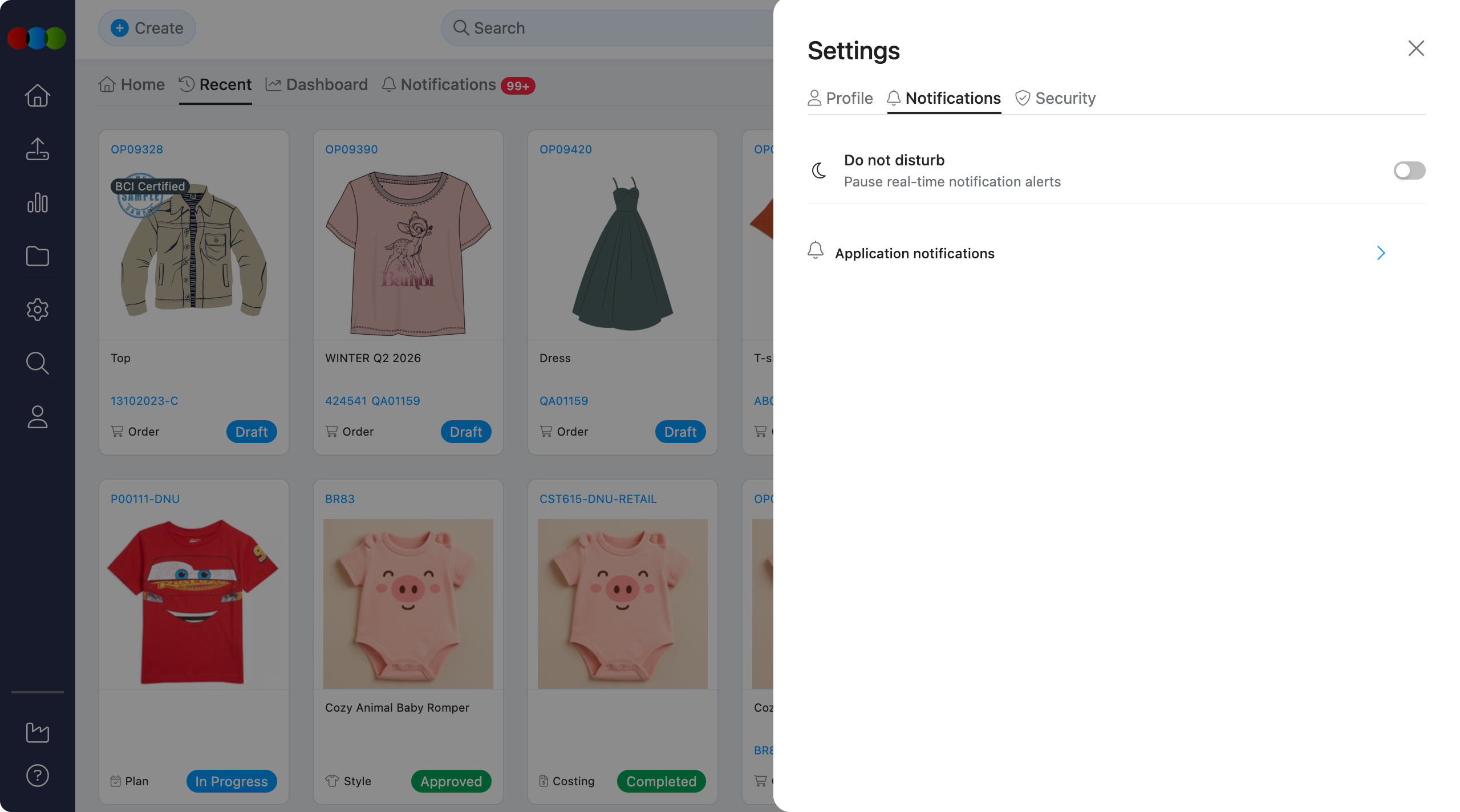
At the top of the Notifications panel is a Do Not Disturb switch. Turning it on pauses every notification — both in-app and email — until you turn it off again. Use it when you want a break from alerts entirely.
What You Can Get Notified About
Each section below lists the events available in that area. Most have simple In-App / Email toggles. You'll only see notifications for areas you have access to.
Comments
| Notification | When it happens |
|---|---|
| Someone mentions @username. | Someone tags you with @username in a comment. |
| Comments sent to applications that I'm a member of. | A comment is posted somewhere you're a member. |
Files
| Notification | When it happens |
|---|---|
| Files and attachments sent to applications that I'm a member of. | A file is added somewhere you're a member. |
Members
| Notification | When it happens |
|---|---|
| When status updates are posted to applications that I'm a member of. | A status changes somewhere you're a member. |
| When I have been assigned as a member. | You're added as a member on a record. |
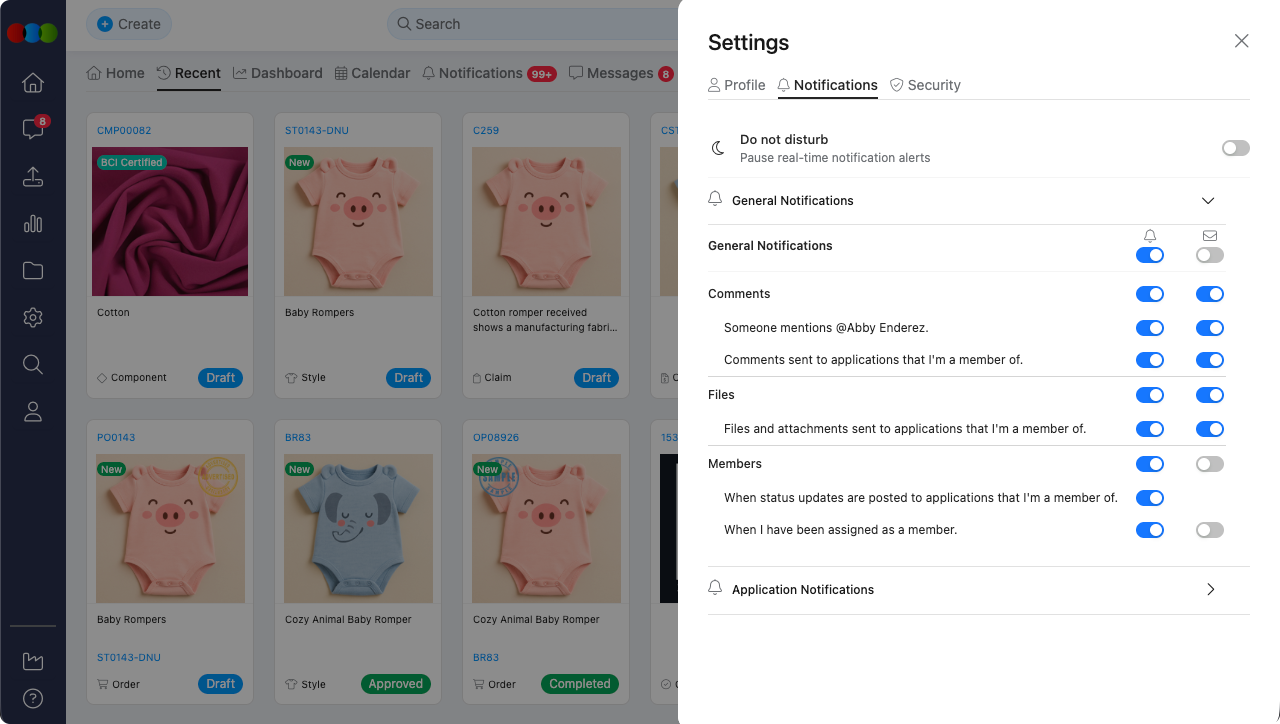
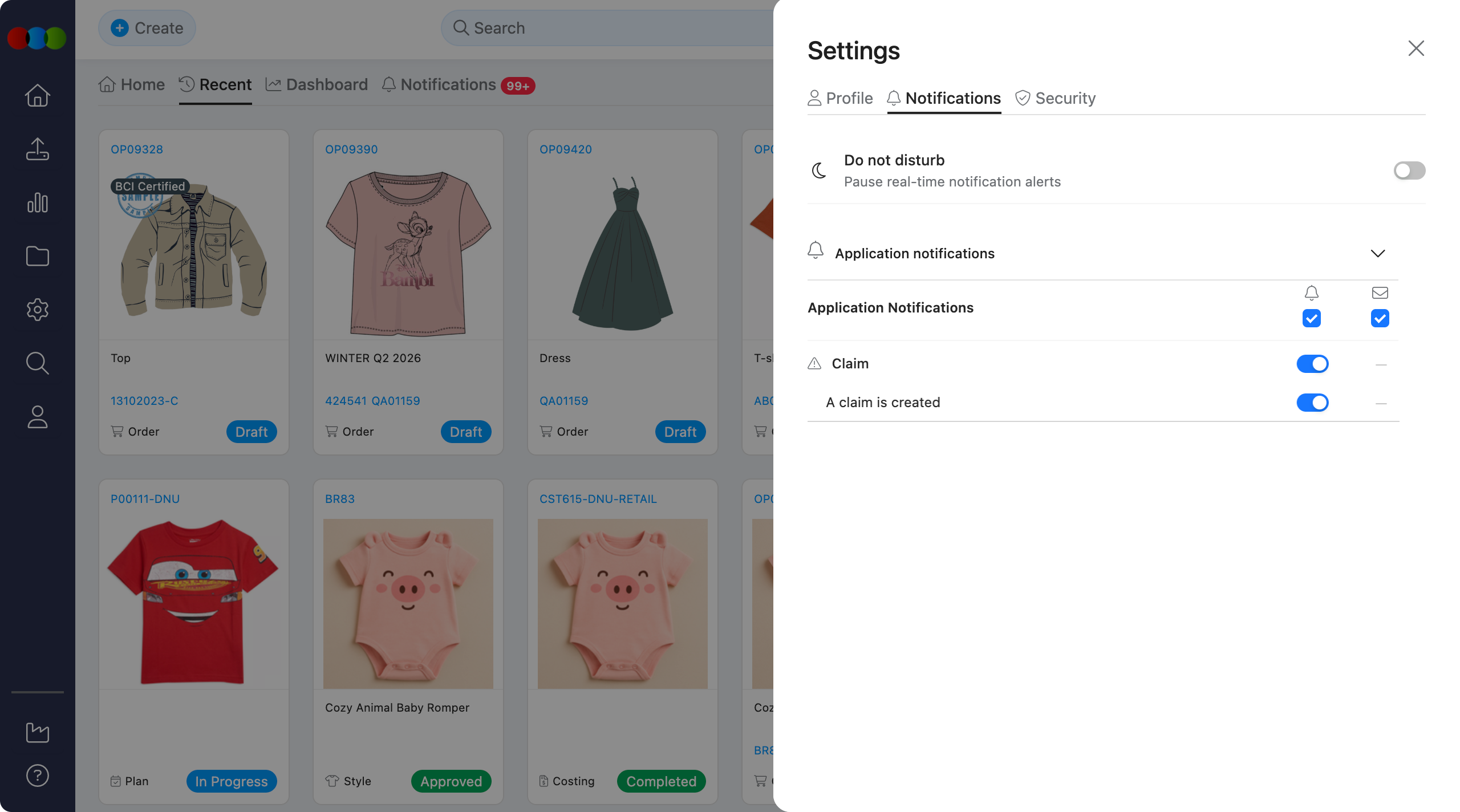
Claim
| Notification | When it happens |
|---|---|
| A claim is created | A new claim is raised. With Mine, you're only notified if you're listed as Staff on it. With All, you're notified about every claim you can view. |
Compliance
| Notification | When it happens |
|---|---|
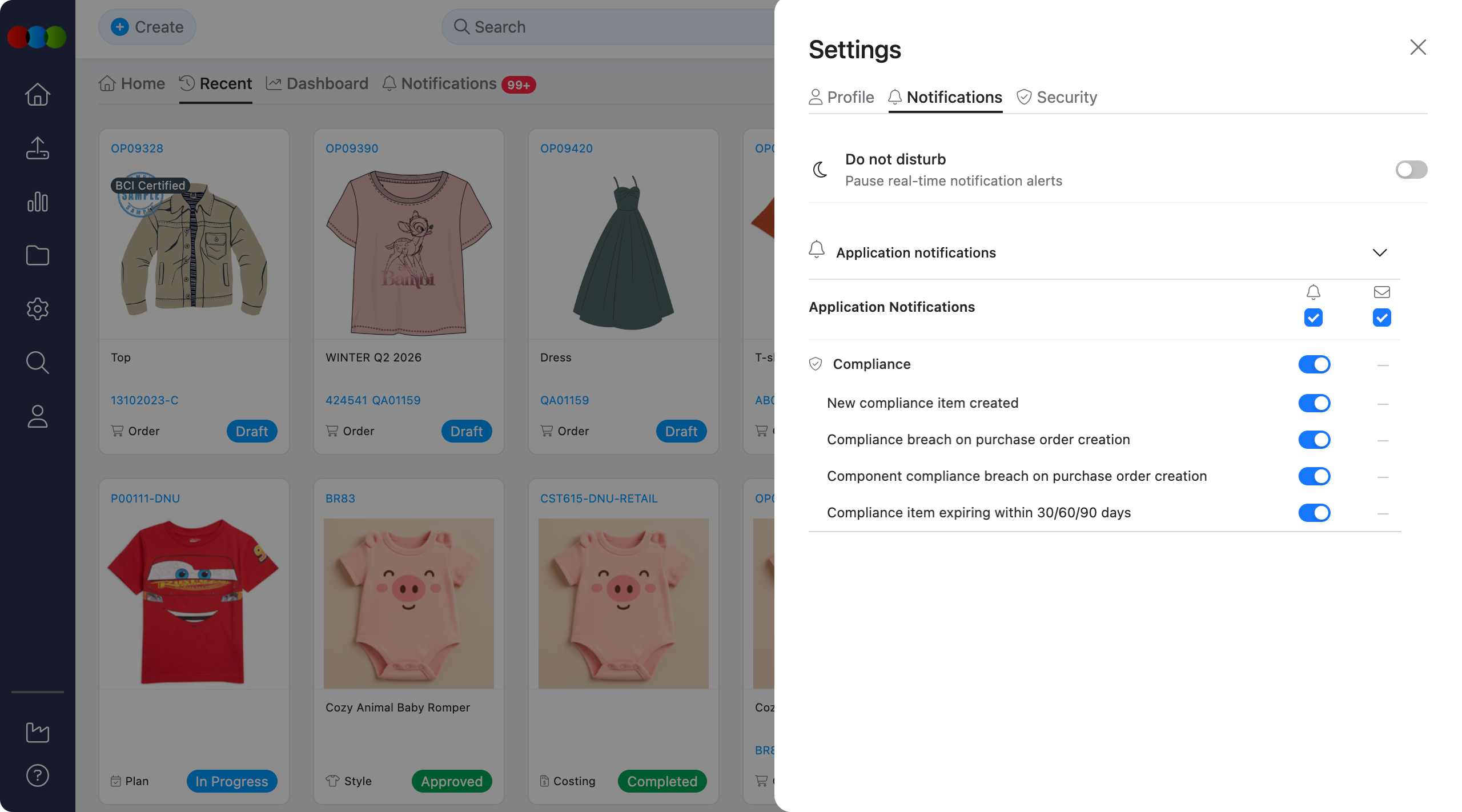
| New compliance item created | A new compliance record is added. |
| Compliance breach on purchase order creation | A compliance issue is found when a purchase order is created. |
| Component compliance breach on purchase order creation | A component-level compliance issue is found on a purchase order. |
| Compliance item expiring within 30/60/90 days | A compliance item is due to expire soon. |
Costing
| Notification | When it happens |
|---|---|
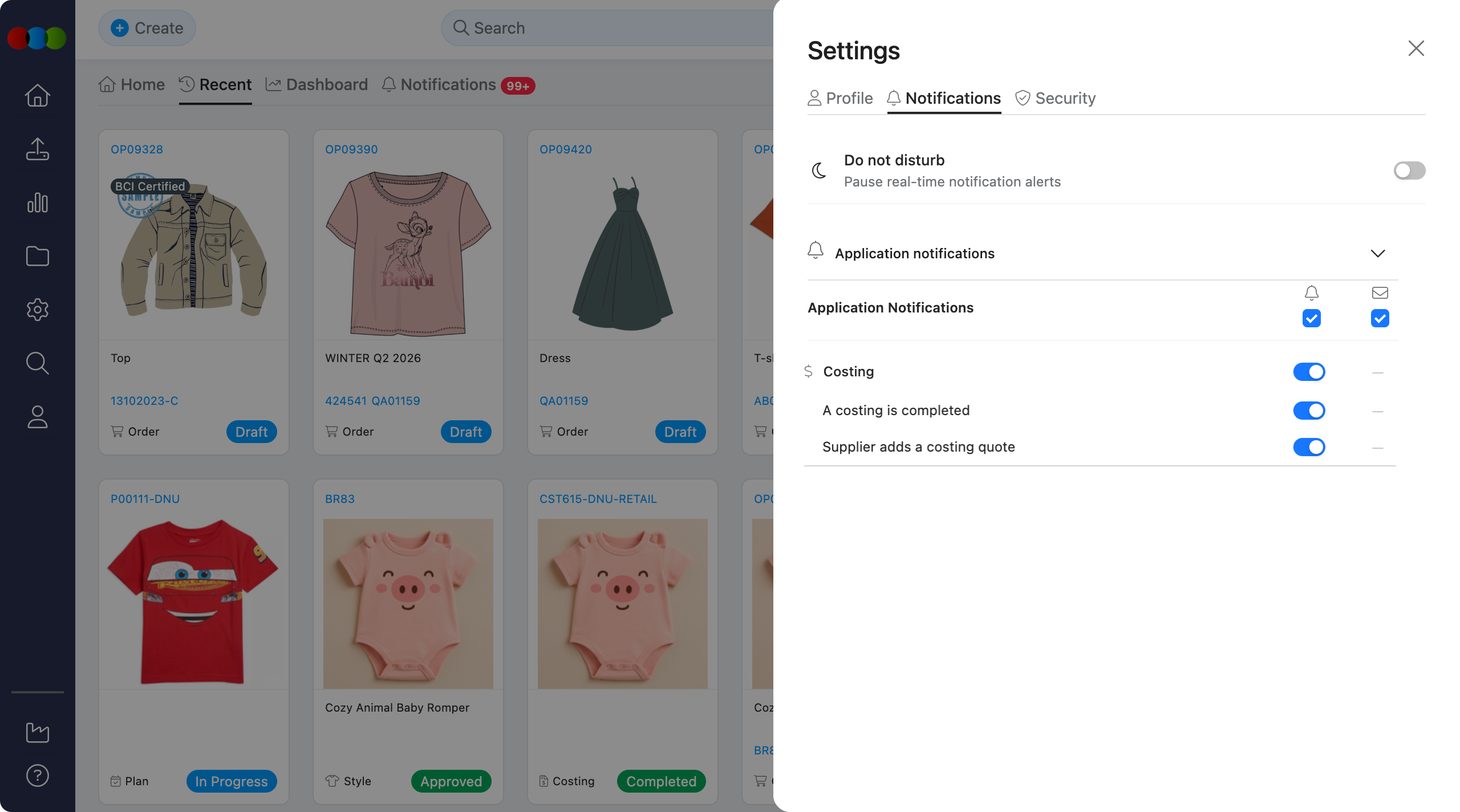
| A costing is completed | A costing is marked complete. |
| Supplier adds a costing quote | A supplier submits a quote. |
Order
| Notification | When it happens |
|---|---|
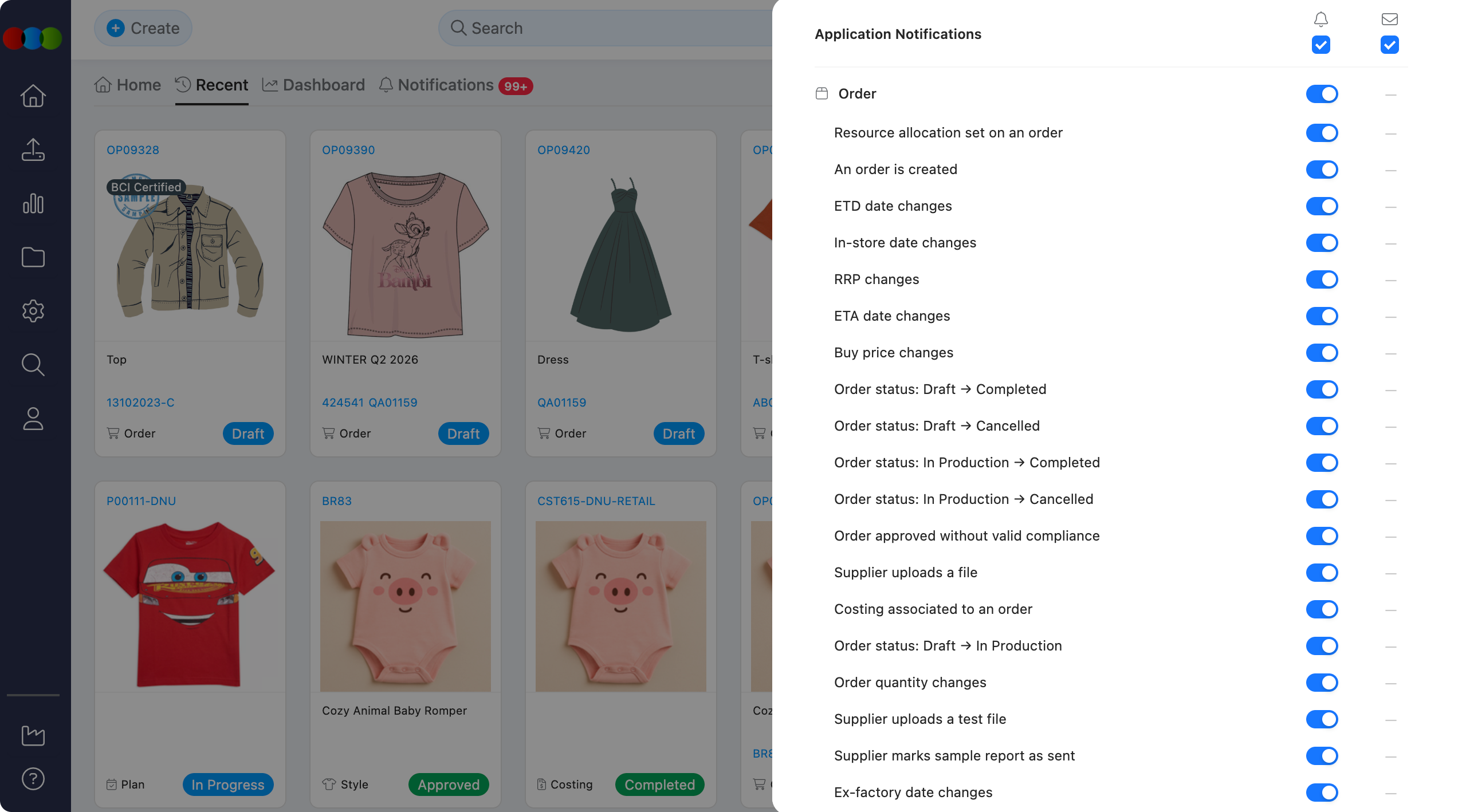
| An order is created | A new order is created. With Mine, you're only notified if you're a member of that order's style. With All, you're notified about every order you can view. |
| ETD date changes | The estimated departure date changes. |
| In-store date changes | The in-store date changes. |
| RRP changes | The recommended retail price changes. |
| ETA date changes | The estimated arrival date changes. |
| Buy price changes | The buy price changes. |
| Order status changes: Draft → Completed | The order moves between these statuses. |
| Order status changes: Draft → Cancelled | The order moves between these statuses. |
| Order status changes: In Production → Completed | The order moves between these statuses. |
| Order status changes: In Production → Cancelled | The order moves between these statuses. |
| Order approved without valid compliance | An order is approved despite a missing or invalid compliance record. |
| Supplier uploads a file | A supplier uploads a file to the order. |
| Costing associated to an order | A costing is linked to the order. |
| Order quantity changes | The order quantity changes. |
| Supplier uploads a test file | A supplier uploads a test file. |
| Supplier marks sample report as sent | A supplier marks a sample report as sent. |
| Ex-factory date changes | The ex-factory date changes. |
Sales Order
| Notification | When it happens |
|---|---|
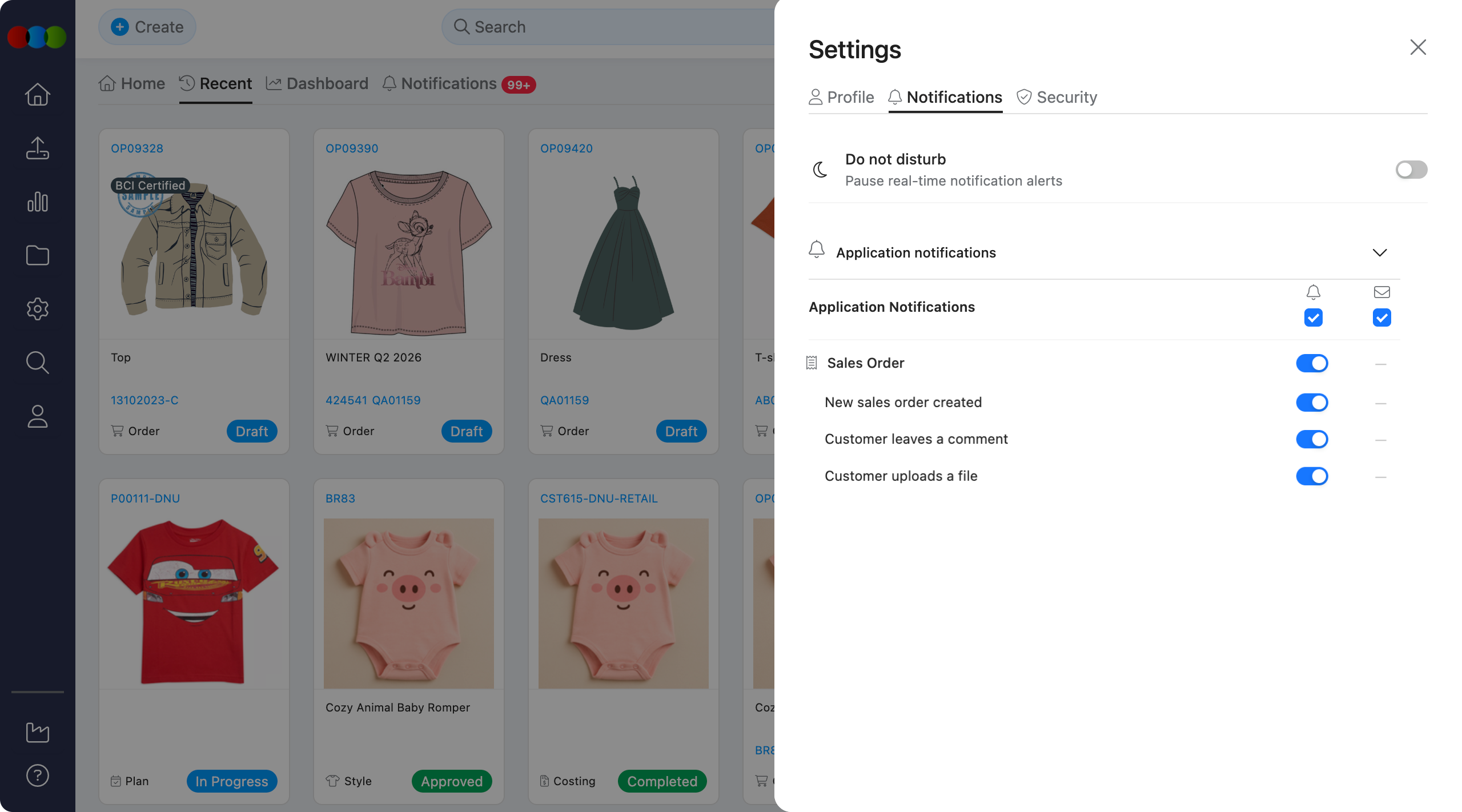
| New sales order | A new sales order is created. |
| Customer comment | A customer leaves a comment. |
| Customer file upload | A customer uploads a file. |
Style
| Notification | When it happens |
|---|---|
| Supplier uploads a file | A supplier uploads a file for a style you're a member of. |
| Supplier marks sample report as sent | A supplier marks the sample report as sent. |
| Supplier completes a sample report | A supplier completes a sample report . |
| Sales anomaly alert | A supplier finishes a sample report. |
Related Actions
- Review notifications you've already received: Notifications
- Suppliers can read about their own preferences here: Supplier Portal › Manage Notifications
Troubleshooting
I turned on the toggle for an event but I'm still not getting emails
Steps to resolve:
- Confirm Email (not just In-App) is turned on for that event — the two are independent.
- Make sure Do Not Disturb is switched off.
- Check your spam or junk folder, and ask your admin about allowlisting the 3 Clicks Cloud sender domain.
- Confirm your email address is correct under your profile settings.
My alerts suddenly stopped, but I didn't change anything
This usually means Do Not Disturb is on — it silences everything, even events you've left switched on.
Steps to resolve:
- Go to Settings > Notifications.
- Turn Do Not Disturb off.
- If alerts still don't appear, sign out and back in, then test with something simple, like a mention.
I want an in-app alert but not an email (or vice versa) for one event
Each event's In-App and Email toggles work independently — turn one on and leave the other off.
I'm getting too many notifications — how do I cut down without losing everything?
Steps to resolve:
- Use Select All on the Email column to clear email for everything, then re-enable it only where you need it.
- Set Mine / All to Mine on Claim, Compliance, Costing, and Order events so you only hear about records you're involved in.
- Turn off both In-App and Email for whole sections you don't work with (for example, Sales Order).
- Use Do Not Disturb for short, focused breaks rather than permanently disabling things you'll want back later.
Why does the Email column show a dash instead of a toggle on some rows?
A small number of events don't have an email option yet — you can still turn In-App on or off for those.
Why can't I see a Mine / All option on some events?
That option only applies to supported Claim, Compliance, Costing, and Order events. Comments, Files, Members, Style, and Sales Order events only offer In-App and Email.
My Mine / All setting reset to All — why?
Turning off both In-App and Email for an event resets its scope to All. Turning a channel back on won't bring back your old Mine choice — you'll need to set it again.
I'm not seeing notifications for records I'm not part of
That's expected if the event is set to Mine — you'll only be alerted about records you're personally involved in (for example, orders on styles you're a member of, or claims where you're listed as Staff).
Steps to resolve:
- Go to Settings > Notifications.
- Find the event (for example, Order created).
- Switch Mine / All to All if you want to be notified about every record you can view.
Why do I get separate emails for what seems like the same approval?
Different parts of the app can trigger their own emails for related activity. For example, approving a sample activity on Critical Path and adding a note on the linked Sample Report are treated as two separate actions — and two separate emails — even though they relate to the same workflow. If Application comments has Email turned on, you'll get an email whenever a comment is added anywhere you're listed as a member, including on Critical Path activities and Sample Reports.