Profile
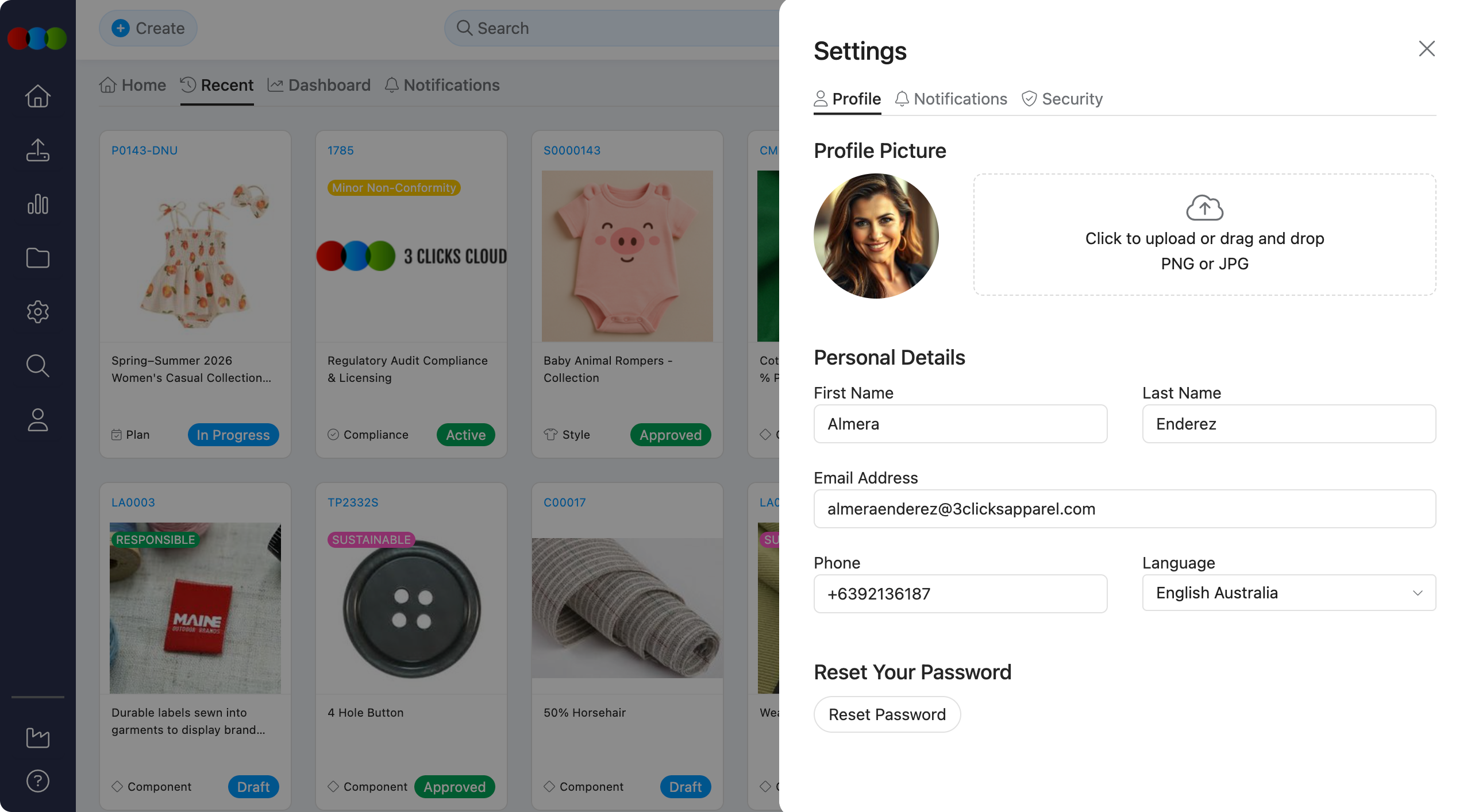
Use this section to manage how you appear in 3 Clicks Cloud and to keep your sign-in details up to date. Your profile picture and name are shown to teammates in comments, mentions, and membership lists; your status shows whether you are available in Messages and for connected members. Your email address is used for account recovery, password resets, and when enabled—notification email. Changes here apply to your user only and do not alter organisation-wide data in Site Settings.
Quick Check - Before You Start
- Sign in with an account that is allowed to edit its own profile (most standard user roles can).
- Keep a valid email address you can access: it is used for password reset and may be used for platform mail.
- For notification delivery options (in-app, email, do not disturb), open Settings > Notifications after updating your profile fields.
Open profile settings
- Sign in to 3 Clicks Cloud.
- Open Settings from the user menu or profile area.
- Click Profile (or your profile / account entry, if your menu labels it differently).
Status
Your status tells teammates, members, and connected suppliers whether you are available.
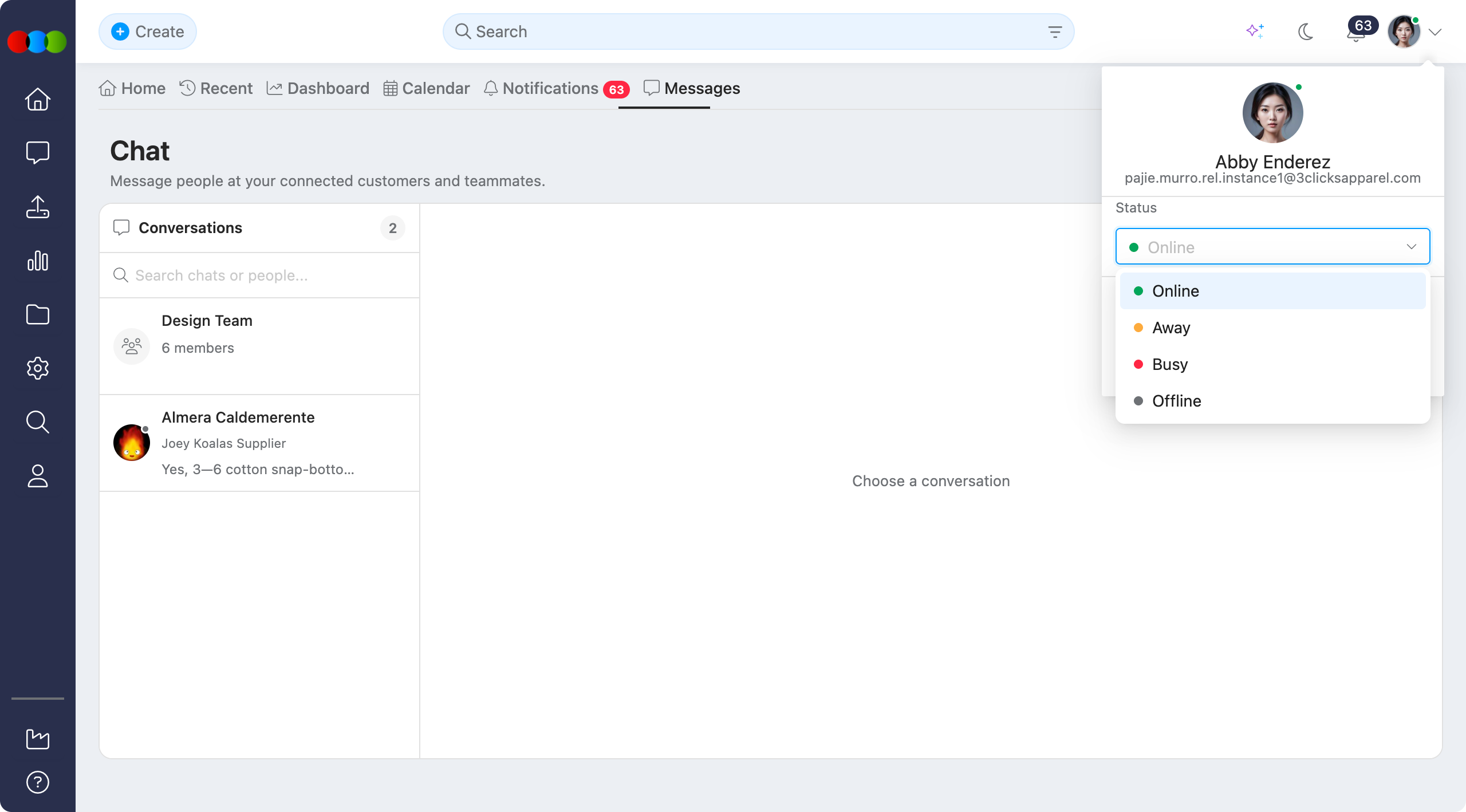
| Status | Description |
|---|---|
| Online | You are active in 3 Clicks Cloud. |
| Away | You are idle and may not respond immediately. |
| Busy | You have set yourself as busy. Messages are still delivered. |
| Offline | You are not active for the meantime. |
- Open Settings > Profile.
- In the Status dropdown, select Online, Away, Busy, or Offline.
Your status appears for instance users you are connected with as members, and in Messages when teammates or suppliers view your name in conversation lists and thread headers.
For conversation options and message actions, see Messages.
Profile picture
Your picture helps others recognise you in activity feeds, comments, and member lists.
- In the Profile picture area, click to choose a file, or drag and drop an image onto the upload control.
- Use a PNG or JPG file. Prefer a clear, square or head-and-shoulders image so it crops neatly in small avatars.
- Save after you change the image.
Common Pitfall
Very large image files can fail to upload or take a long time on slow connections. If upload fails, resize the image to a modest resolution (for example under a few megabytes) and try again.
Personal Details
Complete or update the fields so your account record matches how you should be contacted and displayed.
| Field | Description |
|---|---|
| First Name | Your given name. Shown with your last name in many lists and in @mention contexts. |
| Last Name | Your family name. Keep spelling consistent with how your organisation expects it in reports or exports. |
| Email Address | Primary email for your account. Often used for login, Reset Password flows, and notification mail when email delivery is enabled. Changing it may require verification or admin policy depending on your organisation. |
| Phone | Optional contact number for your profile. |
| Language | Preferred interface language where your organisation supports multiple languages. Labels, dates, and formatting in the app may follow this choice after you save and refresh. |
After editing, the system will automatically save it. However, an error alert message will swiftly appear in case what you inputted is incorrect or cannot be validated by the system.
Note
Some organisations connect sign-in to single sign-on (SSO) or central identity systems. In those cases, certain fields (often email or name) may be read-only or synced from your IT directory. If a field cannot be edited, contact your administrator.
Reset Your Password
Use Reset Password when you want to set a new password without relying on the “forgot password” link on the sign-in page.
- In Settings > Profile, locate Reset Password (or Change Password).
- Follow the prompts displayed.
- Confirm the change. You may need to sign in again on other devices or browsers.
What if I do not see Reset Password?
Your account may use SSO or external identity only, in which case password changes happen in your organisation’s identity system, not in 3 Clicks Cloud.
Related Actions
- Control alerts and email copies: Settings > Notifications
- If your organisation requires extra sign-in verification, open Settings > Security or read Multifactor Authentication
Troubleshooting
My profile picture upload fails or the image looks wrong.
The platform may enforce file type, size, or dimensions.
Steps to resolve:
- Confirm the file is PNG or JPG.
- Try a smaller file (resize or export at lower resolution).
- Use a different browser or disable extensions that block uploads temporarily.
- If cropping looks off, try an image closer to square before uploading.
I cannot edit my email or name.
The field may be controlled by your organisation’s identity or HR policy.
Steps to resolve:
- Check whether any on-screen message explains that the account is managed or synced.
- Ask your 3 Clicks Cloud administrator or IT team to update directory or staff records, if applicable.
- If you use SSO, update details in your company identity portal where your IT team directs you.
I used Reset Password but I do not receive the email.
Delivery can be blocked by spam filters or an outdated email address on your profile.
Steps to resolve:
- Confirm your Email Address in Settings > Profile is correct and Save if you change it (where allowed).
- Check junk, clutter, and quarantine folders; allowlist your organisation’s 3 Clicks Cloud mail domain if your administrator provides one.
- Retry Reset Password after a few minutes; avoid requesting many emails in a short period.
- If you still receive nothing, open a Support Ticket or contact your administrator.
I changed Language but the interface did not update.
Some sessions need a refresh, or your site may offer a limited set of languages.
Steps to resolve:
- Click Save on the profile page, then refresh the browser or sign out and back in.
- If labels unchanged, confirm with your administrator whether additional languages are enabled for your site.