Security
Use Security to strengthen sign-in for your own 3 Clicks Cloud account. The main control here is multifactor authentication (MFA): a second step after your password.You can turn MFA on or off (when your organisation allows), and access recovery codes for backup sign-in. Organisation-wide rules—such as requiring MFA for every user—are configured by administrators in Site Settings; this page only covers your personal security choices.
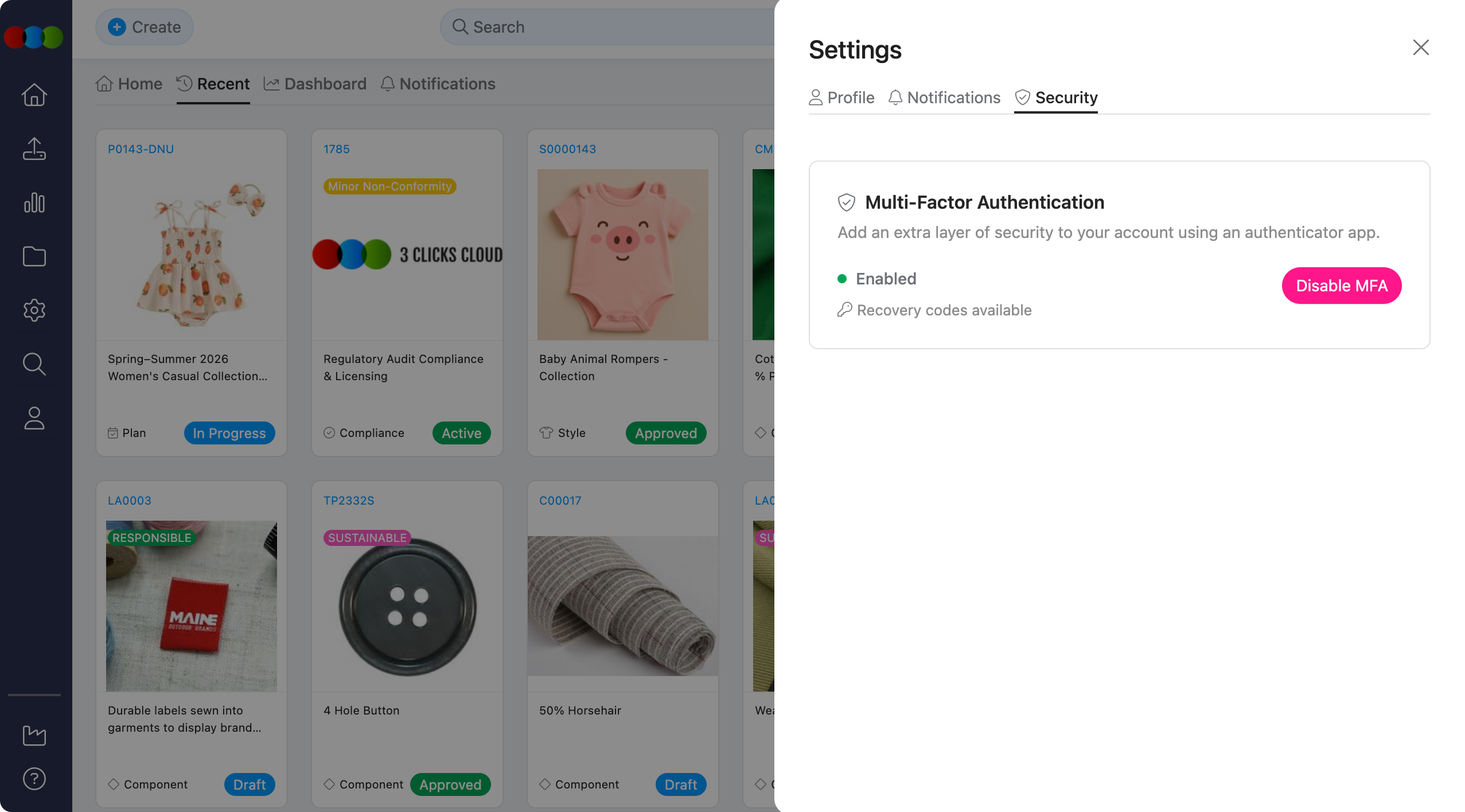
Quick Check - Before You Start
- Install a supported authenticator app (for example Google Authenticator, Microsoft Authenticator, or Authy) on a device you will have at login time.
- Decide where you will store recovery codes before you enable MFA (password manager, secure offline copy, or your organisation’s approved process).
- If you are new to MFA, read Multifactor Authentication › Overview and follow Set Up MFA in order.
- Confirm whether your organisation enforces MFA: if enforcement is on, you must complete setup to keep using the platform (see Company General Settings).
Open security settings
- Sign in to 3 Clicks Cloud.
- Open Settings from the user menu or profile area.
- Click Security.
Multi-Factor Authentication (MFA)
MFA adds a second factor after your password so that access to your account requires something you know (password) and something you have (phone or authenticator device). Administrators can make MFA optional or required for all users on the instance.
Enable MFA
- In Settings > Security, click Enable MFA to start.
- Scan the QR code with your authenticator app, or enter the manual setup key if you cannot scan.
- Enter the 6-digit code from the app to confirm.
- Save or copy your recovery codes before you leave the success screen. Treat them like passwords: each code is one-time use if you lose access to your authenticator.
Step-by-step detail, screenshots, and setup troubleshooting are in Set Up MFA.
Authenticator enrolment QR and Enable MFA control 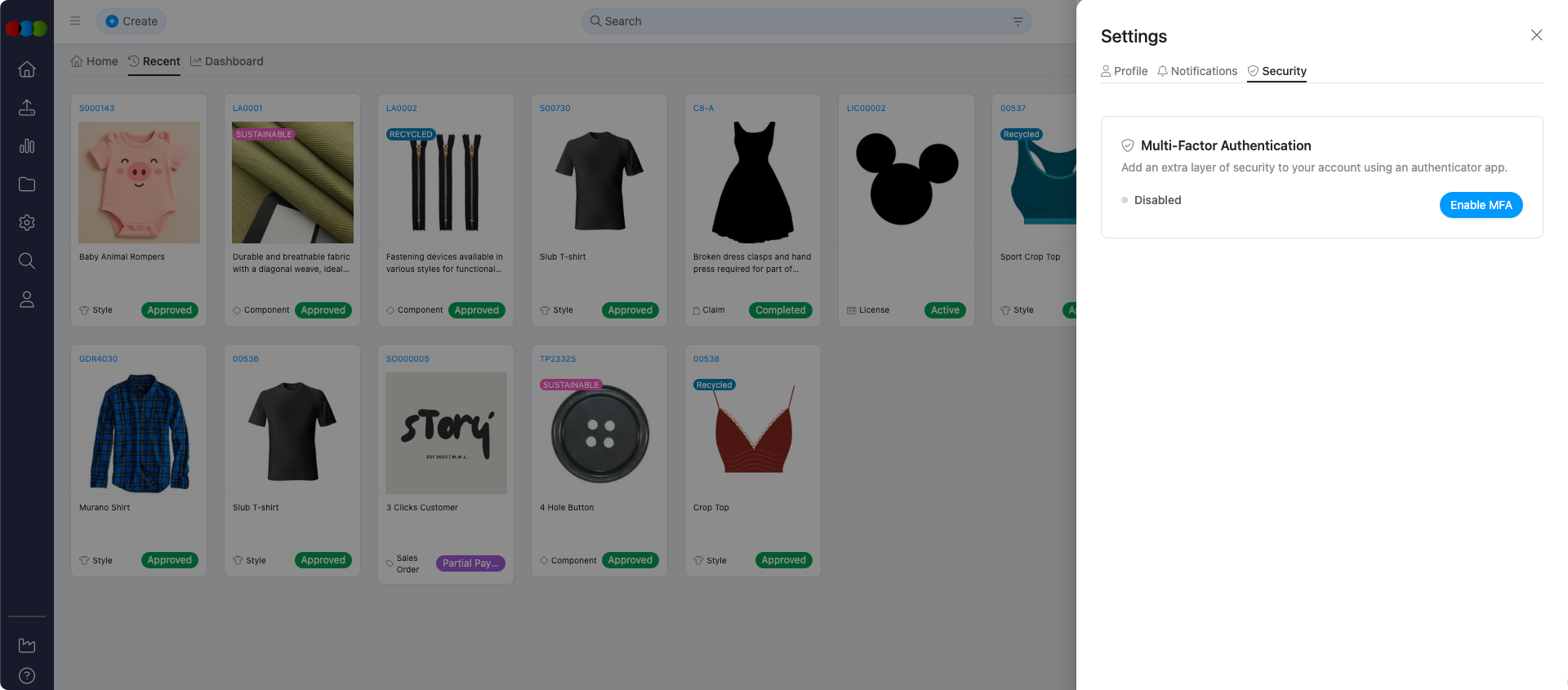
When MFA is Enabled
When MFA is Enabled, sign-in after your password asks for a code from your authenticator or a recovery code. You can also use a trusted device option on the verification screen to reduce how often you are prompted on that browser (see Logging In with MFA).
MFA enabled status on Security settings 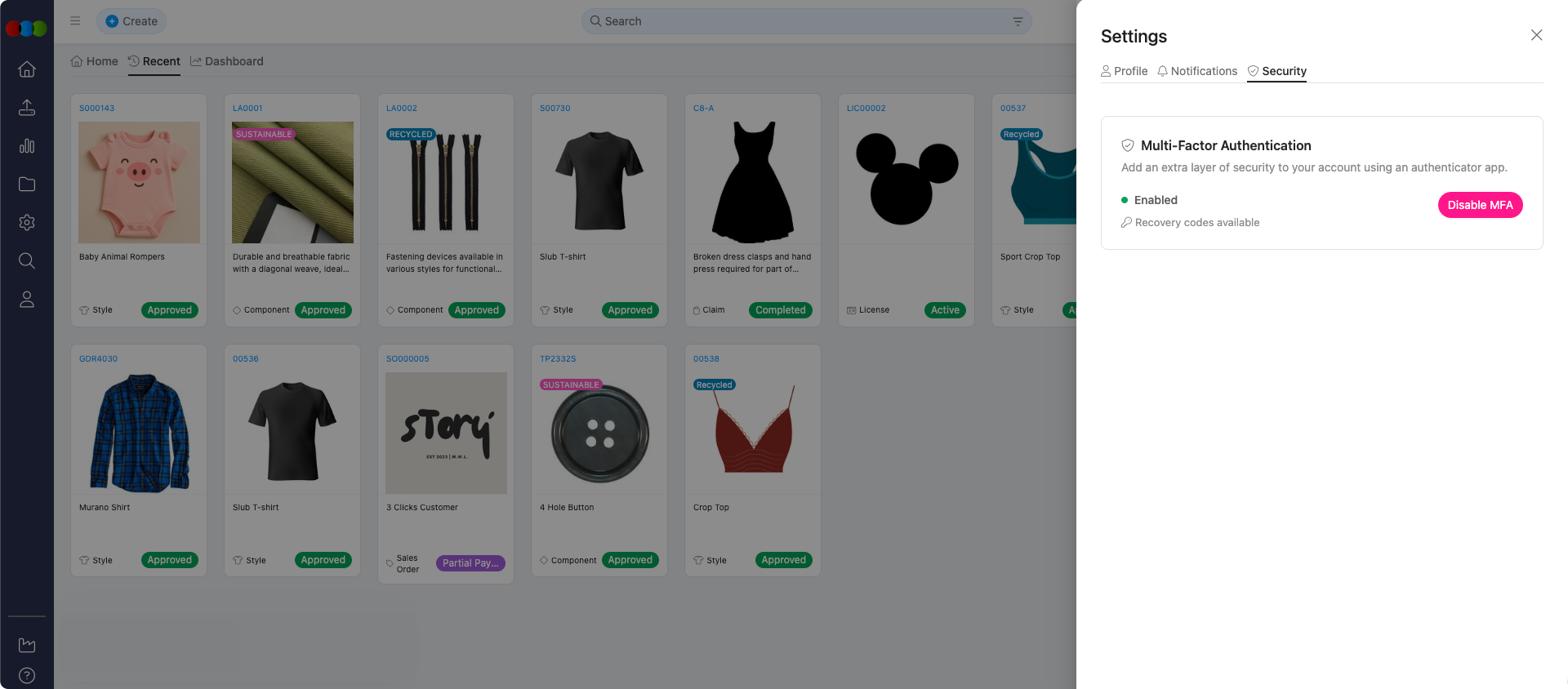
Recovery Codes
Recovery codes let you sign in when your authenticator app or phone is unavailable. After setup, the product may show that recovery codes are available or offer actions to view or regenerate them, depending on your organisation’s policy.
- Store codes outside the phone that runs the authenticator (for example in a password manager or secure vault).
- Each code is usually consumed when used; replace or regenerate sets through Managing MFA Settings when the product allows it.
Common Pitfall
If you lose both your authenticator access and your unused recovery codes, you may be unable to sign in until an administrator helps. Do not skip saving recovery codes during setup.
Disable MFA
If self-service disable is allowed for your account:
- Open Settings > Security.
- Click Disable MFA and confirm.
You can enrol again later with Enable MFA. Visuals and confirmation behaviour are described in Managing MFA Settings.
What administrators see
Your MFA status may appear in Site Settings > Company > Staff so administrators can support rollouts and compliance. MFA enforcement for the whole company is toggled under Site Settings > Company > General Settings > MFA. You do not need those pages for day-to-day personal setup; they are linked below if you manage the instance.
| Area | What it is for |
|---|---|
| Settings > Security | Your personal MFA enrolment, disable, and recovery handling. |
| Site Settings > Company > General Settings > MFA | Instance-wide requirement that all users use MFA. |
| Site Settings > Company > Staff | Staff list may show whether each user has MFA enabled. |
Related Settings
Related actions
- Update password and profile details: Settings > Profile
- Notification delivery: Settings > Notifications
- Full MFA guide (overview, setup, login, management): Multifactor Authentication › Overview
Troubleshooting
I do not see Security under Settings.
Your menu may differ by role, tenant, or layout updates.
Steps to resolve:
- Confirm you are signed in to the correct 3 Clicks Cloud site.
- Open Settings again from the user or profile menu and look for Security or Account security.
- Ask your administrator whether your account type restricts personal security pages.
Enable MFA is missing or greyed out.
Policy may require MFA through another flow, or an administrator may control enrolment.
Steps to resolve:
- Check Company General Settings for MFA enforcement—enforcement often triggers a setup prompt at login.
- Try signing out and back in; some tenants complete enrolment on first MFA challenge.
- Contact your 3 Clicks Cloud administrator if you believe self-service should be available.
Where do I go for QR codes, recovery codes, or login errors?
Those flows are covered in the dedicated MFA articles.
Steps to resolve:
- Setup and QR issues: MFA › Setup › Troubleshooting.
- Codes rejected at sign-in: MFA › Login › Troubleshooting.
- Disable, re-enable, or organisational policy: MFA › Management and MFA › Overview › Troubleshooting.
How do I use recovery codes or trust a device for 30 days?
See Logging In with MFA for the verification screen, recovery path, and trusted device option.