Company AI
The Company AI section provides a centralised control panel for monitoring AI usage activity and managing limits across your organisation. This feature is essential for maintaining transparency, optimising performance, and aligning AI usage with your business goals.
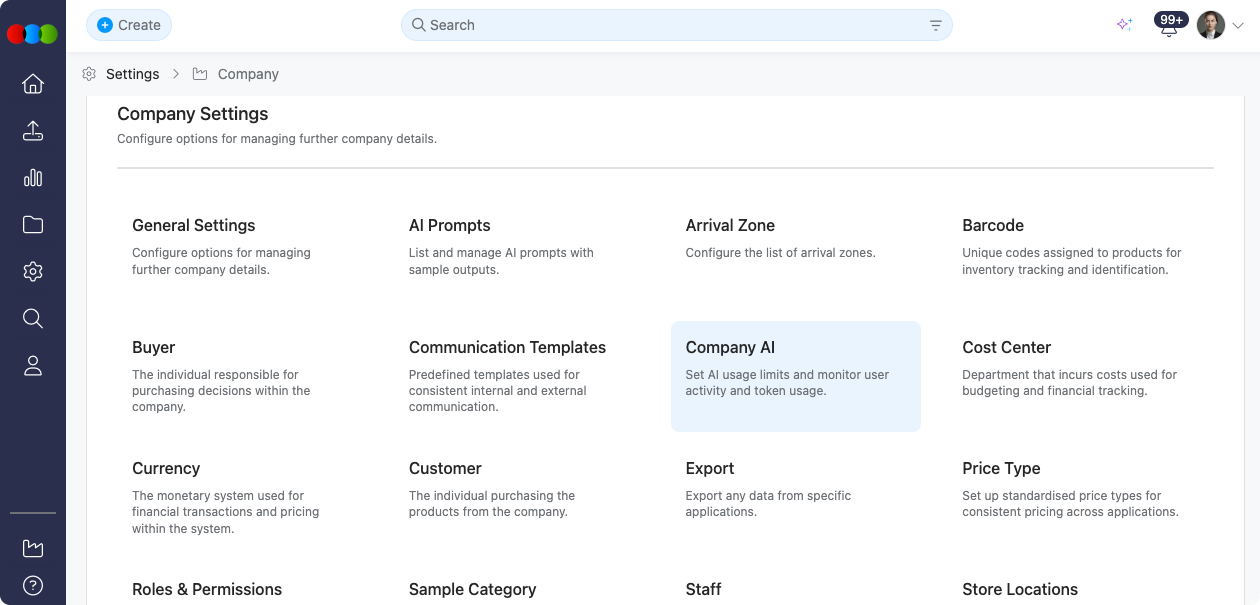
Company AI enables administrators to track AI adoption, manage costs, and ensure accountability across teams. By centralising AI usage monitoring, you can identify usage trends, set appropriate limits, and export data for reporting and analysis.
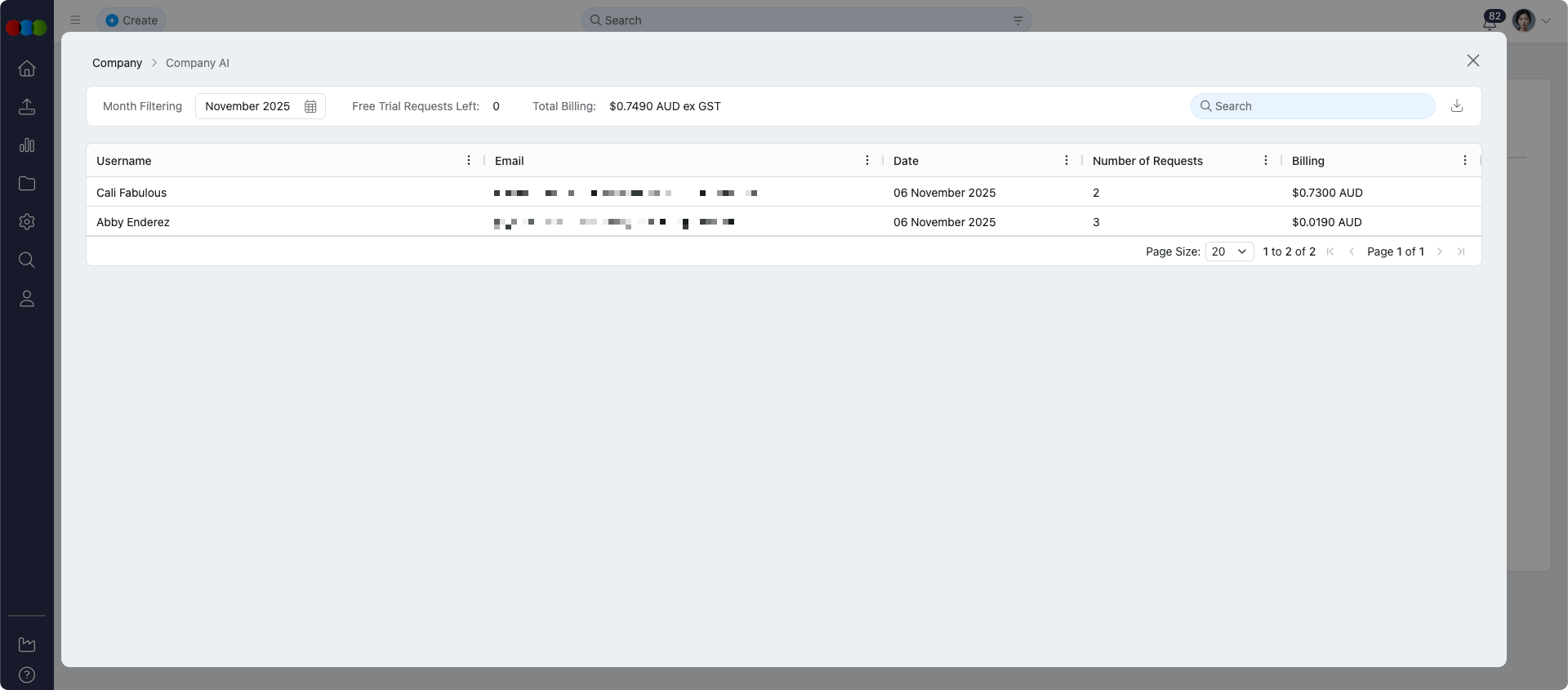
The billing display shows users who have made AI requests, along with cost-per-user and total company billing information. Users with zero requests are hidden to keep the billing page relevant and uncluttered.
Quick Check - Before You Start
- Sign in with a role that can open Site Settings > Company > Company AI
- Confirm Roles & Permissions already grants AI > Create on your Production Portal role templates
Billing and Usage Display
During Free Trial
The billing page displays only users who have made at least one AI request. For each user, you can view:
- Cost per user — Individual charges for AI requests
- Total company billing — Aggregated costs across all active users
Users with zero requests remain hidden during the trial to ensure the billing page focuses on relevant and billable activity.
After Free Trial Ends
When the free trial expires:
- All previous costs are reset to zero
- Billing starts fresh for any new AI requests
- Users with zero requests continue to be hidden from the billing page
Only active and billable users are displayed, ensuring clarity and relevance.
AI Expiration Handling
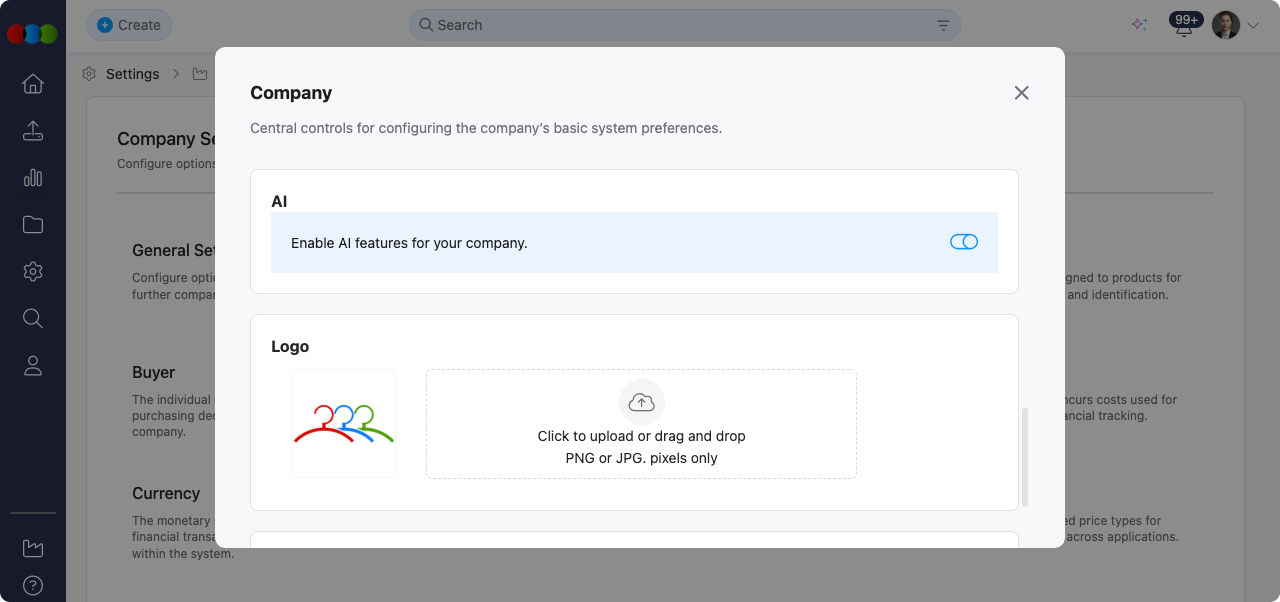
In Site Settings > Company > General Settings, the AI feature will automatically turn off upon trial expiration.
Once the administrator toggles AI back on, billing resets to zero, ensuring a clean start for the new billing cycle.
Pre-requisites
Roles & Permissions
Ensure that Site Settings > Company > Roles & Permissions grants AI > Create (and any required Advanced options) on the relevant Production Portal roles before users can utilise Company AI functionality.
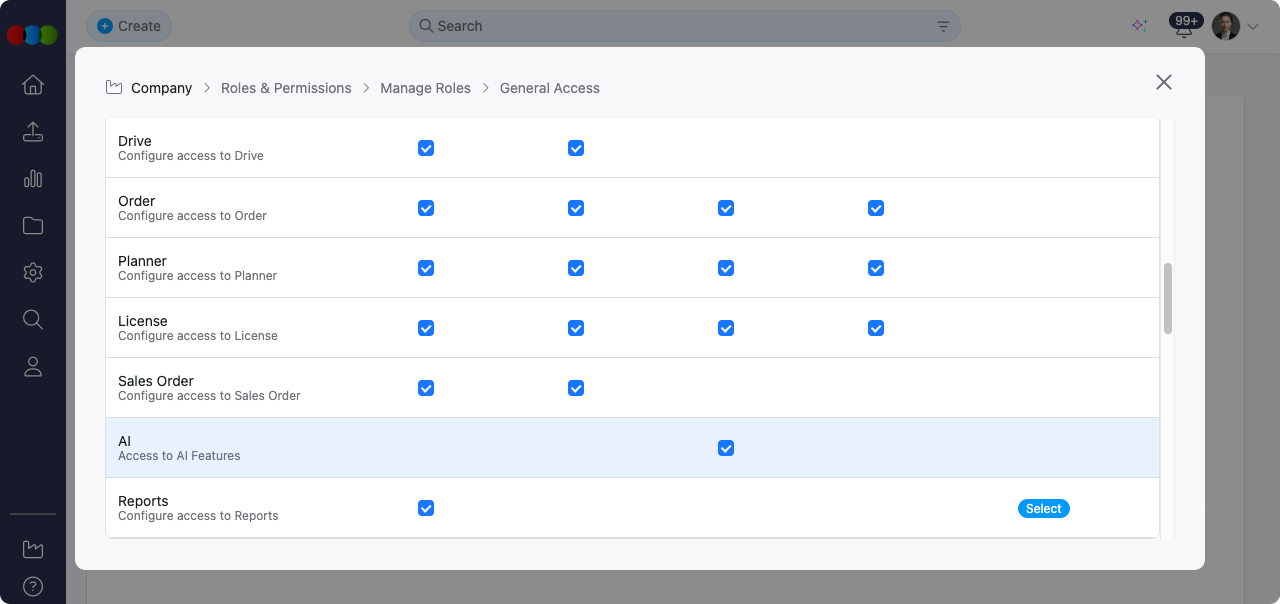
Table Flexibility
Users can tailor the billing table layout using the following controls:
| Feature | Description |
|---|---|
| Sort by Ascending or Descending | Reorder users by clicking on any column header. |
| Pin Column | Lock important columns in place whilst scrolling. |
| Autosize This Column | Automatically resize the specific column to fit its content. |
| Autosize All Columns | Applies autosizing on all columns. |
| Choose Columns | Show or hide individual table columns. |
| Reset Columns | Return the table to the default configuration. |
Helpful Tips
- Monitor usage regularly to identify adoption patterns and optimise AI-related spend.
- Export billing data for reporting and cost analysis across billing cycles.
- Coordinate with Roles & Permissions to ensure Production Portal roles grant the correct AI permissions for your team.
- Review the billing display before and after trial expiration to understand reset behaviour.
- Use Site Settings > Company > General Settings to enable or disable AI and manage billing terms.
Related Actions
Troubleshooting
Why do I not see certain users on the billing table?
Users with zero AI requests stay hidden so the grid focuses on billable activity.
Steps to resolve:
- Ask those users to run a small AI query if you need them to appear during trials.
- Remember that after the trial resets, prior usage counters return to zero and inactive users may hide again.
Costs reset to zero after the trial—did we lose history?
Trial expiration clears displayed totals and starts a fresh billing cycle when AI is re-enabled.
Steps to resolve:
- Export billing snapshots before the trial ends if you need historical reporting.
- After re-enabling AI in Company > General Settings, treat the dashboard as a new cycle.
Why can team members not open the AI Assistant even though billing shows usage?
Access still depends on AI permissions on the user's Production Portal role in Site Settings > Company > Roles & Permissions.
Steps to resolve:
- Open Roles & Permissions, edit the relevant Production Portal role, and verify AI > Create (and any required Advanced options) are enabled.
- Ask users to refresh their session after permission changes propagate.