External Connections
The External Connections section is your central hub for managing suppliers, customers, licensors, licensees, and their portal access from one place. You can connect external businesses, choose how they access your instance, and assign the right portal profile in a single guided workflow.
External Connections brings together PLM-only records and live portal relationships. You can invite new partners by email, link an existing portal business, or keep a connection internal to your production instance. Each connection shows its type, status, profile template, and linked portal business so administrators can see who is connected, who is still pending registration, and who has been disabled.
Site Settings › Company › External Connections 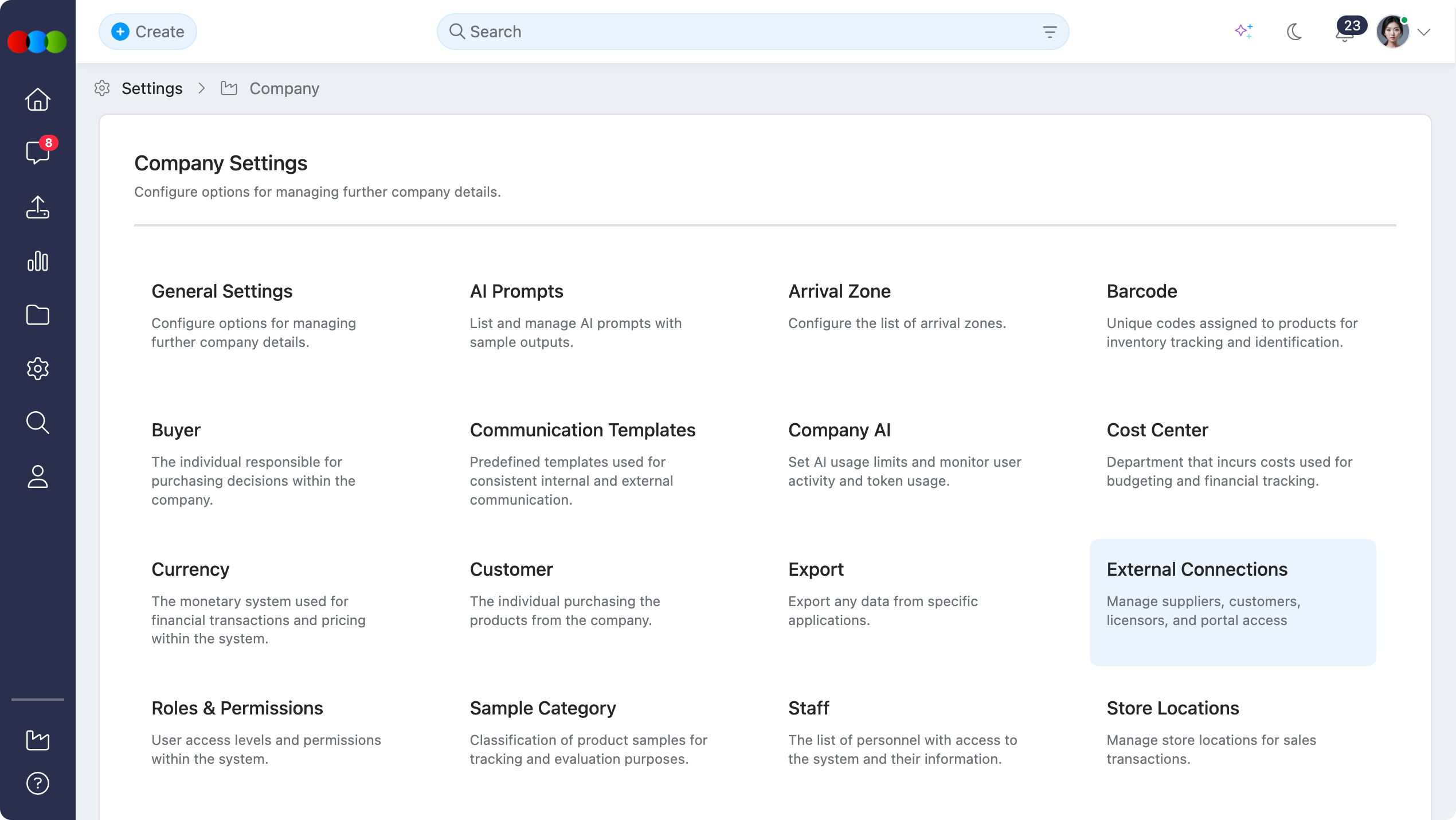
Quick Check - Before You Start
- Confirm you have permission to access Site Settings › Company › External Connections and create or manage connections.
- Decide the connection type (Supplier, Customer, Licensor, or Licensee) and whether the business needs PLM only access or a Supplier Portal / Customer Portal account.
- If you plan to use a custom portal role, create the role template first in Site Settings › Company › Roles & Permissions for the correct scope (Supplier Portal or Sales Order / DAM Portal).
- Know whether you are creating a new business record or linking to an existing one in your instance or on the portal.
External Connections Display
The main table shows every external business connection in your instance. Use the filters and search box to focus on pending invitations, active portal links, or PLM-only records.
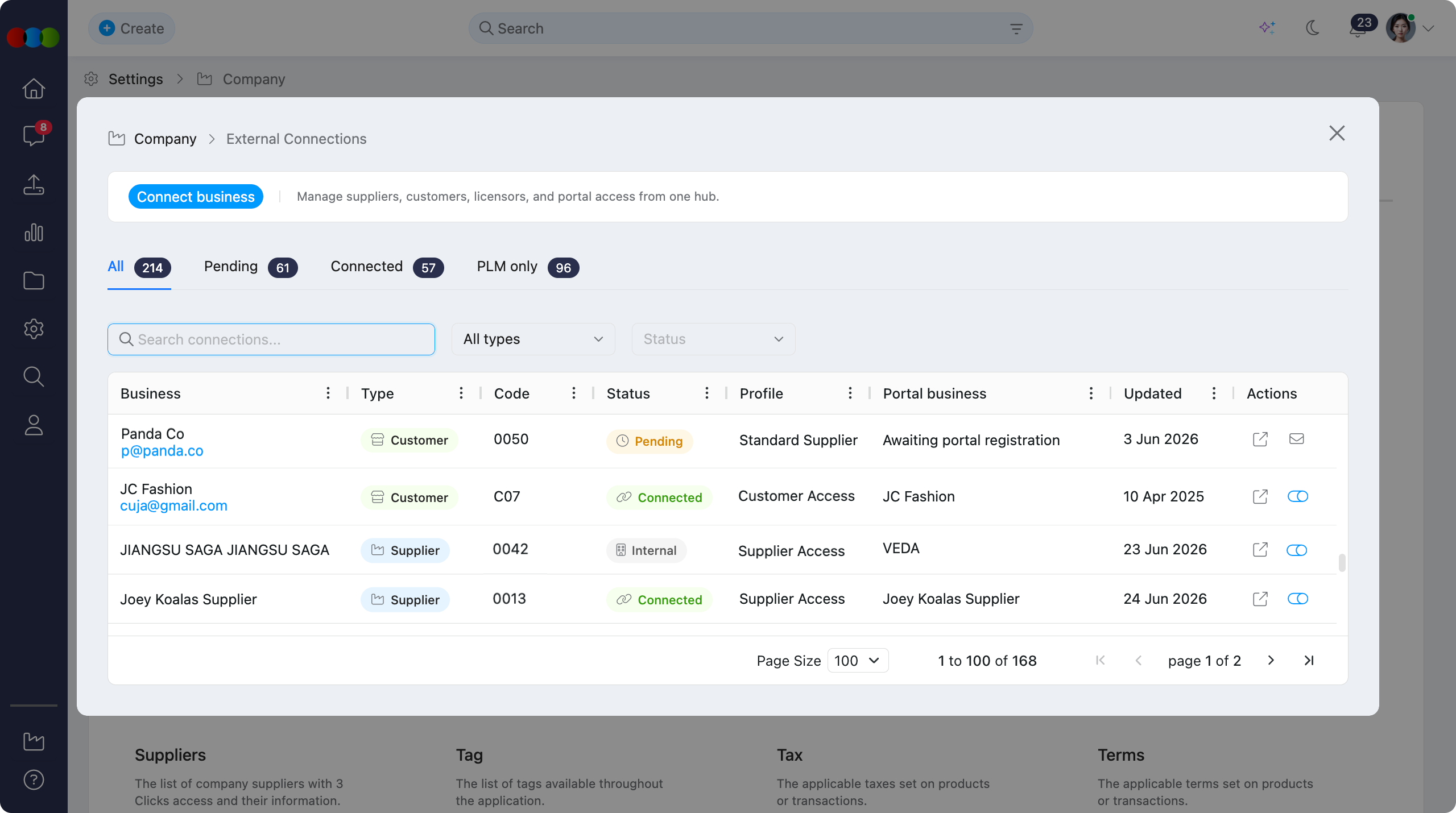
Columns
| Column | Description |
|---|---|
| Business | The business name for the external connection. |
| Type | The relationship type: Customer, Supplier, Licensor, or Licensee. |
| Code | The business code assigned to the connection. This may be entered during setup (system generated) or added by the connected business after registration. |
| Status | The current connection state: Pending, Internal, Connected, or Disabled. |
| Profile | The portal profile template applied to the connection (for example Standard Supplier or Asset Library Partner). |
| Portal Business | The linked portal business name. For pending invitations that have not completed registration, this displays Awaiting portal registration. |
| Updated | The date the connection was last updated. |
| Actions | Quick actions for the row: • View details • Toggle the connection on or off • Resend invite where applicable. Resend invite is available when the status is Pending or the invited user has not yet configured their account from the email invitation. |
Filters and Search
| Control | Description |
|---|---|
| All | Shows every external connection regardless of status or portal type. |
| Pending | Shows connections waiting for portal registration or initial setup. |
| Connected | Shows active portal relationships. |
| PLM only | Shows connections that use your production instance only and do not have a linked portal business. |
| Search connections | Free-text search across the connection list to find a business by name or other visible details. |
External Connections > Filters and Search 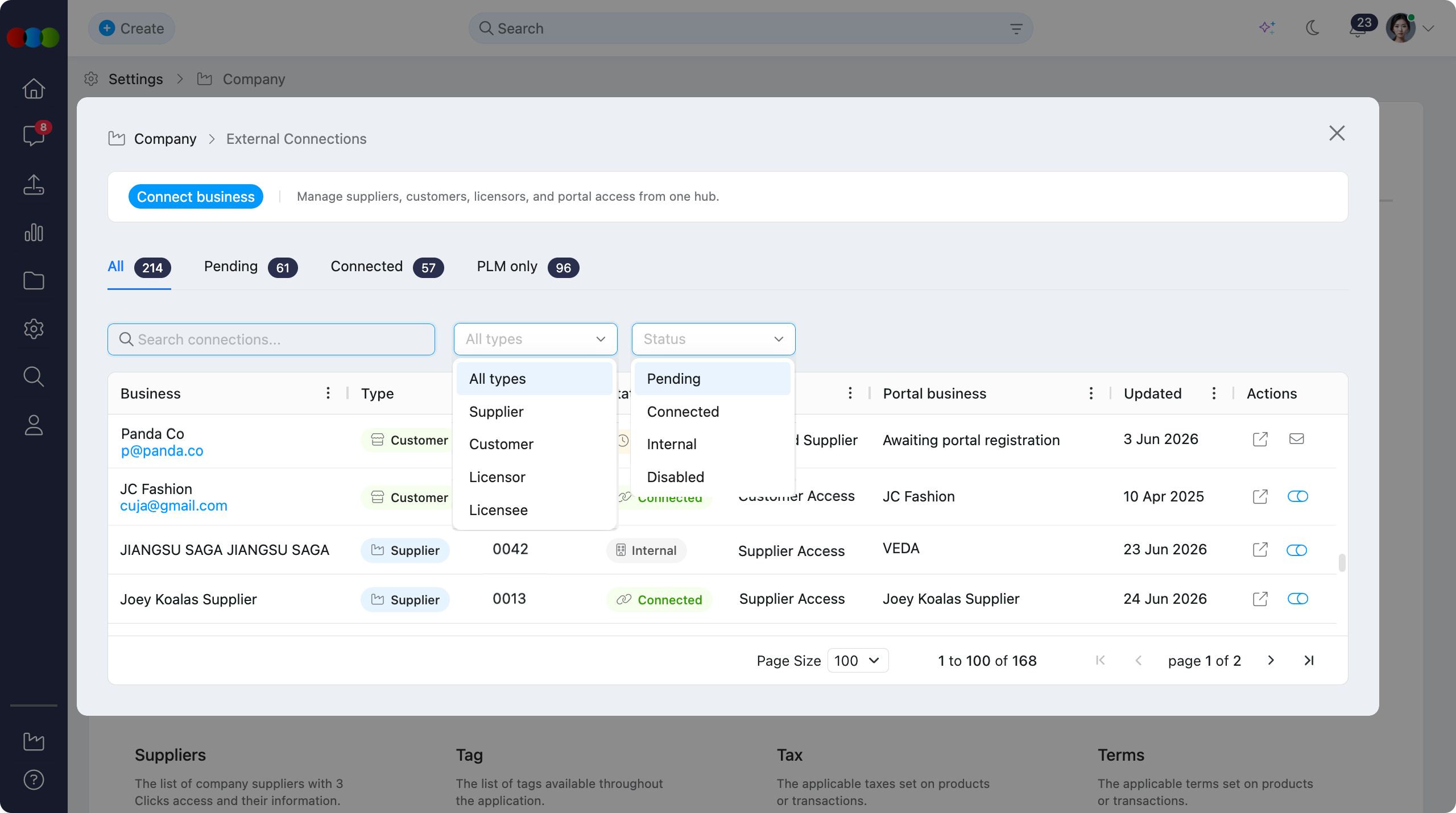
Note
A connection with status Internal is managed inside your production instance only. These records do not have an active linked portal business.
How to Connect a Business
| Step | Action |
|---|---|
| 1 | Click Connect business to open the Connect external business pop-up. |
| 2 | Complete Type by choosing the Connection type: whether to Create new or Link existing, and enter the Business name. See Connection type. |
| 3 | Complete Portal access by choosing one: PLM only, Invite by email, or Link existing portal business. See Portal access. |
| 4 | If you selected Invite by email or Link existing portal business, choose a Profile template for the connection. See Profile templates. |
| 5 | Review the summary on the Review step, optionally tick Enable immediately, then confirm to create the connection. |
Connect external business pop-up 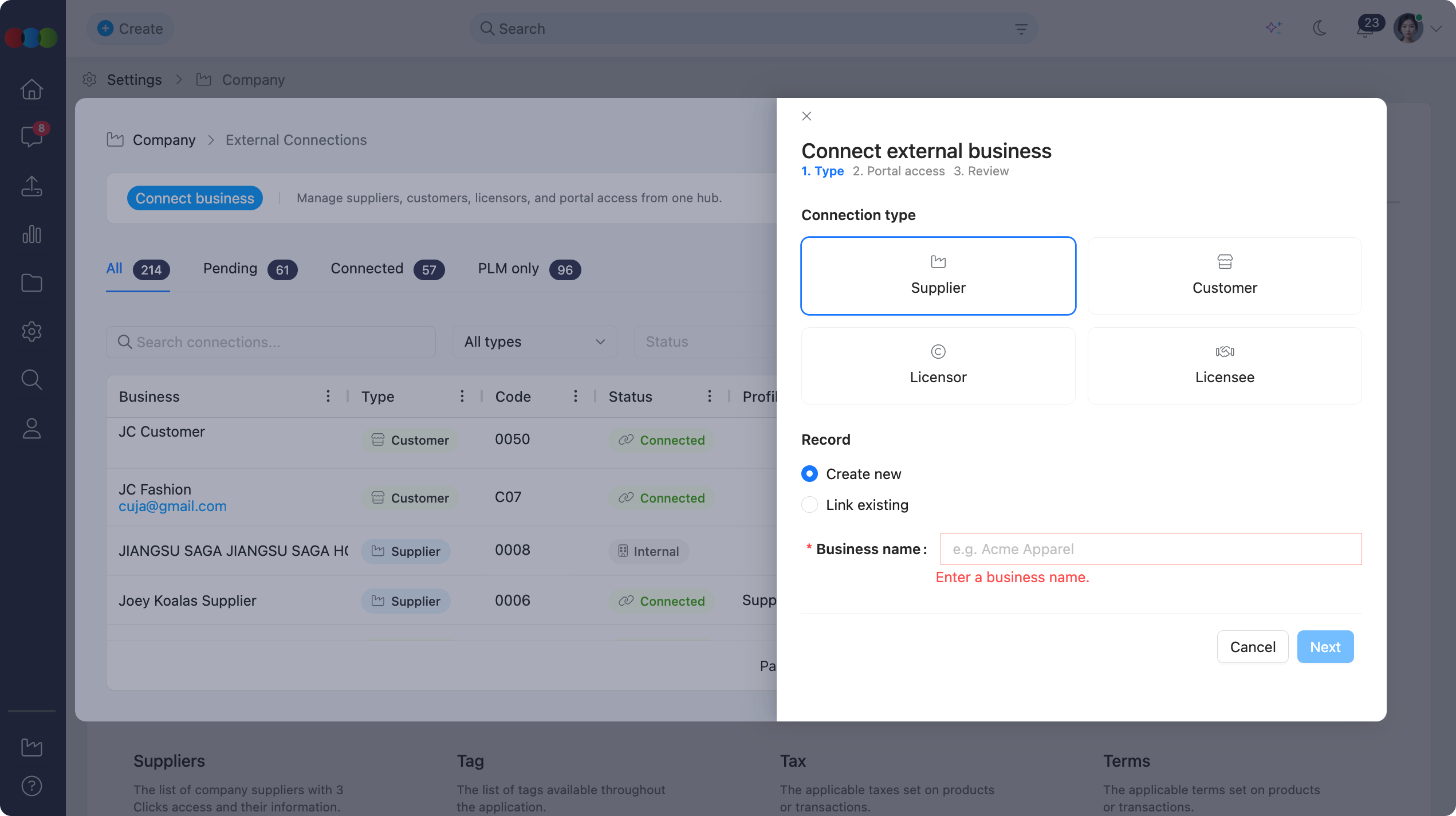
Connection Type
On the first step, define what kind of external business you are connecting and whether you are creating a new record or linking to one that already exists.
| Field | Description |
|---|---|
| Connection type | Select one relationship type: Supplier, Customer, Licensor, or Licensee. This determines which profile templates are available later in the succeeding steps. |
| Record | Choose Create new to add a fresh business record, or Link existing to connect to a business that already exists in your instance. |
| Business name | Enter the display name for the external business. |
Note
Site Settings › Style › Licensor is where you maintain licensor names for style and licence records. A Licensor or Licensee connection type in External Connections is for managing the external business relationship and any portal access, not for editing the style licensor pick list.
Portal Access
On the second step, choose how the external business will interact with your organisation.
| Option | Description |
|---|---|
| PLM only | Creates an internal connection for use inside your production instance. No portal invitation is sent and no portal business is linked. The display moves to Review after this step. |
| Invite by email | Sends an email invitation so the external business can register and connect through the appropriate portal. You choose a profile template on the next step. |
| Link existing portal business | Connects to a portal business that already exists. Use the search field to find and select the portal business, then choose a profile template on the next step. |
External Connections > Portal Access 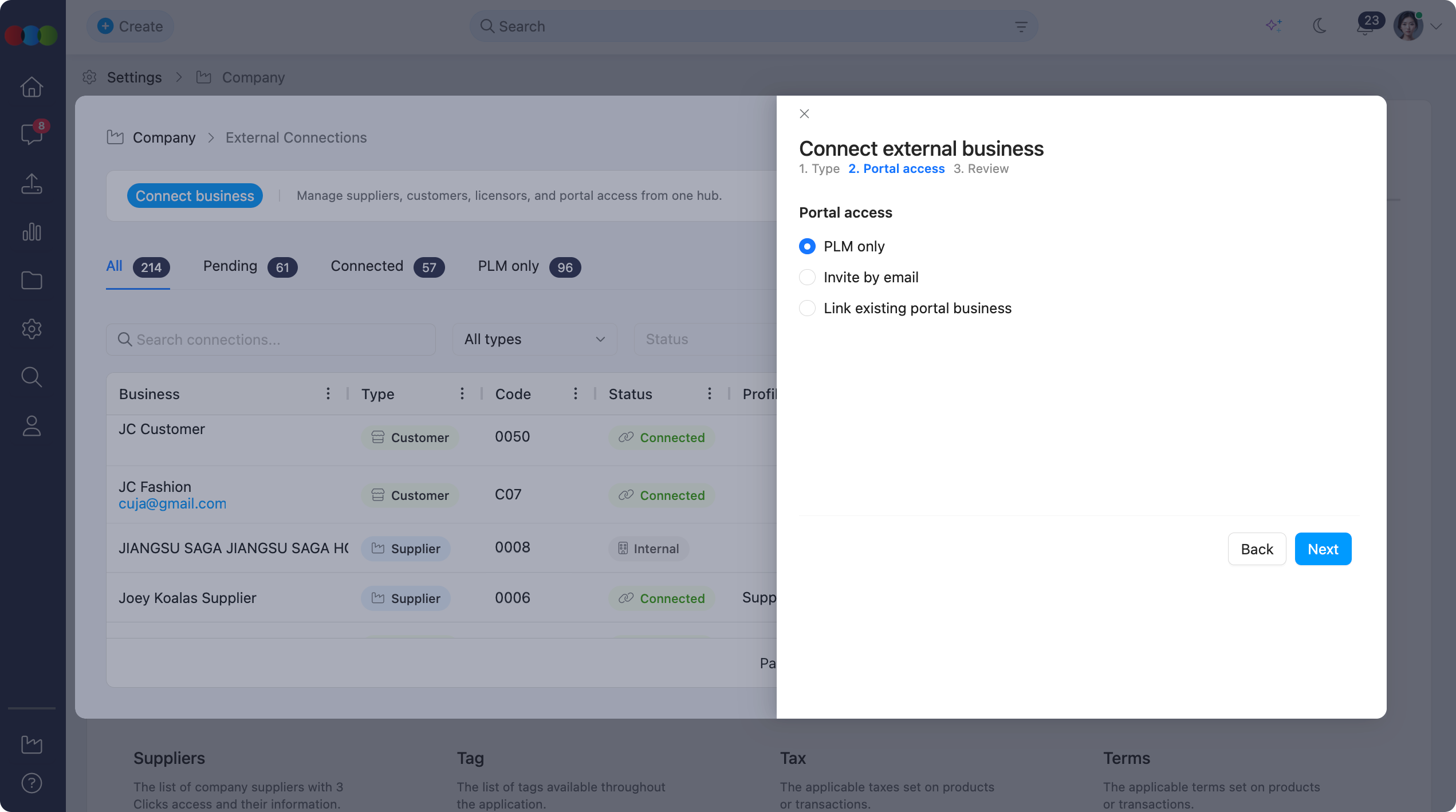
Profile Templates
Profile templates are shown on the Profile step when you select Invite by email or Link existing portal business.
They control which portal modules and actions the external business can use. Each template maps to a system-generated role in Site Settings › Company › Roles & Permissions.
You can also tick Use custom role instead to assign a role you created in Roles & Permissions.
Connection template reference
| Template code | Scope | Display name | Permissions summary |
|---|---|---|---|
supplier_standard | Supplier Portal | Standard Supplier | Style, Order, Costing, Compliance, Claim, and Drive view |
customer_b2b_buyer | Sales Order / DAM Portal | B2B Buyer | Sales Order view, create, and edit; Style view off |
customer_dam_partner | Sales Order / DAM Portal | Asset Library Partner | Style, Component, and Files view; Sales Order off |
customer_full | Sales Order / DAM Portal | Full Customer Portal | Sales Order and Style view |
Supplier
When you connect a Supplier, the Profile step offers the Standard Supplier* profile.
| Profile | Access summary |
|---|---|
| Standard Supplier | Style, Order, Costing, Compliance, Claim, and Drive view through the Supplier Portal. |
| Use custom role instead | Assign a Supplier Portal role template from Roles & Permissions instead of the standard supplier profile. |
External Connections > Supplier Profile 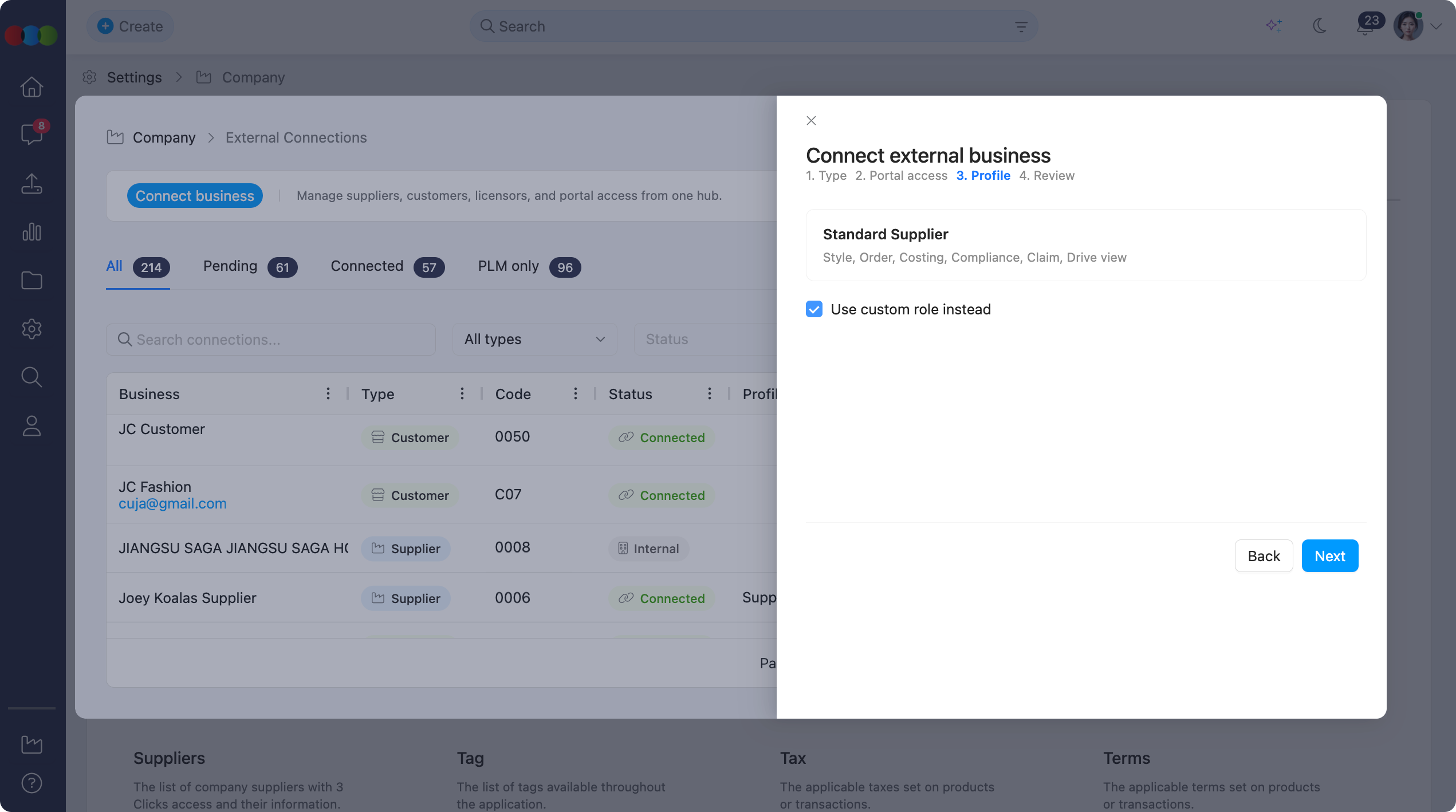
Customer
When you connect a Customer, the Profile step lists B2B Buyer, Asset Library Partner, and Full Customer Portal with descriptions.
| Profile | Access summary |
|---|---|
| B2B Buyer | Sales Order view, create, and edit. Style view is off. Suited to wholesale buyers placing orders through the Customer Portal. |
| Asset Library Partner | Style, Component, and Files view. Sales Order is off. Suited to partners who need read-only access to shared assets. |
| Full Customer Portal | Sales Order and Style view. Suited to customers who need both ordering and style visibility. |
| Use custom role instead | Assign a Sales Order / DAM Portal role template from Roles & Permissions instead of a preset profile. |
External Connections > Customer Profile 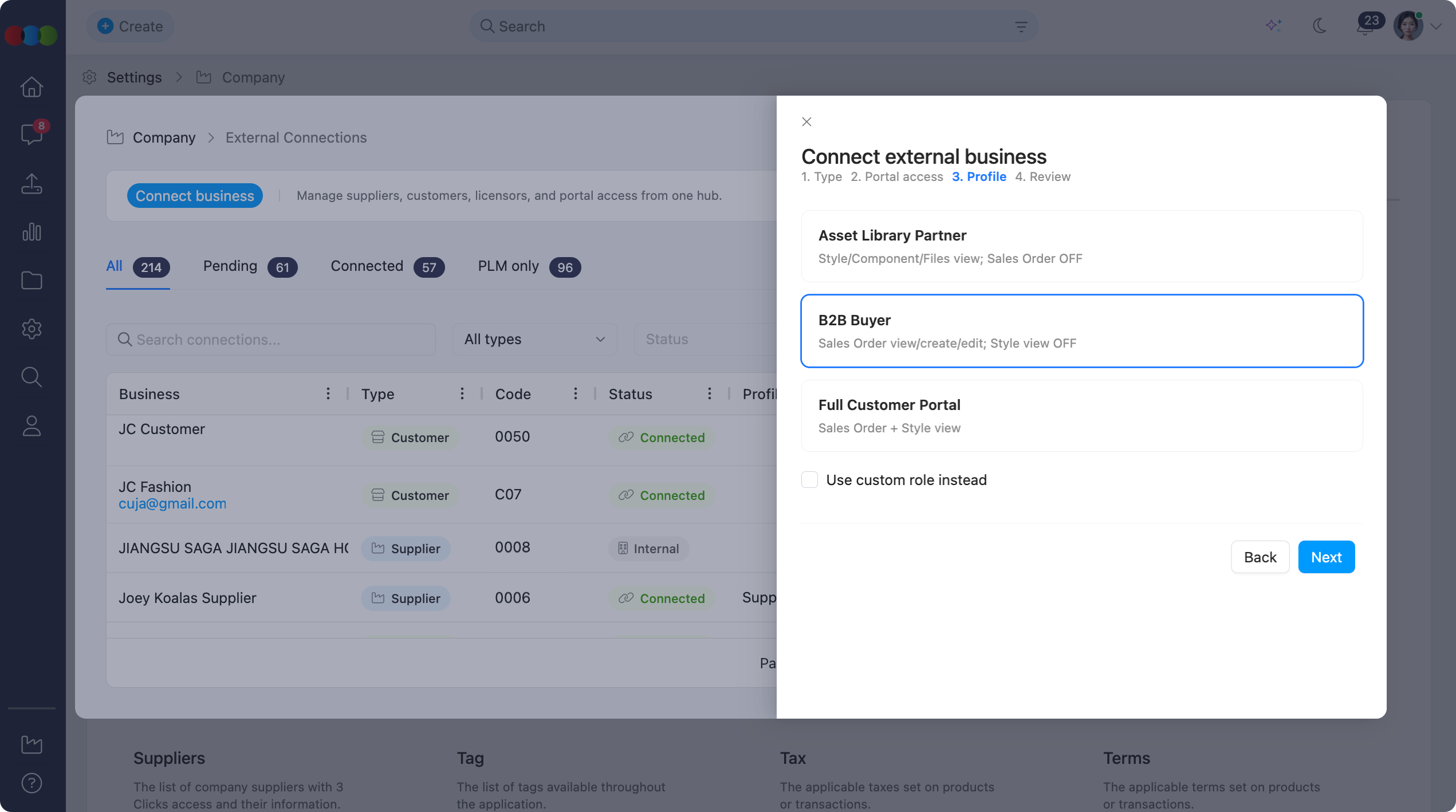
Licensor and Licensee
When you connect a Licensor or Licensee, the Profile step offers the same three profiles as a Customer connection.
For Licensor connections, Asset Library Partner is selected by default — the recommended path for DAM (asset library) access without sales order permissions.
On the final Review step, the summary shows the Business name, Type, Portal access, and Profile template (for example customer_dam_partner for Asset Library Partner). Tick Enable immediately if you want the connection active as soon as it is created.
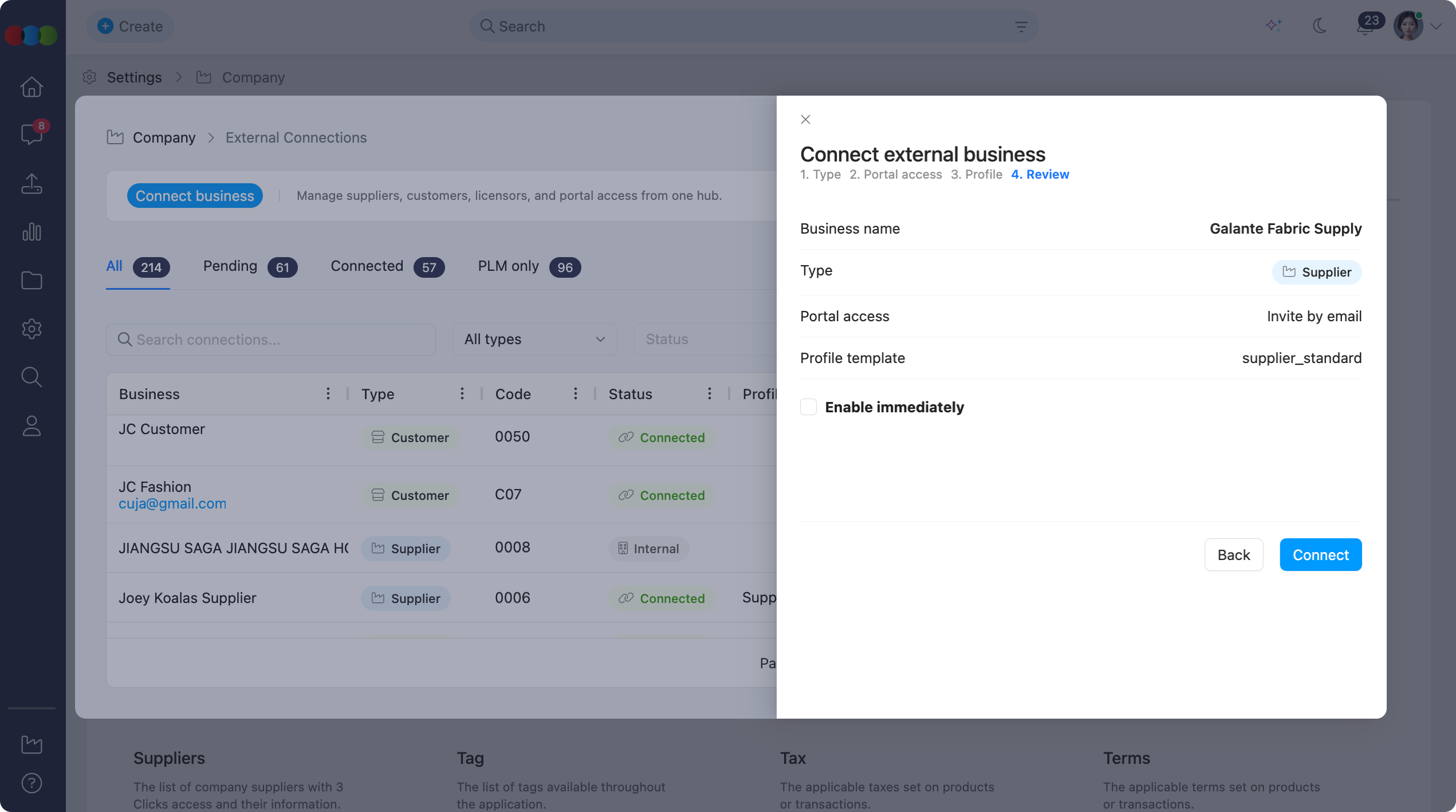
View Connection Details
Click View details on a connection row to open the full record. The fields and actions available depend on the connection status and type.
| Status | When it applies | Typical actions in details view |
|---|---|---|
| Internal | No active portal invitation; the business is used inside your production instance only. | Invite actions depend on connection type — see Internal. |
| Pending | A portal invitation was sent or linked, but registration is not yet complete. | Resend invite |
| Connected | The external business has registered and is linked to a portal account. | Disable, Disconnect |
| Disabled | The connection is turned off but the record and portal link are retained. | Enable, Disconnect |
Internal
An internal connection has no active portal invitation for this customer, supplier, licensor, or licensee. These records are managed inside your production instance only and do not have a linked portal business.
| Field / Action | Description |
|---|---|
| Business name | The name on the connection record. |
| Status | Internal. |
| Type | The connection type (Customer, Supplier, Licensor, or Licensee). |
| Connection ID | System-generated identifier. |
| Code | The business code assigned to the connection. |
Portal invitation actions in View details depend on the connection type:
| Type | Invite action |
|---|---|
| Customer | No invite action is available. To grant portal access, update the connection or create a new portal-linked record. |
| Supplier | Resend invite is available when an invitation was previously sent and the supplier has not yet completed account setup. |
| Licensor / Licensee | No invite action is available from the details view for internal connections. |
Note
Internal connections are included when you filter the list by PLM only. If you need portal access later, use Connect business to invite by email or link an existing portal business.
Pending
A pending connection has been created with portal access, but the external business has not yet completed portal registration. Portal business on the list row shows Awaiting portal registration until setup is finished.
| Field / Action | Description |
|---|---|
| Business name | The name entered during setup. |
| Status | Pending. |
| Type | The connection type (for example Licensee). |
| Connection ID | System-generated identifier (for example licensee_82). |
| Code | The business code. |
| Profile | The selected profile template (for example Asset Library Partner). |
| Resend invite | Sends the invitation email again to the invited contact. Available for all pending connection types. |
External Connections > Pending Status 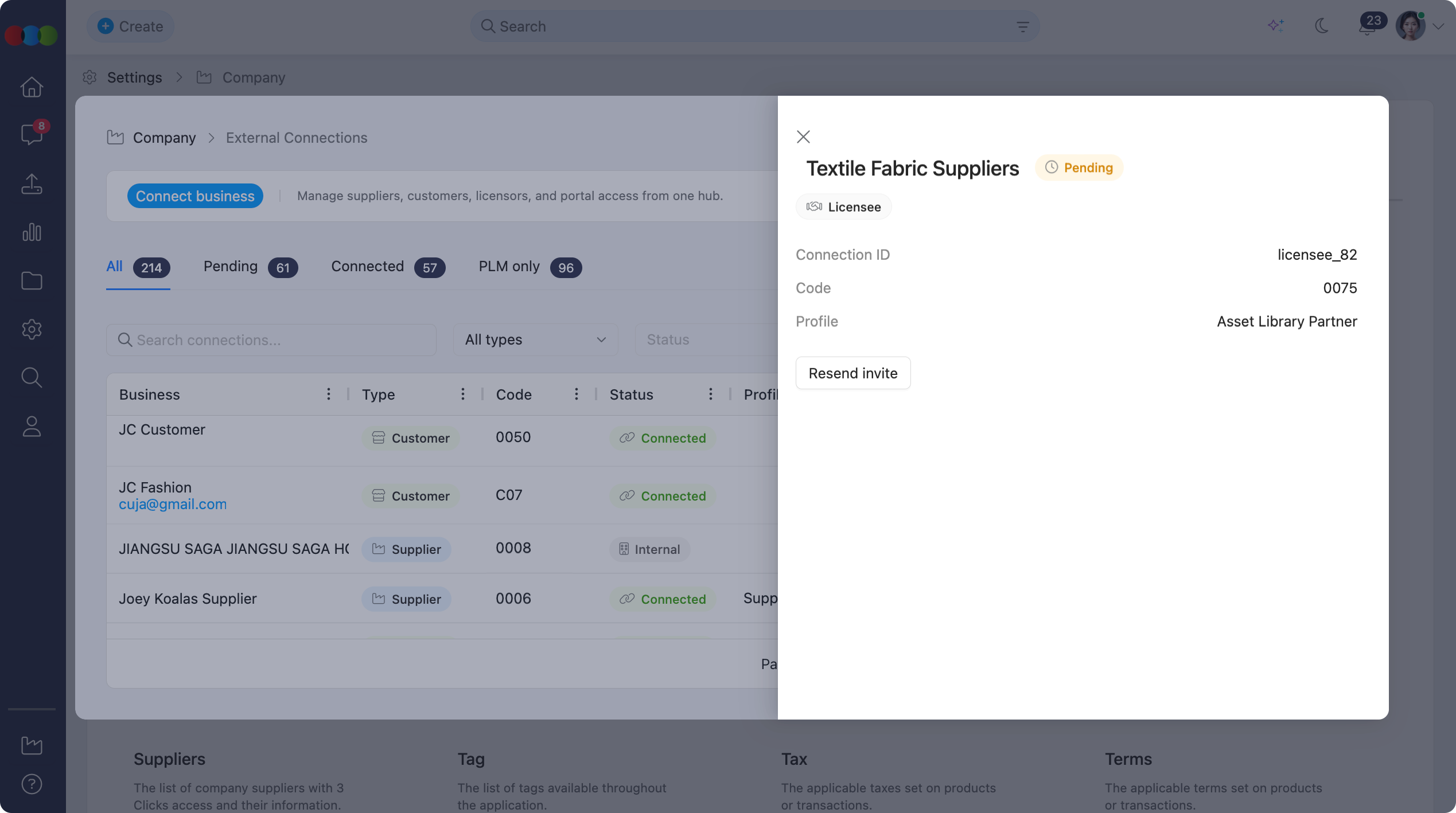
Connected
A connected business has completed portal registration and is linked to a portal account. The Portal business field shows the registered portal business name.
| Field / Action | Description |
|---|---|
| Business name | The connected business name. |
| Status | Connected. |
| Type | The connection type (for example Supplier). |
| Connection ID | System-generated identifier (for example supplier_30). |
| Code | The business code. For suppliers, this may be added or updated by the connected supplier after registration. |
| Profile | The active profile template (for example Supplier Access). |
| Portal business | The name of the linked portal business. |
| Disable | Turns the connection off without removing the relationship. The status changes to Disabled. |
| Disconnect | Removes the portal link. Use with care — confirm with your team before disconnecting an active partner. |
External Connections > Connected Status 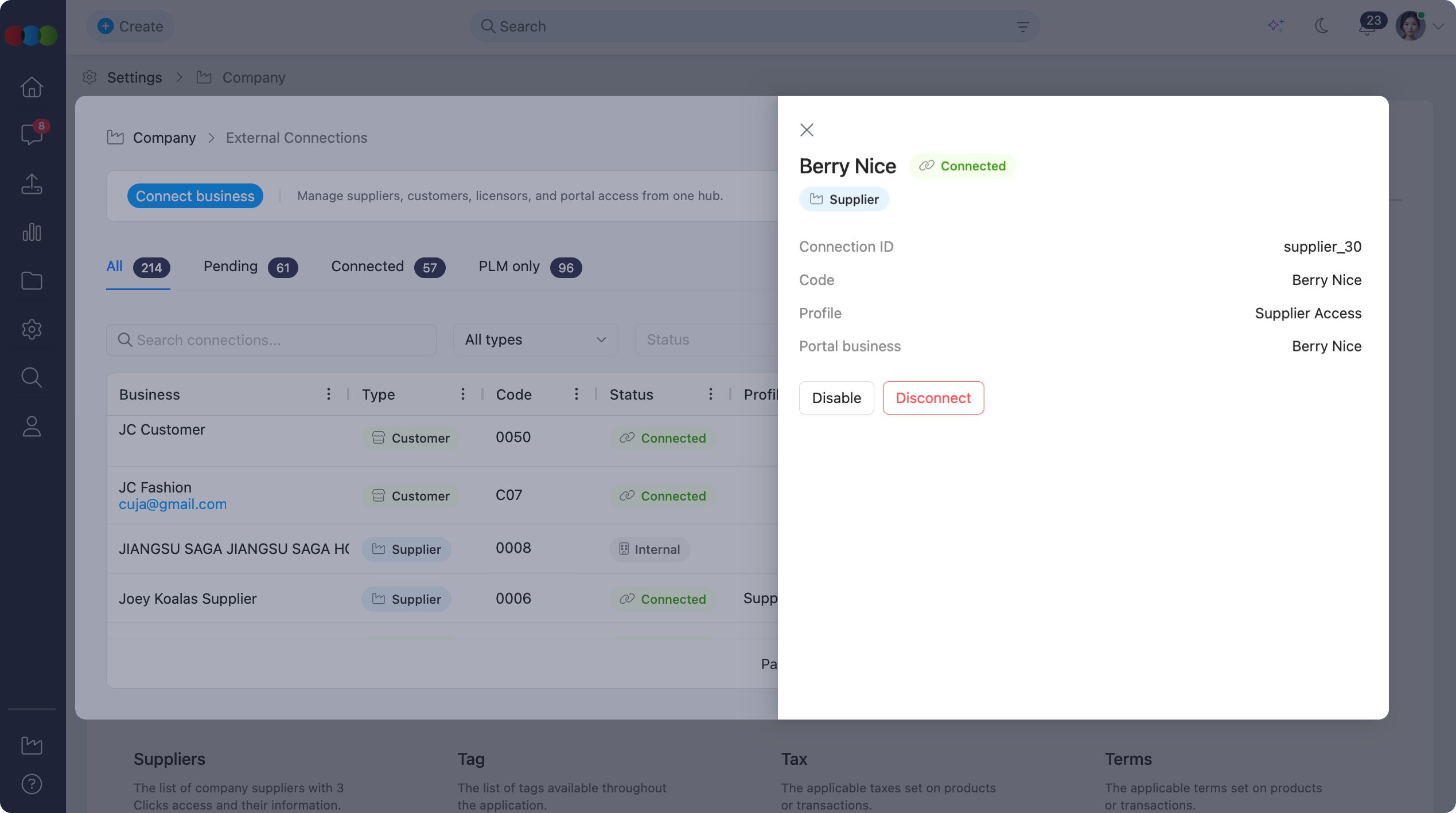
Disabled
A disabled connection retains its history and portal link but cannot be used until it is enabled again.
| Field / Action | Description |
|---|---|
| Business name | The business name on record. |
| Status | Disabled. |
| Type | The connection type. |
| Connection ID | The system-generated identifier. |
| Code | The business code. |
| Profile | The assigned profile template. |
| Portal business | The linked portal business name, if one exists. |
| Enable | Reactivates the connection. The status returns to Connected. |
| Disconnect | Removes the portal link from the connection. |
External Connections > Disabled Status 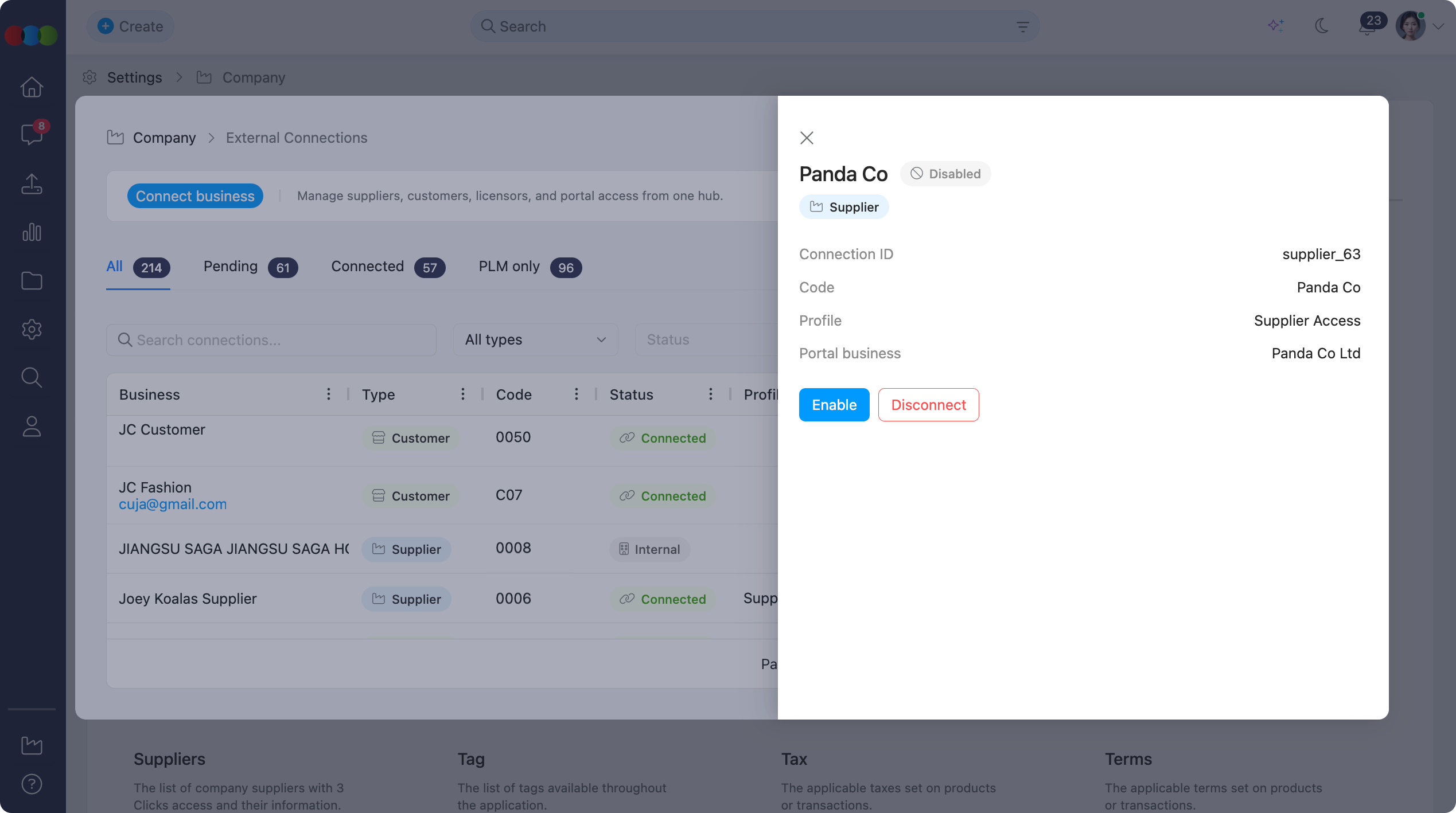
Common Pitfall
Disable stops the connection from being used but keeps the record and history. Disconnect breaks the portal link. If you only need to pause access temporarily, use Disable rather than Disconnect.
Actions
You can manage many connection actions directly from the main table without opening View details.
| Action | Description |
|---|---|
| View details | Opens the full connection record for the selected business. 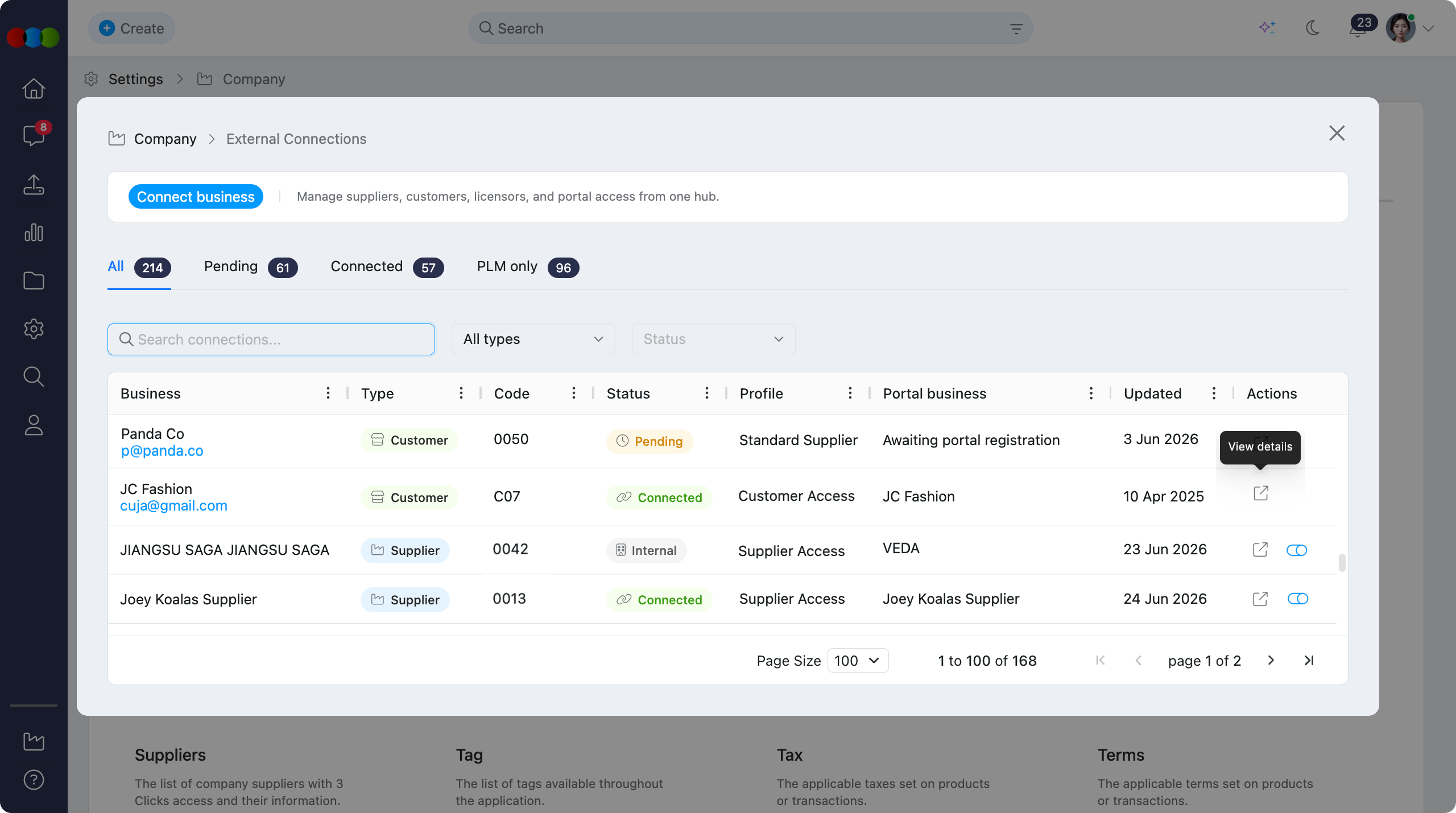 |
| Toggle on/off | Quickly enables or disables the connection from the list. 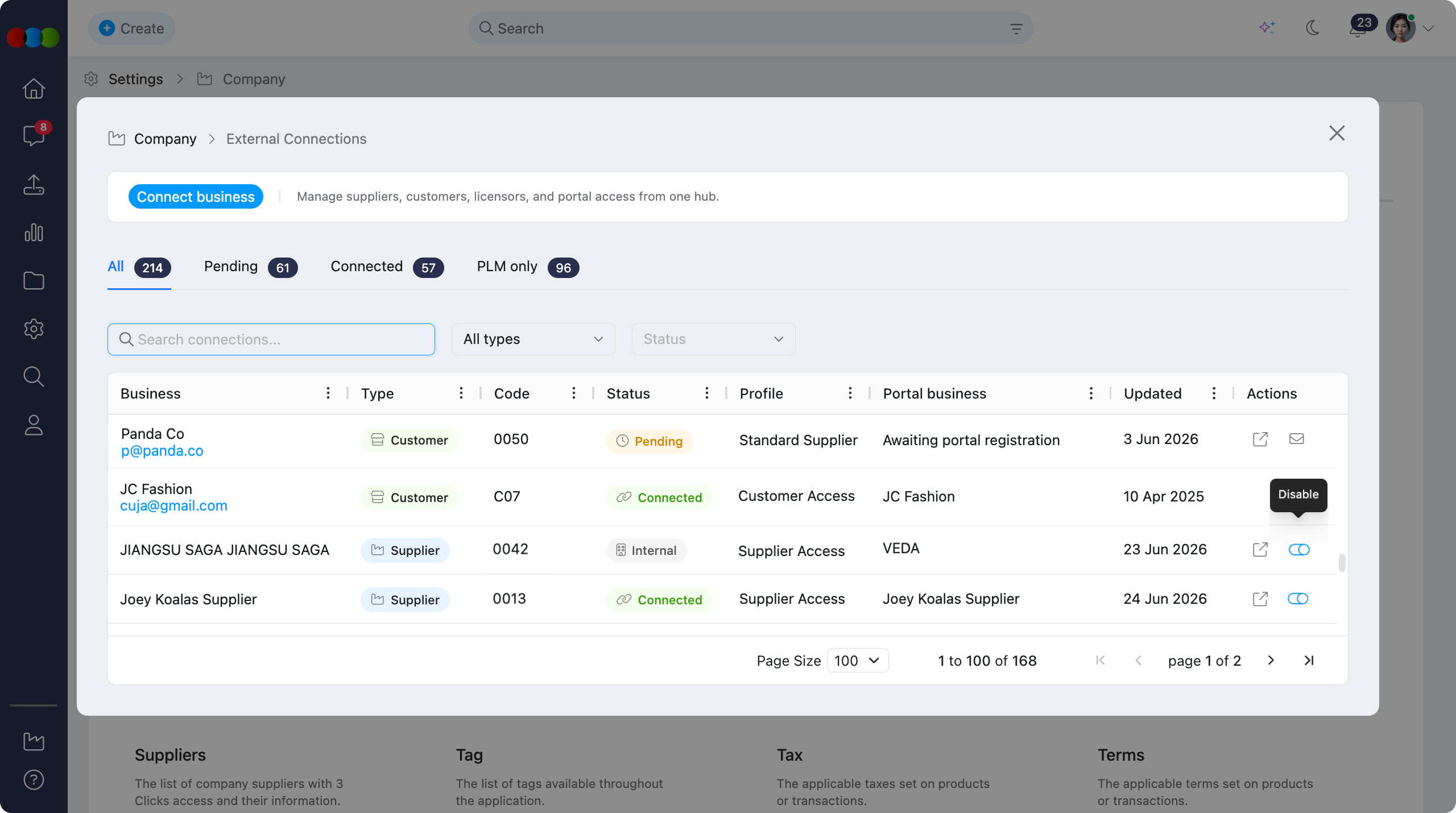 |
| Resend invite | Available for Pending connections or invited users who have not completed account setup. Sends the invitation email again. 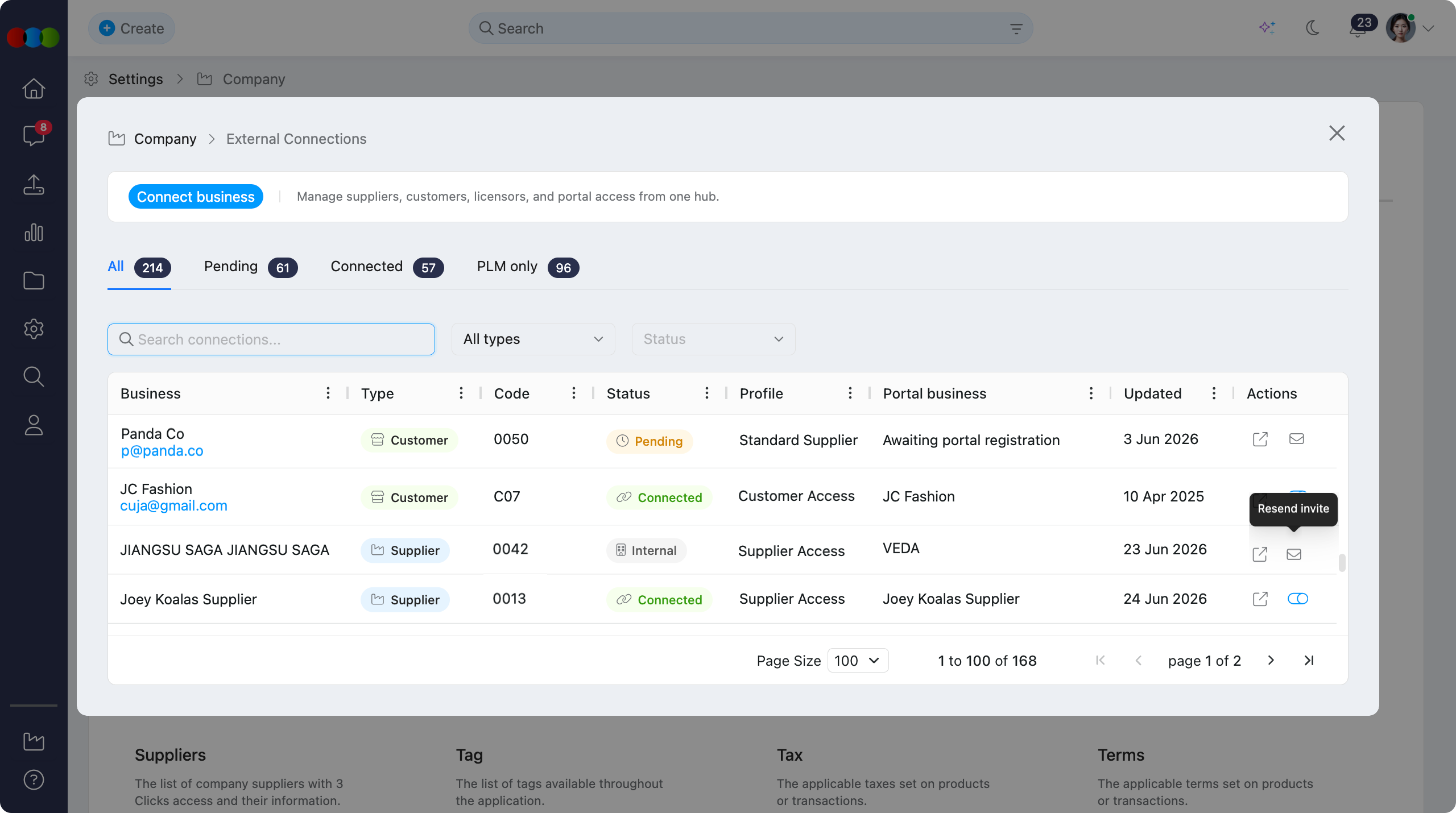 |
Sample Scenarios
Refer to these scenarios to understand how External Connections supports common administrator workflows.
Scenario 1: Onboard a new factory supplier with portal access
A production administrator connects a new factory so they can receive orders, costings, and compliance tasks in the Supplier Portal.
| Step | What to do | Related documentation |
|---|---|---|
| 1 | Open Site Settings › Company › External Connections and click Connect business. | How to Connect a Business |
| 2 | Choose Supplier, Create new, and enter the factory name. | Connection type |
| 3 | Select Invite by email and choose Standard Supplier unless a custom role is required. | Portal access, Profile templates |
| 4 | Tick Enable immediately on Review, then use Resend invite from the list if the supplier has not registered within your expected timeframe. | Actions |
| 5 | After the supplier registers, confirm the status changes to Connected and the Portal business name appears on the row. | View Connection Details |
Scenario 2: Give a wholesale customer B2B ordering access
A sales administrator connects a retail buyer who needs to place orders through the Customer Portal but does not need full style visibility.
| Step | What to do | Related documentation |
|---|---|---|
| 1 | Click Connect business and choose Customer as the connection type. | Connection type |
| 2 | Select Invite by email or Link existing portal business depending on whether the buyer already has a portal account. | Portal access |
| 3 | Choose B2B Buyer so the customer can view, create, and edit Sales Order records without Style view. | Profile templates |
| 4 | Review the profile template name on the Review step, then confirm the customer can access the B2B Online Store after registration. | Customer Portal › Overview |
Scenario 3: Maintain a PLM-only licensee record
A licence manager needs a licensee business on record for internal style and licence workflows but does not want to grant portal access yet.
| Step | What to do | Related documentation |
|---|---|---|
| 1 | Connect the business with type Licensee and Create new. | Connection type |
| 2 | Select PLM only on the portal access step. | Portal access |
| 3 | Confirm the connection appears with status Internal and is visible when you filter by PLM only. | External Connections Display |
| 4 | When portal access is required later, update the connection or create a new portal-linked record with the appropriate profile. | Profile templates |
Related Settings
- Site Settings › Company › Roles & Permissions to create Supplier Portal and Sales Order / DAM Portal role templates used by profile templates and custom roles.
- Site Settings › Company › Suppliers for legacy supplier record management; many supplier relationships are now created through External Connections.
- Site Settings › Company › Customer for customer entity configuration and B2B Online Store linkage.
- Site Settings › Style › Licensor is where licensor names used on styles and licence records (separate from licensor connection types).
- Supplier Portal › Overview for end-user experience for connected suppliers.
- Customer Portal › Overview for end-user experience for connected customers and buyers.
Troubleshooting
Why does Portal Business show Awaiting portal registration?
This message appears when a connection is Pending — the invitation was sent or the record was created, but the external business has not finished portal registration.
Steps to resolve:
- Open View details and confirm the status is Pending.
- Click Resend invite from the list or the details view.
- Ask the external contact to complete registration from the invitation email and check their spam folder.
- After registration, refresh the list and confirm the status changes to Connected.
Why can I not see Resend invite for a connection?
Resend invite is only available when the connection is Pending or the invited user has not yet configured their account from the email invitation.
Steps to resolve:
- Filter by Pending to confirm the connection is still waiting for registration.
- If the status is already Connected, the invite has been accepted — no resend is required.
- If the connection is Disabled, enable it first if your process allows active invitations on disabled records.
Why does my supplier not see Style, Order, or other modules in the Supplier Portal?
Portal visibility follows the profile template or custom Supplier Portal role assigned during connection setup.
Steps to resolve:
- Open View details and note the Profile assigned to the connection.
- If you used Use custom role instead, review the role in Site Settings › Company › Roles & Permissions and confirm View is enabled for the required applications.
- For standard supplier connections, confirm you selected Standard Supplier rather than a customer-facing profile.
- See also Roles & Permissions troubleshooting.
Why does my customer see the wrong portal areas?
Customer, licensor, and licensee connections use Sales Order / DAM Portal profile templates. The wrong template can grant or restrict Style, Sales Order, and Files access.
Steps to resolve:
- Open View details and review the Profile on the connection.
- Compare the active profile with the intended access: Asset Library Partner, B2B Buyer, or Full Customer Portal.
- If a custom role was used, edit the Sales Order / DAM Portal role in Roles & Permissions or recreate the connection with the correct preset profile.
- Ask the portal user to sign out and back in after profile changes.
What is the difference between Disable and Disconnect?
Disable pauses an active connection while keeping the record and portal link in place. Disconnect removes the portal relationship.
Steps to resolve:
- Use Disable when you need to temporarily stop access but expect to restore the same partner later.
- Use Disconnect only when you intend to break the portal link and potentially reconnect with a different portal business.
- For historical reporting, prefer Disable over Disconnect unless your administrator policy requires removal of the link.