Overview
Administrators use Site Settings > Compliance to control how compliance records are configured across your site. These settings cover defaults such as automatic folders and default members, plus the master lists used by compliance workflows, audits, and reporting.
End-user workflows for creating and managing compliance records are documented under Compliance > Overview.
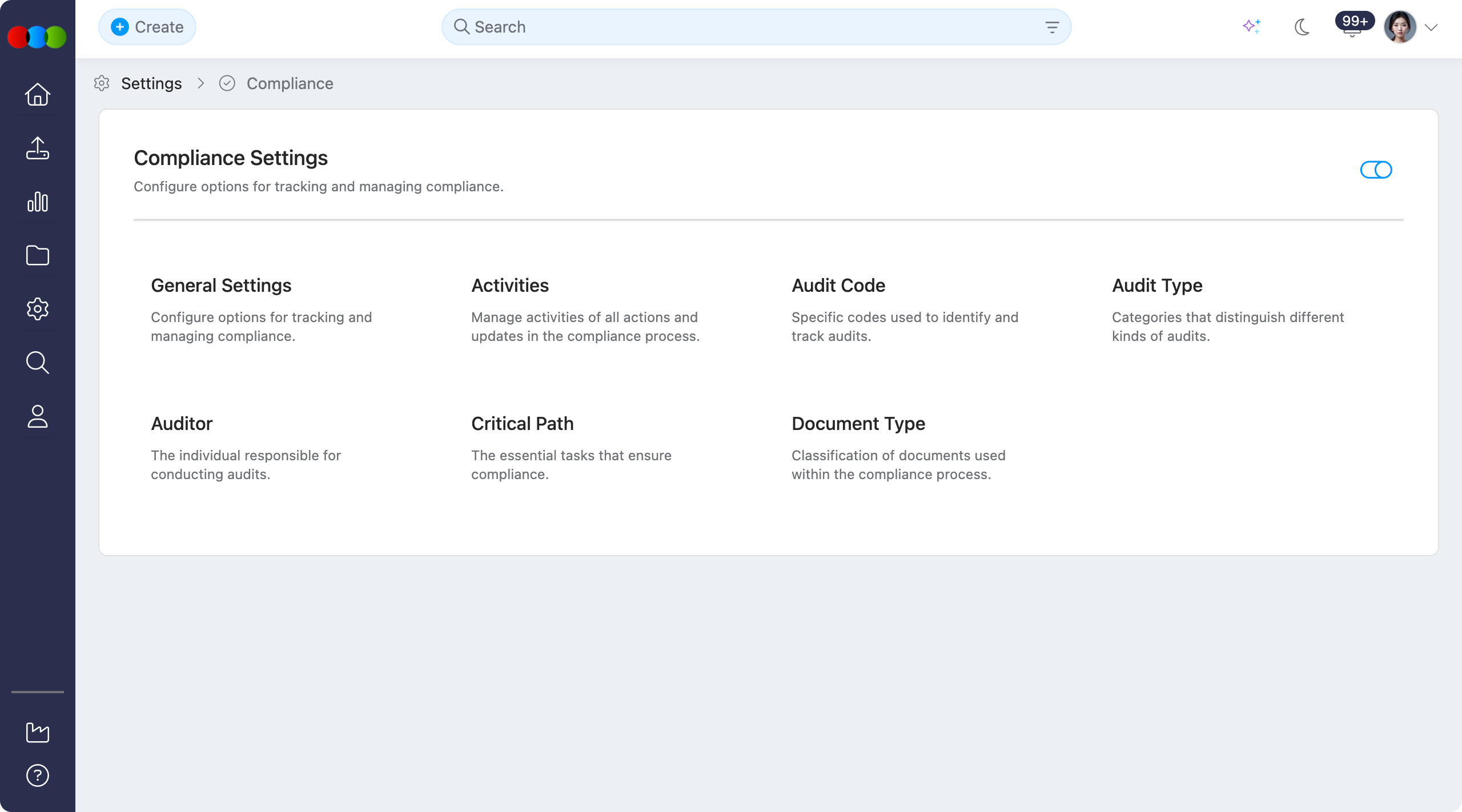
Enable or Disable
Use the toggle to Enable or Disable the whole Compliance application in your 3 Clicks Cloud.
When Compliance is disabled
Turning this toggle off hides the Compliance application across the system. In practice:
- Users cannot create new compliance records from any entry point.
- Compliance search and Advanced Search options for Compliance are hidden.
- Compliance is not shown anywhere the platform would normally surface it: navigation, widgets, search, and related actions.
- Existing compliance data is not described here as deleted; access is removed from the UI until the application is enabled again.
Configurable sections
| Topic | Purpose |
|---|---|
| General Settings | Configure module-wide defaults such as automatic folders and default members for new compliance records. |
| Activities | Maintain activity options used in compliance workflows. |
| Audit Code | Configure audit code values used to classify audits. |
| Audit Type | Configure audit type categories used in compliance records and reporting. |
| Auditor | Maintain the auditor list used when assigning and filtering audits. |
| Critical Path | Configure critical path templates used by compliance records. |
| Document Type | Manage document type values used for compliance files and documentation standards. |