Freight
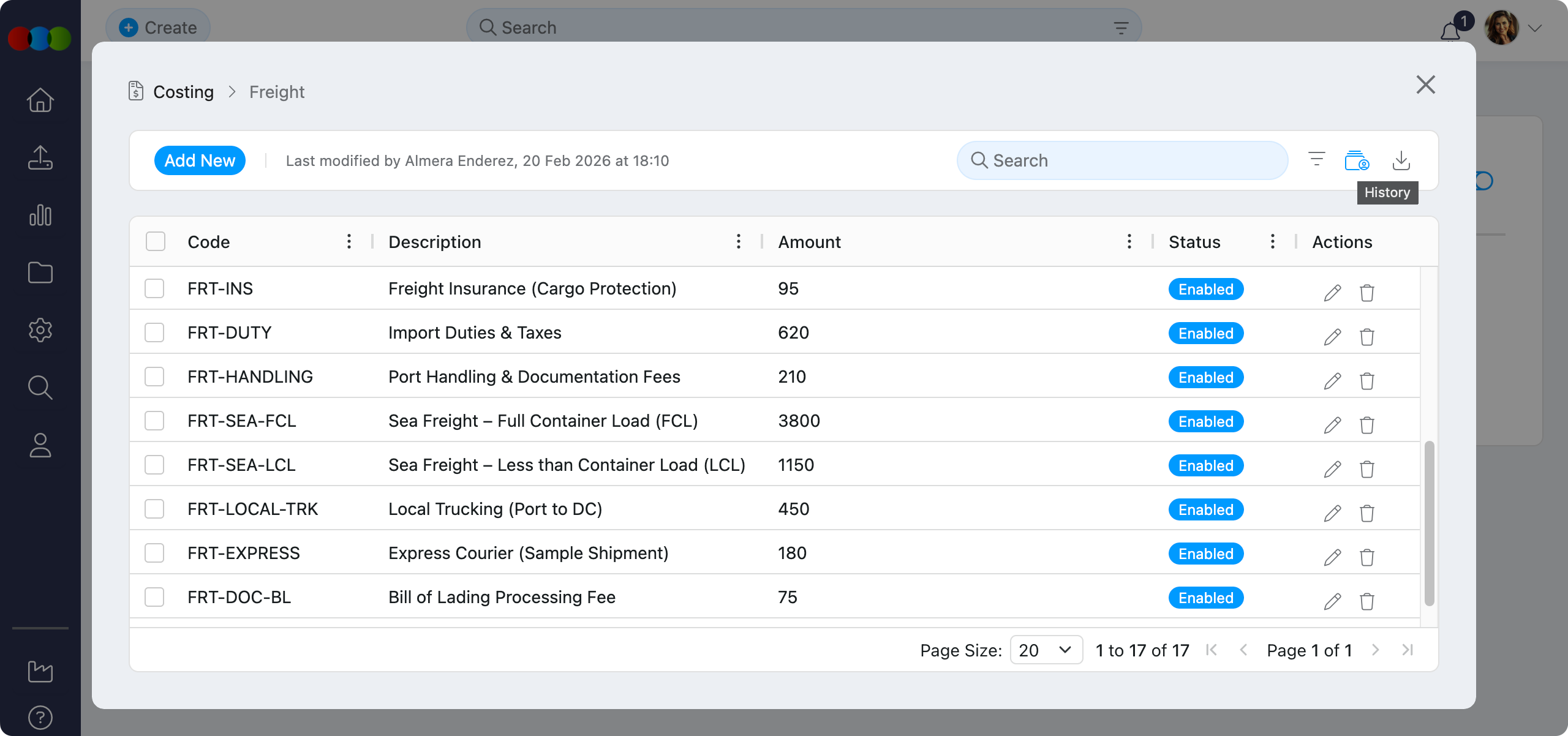
Use Freight to set up the transport costs used in costing records. Freight can be a fixed amount or a percentage, helping teams calculate landed cost, final buy price, and margin more consistently.
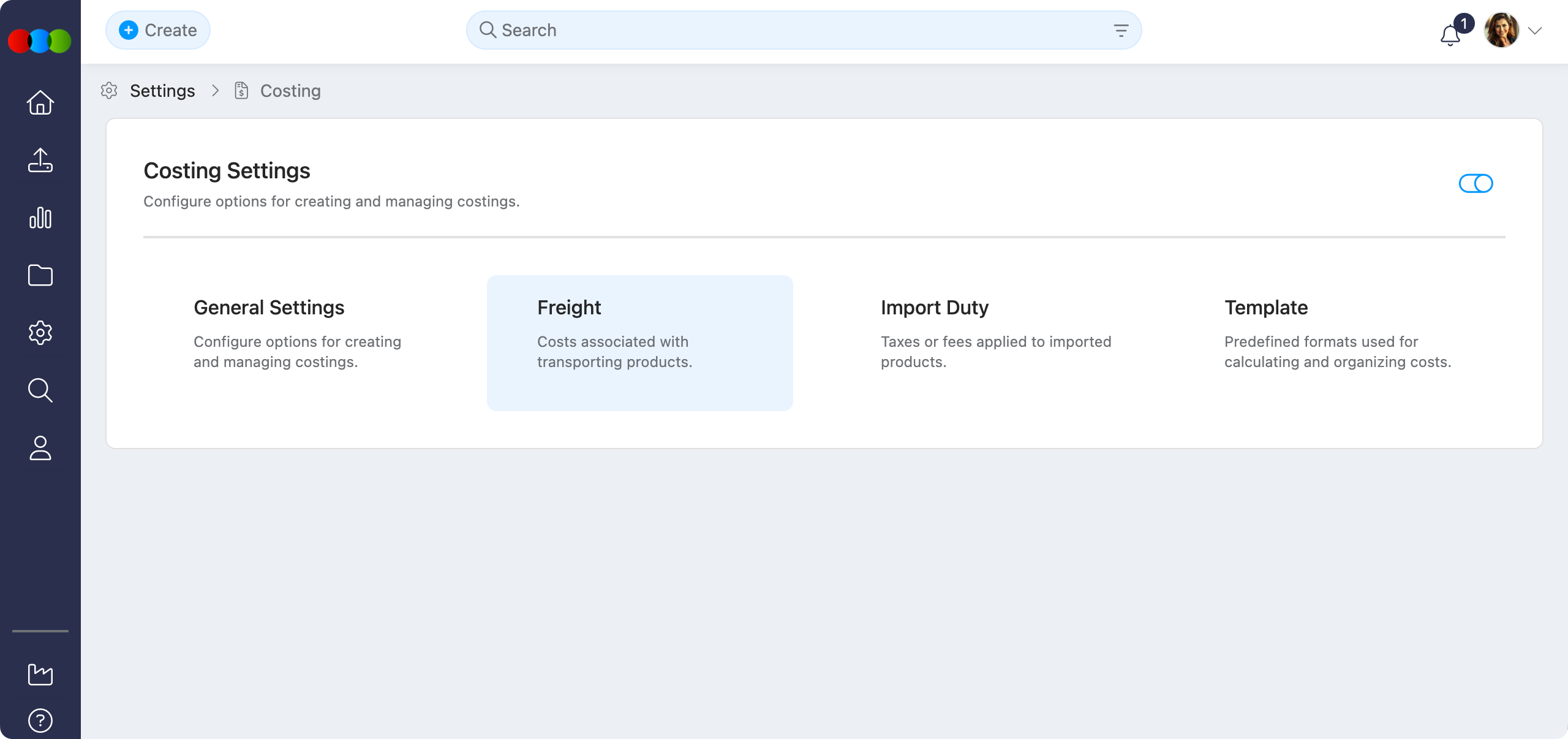
Freight entries typically represent transportation charges from suppliers to distribution centres or retail locations. Standardising freight configurations helps ensure consistent margin calculations and supports more accurate financial reporting.
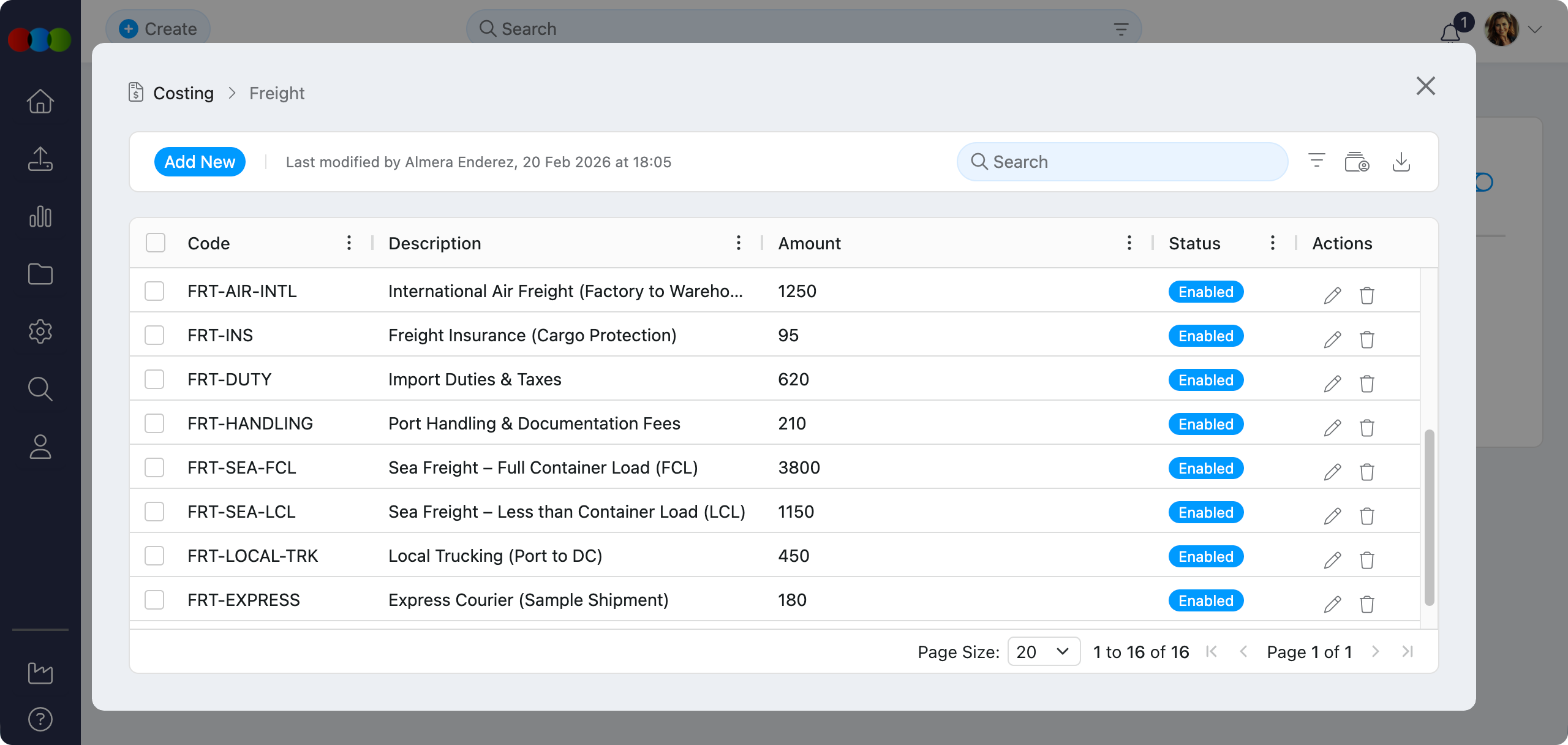
The Freight section contains user-defined cost entries that establish transportation charges for different routes, methods, or incoterms. These entries can be assigned to costing records to accurately calculate total landed costs, ensuring that all transportation expenses are properly accounted for in product pricing and margin analysis.
Freight entries support two value types: fixed amounts (e.g. $4.00) and percentage values (e.g. 4.10%). This flexibility allows you to model both flat-rate shipping and cost-based freight charges.
Accurate configuration of freight entries is essential, as these values directly impact cost calculations, pricing accuracy, and financial reporting across all costing records that reference freight charges. Proper freight management ensures that transportation costs are consistently applied and helps maintain accurate profit margin calculations.
Quick Check - Before You Start
- Confirm whether the charge should be a fixed amount or a percentage.
- Use clear codes that identify the route, method, or incoterm.
- Set old freight records to Disabled instead of deleting records that may be used in historical costings.
Fields and Descriptions
When creating or editing a freight entry, complete the fields below.
| Field | Description |
|---|---|
| Code | A unique identifier or code for the freight entry. This code is used to identify and reference the freight entry when assigning it to costing records. Use descriptive codes that indicate the route, method, or incoterm (e.g., "FOB-SYD", "CIF-MEL", "AIR-FREIGHT"). |
| Description | A detailed description of the freight entry. This field helps identify the purpose, route, or method of transportation. Include relevant details such as origin, destination, shipping method, or incoterm to make the entry easily identifiable. |
| Amount | Enter the freight cost as either a fixed value or a percentage: • Fixed value – Enter the amount (e.g. 4.00) • Percentage – Enter the value followed by the % symbol (e.g. 4.10%) |
| Status | Control whether the freight entry is active or inactive: • Enabled – The freight entry is active and available for use in costing records • Disabled – The freight entry is inactive and cannot be assigned to new costing records |
Freight Value Types
Fixed Value
Enter a fixed amount, such as 4.00. The value is applied as entered on the style row, each quote row, and the final buy price.
Percentage (%)
Enter a value followed by %, such as 4.10%. The freight amount is calculated from the costing type's base value and displayed as a dollar amount in the costing.
| Costing Type | Percentage Base |
|---|---|
| Retail | Cost inc. Components |
| Import | Cost inc. Components |
| Component | Local Buy Price |
Formula: Freight Total = Freight % × Base Amount
Example
- Cost inc. Components = $10.50
- Freight In = 4.00%
- Freight Total = 4.00% × $10.50 = $0.42
Managing Freight
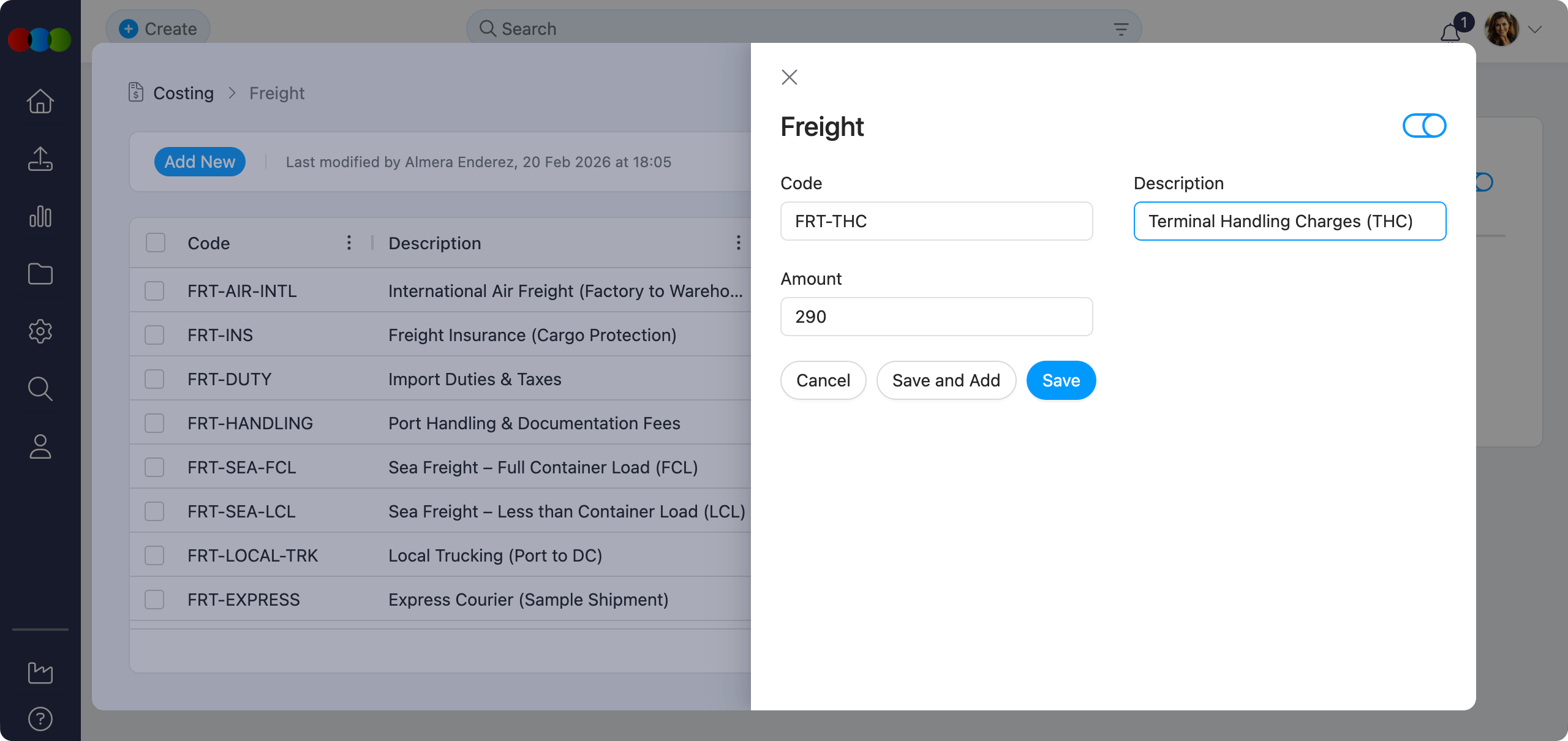
Add Freight
- Click Add New.
- Complete the required fields: Code, Description, and Amount.
- Set Status to Enabled or Disabled.
- Click Save.
Note
Do not use commas in amounts. Use a period for decimals and include % for percentage entries.
Examples: enter 1290 instead of 1,290, or enter 4.10% for a percentage value.
Edit Freight
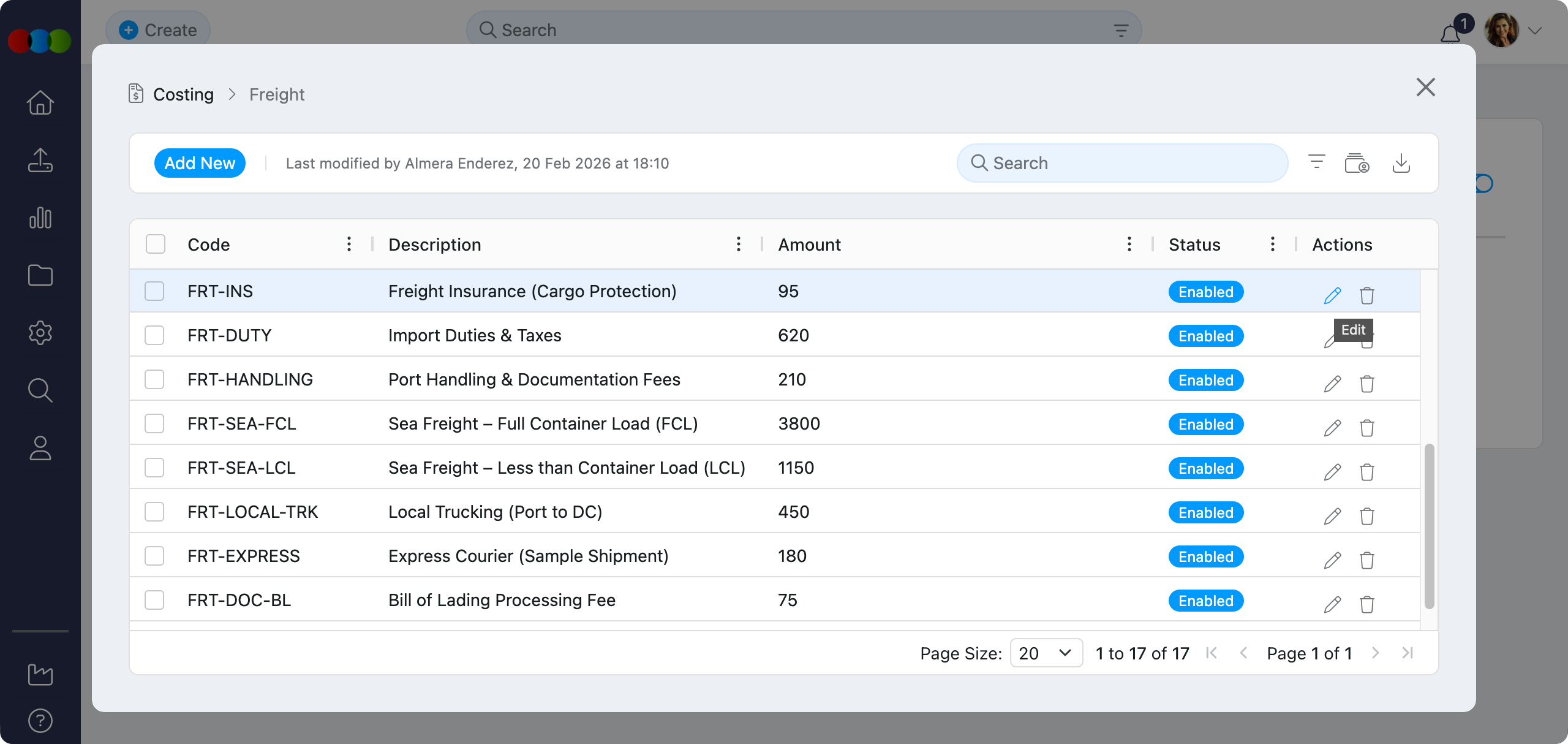
- Click the pen icon next to the freight entry you want to modify.
- Update the fields, amount, or status.
- Click Save.
Delete Freight
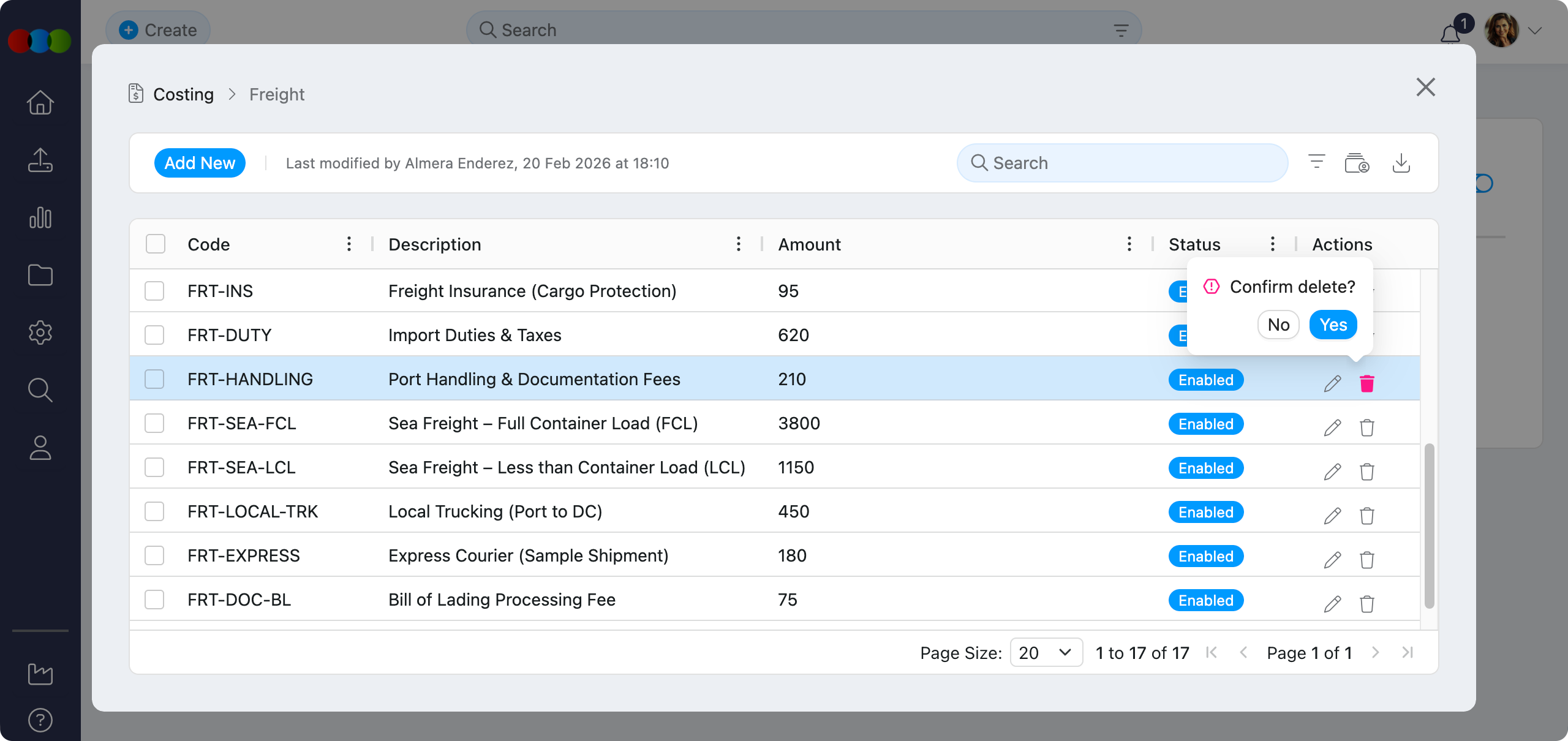
- Single delete: Click the trashcan icon next to the freight entry and confirm deletion.
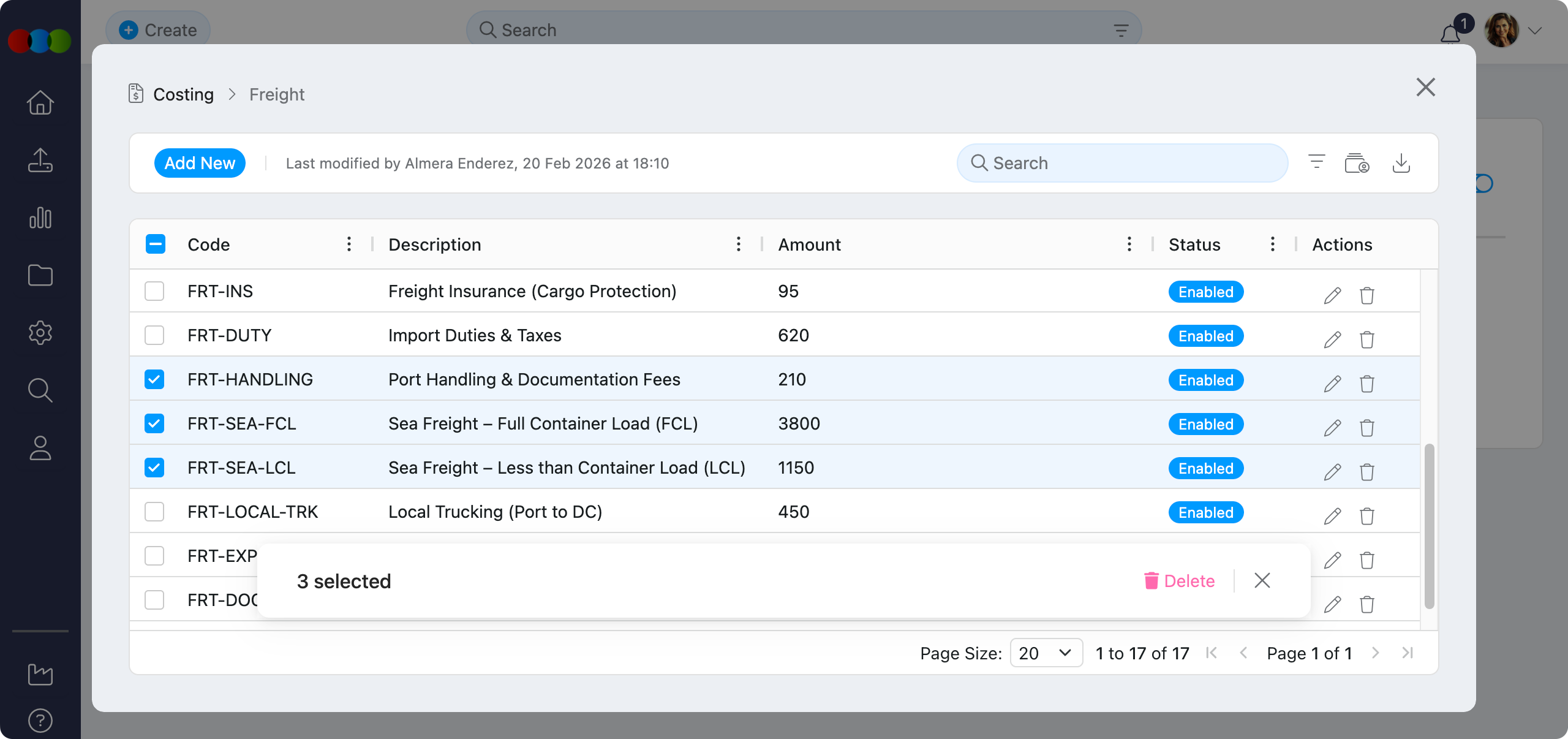
- Bulk delete: Select multiple freight entries using checkboxes and confirm deletion.
Other Actions
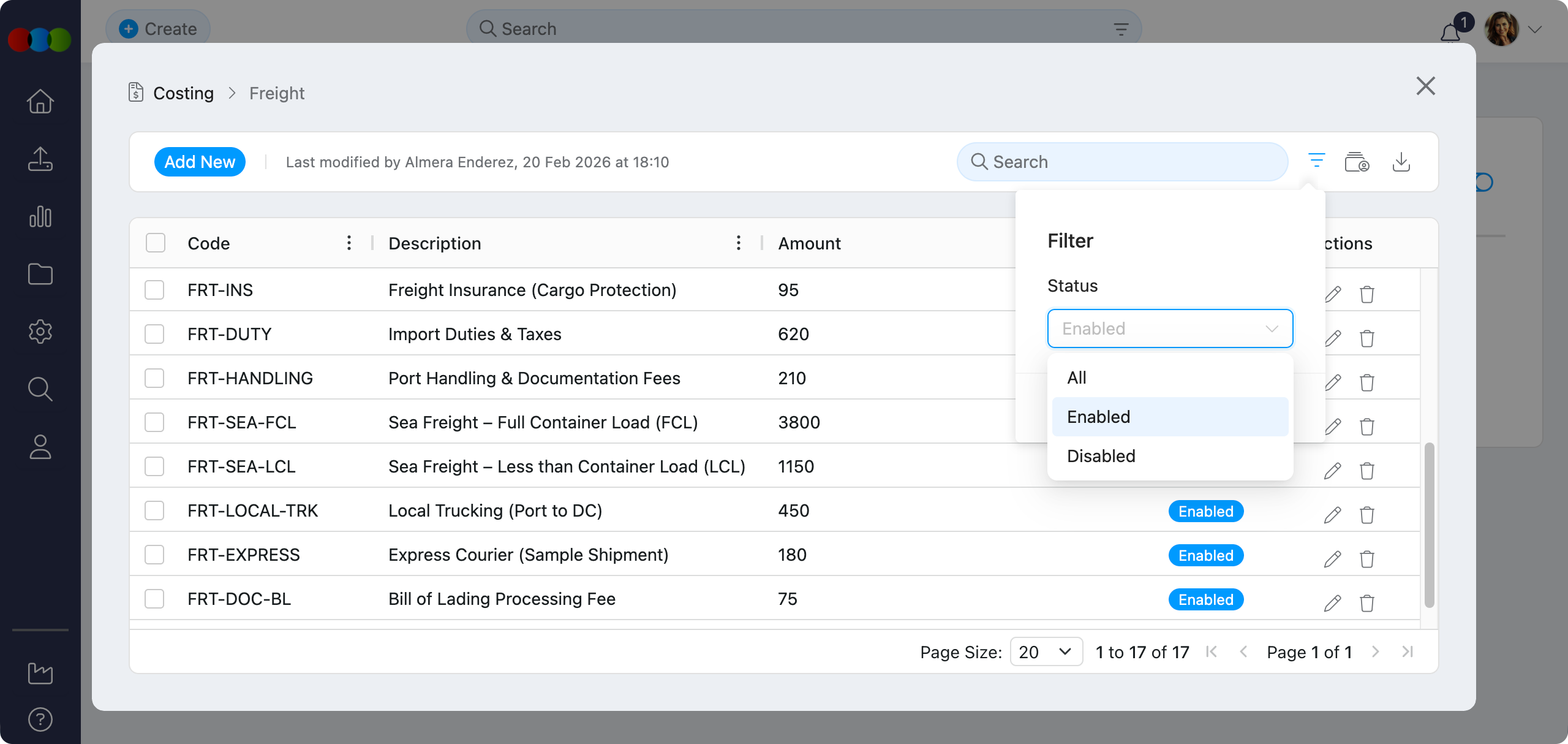
- Filter – Filter freight entries by status (Enabled/Disabled).
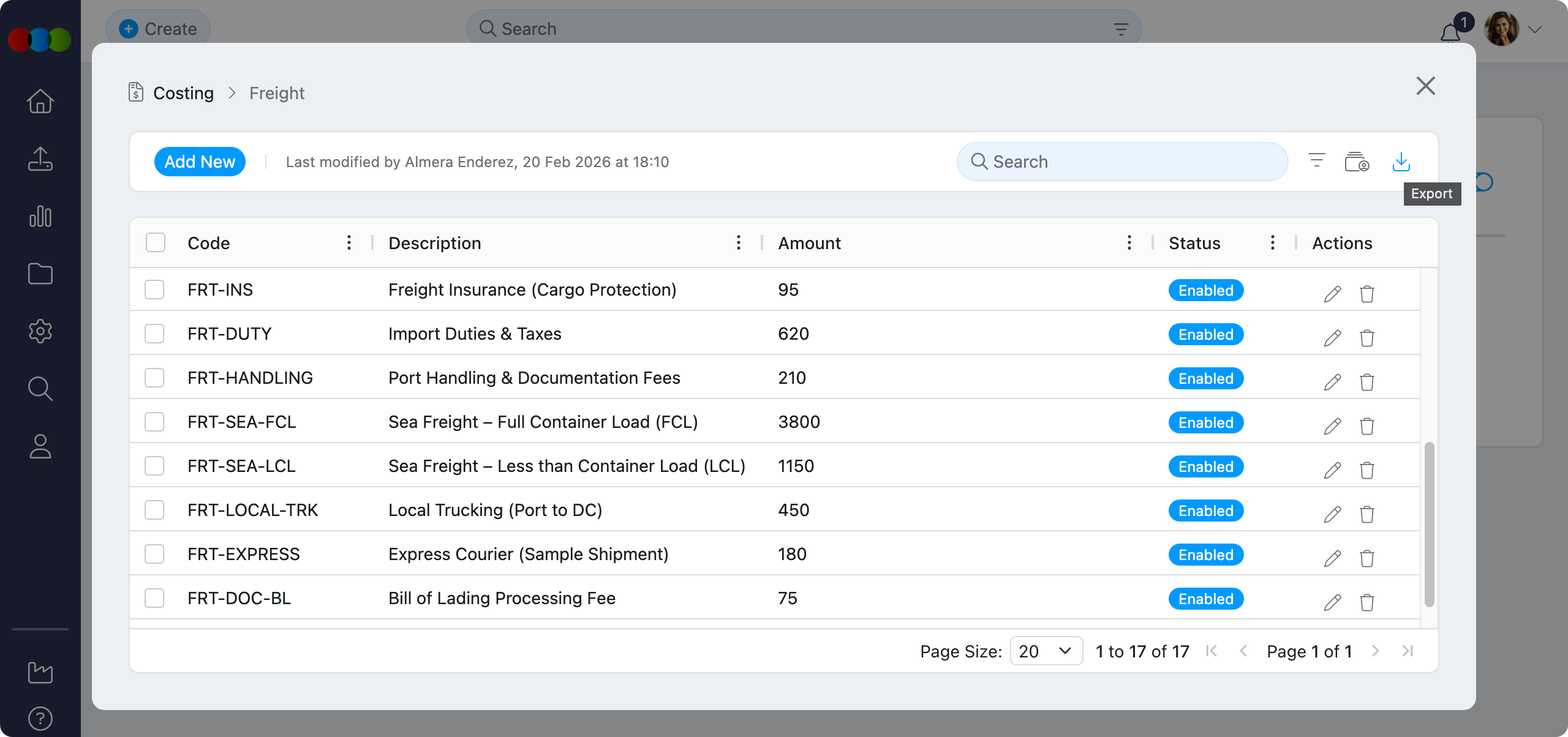
- Export – Download the complete list in
.xlsxformat. - History – Download a log of freight record changes and version history.
Freight in Costing (Supplier Section)
Freight entries are selected in Costing > Supplier. When freight is added for the first time, it is applied to all markets.
| Selection Type | What Displays | How It Is Calculated |
|---|---|---|
| Fixed amount | The selected freight option and fixed amount. | The value is applied as configured. |
| Percentage | The selected freight option and calculated dollar amount. | The value is calculated for each style or quote using the percentage base above. |
For Retail and Import costings, percentage freight is calculated from Cost inc. Components. For Component costings, it is calculated from Local Buy Price.
Port & Disbursement
Port & Disbursement is a separate column in Costing > Supplier. It is positioned next to Freight by default.
- It is a fixed value copied from the costing template.
- It is read-only in the costing.
- If the column is hidden, the value is still included in Landed Cost.
Scenario 1: Importing seasonal apparel
A buying team imports a new apparel range from an overseas supplier. Freight is charged as a percentage because the transport cost changes with product value.
The admin creates a freight entry such as SEA-FRT-4.10%. The user selects it in Costing > Supplier, where it calculates from Cost inc. Components. The costing also uses Import Duty and Port & Disbursement from the costing template, so landed cost and margin reflect the full import cost.
Scenario 2: Local component supplier with flat delivery
A component supplier charges a fixed delivery fee for local shipments. The cost does not change by product value, so a fixed freight amount is easier to control.
The admin creates a freight entry such as LOCAL-DELIVERY-25. The user selects it on a Component costing, where it contributes to the final buy price. When the component is used in another costing, the freight-influenced component cost can affect the broader product margin.
How Freight Overlaps With Other Areas
| Area | How Freight Connects |
|---|---|
| Costing > Supplier | Users select freight and review the calculated freight value for each costing. |
| Costing Templates | Templates can supply related fixed costs such as Port & Disbursement. |
| Import Duty | Import costings may use freight and duty together to calculate landed cost. |
| Style Costing | Freight can be selected when creating or reviewing costings from a style. |
Table Flexibility
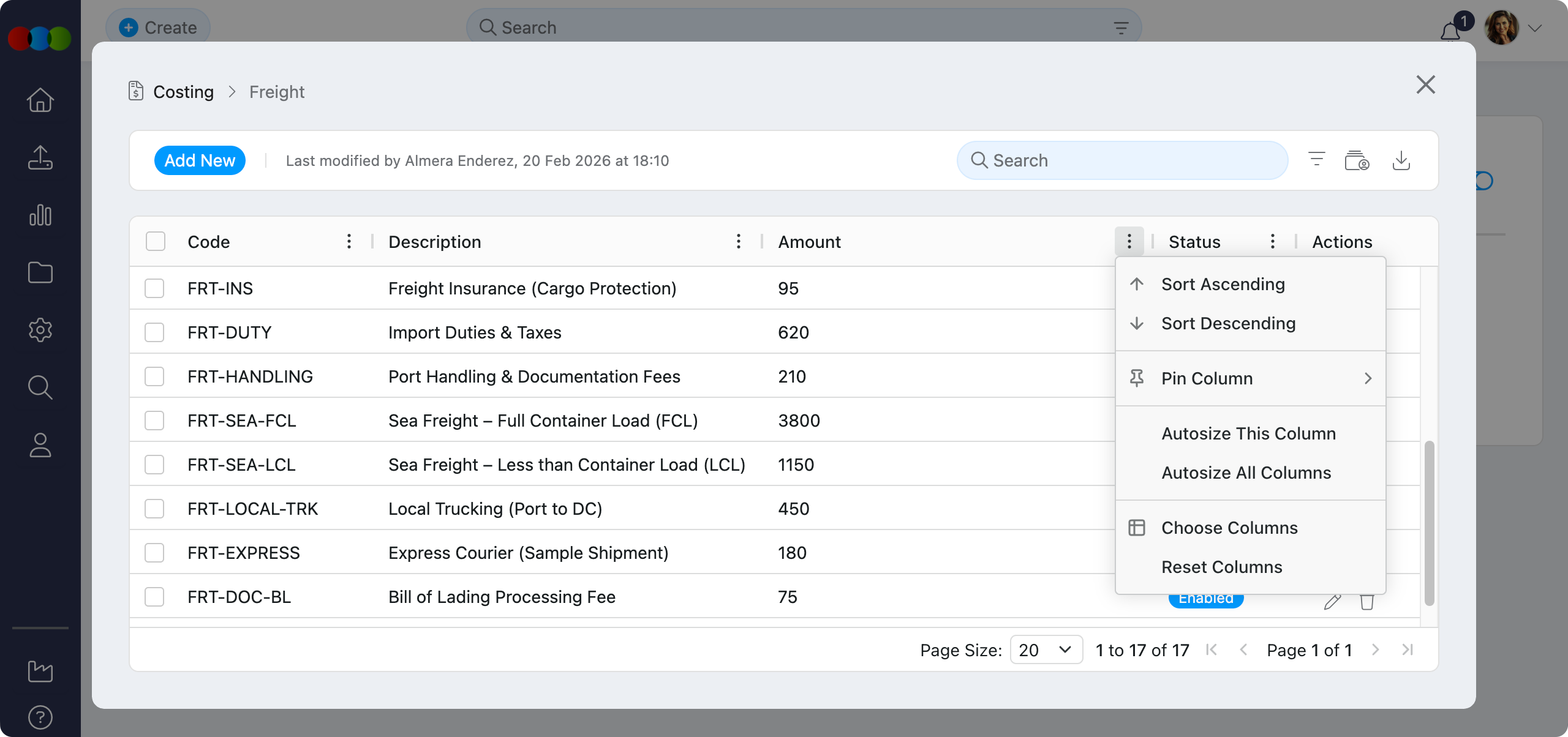
Use the table controls to adjust how freight entries are displayed.
| Feature | Description |
|---|---|
| Sort by | Reorder entries by code, description, amount, or status. |
| Pin Column | Keep important columns visible while scrolling. |
| Autosize Column | Resize columns to fit their content. |
| Choose Columns to Display | Show or hide individual table columns. |
| Reset Columns | Return the table to the default layout. |
Related Documentation
Freight entries are used across the costing workflow. For detailed guidance, refer to:
| Topic | Description |
|---|---|
| Site Settings › Costing › General Settings | Central costing configuration and defaults. |
| Site Settings › Costing › Import Duty | Define import duties and fees used alongside freight in landed cost calculations. |
| Site Settings › Costing › Template | Templates define costing structure; Port & Disbursement values are copied from the template. |
| Costing Type › Retail › Supplier | Assign Freight and view Port & Disbursement in the Supplier section for retail costings. |
| Costing Type › Import › Supplier | Assign Freight and view Port & Disbursement in the Supplier section for import costings. |
| Costing Type › Component › Supplier | Assign Freight and view Port & Disbursement in the Supplier section for component costings. |
| Style › Create Costing | Select Freight In when creating a costing from a style. |
Best Practice
- Set up freight records by route, method, or incoterm.
- Use fixed values for flat-rate shipping and percentages for cost-based freight.
- Disable outdated entries instead of deleting them when they may be needed for history.
- Review freight amounts regularly with finance or logistics teams.
Troubleshooting
Why is my percentage freight amount zero or unexpected?
Percentage freight calculates from Cost inc. Components for Retail and Import costings, or Local Buy Price for Component costings. If the base is empty, the calculated freight value may be zero.
Steps to resolve:
- Open Costing > Supplier and confirm the costing has component costs, local buy price, or supplier quotes.
- Check the freight value includes the
%symbol. - Refresh the costing after updating supplier or component values.
Why does save reject my amount?
Amounts must use a valid number format. Commas are not supported, and percentage values must include %.
Steps to resolve:
- Re-enter the amount using
.for decimals. - Enter
1290instead of1,290. - For percentages, enter values such as
4.10%.
Why is Port & Disbursement not editable on the costing?
Port & Disbursement is copied from the costing template as a fixed read-only value.
Steps to resolve:
- Adjust the value in Site Settings › Costing › Template if your process allows.
- Remember that hidden columns can still contribute to Landed Cost.