Import Duty
Use Import Duty to set up the duty rates or fees applied when goods are imported. These rates help calculate accurate landed costs, margins, and supplier cost comparisons in import costings.
Import duties can be based on a country, product category, or tariff classification. Once configured, they can be selected in Costing > Supplier and applied per market so each destination uses the correct duty.
Quick Check - Before You Start
- Confirm you have access to Site Settings > Costing > Import Duty.
- Use clear codes that match how your finance or customs team refers to duty rates.
- Export the list before bulk edits or deletes if you need an audit record.
Fields and Descriptions
When creating or editing an import duty entry, complete the fields below.
| Field | Description |
|---|---|
| Code | A unique duty code used when assigning the duty to costings, such as CN-GARMENT or US-APPAREL. |
| Description | A short explanation of what the duty applies to, such as the country, product type, or tariff classification. |
| Rate | The duty rate applied to the costing. Use the current customs rate agreed by your business. |
| Country | The country this duty relates to. Use this to keep rates organised by origin or destination. |
| Status | Set to Enabled when the duty is available for use. Set to Disabled when the duty should no longer be selected for new costings. |
Managing Import Duties
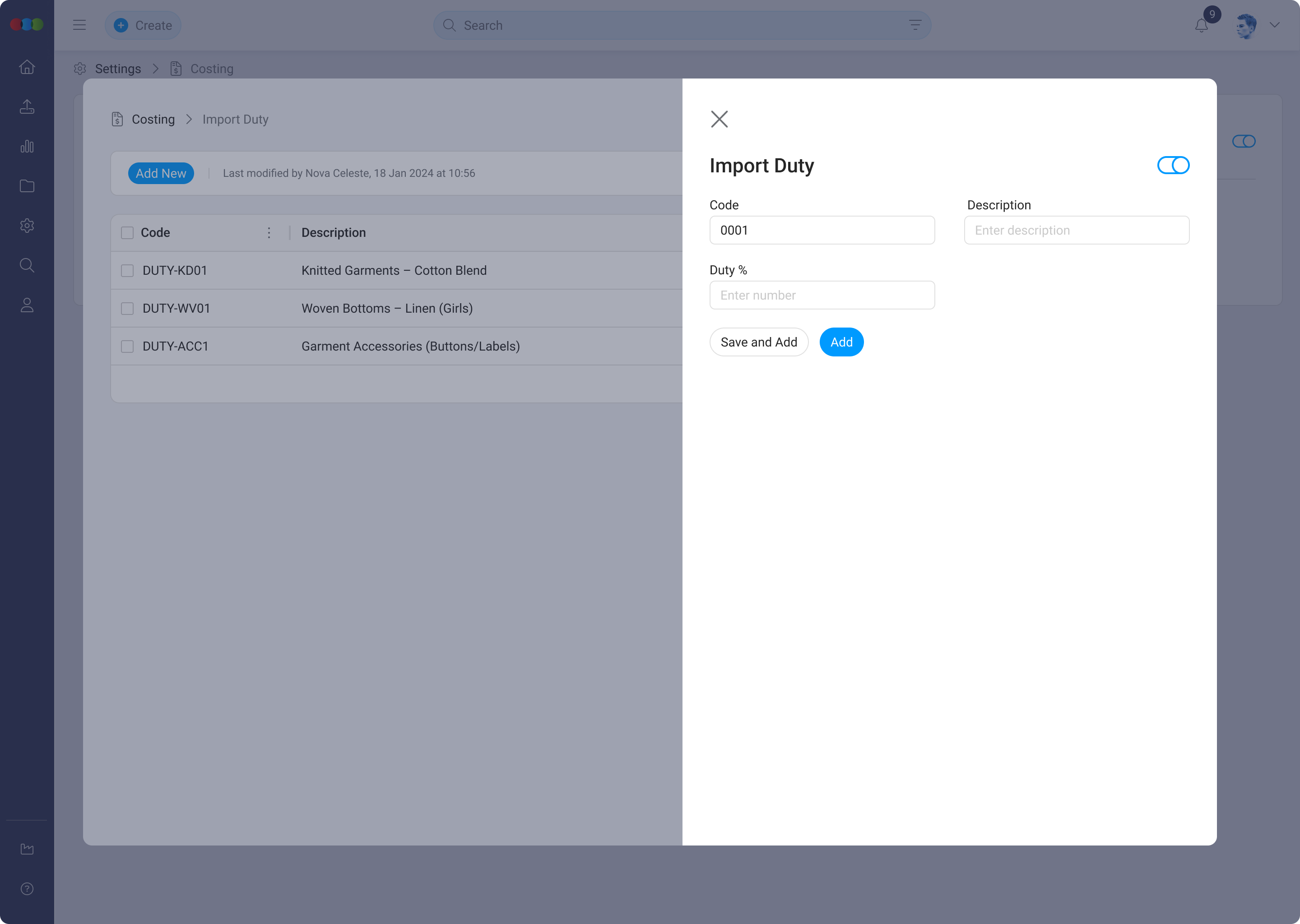
Add Import Duty
- Click Add New.
- Complete the required fields: Code, Description, Rate, and Country.
- Set Status to Enabled or Disabled.
- Click Save.
Edit Import Duty
- Click the pen icon next to the import duty entry you want to modify.
- Update the fields, rate, or status.
- Click Save.
Delete Import Duty
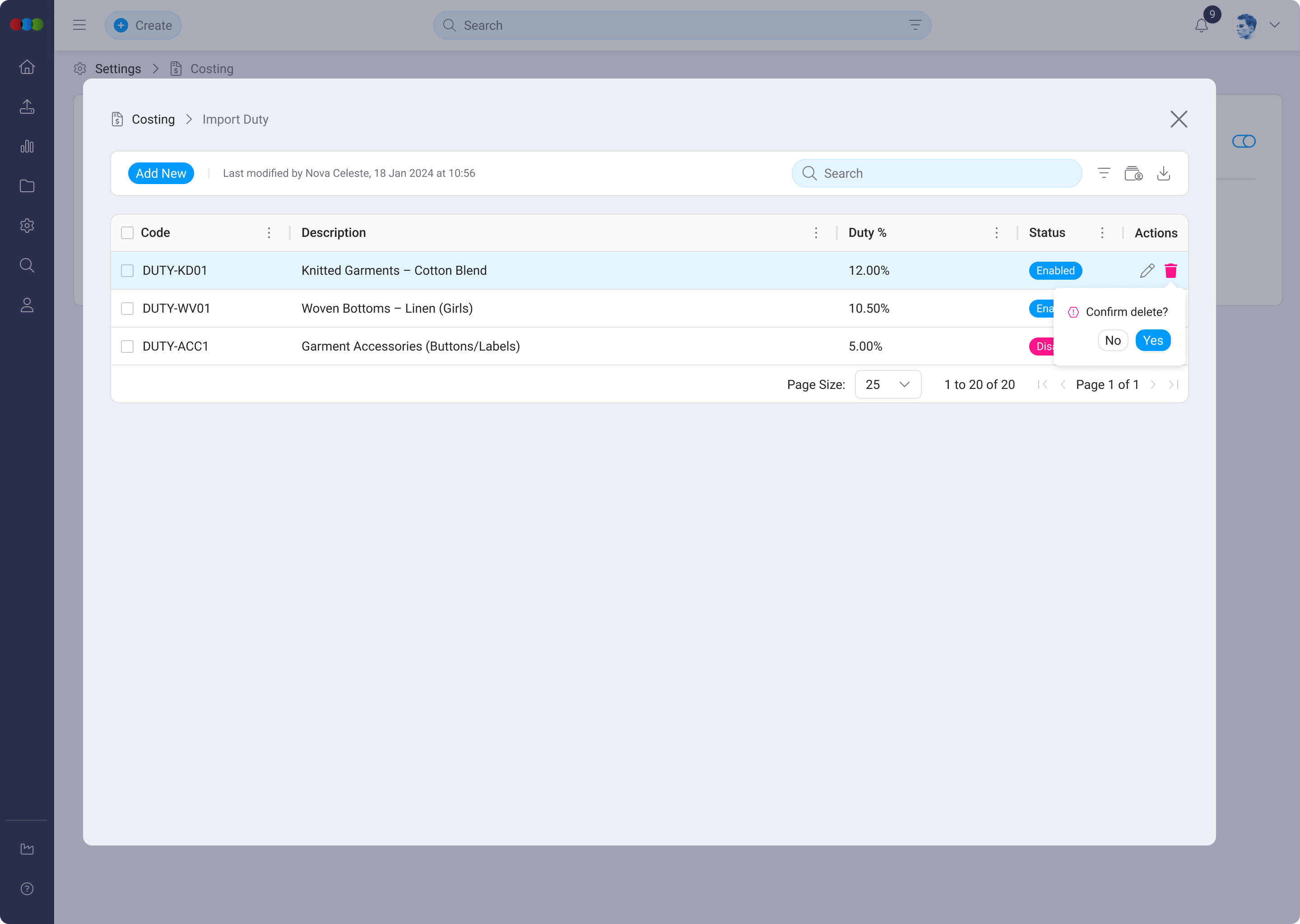
- Single delete: Click the trashcan icon next to the import duty entry and confirm deletion.
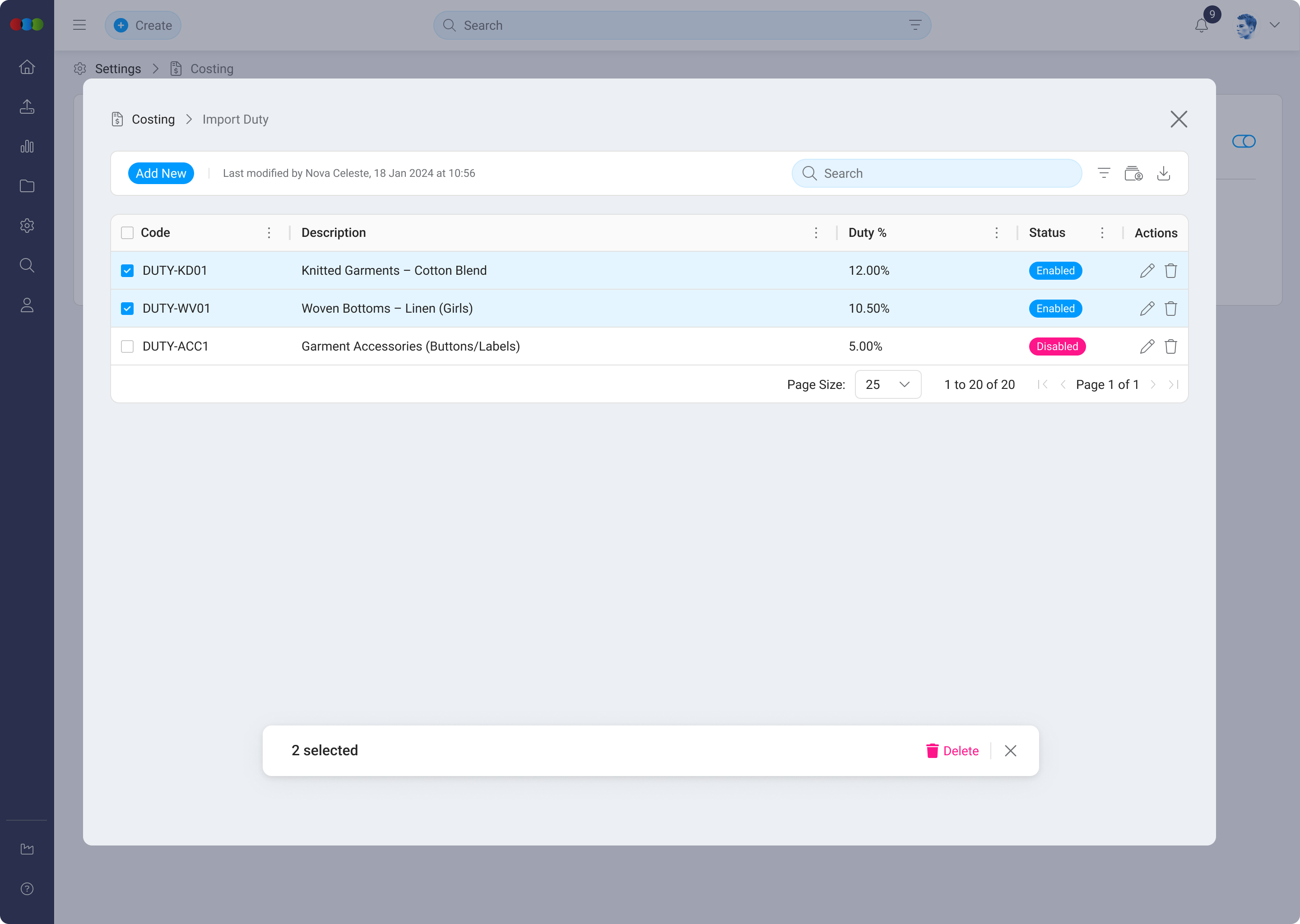
- Bulk delete: Select multiple import duty entries using checkboxes and confirm deletion.
Other Actions
- Filter – Filter import duty entries by status (Enabled/Disabled).
- Export – Download the complete list in
.xlsxformat. - History – Download a log of import duty record changes and version history.
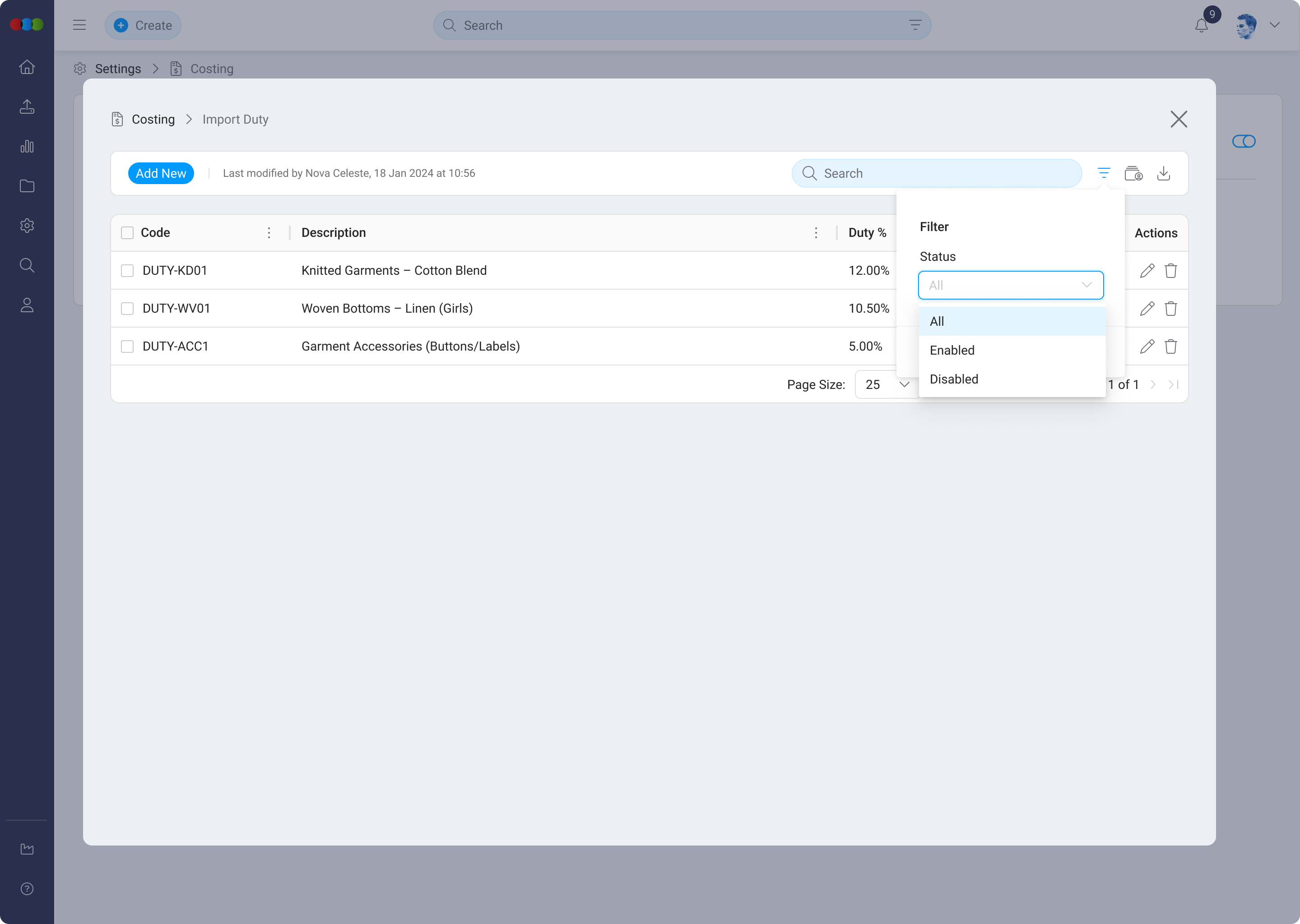
Table Flexibility
Use the table controls to adjust how import duties are displayed.
| Feature | Description |
|---|---|
| Sort by | Reorder entries by code, description, rate, country, or status. |
| Pin Column | Keep important columns visible while scrolling. |
| Autosize Column | Resize columns to fit their content. |
| Choose Columns to Display | Show or hide table columns. |
| Reset Columns | Return the table to the default layout. |
Customisable Import Duty Table 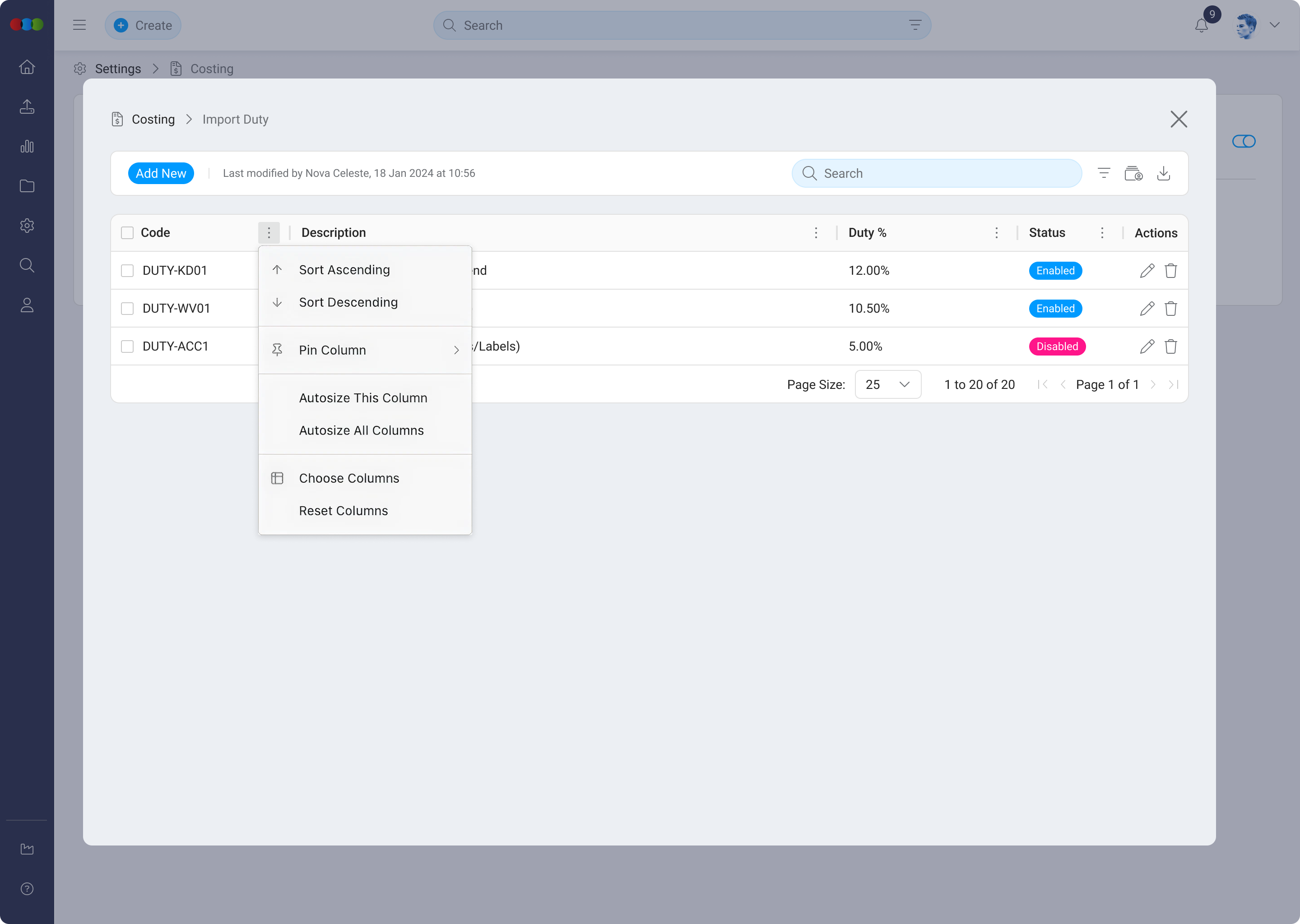
Usage in Costing
Import duty entries are available in Costing > Supplier for Import costing types. You can set a different duty per market so the landed cost reflects the correct import charge for each destination.
When you add a new market to an existing costing, the system applies the Import Duty percentage selected at the supplier level. The duty amount displays when the costing loads or refreshes.
For full details, refer to Costing › Import Type and the Costing Overview.
Scenario 1: Importing Garments from China
A buying team imports garments from China into Australia. Finance confirms a duty rate for that product category, so the admin creates an import duty code such as "CN-GARMENT".
When the team builds an import costing, they select this duty in Costing > Supplier. The landed cost then includes the correct duty amount before the team reviews margin and retail pricing.
Scenario 2: Different Duty by Market
A product is supplied by the same vendor but sold into Australia and New Zealand. Each market has a different duty rate.
The admin creates separate import duty entries for each market. In Costing > Supplier, the user selects the relevant duty per market so each landed cost is calculated using the correct destination rate.
Best Practice
- Use country or market-specific codes where duty rates differ.
- Disable old duties instead of deleting them if they may be needed for history.
- Review duty rates regularly with your finance or customs team.
Troubleshooting
Why is the import duty amount zero or missing on a costing?
Duties apply when the costing uses Import type logic and a duty is selected for the supplier or market.
Steps to resolve:
- Confirm the costing template type is Import.
- Open Costing > Supplier and select an Import Duty for the relevant market.
- Check the duty Status is Enabled.
- Reload or refresh the costing after saving supplier changes.
Why can I not delete an import duty I no longer need?
The duty may still be referenced by historical costings or audit records.
Steps to resolve:
- Set Status to Disabled to stop users selecting it for new costings.
- Use Export or History if you need a record of the previous rate.
- Confirm no active costings reference the duty before requesting data cleanup support.
Why did my duty rate change after I edited the record?
Import duty values are stored on the duty entry. Editing the rate can affect future calculations when costings using that duty are refreshed.
Steps to resolve:
- Download History to compare the previous and current rates.
- Confirm the effective date of the new rate with finance.
- Re-open and refresh affected costings if your process requires recalculation.