Template
The Template section controls how 3 Clicks calculates and displays costings. A template sets the costing type, currency rules, exchange rates, default cost values, and pricing calculations used when a costing is created.
Use templates to keep costing logic consistent across product types, customers, departments, or markets. Currency settings are especially important because they control how supplier costs are standardised and converted for each selling market.
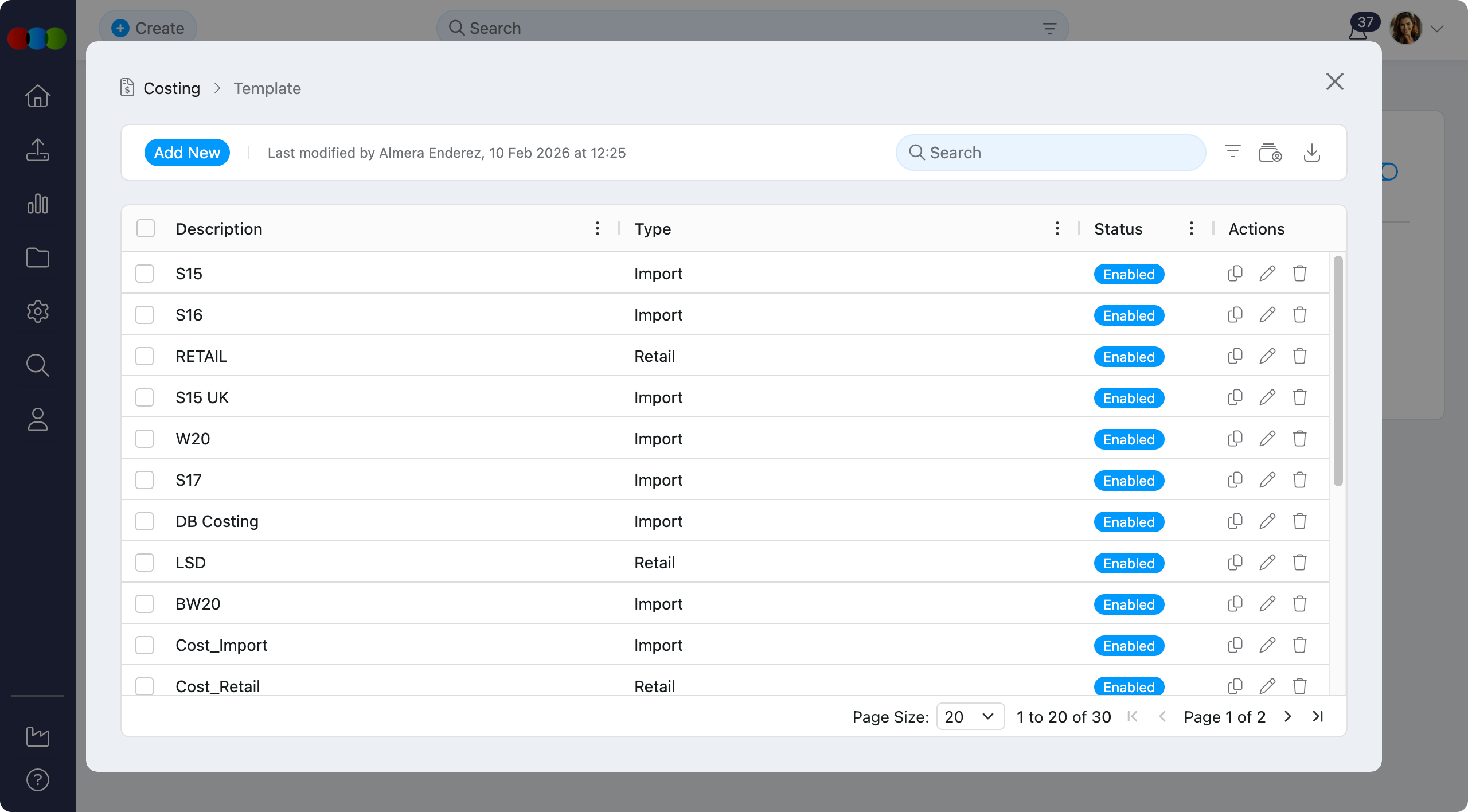
Quick Check - Before You Start
- Confirm you can edit Site Settings › Costing › Template; changes affect every new costing that selects the template.
- Choose the correct Type (Import, Component, Retail) before investing in License Royalty or Pricing calculations—those features are type-restricted.
- Gather Base Currency and Exchange Rate decisions from finance; incorrect rates skew every downstream cost and Style Price automation.
Fields and Descriptions
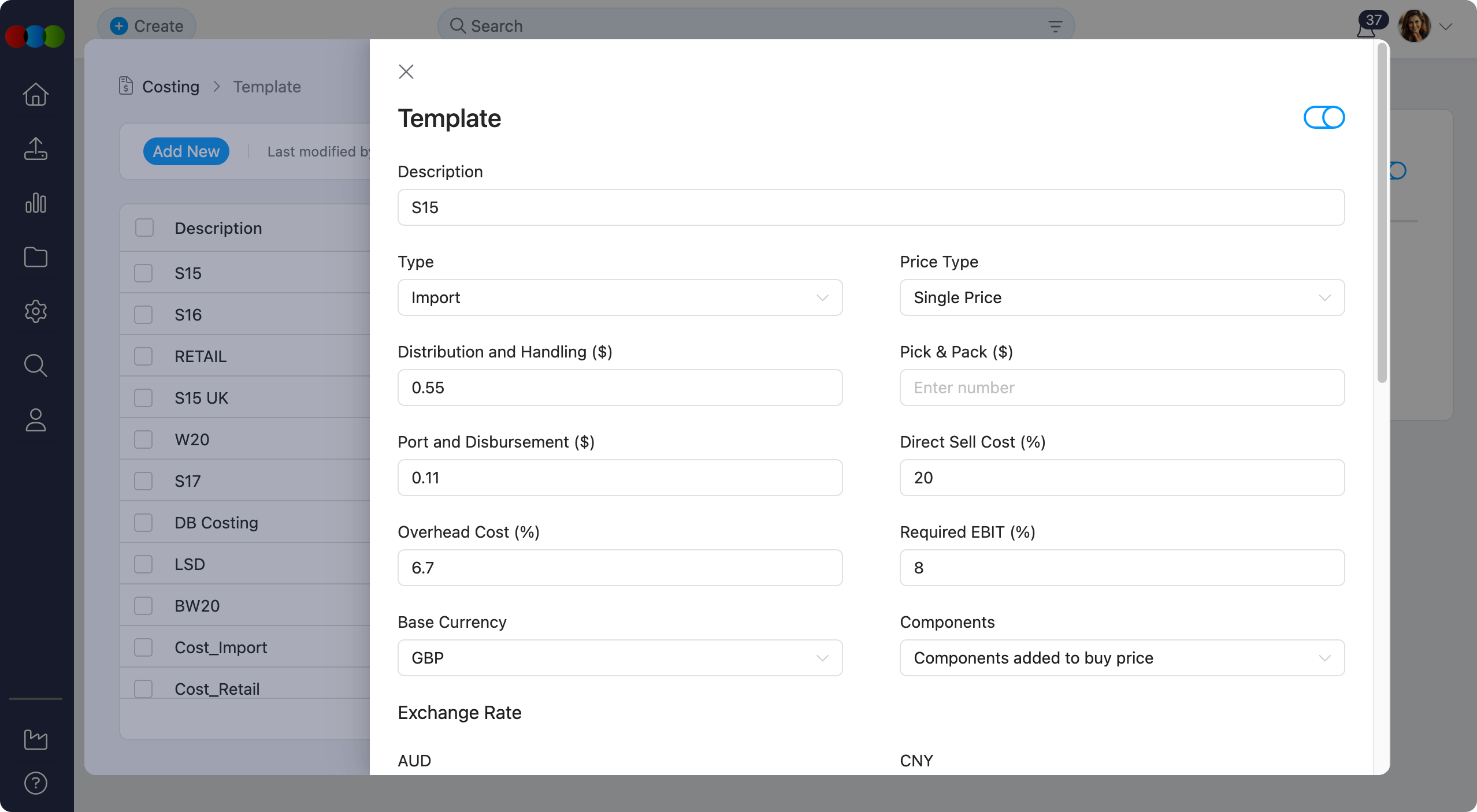
Template Configuration Fields
| Field | Description |
|---|---|
| Description | A free-text field that allows you to enter a descriptive name or notes about the template. This helps identify the template's purpose and usage. |
| Type | Select the template type that determines the costing methodology: • Import – Used for imported products with import duties and freight calculations • Component – Used for component-based costing where components form the buy price • Retail – Used for retail costing with mark-up calculations |
| Price Type | Defines how prices are structured in the costing: • Single Price – One price applies to all colours • Price by Colour – Different prices can be set for each colour; in retail costings, Finance Cost and Production Overhead in Costing > Style are shown by colour, and Costing > Supplier uses a colour-level layout (including Final Buy Price, Quantity, and Status per colourway). See Costing › Retail Costing Type. |
| Distribution and Handling ($) | Enter the fixed dollar amount for distribution and handling costs. This value is added to the total cost calculation. |
| Pick & Pack ($) | Enter the fixed dollar amount for pick and pack operations. This value is added to the total cost calculation. |
| Port and Disbursement ($) | Enter the fixed dollar amount for port charges and disbursements. This value is added to the total cost calculation. |
| Freight In | Set a default Freight In for each costing template. When you add suppliers in Costing > Supplier, the default Freight In is automatically populated on the Supplier row and on each Market row. When you select a template in the costing creation pop-up, the default Freight In is displayed—you can edit it before creating the costing if needed. Freight is managed in the Costing > Supplier section. |
| Direct Sell Cost (%) | Import template only. Enter the percentage value for direct selling costs. This percentage is applied to the cost calculation. |
| Overhead Cost (%) | Import template only. Enter the percentage value for overhead costs. This percentage is applied to the cost calculation. |
| Finance Cost (%) | Retail template only. Enter the percentage value for finance costs. This percentage is applied to retail costing calculations. |
| Production Overhead (%) | Retail template only. Enter the percentage value for production overhead costs. This percentage is applied to retail costing calculations. |
| Required EBIT (%) | Enter the required Earnings Before Interest and Tax (EBIT) percentage. This percentage is applied to ensure profitability targets are met. |
| Base Currency | Select the currency your business uses to standardise costing results, such as AUD for an Australian business. The Base Currency acts as the central costing currency, and exchange rates are applied from it to support market-specific pricing. Available options include AUD, CNY, EUR, GBP, HKD, JPY, NZD, and USD. |
| Components | Define how components are used in the costing calculation: • Components are the buy price – Component costs directly form the buy price • Components added to buy price – Component costs are added to an existing buy price |
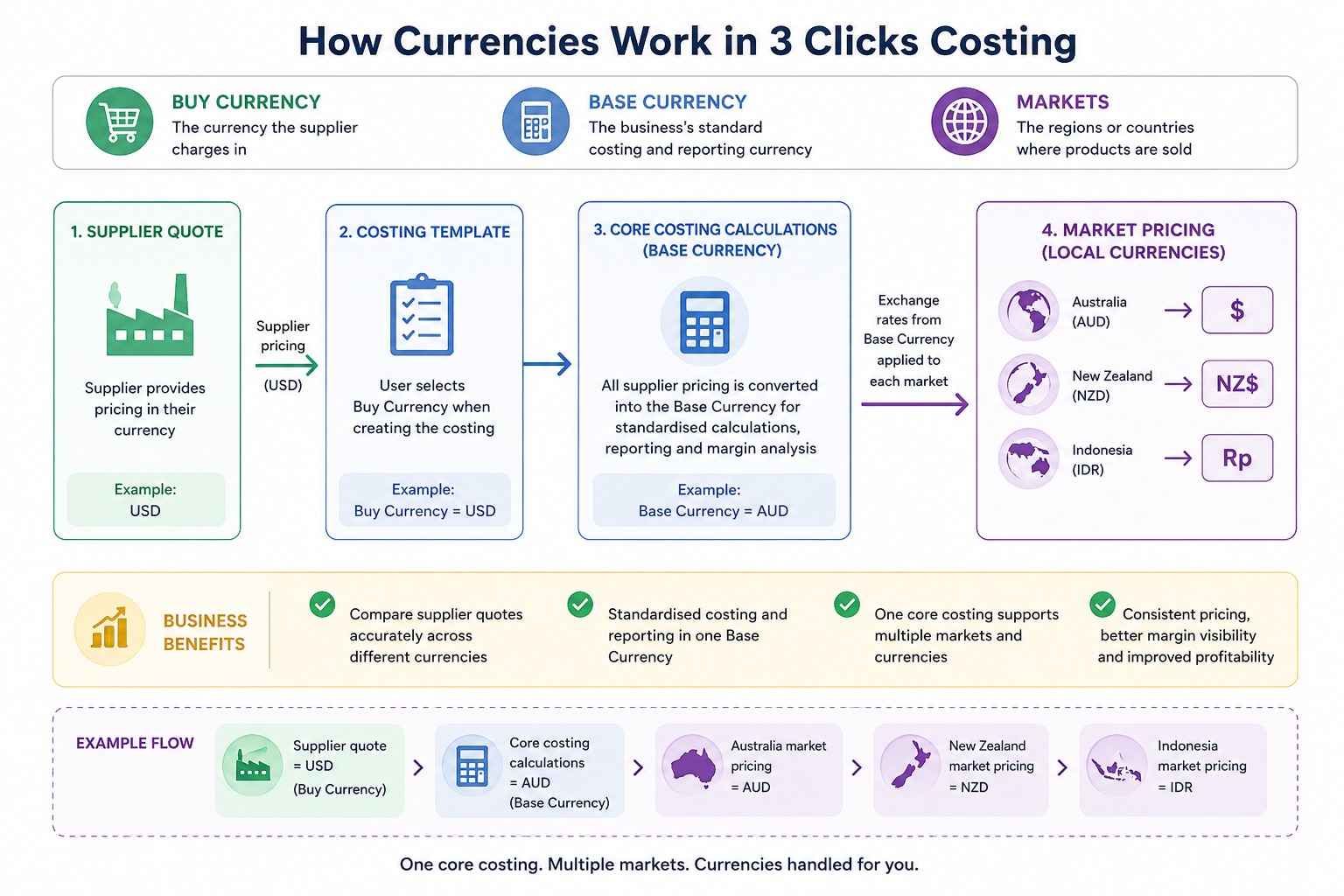
How Currencies Work in Costing
In apparel businesses, suppliers often provide quotes in one currency, while the business manages costing, reporting, and margin analysis in another. 3 Clicks supports this by separating Buy Currency from Base Currency, allowing users to manage global sourcing while maintaining consistent costing across the business.
To simplify it:
- Buy Currency = the currency the supplier charges in
- Base Currency = the business’s standard costing and reporting currency
- Markets = the regions or countries where products are sold
When users create a costing, they select the supplier’s quote currency as the Buy Currency. The Costing Template then converts the supplier pricing into the Base Currency so the business can standardise calculations, reporting, and margin analysis across all products and suppliers.
This is especially important for apparel companies sourcing internationally, as factories may quote in USD or CNY while the business operates in AUD.
Standardising costings into a single Base Currency helps users compare supplier quotes accurately, manage profitability, and reduce currency-related inconsistencies.
Moreover, when multiple markets are configured, 3 Clicks also applies exchange rates from the Base Currency to calculate market-specific pricing automatically. This allows one core costing to support multiple regional selling currencies without creating separate costings for each market.
Sample Scenario 1: Australian Fashion Brand Sourcing from China
An Australian apparel company sources garments from a factory in China. The factory provides all supplier quotes in USD, but the business manages its costing, reporting, and margin analysis in AUD.
Configuration:
- Buy Currency = USD
- Base Currency = AUD
- Markets = Australia and New Zealand
How It Works:
- The supplier submits a quote in USD.
- Users create the costing and select USD as the Buy Currency.
- The Costing Template converts the supplier pricing into AUD using the configured exchange rate.
- All core costing calculations, margin analysis, and reporting are standardised in AUD.
- The system then automatically converts pricing for the New Zealand market into NZD.
How it helps you:
- The business only maintains one core costing template.
- Finance and merchandising teams can compare supplier quotes consistently.
- Market pricing is automatically localised without duplicating costings.
Sample Scenario 2: Australian Sportswear Brand Selling Across Multiple Regions
An Australian sportswear company sources products from multiple factories across Asia. Some factories provide quotes in USD, while others quote in CNY. Although the business purchases globally, all internal costing, reporting, and margin analysis are managed in AUD.
Configuration:
- Buy Currency = USD or CNY (depending on supplier)
- Base Currency = AUD
- Markets = Australia, New Zealand, Indonesia, and Singapore
How It Works:
- Each supplier quote is entered using its original purchase currency.
- 3 Clicks converts all supplier pricing into AUD using the Costing Template Base Currency.
- The business reviews all costings, profitability, and reporting in AUD.
-
Exchange rates are then automatically applied for each market:
- Australia = AUD
- New Zealand = NZD
- Indonesia = IDR
- Singapore = SGD
How it helps you:
- Teams can compare supplier costs consistently, even when suppliers quote in different currencies.
- One standardised costing supports multiple international selling markets.
- Pricing remains consistent across regions while reducing manual currency calculations.
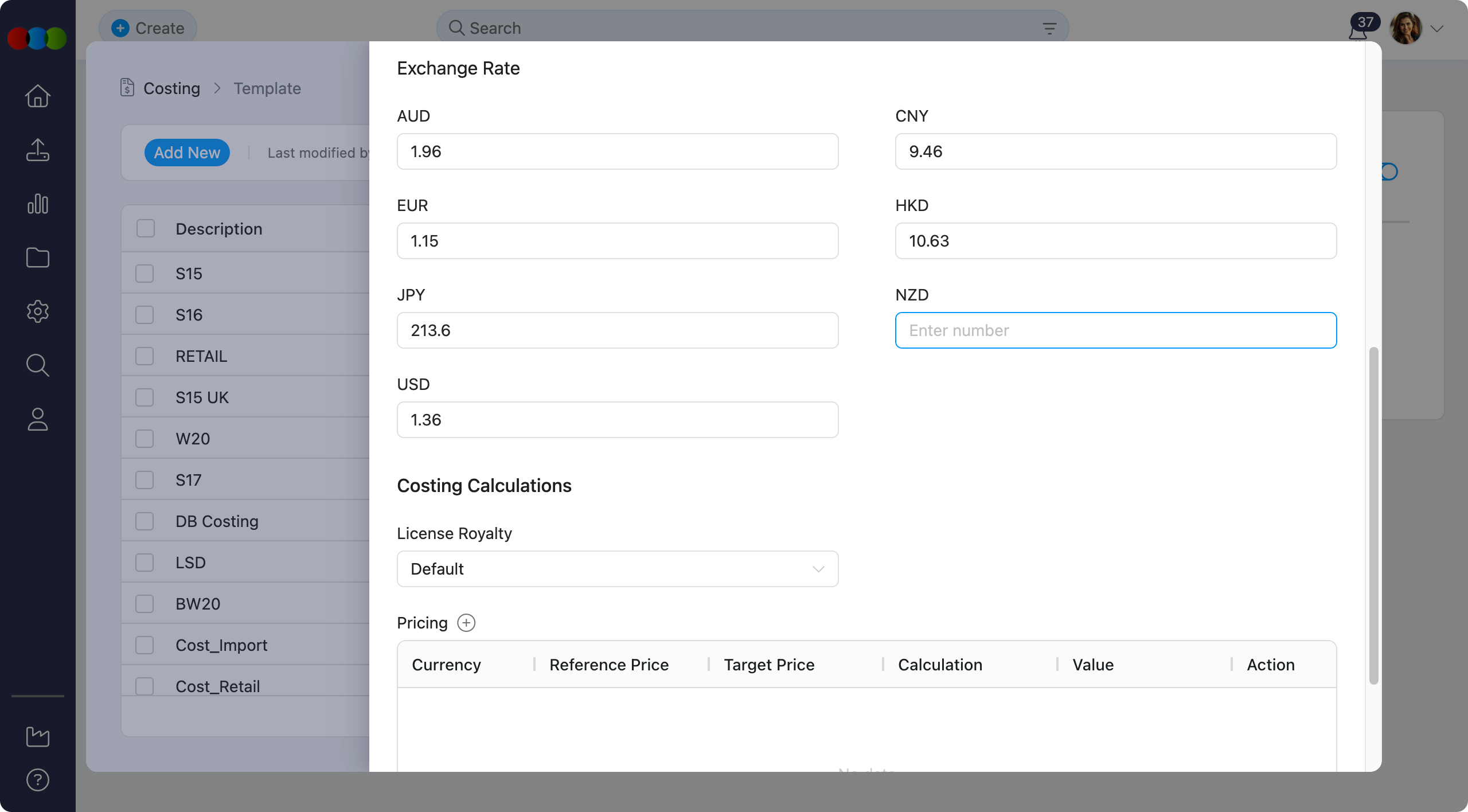
Exchange Rate Section
The Exchange Rate section stores rates for currencies other than the Base Currency. These rates are used to convert the core costing into the currencies needed for supplier costs, market pricing, and Style Price calculations.
Available currencies for exchange rate configuration:
- CNY (Chinese Yuan)
- EUR (Euro)
- GBP (British Pound)
- HKD (Hong Kong Dollar)
- JPY (Japanese Yen)
- NZD (New Zealand Dollar)
- USD (US Dollar)
Available Currencies
The currencies available in the Exchange Rate section depend on the selected Base Currency.
For example, when GBP is set as the base currency, GBP is excluded from the Exchange Rate list, and all displayed rates should be calculated based on GBP.
Costing Calculations Section
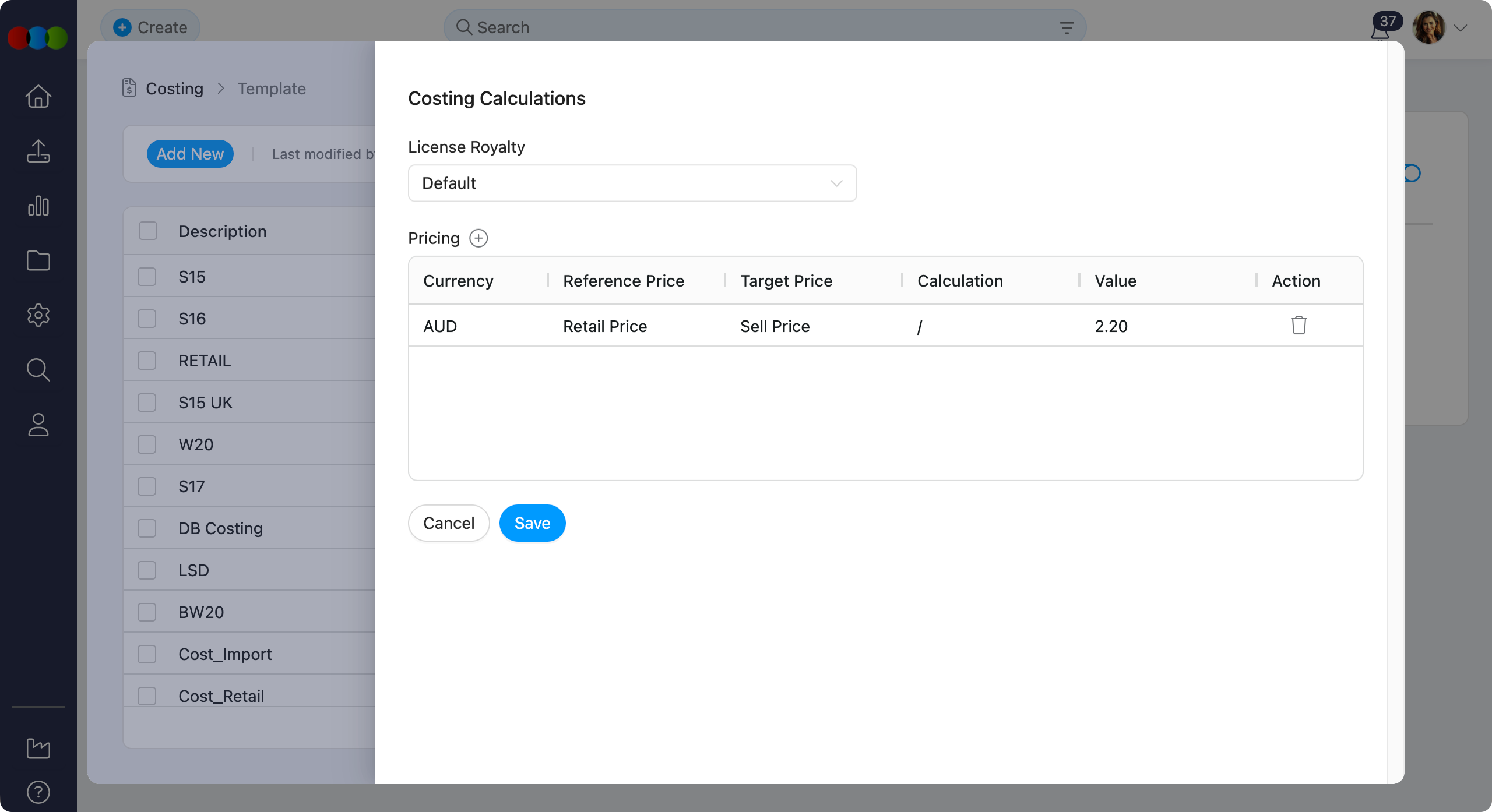
The Costing Calculations section enables you to configure additional calculation logic that applies to costings created with this template.
| Calculation Type | Description |
|---|---|
| License Royalty | Configure royalty calculations for licensed products. Options include: • Default – No change to current behaviour in the Costing • Custom 1 – Applies a custom calculation in the Costing See the License Royalty section below for calculation formulas and application rules. |
| Pricing | Configure automated Style Price calculations per currency. This feature enables automatic price population between Retail Price and Sell Price fields. See the Pricing section below for detailed configuration instructions. |
Template Type Requirement
The License Royalty calculation option is only available for Import type templates. This feature is not applicable to Component or Retail template types.
License Royalty
The License Royalty option allows you to select the calculation method used for royalty calculations in costings created with this template.
Calculation methods
| Method | Formula |
|---|---|
| Default | (Royalty Sell Price Local % × Sell Price $) + (Royalty Buy Local % × Buy Price Local $) + (Royalty RRP Local % × RRP Local $) |
| Custom 1 | ((Royalty Sell Price Local % × Sell Price $) + Buy Price Local $) × Royalty Buy Local % |
Costing application
When applying this template to a Costing, the Custom 1 calculation is only applied when the selected License Royalty is configured with the combination of:
- Sell Local %
- Buy Local %
If this combination is not present in Costing > License Royalty, the Custom 1 calculation is ignored.
Custom 1 support
The Custom 1 calculation is supported in Costing > Supplier > Quotes and the Costing Quotes report.
Pricing
The Pricing feature in the Costing Calculations section automates Style Price calculations across different currencies.
This functionality simplifies price entry and helps keep Retail and Sell Prices consistent. When you enter either a Retail Price or a Sell Price in a Costing record, the system automatically calculates and fills in the corresponding price based on your configured pricing rules and calculation values.
By defining your pricing logic in advance, you can ensure accurate, consistent pricing without the need for manual calculations.
Template Type Requirement
Pricing calculations are only available for Costing Template Type > Import. This feature is not applicable to Component or Retail template types.
Pricing calculations are configured in the Costing Calculations section of your Costing Template. Click Add new calculation option and select Style Price to begin configuring pricing calculations.
You can add multiple pricing calculations—one per currency. The system displays all currencies listed in the Exchange Rate section as well as the Base Currency configured in the template.
| Field | Description |
|---|---|
| Currency | Select the currency for this pricing calculation. Available options include all currencies displayed in the Exchange Rate section (CNY, EUR, GBP, HKD, JPY, NZD, USD) as well as the Base Currency configured in the template. |
| Reference Price | Choose the source price field that will be used as the basis for the calculation: • Sell Price – Uses the sell price as the reference • Retail Price – Uses the retail price as the reference |
| Target Price | Choose the destination price field that will be automatically populated based on the calculation: • Sell Price – The sell price will be calculated and auto-populated • Retail Price – The retail price will be calculated and auto-populated |
| Calculation Method | Select the mathematical operation to be applied: • Division (/) – Divides the reference price by the specified value • Multiply (*) – Multiplies the reference price by the specified value |
| Value | Enter the numerical value used in the calculation. This value is applied to the reference price using the selected calculation method to determine the target price. |
| Action | Description |
|---|---|
| Adding New Calculation | Click the plus icon to add a new pricing calculation. 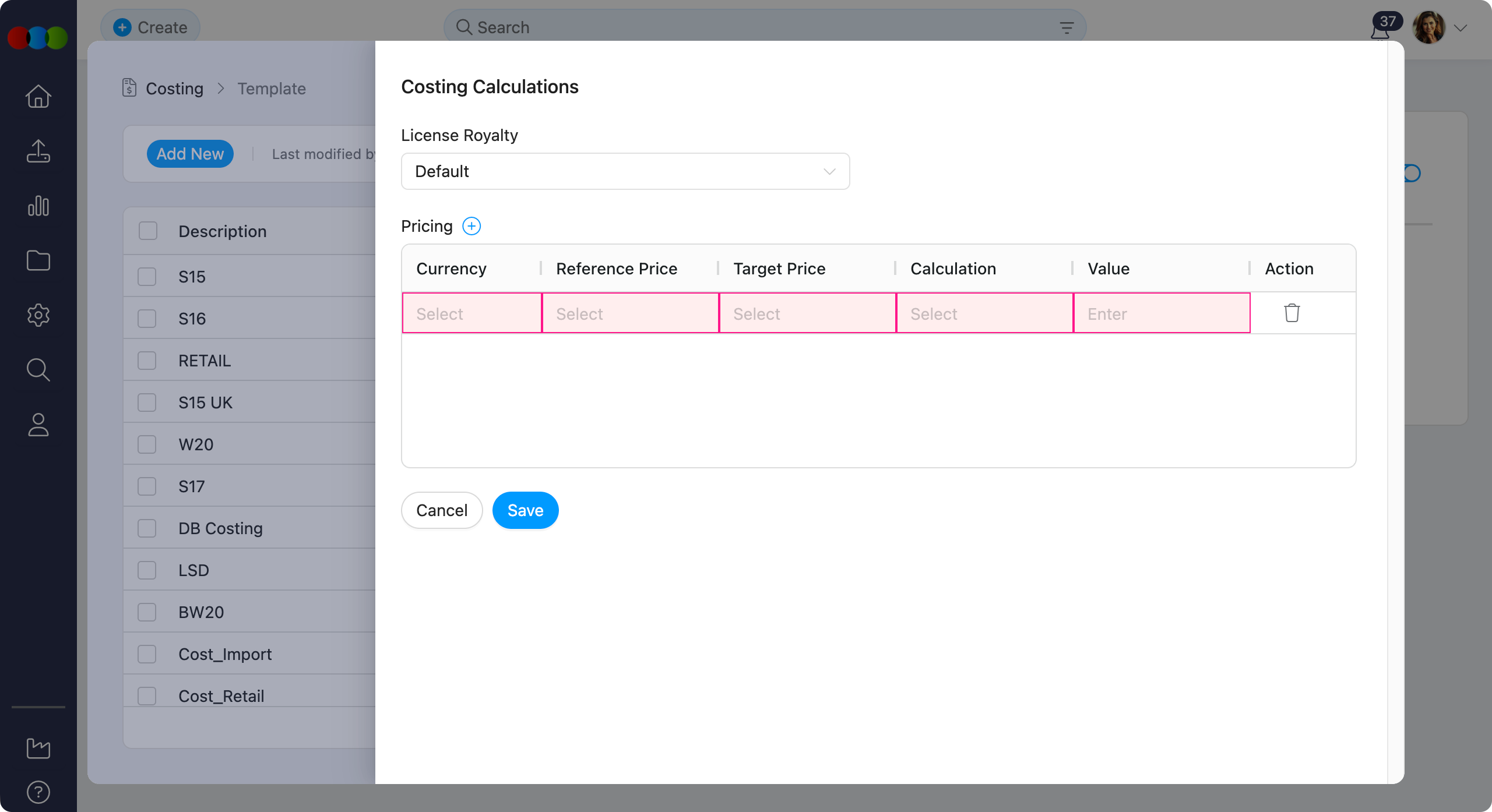 |
| Deleting Calculation | Click the delete icon next to an existing calculation to remove it. 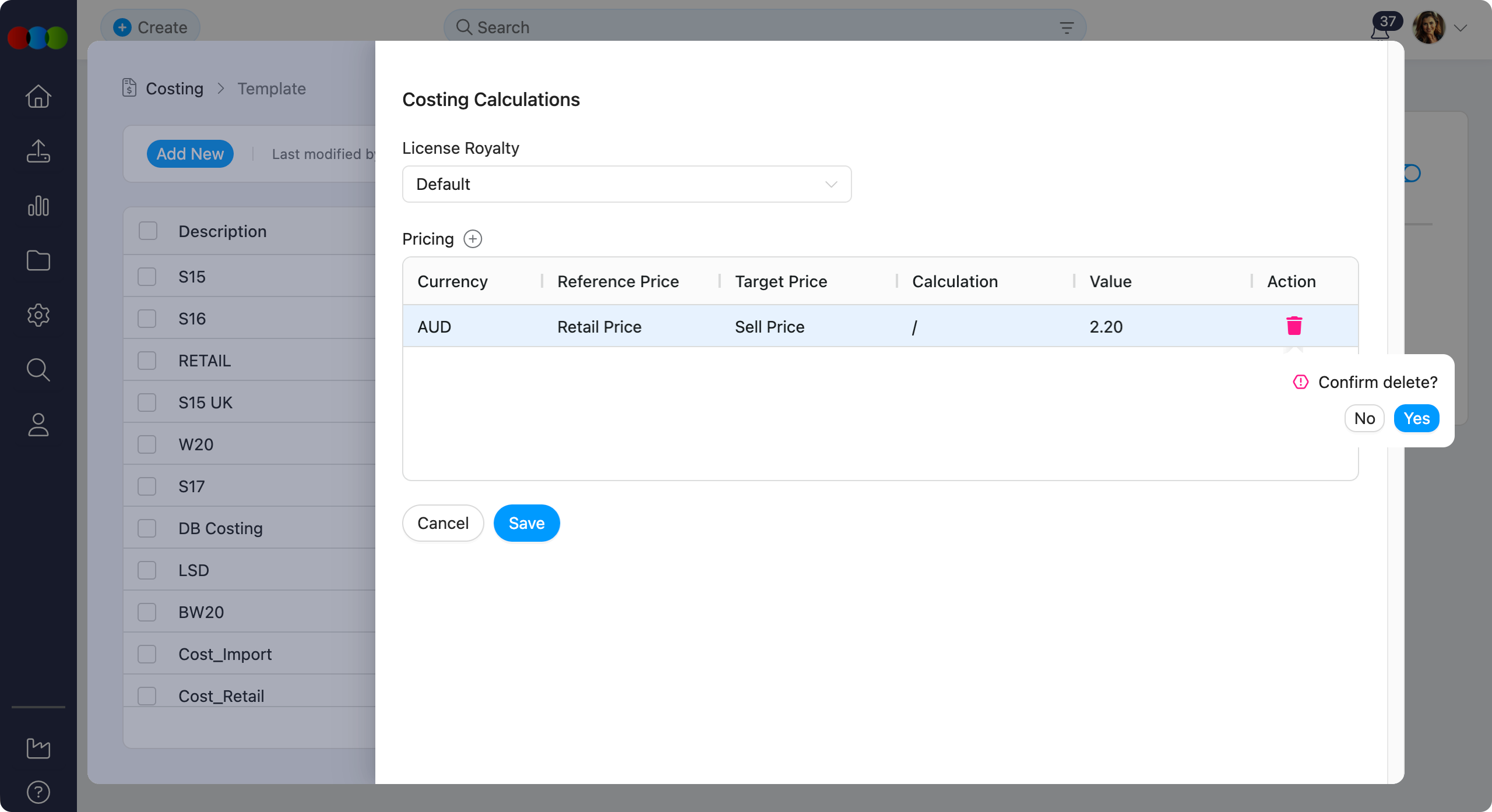 |
| Saving Changes | Click Save to apply all changes to the template. 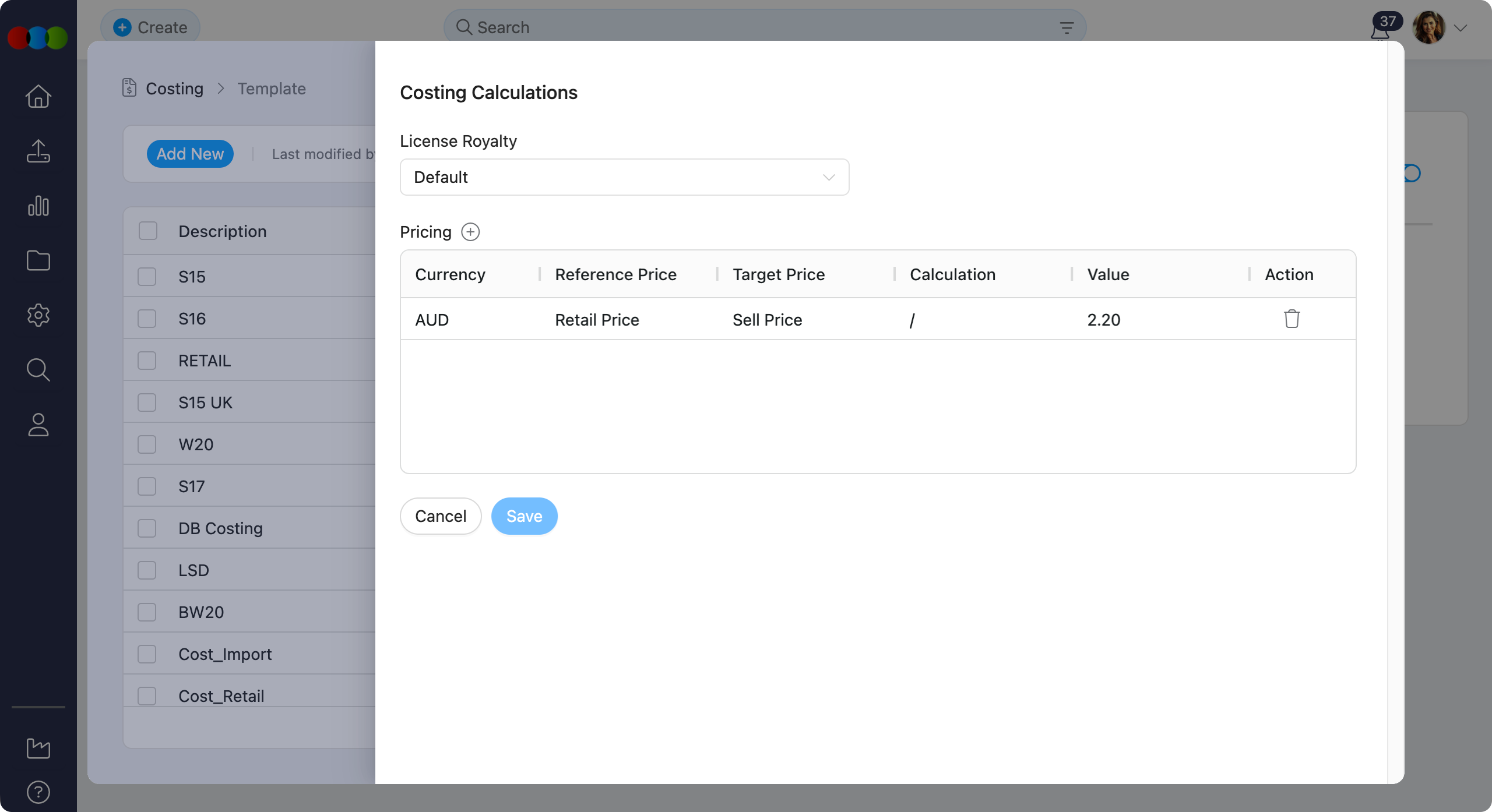 |
Example Pricing Configuration
The following example demonstrates how pricing calculations work in practice:
The configuration for Costing Calculation is:
- Currency: AUD
- Reference Price: Retail Price
- Target Price: Sell Price
- Calculation Method: Division (/)
- Value: 2.2
When entering a Retail Price of $80.00 AUD in the Costing:
- Calculation: Retail Price AUD / 2.2
- Sell Price: $80.00 AUD / 2.2 = $36.36 AUD
The Sell Price is automatically populated with $36.36 AUD, eliminating the need for manual calculation.
Managing Templates
Add Template
- Click the Add New button at the top left.
- Fill in all required fields such as template name, structure, and layout.
- Click Save to create the new template.
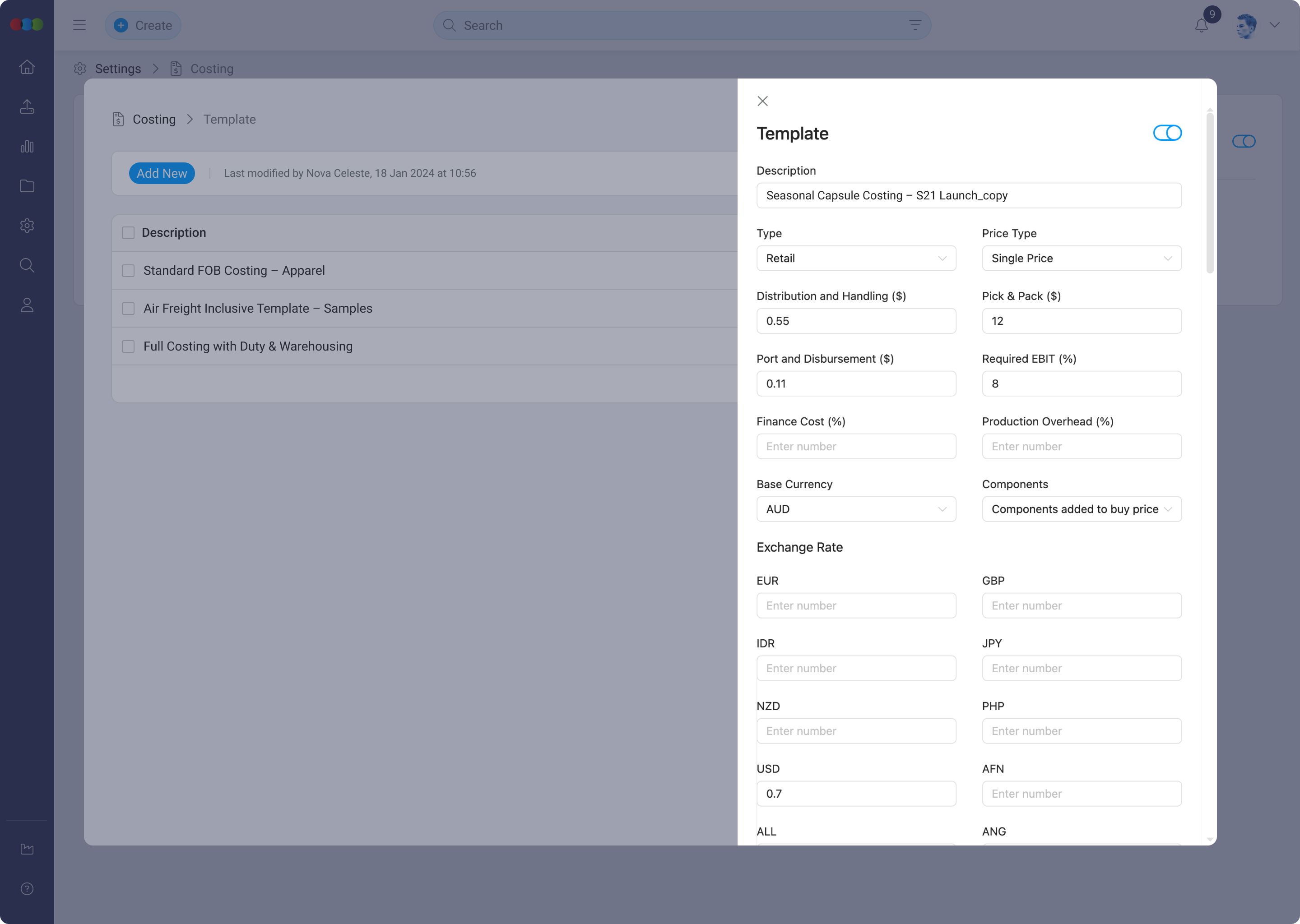
Edit Template
- Click the pen icon next to the template you want to modify.
- Make necessary changes to fields, sections, or logic.
- Click Save to update the template.
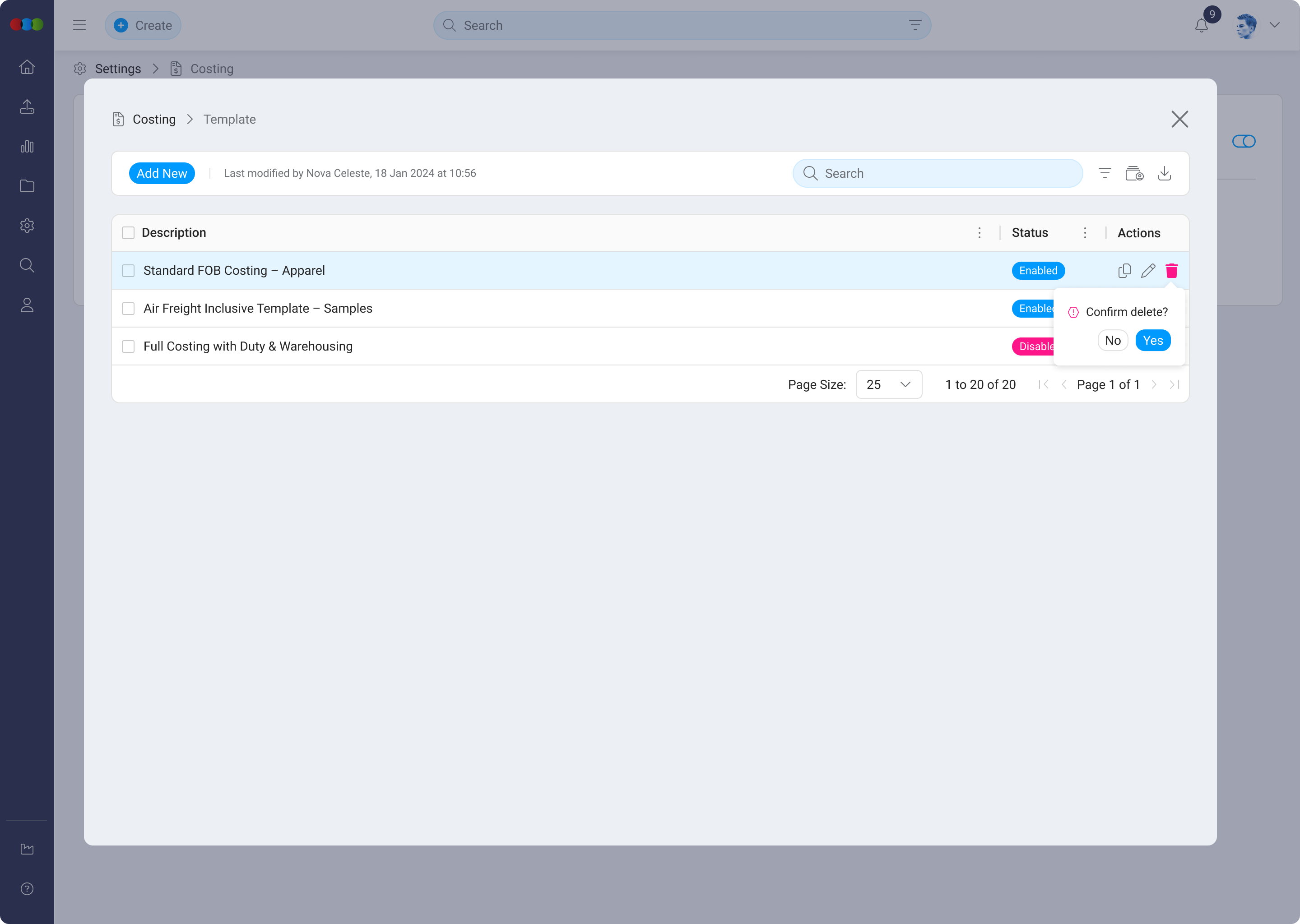
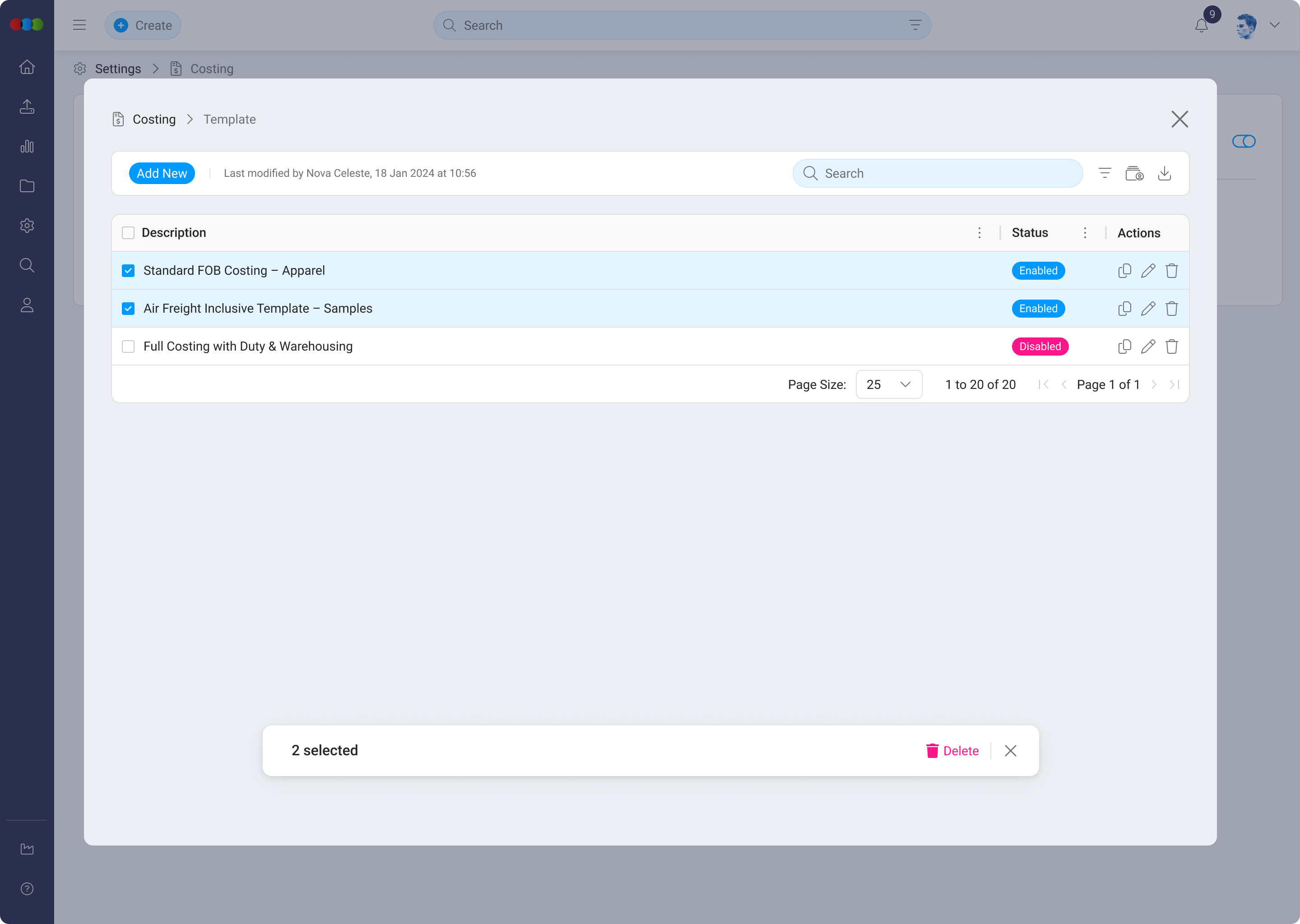
Delete Template
- Single delete: Click the trashcan icon and confirm deletion.
- Bulk delete: Select multiple templates using checkboxes and confirm deletion.
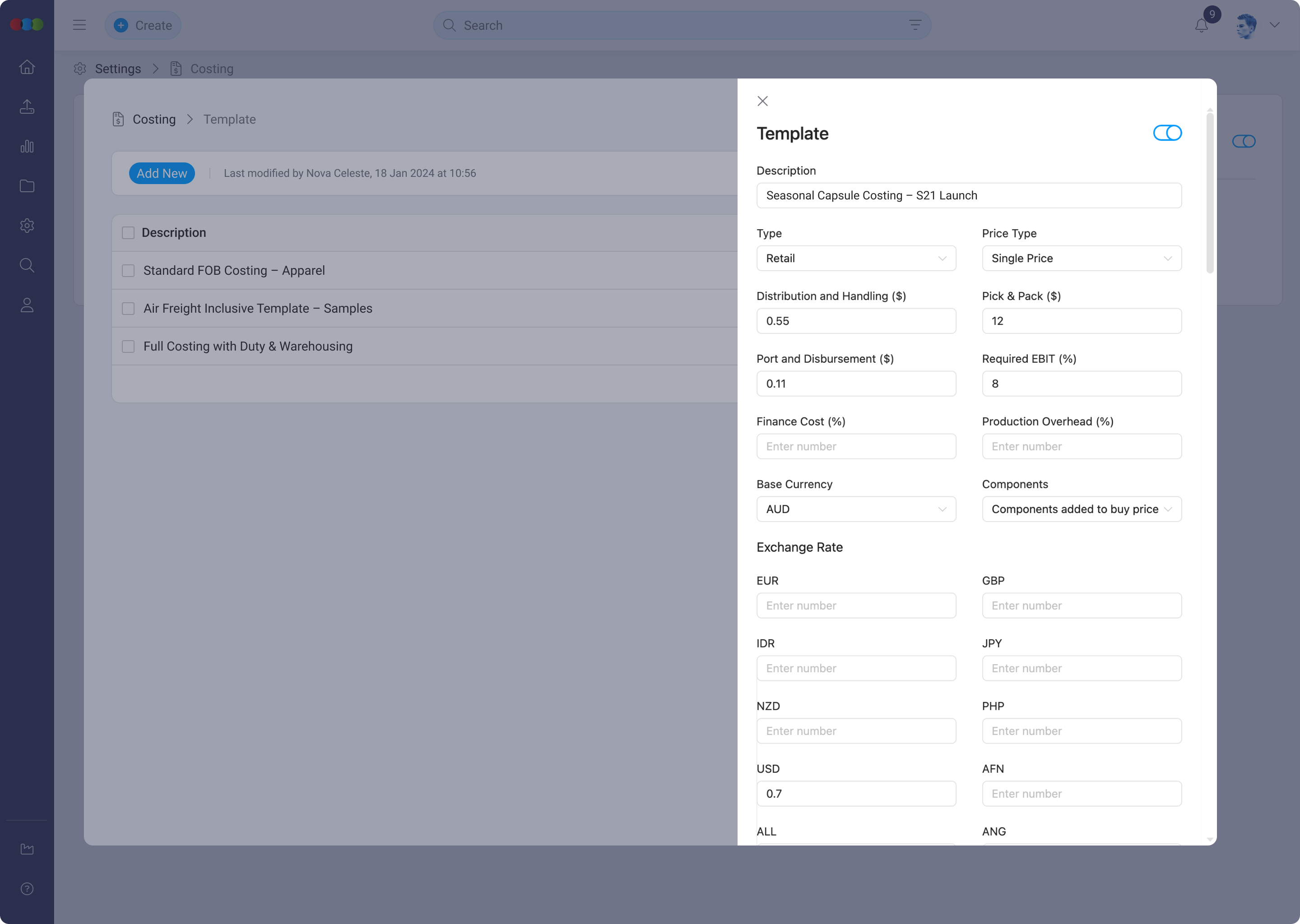
Duplicate Template
- Click the duplicate icon on the desired template.
- Edit the duplicated version as needed.
- Click Save to create the new template copy.
Other Actions
- Filter – Filter templates by status (Enabled/Disabled).
- Export – Download the complete list in
.xlsxformat. - History – Download a log of template changes and version history.
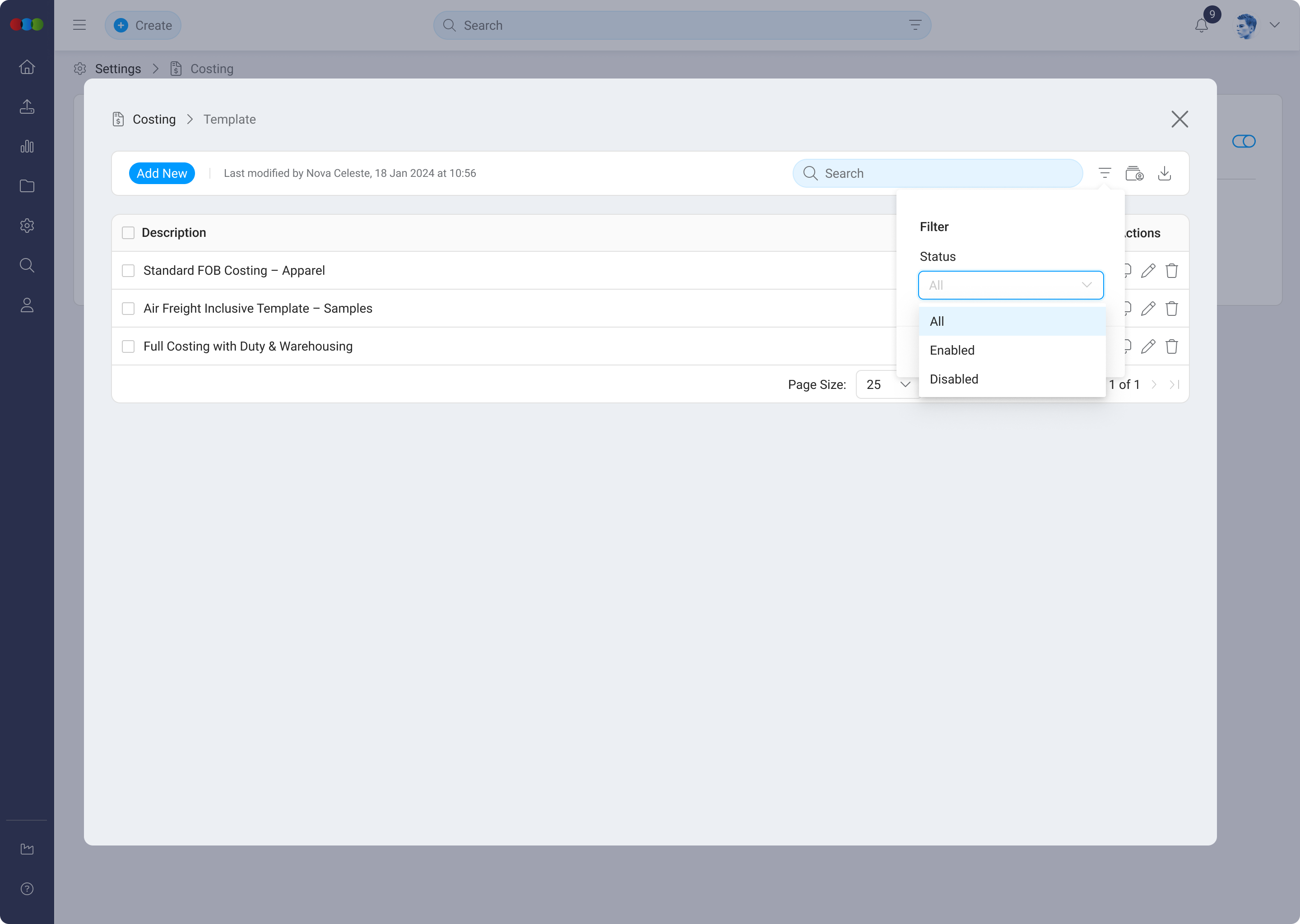
Table Flexibility
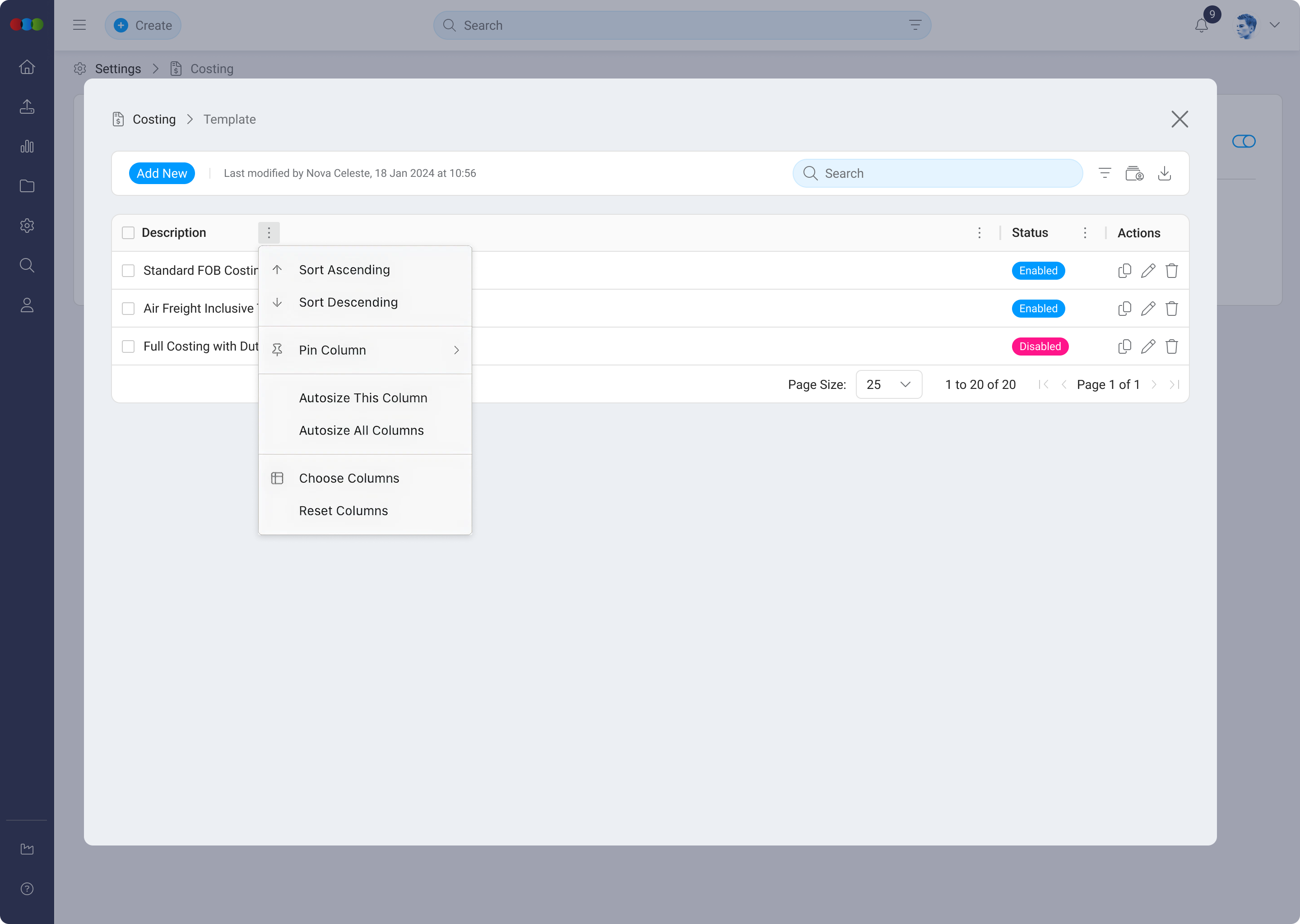
Users can tailor the table layout using the following controls:
| Feature | Description |
|---|---|
| Sort by | Reorder templates by name, status, or type. |
| Pin Column | Lock important columns in place while scrolling. |
| Autosize Column | Automatically resize columns to fit their content. |
| Choose Columns to Display | Show or hide individual table columns. |
| Reset Columns | Return the table to the default configuration. |
Tip
- Configure calculations for all currencies you regularly use to ensure consistent pricing across markets.
- Test your calculations with sample prices before finalising the template to verify accuracy.
- Document your calculation logic (e.g., "Sell Price = Retail Price ÷ 2.2") for team reference.
- Review and update calculations periodically to reflect changes in pricing strategies or mark-up requirements.
- Ensure the Reference Price and Target Price are different fields to enable the auto-population functionality.
- Duplicate templates to quickly create variations for different customers or costing methods.
- Use descriptive template names (e.g., "Retail BOM – US" or "Wholesale Pricing – APAC") for easier identification.
- Export and archive templates before making structural changes.
Related Documentation
- Site Settings > Company > Suppliers - Costings
- Site Settings > Company > Customer - Managing Customers
Troubleshooting
Why are License Royalty or Pricing options missing from my template?
License Royalty and Pricing calculations are available only for Import type templates, as noted in the on-page info admonitions.
Steps to resolve:
- Duplicate or edit a template whose Type is Import, or change the type if business rules allow.
- Save the template and reopen Costing Calculations to confirm the options appear.
- For Component or Retail workflows, use the calculation features supported for those types instead.
Why is Custom 1 royalty not affecting my costing totals?
Custom 1 applies only when the costing’s License Royalty configuration includes both Sell Local % and Buy Local %; otherwise the calculation is ignored.
Steps to resolve:
- Open Costing › License Royalty on the record and verify the percentage pair required for Custom 1.
- Cross-check Costing › Supplier › Quotes and the Costing Quotes report where Custom 1 is supported.
- Fall back to the Default method if the combination cannot be maintained.
Why did Style Price automation stop after I changed Base Currency or Exchange Rates?
Pricing rows list every currency from Exchange Rate plus Base Currency. Changing either removes or adds currency rows and invalidates old calculation rows tied to retired currencies.
Steps to resolve:
- After currency changes, reopen Costing Calculations › Style Price and rebuild rows for each active currency.
- Click Save on the template before testing a live costing.
- Use History or Export (from the template list actions) to recover prior values if you need to roll back a change.